
What’s actually slowing this PC down?
Pick the symptom - the matching free tool is one click away.
Yes—Haiku can be built for ARM64 and booted in QEMU, but this is an early, unstable development port, not a supported release for everyday use. The Haiku Project’s ARM64 compilation guide, published September 11, 2026, documents the build and QEMU boot paths. It requires building from source and bootstrapping packages; there is no ready-to-install ARM64 package set.
What Haiku ARM64 in QEMU does—and does not—mean
The Haiku guide describes the port plainly: “The state of the ARM64 port is early. Roll up your sleeves and help out!” The project’s downloads overview lists x86 and x86_64 as supported targets and describes non-x86 builds as unsupported, for development and testing. The separate ARM downloads page also warns that its generic ARM images may not yet work because EFI bootloader work is ongoing. Those ARM images should not be assumed interchangeable with the 64-bit ARM64 build described here; follow the ARM64 guide for this workflow.


A successful boot using QEMU’s generic virt machine would show progress on that virtual configuration. It would not establish that Haiku works on a particular physical ARM board. QEMU notes that Arm systems vary substantially and that operating-system images made for one machine model often do not work on another; see its Arm System emulator documentation.
Build an ARM64 Haiku image
The official route starts with Haiku source and builds the ARM64 cross-tools. Before expecting a complete system, account for a key limitation: ARM64 packages are not prebuilt in the repository. The guide requires bootstrapping the base HaikuPorts packages from source on another operating system, making this a developer workflow rather than a one-click installation.
The Tool Desk
Outbyte Driver Updater FREEScan for outdated or missing drivers - takes under a minuteDriver Scan →Outbyte PC Repair FREERepair Windows errors before they cause bigger problemsFix Now →#1 Best Overall
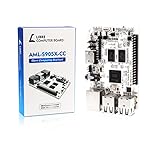
- LATEST SOFTWARE SUPPORT: Ubuntu 22.04 LTS and Raspbian 11 support with hardware-accelerated video playback and 3D graphics. Upstream software stack featuring the latest Linux 6.x with open source graphics and video libraries. UEFI support with GRUB sofware behaves like PCs. Direct first software support and community hub for third party help to get started. Video tutorials on YouTube for commonly asked questions.
- COMPATIBILITY AND EXTENSIBILITY: Great RPi alternative with same form factor as Pi 3 Model B for re-use with existing cases and power supplies. Identically designed 40-pin header enables hardware re-use by maintaining same pins for functions like SPI, I2C, PWM, UART, and more. Powerful GPIO wiring tool, libretech-wiring-tool, is available on Github that can quickly toggle GPIOs and dynamically control dtoverlays for faster design, testing, and learning.
- HIGH PERFORMANCE LOW POWER: AML-S905X-CC performs faster than a Pi 3 B+ while using half the power. It is designed with power optimizations to increase sustained performance under load and reduce failures due to input voltage and current. It is one of the first SBCs to support 4K multi-codec hardware decoding and features a highly performant OpenGL ES 2.0 GPU for accelerated 2D/3D.
- FASTER CPU AND DOUBLE THE MEMORY: Quad 64-bit 1.5GHz ARM Cortex-A53 Processors, 4K Ultra HD ARM Mali-450 750MHz GPU, 2GB of High Bandwidth DDR3, 4K 60FPS High Dynamic Range Display Engine for H.265 HEVC, H.264 AVC, VP9 Hardware Decoding and more. The top performing SBC in its price class.
- OPEN SOURCE COMMITMENT: Libre Computer collaborates with software partners to create upstream infrastructure, drivers, and libraries for open-source projects such as Linux and u-boot that power our products. This enables us to support the latest software innovations created by the community and ensures that our products have the necessary security and software performance innovation for long term support.
Build the unified image
The simpler documented image choice is a unified MMC image. After setting up the source tree and cross-tools as described in the Haiku ARM64 guide, run:
jam -j2 -q @minimum-mmcThe target creates haiku-mmc.image, intended for ARM hardware or emulators. The command builds a minimum image; it does not turn the port into a supported release.
Rank #2
Build separate EFI and Haiku images
For development setups that need separate images, the guide gives this target:
jam -j2 -q @minimum-raw esp.image haiku-minimum.imageHere, esp.image holds the EFI system partition and Haiku bootloader. haiku-minimum.image holds the BFS filesystem with the kernel and software packages. The guide uses this split-image route in its TianoCore EFI QEMU example.
Boot the unified image with U-Boot
With haiku-mmc.image built and u-boot.bin available, Haiku documents this QEMU command:
qemu-system-aarch64 -bios u-boot.bin -M virt -cpu max -m 2048
  -device virtio-blk-device,drive=x0
  -drive file=haiku-mmc.image,if=none,format=raw,id=x0
  -device virtio-keyboard-device
  -device virtio-tablet-device
  -device virtio-gpu-device
  -serial stdio
This uses QEMU’s 64-bit Arm system emulator, the generic virt machine, 2,048 MiB of memory, U-Boot firmware, and virtio devices for storage, keyboard, tablet, and graphics. The serial connection is attached to standard input and output so you can inspect bootloader and kernel messages.
Boot split images with TianoCore EFI
For the separate esp.image and haiku-minimum.image files, the Haiku guide provides a TianoCore EFI example. Its firmware path is a Fedora example, not a universal location; adjust it to the firmware installed with your QEMU package.
qemu-system-aarch64 -bios /usr/share/edk2/aarch64/QEMU_EFI.fd -M virt -cpu max -m 2048
  -device virtio-blk-device,drive=x0
  -drive file=haiku-minimum.image,if=none,format=raw,id=x0
  -device virtio-blk-device,drive=x1
  -drive file=esp.image,if=none,format=raw,id=x1
  -device virtio-keyboard-device
  -device virtio-tablet-device
  -device virtio-gpu-device
  -serial stdio
The command connects the Haiku filesystem and EFI system partition as separate virtio block devices. If QEMU cannot find the EFI firmware file, locate the TianoCore firmware installed on your system and replace the sample path; do not assume the Fedora path exists on another distribution.
Host-specific example: ARM64 macOS
The guide also shows a macOS setup using QEMU installed through Homebrew. It points to EFI firmware under /opt/homebrew/share/qemu/, and its example uses host CPU acceleration with four virtual CPUs and 8,192 MiB of memory:
qemu-system-aarch64 -M virt -cpu host -accel hvf -smp 4 -m 8192
  -bios /opt/homebrew/share/qemu/edk2-aarch64-code.fd
  -device virtio-blk-device,drive=x0
  -drive file=haiku-minimum.image,if=none,format=raw,id=x0
  -device virtio-blk-device,drive=x1
  -drive file=esp.image,if=none,format=raw,id=x1
  -device virtio-keyboard-device
  -device virtio-tablet-device
  -device virtio-gpu-device
  -device virtio-rng-device
  -netdev user,id=net0 -device virtio-net-device,netdev=net0
  -serial stdio
Firmware locations and acceleration options depend on the host and installed QEMU package. Check that the local firmware file exists and that your QEMU build supports the acceleration option before relying on this example. The guide’s macOS settings are an example configuration, not a general performance recommendation.
Check the serial output when booting
Keep the serial console visible when investigating a failed or incomplete boot. Haiku specifically recommends examining UART output for bootloader and kernel debugging messages. In the commands above, -serial stdio directs that output to the terminal where QEMU runs, which can reveal where startup stops even when the graphical display is blank.
QEMU machine choice and physical hardware
QEMU’s Arm system emulator uses qemu-system-aarch64 for 64-bit Arm and requires a machine model selected with -M or --machine. Haiku’s examples use -M virt, a generic virtual platform. A boot under that model is evidence only for the emulated setup; it does not prove compatibility with a Raspberry Pi or another board. QEMU’s Arm documentation explains why machine-specific images cannot generally be moved between different Arm models.
Quick Recap
Product prices and availability are accurate as of the date/time indicated and are subject to change. Any price and availability information displayed on Amazon at the time of purchase will apply.

