
Do these 3 things before closing this tab:
1Repair Windows errors before they cause bigger problems2Fix the driver behind crashes, sound loss and screen glitches3Clear out junk files and repair common Windows errorsTo share a digital canvas in a Teams meeting, select Share, choose Microsoft Whiteboard, then pick an existing board or start a new one. If you want remote attendees to see a physical whiteboard in the room, use Teams’ separate camera-sharing workflow instead. Which option to use depends on whether attendees need to work on a shared digital canvas or see writing on a physical board.
Choose digital Whiteboard or a camera view
| Option | Best for | What participants get |
|---|---|---|
| Microsoft Whiteboard | Collaborative sessions where people need to add or edit content together, or reuse a board. | A shared digital canvas in the meeting. |
| Content from camera > Whiteboard | Showing writing on a physical board in the meeting room. | A camera view of the room’s board, not a shared digital canvas. |
Share a digital Whiteboard in a Teams meeting
- Join or start the Teams meeting.
- Select Share in the meeting controls.
- In the Whiteboard section, select Microsoft Whiteboard.
- In the board picker, choose an existing board or start a new one.
If a Whiteboard is already associated with the meeting, Teams may select it by default. To choose another, select the Home icon and navigate to a different board. Microsoft documents this sharing workflow in its guide to sharing a Whiteboard in Teams.
Prepare and facilitate the board
For a structured session, prepare a board before the meeting. Microsoft’s project-planning guidance suggests choosing a relevant template, customizing it, and adding useful context such as images or PDFs. A project kickoff template, for example, can give participants a shared place to record ideas and questions.
- Create or select a board for the session.
- Choose and customize a template suited to the discussion.
- Add relevant context, such as images or PDFs.
- During the meeting, use visual cues such as the laser pointer, highlighter, arrows, and sticky notes to direct attention and capture contributions.
Keep instructions clear so participants know where to contribute. People from the same organization can collaborate on the shared canvas by default, and collaborative cursors can show who is working on it. Check Microsoft’s guidance for using Whiteboard in a Teams meeting for details, including external participant considerations.
#1 Best Overall

- 2K QHD WEBCAM THAT WORKS WITH ANY PLATFORMS - Capable of delivering 2K QHD resolution at 2560 x 1400 @ 30 fps*, Creative Live! Cam Sync V3 gives remarkably detailed and smooth visuals, displaying you in full clarity. It’s UVC compliant, which means it requires no additional driver installation, and is compatible with PC, Mac, and most popular conference apps like Zoom, Skype, WebEx, and Teams. *A separate third-party application is required
- 4X DIGITAL ZOOM, FROM CLOSE UPS TO WHITEBOARD PRESENTATIONS - Go from an optimally spaced zoom range that fits 3-4 pax in a group presentation (by default), to perfectly framed head-to-shoulder view (2X zoom) with optimal eye contact, to super zoomed close ups (4X zoom) for when you need to demonstrate a small object to others in the call. Enhance your on-screen clarity and details by accessing 2K (2560 x 1440) resolution when you are on 1X zoom via a third-party app
- DUAL BUILT-IN MICS WITH SMART COMMS FEATURES - With two built-in omni-directional digital microphones, your voice gets picked up clearly and accurately, and you will come off sounding natural and realistic; almost as natural as talking face-to-face. It also comes with our SmartComms Kit, a suite of smart communication features, including NoiseClean-out that removes unwanted background noise, via the downloadable Creative app for Windows
- PRIVACY-PROTECTION LENS CAP - Whether it’s an emergency or just for privacy after use, the integrated lens cover provides protection from unwanted access to your webcam via spyware, so you can feel safe about leaving your camera connected. It also prevents dust from accumulating around the lens edge, keeping it clean for crisp visual clarity
- ADJUST AT WILL WITH 360° ROTATION AND 30° TILT - The webcam comes with a cable length of 1.8m (5.9 ft) and a universal mounting clip that allows it to be attached firmly on any laptop, desktop monitors, or even tripods (not included). It is also fully adjustable with 360° horizontal rotation and 30° tilt, so you can find the best angle according to your needs and look perfect all the time
Show a physical whiteboard through your camera
To show a physical board in the room, share its camera view; this does not create a digital canvas that remote attendees can edit together. Microsoft recommends using the Teams desktop app and a laptop with a built-in or USB-connected camera.
- Start or join the Teams meeting in the desktop app.
- Select Share, then choose Content from camera > Whiteboard.
- Frame the physical board in the preview, then select Share.
- Adjust the camera so the board is centered and readable. Microsoft recommends placing it about 3–4 feet away; good lighting and dark-colored markers can also help.
See Microsoft’s instructions for sharing a whiteboard using your camera. A USB webcam is optional if you need a separate camera; the research does not verify any particular model or brand.
Rank #2

- SHARE THE WHITEBOARD: Leverage your in-room whiteboard so remote attendees can participate during hybrid meetings and classes. Live-stream content on the whiteboard along with a 360° panoramic view of the room.
- ENHANCED WHITEBOARD CONTENT: Enhances the view of writing on the board by increasing contrast, sharpening text, decreasing shadows, and making the presenter transparent.
- FLEXIBLE SETUP OPTIONS: Supports larger whiteboards up to 15’x20’ in size and can be mounted on the wall, ceiling, or a tripod in larger meeting spaces between 7-16’ from the whiteboard. Works with any dry erase markers and non-glass whiteboards. Requires the Meeting Owl 4+, Meeting Owl 3 or Pro (sold separately).
- ENABLED FOR UPDATES AND ENHANCEMENTS: Continuous Whiteboard Owl software improvements to support additional capabilities in the future.
Check access and client differences
Do not assume external attendees can access a board in every meeting or tenant. Microsoft provides separate guidance for external collaboration, so check the applicable setup before relying on it. Features and meeting controls can also vary by client; consult Microsoft’s meeting content-sharing guidance for current options, including mobile sharing.
FAQ
How do I share a Whiteboard in a Teams meeting?
Select Share, choose Microsoft Whiteboard, then select an existing board or start a new one in the board picker.
Quick wins for a faster PC:
Repair Windows errors before they cause bigger problemsFix Now →Scan for outdated or missing drivers - takes under a minuteDriver Scan →Clear out junk files and repair common Windows errorsFree Scan →Rank #3
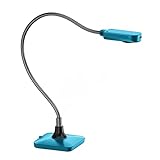
- Ultra high definition image: 5MP CMOS sensor captures live images up to 1920×1080 pixels at 30fps and 2592×1944 pixels at 15fps
- Its small size frees up desktop space .Movable and Bend bracket arm, convenient for storage and carrying, freely adjustable .Maximum shooting area: 16.9X16.53 inches
- Supplemental LED light and bundled anti-glare sheet help eliminate exposure problems under difficult lighting conditions, allowing you to capture images in both dark and bright environments
- Support manual focus lens quickly shifts focus between objects; macro captures objects as close as 10 cm.If you want to rotate the camera, please pay attention to the angle and direction of the.rotation to prevent the USB cable from being damaged due to excessive rotation of the hose.
- Built-in microphone works seamlessly with ZSEEWCAM(our bundled application) and other webinar software for PC (Windows 7/8/10),Chromebook (38.00 or higher). It comes with USB-A cable, Support USB2.0, compatible with USB3.0able to plug and play for distance education and web conferencing suitable for teaching, live broadcast, video conference, office scanning
Can I use an existing Whiteboard in Teams?
Yes. Choose it in the board picker after selecting Share > Microsoft Whiteboard. If a board is already associated with the meeting, Teams may select it by default; use the Home icon to choose another.
How do I show a physical whiteboard to remote participants?
Select Share > Content from camera > Whiteboard, frame the physical board in the preview, and select Share. This shares the camera view, not a collaborative digital canvas.
Rank #4

- 【Angetube Webcam with Mutil-Funtion Ring Light for Better Portrait】 The streamcam built in 3 different colors LED and stepless adjustable brightness to delivery brighter and softer tone light without glare. Single press the touch button to change the color temperatures.A rotating bezel allows for quick, brightness level changes and turn on/off the light without the need to go into software settings.
- 【Designed for Streaming】 Make a great first impression with fans and impress your friends with Angetube 862Pro’s crisp HD webcam 1080p 60 FPS camera with true-to-life colors.Auto low-light correction kicks in to ensure you stand out, even in poor lighting conditions.Real time auto focus make you never have to worry about adjusting the focal length.Plug and play on Xbox one.Widely compatible with livestream software such as OBS.
- 【Zoomable Webcam with RF 360° Omnidirectional Remote Control】 Control your video calls with a remote, so even away from the desk you are still in charge. 5X digital zoom below 1080p, Disable video, mute, adjust the FOV, white balance, and more. Adjust the webcamera brightness in Mac OS / Windows without software. This is a great convenience for Mac users.(Zoom function works at 720p and lower resolutions. It is not available in 1080p mode.)
- 【Built-in Microphone&Privacy Shutter】 Built-in dual omnidirectional mics with noise cancellation ensure that you get clear audio from every angle.The built-in privacy cover and the remote disable video allows you to enjoy safe digital web life when not in use and prevent hackers from spying on you. It is perfect to provide privacy, security, and peace of mind to individuals, groups, organizations, companies, business, and governments.
- 【USB A & C Web cam and Wide Compatibility】 The 1080p webcam works with USB A or USB C with included Adapter. Plug and play,No additional driver required.The facecam is compatible with Windows XP/7/8/10/11, Mac OS, Linux,Chrome OS, Ubuntu etc.Perfect for Zoom, Skype, Facetime, Facebook, YouTube, Microsoft Teams, and any other popular video calling software.
Can external participants use a Teams Whiteboard?
External access depends on the applicable setup. Check Microsoft’s external-collaboration guidance for your meeting and tenant rather than assuming access is automatic.
How can I make a physical whiteboard easier to see in a meeting?
Center the board in the camera view, use good lighting, and write with dark-colored markers. Microsoft recommends placing the camera about 3–4 feet from the board.
Free tools Windows power users keep installed
One-click scans. No signup required.
Best Value

- [Crystal-Clear Imaging and Smooth Video Streaming] 8 Megapixel Ultra-High definition SONY camera captures live images at up to 3264 x 2448 pixels with lag-free video streaming at 30 fps across all resolutions.
- [Your Space-Saving Multi-Joint Camera] Experience the durability of our multi-joint design while enjoying a generous viewing size of 14.72 x 11 inches. This compact camera is perfect for your desktop set up.
- [Powerful Features, Crisp Image] Featuring LED light, and an anti-glare sheet for exposure challenges in varying lighting. 7-segment brightness control, image flip, and built-in mic ensure top-notch performance. Autofocus lens and macro capability (capturing objects as close as 3.9 inches).
- [Feature-Packed INSWAN Documate Software] The bundled full-function INSWAN Documate software offers digital zoom, image annotation, hue adjustment, image rotation/flip, video recording, snapshots and other useful features. Download the latest version for free and access tutorial videos!
- [Plug-n-Play & High Compatibility for Effortless Conferencing] The INS-1 comes with a USB-A cable for instant plug-and-play operation. Seamlessly works with Documate and other webinar software on PC (Windows 7/8/10/11), Mac (OS13.5 or higher), iPad (OS 17 or higher; must have a USB-C port) , Chromebook (38.0 or higher). Designed and made in Taiwan.
The Bottom Line
Use Share > Microsoft Whiteboard when participants need a shared digital canvas. Choose Content from camera > Whiteboard when you want to show a physical board in the room. Prepare the digital board with relevant context and visual cues, and check external access before the meeting if guests need to participate.
Quick Recap
Product prices and availability are accurate as of the date/time indicated and are subject to change. Any price and availability information displayed on Amazon at the time of purchase will apply.

