
Recommended Free Tools
iTechGuides is reader-supported. When you buy through links on our site, we may earn an affiliate commission. As an Amazon Associate I earn from qualifying purchases. Learn more
For most mixed-brand gaming PCs, SignalRGB is the best overall RGB controller software in 2026. OpenRGB is the better open-source and cross-platform alternative, while ASUS, MSI, GIGABYTE, Corsair, Razer, and NZXT users will usually get the deepest hardware-specific controls from the matching vendor utility. The deciding factor is not the number of lighting effects—it is whether the software supports your exact devices and connection topology.
For most mixed-brand gaming PCs, SignalRGB is the best overall RGB controller software in 2026 because it can bring many device types and manufacturers into one synchronized interface. Choose OpenRGB instead if open-source software, Linux or macOS support, local control, and extensibility matter more than a polished commercial interface. If nearly everything in your system comes from one manufacturer, that company’s own utility—such as Armoury Crate, MSI Center, GIGABYTE Control Center, iCUE, Synapse 4, or NZXT CAM—usually offers the broadest device-specific controls.
There is no genuinely universal RGB application. Compatibility depends on the exact keyboard, RAM kit, motherboard, graphics card, fans, cooler, controller, and connection method. Check the chosen application’s official device list before installing it, particularly when lighting is connected through a proprietary hub or motherboard header.
What’s actually slowing this PC down?
Pick the symptom - the matching free tool is one click away.
Quick comparison
| Software | Best for | Main advantage | Important limitation |
|---|---|---|---|
| SignalRGB | Mixed-brand PCs | One interface for many hardware categories | Support is model-specific, not brand-wide |
| OpenRGB | Open-source and cross-platform control | Windows, Linux, and macOS support plus SDK and plugins | Hardware support and stability can vary |
| ASUS Armoury Crate / Aura Sync | ASUS-heavy systems | Lighting, fan, device, and performance controls in the ASUS ecosystem | Features vary by model and third-party hardware |
| MSI Center / Mystic Light | MSI motherboards and components | Profiles, effects, brightness, speed, and synchronized lighting | Older products may use a different utility |
| GIGABYTE Control Center / RGB Fusion | Newer GIGABYTE and AORUS hardware | Integrated RGB Fusion controls and synchronization groups | New and older products may require different software |
| CORSAIR iCUE | Corsair-heavy builds | RGB combined with cooling, monitoring, profiles, macros, and iCUE LINK | Less suitable as a universal motherboard RGB replacement |
| Razer Synapse 4 / Chroma | Razer peripherals | Device configuration and Chroma effects | Synapse 3 reached its support transition in February 2026 |
| NZXT CAM | NZXT CAM-powered hardware | Control for compatible coolers, fans, and RGB controllers | It does not control RGB RAM and may conflict with other RGB apps |
| Windows Dynamic Lighting | Compatible HID LampArray devices | Built-in Windows-level lighting control | It does not replace a full PC-component RGB suite |
1. SignalRGB: best overall for mixed-brand setups
SignalRGB is the strongest default choice when your PC combines hardware from several manufacturers. Its catalog covers a broad range of device categories, including keyboards, mice, graphics cards, RAM, motherboards, fans, controllers, monitors, and other peripherals. That makes it more useful than installing one separate RGB application for the motherboard, another for the memory, and another for the peripherals.
Popular on Amazon

- Smart RGBIC Effects: RGBIC LED Strip lights for bedroom display multiple colors on one line at a time compared with traditional RGB lights. A colorful combination of LED strip lighting for bedroom brings a strong visual impact. (Not Support Alexa)
- Smart APP Control: You can unlock various features to personalize smart LED strip lighting via Govee Home App, getting rid of simple remote control. Adjust the colors and brightness to your preferences, turning a single light to vivid light shows.
- DIY with Inspiration: You can choose from a variety of lighting effects (16 million colors) and share your piece of art on the APP community. Also, we will regularly update AI-created themes on the APP to provide you with more options.
- Upgraded Music Sync Mode: Make your smart LED strip lighting for dance for an immersive home concert experience. Choose from 11 music modes and the integrated high-sensitivity mic will effortlessly sync with your favorite audio.
- 64+ Preset Scenes: Find the proper lighting effects that fit your emotions. You can choose from a selection of scenes to bring vivid colors, inspired by party, holidays, movie and more with a simple click on the Govee Home App.
The main benefit is synchronized control. Instead of treating each brand as a separate lighting island, you can configure coordinated effects across supported devices from one application. SignalRGB also documents device detection, compatibility checking, Wi-Fi devices, troubleshooting, and plugins that can extend the software’s capabilities.
Choose SignalRGB if:
- Your keyboard, RAM, motherboard, fans, and peripherals come from different brands.
- Synchronized effects across many device types are more important than vendor-specific features.
- You want a single interface rather than several manufacturer utilities.
Watch for: “Supported” does not mean every product from that brand works. Check each exact model in the SignalRGB supported-device catalog before relying on it. A device may be listed as supported, partially supported, problematic, or unsupported, and a hub-connected product can expose different controls from the same product connected directly to a motherboard header.
2. OpenRGB: best open-source and cross-platform option
OpenRGB is the best choice for readers who want a free, open-source RGB controller that works across Windows, Linux, and macOS. It is designed to replace multiple proprietary utilities and provides an SDK and plugin framework for integrations such as game control, visualizers, scheduling, smart-home software, and custom effects.
Quick wins for a faster PC:
Repair Windows errors before they cause bigger problemsFix Now →Fix the driver behind crashes, sound loss and screen glitchesFind Drivers →Clear out junk files and repair common Windows errorsFree Scan →OpenRGB is particularly attractive when local control and extensibility matter. Developers and advanced users can use the OpenRGB SDK or plugins to connect lighting to software outside a conventional gaming setup. Its cross-platform support also makes it a better fit than Windows-only vendor utilities for Linux or macOS systems.
Choose OpenRGB if:
- You prefer open-source software and want to avoid several proprietary background utilities.
- You need RGB control on Linux or macOS as well as Windows.
- You want SDK access, plugins, scheduling, visualizers, or smart-home integrations.
- You are comfortable checking hardware support and doing more troubleshooting than a first-party utility may require.
Watch for: OpenRGB hardware support is uneven. Linux users may also need the project’s udev rules, or a distribution package that already includes them, so the program can access supported devices correctly.
The 2026 release listing identifies OpenRGB 1.0rc3, released June 28, 2026. Experimental pipeline builds may provide better compatibility for some devices, but they can be less stable than the listed release. Use them only when the stable version does not support hardware you need and you are willing to troubleshoot.
3. ASUS Armoury Crate and Aura Sync: best for ASUS-heavy systems
ASUS Armoury Crate is the logical choice when your system is centered on ASUS ROG or TUF hardware. It combines RGB control with other device features, fan settings, and performance controls. Within the ASUS ecosystem, Aura Sync synchronizes lighting across supported devices, while Aura Creator provides more advanced effect editing.
Armoury Crate is a better fit than a cross-brand application when you need features tied closely to an ASUS motherboard, graphics card, laptop, monitor, or peripheral. It is also the first utility to try when the motherboard is acting as the central RGB controller for the rest of the system.
Also popular on Amazon

- APP and IR Remote Contorl: With a stable connection,control your LED lights,freely change in 16 million colors,adjust brightness,customize modes (Flashing,Jump,Fade,etc) in different speeds.
- Music Sync: The built-in mic make the LED lights color-changing with the ambient music,easily create party atmosphere.
- Timing Setting: The Led strip will turn on/off automatically at the setting time, repeat this seting on date you set.
- Widely use: The led strip lights 100FT is long enough, perfect for decorating your bedroom, kitchen, ceiling, living room . Widely used on holidays and party (such as christmas, halloween, birthday,wedding .etc )
- Easily Setup: Tear off strong adhesive tape on light strips,stick the strip lights on a clean,dry surface,finish in minutes.
Choose Armoury Crate if:
- Your motherboard and most lighting hardware are ASUS products.
- You want RGB settings alongside ASUS fan, performance, and device controls.
- You need Aura Sync profiles or Aura Creator’s more detailed effect editing.
Watch for: Available functions vary by model. Third-party support may require a separate package or plugin. ASUS, for example, documents a dedicated CORSAIR RGB memory plugin for controlling compatible Corsair DRAM through Aura Sync. Do not assume that an ASUS utility can control every third-party RGB product merely because the product uses standard-looking lighting connectors.
4. MSI Center and Mystic Light: best for MSI motherboard ecosystems
MSI Center provides MSI’s current modular software environment, with Mystic Light handling supported RGB and LED devices. It can synchronize compatible hardware, save profiles, adjust colors and brightness, change effect speed, and expose device-specific lighting controls.
It is the most sensible option when the motherboard is MSI and the connected graphics card, fans, memory, or peripherals are also compatible with Mystic Light. Keeping control inside the MSI ecosystem can also make motherboard-connected headers easier to configure than using a third-party application that does not understand every board-specific feature.
Choose Mystic Light if:
- Your PC is built around an MSI motherboard or MSI laptop.
- You want MSI lighting profiles and device-specific effects.
- Your other RGB components are listed as Mystic Light-compatible.
Watch for: Effects and controls vary by device. Older MSI products may require the utility shown on that product’s support page rather than the current MSI Center workflow. If Mystic Light does not detect an older component, check its model-specific downloads before assuming the hardware is defective.
5. GIGABYTE Control Center and RGB Fusion: best for newer GIGABYTE hardware
GIGABYTE Control Center (GCC) includes RGB Fusion for supported GIGABYTE and AORUS components. GCC supports synchronized lighting and lets you include or exclude devices from a synchronization group, which is useful when you want the keyboard and motherboard synchronized but want the graphics card to use a separate effect.
GIGABYTE’s naming can be confusing because RGB Fusion inside GCC and the older standalone RGB Fusion 2 are not interchangeable installation paths for every product. Newer hardware may direct you to GCC, while an older motherboard, graphics card, or peripheral may still list RGB Fusion 2 on its support page.
Choose GCC/RGB Fusion if:
- Your motherboard and graphics card are GIGABYTE or AORUS products.
- Your hardware’s support page specifically directs you to GCC.
- You want to select which devices participate in a synchronized lighting group.
Watch for: Available effects can be limited by the selected products. Avoid assuming that every device labeled “RGB Fusion” uses the same application. GIGABYTE also warns that when RGB Fusion variants run together, the product follows the last adjustment, which can make settings appear to change unpredictably.
Outdated Drivers Are Slowing You Down
One free scan finds every outdated or missing driver and matches the right update for your exact hardware.Free scan · exact hardware matchPC Slower Than It Used to Be?
A free scan shows the junk files, broken settings and background clutter dragging Windows down - then fixes them in one click.Free scan · Windows 10 & 116. CORSAIR iCUE: best for Corsair-heavy builds and cooling control
CORSAIR iCUE is more than an RGB application. It combines lighting with device configuration, cooling curves, performance monitoring, profiles, macros, audio settings, and selected third-party integrations. Supported integrations include selected ASUS, Govee, Nanoleaf, Philips Hue, Elgato, and other products, but compatibility is not universal across those brands.
Also popular on Amazon
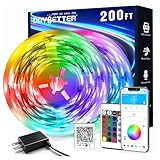
- Smart app and ir remote control: The 200 feet led strip lights support both app and 24 keys ir remote for control, different modes can be chosen, like flashing, quick, jump, fade, etc. You can freely choose to control 16 million colors(Notice :Please unroll the entire light strip before lighting up)
- Music sync: Led lights strip color changing sync to music by smart phone with App, make your party up to the high peak, light up your life and makes life more colorful and wonderful
- Smart timing settings: With timer function, the led strip has color memory and setting the time function, so it can automatically turn on and off
- Multiple scene options: The led strip lights 200 feet, 2 rolls of 100 feet, is long enough for bedroom, ceiling, kitchen, living room, bar and party decoration
- Easy installation: With strong adhesive, just use adhesive to attach the strip light to a clean, dry surface, then follow instructions on manual and you can finish in minutes
iCUE is the strongest choice when most of your build consists of Corsair fans, coolers, memory, keyboards, mice, controllers, or other iCUE-compatible hardware. It is especially useful when RGB and cooling need to be coordinated through the same profiles.
For a compatible iCUE LINK build, the CORSAIR iCUE LINK System Hub automatically detects, synchronizes, and manages compatible cooling and RGB devices. Corsair documents support for linking up to 24 devices, subject to the specific iCUE LINK hardware and system configuration.
Choose iCUE if:
- Your build is primarily Corsair.
- You want lighting, fan curves, cooler settings, monitoring, and profiles in one application.
- You are building or expanding an iCUE LINK system.
Watch for: iCUE is strongest inside the Corsair ecosystem. It should not automatically be treated as a universal replacement for your motherboard manufacturer’s utility. If the motherboard controls a separate header-connected lighting strip, you may still need the board vendor’s software—or a carefully selected third-party controller—to manage that device.
7. Razer Synapse 4 and Chroma: best for Razer peripherals
Razer Synapse 4 is the current choice for configuring Razer keyboards, mice, headsets, mousepads, docks, and other Chroma-compatible peripherals. It provides device settings alongside Razer Chroma lighting effects, making it a natural fit for a Razer-centered desk setup.
Razer’s February 8, 2026 support guidance says that Synapse 3 stopped receiving updates and cloud-service support after February 3, 2026. Existing Synapse 3 installations may remain configurable in some situations, but Razer directs users to Synapse 4 for continued customization.
Choose Synapse 4 if:
- Your lighting is concentrated in Razer peripherals rather than internal PC components.
- You want Chroma effects tied to Razer device configuration.
- You are moving from Synapse 3 and want the supported software path in 2026.
Watch for: Do not assume every old Chroma effect or profile will transfer automatically. Razer says existing Chroma effects may need to be reconfigured in Synapse 4. Synapse is also not the best standalone choice for controlling motherboard headers, third-party RAM, or unrelated fan controllers.
8. NZXT CAM: best for CAM-powered NZXT hardware
NZXT CAM controls and monitors compatible NZXT products such as Kraken coolers, fans, and CAM-powered RGB or fan controllers. The NZXT RGB & Fan Controller appears in CAM and exposes connected lighting devices for effects such as static color, spectrum wave, and audio-reactive lighting.
Do these 3 things before closing this tab:
1Repair Windows errors before they cause bigger problems2Fix the driver behind crashes, sound loss and screen glitches3Clear out junk files and repair common Windows errorsFor users with NZXT controllers and coolers, CAM keeps lighting, cooling, and monitoring in one place. It is a good ecosystem utility, but it is not a universal RGB manager.
Users adding strips or other 5V ARGB devices to an NZXT setup may need to configure the number of connected LEDs manually. The controller or motherboard header must also be wired correctly and supported by the chosen control path. A practical accessory for this type of setup is the NZXT RGB & Fan Controller, but it should be matched to the specific NZXT hardware, connector layout, and CAM requirements rather than purchased as a generic fix.
Choose CAM if:
- Your fans, cooler, and lighting are controlled by NZXT hardware.
- You want NZXT cooling monitoring and RGB effects in one utility.
- You are using an NZXT RGB or fan controller that CAM can detect.
Watch for: NZXT states that CAM does not control RGB RAM kits. Motherboard-connected lighting may instead require Armoury Crate, GIGABYTE Control Center, MSI Center, or another compatible utility. NZXT also warns that third-party RGB applications may conflict with CAM, so avoid assigning the same device to multiple programs.
Also popular on Amazon

- Smart RGBIC Effects: RGBIC LED strip lights for bedroom display multiple colors on one line at a time compared with traditional RGB lights. A colorful combination of LED strip lighting for bedroom brings a strong visual impact. (Not Support Alexa)
- Smart APP Control: You can unlock various features to personalize smart LED strip lighting via Govee Home App, getting rid of simple remote control. Adjust the colors and brightness to your preferences, turning a single light to vivid light shows.(Not Support Wi-Fi)
- DIY with Inspiration: You can choose from a variety of lighting effects (16 million colors) and share your piece of art on the APP community. Also, we will regularly update AI-created themes on the APP to provide you with more options.
- Upgraded Music Sync Mode: Make your smart LED strip lighting for dance for an immersive home concert experience. Choose from 11 music modes and the integrated high-sensitivity mic will effortlessly sync with your favorite audio.
- 64+ Preset Scenes: Find the proper lighting effects that fit your emotions. You can choose from a selection of scenes to bring vivid colors, inspired by party, holidays, movie and more with a simple click on the Govee Home App.
9. Windows Dynamic Lighting: best built-in Windows option
Windows Dynamic Lighting is the simplest option when you have compatible keyboards, mice, or other devices that implement the HID LampArray lighting standard. It provides an operating-system-level route for applications to control supported lighting without requiring a full motherboard or peripheral ecosystem suite.
The Tool Desk
Outbyte Driver Updater FREEFix the driver behind crashes, sound loss and screen glitchesFind Drivers →Outbyte PC Repair FREERepair Windows errors before they cause bigger problemsFix Now →Microsoft documents foreground control beginning with Windows 10 and background ambient-lighting support beginning with Windows 11, subject to the device standard and application requirements. In practical terms, your device must support the relevant HID lighting implementation; simply having RGB LEDs does not guarantee Dynamic Lighting compatibility.
Choose Windows Dynamic Lighting if:
- Your keyboard, mouse, or other lighting device is explicitly HID LampArray-compatible.
- You want a built-in Windows control path with fewer vendor utilities.
- You only need peripheral lighting rather than control over internal fans, RAM, motherboard headers, or coolers.
Watch for: Dynamic Lighting is not a full replacement for iCUE, CAM, Armoury Crate, SignalRGB, or a similar PC-component suite. It does not automatically control every RGB device connected to the computer.
How to choose the right RGB software
| Your situation | Best starting point | Why |
|---|---|---|
| Several brands in one gaming PC | SignalRGB | Broad cross-brand and cross-device focus |
| Linux, macOS, open-source preference, or custom integrations | OpenRGB | Cross-platform operation, SDK, and plugins |
| ASUS motherboard and mostly ASUS hardware | Armoury Crate / Aura Sync | Best access to ASUS-specific controls |
| MSI-centered build | MSI Center / Mystic Light | Native MSI motherboard and device integration |
| Newer GIGABYTE or AORUS system | GIGABYTE Control Center / RGB Fusion | Current GIGABYTE software path for supported hardware |
| Corsair fans, cooler, memory, and peripherals | iCUE | Lighting plus cooling, monitoring, profiles, and iCUE LINK |
| Razer keyboard, mouse, and desk peripherals | Synapse 4 / Chroma | Best Razer peripheral configuration |
| NZXT controller, fans, or Kraken cooler | NZXT CAM | Native CAM hardware management |
| Compatible HID LampArray peripherals only | Windows Dynamic Lighting | Built into Windows and avoids an additional vendor suite |
Check compatibility before installing anything
RGB software cannot create compatibility where the hardware connection is absent. Before choosing an application, make a short inventory of the exact:
- Motherboard model
- Graphics card model
- RAM kit model
- Fans and cooler
- RGB or fan controller
- Keyboard, mouse, headset, mousepad, and monitor
- LED strips and other addressable lighting
Then identify how each item is connected. RGB may be exposed through USB, a motherboard RGB or ARGB header, a proprietary controller, or a vendor-specific hub. A product connected through a controller may expose fewer features than the same product connected directly to USB or a motherboard header.
RGB and ARGB connectors are not interchangeable
Traditional RGB commonly uses a 12V four-pin connection, while addressable RGB (ARGB) commonly uses a 5V three-pin connection. Confirm the connector type and voltage before connecting a strip, splitter, fan, or controller. Never force a 5V ARGB device onto a 12V RGB header. A controller hub is useful only when its inputs, outputs, power requirements, LED limits, and software support match the hardware being connected.
If multiple fans or strips cannot all connect directly to the motherboard, a compatible PC ARGB controller hub can provide the needed physical connection. The hub is not a substitute for checking the software’s supported-device list: verify connector type, voltage, maximum LED count, power, USB or header requirements, and compatibility with the selected application before buying.
Independent reader supportYour contribution helps us test, update, and keep practical guides available for everyone.How to avoid RGB software conflicts
Install one application as the lighting owner for each device whenever possible. You can use different applications for genuinely separate hardware—for example, Synapse 4 for a Razer keyboard and iCUE for Corsair cooling—but letting several utilities write to the same controller often produces flickering, resets, missing devices, or settings that change after reboot.
- Choose the owner. Decide whether SignalRGB, OpenRGB, the motherboard utility, iCUE, CAM, Synapse, or Windows Dynamic Lighting should control each device.
- Close or disable competing control. Turn off automatic device control, startup control, plugins, or background modules in other utilities when they target the same hardware.
- Install only the features you need. A motherboard vendor’s suite may include lighting, fan, performance, and update modules; avoid enabling duplicate lighting modules if another application owns the device.
- Test one device group at a time. Confirm the motherboard and controller first, then add RAM, fans, strips, and peripherals individually.
- Save a known-good profile. Keep a simple static-color profile so you can distinguish a software conflict from an effect-specific problem.
NZXT explicitly warns that third-party RGB applications can conflict with CAM. GIGABYTE also explains that when RGB Fusion variants run together, the product follows the last adjustment. If settings appear to “fight,” the most likely first step is not changing colors—it is removing duplicate control.
Free tools Windows power users keep installed
One-click scans. No signup required.
Also popular on Amazon

- Standard kit: The kit contains 2 rolls 16.4 feet led strip lights, controller box, remote, adapter
- Led lights features: Our 5050 rgb led chips allows the led lights to be colorful and durable by ir remote
- Strong adhesive: The led strip lights are sticky for bedroom, ceiling, tv, desk, cabinets, walls and computer indoor
- Widely use: The led lights are suitable for party, wedding
- Diy rgb colors: The led lights work with 44 keys remote which built in 20 default colors and DIY customized colors function
RGB troubleshooting by symptom
The software does not detect a device
- Confirm the device has power and that its USB, SATA power, controller, or motherboard-header connection is secure.
- Check the exact model in the application’s compatibility list.
- Determine whether the device is connected through a supported controller or hub.
- Close other RGB utilities and restart the selected application.
- For Linux and OpenRGB, check the required udev rules or distribution package.
- For older hardware, use the utility named on the product’s support page rather than assuming the newest vendor suite supports it.
Only some LEDs light up
- Check whether the selected software knows the correct number of LEDs.
- For motherboard-connected 5V ARGB devices in CAM, manually specify the connected LED count when required.
- Verify the strip or fan order and the controller’s output limits.
- Try a simple static color before testing complex or audio-reactive effects.
- Remember that available effects can vary by device, even when synchronization works.
The colors or effects keep changing
- Close competing utilities, including vendor software that starts with Windows.
- Check whether two versions of a vendor utility are installed, such as GCC RGB Fusion and standalone RGB Fusion 2.
- Disable control of the same device in Windows Dynamic Lighting if another application should own it.
- Reapply one profile after selecting a single control application.
The motherboard controls the fans but not the RAM or peripherals
This is usually a support-path difference rather than a lighting failure. RAM may require a dedicated integration or plugin, and USB peripherals may be visible only to their own application. Check whether the device is listed separately from the motherboard and whether a controller exposes it to the selected software.
Are RGB controller hubs worth buying?
A hub is worth considering when the PC has more lighting devices than the motherboard headers can support, when several fans or strips need centralized wiring, or when a proprietary ecosystem requires its own controller. It is not automatically the answer to a detection problem.
Before buying a hub, verify:
- 5V three-pin ARGB versus 12V four-pin RGB compatibility
- Whether the hub connects by USB, motherboard header, or a proprietary cable
- Maximum LED count and total power capacity
- Whether the software can detect and control the hub
- Whether the hub supports the exact fans, strips, or cooler in your build
- Whether it requires a separate controller, adapter, or software plugin
Corsair users committed to the iCUE LINK ecosystem should evaluate the CORSAIR iCUE LINK System Hub for compatible LINK cooling and RGB devices. NZXT users should evaluate the NZXT RGB & Fan Controller for CAM-managed hardware. These are ecosystem-specific controllers, not interchangeable universal hubs.
What about using more than one RGB application?
Using more than one application is sometimes practical, but only when their control territories do not overlap. For example, one program might manage a supported motherboard and internal lighting while Synapse 4 manages a Razer keyboard. The safer rule is one controller application per device, not necessarily one application for the entire computer.
For a mixed-brand system, start with SignalRGB or OpenRGB and add a vendor utility only for a feature the cross-brand application cannot provide. For a single-brand build, start with the manufacturer’s application and avoid adding a second RGB program unless you have confirmed that it will not claim the same devices.
Frequently Asked Questions
Can one RGB program control every RGB device in my PC?
No. RGB software can control only hardware that it detects through a compatible USB connection, motherboard header, proprietary controller, or supported hub. Check the exact model—not just the brand—in the application’s device catalog.
What is the difference between SignalRGB and OpenRGB?
Choose SignalRGB for a polished mixed-brand setup with broad device coverage. Choose OpenRGB when open-source licensing, Windows/Linux/macOS support, local control, SDK access, or plugins are more important than first-party ecosystem features.
Can I run SignalRGB alongside Armoury Crate, iCUE, or another RGB app?
Sometimes. Separate applications can manage separate devices, such as Synapse 4 controlling a Razer keyboard while iCUE controls Corsair cooling. Avoid allowing two programs to control the same device or controller because they may override each other.
The Tool Desk
Outbyte PC Repair FREERepair Windows errors before they cause bigger problemsFix Now →Outbyte Driver Updater FREEFix the driver behind crashes, sound loss and screen glitchesFind Drivers →What is the difference between RGB and ARGB?
Traditional RGB commonly uses a 12V four-pin connector, while addressable RGB commonly uses a 5V three-pin connector. Confirm the voltage and pin layout before connecting anything; a 5V ARGB device should not be connected to a 12V RGB header.
Does Windows Dynamic Lighting replace motherboard RGB software?
Only if the device implements the HID LampArray standard supported by Windows Dynamic Lighting. Compatible keyboards and mice may work, but ordinary motherboard headers, RAM kits, fans, coolers, and proprietary controllers are not automatically supported.
The Bottom Line
SignalRGB is the best starting point for most mixed-brand PCs, while OpenRGB is the better choice for open-source and cross-platform users. For ASUS, MSI, GIGABYTE, Corsair, Razer, or NZXT-centered hardware, the matching first-party utility usually offers the deepest controls. Whatever you choose, verify exact model support and assign one application to control each device.

