
iTechGuides is reader-supported. When you buy through links on our site, we may earn an affiliate commission. As an Amazon Associate I earn from qualifying purchases. Learn more
The best open-source deepfake software depends on the job, not a universal realism score. FaceFusion is the strongest current general-purpose starting point; FaceSwap is the best way to learn the complete extraction, training and conversion pipeline; DeepFaceLive and Deep-Live-Cam target live or near-one-click work; SimSwap is a technical image/video swapping framework; Wav2Lip and SadTalker specialize in audio-driven animation; and DeepFaceLab remains a historically important high-control option whose maintenance and model licenses must be checked before you commit.
Use only faces and voices you have permission to manipulate, clear rights for every source asset, and label synthetic media where viewers could misunderstand it. The rankings below describe workflows and documented capabilities, not an independent test of which output looks most realistic.
At a glance
| Name | Best for | Key spec | Checked |
|---|---|---|---|
| FaceFusion | General face manipulation, swapping and lip-sync | Current all-purpose platform with documentation | Nov 2026 |
| FaceSwap | Learning the full extraction-to-training workflow | Multi-platform open-source pipeline | Nov 2026 |
| DeepFaceLive | Established live webcam and stream workflow | Windows 10; DirectX 12; RTX 2070+ or RX 5700 XT+ recommended | Nov 2026 |
| Deep-Live-Cam | Live swapping or video from one source image | Near-one-click single-image workflow | Nov 2026 |
| SimSwap | Arbitrary image and video swapping | One trained model for arbitrary identities | Nov 2026 |
| Wav2Lip | Recorded-speech mouth synchronization | Speech-to-lip generation code; ACM Multimedia 2020 work | Nov 2026 |
| SadTalker | Talking-head animation from one portrait | Audio-driven learned 3D motion coefficients | Nov 2026 |
| DeepFaceLab | High-control trained face-swapping | GPL-3.0 repository; manual model workflow | Nov 2026 |
How do I choose the right open-source deepfake workflow?
Start with the output you need. A short offline effect, a live webcam persona, a talking portrait, and a trained cinematic swap are different problems. Choosing by the word “deepfake” alone usually leads to the wrong software.
Free tools Windows power users keep installed
One-click scans. No signup required.
- General image and video manipulation: start with FaceFusion.
- Learn the conventional face-swap process: use FaceSwap, then decide whether training is worthwhile for your footage.
- Real-time face swap: evaluate DeepFaceLive first, with Deep-Live-Cam as the simpler single-image experiment.
- Animate an avatar in video calls: compare DeepFaceLive’s Face Animator with Avatarify and check whether your camera and GPU can sustain the target frame rate.
- Offline general or research inference: SimSwap offers a technical framework; FaceFusion is easier for a broad workflow.
- Offline trained face swap: FaceSwap or DeepFaceLab gives more control than one-click tools.
- Audio-driven lip synchronization: Wav2Lip is the specialist for matching a mouth to recorded speech.
- Single portrait plus audio: SadTalker creates a talking-head animation rather than replacing a complete identity in a scene.
1. FaceFusion: the most current general-purpose workflow
FaceFusion is the broadest starting point when you need face swapping, face enhancement or lip-sync features in one project. Its repository describes it as an “Industry leading face manipulation platform” and links user documentation, making it the practical first stop for creators who do not want to assemble a training pipeline.
Popular on Amazon

- Compatible with Nintendo Switch 2’s new GameChat mode
- Crisp HD 720p/30 fps video calls with diagonal 55° field of view and auto light correction. Compatible with popular platforms including Skype and Zoom.
- The built-in noise-reducing mic makes sure your voice comes across clearly up to 1.5 meters away, even if you’re in busy surroundings.
- C270’s RightLight 2 feature adjusts to lighting conditions, producing brighter, contrasted images to help you look good in all your conference calls.
- The adjustable universal clip lets you attach the camera securely to your screen or laptop, or fold the clip and set the webcam on a shelf. You’re always ready for your next video call.
Use it for controlled offline image and video work, quick prototypes and mixed tasks where you may switch between identity replacement and mouth animation. The trade-off is less granular control than a manual extraction-and-training workflow. Component licenses also matter: the application, detectors, swap models and enhancement models can have different terms, so inspect each license before redistribution or commercial publication.
For a reliable result, prepare a clean source face with even lighting, test a short low-resolution clip, and inspect the output frame by frame. Fast automation can hide eye, hairline, occlusion and color-matching errors that become obvious in a finished export.
2. FaceSwap: the best learning project
FaceSwap is the clearest hands-on project for understanding extraction, alignment, training and conversion. The maintainers call it “the leading free and Open Source multi-platform Deepfakes software,” and publish guides for installation, extraction, training and conversion on Windows, macOS and Linux.
Outdated Drivers Are Slowing You Down
One free scan finds every outdated or missing driver and matches the right update for your exact hardware.Free scan · exact hardware matchPC Slower Than It Used to Be?
A free scan shows the junk files, broken settings and background clutter dragging Windows down - then fixes them in one click.Free scan · Windows 10 & 11Choose FaceSwap when you want repeatable results from a particular performer and target footage, or when you need to learn why data quality and alignment affect the final composite. You extract faces from source and destination clips, clean the dataset, train a model, then convert frames back into video. Training takes longer than a one-click workflow, but it gives you control over masking, iteration and scene-specific compromises.
A CPU can handle setup, dataset inspection and some inference, but training is much more practical with a CUDA-capable GPU. AMD users should verify whether their chosen build supports ROCm; support varies by framework and operating system, so do not assume that a modern Radeon card behaves like a CUDA device. Keep original footage, extracted faces and model checkpoints in separate folders so you can recover from a bad conversion.
3. DeepFaceLive: the best established legacy live workflow
DeepFaceLive targets webcam, streaming and video-call face swaps, and it also includes a Face Animator module. Its documented baseline is Windows 10 with DirectX 12, an AVX-capable CPU, 4 GB of RAM and a 32 GB or larger paging file. The project recommends an RTX 2070-or-better or Radeon RX 5700 XT-or-better class GPU.
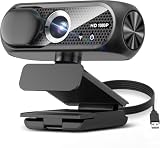
The README reports that Face Animator can reach 25 frames per second with a 35 TFLOPS GPU. Treat that as a project-published figure rather than an independent benchmark: camera resolution, model choice, capture software and background effects all change actual performance. A USB webcam is usually easier to configure than a cinema camera because drivers and exposure controls are predictable; the USB webcam for live face animation recommendation suits a beginner building a dedicated call or streaming setup.
DeepFaceLive is the choice for an established live face-swap workflow, but verify current repository activity, downloadable models and licenses before installing. If the project no longer receives fixes for your operating system, use it as a reference rather than exposing it to an important live production.
4. Deep-Live-Cam: the best live single-image experiment
Deep-Live-Cam is aimed at real-time face swapping or making a video from one source image. That single-image workflow is its attraction: you can test a concept without collecting and training a large face dataset.
It is useful for a quick proof of concept, a short prerecorded clip or a controlled webcam demo. One portrait cannot describe every angle, expression or lighting condition, so expect failures in profile views, hands crossing the face, fast motion and strong shadows. Confirm the current release, model downloads, supported GPU backends and license terms before relying on it; those details can change faster than the user interface.
Also popular on Amazon

- Auto-Light Balance: RightLight boosts brightness by up to 50%, reducing shadows so you look your best—compared to previous-generation Logitech webcams (1)
- Easy Plug-And-Play: The Brio 101 Logitech camera works with most video calling platforms, including Microsoft Teams, Zoom and Google Meet—no hassle; the computer camera with microphone for desktop just works
- Built-In Mic: The webcam with microphone lets others hear you clearly during video calls
- Privacy with a Slide: The integrated pc webcam cover makes it easy to get total, reliable privacy when you're not on a video call
- Full Clarity: Full HD 1080p webcam Video Clarity with microphone to look clearer in video calls
For a credible result, choose a source portrait with a similar head angle and lighting to the target, keep the first test short, and compare several frames before recording a full session. This is a convenience workflow, not a substitute for a trained model when continuity and fine control matter.
What’s actually slowing this PC down?
Pick the symptom - the matching free tool is one click away.
5. SimSwap: the best technical framework
SimSwap is designed for arbitrary face swapping in images and videos with one trained model. That makes it attractive for researchers and developers who want to inspect or adapt research code instead of operating only through a finished desktop interface.
Use SimSwap for offline general or research inference, experiments with preprocessing and model integration, and pipelines where you need to call components from your own scripts. It is less approachable than a polished GUI: environment setup, checkpoints, detector choices and video encoding are your responsibility. Keep the research code, downloaded weights and any enhancement models under separate license review; “open source” for a repository does not automatically grant identical rights to every model or dataset.
If your goal is a dependable production shot rather than an experiment, prototype in SimSwap on a short clip and move to a workflow with clearer operational tooling once the transformation is proven.
6. Wav2Lip: the best lip-sync specialist
Wav2Lip focuses on synchronizing a mouth to recorded speech. The project provides code for speech-to-lip generation and documents work published at ACM Multimedia 2020; the underlying paper is available from arXiv.
Recommended Free Tools
Choose it when the identity and head movement are already acceptable and the main defect is dialogue timing. Feed it a clean face video and an audio track, then review consonants, plosives, pauses and shots where the mouth is partly hidden. Audio quality matters: clipped speech, heavy background noise or a mismatched language model can produce visibly wrong mouth shapes.
The repository also points to a commercial HD model from Sync Labs, so do not assume every enhancement or downloaded model is open source under the same terms as the code. Wav2Lip is a mouth-synchronization component, not a complete face-swap editor; keep identity replacement, audio processing and avatar animation as separate stages so you can diagnose each one.
7. SadTalker: the best single-portrait talking-head tool
SadTalker creates an audio-driven talking face from a single portrait. The project describes a CVPR 2023 system that predicts learned 3D motion coefficients from speech; its research paper is available on arXiv.
It suits narrated avatars, explainers and offline character tests where you have one still image and a voice recording. Unlike a full identity-swap editor, it does not aim to replace a face throughout arbitrary footage while preserving the original actor’s body and camera movement. Select a portrait with a forward-facing, unobstructed face, record clean audio, and expect to adjust crop, frame rate and background separately.
Quick wins for a faster PC:
Scan for outdated or missing drivers - takes under a minuteDriver Scan →Clear out junk files and repair common Windows errorsFree Scan →Also popular on Amazon

- 1080P Webcam with Cover for Video Calls - EMEET computer webcam provides design and Optimization for professional video streaming. Realistic 1920 x 1080p video, 5-layer anti-glare lens, providing smooth video. C960 computer camera delivers 1920x1080 video with fixed focus (11.8–118.1 inches), so as to provide a clearer image. C960 USB webcam has a cover and can be removed automatically to meet your needs for privacy. For optimal image performance, use the webcam in a well-lit environment.
- Built-in 2 Omnidirectional Mics - EMEET webcam with microphone for desktop features 2 built-in omnidirectional microphones, picking up your voice to create clear audio for communication. When installing the webcam, select EMEET C960 as the default microphone input device in your computer and video applications and select C960 as the default device in Zoom/Teams and ensure microphone permissions are enabled for proper use. Please note that C960 does not include built-in speakers.
- Automatic Light Adjustment - Automatic exposure adjustment is applied in EMEET HD webcam 1080p so that the streaming webcam can deliver stable image performance. EMEET C960 camera for computer also features color adjustment and exposure optimization to help you look your best. For optimal video quality, it is recommended to use the webcam in normal or well-lit environments and select suitable video settings in your application. Proper lighting helps achieve a clearer and more balanced image.
- Plug-and-Play & Upgraded USB Connectivity - New C960 webcam features both USB Type-A & A-to-C adapter connections for wider compatibility. For stable performance, connect the webcam directly to the computer's main USB port and ensure the device is recognized correctly. If a hub or docking station is used, please ensure it provides sufficient power and stable data transmission, as limited ports may affect performance. 90° wide-angle lens captures more participants without frequent adjustments.
- High Compatibility & Multi Application - C960 webcam for laptop is compatible with Windows 10/11, macOS 10.14+, and Android TV 7.0+. Not supported: Windows Hello, TVs, tablets, or game consoles. It works with Zoom, Teams, Facetime, Google Meet, YouTube and more. Please select C960 webcam as the default camera and microphone device in your application and ensure camera/microphone permissions are enabled, especially on macOS. (Tips: Incompatible with Windows Hello)
SadTalker can be the best avatar workflow when the “avatar” is a portrait that only needs to speak. For a live video call, latency, camera capture and temporal stability become more important, so compare it with a live tool rather than forcing an offline talking-head model into a real-time role.
8. DeepFaceLab: the best historical high-control workflow
DeepFaceLab is historically important for trained, high-control face swapping. Its repository identifies GPL-3.0 licensing and links DeepFaceLive as related real-time software. The workflow remains valuable for learning dataset preparation, alignment, model training, masking and conversion.
Use it when you need deliberate control over a shot and are prepared to manage a longer training cycle. It is not the fastest choice for a one-photo demo, and its maintenance status, release compatibility and model availability should be checked directly before starting a new project. A repository can remain widely referenced while installers, drivers or checkpoints age.
DeepFaceLab and DeepFaceLive serve different moments in the same family of workflows: DeepFaceLab emphasizes offline training and conversion, while DeepFaceLive emphasizes live capture. If a live project needs a custom identity, you may train offline first and then determine whether the resulting model is supported by the live application.
The Tool Desk
Outbyte PC Repair FREEClear out junk files and repair common Windows errorsFree Scan →Outbyte Driver Updater FREEFix the driver behind crashes, sound loss and screen glitchesFind Drivers →How do I decide whether training is worthwhile?
Training is worthwhile when you will reuse the same identity, have enough varied source footage, and can spend time cleaning aligned faces and evaluating checkpoints. It is usually unnecessary for a short concept clip, a single portrait talking-head animation or a one-off live experiment.
- Estimate reuse. Repeated scenes, multiple angles and a series of videos justify setup effort more than one short shot.
- Check source diversity. Include front, three-quarter and profile views, varied expressions, glasses or hair changes that appear in the target, and matching lighting where possible.
- Budget iteration. Training quality depends on checkpoints and masking choices; reserve time for failed runs and conversion tests.
- Compare the fallback. Run a short FaceFusion or Deep-Live-Cam test first. If it meets the creative brief, a custom model may not add enough value.
What hardware do these projects need?
Hardware requirements vary by model and backend. A CPU fallback is useful for installation, frame extraction, dataset cleaning and small offline tests, but CPU-only training or real-time animation is generally slow. A CUDA-capable NVIDIA GPU has the broadest compatibility across commonly documented deep-learning workflows; check the exact driver and framework versions before installation.
AMD GPU owners should look for ROCm support in the specific project and operating system rather than relying on the card name alone. DeepFaceLive documents Radeon RX 5700 XT-or-better class hardware alongside RTX 2070-or-better recommendations, but its live performance still depends on model and scene complexity.
For the DeepFaceLive baseline, plan for Windows 10, an AVX CPU, at least 4 GB of RAM and a 32 GB or larger paging file. More memory and a fast SSD help with frame caches and model files. Keep the webcam at a moderate resolution while tuning latency, then increase quality only after the pipeline is stable.
How do I build a safe, repeatable workflow?
- Choose the source material carefully. Obtain explicit permission for every face, voice, photograph and video. Match head angle, lens perspective, lighting and resolution before blaming the model.
- Keep identity, audio and avatar tasks separate. First solve face replacement or portrait animation, then solve lip synchronization, then combine stages. Separate exports make errors easier to locate.
- Prototype offline. Prefer offline processing for controlled visual effects because you can lock versions, review files and rerender without live-call pressure.
- Use short test clips. Render a few seconds at working resolution before committing to a long export or a live broadcast.
- Review frame by frame. Inspect eyes, teeth, hairline, ears, hands, occlusions, jaw motion, color seams and audio timing. Automated previews can conceal one-frame glitches.
- Label the result. Tell viewers when media is synthetic or materially altered, especially when the scene could be mistaken for a real statement or event.
- Archive responsibly. Record the project version, model names, licenses, source permissions and output checksum so you can reproduce or withdraw the result.
Can Avatarify still animate an avatar in video calls?
Avatarify is a separate, recognizable project for animating an avatar in video calls. Treat it as an alternative live-avatar experiment rather than assuming it has the same face-swap quality, hardware support or maintenance profile as DeepFaceLive. Test it with the exact conferencing application, camera routing and GPU driver you plan to use.
Also popular on Amazon
- 1131
- 132
- 24343
- 3535
- 35435
For a best avatar workflow, decide whether you need a stylized character, a live face replacement or a prerecorded talking portrait. Avatarify may fit a character-driven call, DeepFaceLive a face-swap stream, and SadTalker a polished offline clip. Do not mix their strengths into a single claim about realism.
What should I check before installing?
Read the current repository release notes, installation guide and issue tracker. Confirm operating-system support, GPU API, model-download steps, Python or driver versions, and whether the code, detector, enhancement model and weights have separate licenses. Research repositories can change ownership, archive status or download locations, so save a copy of the documentation that matches the version you deploy.
For broader context on why provenance and disclosure matter, the NIST Open Media Forensics workshop material discusses deepfake detection and media-forensics challenges. It does not provide a universal quality ranking, so use it as a reminder to preserve provenance rather than as a scorecard for these tools.
Do these 3 things before closing this tab:
1Clear out junk files and repair common Windows errors2Scan for outdated or missing drivers - takes under a minute3Repair Windows errors before they cause bigger problemsHow we picked
The ranking follows the research-supported workflow each project serves: current general-purpose manipulation, hands-on training, established live use, single-image convenience, technical framework work, specialist lip-sync, talking-head animation and historical high-control training. We also considered documented platform and hardware requirements, the distinction between code and model licenses, and whether a project is intended for offline, live or research use. No independent benchmark established a single “most realistic” winner.
Frequently Asked Questions
Can I make a convincing result from one photo?
Yes, Deep-Live-Cam is designed around a one-image source workflow, and SadTalker can animate one portrait with audio. A single image contains little information about profile angles, teeth, hair and lighting, so results usually improve when the source portrait resembles the target shot.
Which tool is easiest for a first face-swap project?
FaceFusion is the simplest broad starting point because it combines common manipulation tasks in one documented platform. FaceSwap is better if your goal is to understand extraction, training and conversion rather than finish a quick demo.
Do I need an NVIDIA RTX card?
Not always. CPU processing can cover setup and small offline tests, while AMD cards may work where the project supports ROCm. Live and training workflows are more demanding, so verify the exact backend and driver requirements instead of assuming any GPU is compatible.
What is the difference between lip-sync and a talking-head model?
Lip-sync changes mouth motion to match an audio track in an existing video, which is Wav2Lip’s specialty. A talking-head model such as SadTalker generates broader facial and head motion from a still portrait and audio, so it is a different type of animation.
How can I tell whether a repository is still maintained?
Check the latest commits, releases, issue responses, installation instructions and model-download links on the project’s official repository. Also test a clean installation with current drivers; an old but popular repository may still work for one setup while lacking fixes for newer systems.

