
What’s actually slowing this PC down?
Pick the symptom - the matching free tool is one click away.
iTechGuides is reader-supported. When you buy through links on our site, we may earn an affiliate commission. As an Amazon Associate I earn from qualifying purchases. Learn more
The fastest way to find the printer’s IP address is usually through Windows Printer properties: open the printer’s Ports tab and inspect the selected standard TCP/IP port. If Windows shows a WSD, IPP, USB, shared, or stale port instead, get the address from the printer’s network report, the manufacturer’s setup app, or your router’s connected-device list.
Before starting, make sure you are looking for the printer’s address—not your computer’s IPv4 address. A printer connected only by USB may not have a network IP address at all.
1. Check the printer port in Windows Printer properties
This is the best first method when the printer is already installed and connected directly to your local network using a standard TCP/IP port.
Free tools Windows power users keep installed
One-click scans. No signup required.
Windows 11
- Open Settings.
- Go to Bluetooth & devices > Printers & scanners.
- Select the printer.
- Open Printer properties. If Windows first displays a general printer page, look for the printer-properties option rather than the application’s printing preferences.
- Open the Ports tab.
- Find the checked port. A standard TCP/IP port often contains the printer’s address in its name or configuration.
- If available, select Configure Port and read the Printer Name or IP Address field.
Windows 10
- Open Settings.
- Go to Devices > Printers & scanners.
- Select the printer and choose Manage.
- Select Printer properties, then open the Ports tab.
- Inspect the selected port and choose Configure Port if that option is available.
An address will typically look like 192.168.1.45 or another IPv4 address used by your local network. Copy it carefully, including every number and period.
Popular on Amazon
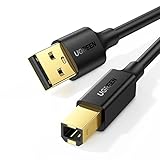
- Ideal Printer Scanner Cable: UGREEN USB 2.0 printer cable is ideal for connecting your scanner, printer, server, hard drive, camera, piano, and other USB b devices to a laptop, computer (Mac/PC), or other USB-enabled devices for data transfer.
- High-Speed Transfer: Up to 480 Mbps transfers data speed for USB 2.0 devices, the USB Type B cable is backward compliant with full-speed USB 1.1 (12 Mbps) and low-speed USB 1.0 (1.5 Mbps). Compared with a WIFI connection, this USB B Cable provides a more stable data transmission and offers a more efficient work way for you.
- Wide Compatibility & Reliable Performance: Designed for broad compatibility, this printer cable is compaible with Xiaomi Pro 15.6, Dell OptiPlex 3080, HP 14Pro, Lenovo T490, and MacBook Pro, as well as printers such as Canon LBP2900Plus, HP LaserJet Pro M1216nfh MFP, and RICOH P200. Enjoy reliable plug-and-play connectivity with Windows and macOS. Supports printing resolutions up to 1200 dpi when used with the RICOH P200
- Premium Quality: Corrosion-resistant gold-plated connectors and foil/braid shielding make the SB 2.0 Male to USB B Male cable cord more long-term performance (without noise or signal loss).
- Important Note: 1. This printer USB cable has a USB 2.0 Type B Interface, not USB 3.0 Type B. 2. This cable is 5 ft/1.5M long. Please confirm that the length meets your needs before purchasing.
When this method does not work: Windows may be using WSD, IPP, a manufacturer-specific port, or a shared-printer connection. The selected port may show a device identifier rather than a readable IP address. The entry can also be outdated if the printer received a different address from the router.
2. Find configured printer addresses with PowerShell or prnport
PowerShell can list the printer ports configured on your Windows computer. This is useful when you want a compact list instead of opening each printer’s properties.
Open PowerShell and run:
Get-PrinterPort | Select-Object Name, Protocol, PortNumber, PrinterHostAddressLook for the port associated with your printer. On systems that expose the relevant property, PrinterHostAddress shows the configured printer host address. The Name, Protocol, and PortNumber columns can help distinguish a TCP/IP port from a USB or other port type.
Windows also includes the prnport command for standard TCP/IP printer ports. To list configured standard TCP/IP ports, open Command Prompt or PowerShell and run:
prnport -lTo review the command’s available options and the syntax for displaying a particular port’s configuration, run:
prnport -?Microsoft documents the -g option for displaying a port’s configuration. Use the exact port name shown by prnport -l when querying an individual port.
Important limitation: these commands list ports configured on the computer. They do not scan every device currently online, and they cannot guarantee that an old address is still assigned to the printer. If the address does not respond, verify it using the printer’s own network report or the router’s device list.
Also popular on Amazon
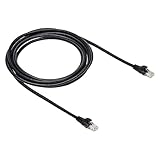
- IN THE BOX: 10-foot Cat-6 UTP Ethernet patch cable with 250 MHz bandwidth
- CONVENIENT: Ideal for connecting networked devices such as computers, printers, routers, and more
- UNIVERSAL COMPATIBILITY: RJ45 connectors ensure universal connectivity
- FAST CONNECTION: Transmission speed up to 10 gigabit per second with minimal signal loss
- SNAGLESS PLUG: Helps prevent damage when plugging and unplugging cable
3. Print or display the printer’s network information page
The printer itself is often the most authoritative source of its current network address. Menus vary by model, but look for options named Network, Wireless, Network settings, Reports, or Print reports.
Common procedure
- Turn on the printer and make sure it is connected to Wi-Fi or Ethernet.
- Open the printer’s control-panel menu.
- Choose Network, Wireless, or a similarly named settings menu.
- Look for Network information, TCP/IP, IPv4, or Print network configuration page.
- Read the IPv4 address shown on the display or printed report.
On some HP models, you can view network information in HP Smart, view a wireless or network summary on the printer’s touchscreen, or print an information report on models without a touchscreen. HP printers may also offer a Network Configuration Page.
Canon models commonly provide network information through the operation panel or a printed network-settings report. The precise menu names depend on the model and firmware version, so consult the instructions for your exact printer if the options are not obvious.
Record the printer’s IPv4 address. A network report may also show the subnet mask, default gateway, DNS servers, MAC address, and IPv6 addresses. Do not accidentally copy the computer’s address, the router’s gateway address, or the subnet mask instead.
Recommended Free Tools
4. Use the printer manufacturer’s app or network utility
If the Windows port is unclear, use software made for the printer’s brand and model. Manufacturer utilities can discover a network printer and display its network information, even when the Windows Ports tab does not show a plain IPv4 address.
- HP: HP Smart may show the printer’s Network Information when the computer or mobile device is connected to the same local network.
- Canon: Depending on the model and operating system, Canon utilities such as IJ Network Tool or Wi-Fi Connection Assistant may display network information or help reconnect the printer.
- Other brands: Look for the manufacturer’s official printer app, desktop setup utility, or network-configuration tool for your specific model.
Install or open only the utility intended for your printer brand and model. A brand’s app does not necessarily support every printer it has produced, particularly older models.
For discovery to work, the PC or phone and the printer generally need to be connected to the same local network. A guest Wi-Fi network, separate VLAN, VPN, wireless isolation, or different router can prevent the app from finding the printer even when both devices appear to have internet access.
Also popular on Amazon

- IN THE BOX: (1) 6-foot high-speed multi-shielded USB 2.0 A-Male to B-Male cable
- DEVICE COMPATIBLE: Connects mice, keyboards, and speed-critical devices, such as external hard drives, printers, and cameras to a computer
- ULTRA FAST SPEED: Full 2.0 USB capability with 480 Mbps transfer speed
- DURABLE DESIGN: Corrosion-resistant, gold-plated connectors for optimal signal clarity and shielding to minimize interference
5. Check the router’s connected-device or DHCP-client list
Your router records devices that receive an address from its DHCP service. This makes the router’s administration page or app a useful fallback when Windows and the printer’s control panel do not reveal the address clearly.
Outdated Drivers Are Slowing You Down
One free scan finds every outdated or missing driver and matches the right update for your exact hardware.Free scan · exact hardware matchPC Slower Than It Used to Be?
A free scan shows the junk files, broken settings and background clutter dragging Windows down - then fixes them in one click.Free scan · Windows 10 & 11- Sign in to your router’s administration page or open its management app.
- Look for a section named Connected devices, Clients, DHCP clients, LAN devices, or something similar.
- Find the printer by its model name, hostname, or manufacturer name.
- Read the assigned IPv4 address.
Router interfaces differ significantly, so there is no universal menu path. If several devices have generic names, compare the printer’s MAC address on its network report with the MAC address in the router’s list.
The printer may not appear if it is powered off, disconnected, connected to a guest network, attached to a different access point or VLAN, or using a separate network connection. Some routers also display recently connected devices, so check whether the entry is currently active before relying on its address.
How to tell whether the address is correct
After finding an address such as 192.168.1.45, first confirm that the computer and printer are on the same local network. Then try entering the address in a web browser as http://192.168.1.45. Many network printers open a configuration page, but not every printer provides a web interface, so a blank result does not automatically prove that the address is wrong.
You can also use the address when manually adding or reconfiguring a printer in Windows. If Windows asks for a port type, a standard TCP/IP printer port is usually appropriate for a printer that supports direct network printing. Confirm the printer’s documentation and supported protocols before changing an existing installation.
The Tool Desk
Outbyte Driver Updater FREEFix the driver behind crashes, sound loss and screen glitchesFind Drivers →Outbyte PC Repair FREEClear out junk files and repair common Windows errorsFree Scan →Important cases where the printer may not have its own IP address
USB-connected printer
A printer connected only to the computer with USB normally does not have a LAN IP address. Windows will commonly show a USB port such as USB001, not a TCP/IP port.
If another device prints through that computer, Windows is sharing the printer. In that arrangement, the computer acts as the network host. The host computer’s name or IP address may be part of the connection path, but it is not the printer’s own IP address.
Also popular on Amazon

- USB 2.0 Printer Cable Overview*** 1.USB-A to USB-B 2.0 Port 2.Durable: Features gold-plated connectors 3.Widely Compatible: Works with various USB B printers and devices 4.Plug and Play: Offers more stability than Wi-Fi 5.Long Length: 6/10 Feet
- High-Speed Connectivity: Connect your printer, scanner, or external hard drive to your computer with this high-quality USB A to USB B cable. Designed for fast and reliable data transfer, this cable ensures a stable connection between your devices.
- Universal Compatibility: The USB 2.0 printer cable is compatible with a wide range of devices, including printers, scanners, servers, hard drives, cameras, electronic pianos, MIDI keyboards, microphones, DAC decoders, and other peripherals that use a USB B port. It easily connects to laptops, computers, PCs, or other USB-enabled devices for data transfer.
- Durable and Reliable: Built with a robust, flexible PVC jacket and corrosion-resistant gold-plated connectors, this printer cable is designed for long-lasting use. The durable construction minimizes interference and signal loss, ensuring smooth and consistent data transmission.
- Plug and Play: Easy to use, simply plug the USB A end into your computer and the USB B end into your printer—no drivers or software installation is required. It's more stable than a Wi-Fi wireless connection.
Shared printer
For a printer shared from another Windows computer, the relevant connection uses the host computer and the printer’s share name. Common UNC formats include:
\computer_nameprinter_nameor:
\ip_addressprinter_nameHere, ip_address belongs to the computer sharing the printer. If that computer changes networks or receives a new DHCP address, other computers may lose access to the shared printer.
Quick wins for a faster PC:
Clear out junk files and repair common Windows errorsFree Scan →Fix the driver behind crashes, sound loss and screen glitchesFind Drivers →WSD, IPP, and manufacturer-specific ports
Windows can install printers through WSD, IPP, manufacturer-specific systems, or standard TCP/IP ports. A WSD or IPP entry may not display the address in the same straightforward way as a standard TCP/IP port.
If the Windows entry is missing an address or appears not to respond, use the printer’s configuration page, manufacturer utility, or router list to obtain the current IPv4 address. You may then need to reinstall the printer or reconfigure it with the current address, especially if the existing Windows port is stale.
Independent reader supportYour contribution helps us test, update, and keep practical guides available for everyone.What to do if the printer keeps disappearing
A common cause is a changing DHCP address. The router may assign the printer a different local address after a lease renewal, reboot, or network change. Windows may continue trying to use the previous address.
For most home and small-office users, a DHCP reservation is safer and easier to manage than manually assigning a static address on the printer. A reservation tells the router to give the printer the same address based on its MAC address while keeping address management under the router’s control. Google specifically documents DHCP reservation as a way to keep a wireless printer at a consistent local IP address.
To create one, open the router’s DHCP or LAN settings, identify the printer by its MAC address, reserve the current address, and reconnect or restart the printer if the router requires it. Router menus vary, and you should avoid choosing an address outside the router’s configured DHCP or LAN range unless you understand the network configuration.
Also popular on Amazon

- 40 Gbps 2000 Mhz High Speed: The Cat 8 ethernet cable support max. 40 Gbps data transfer and 2000 MHz Brandwith, ideal for gaming and streaming, greatly improving upload and download speed, sound, image and resolution quality
- Excellent Anti-interference: The ethernet cable comes with 4 shielded foiled twisted pairs (F/FTP), pure copper core and gold-plated RJ45 connector, reducing interference, noise and crosstalk, making network speed faster and more stable
- Marvelous Durability: Internet cable wrapped with quality cotton braided cord, which makes the LAN cable stronger and more durable. The test proves that this internet cable can be bent at least 10000 times without broken, very suitable for long-term use
- PoE Supported: All lengths of ethernet cord can support the PoE power supply function except 65ft. You don't need additional power supply when installing a PoE camera, which is very convenient and safe
- Wide Compatibility: With the RJ45 Connector, network cable can be perfectly compatible with computers, laptops, modems, routers, PS5, X-Box and other networking devices. It can also be fully backward compatible with Cat7, Cat6e, Cat6, Cat5e, Cat5
Final troubleshooting checklist
- Confirm the printer is powered on and connected by Wi-Fi or Ethernet.
- Confirm the PC and printer are on the same local network, not separate guest networks or VLANs.
- Use the printer’s IPv4 address, not the computer’s IPv4 address, default gateway, or subnet mask.
- Check whether Windows is using a standard TCP/IP, WSD, IPP, USB, or shared-printer port.
- Compare a suspicious address with the printer’s printed network report or the router’s DHCP list.
- Try the address in a browser, remembering that some printers do not provide a web interface.
- If the address has changed, update the Windows printer port or reinstall the printer with the current address.
- Consider a router DHCP reservation if the printer repeatedly becomes unavailable.
Windows version note: Microsoft ended support for Windows 10 on October 14, 2025. These discovery methods remain relevant to existing Windows 10 installations, but supported Windows 11 systems are the safer long-term choice for security and compatibility.
Frequently Asked Questions
How do I find my printer’s IP address if it is not shown in Windows?
Print a network configuration page from the printer, use the printer brand’s official setup utility, or check the router’s Connected devices or DHCP-client list. These methods are especially useful for WSD, IPP, or stale Windows ports.
Is my printer’s IP address the same as my computer’s IP address?
No. A network printer and a computer normally have different local IP addresses. A USB-only printer may not have its own IP address at all.
Can I use 192.168.1.1 as my printer’s IP address?
Usually not. That address is commonly used by a router as the default gateway, but the exact address varies. Read the printer’s IPv4 address from its network report, Windows port, manufacturer utility, or router list.
Why does my printer’s IP address keep changing?
The router may be assigning a new DHCP lease. Create a DHCP reservation for the printer in the router so it normally receives the same local address.
The Bottom Line
Start with Printer properties > Ports in Windows. If the selected port does not reveal a current IPv4 address, trust the printer’s network report first, then check the manufacturer’s utility or router DHCP list. USB and shared printers are different: they may use no printer IP at all, or they may rely on the sharing computer’s network address.

