
iTechGuides is reader-supported. When you buy through links on our site, we may earn an affiliate commission. As an Amazon Associate I earn from qualifying purchases. Learn more
To connect two monitors to a laptop as separate extended displays, use two video-capable laptop ports, a USB-C MST hub, a Thunderbolt dock, a DisplayPort MST daisy chain, or a DisplayLink dock. The right choice depends on the laptop’s display limit, port capabilities, operating system, monitor inputs, resolution, and refresh-rate requirements.
This guide focuses on two independent external monitors, where each screen has its own desktop. A laptop screen plus two monitors creates three active displays; closing the lid can reduce the setup to two external displays. Mirroring is different: both monitors show the same image.
Key takeaways
- A USB-C port supports a monitor only when the specific port and the connected adapter, dock, display, and cable support DisplayPort Alt Mode, Thunderbolt, or a compatible USB4 display feature.
- An HDMI splitter normally duplicates one video signal, while MST, Thunderbolt, and DisplayLink can potentially create two independent extended displays.
- Windows users can usually select separate screens with Windows key + P → Extend, while macOS users configure displays in System Settings → Displays.
- DisplayPort daisy chaining requires DisplayPort 1.2 or newer, MST, a first monitor with DisplayPort output, compatible cables, and enough shared bandwidth.
- Apple-silicon Mac display support varies by chip generation and model; some configurations require the MacBook lid to remain closed for two external displays.
What should you check before connecting two monitors to a laptop?
Before buying a cable, hub, or dock, identify the laptop’s exact model, operating system, native external-display limit, video-capable ports, and the resolution and refresh rate you want from each monitor.
What’s actually slowing this PC down?
Pick the symptom - the matching free tool is one click away.
Check the laptop’s specifications
- Video outputs: Look for HDMI, Mini DisplayPort, DisplayPort, USB-C with DisplayPort Alt Mode, USB4, or Thunderbolt.
- External-display limit: Two physical connectors do not guarantee support for two external screens. The laptop’s GPU, integrated graphics, firmware, and processor can impose a lower limit.
- USB-C function: A USB-C connector may provide data and charging but no video. Microsoft’s USB-C guidance says the computer, display, adapter or dock, and cable must support the relevant Alternate Mode, and the correct USB-C port may be required.
- Bandwidth: Check the maximum combined resolution and refresh rate, not just a dock’s headline maximum for one display.
- Charging: If you want one cable for displays and charging, verify that the dock supports enough USB-C Power Delivery for the laptop.
- Apple silicon: Check the exact MacBook chip and model. Base M-series MacBooks and Pro or Max models can have different native display limits.
Check the monitors
- Confirm that each monitor has a compatible HDMI, DisplayPort, USB-C, or Thunderbolt input.
- For daisy chaining, confirm that the first monitor has a DisplayPort output, not just a second DisplayPort input, and that both monitors support MST.
- Check the target resolution and refresh rate for both displays.
- Confirm whether a monitor’s USB-C port is a video input, a video output, or data-only.
- Check whether the monitors need separate power supplies and whether the required cables are included.
What is the difference between extended and mirrored displays?
Extended mode gives each monitor a separate desktop area. You can place a browser on one display and a document or application on the other. Duplicate or mirror mode sends the same image to both monitors. An HDMI splitter normally supports mirroring, not two independent desktops.
Popular on Amazon

- The Anker Advantage: Join the 50 million+ powered by our leading technology.
- Massive Expansion: Equipped with a USB C PD-IN charging port, 2 USB-A data ports, 2 HDMI ports, an Ethernet port, and a microSD/SD card reader, giving you an incredible range of functions—all from a single USB-C port.
- Dual HDMI Display: Stream or mirror content to a single device in stunning 4K@60Hz, or hook up two displays to both HDMI ports in 4K@30Hz. Note: For macOS, the display on both external monitors will be identical.
- Power Delivery Compatible: Compatible with USB-C Power Delivery to provide high-speed pass-through charging up to 85W. Please note: 100W PD wall charger and USB-C to C cable required.
- Compatibility: Supports USB-C, USB4, and Thunderbolt connections. Compatible with Windows 10 and 11, ChromeOS, and laptops equipped with DP Alt Mode and Power Delivery. Note: This device is not compatible with Linux.
| Meaning of “two monitors” | What is active | Typical result |
|---|---|---|
| Two extended external monitors | Two external displays | Each monitor shows a separate desktop area |
| Laptop screen plus two external monitors | Three displays | The laptop screen and both monitors can be arranged independently |
| Two external monitors with the lid closed | Two external displays | The laptop screen is off, subject to laptop and operating-system behavior |
| Two mirrored monitors | One duplicated video signal | Both monitors show the same image |
What are the five ways to connect two monitors to a laptop?
| Method | Best for | Driver requirement | Main limitation |
|---|---|---|---|
| Two separate laptop video outputs | Most laptops with HDMI plus video-capable USB-C, or two USB-C/Thunderbolt ports | Usually none beyond normal graphics support | Uses two laptop ports and still depends on the laptop’s display limit |
| USB-C MST hub | Windows laptops with DisplayPort Alt Mode | Usually no special display driver | Mac compatibility and shared bandwidth can be restrictive |
| Thunderbolt dock | One-cable workstations with displays, charging, Ethernet, and USB devices | Usually native on compatible systems | More expensive and limited by the laptop’s hardware |
| DisplayPort MST daisy chain | Windows laptops and two DisplayPort monitors with MST | Usually none | Requires DP-out on the first monitor and does not work as an ordinary HDMI chain |
| DisplayLink dock or USB graphics adapter | Base-model Macs or laptops without enough native video outputs | DisplayLink software; macOS permissions may be required | Less suitable than native video for gaming and latency-sensitive graphics |
1. How do you connect two monitors through two separate laptop ports?
Connect each monitor directly to a different video-capable laptop output. This is usually the simplest and most reliable method because each monitor uses an independent display connection without an MST hub or USB graphics driver.
A common arrangement is:
Laptop HDMI → Monitor 1 HDMI
Laptop USB-C with DisplayPort Alt Mode → Monitor 2 DisplayPort or HDMI
The second connection can use a USB-C-to-DisplayPort cable, a USB-C-to-HDMI adapter, or a USB-C monitor cable, provided that the laptop’s USB-C port carries video. Another valid arrangement is laptop DisplayPort or USB-C to one monitor and laptop HDMI to the other.
Direct connections are usually the strongest choice for gaming, high refresh rates, video editing, color-sensitive work, and other latency-sensitive workloads. Direct connections still cannot exceed the laptop’s maximum supported number of external displays.
Important: two connectors do not automatically mean two supported displays. Verify the laptop’s display limit and confirm that the USB-C port supports DisplayPort Alt Mode or Thunderbolt. A USB-C-to-HDMI cable cannot create video from a USB-C port that is data-only or charging-only.
2. How does a USB-C MST hub connect two monitors?
A USB-C Multi-Stream Transport hub receives multiple DisplayPort video streams through one USB-C connection and separates the streams into two monitor outputs. The laptop’s USB-C port must support DisplayPort Alt Mode, and the laptop’s graphics hardware must support two display streams.
Laptop USB-C with DisplayPort Alt Mode → MST hub
MST hub output 1 → Monitor 1
MST hub output 2 → Monitor 2
A USB-C MST hub is often the best compact, driver-free option for a compatible Windows laptop with one convenient video-capable USB-C port. A hub may provide two HDMI outputs, two DisplayPort outputs, or one of each.
Shared bandwidth is the main technical limitation. The USB-C DisplayPort version, compression support, hub chipset, cables, GPU, and monitor modes determine whether two displays can run at their desired resolution and refresh rate. A product that advertises one 4K display at 60 Hz may not support two 4K displays at 60 Hz simultaneously.
Do not buy based only on the phrase “dual HDMI.” Product specifications should explicitly identify MST, dual extended displays, and the supported operating systems. Some products called USB-C dual-monitor hubs are actually DisplayLink docks, while others mirror or support only one display on particular Macs.
Ordinary USB-C MST hubs are generally a poor first choice for independent extended displays on macOS. Many macOS configurations mirror the two outputs or show only one display because macOS does not handle the Windows-style MST arrangement in the same way. For a Mac, consider separate native connections, a suitable Thunderbolt topology, or DisplayLink.
Lenovo’s dock compatibility information illustrates why MST behavior varies by host computer and operating system rather than depending only on the hub’s connector shape.
3. When should you use a Thunderbolt dock?
Use a Thunderbolt dock when the laptop has Thunderbolt 3, Thunderbolt 4, Thunderbolt 5, or compatible USB4 display behavior and you want displays, charging, Ethernet, USB accessories, audio, and storage through one cable.
Do these 3 things before closing this tab:
1Scan for outdated or missing drivers - takes under a minute2Clear out junk files and repair common Windows errors3Fix the driver behind crashes, sound loss and screen glitchesLaptop Thunderbolt port → Thunderbolt dock
Dock video output 1 → Monitor 1
Dock video output 2 → Monitor 2
Dock power supply → Thunderbolt dockThunderbolt docks can provide high-bandwidth native display connections, but a Thunderbolt dock cannot exceed the laptop’s own display limit. A dock with two physical video outputs may support two independent displays on one laptop and only one display on another.
Also popular on Amazon
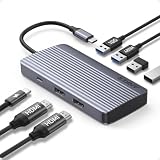
- Powerful 7-in-1 Hub: Designed for the multitasker, this 7-in-1 USB-C hub features everything from ultra-fast data transfer to high-definition video output.(No Ethernet port is included.)
- See More, Do More: Easily extend your workspace across two screens with 1080p@60Hz resolution, ideal for enhancing productivity and multitasking capabilities.
- Blazing-Fast 10Gbps Data Transfer: Dramatically reduce transfer times with a 10Gbps port that quickly moves large files and boosts work productivity.
- 100W Fast Charging: Cut down on charging time with the powerful 100W input and 85W output, suitable for all your high-demand technology. (Note: Wall charger not included.)
- Compatibility: Supports USB-C, USB4, and Thunderbolt connections. Compatible with MacBook (macOS 12 and newer), Windows 10 and 11, ChromeOS, and laptops equipped with DP Alt Mode and Power Delivery. Note: This device is not compatible with Linux.
Some docks connect one display through HDMI or DisplayPort and the second through a downstream Thunderbolt or USB-C video connection. The exact topology matters on Macs because a dock’s ordinary MST outputs may mirror rather than create two independent extended displays.
Thunderbolt is usually a better fit than DisplayLink for high-resolution work, high refresh rates, gaming, and low-latency graphics. Thunderbolt docks cost more than basic MST hubs, and a USB-C dock is not automatically a Thunderbolt dock.
Apple’s model-specific documentation is essential for MacBook buyers. Apple’s M3 MacBook display guidance describes a supported configuration in which two external displays can operate simultaneously with the MacBook lid closed, subject to the stated macOS and power requirements. Plugable’s Thunderbolt 4 compatibility notes similarly distinguish base M1/M2, base M3, M4/M5, and Pro or Max systems.
4. How do you daisy-chain two DisplayPort monitors?
To daisy-chain two monitors, connect the laptop to the first monitor’s DisplayPort input, then connect the first monitor’s DisplayPort output to the second monitor’s DisplayPort input. Enable MST in the first monitor’s on-screen menu if necessary.
Laptop DisplayPort, USB-C DisplayPort Alt Mode, or Thunderbolt
        ↓
Monitor 1 DisplayPort in → Monitor 1 DisplayPort out
                                      ↓
                             Monitor 2 DisplayPort in
The monitors must support DisplayPort 1.2 or newer and MST. Microsoft’s Surface documentation identifies DisplayPort 1.2 and MST as requirements for a compatible daisy chain. The first monitor must have a DP-out connector; two DP inputs are not enough.
Daisy chaining reduces cable clutter and avoids a separate MST hub, but the total bandwidth is shared. The second display may need a lower resolution or refresh rate, particularly when both monitors use high-resolution or high-refresh modes.
Ordinary HDMI daisy chaining does not work. HDMI monitors also cannot be daisy-chained through this DisplayPort method unless the monitor and connection path provide the required DisplayPort MST functionality.
The Tool Desk
Outbyte PC Repair FREERepair Windows errors before they cause bigger problemsFix Now →Outbyte Driver Updater FREEScan for outdated or missing drivers - takes under a minuteDriver Scan →Daisy chaining is mainly a Windows or native DisplayPort solution. Dell’s daisy-chain guidance distinguishes Windows MST extended desktops from macOS behavior and notes that macOS does not support the same ordinary HDMI-based arrangement. Macs may support extended displays through a Thunderbolt chain, but that is not the same as assuming that a standard USB-C MST chain will work.
5. When is a DisplayLink dock or USB graphics adapter the right choice?
Use a DisplayLink dock or USB graphics adapter when the laptop lacks enough native video outputs or when the laptop’s built-in hardware limits the number of external displays, especially on base-model Apple-silicon Macs.
DisplayLink sends display data through USB using a software-driven graphics system rather than relying solely on a direct GPU display path. The normal setup is:
- Install the DisplayLink driver or DisplayLink Manager supplied by the dock manufacturer.
- Connect the dock or adapter to the laptop over USB-A, USB-C, USB4, or Thunderbolt as specified by the product.
- Connect both monitors to the dock’s HDMI or DisplayPort outputs.
- On macOS, approve the required privacy permission if prompted. DisplayLink Manager may require Screen Recording permission so the software can send display data over USB.
- Arrange the displays in Windows Display settings or macOS System Settings.
Plugable’s UD-3900 documentation describes the software and macOS Screen Recording permission required by that DisplayLink dock. The permission is used to transmit display data; Plugable states that the product does not store the data covered by that permission.
DisplayLink is useful for office documents, browser windows, email, spreadsheets, and static productivity work. Native HDMI, DisplayPort, or Thunderbolt connections are preferable for gaming, very high refresh rates, demanding 3D workloads, color-critical work, and situations involving DRM-protected video. DisplayLink performance depends on USB bandwidth, CPU and GPU load, dock hardware, display resolution, and other USB traffic, so DisplayLink is not universally unsuitable but should not be treated as equivalent to a direct GPU connection.
Also popular on Amazon

- 7 in 1 USB C Laptop Docking Station: UGREEN Docking station comes with 2 HDMI, 2x10Gbps USB A ports, 2x10Gbps USB C portsand, a PD 100w charging transfer port. To achieve the full capabilities of hub, ensure your laptop's USB-C port is a full-function or Thunderbolt 3/4 port and Ensure that the cables you are using are compatible with the interface
- Dual 4K@60Hz HDMI Display: The Dual HDMI Dock features two 4K@60Hz HDMI ports, allowing dual-screen 4K@60Hz HD configuration. Please ensure your laptop supports DP1.4. Note: Due to macOS limitations, all extended monitors will display the same content
- Lightning Fast Transfer Speeds: This dual HDMI USB C hub docking station comes with two USB A&C ports for connecting keyboards, mice, and transferring data in USB 3.2. Note: The 10Gbps USB A and C ports do not support charging, video or audio transfer, 10G rate requires the cable to also support 10G rate, 10G rate requires the cable to also support 10G rate
- PD100W USB C Adapter: The PD 100W Fast Charging Docking Station boasts 100W, Please note that the charging cable and power adapter are not included. Additionally, the port only supports charging; it does not facilitate data transfer or video output, PD100W requires a 100w+ charger or original charger (100W+ required)
- Wide Adaptability: The Type-C docking station is compatible with ThinkPad X1, ZenBook, Chromebook, Surface, etc. Note: Windows systems can utilize an extended dual-screen display, macOS devices are limited to mirror mode.If you are a macOS user and want two external monitors to display different images, we do not recommend using this dock
DisplayLink can bypass some native display-count restrictions, but it does not bypass every operating-system or hardware limitation. Check the exact dock’s supported operating systems, output modes, resolution table, driver version, and permissions before buying.
Which method should you choose?
| Your situation | Recommended method | Reason |
|---|---|---|
| The laptop has HDMI plus video-capable USB-C | Separate direct connections | Lowest complexity and usually the most reliable native video path |
| A Windows laptop has one USB-C DisplayPort Alt Mode port | USB-C MST hub | Compact and generally driver-free on compatible Windows systems |
| A Thunderbolt laptop needs charging, Ethernet, USB, and two monitors | Thunderbolt dock | One-cable workstation with high-bandwidth connectivity |
| Both monitors have DisplayPort input, output, and MST | DisplayPort daisy chain | Reduces cable clutter without a separate MST hub |
| A base-level Mac has a native one-display limit | DisplayLink dock or a specifically compatible Thunderbolt solution | Can add independent displays through USB or a supported dock topology |
| Gaming or high-refresh-rate work is the priority | Direct native ports or Thunderbolt | Better fit for latency-sensitive graphics than DisplayLink |
| Only an identical picture is required | HDMI splitter | Mirroring is acceptable, but independent desktops are not created |
How do you set up two extended monitors in Windows 10 or 11?
Windows 10 and Windows 11 can select extended mode with Windows key + P → Extend, then arrange and configure the monitors in Display settings.
- Connect both monitors using the chosen method.
- Turn on both monitors and select the correct input: HDMI, DisplayPort, or USB-C.
- Press Windows key + P and choose Extend.
- Open Settings → System → Display.
- Select Identify to match Windows display numbers with the physical monitors.
- Drag the display rectangles into the correct left-to-right or top-to-bottom arrangement.
- Select each display and set resolution, scale, orientation, and refresh rate.
- If one monitor is missing, select Detect.
Windows cannot offer a resolution or refresh rate that the laptop GPU, connection standard, dock, cable, and monitor combination cannot deliver. If two displays are detected but one runs at an unexpectedly low mode, test lower settings on both monitors and consult the dock’s detailed per-port specifications.
Quick wins for a faster PC:
Fix the driver behind crashes, sound loss and screen glitchesFind Drivers →Repair Windows errors before they cause bigger problemsFix Now →How do you set up two extended monitors in macOS?
macOS configures connected monitors in System Settings → Displays, but the Mac model and connection technology determine whether two independent external displays are possible.
- Connect both monitors and turn them on.
- Select the correct input on each monitor.
- Open System Settings → Displays.
- Select each display and configure its resolution and arrangement.
- Disable mirroring using the display arrangement or mirroring control if both screens show the same image.
- If using DisplayLink, install the current DisplayLink Manager supplied by the manufacturer and approve the requested macOS privacy permission.
- If the Mac uses Apple silicon, verify the exact chip, MacBook model, macOS requirements, and whether clamshell mode is required.
Base M1, M2, M3, M4, and M5 systems are not interchangeable, and Pro or Max variants can have different native display capabilities. A Mac that mirrors two monitors through a cheap MST hub may need direct connections, a Mac-compatible Thunderbolt dock topology, or DisplayLink instead.
When two external monitors are connected to a supported M3 MacBook configuration, opening the lid can cause one external display to go dark or disconnect according to Apple’s M3 dual-display guidance. Clamshell behavior therefore needs to be checked for the exact Mac model rather than assumed.
Why does only one monitor work?
Only one monitor usually works because the laptop does not support two external displays, the USB-C port lacks video capability, the dock is limited to one display, the MST chain is miswired, or the connection exceeds available bandwidth.
Crashes, No Sound, or Screen Glitches?
Random freezes, missing sound and display glitches usually trace back to one bad driver. Find and replace yours safely.Free scan · under a minutePC Slower Than It Used to Be?
A free scan shows the junk files, broken settings and background clutter dragging Windows down - then fixes them in one click.Free scan · Windows 10 & 11- Confirm that the laptop supports two external monitors.
- Confirm that the USB-C port supports DisplayPort Alt Mode, Thunderbolt, or the relevant USB4 display capability.
- Test each monitor individually.
- Test each cable separately and select the correct monitor input.
- Check whether the dock needs its own power adapter.
- In Windows, open Settings → System → Display → Detect.
- On macOS, reconnect the dock after approving DisplayLink permissions.
- Update the laptop graphics driver, dock firmware, monitor firmware, or DisplayLink Manager where applicable.
- For a daisy chain, verify that Monitor 1 has DP-out, the cable runs from DP-out to Monitor 2 DP-in, and MST is enabled.
- Temporarily reduce resolution or refresh rate to test for a bandwidth problem.
Why are both monitors mirroring?
Both monitors mirror when the connection duplicates one video signal, when macOS does not expose two independent MST streams, or when the adapter supports clone mode rather than extended mode.
- HDMI splitter: Replace it with two direct outputs, an MST hub, Thunderbolt dock, or DisplayLink dock if separate desktops are required.
- Windows: Press Windows key + P and select Extend.
- Mac with an MST hub: Use separate native ports, a compatible Thunderbolt topology, or DisplayLink.
- Dock setting: Check for clone, mirror, or duplicate settings in the dock utility, monitor menu, or operating system.
What should you do when USB-C charges but does not display?
USB-C charging does not prove that a USB-C port supports video. USB Power Delivery and USB data can work on a port that lacks DisplayPort Alt Mode.
Check the laptop manual for a DisplayPort or Thunderbolt symbol and use the manufacturer-specified port. If the port is data-only, connect one monitor through HDMI or DisplayPort and use a native video-capable port, Thunderbolt dock, or DisplayLink adapter for the second display.
Recommended Free Tools
How do you fix a black screen at 4K or a high refresh rate?
A black screen at 4K or a high refresh rate usually indicates insufficient interface or cable bandwidth, bandwidth shared between two monitors, a dock limit, or a laptop GPU limit.
Also popular on Amazon

- Enterprise-Grade 12-in-1 Expansion for Hybrid Teams: Designed for compatibility with USB-C, USB4, or Thunderbolt laptops on Windows, macOS, or ChromeOS environments. Enables up to 3 HDMI monitors, wired Gigabit Ethernet network access, 6x USB 3.0 peripherals, audio, and device charging. Perfect for organizations looking to streamline IT deployments in hot-desking and managed office workspaces that demand reliable networking and easy device connectivity.
- Triple Display USB-C Docking Station: Maximize productivity with support for up to three extended HDMI displays (1× 4K @ 30Hz via Alt Mode, 2× 1080p @ 60Hz via DisplayLink). Bypasses native single-display limitations on platforms like Apple M1/M2/M3/Neo MacBooks. Compatible with all newer Apple Silicon systems, including M4 and M5. Optimized for enterprise use cases such as data analysis, presentations, and conferencing, it transforms any notebook into a multi-monitor workstation for your hybrid workforce.
- Advanced USB-C Functionality: Integrated DisplayLink graphics technology and native USB-C video output (Alt Mode) are essential for maximizing workstation productivity, delivering full, native, high-performance multi-display support, while 100W USB-C Power Delivery ensures continuous host system charging in enterprise environments.
- Universal Compatibility: Engineered for seamless integration with USB Type-C, USB4, and Thunderbolt-enabled systems across macOS (11+ with driver installation), Windows, and ChromeOS (v100+). that support USB-C Alt Mode and Power Delivery. Ideal for mixed-fleet IT environments, fully compatible with Dell XPS and Latitude, HP EliteBook and ProBook, Lenovo ThinkPad, and MacBook M series laptops, and more. Not compatible with Linux; HDCP not supported.
- Expert Lifetime Support: Backed by North American-based technical support and our compatibility guarantee if something doesn’t work, we’ll make it right. Trusted by IT professionals worldwide, Plugable provides direct access to the engineers who design our products for deployment assistance, troubleshooting, and lifecycle support. We resolve issues quickly to minimize downtime and help organizations maintain productivity at scale.
- Temporarily set the monitor to 1080p at 60 Hz.
- Connect one monitor directly to the laptop.
- Try DisplayPort instead of HDMI where the laptop, dock, and monitor support it.
- Use a cable rated for the required resolution and refresh rate.
- Check the dock’s per-port table, not only its headline maximum.
- Reduce the second monitor’s resolution or refresh rate if the combined link is bandwidth-limited.
“Dual 4K” can describe two 4K displays at 60 Hz, one 4K display at 60 Hz plus another at 30 Hz, two displays using Display Stream Compression, or lower refresh-rate combinations. The exact laptop, dock, cable, and monitor specifications decide which result applies.
Why does the dock charge the laptop slowly or not at all?
A dock can provide USB-C Power Delivery without supplying as much power as the laptop’s original charger requires. Some DisplayLink docks do not charge the host laptop at all.
Check the dock’s actual host-charging wattage, confirm that the host cable supports power delivery, and verify that the laptop accepts charging through the connected port. If necessary, connect the original laptop charger separately. A dock’s number of monitor outputs does not indicate its charging capability.
Free tools Windows power users keep installed
One-click scans. No signup required.
Which docks and adapters are worth comparing?
Compare products by technology and compatibility rather than by the number of HDMI sockets. The following examples illustrate different buying categories; prices are vendor-site signals recorded during the research period and can change.
| Example | Technology and stated use | Important qualification | Approximate research price |
|---|---|---|---|
| Plugable UD-3900 Universal Dual Monitor Dock | DisplayLink; Windows, macOS, and ChromeOS office setups | Requires DisplayLink software; supports up to 1920×1200 at 60 Hz according to product information; does not charge the host laptop | $99.95 |
| Plugable UD-6950PDH Dual 4K USB-C DisplayLink Dock | DisplayLink over USB-C; higher-resolution displays, charging, and fuller dock functions | Verify whether the advertised 4K/60 mode applies to both monitors simultaneously; native video is preferable for demanding graphics | $199.99 |
| Plugable TBT4-UDX1 Thunderbolt 4 dock | Thunderbolt 4; compatible Mac and Windows one-cable workstations | Support depends on the laptop. The vendor notes different behavior for base M1/M2, base M3, M4/M5, and Pro or Max Macs | $249.95 |
| Plugable UD-ULTCDL triple-monitor DisplayLink dock | DisplayLink plus USB-C Alt Mode; users who may expand beyond two displays | Outputs are not three identical native 4K paths; the vendor lists different display modes and limits | $185.95 |
For a laptop with two suitable native ports, direct cables are usually the better purchase than a dock. For a compatible Windows laptop with one video-capable USB-C port, an MST hub is usually the simplest no-driver option. For a Thunderbolt laptop that needs charging and peripherals, a Thunderbolt dock is the more complete workstation solution. For a base-level Mac or another laptop with a native display-count limitation, a compatible DisplayLink dock may be the practical workaround.
Before purchasing any product, confirm the number of independent extended displays, operating-system support, per-monitor resolution and refresh rate, charging wattage, host connector, driver and permission requirements, included cables, power supply, warranty, return policy, and whether the second output mirrors on macOS.
What is the fastest decision path?
- Do you have two video-capable laptop ports? Connect the monitors directly.
- Do you have Windows and one USB-C port with DisplayPort Alt Mode? Use a USB-C MST hub.
- Do you have Thunderbolt and need charging and peripherals? Consider a Thunderbolt dock.
- Do both monitors have DisplayPort MST and DP-out on the first monitor? Consider a DisplayPort daisy chain.
- Does the Mac or laptop have a native display limit? Use direct connections where possible, then choose a Mac-compatible Thunderbolt or DisplayLink solution based on the workload.
- Do you only need the same image on both screens? An HDMI splitter is acceptable, but it will not create two independent desktops.
Frequently Asked Questions
Can an HDMI splitter extend a laptop desktop to two monitors?
An HDMI splitter normally mirrors one laptop video signal to both monitors; an HDMI splitter does not normally create two independent extended desktops. Use two direct video outputs, an MST hub, a Thunderbolt dock, or DisplayLink for separate desktops.
Can any USB-C port connect a monitor?
No. A USB-C port must support DisplayPort Alt Mode, Thunderbolt, or a compatible USB4 display feature for native monitor output. USB-C charging and USB data alone do not guarantee video.
Can a MacBook connect to two external monitors?
Many MacBooks can connect to two external monitors, but the result depends on the exact Mac model, Apple chip tier, macOS requirements, connection technology, and sometimes clamshell mode. Base Apple-silicon models may require DisplayLink or a supported Thunderbolt arrangement.
Why do two monitors connected through one USB-C hub mirror on a Mac?
Many ordinary USB-C MST hubs use a Windows-oriented multi-stream arrangement that macOS does not expose as two independent extended displays. Separate native connections, a compatible Thunderbolt dock topology, or a DisplayLink dock may resolve the mirroring.
The Bottom Line
The simplest solution is to connect each monitor directly to two video-capable laptop ports. If that is not possible, choose a USB-C MST hub for a compatible Windows laptop, a Thunderbolt dock for a native one-cable workstation, a DisplayPort MST chain for compatible Windows monitors, or a DisplayLink dock when the laptop’s native display limit requires a USB graphics workaround. Check the exact laptop model, operating system, dock technology, display limit, bandwidth, and charging specifications before buying.
What’s actually slowing this PC down?
Pick the symptom - the matching free tool is one click away.

