
Do these 3 things before closing this tab:
1Repair Windows errors before they cause bigger problems2Fix the driver behind crashes, sound loss and screen glitches3Clear out junk files and repair common Windows errorsiTechGuides is reader-supported. When you buy through links on our site, we may earn an affiliate commission. As an Amazon Associate I earn from qualifying purchases. Learn more
For most Windows, macOS, and Linux artists, start with Krita. It is free, open source, built for digital painting and illustration, and has the layers, brush customization, stabilizers, guides, animation tools, and PSD support needed for more than a quick doodle. Choose Adobe Fresco for an iPad, Inkscape for vector artwork, Sketchbook for a clean sketching interface, and MediBang Paint for comics and manga.
There is no single best free drawing program for every device or workflow. A natural-media painting app, a vector editor for logos, a browser-based Photoshop alternative, and a mobile manga app solve different problems. This guide separates those choices and explains what free means in each case: open source, desktop freeware, a free commercial app, an ad-supported mobile edition, or a browser tool.
Software cannot create artistic skill, but the right app can give you better control through pressure sensitivity, line stabilization, perspective and symmetry guides, layers, undo history, and suitable export formats.
Windows Errors? Fix Them Before They Spread
Repair common Windows errors and clear accumulated junk for a smoother, more stable PC - no reinstall needed.Free scan · no reinstallOutdated Drivers Are Slowing You Down
One free scan finds every outdated or missing driver and matches the right update for your exact hardware.Free scan · exact hardware matchQuick decision guide
- Digital painting or illustration on a computer: Krita.
- Professional vector, pixel, and page-layout work: Affinity by Canva.
- Painting with an iPad or touchscreen: Adobe Fresco.
- A simple, uncluttered sketching interface: Sketchbook on mobile, or FireAlpaca and Krita on desktop.
- Logos, icons, diagrams, or scalable line art: Inkscape or Affinity.
- Comics and manga: MediBang Paint on desktop or ibisPaint X on mobile.
- A lightweight desktop painting program: FireAlpaca.
- Photo editing plus drawing: GIMP or Photopea.
- Minimalist natural-media sketching: MyPaint.
- A basic Windows editor: Paint.NET or Artweaver Free.
- A Chromebook or locked-down computer: Photopea.
What does free mean?
Free drawing software is not one uniform category. Before installing anything, check whether the app is free on your device and whether important features depend on advertising, an account, cloud storage, or a paid edition.
| Free model | Apps in this guide | What it means |
|---|---|---|
| Free and open source | Krita, GIMP, Inkscape, MyPaint | The source code is openly developed or licensed, and the core desktop software can be used without a purchase. |
| Free desktop freeware | FireAlpaca, Paint.NET, Artweaver Free | The standard desktop edition is free, but it is not necessarily open source and may sit alongside a paid edition. |
| Free core commercial app | Affinity by Canva, Adobe Fresco | The publisher offers the core app without charging for it, but accounts, connected services, AI features, or ecosystem features may have separate requirements. |
| Free mobile edition with paid options | MediBang Paint, ibisPaint X | The basic app is free, while advertisements, premium brushes, cloud storage, or other features may require payment. |
| Free mobile version, paid desktop edition | Sketchbook | Mobile Sketchbook is free, but current Windows and macOS Sketchbook Pro editions are sold as one-time purchases. |
| Free browser app | Photopea | It runs in a browser without a conventional installation. Browser memory, local storage, and connectivity become part of the workflow. |
A time-limited trial is not free software. Likewise, a product should not be called simply free when only its mobile edition is free and its current desktop edition is paid.
At-a-glance comparison
Raster means pixel-based painting and image editing. Vector means editable paths and shapes that can scale without becoming pixelated. A checkmark in a platform column means the product has a relevant version, not that every version has identical features.
| App | Best for | Type | Windows | macOS | Linux | iPad/iPhone | Android | Browser | Free qualification |
|---|---|---|---|---|---|---|---|---|---|
| Krita | Painting, illustration, comics, animation | Raster-first | Yes | Yes | Yes | No | Android tablets | No | Open source |
| Affinity by Canva | Vector, pixel, layout, mixed design | Vector and raster | Desktop-focused | Desktop-focused | Verify | Verify current edition | Verify | No | Core app announced free; check current account and platform requirements |
| Adobe Fresco | Touch and iPad painting | Raster and vector | Yes | Not listed in supplied sources | No | Yes | No | No | Adobe describes the app as completely free; check account and extras |
| Sketchbook | Clean sketching | Raster | Yes | Yes | No | Yes | Yes | No | Mobile free; desktop Pro one-time purchase |
| Inkscape | Logos, icons, diagrams, line art | Vector | Yes | Yes | Yes | No | No | No | Open source |
| GIMP | Photo editing plus drawing | Raster | Yes | Yes | Yes | No | No | No | Open source |
| MediBang Paint | Manga, comics, screentones | Raster | Yes | Yes | Not listed | Yes | Yes | No | Free core editions; premium and cloud features exist |
| FireAlpaca | Lightweight painting and inking | Raster | Yes | Yes | Download listed | No | No | No | Standard edition free; SE is separate |
| Paint.NET | Simple Windows drawing and editing | Raster | Yes | No | No | No | No | No | Website download free; Microsoft Store version may be paid |
| Artweaver Free | Traditional-media effects for beginners | Raster | Yes | No | No | No | No | No | Free edition alongside paid Plus edition |
| MyPaint | Distraction-free natural-media sketching | Raster | Desktop builds | Desktop builds | Desktop builds | No | No | No | Open source; stable release is old |
| ibisPaint X | Mobile manga and timelapse | Raster | Separate version | Not listed | No | Yes | Yes | No | Free mobile edition with ads and in-app purchases |
| Photopea | PSD editing without installation | Raster and vector | Browser | Browser | Browser | Browser | Browser | Yes | Free browser-based workflow |
Desktop and mobile versions should not be treated as interchangeable. They can have different tools, file handling, advertising, cloud storage, account requirements, and purchase models.
The 13 best free drawing programs
1. Krita — best overall free drawing software
Choose Krita if: you want a serious desktop painting and illustration app without a subscription.
Krita is the strongest default recommendation for most desktop digital artists. It is a free, open-source painting program designed around illustration rather than treating drawing as a minor feature inside a photo editor. Its official feature list includes customizable brushes, brush tagging, layers, masks, selections, transform tools, color management, PSD support, HDR painting, animation tools, Python scripting, and drawing aids such as guides and stabilizers. See the official Krita feature list.
It suits digital painting, concept art, comics, storyboards, 2D animation, coloring, and PSD-based work. It also supports perspective and other drawing aids that can make controlled sketching easier. These tools improve consistency; they do not replace practice.
Current status: The stable productive-work branch is Krita 5.3.2.1, released June 2, 2026. Krita 6.0.2.1 is available, but the project describes the Qt 6 branch as more experimental during the Qt 5-to-Qt 6 transition. For important work, the stable branch is the safer default. The 5.3.2.1 release notice explains the distinction.
Krita is available for Windows, macOS, Linux, and Android tablets. There is no native iPhone or iPad version. The current download information lists at least 4 GB of RAM and recommends 16 GB, along with OpenGL 3.0 or Direct3D 11 graphics support. Large canvases, many layers, complex brushes, and long undo histories can use considerably more memory.
Limitations: Its interface can overwhelm a first-time user, Android support is tablet-oriented rather than equivalent to the desktop experience, and its vector and layout capabilities do not replace a dedicated vector editor.
Best alternative: Try Sketchbook or MyPaint if you only want a fast pencil-like sketching environment. Choose FireAlpaca if Krita feels too feature-heavy for your computer.
2. Affinity by Canva — best free all-in-one design alternative
Choose Affinity if: your idea of drawing includes vector illustration, logos, layout, typography, pixel editing, and print-oriented design.
Canva announced in October 2025 that the new Affinity would combine photo editing, vector design, and page-layout tools in a professional application made free for everyone. That makes it one of the most important additions to current free-software recommendations. The announcement is documented in Canva’s Affinity newsroom post.
Affinity is a strong choice for logos, icons, geometric illustration, technical artwork, mixed vector-and-raster projects, and page layouts. It is not the closest substitute for Krita when the goal is textured, natural-media painting with extensive brush customization.
Important qualification: The free announcement concerns the core Affinity app. Confirm the current supported operating systems, installation process, account requirements, and whether particular AI or cloud-connected features require Canva before committing to a workflow. Platform and feature availability can change, and Affinity should not be described as open source.
What’s actually slowing this PC down?
Pick the symptom - the matching free tool is one click away.
Best alternative: Choose Inkscape for a fully open-source vector workflow, or Krita for brush-based painting.
3. Adobe Fresco — best free iPad and touch-painting app
Choose Fresco if: you want to paint with an Apple Pencil or another supported touchscreen stylus, particularly on an iPad.
Adobe Fresco combines raster brushes, vector brushes, and live brushes intended to simulate media such as watercolor and oil. Adobe announced that Fresco was being made completely free, and its current Fresco product page presents it as a free drawing and painting app. It is a compelling choice for touch-based painting, basic animation and motion-path work, and projects that move between raster and vector elements.
Fresco is available for iOS/iPadOS and Windows in the supplied current coverage. It is not an Android option. Adobe account or ecosystem requirements should be checked during installation, and the phrase completely free should be understood as referring to the core app. Optional integrations, extras, or connected Adobe services may have different requirements; do not assume that every Adobe feature or service is included. Adobe’s free-Fresco announcement provides the publisher’s position.
Free tools Windows power users keep installed
One-click scans. No signup required.
Limitations: Android users need another app, and file interchange with Photoshop or Illustrator is a workflow advantage rather than a promise that every layer, effect, text object, or vector feature will transfer perfectly.
Best alternative: Sketchbook is a cleaner general sketching choice on iPad, while ibisPaint X and MediBang Paint are stronger mobile manga alternatives.
4. Sketchbook — best clean and approachable sketching interface
Choose Sketchbook if: you want to open a blank canvas and start drawing without learning a dense professional workspace.
Sketchbook emphasizes a natural stylus workflow, smooth lines, rulers, curved rulers, ellipse and French-curve tools, predictive stroke, symmetry, layers, and customizable brushes. Its apps page describes the available desktop and mobile editions.
Also popular on Amazon

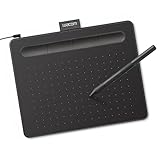
- Word-first 16K Pressure Levels: The upgraded stylus features 16,384 levels of pressure sensitivity and supports up to 60 degrees of tilt, delivering smoother lines and shading for a natural drawing experience. With no battery or charging needed, it operates like a real pen, making it easy for beginners to create effortlessly. This functionality helps novice artists develop their skills and explore their creativity without the intimidation of complex tools
- Designed for Beginners: This drawing pad desinged with 8 customizable shortcuts for both right and left-hand users, express keys create a highly ergonomic and convenient work platform
- Perfectly Adapted for Android: The XPPen Deco 01 V3 art tablet supports connections with Android devices running version 10.0 and above. It is recommended to download the XPPen Tools Android application, which adapts to your smartphone's screen aspect ratio, ensuring accurate mapping. It also supports mapping on Android screens with different aspect ratios in portrait mode
- Large Drawing Space, Bigger Bold Inspiration: This expansive drawing pad has10 x 6.25-inch helps you break through the limit between shortcut keys and drawing area
- Easy Connectivity for Beginners: The Deco 01 V3 offers USB-C to USB-C connectivity, plus adapters for USB C. This ensures easy connection to various devices, allowing beginner artists to set up quickly and focus on their creativity without compatibility concerns. Whether using a laptop, tablet, or desktop, the Deco 01 V3 provides a seamless experience, making it an ideal choice for those just starting their digital art journey
Do not call all Sketchbook versions free. The mobile app is available through the Apple App Store and Google Play, but current desktop Sketchbook Pro for Windows and macOS is a one-time purchase. The US Mac App Store listing showed $24.99 at the time of research; prices vary by store and region. That makes Sketchbook an excellent free mobile recommendation, but not a free desktop recommendation. The US Mac App Store listing and Sketchbook’s support information confirm the distinction.
Current support requirements list Windows Sketchbook Pro 9.4.7 for Windows 10/11 on x64 or ARM hardware with 8 GB RAM and OpenGL 2.0; macOS Sketchbook Pro 9.4.13 for macOS 12 or later on Apple silicon or 2.4 GHz Intel hardware with 8 GB RAM; Android 6.2.6 for Android 9 or later; and iOS 6.2.8 for iOS 14 or later. Check the current system requirements before installing.
Limitations: Desktop use is paid, there is no native Linux edition, and the app is less suited than Krita to complex animation, large comic projects, or a deeply customizable professional painting pipeline.
Best alternative: Use Krita on desktop or MyPaint if you need a free desktop application with a more explicitly painting-oriented workflow.
5. Inkscape — best free vector drawing software
Choose Inkscape if: your sketch needs to become a logo, icon, diagram, piece of lettering, technical illustration, or other artwork that must scale cleanly.
Inkscape is a free, open-source vector graphics editor. Its central format is SVG, and its tools include shapes, text, Bézier curves, Spiro curves, and editable paths. The official Inkscape site documents the vector workflow and file-format focus.
Vector drawing is fundamentally different from painting. A freehand stroke in Inkscape becomes an editable path rather than a group of painted pixels. That is ideal for clean line art, geometric shapes, logos, icons, diagrams, typography, and artwork that may be printed at many sizes. It is less suitable for blending textured brush marks or simulating a canvas covered in wet paint.
Current status: Inkscape 1.4.4 was released May 6, 2026. The release included crash and bug fixes, performance improvements, a new palette, and Windows-on-Arm installation files. It is available for Windows, macOS, and Linux. SVG compatibility can still vary between applications, especially when an SVG uses Inkscape-specific extensions or effects.
Recommended Free Tools
Limitations: It is not a natural-media painting program, and users seeking a pencil-and-brush experience may find path editing more technical than Krita or Sketchbook.
Best alternative: Affinity is the broader mixed vector-and-pixel choice; Krita is the better choice for raster illustration.
6. GIMP — best free image editor that can also draw
Choose GIMP if: drawing is part of a larger photo-editing, compositing, masking, retouching, or image-export workflow.
GIMP is a free, open-source raster editor with layers, selections, masks, filters, color tools, and extensibility. It can draw, but its heritage is image manipulation rather than illustration-first brush work. It is particularly useful for drawing over photographs, creating textures, combining references, resizing artwork, and preparing images for export.
The Tool Desk
Outbyte PC Repair FREEClear out junk files and repair common Windows errorsFree Scan →Outbyte Driver Updater FREEFix the driver behind crashes, sound loss and screen glitchesFind Drivers →The current stable release listed by GIMP is 3.2.4, released April 17, 2026. The official download page still provides a Windows installer for Windows 10. The Microsoft Store build uses MSIX and requires Windows 11 or Windows Server 2022. Older Windows versions and 32-bit systems are no longer supported. See GIMP’s download page and its Microsoft Store packaging notice.
Limitations: GIMP is generally less immediately intuitive for pure sketching than Krita or Sketchbook, and PSD support does not mean that every Photoshop text layer, adjustment layer, smart object, mask, blending mode, or vector element will remain identical.
Best alternative: Use Photopea for a no-install Photoshop-style workflow, or Krita when painting is the main task.
7. MediBang Paint — best free comics and manga tool
Choose MediBang Paint if: you need comic panels, screentones, page management, speech-balloon-oriented work, perspective tools, and a manga-friendly workflow.
Quick wins for a faster PC:
Repair Windows errors before they cause bigger problemsFix Now →Scan for outdated or missing drivers - takes under a minuteDriver Scan →MediBang Paint is built specifically around digital painting and manga creation. Its feature set includes customizable brushes, layers, comic panels, page management, screentones and backgrounds, cloud access, group projects, and PSD support. The official MediBang overview explains the product’s comic-oriented features.
Desktop editions support Windows 10 or later and macOS 11 or later. Mobile editions are available for iPad, iPhone, and Android. The desktop product is described as free, but premium materials, account features, collaboration, and cloud storage are separate considerations. Mobile requirements can change, so check the current download page for the device in question.
Protect your work: MediBang’s FAQ warns that exceeding cloud-storage capacity can prevent new cloud saves and may eventually result in excess work being deleted. Export important pages locally as MDP, PSD, PNG, or TIFF files instead of keeping the only copy in the cloud. The MediBang FAQ describes the cloud-storage warning and tablet troubleshooting information.
Limitations: The interface is more manga-oriented than general-purpose painting-oriented, and the free experience may include limits around cloud storage or premium materials.
Best alternative: Krita is broader for painting and animation; ibisPaint X is more convenient when the work begins and ends on a phone or tablet.
8. FireAlpaca — best lightweight free desktop painting app
Choose FireAlpaca if: you want a straightforward raster drawing program for a modest computer, anime-style illustration, inking, comic pages, or simple animation.
FireAlpaca includes customizable brushes, brush textures, line adjustment, layers, animation tools, perspective, halftone, mesh deformation, reference windows, and comic-oriented features. Its publisher lists standard FireAlpaca as free. The current listed version is 2.16.0.
Also popular on Amazon
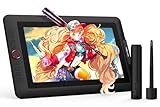
- PLEASE NOTE:XPPen Artist13.3 Pro drawing tablet Need to connect with computer,you need to use it with your computer or laptop, the 3 in 1 cable is included
- Drawing Tablet with Screen: Tilt Function- XPPen Artist 13.3 Pro supports up to 60 degrees of tilt function, so now you don't need to adjust the brush direction in the software again and again. Simply tilt to add shading to your creation and enjoy smoother and more natural transitions between lines and strokes
- Graphics Tablets: High Color Gamut- The 13.3 inch fully-laminated FHD Display pairs a superb color accuracy of 88% NTSC (Adobe RGB≧91%,sRGB≧123%) with a 178-degree viewing angle and delivers rich colors, vivid images, and dazzling details in a wider view. Your creative world is now as powerful as it is colorful
- Drawing Pad: One is enough- The sleek Red Dial on the display is expertly designed with creators in mind, its strategic placement allows for natural drawing postures. With just one wheel, you can effortlessly zoom in and out, adjust brush sizes, and flip the canvas—all tailored to suit the habits of everyday artists. The 8 customizable shortcut keys allow you to personalize your setup, streamlining your workflow and enhancing creative efficiency
- Universal Compatibility & Software Support:supports Windows 7 (or later), Mac OS X 10.10 (or later), Chrome OS 88 (or later), and Linux systems. Fully compatible with major creative software including Photoshop, Illustrator, SAI, and Blender 3D. Register your device to access additional programs like ArtRage 5 and openCanvas for expanded creative possibilities.
The download page lists Windows 10 or later, macOS 12 or later, and Linux downloads for distributions including Ubuntu 23.04 or later, Fedora 36 or later, and Debian 12 or later. Check the current FireAlpaca downloads rather than assuming that every platform has identical features.
Limitations: It has less advanced color-management depth and fewer large-suite features than Krita. The standard edition should not be confused with FireAlpaca SE, a separate enhanced product.
Best alternative: Krita offers substantially more depth; Paint.NET is simpler if you only need basic Windows raster editing.
9. Paint.NET — best simple Windows raster editor
Choose Paint.NET if: you use Windows and want layers, basic drawing, image cleanup, and an approachable interface without GIMP’s broader complexity.
Paint.NET provides layers, multiple open images, plugins, color management, a multithreaded rendering engine, and free updates. It is a practical choice for simple sketches, annotations, basic compositing, and quick image edits.
The current download page lists Paint.NET 5.1.12, dated March 8, 2026. It requires Windows 10 version 21H2 or newer, Windows 11, or Windows Server 2022. The current release also requires a 64-bit CPU with AVX2, at least four cores, and Direct3D 11 support. The website download is free, while the Microsoft Store version may be paid as a way to support development. See Paint.NET’s download and requirements page.
Limitations: Paint.NET is Windows-only and is not as strong as Krita for professional illustration brushes, animation, comics, or advanced painting. Plugin quality and compatibility can vary.
Best alternative: Artweaver Free offers more traditional-media emphasis on Windows; FireAlpaca offers a more drawing-focused cross-platform option.
10. Artweaver Free — best Windows beginner option for traditional effects
Choose Artweaver Free if: you are a Windows beginner who wants to experiment with brushes that resemble traditional media in a relatively simple desktop environment.
Recommended Free Tools
Artweaver focuses on traditional-media effects, layers, brushes, and an accessible interface. The current official download listing shows Artweaver 8.1.6, dated July 5, 2026, and confirms that a Free edition remains available alongside Artweaver Plus.
It is Windows-only. Be careful when comparing feature lists: some tools belong to Artweaver Plus rather than Artweaver Free. Check the Artweaver Free page and license terms before assuming a feature is included.
Limitations: It has a smaller ecosystem and less cross-platform reach than Krita, and the free edition does not include every Plus feature.
Best alternative: FireAlpaca is a better cross-platform lightweight choice; Krita is better when you expect your skills and projects to grow into animation or complex illustration.
The Tool Desk
Outbyte PC Repair FREEClear out junk files and repair common Windows errorsFree Scan →Outbyte Driver Updater FREEFix the driver behind crashes, sound loss and screen glitchesFind Drivers →11. MyPaint — best distraction-free natural-media sketching
Choose MyPaint if: you want to concentrate on freehand brushwork with minimal interface distraction.
MyPaint is designed as a nimble sketching and painting tool with a tablet-friendly workflow and natural-media brush behavior. Its minimalist approach makes it distinctive among the larger, feature-rich applications. The project describes the app at mypaint.app.
Maintenance qualification: The latest stable release listed by the project is MyPaint 2.0.1, released May 29, 2020. The 2.0 series added spectral or subtractive color mixing, improved symmetry, expanded brush settings, and additional input controls, but the release is old compared with the other programs in this guide. Verify current operating-system, tablet-driver, and Linux-library compatibility before using it for a specific machine. Its release history makes the age of the stable version clear.
Limitations: It lacks Krita’s breadth for text, animation, comics, complex compositing, and current production workflows. Recommend it for its focused brush experience, not because it is the most actively updated suite.
Best alternative: Krita provides a more current and comprehensive painting environment with a larger toolset.
12. ibisPaint X — best mobile manga and timelapse app
Choose ibisPaint X if: you draw primarily on an Android phone, Android tablet, iPhone, or iPad and want manga-oriented tools plus a recorded drawing process.
ibisPaint’s defining feature is its ability to create a video of the drawing process. It is heavily oriented toward mobile illustration and manga workflows, with a large brush and layer ecosystem designed around touch screens. The official ibisPaint overview explains the product and its process-recording focus.
ibisPaint X is the free mobile version for iOS and Android. Advertising, premium membership, and ad-removal options exist; the official premium information explains those choices. Windows has a separate version with different limits and purchase options, so do not assume that mobile and Windows editions have identical tools or licensing.
Do these 3 things before closing this tab:
1Clear out junk files and repair common Windows errors2Fix the driver behind crashes, sound loss and screen glitches3Repair Windows errors before they cause bigger problemsLimitations: Small screens make complex layer work less comfortable, and the free version may show advertisements or restrict premium brushes and features.
Best alternative: MediBang Paint is better for page-based comics and cloud collaboration; Fresco is better for an iPad-first raster-and-vector workflow without Android support.
Also popular on Amazon

- Customize Your Workflow: The 6 customizable press keys on Huion H640P drawing tablet for pc let you assign your most-used commands—like undo, zoom, brush switch, or save—so you can keep your hands on the tablet and your mind on the art. Whether you're a digital painter switching brushes, or a comic artist zooming in and out, these keys keep your workflow smooth and uninterrupted. Plus, the Huion driver lets you save different shortcut profiles for different apps, so you never have to reconfigure when switching software.
- Professional Pen Performance: Huion H640P drawing pad for computer comes with the battery-free PW100 stylus that's always ready when inspiration strikes. With 8192 levels of pressure sensitivity, every light sketch, or bold stroke responds naturally to your hand—just like a real pen. The 5080 LPI resolution and 233 PPS report rate deliver lag-free, precise strokes, so you can draw confidently without second-guessing your cursor. The pen side buttons help you switch between pen and eraser instantly.
- Compact and Portable: Huion H640P computer graphics tablet features a compact, ultra-portable design at just 0.3 inches thin and 0.61 lbs light, so it slides easily into your backpack—perfect for sketching in coffee shops, taking notes in class, or editing on the go between home and studio. The 6x4 inch active area offers enough room for natural pen movements while fitting comfortably on crowded desks, or lecture hall seats.
- Stable Compatibility: Huion H640P graphic drawing tablet works seamlessly with Mac, Windows, Linux PCs, and Android smartphones/tablets (OS version 6.0 or later). Left-handed friendly, and you just need to flip the tablet and adjust the settings in the driver. Please note: H640P does NOT support iPhone/iPad.
- Move Beyond the Mouse: Huion Inspiroy H640P is a pen tablet that replaces your mouse for more natural, precise control. Freehand draw, take notes, or even play OSU—everything you do with a mouse, you can do better with a pen. The precise tip makes it ideal for detailed photo editing, graphic design, or signing PDF. Meanwhile, the ergonomic pen grip helps you avoid the strain that comes from hours of using a mouse.
13. Photopea — best no-install browser alternative
Choose Photopea if: you use a Chromebook, a school or work computer where installation is blocked, or any device where you need a Photoshop-style editor immediately.
Photopea runs in a browser, supports raster and vector editing, and can open and save PSD files. Its official site says that files are processed locally on the device rather than uploaded by default. It is useful for quick drawing, masking, compositing, tracing, image editing, and PSD-based work. Open it from Photopea’s official site.
Free tools Windows power users keep installed
One-click scans. No signup required.
Browser-specific caution: Photopea is primarily a Photoshop-style editor, not a dedicated natural-media painting application. Performance depends on the browser, available memory, graphics acceleration, canvas size, and layer count. Browser storage is not a backup: a cleared cache, closed session, browser problem, or lost local data can put unsaved work at risk. Export frequently and keep a copy outside the browser.
Best alternative: Use Krita or FireAlpaca for a full installed painting workflow, especially when you need reliable offline work and extensive brush controls.
Choose by the kind of drawing you do
Raster painting and illustration
Choose Krita, Fresco, Sketchbook, FireAlpaca, MediBang Paint, MyPaint, Artweaver Free, ibisPaint X, or Paint.NET. Raster programs record color as pixels, making them suitable for digital painting, textured brushes, coloring, concept art, and image editing. Your final resolution matters: enlarging a small raster canvas later can soften lines and textures.
Vector illustration and scalable line art
Choose Inkscape or Affinity. Vector paths, Bézier curves, shapes, and editable fills are the better foundation for logos, icons, diagrams, lettering, and artwork that may need to appear on a small screen or a large poster. A vector editor is not automatically better for a loose pencil sketch; it is better when clean geometry and unlimited scaling matter.
What’s actually slowing this PC down?
Pick the symptom - the matching free tool is one click away.
Natural-media simulation
Choose Krita, Fresco, Artweaver Free, or MyPaint depending on the device and desired interface. Brush names such as watercolor, oil, charcoal, or pencil describe intended behavior, not a guarantee that the result will match physical media. Pressure response, tilt support, brush texture, blending, and your settings all affect the result.
Comics and manga
MediBang Paint is the most specialized option for panels, screentones, page management, and collaboration. Krita is the stronger general illustration and animation suite, while ibisPaint X is convenient for mobile manga and timelapse videos.
Photo-assisted drawing
Choose GIMP or Photopea when you need to import photographs, trace or mask references, composite multiple images, retouch, create textures, or export in a Photoshop-compatible workflow. Krita can import references and edit images, but GIMP and Photopea make broader image manipulation a central part of the experience.
Animation and timelapse
Krita includes animation-related tools, Fresco supports basic animation and motion-path work, and FireAlpaca includes animation tools. ibisPaint X is notable for recording the drawing process as a video, which is useful for social posts but is not the same as a frame-by-frame animation timeline. Confirm the exact animation feature you need before building a project around it.
Crashes, No Sound, or Screen Glitches?
Random freezes, missing sound and display glitches usually trace back to one bad driver. Find and replace yours safely.Free scan · under a minuteWindows Errors? Fix Them Before They Spread
Repair common Windows errors and clear accumulated junk for a smoother, more stable PC - no reinstall needed.Free scan · no reinstallDevice-by-device recommendations
Windows PC or laptop
Start with Krita for painting, Inkscape for vector work, GIMP for image editing, FireAlpaca for a lighter painting app, or Paint.NET for simple raster work. Sketchbook Pro runs on Windows but is a one-time purchase rather than a free desktop option. Artweaver Free is another Windows-only beginner choice.
Windows compatibility is version-specific. Paint.NET 5.1.12 requires Windows 10 version 21H2 or newer and a 64-bit AVX2-capable, four-core CPU with Direct3D 11. GIMP’s official executable still supports Windows 10, while its Microsoft Store package requires Windows 11 or Windows Server 2022. FireAlpaca’s current Windows download requires Windows 10 or later.
macOS
Krita, Inkscape, GIMP, FireAlpaca, MediBang Paint, and MyPaint are the main desktop options in this guide. Sketchbook Pro is available for macOS 12 or later but is paid. Check whether the download offers a build for Apple silicon, Intel, or both; the application’s system requirements matter more than a generic macOS label.
Linux
The strongest native choices are Krita, GIMP, Inkscape, and MyPaint. FireAlpaca’s current publisher download page also lists Linux distributions, including Ubuntu 23.04 or later, Fedora 36 or later, and Debian 12 or later. Photopea works through a browser. Paint.NET and Sketchbook Pro should not be recommended as native Linux applications.
Quick wins for a faster PC:
Fix the driver behind crashes, sound loss and screen glitchesFind Drivers →Repair Windows errors before they cause bigger problemsFix Now →Scan for outdated or missing drivers - takes under a minuteDriver Scan →iPad or iPhone
Prioritize Adobe Fresco, Sketchbook, ibisPaint X, or MediBang Paint. Krita does not support iPad or iPhone. Verify the current iPad edition and availability of Affinity before relying on it for an iPad workflow.
Android phone or tablet
Choose ibisPaint X, MediBang Paint, or Sketchbook. Krita is available for Android tablets, but its tablet version should not be presented as identical to the desktop version. Adobe Fresco is not an Android option.
Windows-on-ARM device
Check both the drawing application and the tablet manufacturer before installing. Inkscape 1.4.4 includes Windows-on-Arm installation files, and Sketchbook’s current Windows requirements list x64 or ARM hardware. A compatible application does not guarantee that an external tablet has a native ARM driver. If the driver runs through emulation or lacks support, pressure input may fail or behave differently.
Chromebook or browser-only computer
Use Photopea first. It requires no conventional installation and is suitable for quick PSD editing, drawing, masking, and compositing. If the Chromebook supports a Linux environment, native Linux apps may also be possible, but that depends on the model, administrator policy, storage, and tablet support. Do not treat browser storage as a reliable backup.
Do you need a graphics tablet?
No. A mouse or trackpad is sufficient for vector shapes, logos, photo editing, simple doodles, and some forms of digital painting. However, a pressure-sensitive stylus is strongly preferable for long sessions and for work involving line weight, opacity variation, pencil or ink strokes, textured brushes, and natural-media simulation.
An external pen tablet does not necessarily have a screen. A small, screenless tablet can work well once hand-eye coordination is familiar. A pen display or built-in touchscreen lets you draw directly where the line appears but usually costs more. The important question is not whether the computer has a touch screen; it is whether the tablet and application correctly receive pressure, tilt, and button input.
Install the tablet manufacturer’s current driver and determine whether the application expects Windows Ink, WinTab, Apple Pencil input, Android stylus input, or another protocol. Do not install a random driver from a third-party download site.
Independent reader supportYour contribution helps us test, update, and keep practical guides available for everyone.Pressure sensitivity troubleshooting
- Confirm that the tablet is connected and that the manufacturer’s current driver is installed.
- Restart the drawing application after installing or updating the driver.
- Test the stylus in the operating system’s tablet settings.
- Check whether the application is configured for Windows Ink or WinTab. The wrong protocol can leave the cursor working while pressure does not.
- Test another drawing application. If pressure fails everywhere, investigate the driver, cable, pen, or tablet hardware. If it works in one app but not another, focus on that app’s tablet-input settings.
- Disable conflicting tablet utilities, screen overlays, remote-desktop software, or other applications that may intercept pen input.
- Check ARM compatibility if the computer uses Windows on ARM and verify that the manufacturer provides an ARM-compatible driver.
Sketchbook specifically notes that Windows Ink must be enabled for stylus pressure sensitivity on Windows. MediBang documents separate pressure-detection settings and tablet troubleshooting for Wacom and non-Wacom devices in its official FAQ. An optional diagnostic utility such as Outbyte Driver Updater may help identify outdated Windows drivers, but it is not required and should not replace the tablet maker’s official driver or the correct Windows Ink/WinTab setting.
What’s actually slowing this PC down?
Pick the symptom - the matching free tool is one click away.
Offline work, cloud storage, and backups
Installed desktop applications can generally create and edit local drawings without an internet connection. Internet access may still be needed for downloading the app, updates, cloud materials, account authentication, collaboration, or synchronization. Mobile editions can have similar distinctions.
MediBang’s cloud tools are useful for cross-device work, but cloud storage has limits and is not a substitute for a local archive. Photopea has a different risk: the app runs in a browser, so an unsaved document may depend on browser memory or local storage. A cleared cache, closed tab, browser crash, or administrator policy can destroy access to an unsaved project.
Also popular on Amazon
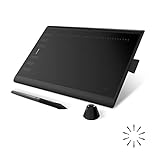
- Working Area Configuration - HUION art tablet equips with a 10 x 6.25 inches working area, providing the user with the most comfortable size to work; the 10mm slim structure and minimalist design of appearance make the drawing tablet more attractive.
- Tilt Function Battery-free Stylus: This computer graphics tablet come with a battery-free stylus PW100, no need to charge, allowing for constant uninterrupted drawing. ±60° tilt support enables imitation of lines input with diverse drawing gestures, with accuracy ensured.
- Press Keys:12 programmable press keys plus 16 programmable soft keys, you can set shortcut keys on drawing tablet's driver based on your preferences, such as erase, zoom in/out, scroll up and down, and so on.
- Compatibility: HUION graphics tablet supports Windows 7 or later/ macOS 10.12 or later/ Android 6.0 or later/ Linux (Ubuntu). A USB adapter is required to connect to a Mac computer. H1060P supports various mainstream design and drawing software, including PS, SAI, AI, CDR, etc. (Please note: The H1060P is compatible with Ubuntu, but it requires the use of the Xorg display server. Wayland is not supported.)
- NOTE: You can easily connect your phone to the art tablet via the OTG connector; while iPhone and iPad are NOT at the moment. The cursor will not show up in the SAMSUNG Galaxy S series at present. If you are not sure whether the product is compatible with your Phone or any help, please contact us.
Use this backup routine for valuable work:
- Save the editable native project file.
- Export a PNG periodically, especially before major changes.
- Export a TIFF when you need a high-quality raster copy for print or archiving.
- Keep a second copy outside the app’s cloud or browser storage.
- Do not overwrite the only copy when testing a new app or importing a PSD.
File formats that matter
- PNG: Best for transparent exported artwork, line art, and lossless web images.
- JPEG: Useful for flattened images and photographs, but it introduces lossy compression and is a poor master format for repeated edits.
- TIFF: Useful for high-quality raster work and some print workflows.
- PSD: Helpful for Photoshop interchange. PSD support means an app can open or export the format; it does not guarantee perfect preservation of text, masks, adjustment layers, smart objects, blending modes, vector layers, or effects.
- SVG: The important scalable-vector format for Inkscape and vector workflows. Inkscape-specific effects may not look identical elsewhere.
- PDF: Useful for print and document exchange, especially for vector or page-based work, but inspect the exported PDF before delivery.
- Native project files: Krita uses
.kra, GIMP uses.xcf, MediBang Paint uses.mdp, and Paint.NET uses.pdn. Other apps also have native project formats that should be retained for future editing.
For a cross-application workflow, preserve the original native file, export a flattened PNG for visual comparison, and then inspect layers individually after importing. A file that looks correct when flattened may have lost editable text, masks, or adjustment controls.
How to make a better digital sketch
- Install from the official publisher: Avoid unofficial repackaged installers and obsolete downloads.
- Install the tablet driver: Do this before diagnosing pressure sensitivity.
- Choose the correct canvas size: Match the intended print, portfolio, or social-media output instead of starting with an arbitrarily tiny canvas.
- Use a separate sketch layer: Keep rough construction lines independent from the final ink or paint layers.
- Configure pressure: Adjust size and opacity response until light strokes remain light and firm strokes remain controllable.
- Use stabilization carefully: A stabilizer can reduce shaky lines, but excessive stabilization can introduce lag and remove the natural variation that makes a sketch feel alive.
- Use guides when they solve a problem: Perspective guides help with buildings and environments; symmetry helps with faces and objects; rulers help with technical work.
- Save the native project: This preserves layers and editability.
- Export a backup: Save a PNG or TIFF before closing or before experimenting with another application.
- Test the final dimensions: Inspect the artwork at the size where people will actually see or print it.
Common failure modes and fixes
The app crashes or becomes slow
Save and reopen the document, reduce canvas dimensions or layer count, close other memory- or GPU-intensive apps, and update the graphics driver. Export a flattened backup before attempting repairs or switching versions. If you installed an experimental build, return to a stable release. Krita explicitly distinguishes the stable 5.3 branch from the more experimental 6.0 branch.
The Tool Desk
Outbyte Driver Updater FREEFix the driver behind crashes, sound loss and screen glitchesFind Drivers →Outbyte PC Repair FREERepair Windows errors before they cause bigger problemsFix Now →Performance is not determined by the app name alone. Pixel dimensions, layer count, brush size and texture, undo-history depth, GPU acceleration, RAM, display resolution, tablet driver, operating system, and browser engine all matter. Avoid unsupported blanket claims that an application works equally well on every computer.
A PSD opens incorrectly
- Keep the original PSD untouched.
- Export a flattened PNG from the source application and compare it with the imported file.
- Inspect text layers, masks, adjustment layers, smart objects, blending modes, and vector elements separately.
- Save a native copy in the destination application.
- Do not overwrite the source until you know which features transferred correctly.
You have an old computer
Try MyPaint, FireAlpaca, or Artweaver Free first, using modest canvas sizes and fewer layers. Krita can still work well with sensible project dimensions, but its current guidance lists 4 GB RAM as a minimum and 16 GB as recommended. Paint.NET’s current release has stricter hardware requirements than many old articles suggest. Do not install an obsolete build from an untrusted third-party site simply because it claims to support an old operating system.
You need a school-safe or child-friendly option
Consider Artweaver Free, Paint.NET, Sketchbook mobile, or Krita with a simplified workspace. Also consider Tux Paint as a separate children’s drawing application rather than assuming that a professional art program is the best fit. Check whether an app includes advertising, public galleries, cloud accounts, collaboration, or age-related account requirements before installing it on a child’s device.
What this list deliberately leaves out
Microsoft Paint 3D should not be recommended as a current free download. Microsoft deprecated Paint 3D in August 2024 and removed it from the Microsoft Store on November 4, 2024. Existing installations may continue to work, but it is not a dependable current choice. See Microsoft’s deprecated-features information.
Older recommendation lists also commonly describe Sketchbook as simply free, mix desktop and mobile editions, place raster and vector apps in one undifferentiated ranking, omit MyPaint’s old stable release, and call software professional or lightweight without documenting the hardware, canvas, layer count, brush, graphics settings, or version used. Those distinctions matter when choosing software for real work.
Frequently Asked Questions
Is Krita better than GIMP for drawing?
For illustration-first drawing, Krita is usually the better choice because its feature set centers on brushes, painting, stabilizers, guides, layers, animation, and comic workflows. GIMP is the stronger choice when drawing is part of photo manipulation, compositing, masking, retouching, or broad raster editing. Both are free and open source, and either can be useful in the same workflow.
Is Sketchbook really free?
The mobile Sketchbook app is free, but current Sketchbook Pro editions for Windows and macOS are one-time purchases rather than free desktop software. The US Mac App Store listing showed $24.99 when checked, although prices vary by region and can change.
What is the best free drawing software for an iPad?
Adobe Fresco is the strongest default for touch-based raster and vector painting. Sketchbook is a good uncluttered alternative, while ibisPaint X and MediBang Paint are strong mobile manga choices. Krita does not have a native iPad or iPhone version.
Recommended Free Tools
Which free drawing app works on Android?
ibisPaint X, MediBang Paint, and Sketchbook are the main Android choices. Krita is available for Android tablets, but its Android experience is not identical to the desktop version. Adobe Fresco is not available for Android.
What is the best free software for manga and comics?
MediBang Paint is the most specialized option for comic panels, screentones, page management, and collaboration. Krita is better if you also need broad painting and animation tools. ibisPaint X is convenient for mobile manga and recorded drawing-process videos.
What is the best free Photoshop alternative for drawing?
Use GIMP for an installed, open-source raster editor or Photopea for a browser-based PSD workflow. Krita is generally better than either for dedicated digital painting, while Affinity by Canva is the broader current option for vector, pixel, and layout work, subject to its current platform and account requirements.
Is Inkscape good for hand drawing?
It can be good for editable line art, lettering, logos, diagrams, and artwork that must scale. Inkscape turns strokes into vector paths, so it is not the best choice for textured, blended, natural-media painting. Choose Krita, Sketchbook, or MyPaint for a more traditional freehand painting workflow.
Can these apps open PSD files?
Krita, GIMP, MediBang Paint, and Photopea support PSD workflows, and other applications may import or export compatible files. However, PSD support does not guarantee perfect compatibility. Text, masks, adjustment layers, smart objects, blending modes, and vector content may change. Keep the original PSD and compare a flattened PNG after import.
Do I need a graphics tablet to draw digitally?
No. A mouse or trackpad works for vector shapes, photo editing, simple doodles, and some basic drawing. A pressure-sensitive stylus is strongly preferable for controllable line weight, opacity variation, pencil and ink work, textured brushes, and comfortable longer sessions.
Which free drawing apps work offline?
Installed desktop apps such as Krita, GIMP, Inkscape, FireAlpaca, Paint.NET, Artweaver Free, and MyPaint can generally handle core local work offline. Cloud materials, collaboration, accounts, synchronization, and updates may still need internet access. Photopea is browser-based and has additional browser-storage risks, so export often and do not rely on one unsaved tab.
Which choices are open source?
Krita, GIMP, Inkscape, and MyPaint are the open-source choices in this guide. FireAlpaca, Paint.NET, and Artweaver Free are free desktop freeware but are not being classified here as open source.
Quick wins for a faster PC:
Repair Windows errors before they cause bigger problemsFix Now →Scan for outdated or missing drivers - takes under a minuteDriver Scan →What is best for an old laptop?
MyPaint, FireAlpaca, and Artweaver Free are sensible first choices, with modest canvas sizes and fewer layers. Krita can also work if you keep projects reasonable. Check current requirements rather than relying on the word lightweight; Paint.NET 5.1.12, for example, requires a 64-bit AVX2-capable four-core CPU and Direct3D 11.
What should I use on a Chromebook?
Photopea is the simplest recommendation because it runs in a browser without a conventional installation. Native Linux applications may be possible on some Chromebooks, but that depends on the model, administrator policy, available storage, and tablet support.
Which free programs support animation?
Krita includes animation-related tools, Fresco supports basic animation and motion-path work, and FireAlpaca includes animation tools. ibisPaint X can record the drawing process as a video, but that is different from a frame-by-frame animation timeline.
Which drawing apps have ads or cloud limits?
MediBang Paint and ibisPaint X have free access with premium options, and ibisPaint X may display advertising unless ad-removal or premium options are used. MediBang’s cloud storage has capacity limits, so export important work locally. Sketchbook’s free status also depends on platform: mobile is free while current desktop Pro is paid.
The Bottom Line
Start with Krita unless your device or drawing style points elsewhere. Use Fresco for iPad painting, Sketchbook for clean mobile sketching, Inkscape for scalable vector art, MediBang Paint for comics, FireAlpaca for a lighter desktop app, GIMP or Photopea for image editing, and ibisPaint X for mobile manga and timelapse work. Install the official version, configure your tablet driver and pressure protocol, save the native project, and keep an exported backup.

