
iTechGuides is reader-supported. When you buy through links on our site, we may earn an affiliate commission. As an Amazon Associate I earn from qualifying purchases. Learn more
The best router-control app is usually the one made for your router. ASUS Router is the natural choice for ASUS hardware, Google Home for Google Wifi and Nest Wifi, eero for eero systems, Deco or Tether for TP-Link equipment, and Nighthawk or Orbi for NETGEAR hardware. There is no single universal app that can fully configure every brand’s router.
If you only need to find unknown devices or diagnose a weak connection, Fing and Ubiquiti WiFiman are useful companion tools—but they are not replacements for a manufacturer’s management app.
Quick comparison
Use this table to find the right ecosystem before reading the detailed descriptions. A checkmark means the app or ecosystem documents that type of function; it does not mean the feature is available on every model.
Quick wins for a faster PC:
Scan for outdated or missing drivers - takes under a minuteDriver Scan →Clear out junk files and repair common Windows errorsFree Scan →Fix the driver behind crashes, sound loss and screen glitchesFind Drivers →| App | Compatible hardware | Setup and settings | Device list | Pause controls | Family or parental controls | Remote access | Diagnostics | Subscription caveat |
|---|---|---|---|---|---|---|---|---|
| ASUS Router | Compatible ASUS and ROG routers | Yes | Yes | Yes, supported models | Profiles, schedules, Safe Browsing or content controls on supported models | Model and account dependent | Status and network information | Features vary by model and firmware |
| Google Home | Google Wifi, Nest Wifi, Nest Wifi Pro | Yes | Yes | Yes | Family Wi-Fi groups and compatible SafeSearch-based blocking | Yes, account dependent | Speed tests and status | System and feature compatibility varies |
| eero | eero mesh systems | Yes | Yes | Yes | Profiles, schedules, filters; some advanced features require eero Plus | Yes, account dependent | Speed, usage, status, software version | eero Plus for some filtering and security features |
| TP-Link Deco | Compatible Deco mesh systems | Yes | Yes | Yes | HomeShield profiles, filters, SafeSearch, schedules and limits on supported systems | Model and account dependent | Speed, status and reboot controls | Some advanced HomeShield functions are paid |
| TP-Link Tether | Compatible Archer routers, extenders, access points, DSL and 4G devices | Yes | Yes | Access-control rules; model dependent | Basic access controls rather than a uniform parental-control suite | Some hardware supports TP-Link ID remote management | Client and connection information | Compatibility varies by exact product |
| NETGEAR Nighthawk | Compatible Nighthawk routers and some extenders | Yes | Yes | Yes | Parental controls and Armor controls where supported | Model and account dependent | Speed tests, traffic monitoring and status | Tiles and features vary; some security functions may require a plan |
| NETGEAR Orbi | Compatible Orbi mesh systems | Yes | Yes | Model dependent | Generation and model dependent | Account and model dependent | Status and mesh management | Capabilities vary by Orbi generation |
| Linksys | Smart WiFi, Intelligent Mesh and Cognitive Mesh products | Yes | Yes | Priority and family controls on supported products | Parental controls, Family Time and Safe Browsing on supported products | Model and account dependent | Diagnostics, firmware and restart controls | Settings vary by model |
| UniFi | UniFi gateways, Cloud Gateways, CloudKeys and Network Servers | Yes, through a UniFi instance | Yes | Advanced, controller dependent | Advanced policy tools rather than a simple consumer parental-control workflow | Connects to local or remote UniFi instances | Detailed network administration | Depends on the UniFi deployment, not a single universal appliance |
| AmpliFi | AmpliFi Instant, HD, Gamer’s Edition and Alien | Yes | Yes | Yes | Profiles, schedules and quiet times; no website or content filtering | Yes, supported systems | ISP-speed monitoring and network status | Feature availability varies by AmpliFi model |
| Synology DS router | Compatible Synology routers running Synology Router Manager | Yes | Yes | Traffic-control options | Profiles and Safe Access | Account and setup dependent | Traffic and administration tools | Requires compatible Synology Router hardware |
| Ubiquiti WiFiman | Best with UniFi environments; also useful for Wi-Fi diagnostics | No universal router configuration | Discovery in supported environments | No general router pause control | No universal parental controls | Teleport VPN in supported UniFi environments | Speed, latency, signal and channel information | UniFi compatibility affects available tools |
| Fing | Existing networks and compatible mobile devices | No arbitrary-router configuration | Network scanning and device recognition | No | No universal parental controls | Not a router-management feature | Strongest use case: discovery and troubleshooting | Core purpose is scanning, not router administration |
The 13 best router-control apps
1. ASUS Router — best for ASUS and ROG routers
ASUS Router is the first app to try if your home network uses a compatible ASUS or ROG router. It supports mobile setup and provides a central view of the network, connected clients and router functions without requiring you to begin in a desktop browser.
Popular on Amazon

- DUAL-BAND WIFI 6 ROUTER: Wi-Fi 6(802.11ax) technology achieves faster speeds, greater capacity and reduced network congestion compared to the previous gen. All WiFi routers require a separate modem. Dual-Band WiFi routers do not support the 6 GHz band.
- AX1800: Enjoy smoother and more stable streaming and gaming with 1.8 Gbps total bandwidth (up to 1200 Mbps on 5 GHz and up to 574 Mbps on 2.4 GHz). Actual speeds cannot exceed your internet plan and vary based on conditions, distance, and obstacles.
- CONNECT MORE DEVICES: Wi-Fi 6 technology communicates more data to more devices simultaneously using revolutionary OFDMA technology
- EXTENSIVE COVERAGE: Achieve the strong, reliable WiFi coverage with Archer AX1800 as it focuses signal strength to your devices far away using Beamforming technology, 4 high-gain antennas and an advanced front-end module (FEM) chipset
- OUR CYBERSECURITY COMMITMENT: TP-Link is a signatory of the U.S. Cybersecurity and Infrastructure Security Agency’s (CISA) Secure-by-Design pledge. This device is designed, built, and maintained, with advanced security as a core requirement.
Its family-management tools can include family profiles, device selection, online and offline schedules, rewards on supported models, Safe Browsing and content-filter controls. That combination makes it a practical choice for households that want to pause a child’s devices or create a schedule for internet access.
Do not assume that every ASUS model exposes the same controls. ASUS says parental-control capabilities depend on the router model and firmware. In addition, ASUS routers do not currently support per-device website blocking in the cited family-control workflow. If blocking individual sites is essential, verify the exact model’s current feature list rather than relying on the app’s name.
2. Google Home — best for Google Wifi and Nest Wifi
Google Home is the management app for Google Wifi, Nest Wifi and Nest Wifi Pro systems. Google moved Google Wifi controls into Google Home, so the older Google Wifi app should not be treated as the main management app. The legacy app is read-only for many management tasks, while Google Home handles current network changes.
Google Home can set up and manage the network, change the Wi-Fi name and password, run speed tests, manage guest-network functions, display connected devices, pause internet access and create Family Wi-Fi groups. Compatible systems can also use SafeSearch-based site blocking for family groups.
There is an important device-identification limitation: Google warns that Family Wi-Fi site-blocking features do not work correctly when devices use a private or randomized MAC address. A phone, tablet or computer may therefore evade the group or appear as a new device when its privacy setting changes. Google Wifi, Nest Wifi and Nest Wifi Pro are related products but not interchangeable in every feature or software scenario, so check the exact system and current app requirements.
3. eero — best for eero mesh systems
The eero app is designed around eero mesh networks rather than traditional, brand-agnostic router administration. It displays network status, connected devices, profiles, activity, speed or usage information and software version details. It also exposes advanced networking options such as DHCP, DNS, port forwarding and software updates on supported configurations.
Profiles let you group a household member’s devices, schedule internet pauses, pause access manually and apply content filters. Some advanced filtering and security controls require eero Plus, so compare the included features with the paid tier before selecting eero primarily for parental controls.
What’s actually slowing this PC down?
Pick the symptom - the matching free tool is one click away.
eero networks are mainly managed from the mobile app. Apple-silicon Macs can run the iPad version, but that is not the same as having a separate full-featured macOS management application. If your priority is a simple app-led mesh experience, eero is a strong fit; if you want highly granular network administration, a controller-oriented platform may be more appropriate.
4. TP-Link Deco — best for TP-Link whole-home mesh
TP-Link Deco is the appropriate app for compatible Deco whole-home mesh systems. It handles setup, network ownership, connected clients, network status, speed information, reboots and parental-control functions from one interface.
On supported models and software versions, HomeShield features may include profiles, website and content filtering, SafeSearch, YouTube Restricted Mode, bedtime schedules, time limits and Family Time. Some advanced HomeShield functions require a subscription. The exact controls can differ substantially between Deco models and firmware versions, so confirm the feature matrix for the system you own.
Also popular on Amazon

- 𝐒𝐞𝐜𝐮𝐫𝐞 𝐖𝐢-𝐅𝐢 𝐎𝐧-𝐓𝐡𝐞-𝐆𝐨 - Roam 6 connects to public Wi-Fi and creates a private network for multiple devices at once, ideal for hotels, cafes, airports, and homes. VPN enables secure work. Not eSIM/SIM card compatible. Requires external internet source.
- 𝐑𝐨𝐚𝐦 𝟔 𝐀𝐗𝟏𝟓𝟎𝟎 𝐝𝐮𝐚𝐥-𝐛𝐚𝐧𝐝 𝐬𝐩𝐞𝐞𝐝𝐬 - Wi-Fi 6 Speeds up to 1,201 Mbps (5 GHz) and 300 Mbps (2.4 GHz) for up to 60 devices simultaneously. Actual Wi-Fi speeds vary based on source bandwidth, environment, distance to devices, and obstacles. ◇§
- 𝐏𝐨𝐫𝐭𝐚𝐛𝐥𝐞 𝐚𝐧𝐝 𝐝𝐮𝐫𝐚𝐛𝐥𝐞 𝐝𝐞𝐬𝐢𝐠𝐧 - A portable travel router compactly designed for trips and adventures, featuring a 1 Gbps WAN/LAN port and a 1 Gbps LAN port for reliable wired connectivity.
- 𝐌𝐮𝐥𝐭𝐢𝐩𝐥𝐞 𝐰𝐚𝐲𝐬 𝐭𝐨 𝐜𝐨𝐧𝐧𝐞𝐜𝐭 - (1) Router Mode: Connects to public Wi-Fi, ISP, or phone (USB tethering). (2) AP/RE/Client Mode: Adds WiFi to wired setups, extends WiFi, or connects wired devices wirelessly.
- 𝐎𝐮𝐫 𝐜𝐲𝐛𝐞𝐫𝐬𝐞𝐜𝐮𝐫𝐢𝐭𝐲 𝐜𝐨𝐦𝐦𝐢𝐭𝐦𝐞𝐧𝐭 - TP-Link is a signatory of the U.S. Cybersecurity and Infrastructure Security Agency’s (CISA) Secure-by-Design pledge. Advanced security is integrated into the device’s design, development, and ongoing maintenance.
Device identification deserves special attention. TP-Link documents that randomized MAC addresses and background traffic can affect how devices are identified and how time limits are enforced. A child’s device with a private address may appear as a separate client, while background traffic can make usage appear different from what you expect.
Free tools Windows power users keep installed
One-click scans. No signup required.
5. TP-Link Tether — best for compatible TP-Link routers and extenders
TP-Link Tether serves a different part of TP-Link’s catalog from Deco. It is intended for compatible Archer routers, range extenders, access points and some DSL or 4G devices. Tether can manage common settings such as the internet connection, Wi-Fi name and password, access-control rules and client information.
On supported hardware, linking the device to a TP-Link ID can enable remote management. This is useful when you need to check or change a network while away from home, but remote access is not guaranteed across all TP-Link products.
Check TP-Link’s current Tether compatibility list before installing it or buying hardware. The TP-Link brand alone is not enough: not every TP-Link product works with Tether, and a Deco system belongs in the Deco app ecosystem instead.
6. NETGEAR Nighthawk — best for compatible Nighthawk equipment
NETGEAR Nighthawk is the main app to consider for compatible Nighthawk routers and certain NETGEAR extenders. Its dashboard can support setup, connected-device management, internet speed tests, firmware updates, guest Wi-Fi, traffic monitoring, device pausing, parental controls and NETGEAR Armor controls where the hardware and account support them.
Outdated Drivers Are Slowing You Down
One free scan finds every outdated or missing driver and matches the right update for your exact hardware.Free scan · exact hardware matchWindows Errors? Fix Them Before They Spread
Repair common Windows errors and clear accumulated junk for a smoother, more stable PC - no reinstall needed.Free scan · no reinstallThis is one of the broader consumer-router apps in the list because it combines ordinary configuration with status and household-management features. It can help answer practical questions such as which devices are online, whether the connection is slow at the router, and whether a particular client should be paused.
NETGEAR emphasizes that the dashboard tiles and available features depend on the specific router or extender model. Do not assume that a Nighthawk app screenshot represents every Nighthawk product, and check whether any security or parental-control feature requires an additional service or subscription.
7. NETGEAR Orbi — best for NETGEAR Orbi mesh systems
NETGEAR Orbi is built for Orbi mesh systems. It handles initial setup, account linking, Wi-Fi name and password configuration, satellite discovery and general mesh-network management.
Orbi is a separate app ecosystem from the Nighthawk experience even though both products are made by NETGEAR. That distinction matters when you are replacing hardware or adding satellites: a Nighthawk-compatible app is not automatically the correct tool for an Orbi system.
Capabilities vary by Orbi generation and model. The app is a good fit when your main objective is installing and maintaining an Orbi mesh, but verify the specific model if you need detailed parental controls, traffic monitoring or advanced configuration.
Also popular on Amazon
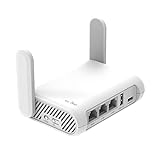
- 【AC1200 Dual-band Wireless Router】Simultaneous dual-band with wireless speed up to 300 Mbps (2.4GHz) + 867 Mbps (5GHz). 2.4GHz band can handles some simple tasks like emails or web browsing while bandwidth intensive tasks such as gaming or 4K video streaming can be handled by the 5GHz band.*Speed tests are conducted on a local network. Real-world speeds may differ depending on your network configuration.*
- 【Easy Setup】Please refer to the User Manual and the Unboxing & Setup video guide on Amazon for detailed setup instructions and methods for connecting to the Internet.
- 【Pocket-friendly】Lightweight design(145g) which designed for your next trip or adventure. Alongside its portable, compact design makes it easy to take with you on the go.
- 【Full Gigabit Ports】Gigabit Wireless Internet Router with 2 Gigabit LAN ports and 1 Gigabit WAN ports, ideal for lots of internet plan and allow you to connect your wired devices directly.
- 【Keep your Internet Safe】IPv6 supported. OpenVPN & WireGuard pre-installed, compatible with 30+ VPN service providers. Cloudflare encryption supported to protect the privacy.
8. Linksys — best for Linksys mesh and Smart WiFi products
The Linksys app supports Linksys Smart WiFi, Intelligent Mesh and Cognitive Mesh products. It can display connected devices, mesh nodes, firmware information, IP details and network status, while also providing Wi-Fi settings, guest access, priority controls and network-restart tools.
Depending on the product, Linksys also documents parental controls or Family Time, Safe Browsing, diagnostics and firmware management. These tools can make the app useful for families and for basic troubleshooting, particularly when you need to identify a node or restart the network without opening a web interface.
Linksys explicitly warns that settings vary by model. Treat features such as Safe Browsing, priority controls and Family Time as model-specific capabilities, not universal properties of every Linksys router or mesh kit.
Do these 3 things before closing this tab:
1Repair Windows errors before they cause bigger problems2Fix the driver behind crashes, sound loss and screen glitches3Clear out junk files and repair common Windows errors9. UniFi — best for advanced home networks and small offices
UniFi is the most controller-oriented option in this list. It is intended for Ubiquiti UniFi gateways, Cloud Gateways, CloudKeys, Network Servers and managed UniFi deployments rather than a simple consumer router purchased for quick setup.
The UniFi mobile app can connect to a local UniFi instance, including during an internet outage or in an air-gapped deployment, and provide mobile access to network management. That local-management capability is valuable for technically inclined households, labs and small offices that want administration to remain available even when the internet connection is down.
The trade-off is complexity. UniFi is a better fit for someone comfortable with gateways, controllers, networks and policy configuration than for a reader who only wants to change a Wi-Fi password or pause a game console. Its strengths are depth and control, not the shortest plug-and-play setup.
10. AmpliFi — best for AmpliFi systems and simple family scheduling
The AmpliFi app supports AmpliFi Instant, HD, Gamer’s Edition and Alien systems. It provides setup, connected-device visibility, ISP-speed monitoring, guest access, remote management, QoS, family profiles, schedules and quiet times.
AmpliFi’s family controls are useful when the goal is to pause a device or restrict internet access to particular times. However, the official support documentation states that these controls do not provide website filtering, content filtering or browser-history storage. Choose AmpliFi for scheduling and network visibility, not for detailed web supervision.
QoS and ISP-speed monitoring can help you understand or prioritize a busy home connection, but they do not guarantee faster internet. Actual performance still depends on the internet plan, router placement, wireless interference, client devices and firmware.
11. Synology DS router — best for advanced Synology Router Manager administration
Synology DS router is a mobile application for compatible Synology routers running Synology Router Manager. It supports setup and management, including mesh-network creation, user profiles, Safe Access, port forwarding and traffic control.
Also popular on Amazon

- 𝐅𝐮𝐭𝐮𝐫𝐞-𝐑𝐞𝐚𝐝𝐲 𝐖𝐢-𝐅𝐢 𝟕 - Designed with the latest Wi-Fi 7 technology, featuring Multi-Link Operation (MLO), Multi-RUs, and 4K-QAM. Achieve optimized performance on latest WiFi 7 laptops and devices, like the iPhone 16 Pro, and Samsung Galaxy S24 Ultra.
- 𝐁𝐄𝟔𝟓𝟎𝟎 𝟔-𝐒𝐭𝐫𝐞𝐚𝐦, 𝐃𝐮𝐚𝐥-𝐁𝐚𝐧𝐝 𝐖𝐢-𝐅𝐢 – Enjoy seamless 4K/8K streaming, AR/VR gaming, and more with speeds up to 5764 Mbps (5 GHz) and 688 Mbps (2.4 GHz). Actual speeds cannot exceed your internet plan and vary based on conditions, distance, and obstacles.
- 𝐖𝐢𝐝𝐞 𝐂𝐨𝐯𝐞𝐫𝐚𝐠𝐞 𝐰𝐢𝐭𝐡 𝐒𝐭𝐫𝐨𝐧𝐠 𝐂𝐨𝐧𝐧𝐞𝐜𝐭𝐢𝐨𝐧 - Get up to 2,400 sq. ft. max coverage for up to 90 devices at a time. 6x high performance antennas and Beamforming technology, ensures reliable connections for remote workers, gamers, students, and more.
- 𝐔𝐥𝐭𝐫𝐚-𝐅𝐚𝐬𝐭 𝟐.𝟓 𝐆𝐛𝐩𝐬 𝐖𝐢𝐫𝐞𝐝 𝐏𝐞𝐫𝐟𝐨𝐫𝐦𝐚𝐧𝐜𝐞 - 1x 2.5 Gbps WAN/LAN port, 1x 2.5 Gbps LAN port and 3x 1 Gbps LAN ports offer high-speed data transmissions.³ Integrate with a multi-gig modem for gigplus internet.
- 𝐎𝐮𝐫 𝐂𝐲𝐛𝐞𝐫𝐬𝐞𝐜𝐮𝐫𝐢𝐭𝐲 𝐂𝐨𝐦𝐦𝐢𝐭𝐦𝐞𝐧𝐭 - TP-Link is a signatory of the U.S. Cybersecurity and Infrastructure Security Agency’s (CISA) Secure-by-Design pledge. This device is designed, built, and maintained, with advanced security as a core requirement.
This is a good choice for users who want more administration depth than a basic consumer app provides. Synology’s approach will feel familiar to people who appreciate NAS-style management, profiles and policy controls, but it is not a universal app for ordinary third-party routers.
The Tool Desk
Outbyte PC Repair FREERepair Windows errors before they cause bigger problemsFix Now →Outbyte Driver Updater FREEScan for outdated or missing drivers - takes under a minuteDriver Scan →Hardware compatibility is the first requirement. Owning a Synology NAS does not by itself make DS router compatible; the app requires a supported Synology Router platform.
12. Ubiquiti WiFiman — best for UniFi diagnostics
Ubiquiti WiFiman is a companion and wireless-diagnostic tool, not a universal router-control app. In supported UniFi environments, it can discover UniFi devices, run Wi-Fi speed and latency tests, show signal and channel information, and provide Teleport VPN access.
WiFiman is useful when you are investigating coverage, latency, signal quality or nearby wireless conditions. It should not be presented as a full replacement for the UniFi Network management application. Use UniFi for administration and WiFiman for measurement, discovery and selected connectivity tools.
13. Fing — best for discovering devices on an existing network
Fing is the most brand-neutral option here, but it is also the least suitable for changing router settings. Its core use case is scanning a network and recognizing connected devices. That makes it valuable when an unfamiliar phone, camera, smart-TV or computer appears on your network.
Recommended Free Tools
Fing can help diagnose connectivity problems and identify unknown clients, but readers should not expect it to replace the manufacturer’s router-management app. It does not universally configure arbitrary routers or provide a universal parental-control system.
How to choose the right app
If you already own a router
Start with the hardware manufacturer and exact model:
- ASUS or ROG: ASUS Router.
- Google Wifi, Nest Wifi or Nest Wifi Pro: Google Home.
- eero: eero.
- TP-Link Deco: TP-Link Deco.
- TP-Link Archer, compatible extender or access point: TP-Link Tether.
- NETGEAR Nighthawk: NETGEAR Nighthawk.
- NETGEAR Orbi: NETGEAR Orbi.
- Linksys: Linksys.
- Ubiquiti UniFi: UniFi; add WiFiman for diagnostics.
- AmpliFi: AmpliFi.
- Synology Router: Synology DS router.
Do not select an app merely because the brand appears familiar. Hardware family, model number, hardware revision, firmware and operating system all affect compatibility.
If parental controls are your priority
Compare the controls in this order:
- Device grouping: Can you place a child’s phone, tablet, computer and console in one profile?
- Pausing: Can you pause a profile immediately, or only one device at a time?
- Schedules: Can you set school-night, bedtime or daily time limits?
- Filtering: Does the system offer website, category, SafeSearch or YouTube restrictions?
- Cost: Are the controls included, or do advanced filters and security require a paid tier?
- Device identity: Will private or randomized MAC addresses interfere with assigning or limiting a device?
Google Home, ASUS Router, eero, TP-Link Deco, NETGEAR Nighthawk and Linksys all document some type of family or parental control, but the scope varies by hardware, firmware, geography, account and subscription. AmpliFi is appropriate for profiles and schedules but not website or content filtering. ASUS should not be chosen on the assumption that it provides per-device website blocking in the cited family-control workflow.
If troubleshooting matters more than control
Choose according to the problem:
- Unknown devices: Fing is the most direct choice for network scanning and device recognition.
- Wi-Fi speed, latency, signal or channel information in a UniFi environment: WiFiman.
- Speed tests and ordinary network status: Google Home, Nighthawk, Linksys or AmpliFi, depending on your hardware.
- Detailed administration and policy troubleshooting: UniFi or Synology DS router, if you own compatible hardware.
Remember that a speed test inside an app measures or helps diagnose the connection; installing the app does not improve raw internet speed.
Also popular on Amazon

- 𝐒𝐞𝐜𝐮𝐫𝐞 𝐖𝐢-𝐅𝐢 𝐎𝐧-𝐓𝐡𝐞-𝐆𝐨 - Roam 6 connects to public WiFi and creates a private network for multiple devices at once. Ideal for hotels, cafes, airports, and home. VPN enables secure work. Not eSIM/SIM card compatible. Requires external internet source.
- 𝐑𝐨𝐚𝐦 𝟔 𝐀𝐗𝟏𝟓𝟎𝟎 𝐃𝐮𝐚𝐥-𝐁𝐚𝐧𝐝 𝐓𝐫𝐚𝐯𝐞𝐥 𝐑𝐨𝐮𝐭𝐞𝐫 - Delivers fast Wi-Fi 6 speeds (1201 Mbps on 5 GHz, 300 Mbps on 2.4 GHz) for uninterrupted video streaming, downloading, and online gaming all at the same time. Actual Wi-Fi speeds vary based on source bandwidth, environment, and distance to devices.
- 𝐂𝐨𝐧𝐧𝐞𝐜𝐭 𝐀𝐧𝐲𝐰𝐡𝐞𝐫𝐞, 𝐀𝐧𝐲 𝐖𝐚𝐲 - Offers (1) Router Mode for Ethernet or USB (phone) tethering connections, (2) Hotspot Mode for secure access to public WiFi , and (3) AP/RE/Client Mode to extend WiFi, add WiFi to wired setups, or connect wired devices wirelessly.
- 𝐏𝐨𝐫𝐭𝐚𝐛𝐥𝐞 𝐚𝐧𝐝 𝐃𝐮𝐫𝐚𝐛𝐥𝐞 𝐃𝐞𝐬𝐢𝐠𝐧 - The Roam 6 AX1500, measuring a compact 4.09 in. × 3.54 in. × 1.10 in., is a pocket-sized travel router perfect for your next trip or adventure.
- 𝐌𝐮𝐥𝐭𝐢𝐩𝐥𝐞 𝐰𝐚𝐲𝐬 𝐭𝐨 𝐩𝐨𝐰𝐞𝐫 𝐲𝐨𝐮𝐫 𝐫𝐨𝐮𝐭𝐞𝐫 - Power the Roam 6 via its USB-C port using the included adapter or any 5V/3A PD power source, like a power bank.
If you want advanced networking
eero exposes useful settings such as DHCP, DNS, port forwarding and software updates, while UniFi and Synology are better suited to controller-style administration. ASUS Router and TP-Link Tether cover common consumer-router configuration tasks without requiring the same level of network-management experience.
Independent reader supportYour contribution helps us test, update, and keep practical guides available for everyone.What you may need when the current router is the problem
Important limitations before you rely on an app
Model and firmware differences
App capability is not identical across a brand’s catalog. Hardware revision, firmware version, router mode, bridge or access-point mode, geography, operating-system version, account type and paid subscriptions can change what appears in the app. This is particularly important for ASUS, TP-Link, NETGEAR, Linksys and Google products, whose documented features vary across systems.
Bridge and access-point modes can reduce control
A router operating in bridge or access-point mode may not expose the same routing, DHCP, parental-control or traffic-management features as a device operating as the primary router. If a feature is missing, check the network topology and operating mode before assuming the app is broken.
Private MAC addresses can confuse family controls
Modern phones and computers may use private or randomized MAC addresses. Because the router uses that identifier to recognize a client, changing it can cause a device to appear new or prevent a family group from applying correctly. Google and TP-Link both document problems involving private or randomized addresses. Review the privacy setting on the affected device and then reassign the newly visible client if appropriate.
Free tools Windows power users keep installed
One-click scans. No signup required.
Remote management is not automatic
Some apps support remote access only after account linking or activation, and some hardware does not support it at all. Remote management also increases the importance of a strong account password and current firmware. Treat remote access as a model-specific feature, not a guaranteed property of the brand.
Apps do not replace security judgment
A device list can reveal clients connected to your network, but recognition is not proof of ownership. Rename devices carefully, remove old clients, use a strong Wi-Fi password and update router firmware when updates are available. A parental-control label also does not guarantee that every app, encrypted service or private-address configuration will be identified perfectly.
A practical setup checklist
- Find the exact model: Read the label on the router, mesh node or gateway. Record the model and hardware revision if shown.
- Check the supported app: Use the manufacturer’s current compatibility information rather than downloading an app based only on the brand name.
- Update the hardware: Install available firmware before configuring family profiles or troubleshooting performance.
- Sign in with the correct account: Some ecosystems require an account for setup, remote access or cloud-managed features.
- Map the network: Open the connected-device or client list and rename known devices. Look for duplicate entries caused by private MAC addresses.
- Create controls carefully: Group every relevant device into the right profile, then test a pause or schedule on one client.
- Test from the client’s location: A router-side speed test does not describe Wi-Fi quality in every room.
- Document recovery information: Keep the Wi-Fi password, router login or account recovery method available before changing settings.
Bottom line
For most readers, the correct choice is straightforward: use the app matched to your router ecosystem. Google Home, eero, Deco, Nighthawk, Orbi, Linksys, AmpliFi and ASUS Router are consumer-friendly options within their supported hardware families. UniFi and Synology DS router offer more administrative depth, while WiFiman and Fing are best treated as diagnostic companions.
Before relying on parental controls or buying new hardware, verify the exact model, firmware, operating mode, region, operating system and subscription requirements. The app manages what the router supports; it cannot turn an ordinary router into a universal controller or increase the speed supplied by your internet service.
Outdated Drivers Are Slowing You Down
One free scan finds every outdated or missing driver and matches the right update for your exact hardware.Free scan · exact hardware matchPC Slower Than It Used to Be?
A free scan shows the junk files, broken settings and background clutter dragging Windows down - then fixes them in one click.Free scan · Windows 10 & 11Frequently Asked Questions
Is there one app that can control every router?
No. Most router-control apps are tied to a manufacturer, mesh platform, gateway or controller. Use ASUS Router for compatible ASUS hardware, Google Home for Google Wifi and Nest Wifi, eero for eero, Deco or Tether for TP-Link, Nighthawk or Orbi for NETGEAR, and the corresponding Linksys, AmpliFi, UniFi or Synology app for those ecosystems. Fing and WiFiman are diagnostic tools, not universal configuration apps.
Why can’t a parental-control app identify or pause one of my devices correctly?
Private or randomized MAC addresses can make a phone, tablet or computer appear as a new client or prevent an existing family rule from applying. Google and TP-Link document this limitation. Bridge or access-point mode, firmware differences and model-specific support can also reduce available controls.
Will installing a router-control app make my Wi-Fi faster?
No. The app may run speed tests, show signal information, prioritize traffic, change settings or help locate a problem, but it does not increase raw internet speed by itself. Performance depends on the service plan, router hardware, placement, interference, client devices and firmware.
Should I use WiFiman or Fing instead of my router’s app?
Usually no. Use your manufacturer’s app for setup, Wi-Fi settings, firmware and router controls. Use WiFiman for UniFi-oriented discovery and Wi-Fi speed, latency, signal or channel diagnostics, and use Fing primarily to scan the network and identify connected devices.
The Tool Desk
Outbyte PC Repair FREERepair Windows errors before they cause bigger problemsFix Now →Outbyte Driver Updater FREEScan for outdated or missing drivers - takes under a minuteDriver Scan →The Bottom Line
Choose the app that matches your hardware, then verify the exact model’s feature list. For network discovery, use Fing; for UniFi wireless diagnostics, use WiFiman. Neither replaces a router-management app, and no app can compensate for incompatible hardware, weak placement or an inadequate internet connection.

