
Windows 11 and Windows 10 do not include one universal graphic equalizer that works with every speaker, headset, USB DAC, Bluetooth device, and HDMI output. Available controls depend on the audio driver and hardware. For more reliable system-wide control, use a dedicated equalizer or enhancer—but choose carefully, because several apps can process the same signal and cause clipping, latency, or distorted sound.
The best choice depends on what you need: detailed headphone correction, a simple bass boost, gaming channel control, streaming and routing, or hardware-specific features. These are the 10 strongest options for Windows PCs in 2026.
Quick comparison
| Software | Best for | Windows support | Important limitation |
|---|---|---|---|
| Equalizer APO | Advanced system-wide EQ | 10 and 11 | Technical setup; no polished interface |
| Peace | Easy graphical control with APO | 10 and 11 | Requires Equalizer APO |
| FxSound | Simple free enhancement | 10 and 11 | Less detailed device and channel control |
| SteelSeries Sonar | Gaming and per-channel routing | Windows 10 RS4+ and 11 | Uses virtual audio endpoints |
| Voicemeeter Banana | Streaming and audio mixing | 10 and 11 | Complex routing |
| Boom 3D | Paid all-in-one enhancement | 10 and 11 | Effects can color the sound |
| DeskFX | EQ plus many audio effects | 10 and 11 | Free version is for non-commercial use |
| Creative App | Creative Sound Blaster hardware | 10 64-bit and 11 | Works only with compatible Creative products |
| Realtek Audio Control | Compatible laptop and motherboard audio | 10 and 11 | Requires the correct OEM Realtek driver |
| Dolby Access | Dolby Atmos and spatial audio | 10 and 11 | Not a conventional graphic equalizer |
1. Equalizer APO: best for advanced system-wide control
Equalizer APO is the most flexible option on this list. It processes Windows audio at the system level and supports graphic EQ, parametric filters, preamp adjustment, and device-specific configurations. It works with Windows 10 and Windows 11, including many speakers, headphones, USB audio devices, and motherboard outputs.
The trade-off is its interface. Equalizer APO is an audio engine rather than a beginner-friendly control panel. During installation, its Configurator.exe asks which playback or recording devices should use the APO. Installing it alone does not automatically process every output.
#1 Best Overall

- HIGH-RESOLUTION AUDIO - Delivers ultra-clear playback with 32-bit / 384 kHz and up to 120 dB SNR
- SURROUND SOUND - Supports discrete 7.1-channel analog output for immersive multi-channel audio on your PC
- VERSATILE CONNECTIVITY - Connects effortlessly to multi-channel PC speaker systems, SPDIF output and headset outputs, mic-in, as well as line-in sources
- ALL-NEW CREATIVE NEXUS APP - AutoEq customization that allows users to simulate the frequency response of various headphones for a tailored listening experience
- COMPACT LOW-PROFILE DESIGN - The card is 10.5 cm in length and comes with a half-height bracket to ensure compatibility with smaller cases and different build needs
To add or repair a device later, open:
C:Program FilesEqualizerAPOConfigurator.exeSelect the device by clicking its connection name. If processing does not work, enable Troubleshooting options, try a different Install as mode, and—if necessary—disable the Use original APO options. On older driver interfaces, Disable all enhancements must remain unchecked. On newer interfaces, Enable audio enhancements must be checked.
A basic configuration can look like this:
Preamp: -6 dB
Filter 1: ON PK Fc 1000 Hz Gain 3 dB Q 1
The negative preamp reduces the chance of clipping when bands are boosted. Equalizer APO’s log is stored at C:WindowsServiceProfilesLocalServiceAppDataLocalTempEqualizerAPO.log.
Best for: headphone correction, audiophile tuning, parametric EQ, and users who want control over individual devices.
2. Peace Equalizer: best graphical interface for Equalizer APO
Peace is not a separate audio engine. It is a graphical front end for Equalizer APO, so both must be installed. In return, Peace provides a much easier way to create presets, adjust channels, use graphic or parametric EQ, assign hotkeys, and load headphone configurations.
Outdated Drivers Are Slowing You Down
One free scan finds every outdated or missing driver and matches the right update for your exact hardware.Free scan · exact hardware matchWindows Errors? Fix Them Before They Spread
Repair common Windows errors and clear accumulated junk for a smoother, more stable PC - no reinstall needed.Free scan · no reinstallInstall Equalizer APO first, then run the maintained PeaceSetup.exe installer. If Peace opens but does nothing, launch Equalizer APO Configurator from the Start menu, select the correct output device, and restart Windows if requested.
Do not run Peace and the built-in APO Configuration Editor at the same time while testing settings. Both write to the same configuration area, which can make changes appear to conflict.
Peace is the best overall choice for someone who wants Equalizer APO’s powerful processing without editing configuration files. It is particularly useful for applying a saved EQ profile to headphones or creating separate presets for speakers and headphones.
Best for: users who want advanced EQ with a conventional interface.
3. FxSound: best simple free enhancer
FxSound is easier to use than Equalizer APO and Peace. It combines EQ with bass, clarity, surround-style processing, volume control, normalization, and presets. The current application also includes adjustable EQ band count, master gain, bandwidth or Q controls, balance, device preferences, and preset association.
Its official download page provides separate Intel/AMD x86/x64 and Windows ARM64 installers. Check the current GitHub releases page before installing because older pages still mention obsolete 1.1.x builds while the newer release line is 1.2.x.
Rank #2

- Power source type: Corded Electric
- Easy Headphone connectivity -- Compatible with all analog headsets, from standard mobile phone earbuds to gaming and studio-grade headphones; Connect your headsets with single or split stereo/mic connector easily without the use of a Y-splitter cable
- Powerful downloadable software -- control panel software gives powerful Audio Enhancements and unprecedented control; Also includes optimized profiles for multiple earphone brands
- No drivers needed -- works straight out of the box
FxSound is a good first choice if you want to make laptop speakers less thin or add a quick listening preset without learning audio routing. It is less appropriate when you need detailed per-device or per-channel correction. It also does not process mono audio.
Recent release fixes have addressed flat EQ after updates, presets failing to apply, audio devices not returning after reboot, and problems when the preferred output is disconnected.
The Tool Desk
Outbyte Driver Updater FREEScan for outdated or missing drivers - takes under a minuteDriver Scan →Outbyte PC Repair FREERepair Windows errors before they cause bigger problemsFix Now →Best for: straightforward, free, system-wide enhancement.
4. SteelSeries Sonar: best for gaming and per-channel routing
SteelSeries Sonar is included in SteelSeries GG and is designed around gaming audio. It creates separate virtual channels such as Gaming, Chat, Media, Aux, and Microphone. Each channel includes a 10-band parametric equalizer and additional processing controls.
- Install and open SteelSeries GG.
- Sign in or create a SteelSeries account.
- Select Sonar from the left menu.
- Complete onboarding and assign a physical playback device to each channel.
- In Windows, send applications to the matching endpoint, such as SteelSeries Sonar – Gaming or SteelSeries Sonar – Media.
The most common failure is changing the Sonar EQ while Windows sends sound directly to the physical headset. In that case, Sonar is bypassed. Also avoid stacking Sonar’s EQ with an EQ stored in SteelSeries Engine or the headset itself unless you intentionally want both curves.
Sonar requires 64-bit Windows 10 RS4 or newer, or Windows 11. Published requirements include 8 GB of RAM, broadband internet, and approximately 700 MB of storage.
Best for: gamers who need separate game, chat, media, and microphone processing.
5. Voicemeeter Banana: best for mixing, streaming, and routing
Voicemeeter Banana is primarily a virtual audio mixer, but it includes EQ and bus processing. It can combine a microphone, game, browser, voice call, and recording application, then route them to different physical or virtual outputs.
For example, Windows may send general audio to VoiceMeeter Input and a second source to VoiceMeeter AUX Input. Banana then sends those signals to the selected hardware output or recording bus. If Windows chooses the wrong virtual endpoint, you may hear no sound—or conclude that the EQ is not working.
Voicemeeter is powerful but has a steep learning curve. Incorrect routing can create feedback loops, duplicated sound, missing audio, or microphone monitoring. Voicemeeter Potato provides more channels and buses for complex setups, while standard Voicemeeter is simpler but less capable.
Do these 3 things before closing this tab:
1Scan for outdated or missing drivers - takes under a minute2Repair Windows errors before they cause bigger problems3Fix the driver behind crashes, sound loss and screen glitchesRank #3
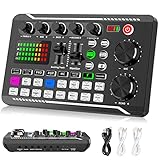
- 【Multi-Function Podcast Audio Mixer】-- 7 Independent volume knob adjustments and 2 fader button adjustments, covering bass, alto, treble, backing track and monitoring, etc, the breathing light can follow the volume to change synchronously. The digital sound mixer supports 16 kinds of personalized sound effects. These features make a live stream or a podcast more entertaining and meet more live recording needs, enough to meet the needs for podcasting beginner.
- 【Entry-Level Podcast System】-- Using digital DSP intelligent processing chip, the audio signal is stable and clear, and intelligent noise reduction has no delay. USB audio interface. Independent Bluetooth switch key, support Bluetooth wireless accompaniment. Built-in 1200 mAh capacity battery, there is no need to frequently plug in the power source, this soundcard adopts a compact portable design, does not take up too much space, and is easy to carry.
- 【Born for Live Streaming】-- Integrate audio and sound card mixing equipment into a comprehensive solution. Supports up to 2 people and 3 devices to broadcast live at the same time. Compatible with IOS, Android, ipad, Mac OS and Windows systems. If you are looking for an audio equipment for recording, gaming, podcasting, and live streaming, adding it to your setup is a good choice.
- 【Wide Applications】-- Suitable for PS4/ PS5 microphone recording studio, home studios recording, DJ mixer, music recording, guitars, condenser microphones, karaoke, podcasts, live broadcasts, gaming, TikTok, Facebook and YouTube streaming. Plug and play.
- 【Package Included】-- The introductory podcast kit for live broadcast includes: sound mixer board, data cable, audio cable x2, instruction manual. It is an ideal choice for beginners or intermediate podcasts. Easy to use. The design of soundcard sound effects and button panel makes it simpler.
Also check for leftover virtual drivers after an incomplete uninstall. They can interfere with later Windows upgrades and change which output Windows selects.
Best for: streamers, podcasters, musicians, and users who need a mixing console rather than just a tone slider.
6. Boom 3D: best paid all-in-one enhancer
Boom 3D combines a 10-band or 31-band EQ with 3D surround, headphone effects, application volume control, and loudness processing. It is a good fit for people who want a polished interface and more than frequency adjustment.
The Windows version is paid and includes a demo. The Steam listing has shown a price of $16.99, although regional pricing and promotions can change.
Recommended Free Tools
Boom 3D is an enhancer rather than a neutral correction tool. Its surround and loudness features can substantially change the sound. Test it with Windows Sonic, Dolby Atmos, DTS, headset DSP, and motherboard enhancements disabled; running several processing layers together can cause clipping, phase problems, or an exaggerated bass and treble response.
Some applications using exclusive-mode playback may bypass ordinary shared-mode processing, so test Boom 3D with the applications you actually use.
Best for: users who want EQ, surround, volume control, and effects in one paid app.
7. DeskFX Audio Enhancer: best for built-in effects
DeskFX from NCH Software offers graphic, visual, and parametric equalizer modes alongside amplification, reverb, chorus, wah-wah, vibrato, and tremolo. It supports Windows 7 through Windows 11.
Free tools Windows power users keep installed
One-click scans. No signup required.
There is a free version for non-commercial use; commercial use requires a paid license. DeskFX is more effect-focused than Equalizer APO, making it suitable for quick presets and creative sound changes rather than transparent headphone correction.
Test it separately with Bluetooth headsets, HDMI displays, USB DACs, and applications using exclusive-mode playback. System-wide processing is not guaranteed to affect every type of output or playback path.
Rank #4

- 7.1 USB SOUND CARD: This External Sound Card adds up to 7.1 channels of audio through a single USB port to your computer; This sound card supports 7.1, 5.1 and 2 channel output using 3.5mm jacks, a headphone port, line-in and stereo microphone inputs
- UPGRADE YOUR PC SOUND: With support for analog and digital audio output for stereo to 7.1 channel audio applications, the bus-powered audio to USB adapter upgrades the existing integrated audio on a desktop or laptop computer; 1m USB Cable Included
- QUALITY AUDIO: Supports 44.1KHz and 48KHz sampling rates for analog playback and recording; SPDIF Digital output only supports 48KHz audio playback; SPDIF optical input passthrough supports up to two-channel audio at 48KHz
- EASY INSTALLATION: The digital audio adapter is easy to install with plug and play support in Windows 7/8.1/10; The external sound card features easy-to-use volume controls and mute buttons; The audio outputs are selectable via the included software
Best for: users who want EQ plus a large collection of audio effects.
8. Creative App: best for Creative hardware owners
Creative App is the control center for compatible Sound Blaster products, Creative speakers, and related hardware. Depending on the connected device, it may expose Sound Mode, Acoustic Engine, Equalizer, Mixer, CrystalVoice, Scout Mode, and Super X-Fi.
What’s actually slowing this PC down?
Pick the symptom - the matching free tool is one click away.
The exact controls depend on the product and driver. Creative documents that EQ may apply separately to Headphones and Speakers modes, so check the active output mode before deciding that a preset is ineffective.
This is not a universal equalizer for arbitrary Windows devices. It is the sensible choice when you already own supported Creative hardware, but it will not add Creative’s controls to an unrelated USB headset or motherboard audio output. Some modes also override others; Super X-Fi or Scout Mode can disable or take priority over Acoustic Engine features.
Best for: owners of compatible Sound Blaster and Creative audio products.
9. Realtek Audio Control: best when supplied by your PC maker
Realtek Audio Control is a Microsoft Store companion app for compatible Realtek hardware and drivers. It can provide EQ, jack detection, speaker-fill options, microphone controls, and other enhancements, but the available features vary considerably between manufacturers.
The usual installation sequence is:
- Download and install the correct Realtek UAD or DCH driver from your laptop, desktop, or motherboard manufacturer’s support page.
- Install or launch Realtek Audio Control from the Microsoft Store.
- Open the app and check the active speaker or headphone output.
The app may install successfully while EQ controls remain missing or disabled. This usually means the driver does not match the hardware or the OEM extension package is absent. Older HDA drivers may also fail to expose the Store app correctly.
Realtek Audio Control is not present on every Windows computer. Intel, AMD, USB, Bluetooth, and HDMI audio devices may use entirely different driver stacks.
Best for: users whose laptop or motherboard manufacturer explicitly supports it.
Independent reader supportYour contribution helps us test, update, and keep practical guides available for everyone.10. Dolby Access: best for Dolby spatial audio
Dolby Access is included here because many people search for it alongside Windows equalizers, but it is primarily a Dolby Atmos and spatial-audio application—not a general-purpose graphic EQ.
Quick wins for a faster PC:
Scan for outdated or missing drivers - takes under a minuteDriver Scan →Repair Windows errors before they cause bigger problemsFix Now →Best Value

- The CT-7EQ is a 7 band 1/2 din parametric car audio equalizer designed to divide and enhance the segment of frequency for your car audio application
- Car audio equalizer featuring 7 bands that divide 20Hz - 20kHz into 7 segments
- Parametric Equalizer : 50Hz, 125Hz, 315Hz, 750Hz, 2.2KHz, 12KHz
- Frequency Response : 25Hz-50KHz; Output Level: +16dB; Separation: >60dB; Bass Adjust: ±10dB; Mid Adjust : ±10dB; Treble Adjust: ±10dB; Sub Bass : 43Hz & 60Hz
- Included with the car equalizer are installation brackets and hardware
It may be preinstalled, licensed by the PC or headset manufacturer, or offered as a separate purchase. It is useful for compatible games, films, and headphones that benefit from spatial processing. It does not replace Peace or Equalizer APO when the goal is precise frequency-band adjustment.
To compare it fairly, disable Windows Sonic, DTS processing, headset surround, and other virtual effects first. Multiple spatial-audio layers commonly produce hollow, phasey, or distant sound.
Best for: Dolby Atmos and spatial-audio setup, not traditional equalization.
How to choose the right Windows equalizer
- For the most control: choose Equalizer APO, preferably with Peace.
- For the easiest free setup: choose FxSound.
- For gaming channels: choose SteelSeries Sonar.
- For streaming or multiple audio sources: choose Voicemeeter Banana.
- For Creative hardware: use Creative App before adding another system-wide processor.
- For Realtek motherboard audio: check the PC or motherboard maker’s driver page and try Realtek Audio Control.
- For surround sound: use Dolby Access or Windows Sonic, but do not mistake spatial audio for EQ.
Check Windows’ own audio controls first
Windows 11 does not offer one universal equalizer, but it may expose driver-provided enhancements. Open Start > Settings > System > Sound, select the output device, and inspect Audio enhancements.
Recommended Free Tools
The older driver interface is still available on some systems through Control Panel > Hardware and Sound > Sound > Playback. Select the device, choose Properties, and look under Enhancements or Advanced. The labels vary by driver.
If audio is distorted or crackling, Microsoft recommends turning audio enhancements off while troubleshooting. This is also a useful test before installing a third-party equalizer.
How to avoid clipping and conflicting effects
- Start with a flat preset. Confirm that the application affects the intended output before making changes.
- Reduce preamp when boosting. A 6 dB boost can push peaks into clipping, especially when several bands are raised.
- Use one main processor. Disable unnecessary Windows enhancements, headset DSP, motherboard effects, Sonar, FxSound, Boom 3D, and spatial audio while testing another EQ.
- Check the Windows output endpoint. Virtual mixers and Sonar only work when audio is routed through their virtual device.
- Test exclusive-mode applications separately. ASIO and WASAPI Exclusive playback can bypass the Windows shared audio mixer and APO-based processing.
- Recheck devices after updates. A Windows or driver update can remove Equalizer APO’s device registration or change the default output.
Windows 10 reached end of support on October 14, 2025. The applications above may still run on Windows 10, but Windows 11 is increasingly the primary target for new compatibility testing. Also, not every Windows 11 computer is on the same release: version 26H1, released February 10, 2026, targets new devices rather than serving as an in-place feature update for existing 24H2 or 25H2 installations.
FAQ
What is the best equalizer for Windows 11 and Windows 10?
Equalizer APO with Peace is the strongest overall choice for detailed, system-wide EQ. FxSound is easier for beginners, while SteelSeries Sonar is better for gaming channels and Voicemeeter Banana is better for mixing and streaming.
Does Windows 11 have a built-in equalizer?
Windows 11 has device-dependent Audio enhancements, but it does not provide one universal graphic equalizer for every output. Open Start > Settings > System > Sound, select the output device, and inspect Audio enhancements. Driver-specific controls may also appear in Control Panel.
Why is Equalizer APO not changing my sound?
The usual causes are selecting the wrong output, losing device registration after a driver or Windows update, or an APO conflict. Open C:Program FilesEqualizerAPOConfigurator.exe, select the device, enable Troubleshooting options, try another Install as mode, and check the EqualizerAPO.log file.
Can I install several Windows equalizers at once?
You can, but it is usually a bad idea. Multiple processors—including Sonar, FxSound, Boom 3D, Realtek effects, Dolby processing, and headset DSP—can stack and cause clipping, latency, distortion, or an unexpected tonal balance. Test one main processor at a time.
The Bottom Line
For the best combination of flexibility and sound control, install Equalizer APO and add Peace as its interface. Choose FxSound if you want a simpler free enhancer, SteelSeries Sonar for gaming and chat routing, or Voicemeeter Banana for streaming and complex audio setups. Hardware owners should first use the software supplied for their Creative or Realtek device, while Dolby Access and Windows Sonic should be treated as spatial-audio tools rather than conventional equalizers.
Quick Recap
Product prices and availability are accurate as of the date/time indicated and are subject to change. Any price and availability information displayed on Amazon at the time of purchase will apply.

