
The Tool Desk
Outbyte PC Repair FREERepair Windows errors before they cause bigger problemsFix Now →Outbyte Driver Updater FREEFix the driver behind crashes, sound loss and screen glitchesFind Drivers →For most iPhone and iPad owners, Apple Files is the right place to start. It already handles local storage, iCloud Drive, supported cloud providers, downloads, and compatible USB drives or SD-card readers. If you need a better download workflow, PDF tools, archive extraction, media playback, or network-drive access, Documents by Readdle is the strongest all-round upgrade.
There is an important qualification: “free” does not mean the same thing for every app below. Files is included with Apple devices, VLC is free and open source, and many of the other apps are free downloads with in-app purchases, storage limits, or premium features. This guide identifies the useful no-cost entry point and the main reasons you might eventually encounter a paywall.


Quick picks
| App | Best for | Free model | Important limitation |
|---|---|---|---|
| Documents by Readdle | Best overall file manager | Free download with in-app purchases | Some advanced Documents Plus features are paid |
| Apple Files | Built-in local, iCloud, and external-storage browsing | Included with iPhone and iPad | Less capable for advanced downloads, media, archives, and network workflows |
| FileBrowserGO | Network drives with a no-upfront-cost entry point | Free download with in-app purchases | Check which connections and advanced functions are free |
| Owlfiles | NAS and home-network browsing | Check the current free-versus-paid boundary | The available listing does not expose every pricing limitation |
| Google Drive | Google Workspace and cloud-first storage | Free account tier with paid storage upgrades | It is not a complete replacement for a local file manager |
| Dropbox | Dropbox users and cross-platform sharing | Free download with in-app purchases | Storage and advanced features depend on your plan |
| OneDrive | Microsoft 365, Office, and photo backup | 5 GB starting tier with paid upgrades | Some premium features require Microsoft 365 |
| File Manager & Browser by TapMedia | Traditional local document and media management | Free download with TapMedia Pro in-app purchase | Some functions may be Pro-only |
| Files: File Manager & Browser by Hian Zin Jong | Downloads and offline documents on iPhone | Free download with in-app purchases | Designed for iPhone rather than a universal iPhone/iPad experience |
| iFiles | Power users needing many connection types | Free download with paid features or limitations | Confirm current compatibility and paywalls before installing |
How to choose a file manager for iPhone or iPad
Choose by the place your files live, not by the number of features in an App Store description.
- Files are mostly on the device, in iCloud, or on a USB drive: use Apple Files.
- You download documents, open ZIP files, manage PDFs, and play media: choose Documents by Readdle.
- You connect to a computer, NAS, or network share: start with FileBrowserGO or Owlfiles. iFiles is worth considering when you need a wider range of connection protocols.
- Your files already live in Google Drive, Dropbox, or OneDrive: use that provider’s app. These are cloud file managers rather than full local-file-system replacements.
- You mainly transfer and watch videos or listen to music: VLC is a useful specialist option, although it is not a conventional general-purpose file manager.
- You want an iPhone-only download utility: Hian Zin Jong’s Files app is more focused than the general-purpose choices.
Before installing, check the App Store’s current compatibility line and in-app-purchase section. Requirements and paywalls can change. In the listings used for this guide, Documents and Google Drive require iOS/iPadOS 16 or later, while OneDrive requires iOS/iPadOS 18 or later.
What’s actually slowing this PC down?
Pick the symptom - the matching free tool is one click away.
#1 Best Overall

- Easy & Quick File management & Searching
- All files in one place.
- Multimedia ( Video, Music, Images ) Explorer
- Shortcuts for main Utilities
- Easy File Search
1. Documents by Readdle — best overall
Documents by Readdle is the most complete general-purpose choice in this list. It combines a file and folder manager with document viewing, PDF tools, archive handling, cloud connections, downloads, and audio/video playback. That makes it a particularly good upgrade for people who find Files too basic but do not want separate apps for every file type.
Its useful features include renaming and organizing files, creating folders, opening and extracting ZIP and RAR archives, connecting supported cloud services, using WebDAV, downloading files from the web, transferring files over Wi-Fi, and viewing or editing supported documents and PDFs. It can also play local media, which reduces the need to move a video or audio file to a separate player before opening it.
The trade-off is pricing. The app is free to download, but the App Store listing exposes Documents Plus and other paid purchases, including a VPN-related purchase. Treat the free version as a capable core file manager, not as a promise that every advanced PDF, scanning, or productivity feature is unlimited.
Best for: people who want one app for downloads, documents, PDFs, archives, cloud files, and media.
Recommended Free Tools
Check before installing: the current listing requires iOS/iPadOS 16 or later, and the exact premium feature boundary can change.
2. Apple Files — best built-in option
Apple Files is the least complicated recommendation and the one most users should try first. It is included with iPhone and iPad, requires no separate account, and integrates with the operating system better than a third-party file browser.
Open Files, tap Browse, and look under the available locations. Apple documents support for On My iPhone or On My iPad, iCloud Drive, and compatible third-party cloud providers such as Box, Dropbox, and OneDrive. Files also provides search and handles downloaded documents in the normal iOS and iPadOS workflow.
Files can also expose compatible external storage. Connect a supported USB drive, USB-C accessory, or SD-card reader using the appropriate connector or adapter, then open Files and select the drive under its locations. Apple’s guidance notes that compatibility depends on the iPhone or iPad connector, adapter, available power, and drive format. The formats listed in Apple’s iPhone guidance include APFS, encrypted APFS, macOS Extended, exFAT, FAT32, and FAT.
Do these 3 things before closing this tab:
1Fix the driver behind crashes, sound loss and screen glitches2Clear out junk files and repair common Windows errors3Scan for outdated or missing drivers - takes under a minuteIf you regularly move photos, videos, or documents between an iPhone or iPad and a physical drive, a USB flash drive for iPhone and iPad can be more convenient than repeatedly uploading and downloading from the cloud. Match the drive to your device: USB-C iPhones and iPads can use compatible USB-C storage, while Lightning devices may need a suitable Lightning adapter and, in some cases, additional power. An adapter does not automatically make every drive compatible.
Files is not a desktop-style filesystem with every advanced network, archive, download, and media feature built in. That is why Documents, FileBrowserGO, Owlfiles, VLC, and other specialist apps still have a place.
Best for: local files, iCloud Drive, supported cloud locations, downloads, and external storage with the least setup.
3. FileBrowserGO — best for network drives with a free entry point
FileBrowserGO is aimed at people who need to move between local files, cloud storage, computers, and network drives. Its App Store listing describes file and folder organization, document viewing, ZIP and unzip support, multi-tab browsing, and integration that extends the locations available through Apple’s Files app.
That combination makes it more suitable than Files when your routine involves a shared computer or network location. Multi-tab browsing is useful when copying or comparing items across locations, while archive support avoids requiring a separate ZIP utility for common transfers.
FileBrowserGO is free to download and includes in-app purchases. The listing does not make every free-versus-paid connection or advanced function equally clear, so check the current purchase section before relying on it for a particular NAS, network-drive, or cloud workflow.
Best for: users who need local, cloud, and network locations in one interface without paying upfront.
4. Owlfiles — best for NAS and home-network users
Owlfiles is a network-oriented file manager for iPhone and iPad. It is a sensible candidate for a home server, NAS, or several network locations where the main task is browsing and managing files across devices rather than simply opening documents stored in iCloud.
Free tools Windows power users keep installed
One-click scans. No signup required.
Its appeal is the network focus: it is designed around moving between device and network locations, which is a different job from the cloud-first approach of Google Drive, Dropbox, or OneDrive. It is therefore worth comparing with FileBrowserGO if you want to reach files stored on a computer or home network from an iPhone or iPad.
The current App Store information available for this comparison does not expose every pricing limitation or the complete free-feature boundary. Do not assume that every network connection or management feature is free. Confirm the current listing, supported connection types, minimum operating system, and in-app purchases before choosing it as your primary NAS client.
Best for: home-network and NAS browsing, subject to checking current compatibility and free-tier limits.
5. Google Drive — best for Google users
Google Drive is the natural choice when your documents already live in Google’s ecosystem. It stores and organizes files and folders, searches by name and content, scans documents, supports sharing and permissions, provides offline access, and handles more than 100 file types according to its App Store listing.
Google accounts receive 15 GB of storage shared across Google Drive, Gmail, and Google Photos. That is a shared account quota rather than 15 GB reserved only for Drive. If Gmail attachments and Photos backups consume the allowance, Drive will have less room available.
Drive is excellent for collaboration and cloud access, but it is cloud-first. It should not be selected merely because you need to browse every local folder on an iPhone or connect directly to a USB drive. Files remains the better built-in local-storage reference point.
If your files exceed the free allowance, compare a cloud storage upgrade before paying for several unrelated app subscriptions. The right choice depends on whether you also need Gmail and Photos capacity, collaboration, sharing controls, or offline access.
Best for: Google Workspace users, shared documents, searchable cloud storage, scanning, and collaboration.
PC Slower Than It Used to Be?
A free scan shows the junk files, broken settings and background clutter dragging Windows down - then fixes them in one click.Free scan · Windows 10 & 11Crashes, No Sound, or Screen Glitches?
Random freezes, missing sound and display glitches usually trace back to one bad driver. Find and replace yours safely.Free scan · under a minuteCheck before installing: the current listing requires iOS/iPadOS 16 or later, and storage beyond the free account allowance is paid.
Rank #3

- 【Versatile Connectivity】 The Lightning USB adapter provides a USB-A port, allowing connection to keyboards, mice, USB sticks, card readers, and more. Simply plug it in and use it immediately without needing to download an app. Just open the "Files" or "File Management" app to import and export photos, videos, and files (Word/PPT/Excel). (Note!!! Only supports iOS 13 and above.)
- 【Fast Transfer with OTG 3.0】 The adapter supports OTG 3.0 for fast data transfer speeds of up to 5 Gbps—10 times faster than USB 2.0.
- 【High-Quality Aluminum Housing】 The sturdy aluminum housing of the adapter offers better corrosion and heat insulation resistance. Durability that lasts!
- 【Compatibility with All Lightning Devices】 The adapter supports all devices with a Lightning port, including for iPhone 14/13/12/11/X/8/7/SE/SE2 Pro Max, for iPad, and other brands of smartphones and tablets.
- 【Satisfaction Service】 You will receive this Lightning USB Adapter. A 60-day returns and exchanges and a 1-year Service Agreement for each of our customers to ensure that you are satisfied with your purchase. If you have any questions about the received items, please contact us, and our team will respond within 24 hours. In case of quality issues, you will receive a satisfactory solution.
6. Dropbox — best for existing Dropbox users
Dropbox is a cloud file manager rather than a general replacement for Files. It can upload, save, transfer, back up, synchronize, share, and preview files, and it supports offline access. The current listing says it can preview more than 175 file types, which is useful when you need to inspect a document without installing a separate app for every format.
Dropbox makes the most sense when colleagues, clients, or other devices already use Dropbox. Sharing and synchronization are then more valuable than duplicating the same folders in a second cloud service. The app is also useful for keeping selected files available offline, but offline copies should not be confused with unlimited local storage.
It is free to download with in-app purchases. Available space and advanced functions depend on the Dropbox account and plan, so check your account’s storage allowance rather than assuming the app provides a large free local-and-cloud repository.
Best for: Dropbox-based workgroups, cross-platform sharing, file previews, synchronization, and selected offline files.
7. Microsoft OneDrive — best for Microsoft 365 users
OneDrive is the strongest choice for people who work in Word, Excel, PowerPoint, or OneNote, or who already pay for Microsoft 365. It supports file and photo backup, scanning, search, sharing links, offline access, Personal Vault, and Office integration.
The App Store listing states that the free starting tier includes 5 GB. Microsoft 365 plans add more storage and premium functions, so the app is best viewed as a free entry point into Microsoft’s storage ecosystem rather than unlimited free storage.
Personal Vault can be useful for files that need an additional protected area, while Office integration reduces friction when opening and editing Microsoft documents. On the other hand, OneDrive is not the best pick if your main requirement is browsing an iPhone’s local folders, handling arbitrary archives, or connecting to a home NAS.
Best for: Microsoft 365 subscribers, Office documents, photo backup, sharing, and cloud access across devices.
Check before installing: the current listing requires iOS/iPadOS 18 or later for the version covered here.
8. File Manager & Browser by TapMedia — best simple local manager with broad format support
File Manager & Browser by TapMedia presents itself as a file manager and virtual USB drive for iPhone and iPad. It is aimed at users who want a conventional place to collect and browse documents, photos, audio, video, Office files, PDFs, and archives without committing to one cloud provider.
The listed tools include ZIP and RAR viewing, archive creation and extraction, cloud connections, Wi-Fi transfer, search, sorting, passcode protection, and support for common document and media formats. That makes it a practical middle ground between Apple Files and a much more specialized network or cloud app.
The app is free to download but includes in-app purchases and a TapMedia Pro subscription. The safest description is “free entry point with paid upgrades,” not “everything is free.” Check whether the particular transfer, cloud, security, or archive function you need is included before moving a large workflow into it.
Best for: a familiar local document-and-media manager with archive support, Wi-Fi transfer, and multiple cloud connections.
9. Files: File Manager & Browser by Hian Zin Jong — best lightweight download utility for iPhone
Files: File Manager & Browser by Hian Zin Jong focuses on downloading files and keeping them available for offline viewing on an iPhone. It includes folders, search, ZIP and RAR extraction, PDF and document viewing, photo browsing, Dropbox integration, a built-in browser, and Wi-Fi, HTTP, and FTP transfer options.
This narrower focus can be an advantage if your main task is to download a document from the web, organize it into folders, and open it later without an internet connection. It is less compelling as a universal recommendation for an iPad or for users who need a broad NAS and cloud-management dashboard.
Quick wins for a faster PC:
Fix the driver behind crashes, sound loss and screen glitchesFind Drivers →Repair Windows errors before they cause bigger problemsFix Now →Scan for outdated or missing drivers - takes under a minuteDriver Scan →The App Store listing says it is Designed for iPhone. Do not treat it as a fully universal iPhone/iPad recommendation unless the listing changes. It is free to download with in-app purchases.
Best for: iPhone users who download documents, extract archives, and need offline access.
10. iFiles — best for power users needing many connection types
iFiles is the most technically broad option in this group. Its listing includes cloud imports and connections through FTP, SFTP, SMB, WebDAV, and NFS, along with PDF scanning and editing, document conversion, archive handling, media tools, and general file organization.
The combination of network protocols and document utilities makes it interesting for power users who work across a NAS, server, cloud account, and local device. In particular, the explicit support for protocols such as SMB, SFTP, WebDAV, and NFS gives it a different role from cloud-only apps.
What’s actually slowing this PC down?
Pick the symptom - the matching free tool is one click away.
However, this is also an app where compatibility and price details deserve extra checking. Confirm the current iPhone/iPad support, minimum operating-system requirement, connection availability, and paid feature boundaries on the live App Store page before ranking it above the more established general-purpose options.
Best for: advanced users who need several network protocols, scanning, conversion, archive tools, and media handling.
Compact alternative: X File Manager
X File Manager is worth considering if your priority is a compact utility with document scanning, passcode protection, folder editing, copy/cut/paste/delete controls, ZIP compression, folder locks, a browser/downloader, and Google Drive and Dropbox support. It is listed for iPhone and iPad and is free to download with in-app purchases. Because current feature availability and subscription boundaries should be verified, it is better treated as an alternative to iFiles than as a stronger universal winner.
Independent reader supportYour contribution helps us test, update, and keep practical guides available for everyone.Honorable mention: VLC for media files
VLC media player is not a conventional general-purpose file manager, but it is one of the most useful free options when the files you need to manage are primarily video and audio. VLC is free and open source, plays many media formats directly, supports cloud synchronization, Wi-Fi sharing, downloads, and can stream from SMB, FTP, SFTP, NFS, UPnP/DLNA, and the web.
Quick wins for a faster PC:
Scan for outdated or missing drivers - takes under a minuteDriver Scan →Repair Windows errors before they cause bigger problemsFix Now →Choose VLC when the outcome you want is “play this local or network media file.” Choose Documents, Files, FileBrowserGO, Owlfiles, or iFiles when the outcome is broader organization, renaming, copying, scanning, archive work, or document management.
Best Value
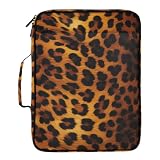
- Revolutionary Dual-Storage System (500 Sheets Capacity)-Maximize your productivity with our high-capacity organizer. One side features a detachable 1.2-inch 3-ring binder for nearly 250 sheets of punched notes and handouts; the other side holds a 7-pocket expanding accordion file that secures an additional 250 loose documents with an elastic strap. Total storage exceeds 500 sheets!
- Dedicated Tablet & Stationery Protection-Stay tech-ready! The exterior features a specialized zipper pocket that safely fits tablets up to 10.9 inches (iPad Air/Pro). Inside, you’ll find 5 elastic pen loops, a secure mesh pocket, and a hidden zipper compartment, ensuring your essential stationery is always organized and within reach.
- Durable Water-Resistant Antique Nylon Construction-Crafted from premium, abrasion-resistant antique nylon, this folder bag is designed for the rigors of daily use. The material is water-repellent, shielding your important teaching plans, academic documents, and electronics from unexpected spills or light rain.
- 180° Lay-Flat Design & Customizable Labels-Our smooth zipper allows the binder to open completely flat (180 degrees) for easy access and comfortable writing. We’ve included a set of colorful handwritten labels for the accordion section, allowing you to categorize your documents by subject, project, or date for instant retrieval.
- Professional Aesthetic for All Ages-Combining a stylish all-over print exterior with a professional gray lining, this document manager is perfect for home, office, school, or business travel. Whether you're a student managing coursework or a professional organizing client files, this fashion-forward portfolio keeps your desk tidy and your life organized.
Free versus freemium: what you can realistically expect
There are three different meanings of “free” in this category:
- Included with the device: Apple Files requires no separate purchase or download.
- Free and open source: VLC is free software for its media-player role.
- Free download with in-app purchases: Documents, FileBrowserGO, TapMedia File Manager, Google Drive, Dropbox, OneDrive, Hian Zin Jong’s Files app, and X File Manager all have paid purchases or account-based limits identified in their listings or research for this guide.
Owlfiles and iFiles need especially careful checking because the available listing information does not expose every current free-feature boundary. In every case, look at three things before committing: the app’s minimum iOS/iPadOS version, the in-app-purchase list, and whether the specific connection or transfer method you need is included without an upgrade.
Practical recommendations by situation
| Your situation | Start with | Why |
|---|---|---|
| I only need folders, downloads, iCloud, or a USB drive | Apple Files | It is already integrated and has no separate app cost. |
| I want one versatile app for documents, downloads, PDFs, ZIP files, and media | Documents by Readdle | It covers the broadest everyday workflow, subject to premium limits. |
| I need a computer or network drive | FileBrowserGO or Owlfiles | Both are positioned around network and multi-location access; verify the exact free features. |
| I use a NAS with several protocols | iFiles | Its listing explicitly includes FTP, SFTP, SMB, WebDAV, and NFS. |
| My work is in Google Workspace | Google Drive | Search, permissions, scanning, collaboration, and offline access are built around Drive. |
| I use Microsoft 365 | OneDrive | Office integration, Personal Vault, backup, and Microsoft account storage are the main advantages. |
| I share files with Dropbox users | Dropbox | Sharing, synchronization, previews, and offline files fit that ecosystem. |
| I mainly download documents on an iPhone | Hian Zin Jong’s Files app | Its browser, download, archive, and offline-viewing workflow is focused and simple. |
| I mainly manage videos and music | VLC | It is a stronger media player than a general file organizer. |
How to avoid common file-manager problems
Do not assume a cloud app replaces local storage
Google Drive, Dropbox, and OneDrive are excellent when the source of truth is their cloud service. They are not automatically the best tools for browsing every local folder, connecting to a NAS, or working with a USB drive. Use Files or a network-capable third-party app when the files are outside that provider’s ecosystem.
Check the connector before buying external storage
A USB-C iPhone or iPad and a Lightning iPhone do not have the same accessory requirements. Confirm the connector, whether an adapter is required, whether the drive draws more power than the device can provide, and whether the drive is formatted in a supported format. If an external drive does not appear in Files, the problem may be hardware, power, formatting, or adapter compatibility rather than the file-manager app.
Check the app’s paid boundary before importing everything
Free download does not guarantee free archive extraction, unlimited cloud connections, network access, PDF editing, scanning, or password features. Install the app, inspect its purchase screen and permissions, and test the exact workflow with a few non-critical files before migrating an entire archive.
Keep offline files in mind
An offline file stored by a cloud app may be managed inside that app and may consume device storage. If you need a file to be visible in Apple Files or available to another app, confirm how the service exposes offline copies before downloading a large collection.
Frequently Asked Questions
Is Apple Files enough for most iPhone and iPad users?
Yes, if you mainly need local folders, iCloud Drive, supported cloud locations, downloads, search, and compatible USB or SD-card storage. Choose a third-party app when you need advanced web downloads, archive tools, media playback, scanning, or network-drive access.
Which file manager is completely free?
Apple Files is included with the device, and VLC is free and open source for media playback. Most general-purpose alternatives in this guide are free downloads with in-app purchases, premium features, or cloud-storage limits.
Can I connect a USB flash drive to an iPhone or iPad?
Yes, with a compatible drive, connector, and possibly an adapter. Compatibility also depends on available power and formatting. Apple documents support for formats including APFS, encrypted APFS, macOS Extended, exFAT, FAT32, and FAT in its iPhone guidance.
What is the best iPhone and iPad file manager for a NAS?
Start with FileBrowserGO or Owlfiles for network-oriented browsing. iFiles is a stronger power-user option when you need protocols such as SMB, SFTP, WebDAV, FTP, or NFS, but check current compatibility and paid features before choosing.
The Bottom Line
Bottom line: Start with Apple Files because it is already installed and covers the basics. Choose Documents by Readdle when you want the best all-round upgrade for downloads, PDFs, archives, documents, and media. Use FileBrowserGO or Owlfiles when network or NAS access matters most, and choose Google Drive, Dropbox, or OneDrive when your files already belong to one of those ecosystems. Treat the remaining utilities as focused alternatives, and check current App Store requirements and in-app purchases before relying on any “free” feature.
Quick Recap
Product prices and availability are accurate as of the date/time indicated and are subject to change. Any price and availability information displayed on Amazon at the time of purchase will apply.

