
Recommended Free Tools
iTechGuides is reader-supported. When you buy through links on our site, we may earn an affiliate commission. As an Amazon Associate I earn from qualifying purchases. Learn more
The best drawing apps for Android in 2026 are Sketchbook for most users, Infinite Painter for a Procreate-style painting workflow, ibis Paint X for manga and anime, Clip Studio Paint for professional comics, and Krita for powerful free painting. The right choice still depends on your phone or tablet, stylus, art style, and budget.
This ranking is a use-case comparison based on current first-party feature information, Android availability, pricing models, device fit, and established workflows. It is not a claim that every app received identical hands-on testing. “Best” means best for a specific job, not universally best for every Android artist.
Key takeaways
- Sketchbook is the best overall starting point because it combines a clean interface with layers, blend modes, rulers, symmetry, predictive stroke smoothing, and pressure and tilt support.
- Infinite Painter is the strongest Procreate-style Android alternative, with nearly 200 brushes, brush customization, pressure-curve controls, timelapse recording, and a seven-day trial before locked features require a one-time purchase.
- ibis Paint X is the best fit for manga and anime, while its official Android information lists separate free and paid editions plus optional monthly and annual premium plans.
- Clip Studio Paint is the most suitable option in this list for professional comics and production illustration, but its subscription model makes it excessive for casual sketching.
- Krita is the strongest free and open-source choice on a large Android tablet, but Krita’s desktop-style interface is usually a poor fit for a small phone.
- Android compatibility does not guarantee a comfortable workflow: screen size, RAM, GPU performance, stylus protocol, canvas resolution, and layer count can matter as much as the app itself.
Quick comparison: which Android drawing app should you choose?
The table below gives the fastest route to a recommendation. “Free” describes an entry point, not necessarily an unrestricted workflow; advertising, premium tools, subscriptions, accounts, and regional pricing can change the practical cost.
The Tool Desk
Outbyte Driver Updater FREEScan for outdated or missing drivers - takes under a minuteDriver Scan →Outbyte PC Repair FREERepair Windows errors before they cause bigger problemsFix Now →| App | Best for | Phone fit | Tablet fit | Stylus and workflow | Pricing model | Main drawback |
|---|---|---|---|---|---|---|
| Sketchbook | Most users and general sketching | Good for quick work | Very good | Pressure, tilt, predictive stroke, layers, symmetry | Check current Android listing | Less specialized for comics and animation |
| Infinite Painter | Digital painting and a Procreate-style workflow | Usable, but a larger screen is better | Excellent | Nearly 200 brushes, custom brushes, pressure curves, timelapse | Seven-day trial, then one-time purchase for locked features | Large files and professional production need testing |
| ibis Paint X | Manga, anime, line art, and social art | Excellent | Very good | Large brush, material, font, filter, and manga-tool ecosystem | Free version, paid edition, and optional premium plans | Ads, feature distinctions, and a crowded interface can confuse |
| Clip Studio Paint | Professional comics and illustration | Technically compatible on suitable phones | Excellent on capable tablets | Comic production, inking, layers, and cross-device workflow | Subscription-oriented; verify current Android plan | Too complex or expensive for casual sketching |
| Krita | Free, open-source digital painting | Usually a poor fit | Very good on a large tablet | Powerful desktop-style painting and brush tools | Free and open source; verify current Android distribution | Cramped, demanding interface on phones |
| Concepts | Infinite-canvas design and planning | Good for short notes and diagrams | Excellent | Infinite canvas and spatial visual ideation | Free tier plus paid tools or subscription structure; verify listing | Not a conventional natural-media painting app |
| MediBang Paint | Free comic creation and cloud-oriented work | Good | Very good | Comic tools, tutorials, materials, cloud, and group projects | Free entry point with premium services or materials | Account, cloud, advertising, and feature limits require checking |
| ArtFlow | Lightweight Android painting | Verify current suitability | Potentially good | Android-focused painting workspace, layers, brushes, and stylus tools | Verify current Google Play listing | Current pricing, support, limits, and update status are unverified |
| Tayasui Sketches | Minimalist, natural-media sketching | Good for casual sketches | Good for relaxed work | Simple interface and traditional-media emphasis | Verify current Android pricing and feature split | Less suitable for complex layers, comics, or large illustrations |
| HiPaint | Budget-oriented Procreate-style painting | Usable | Better | Mobile painting workflow for Android phones and tablets | Verify current Google Play purchases and restrictions | Less certain long-term ecosystem and support story |
How were the best drawing apps for Android in 2026 selected?
The comparison weighs the job an app is designed to perform rather than counting features. The main criteria are drawing feel, brush quality, pressure and tilt behavior, stabilization, palm-rejection options, canvas and layer handling, workflow tools, specialist features, pricing restrictions, export options, and practical phone-versus-tablet suitability.
Popular on Amazon

- 【Stylus for Touch Screen】This stylus can be used on touch screen, designed to replace your fingers, the stylus can free up your fingers and provide higher sensitivity and response on the screen.
- 【Capacitive stylus】This is a capacitive stylus (battery-free, requires no charging, and functions like a fingertip)—not an active stylus. It does not support pressure sensitivity or palm rejection. However, it allows for tapping, scrolling, note-taking, and drawing on touchscreens; if you require professional-grade drawing capabilities on an iPad, please choose an active stylus instead.
- 【2-in-1 Stylus Pen】This stylus features two different tips: a flexible transparent disc tip and a rubber tip. Applying moderate pressure when using the rubber tip ensures full contact with the screen—especially on screens with protective films—thereby enabling stable signal transmission. The combination of the rubber tip and the disc tip offers two distinct touch experiences.Please note that the plastic piece on the transparent disc is an integral part of the tip and cannot be removed.
- 【Works On Capacitive Touch Screens】 Compatible with iPad, iPad Air/mini, iPhone, Samsung Galaxy Tab, Android tablets, Kindle, smartphones, and laptops equipped with capacitive touchscreens.(Laptop models can only be used if they have a touchscreen and support touch input) Also works over most screen protectors — glide, no scratch. If it cannot be used for writing on some devices, This may be due to limitations in the settings of touchscreen devices. If you cannot find a solution, please contact us at any time, and we will help you resolve the issue.
- 【Multiple Usage Scenarios】Whether you are taking notes in class, reviewing documents at work, drawing creative designs, or enjoying mobile games, this universal stylus pen delivers a smooth and comfortable touch experience. It is ideal for writing, sketching, annotating, scrolling, and precise screen control on tablets and smartphones. From daily tasks to creative projects, this stylus helps you capture ideas anytime and anywhere.
Feature lists do not tell the whole story. A technically compatible app can still feel unusable on a small display, lose responsiveness on a high-resolution canvas, or fail to expose pressure sensitivity because the device uses an incompatible stylus protocol. The ranking therefore separates installation compatibility from practical usability.
1. Sketchbook: what is the best overall drawing app for Android?
Sketchbook is the best overall drawing app for Android for beginners, hobbyists, and artists who want a capable interface without a professional-suite learning curve. The official Sketchbook feature page lists layers, blend modes, customizable brushes, rulers, symmetry tools, Predictive Stroke smoothing, and stylus support for pressure and tilt.
The uncluttered interface is Sketchbook’s biggest advantage. A new user can begin sketching quickly, while a more experienced artist still gets the layers, blending, symmetry, and guides needed for general illustration. Predictive Stroke is particularly useful when a phone or tablet makes steady line work difficult.
Sketchbook is a strong choice for quick sketches, general illustration, note-like drawing, and Samsung tablet workflows. Check the current Android store listing before publication or purchase because the exact free features and in-app purchases can change. Do not assume that a clean interface makes Sketchbook a complete replacement for desktop software; canvas size, export, brush, and file-format limits should be tested for production work.
Choose Sketchbook if: you want the easiest capable starting point, especially with an active stylus. Skip Sketchbook if: you primarily need comic-page production, advanced animation, or a specialized pixel-art workflow.
2. Infinite Painter: is it the best Procreate-style alternative for Android?
Infinite Painter is the best Procreate-style alternative for Android when the priority is polished, mobile-first digital painting rather than exact feature parity with Procreate. According to the official Infinite Painter product page, the app offers nearly 200 brushes, brush creation and customization, pressure-curve adjustment, customizable interface controls, layers, shapes, selections, and timelapse recording.
Infinite Painter’s strongest case is its natural-media brush selection and focused tablet workflow. Artists can adjust how pressure translates into a stroke, create or modify brushes, and arrange controls around their preferred working style. Those features make Infinite Painter a persuasive choice for finished illustrations and for artists moving from an iPad-oriented mobile painting workflow.
Quick wins for a faster PC:
Scan for outdated or missing drivers - takes under a minuteDriver Scan →Repair Windows errors before they cause bigger problemsFix Now →Fix the driver behind crashes, sound loss and screen glitchesFind Drivers →The official product information describes a seven-day free trial, after which certain features are locked behind a one-time purchase. Verify the current Google Play price in your country because app prices vary by market, tax, promotion, and store policy.
“Procreate alternative” should be treated as shorthand for a similar mobile painting approach, not a claim that Infinite Painter has identical gestures, brushes, file handling, or ecosystem support. Test large canvases and complex layered documents before relying on Infinite Painter for professional production.
Choose Infinite Painter if: you want the most polished painting-first Android experience in this ranking and prefer a one-time purchase to a mandatory recurring subscription. Skip Infinite Painter if: you need extensive comic-page tools, broad desktop collaboration, or a completely free workflow.
3. ibis Paint X: which Android drawing app is best for manga and anime?
ibis Paint X is the best Android drawing app for manga, anime, line art, and social-media illustration because it combines a free entry point with an unusually broad library of brushes, materials, fonts, filters, palettes, and manga-oriented tools. The official ibisPaint Android page confirms support for Android phones and tablets and distinguishes between ibisPaint X and paid ibisPaint editions.
Free tools Windows power users keep installed
One-click scans. No signup required.
ibis Paint X is particularly useful for artists who draw on both phones and tablets. Manga makers can work with screen tones, fonts, layers, filters, and a large selection of reusable materials. Beginners also benefit from the sheer number of tutorials and community-oriented resources, although the crowded toolset can take longer to learn than Sketchbook.
Also popular on Amazon

- Stylus Pen for Touchscreen: No Bluetooth or charging needed—use instantly on any capacitive touch screen (iPad, iPhone, Android, Samsung). Dual rubber tips (5mm/6.6mm) ensure precise control for writing, drawing, or gaming. Lightweight aluminum body with vibrant colors.
- Precision & Comfort Redefined: High sensitivity rubber tip glides smoothly without lag or scratches. Ergonomic design reduces wrist strain for extended use. Compatible with tablets, phones, and Laptops.
- Dual-Tip Flexibility: Switch between 0.20” and 0.26” rubber nibs for detailed art or bold notes. Anti-scratch, fingerprint-resistant tip. Pretty bright metal colors inspire creativity.
- Effortless Multi-Device Compatibility: Works seamlessly on Apple, Samsung, Android, and more. No apps or setup—just pick up and write. Perfect for notes, games, or gifts—ready to spark ideas instantly. Replaceable tips included for long-term use.
- Creative Freedom, Anywhere: Lightweight aluminum stylus with natural grip. Includes 6 replaceable tips and 3 color stylus pens. Perfect for sharing with friends, family, or colleagues, this bundle ensures you’re always equipped to capture inspiration.
The official ibisPaint page lists a paid Android edition at $15.99, optional premium pricing of $2.99 per month or $27.99 per year, and a free ibisPaint X edition. Those figures are official-site reference prices, not universal prices: currency, country, taxes, store, and promotions can change the amount. The official feature table is marked as current through April 2026, so verify the live Android listing before publishing a price-sensitive comparison.
Explain the product names carefully. “Free ibis Paint X,” the paid ibisPaint edition, and premium memberships are not interchangeable labels. The free version may include advertising or restrictions, and the exact limits should be checked in the current Google Play description.
Choose ibis Paint X if: you want manga tools, many materials, or a strong phone-first option. Skip it if: you dislike advertising, recurring premium tiers, or a busy interface.
4. Clip Studio Paint: is it the best Android app for professional comics?
Clip Studio Paint is the best choice in this list for professional comics, manga, multi-page projects, and production-oriented illustration, provided that the Android device and subscription fit your workflow. The official Android compatibility guidance documents the Android version and recommends a smartphone display of at least six inches.
Clip Studio Paint is designed for work that goes beyond a single sketch. Comic artists can benefit from specialized panel, inking, layer, and page-production tools, while desktop users may value the familiar environment and cross-device workflow potential. The app is therefore more appropriate for a creator producing finished pages than for somebody who wants a quick digital notepad.
The main drawback is the subscription-oriented pricing model. Verify the current Android plan, trial terms, device limits, edition differences, cancellation rules, and cross-platform purchase behavior on the official Clip Studio Paint plans page before committing. A subscription can be reasonable for a working comic artist, but it is difficult to justify for occasional sketching.
A six-inch compatibility recommendation does not mean that a phone is comfortable for serious comics. Panel layouts, multiple layers, and detailed inking are generally better on a large tablet with an active stylus, sufficient RAM, and a landscape workspace.
Choose Clip Studio Paint if: you need specialized comic production or already use Clip Studio Paint elsewhere. Skip it if: you want a simple beginner app or specifically refuse subscriptions.
5. Krita: is Krita good on an Android tablet or phone?
Krita is an excellent free and open-source painting option on a large Android tablet, but Krita is usually a poor recommendation for a small phone because the Android interface is closer to desktop creative software. The official Krita mobile download page should be used to confirm the current Android distribution and feature status.
Krita suits experienced digital painters who want powerful brush and painting capabilities without a normal subscription. Krita’s broader desktop ecosystem is also valuable for artists who move between Android and Windows, macOS, or other supported environments. The trade-off is complexity: menus, controls, and workspace density can overwhelm beginners and feel cramped on a phone.
Do not assume that every desktop feature behaves identically on Android. Android tablet performance, available RAM, GPU capability, screen size, keyboard support, and the current mobile build all affect the experience. Start with a modest canvas, test brush responsiveness, save a layered project, and export it before moving an important production workflow to Krita.
Choose Krita if: you want maximum painting power without a subscription and have a capable Android tablet. Skip Krita if: you draw mainly on a phone or want a minimal, immediately approachable interface.
Also popular on Amazon
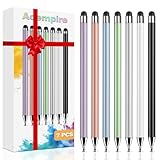
- 【Stylus Pen for Touchscreen】Our stylus pen requires no Bluetooth pairing or charging, you can unleash your creativity anytime and anywhere, just pick up the stylus and express your thoughts freely on the touchscreen.
- 【2-in-1 Stylus Pen】: Tablet stylus for touchscreen, made of lightweight alloy, no need for Bluetooth connection or charging, ready to use after opening the package, comfortable in hand, sturdy, durable and anti-aging, so you can use it anytime, anywhere Easily capture inspiration and make everything feel like writing on paper, giving you a more accurate writing/drawing/touching experience.
- 【High Sensitivity & Precision】Acempire stylus can flexibly fit on the screen without delays, interruptions, or screen scratches, allowing you to have a smoother writing or drawing experience and enhance your creative pleasure.
- 【Compatibility and multi-purpose】: Universal stylus, suitable for touchscreen devices (for nintendo switch stylus, for switch 2 stylus, Apple, Samsung, Moto, Lenovo, Xiaomi, etc., and also compatible with major operating systems, such as: Google, Android, Microsoft, etc.), you can use it like a real pen, You can use our stylus to write on drawing applications, take notes, read news, play games, etc. just like any other touchscreen device.
- 【Professional customer service】: we provide professional 24-hour customer service. If you encounter any product problems, please feel free to contact us through the store, and you will get a solution in the shortest time.
6. Concepts: what is the best Android app for an infinite canvas?
Concepts is the best app in this ranking for infinite-canvas sketching, diagrams, planning, product design, architecture, storyboards, mind maps, and spatial visual thinking. Concepts should not be judged as though it were another raster painting app; the app’s value comes from arranging ideas across an expandable visual workspace.
An infinite canvas is useful when the drawing is also a plan. Designers can place references and variations beside one another, students can build visual notes, and planners can expand a diagram without repeatedly creating new documents. A large tablet and stylus make that spatial workflow substantially more practical than a phone.
Review the current Concepts pricing page and Android listing before purchase. The free tier, paid tools, subscription structure, export formats, cloud features, and brush limits should be verified at publication time.
PC Slower Than It Used to Be?
A free scan shows the junk files, broken settings and background clutter dragging Windows down - then fixes them in one click.Free scan · Windows 10 & 11Outdated Drivers Are Slowing You Down
One free scan finds every outdated or missing driver and matches the right update for your exact hardware.Free scan · exact hardware matchChoose Concepts if: you need an expandable design board or diagramming canvas. Skip Concepts if: your priority is realistic painting, anime production, comic panels, or a conventional layer-heavy illustration workflow.
7. MediBang Paint: which free Android app is best for comic creation?
MediBang Paint is one of the best free starting points for Android comic creation, especially for beginners who want tutorials, materials, cloud-oriented features, and group-project functionality. The official MediBang Android page confirms the Android version and promotes comic resources, tutorials, cloud features, and collaborative production tools.
MediBang Paint is a practical middle ground between a simple sketch app and a professional comic suite. New comic artists can use its tutorials, fonts, and materials while learning panels, line art, and page composition. Cloud-related features can help when work moves between devices or involves other contributors.
Cloud synchronization is not automatically the same as a complete backup. Confirm whether a feature synchronizes files, publishes to an online gallery, supports collaboration, retains version history, or merely stores selected projects. Export important work to local storage or a separate backup service. Also verify current advertising, premium-material, storage, and account requirements in the Android listing.
Do these 3 things before closing this tab:
1Scan for outdated or missing drivers - takes under a minute2Clear out junk files and repair common Windows errors3Fix the driver behind crashes, sound loss and screen glitchesChoose MediBang Paint if: you want a free comic-oriented workflow with online resources. Skip it if: you require the most polished professional production environment or want to avoid accounts and cloud-related restrictions.
8. ArtFlow: is ArtFlow still worth considering on Android?
ArtFlow is worth considering as a lightweight Android painting alternative, but its current price, update status, device compatibility, feature limits, and support quality must be checked in the live Google Play listing before you rely on it. ArtFlow has an Android-first identity and is associated with a focused painting workspace, layers, brushes, color tools, and stylus-oriented use.
ArtFlow can appeal to users who want more than a basic sketchpad without the density of Krita or Clip Studio Paint. A tablet is likely to provide a more comfortable workspace than a phone, especially for layered painting.
The ArtFlow website was not sufficiently verified during the research pass to support a current price, layer limit, export limit, Android-version requirement, or maintenance claim. Treat ArtFlow as a conditional recommendation rather than assuming that long-standing availability guarantees current support.
What’s actually slowing this PC down?
Pick the symptom - the matching free tool is one click away.
Choose ArtFlow if: the current Google Play listing confirms the features and support you need. Skip it if: you require a clearly documented, actively maintained professional ecosystem.
Also popular on Amazon

- [Wide Compatibility]-This stylus pen for touchscreen is for capacitive screen electronic product and is specially designed for Android device on the market.The iphone stylus pen is suit with XiaoMi/Huawei/Vivo/Lenovo/Pixel/iPhone 6-15 ,Amazon Fire Series tablet and more other android devices. Some compatible device models- Galaxy Tab A9/A9+/S9/S23 FE/S24/S25/Z Fold5/Z Fold 6/A13 /A25/ (Note: This lenovo pen is not compatible with Microsoft devices,Apple iPad,Kindle devices,Windows,Laptop,S7+, tab s4,S10 and One note app. Please check your device model before placing an order.
- 【Smart Touch Switch & Power Save】-The touch screen pen stylus is easy to use: just double-tap the top of the android tablet capacitive stylus pen . There's no need for drivers or bluetooth settings. This iphone pen uses the USB-C charging port,just 35 minutes of charging will give you 8-10 hours of operation.Our digital pen has smart energy-saving feature, automatically turn to "sleep mode" after 5 minutes of inactivity and avoid unnecessary battery consumption.
- 【High Precise and Sensitive】-The pom tip of the stylist pen is wear-resistant,designed for professionals who need high precision and accuracy,is a great feature for anyone who uses a stylus pen android for designing work or drawing. They are very smooth and high responseon the screen, without lag or jumping.Luntak android stylus pen also a great gift for family and friends who love to create.
- 【Magnetic Absorption】-The magnetic feature is a great convenience for users who want to keep their samsung pen close at hand and prevent it from getting lost,more portable and more easier to organize.(Note: The magnetic function requires a built-in magnet on your tablet; otherwise, it cannot be attached. The magnetic surfaces of other tablets may not be a perfect fit.)
- 【What You Get】-Our tablet pens for touch screen set includes:1* stylist pens,3* Replaceable POM Tips,1* Type-C charging cable,1* User Manual.We support 1-year product warranty and 1-month free return and exchange policy for our pen with stylus tip. If you encounter any issues, please don't hesitate to contact us. Please note the apple pens does not support palm rejection, so avoid touching the screen with your hands.Does not support pressure sensitivity.
9. Tayasui Sketches: what is the best minimalist Android sketchbook?
Tayasui Sketches is the best fit here for calm, minimalist sketching and a natural-media feel rather than complex production work. The app is aimed at users who value an approachable sketchbook experience and watercolor-style or traditional-media tools over a large professional feature list.
Tayasui Sketches can work well for casual drawing, children, beginners, visual journaling, and artists who find large creative suites distracting. The trade-off is reduced suitability for high-layer-count illustrations, large canvases, animation, advanced comic production, and demanding file interoperability.
Verify the current Android version, Google Play availability, pricing, free-versus-paid feature split, export formats, and feature parity with other platforms through the official Tayasui Sketches page and its current Android listing. The iOS feature set should not be assumed to match Android.
Choose Tayasui Sketches if: you want a pleasant digital sketchbook with a traditional-media emphasis. Skip it if: you need a professional comic, animation, or complex layered-painting workflow.
10. HiPaint: is HiPaint a good budget Procreate-style Android app?
HiPaint is a budget-oriented Procreate-style alternative worth considering for Android phone and tablet users, but its current purchase terms, advertising, export limits, privacy details, and long-term support should be verified before choosing it for important work. The Google Play listing presents HiPaint as a drawing and painting app for Android phones and tablets.
HiPaint may appeal to beginners and tablet artists who want a familiar mobile painting layout without immediately paying for a subscription. The “Procreate-style” description refers to the general mobile painting approach and interface appeal; it does not establish identical brushes, gestures, file formats, performance, or ecosystem support.
Google Play feedback has included user concerns about value and comparisons with Krita, but those comments are anecdotal rather than verified performance testing. Check the current listing for subscriptions, in-app purchases, ads, supported Android versions, permissions, and export behavior.
What’s actually slowing this PC down?
Pick the symptom - the matching free tool is one click away.
Choose HiPaint if: you want to test an inexpensive mobile painting workflow. Skip it if: you need a mature desktop ecosystem, dependable cross-platform project compatibility, or strong long-term support certainty.
Which drawing app is best for your specific use case?
| Your priority | Best first choice | Why | Alternatives |
|---|---|---|---|
| Best overall | Sketchbook | Simple interface with serious core sketching tools | Infinite Painter, ibis Paint X |
| Free and powerful | Krita | Open-source painting without a normal subscription | Sketchbook, MediBang Paint |
| Manga and anime | ibis Paint X | Brushes, materials, fonts, filters, and manga features | Clip Studio Paint, MediBang Paint |
| Professional comics | Clip Studio Paint | Production-focused comic and illustration tools | ibis Paint X, MediBang Paint |
| Procreate-like painting | Infinite Painter | Mobile-first painting, custom brushes, and pressure controls | HiPaint, ibis Paint X |
| Infinite canvas | Concepts | Designed for spatial ideation, diagrams, and planning | Sketchbook, Infinite Painter |
| Casual Samsung S Pen drawing | Sketchbook | Clean workspace with pressure and tilt support | PENUP, ibis Paint X |
| Traditional-media feel | Infinite Painter | Large natural-media brush selection and brush editing | Tayasui Sketches, ArtFlow |
| Pixel art | Pixel Studio | Purpose-built pixel-art option | ibis Paint X, Krita |
| Learning to draw | Sketchar | Guided learning and AR-assisted practice | Sketchbook, ibis Paint X |
| No subscription | Krita | Free and open source, subject to current Android distribution | Infinite Painter, paid ibisPaint edition |
| Phone-first drawing | ibis Paint X | Available for Android phones and tablets with extensive tools | Sketchbook, MediBang Paint |
| Android tablet production | Clip Studio Paint or Krita | Better suited to large canvases, many layers, and serious workflows | Infinite Painter |
Are Android drawing apps better on phones or tablets?
Android drawing apps are generally more comfortable on tablets, while phones are better for quick sketches, practice, line art, and small illustrations. A larger display gives the artist more room for the canvas, layer panel, toolbars, gestures, and reference images. A tablet also makes long sessions and detailed comic pages less tiring.
What works best on an Android phone?
Phones are well suited to ibis Paint X, Sketchbook, and MediBang Paint when the task is quick sketching, line art, practice, or social-media artwork. Infinite Painter can also work on a phone, but a smaller screen limits the comfort of painting, layer management, and detailed brush control.
What works best on an Android tablet?
Large Android tablets are the better environment for Krita, Clip Studio Paint, Concepts, Infinite Painter, and complex Sketchbook projects. Tablet users can take better advantage of large canvases, multiple layers, keyboard shortcuts, landscape orientation, and active-pen features.
Installation is not the same as usability. Low RAM, a weak GPU, an unsupported active-stylus protocol, a small display, high canvas resolution, or many layers can make a compatible app lag or crash. Clip Studio Paint’s official Android guidance recommends a smartphone display of at least six inches, but a phone that meets that threshold may still be uncomfortable for serious production work.
Also popular on Amazon

- 『Better Than Finger』- A stylus has a better touch point than the tip of your finger giving better accuracy to little touch focuses like keys on the console. No more big finger troubles.
- 『Anti-Scratch Tip』- The stylus pen tip was made of soft, and scratch resistant rubber,which can protect your screen from scratching and keep no fingerprints.
- 『Easy To Carry』- Slim body and lightweight. Clip design is great for clipping in your pocket, diary, etc. Great stylus for kids.
- 『Perfect For Sharing』- Get 10 of tablet stylus with an unbeatable price. You can share this tablet pen to your friends or family.
- 『Universal Capacitive Stylus』- 100% compatible with all capacitive touch screen devices,such as iPad,iPhone,tablets,samsung galaxy and so on.
What stylus features should you check before choosing an Android drawing app?
Check pressure sensitivity, tilt, palm rejection, stylus-only input, active-pen compatibility, and shortcut support separately. “Stylus support” is too broad to predict how an app will feel.
- Pressure sensitivity changes line width or opacity according to pen force.
- Tilt support can affect brush angle, shading, or stroke width, but only when both the app and hardware expose the feature.
- Palm rejection prevents the resting hand from creating unwanted marks; behavior can depend on the app setting, Android device, and pen protocol.
- Stylus-only mode can prevent accidental finger marks, but not every app offers it.
- Active pens can provide pressure and tilt, while a passive capacitive stylus generally behaves like a finger and does not provide the same data.
- Bluetooth shortcuts and keyboard support matter for artists who use undo, zoom, pan, or brush-size commands frequently.
Samsung users should check the exact tablet model rather than assuming that every Galaxy device offers the same S Pen behavior. Samsung’s support documentation states that available S Pen functions can vary by device model and software version.
Which Android drawing apps are genuinely free?
Krita is the clearest free and open-source option in this list, while Sketchbook, ibis Paint X, and MediBang Paint provide free entry points with different restrictions. A free download may still contain advertising, locked tools, premium materials, limited exports, account requirements, or recurring cloud charges.
PC Slower Than It Used to Be?
A free scan shows the junk files, broken settings and background clutter dragging Windows down - then fixes them in one click.Free scan · Windows 10 & 11Outdated Drivers Are Slowing You Down
One free scan finds every outdated or missing driver and matches the right update for your exact hardware.Free scan · exact hardware match| Cost category | Apps | What to verify |
|---|---|---|
| Free and open source | Krita | Current official Android distribution and feature availability |
| Free tier or free version | Sketchbook, ibis Paint X, MediBang Paint, Concepts, HiPaint | Ads, layer or canvas limits, account requirements, premium tools, and export restrictions |
| Trial followed by paid unlock | Infinite Painter | What remains available after the seven-day trial and the current one-time price |
| Subscription-oriented | Clip Studio Paint | Current Android plan, billing period, trial conversion, device limits, and cancellation terms |
| Paid edition plus free edition or premium plans | ibisPaint | Difference between ibis Paint X, paid ibisPaint, and premium membership |
The official ibisPaint page illustrates why a single “free” label is incomplete. The page lists free ibisPaint X, a paid Android edition at $15.99, and optional premium plans of $2.99 monthly or $27.99 annually, while noting that prices vary by country and store. Treat those amounts as dated reference prices, not a universal checkout price.
What should you test before committing to an Android drawing app?
- Test the stylus. Draw slow lines, fast lines, light strokes, heavy strokes, and tilted strokes. Confirm that pressure and tilt behave as expected.
- Test palm rejection. Rest your hand naturally on the screen and check whether accidental marks appear.
- Test a modest canvas first. Start below the maximum resolution you expect to use, then increase size gradually.
- Test layers and responsiveness. Add layers, large brushes, selections, transforms, and reference images to see when the device slows down.
- Test saving and recovery. Close and reopen the app, confirm autosave behavior, and check whether a damaged or interrupted document can be recovered.
- Test export. Export PNG or JPEG and, where relevant, PSD or another layered format. Reopen the exported file on the destination device or desktop program.
- Test offline behavior. Confirm whether core drawing, saving, materials, and project opening work without an internet connection.
- Test the business model. Identify advertisements, locked brushes, premium materials, trial conversion, account requirements, cloud limits, and recurring charges before building a workflow around the app.
How do canvas size, layers, and file formats affect performance?
High-resolution canvases and large layer counts consume more memory and can reduce brush responsiveness, slow autosave, delay exports, or trigger crashes. Android performance varies by RAM, processor, GPU, storage speed, operating-system version, and app optimization.
Professional users should compare PNG and JPEG export with layered project formats such as PSD where supported. Also check SVG or other vector export for design work, TIFF where required by a production workflow, timelapse export, and whether cloud projects can be opened outside the app. Never assume that a purchase, cloud account, or project file transfers identically between Android, Windows, Mac, iPad, and other platforms.
Cloud synchronization is not the same as backup. A synchronized file may not provide version history, recovery from accidental deletion, an independent copy, or access without an account. Export important projects to local storage and a separate backup location.
What other Android drawing apps are worth considering?
PENUP, Pixel Studio, and Sketchar are useful specialist choices that do not fit neatly into the ten-app ranking.
- PENUP: a sensible option for Samsung users who want casual S Pen drawing, coloring, or a simple sketching community.
- Pixel Studio: a better starting point for dedicated pixel art than a general painting app.
- Sketchar: useful for guided learning and AR-assisted drawing practice.
- Adobe Fresco: verify Android availability before recommending it. Current coverage identified Fresco as unavailable on Android; see the reported Android drawing-app availability coverage and check Adobe’s current official listing before publication.
A simple decision tree for choosing an Android drawing app
- Want the easiest general-purpose option? Start with Sketchbook.
- Want manga or anime tools? Start with ibis Paint X. Choose Clip Studio Paint for professional comic production, or MediBang Paint for a free, cloud-oriented starting point.
- Want realistic digital painting? Try Infinite Painter. Choose Krita if avoiding subscriptions matters more than mobile simplicity.
- Want an infinite canvas for planning or design? Choose Concepts.
- Want a calm sketchbook experience? Try Tayasui Sketches, after confirming the current Android listing.
- Want to draw mainly on a phone? Prioritize ibis Paint X, Sketchbook, or MediBang Paint over desktop-oriented Krita.
- Want a Samsung S Pen workflow? Check the exact Galaxy model’s pen features, then start with Sketchbook or PENUP.
- Want pixel art or guided lessons? Choose Pixel Studio or Sketchar rather than forcing a general painting app to do a specialist job.
Frequently Asked Questions
What is the best free drawing app for Android?
Krita is the strongest free and open-source Android drawing app for serious painting on a capable tablet, while ibis Paint X, Sketchbook, and MediBang Paint are easier free-entry choices for phones and beginners. Check each app’s current advertising, locked-feature, account, and export policies before deciding.
Is there an Android equivalent to Procreate?
Infinite Painter is the closest general Procreate-style Android recommendation in this comparison because it has a mobile-first painting workflow, customizable brushes, pressure-curve controls, and a polished interface. Infinite Painter is not identical to Procreate, so compare gestures, file formats, performance, and pricing rather than assuming feature parity.
Is Krita good on an Android phone?
Krita is usually better on a large Android tablet than on a phone because its interface is desktop-oriented and can feel cramped on a small display. Krita is a strong free option for experienced artists with a capable tablet, but Sketchbook or ibis Paint X is generally more practical for phone drawing.
Quick wins for a faster PC:
Repair Windows errors before they cause bigger problemsFix Now →Fix the driver behind crashes, sound loss and screen glitchesFind Drivers →Which Android drawing app is best for manga?
ibis Paint X is the best starting point for manga and anime because it offers manga-oriented tools, brushes, materials, fonts, filters, and a free entry point. Clip Studio Paint is a stronger choice for professional multi-page comic production, while MediBang Paint is useful for free comic workflows with tutorials and cloud-related features.
Which Android drawing apps do not require a subscription?
Krita is free and open source, and Infinite Painter offers a trial followed by a one-time purchase for locked features according to its official product page. ibisPaint also lists a paid Android edition, but readers should verify current store terms because optional premium plans, regional prices, ads, and locked features differ by app.
The Bottom Line
For most Android users, start with Sketchbook. Choose Infinite Painter for polished digital painting, ibis Paint X for manga and anime, Clip Studio Paint for professional comics, Krita for free tablet painting, and Concepts for infinite-canvas design. Before committing, test the app on your actual phone or tablet with your actual stylus, canvas size, export format, and preferred pricing model.

