
iTechGuides is reader-supported. When you buy through links on our site, we may earn an affiliate commission. As an Amazon Associate I earn from qualifying purchases. Learn more
The 10 best Android file explorer apps, file browsers, and file managers depend on your workflow: Files by Google is the easiest default, Cx File Explorer is the best balanced upgrade, Solid Explorer is the polished power-user pick, and X-plore offers the broadest toolkit. Android’s scoped-storage rules mean no app can promise unrestricted access to every folder.
The recommendations below compare the ten apps by simplicity, local file operations, dual-pane layouts, archives, USB OTG and SD-card support, cloud and NAS connectivity, privacy-oriented features, advanced tools, and maintenance signals. The ranking uses official app listings and Android platform documentation rather than personal testing or independent benchmarks.
Key takeaways
- Files by Google is the easiest default for browsing, searching, cleaning storage, sharing files, and protecting sensitive items.
- Cx File Explorer is the best balance of a simple interface with cloud, NAS, FTP, storage-analysis, recycle-bin, and PC-transfer features.
- Solid Explorer is the polished power-user choice for dual-pane navigation, cloud and network connections, archives, encryption, and storage analysis.
- X-plore File Manager offers the broadest technical toolkit, including tree navigation, root options, USB OTG, network protocols, cloud services, archives, and app management.
- Android 10 and later impose important scoped-storage limits, so no file manager can guarantee unrestricted access to every Android folder on every phone.
What are the 10 best Android file explorer apps, file browsers, and file managers?
The ranking below is a feature-and-fit comparison based on current official Google Play listings and Android platform documentation, not hands-on testing, benchmark results, or independent reliability testing. The best choice depends on whether you need a simple browser, a dual-pane workspace, USB or SD-card access, NAS connectivity, cloud storage, root tools, or an open-source app.
| Rank | App | Best for | Notable capabilities | Main caveat |
|---|---|---|---|---|
| 1 | Files by Google | Most ordinary users | Browsing, search, cleanup, Quick Share, secure folder, SD/USB visibility, cloud backup | Not aimed at advanced dual-pane, root, or protocol-heavy work |
| 2 | Solid Explorer | Polished power users | Dual pane, cloud, SMB/CIFS, SFTP, FTP, WebDAV, archives, encryption, storage analysis | Paid features and a more advanced interface |
| 3 | Cx File Explorer | Simple but capable file management | Local and external storage, cloud, NAS, FTP/SFTP/SMB/WebDAV/LAN, recycle bin, PC FTP | The listing does not establish access to every advanced Android directory |
| 4 | X-plore File Manager | Technical users | Dual-pane tree, root, USB OTG, SMB1/SMB2, FTP, SFTP, SSH shell, cloud, archives, vault | Dense interface; some features require donation or paid access |
| 5 | Total Commander | Traditional two-panel workflows | Two panels, archives, search, text editor, root support, LAN, FTP/SFTP, WebDAV, plugins | Plugin-based design may feel technical to casual users |
| 6 | FX File Explorer | Desktop-like file handling | Material UI, SMBv2, cloud, multiple windows, dual view, browser-based access | Some transfer features require FX+ |
| 7 | Amaze File Manager | Open-source-oriented users | Open source, tabs, drag-and-drop, FTP/FTPS, SMB, SFTP, root, encryption, archives | Cloud support requires an additional plugin; update recency matters |
| 8 | Material Files | Lightweight open-source management | Open source, Material design, root, archives, FTP/SFTP/SMB/WebDAV, themes, Linux-aware behavior | The listed update date is June 29, 2024 |
| 9 | Owlfiles | NAS, cloud, and cross-device workflows | SMB, NFS, WebDAV, FTP, SFTP, major cloud services, USB/SD, built-in servers | Some capabilities are Pro features; verify exact service coverage |
| 10 | File Manager Plus | Conventional feature-rich browsing | Local, SD, USB OTG, cloud, NAS, FTP, storage analysis, viewers, players, archives | Contains ads and in-app purchases according to the listing |
Which Android file manager is best for most people?
Files by Google is the best Android file manager for most people because it keeps ordinary tasks—finding downloads, searching files, freeing storage, sharing items, and protecting private files—easy to understand. Google’s listing describes file browsing and search, cleanup recommendations, offline Quick Share, cloud backup, and a secure folder protected by a PIN or pattern.
Popular on Amazon
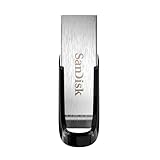
- High-speed USB 3.0 performance of up to 150MB/s(1) [(1) Write to drive up to 15x faster than standard USB 2.0 drives (4MB/s); varies by drive capacity. Up to 150MB/s read speed. USB 3.0 port required. Based on internal testing; performance may be lower depending on host device, usage conditions, and other factors; 1MB=1,000,000 bytes]
- Transfer a full-length movie in less than 30 seconds(2) [(2) Based on 1.2GB MPEG-4 video transfer with USB 3.0 host device. Results may vary based on host device, file attributes and other factors]
- Transfer to drive up to 15 times faster than standard USB 2.0 drives(1)
- Sleek, durable metal casing
- Easy-to-use password protection for your private files(3) [(3)Password protection uses 128-bit AES encryption and is supported by Windows 7, Windows 8, Windows 10, and Mac OS X v10.9 plus; Software download required for Mac, visit the SanDisk SecureAccess support page]
Files by Google can show available space on internal storage, an SD card, and a USB drive. The app can also identify old chat photos, duplicate files, cache data, and large files, then help move files to Google Drive or an SD card. According to the Google Play listing in the 2026 research snapshot, Files by Google had 5B+ downloads and a 4.5-star rating at the time of research. Ratings and download totals change, so those figures are context rather than proof of reliability.
Files by Google is not the best choice for a dual-pane workflow, root access, extensive network protocols, or a desktop-style plugin ecosystem. Users who want those capabilities should start with Solid Explorer, X-plore, Total Commander, or Cx File Explorer instead.
Which Android file manager is the best upgrade from Files by Google?
Cx File Explorer is the best balanced upgrade when Files by Google feels too limited but a technical interface would be excessive. Cx File Explorer presents internal and external storage in a clean interface while adding cloud access, NAS and LAN connections, FTP, FTPS, SFTP, SMB, WebDAV, a recycle bin, visual storage analysis, duplicate-file cleanup, junk cleanup, app management, and PC access through FTP.
Cx File Explorer supports copying, moving, compressing, extracting, renaming, deleting, creating, and sharing files. The listing also identifies support for Android phones, tablets, and Android TV. Cx File Explorer is especially compelling for a reader who wants local files, an SD card, a USB device, a computer, and cloud storage in one app without adopting a dense two-panel layout.
Cx File Explorer should not be treated as a guarantee that every protected Android directory is editable. Android version, manufacturer restrictions, the app’s target behavior, and user-granted permissions still determine what the app can access.
Is Solid Explorer the best polished power-user file manager?
Solid Explorer is the best polished power-user option when dual-pane navigation and broad storage connectivity matter more than minimalism. Solid Explorer provides two-pane navigation, drag-and-drop transfers, cloud connections, SMB/CIFS, SFTP, FTP, WebDAV, web file sharing, indexed search, batch renaming, archives, media viewing, and FTP-server functionality.
Solid Explorer also lists storage analysis, duplicate-file and large-file detection, AES-256 encryption, root exploration on rooted devices, and support for internal storage, SD cards, USB OTG drives, and cloud storage. Solid Explorer is a strong choice for moving files between two locations without repeatedly backing out of folders, such as an SD card and cloud account or a NAS share and internal storage.
Do these 3 things before closing this tab:
1Clear out junk files and repair common Windows errors2Scan for outdated or missing drivers - takes under a minute3Repair Windows errors before they cause bigger problemsThe trade-off is complexity and cost: the listing identifies paid features, and the interface exposes more controls than a basic file browser. The Google Play listing reports an update on July 8, 2026 in the research snapshot.
Does X-plore offer the broadest Android file-manager toolkit?
X-plore File Manager offers the broadest technical toolkit in this comparison. X-plore combines a dual-pane tree view with root options, USB OTG, SMB1 and SMB2, FTP, SFTP, an SSH shell, cloud storage, DLNA/UPnP, disk mapping, SQLite support, ZIP/RAR/7z archives, app management, batch renaming, PDF viewing, Wi-Fi sharing, browser-based PC access, a hex viewer, media viewers, and an encrypted vault.
X-plore is a particularly good Android file manager for USB OTG, NAS or SMB, cloud storage, and technical file operations when one app needs to cover many locations and protocols. The same breadth makes X-plore less suitable for someone who only wants to open Downloads and delete large videos. Some capabilities are marked as paid or donation-supported, and the dense interface has a steeper learning curve.
Also popular on Amazon

- 【Expanded Data Storage】KAISLE USB Flash Drives can help you easy keep contents separate from another. Flash Drive is commonly used for storage, data backup and computer file transfer, flashdrive will meet your needs of daily use on work, school, home, and traveling for photos, music, videos, files storage.
- 【Fast Speed】High-speed Thumb Drive for fast data transfer, thumb drives easy to complete the storage and transport functions. USB 2.0 and Class A chip help you transfer movie and photos from the usb thumb drive to your Computers. Save your time.
- 【Wide Compatibility】KAISLE USB Drive is plug and play without any software installation; Simply insert the USB Stick into the device to transfer and store data between the devices. The USB Memory Stick Supports Windows 7/8/10/11 / Vista / XP / Unix / 2000 / ME / NT Linux and Mac OS, and is Supports memory stick USB 2.0 ports.
- 【Portable and Convenient】A loop at the end of the Flashdrive, you can attach the Thumb Drives to your keychain or lanyard, using to help keep from losing, and for easy carrying.
- 【What You Get】64 GB USB Flash Drive Thumb Drive, The default format of the usb storage flash drive is exFAT.
The listing reports an update on June 2, 2026 in the research snapshot. X-plore’s feature list is broad, but Android’s permission model still takes precedence over any app feature list.
The Tool Desk
Outbyte PC Repair FREEClear out junk files and repair common Windows errorsFree Scan →Outbyte Driver Updater FREEFix the driver behind crashes, sound loss and screen glitchesFind Drivers →How do Total Commander and FX File Explorer compare?
Total Commander is the better choice for readers who already understand traditional two-panel file managers or want a plugin ecosystem. The Android version supports copying and moving whole subfolders, drag-and-drop, in-place renaming, archives, file properties and permissions, text editing, text search, installed-app listing and backup, FTP/SFTP, WebDAV, LAN, cloud plugins, root support, Bluetooth sharing, thumbnails, media streaming, bookmarks, directory history, and two panels or a virtual two-panel mode.
Total Commander’s plugin-driven design is powerful but less immediately approachable than Files by Google or Cx File Explorer. Google Play labels Total Commander as containing ads because it links to plugins, while the developer’s listing says the app itself does not contain advertising. That distinction is important for readers specifically searching for an Android file manager with no ads.
FX File Explorer is the more desktop-like alternative for users who prefer a Material Design interface, multiple windows, and dual-view mode. FX lists SMBv2, Google Drive, Dropbox, SugarSync, Box, SkyDrive, and OwnCloud connections. FX+ adds phone-to-phone transfer through FX Connect and browser-based Web Access for managing files and media from a computer.
FX is a good fit for a reader who wants to manage an Android phone from a computer browser or work across several windows. FX+ is required for some transfer features, and the research source surfaced an older crawl date for the listing, so current release status and included features should be checked before installation.
Quick wins for a faster PC:
Scan for outdated or missing drivers - takes under a minuteDriver Scan →Repair Windows errors before they cause bigger problemsFix Now →Which open-source Android file manager should you choose?
Amaze File Manager is the stronger open-source-oriented choice when tabs, a broad feature set, and a no-ads positioning are priorities. Amaze describes itself as open source, lightweight, Material-based, and free of ads. The listing includes cut, copy, delete, compress, extract, tabs, drag-and-drop, themes, bookmarks, search, FTP/FTPS server support, SMB, SFTP, root exploration, AES encryption and decryption, database reading, ZIP/RAR/APK/text readers, and app management.
Amaze cloud support requires an additional plugin. The listing reports an update on December 28, 2025 in the research snapshot. The Play rating is lower than several mainstream alternatives in the comparison, but ratings fluctuate and are not laboratory-quality measures of performance, security, or reliability.
Material Files is the better open-source Android file manager for readers who value lightweight operation and technically aware file handling. Material Files lists breadcrumbs, root support, common archive creation and extraction, FTP/SFTP/SMB/WebDAV NAS access, themes, true-black night mode, symbolic-link awareness, file permissions, SELinux context awareness, and a Linux system-call-based implementation.
Material Files has a significant maintenance caveat for a best-current list: its listing reports an update on June 29, 2024. An older listed update does not prove that the app is unsafe or unusable, but readers who prioritize active maintenance should compare the listing’s current release information and Android compatibility before choosing it.
Free tools Windows power users keep installed
One-click scans. No signup required.
Which Android file manager is best for NAS and cloud storage?
Owlfiles is the strongest specialist choice for readers who treat an Android phone as a client for NAS devices, computers, removable drives, and cloud services. Owlfiles lists SMB, NFS, WebDAV, FTP, SFTP, Google Drive, OneDrive, Dropbox, Box, OwnCloud, Amazon S3 and S3-compatible storage, Mega, pCloud, USB drives, and SD cards.
Also popular on Amazon

- USB-C 2-in-1 storage OTG: The Lexar JumpDrive Dual Drive D40E features USB Type-A and Type-C connectors in a slim, portable form factor for easy device compatibility
- Transfer speeds up to 100MB/s: Based on internal testing, performance may vary depending upon the host device, interface, and usage conditions. 1MB=1,000,000 bytes
- Plug and Play: Widely compatible with USB Type-C smartphones, tablets, laptops, Macs, and traditional Type-A devices, no software installation required. The 360° swivel design allows for easy switching between connectors without the hassle of losing a cap
- Durable & Compact: The Lexar D40E USB memory stick features a metal enclosure, withstands temperatures from 0° to 50° C (32°F to 122°F), and is lightweight at 26g with dimensions of 70.4 x 16.9 x 11.7mm
- Security & Warranty: Securely protects files using an advanced security software solution with 256-bit AES encryption. Backed by a Lexar 3-year limited warranty
Owlfiles can stream media from computers, NAS devices, and cloud services; transfer files among Android, computers, NAS devices, and cloud services; run FTP and HTTP servers; and provide nearby transfers between Android and iOS devices. The listing reports an update on May 19, 2026 in the research snapshot.
Owlfiles separates some capabilities as Pro features. Service availability and exact feature limits should therefore be checked for the particular cloud or NAS workflow rather than inferred from the general feature list.
Solid Explorer, X-plore, Total Commander, Cx File Explorer, FX File Explorer, Material Files, and Owlfiles also make sense for NAS or SMB users, but they differ in protocol coverage, interface, plugins, and paid features. SMB support alone does not tell you whether a particular app is the best client for a specific NAS configuration.
Is File Manager Plus a good simple alternative?
File Manager Plus is a conventional, feature-rich option for users who want straightforward categories and broad storage support. The listing covers main storage, SD cards, USB OTG, downloads, images, audio, video, documents, apps, cloud services, NAS, FTP, PC access through FTP, storage analysis, built-in viewers and players, and ZIP, GZ, XZ, and TAR archives.
File Manager Plus may suit readers who want more capability than a basic browser without prioritizing root tools, plugins, or a highly specialized layout. The listing reports ads and in-app purchases. Users should also avoid confusing File Manager Plus with similarly named Android file-manager apps in Google Play search results.
Which file manager is best for USB OTG, SD cards, and phone-to-PC transfers?
For Android USB OTG, an SD card, or an external drive, choose an app that explicitly lists external-storage support and then confirm that the phone supports the accessory. Files by Google shows SD-card and USB-drive storage; Solid Explorer, X-plore, and Cx File Explorer list USB or external-storage workflows; and Owlfiles lists USB drives and SD cards.
For a reader who regularly moves large files or makes backups, a USB-C flash drive for Android phones can be useful. Compatibility depends on the phone’s USB-C port, OTG support, the drive’s filesystem, Android permissions, and the manufacturer’s implementation. A USB-C connector alone does not guarantee that every Android phone can browse every drive.
What’s actually slowing this PC down?
Pick the symptom - the matching free tool is one click away.
For camera photos, videos, or documents stored on removable media, a USB-C SD card reader for Android can be more appropriate than a flash drive. The phone must support USB OTG, and not every Android handset accepts a microSD card internally. Test the reader and the intended file manager with the actual phone before relying on the setup for travel or backup.
To browse a USB drive, connect a compatible OTG adapter or USB-C drive, open the file manager, look for USB, external storage, or a removable-drive entry, and grant access if Android presents a permission prompt. If the drive does not appear, check the phone’s OTG support, the connector and adapter, power requirements, filesystem compatibility, and whether another device can read the drive.
To move files from Android to a PC, use a method supported by both devices: a USB drive, a network protocol such as FTP or SMB, a cloud account, or a file manager’s browser-based transfer feature. Cx File Explorer lists PC access through FTP; X-plore lists Wi-Fi sharing and browser-based PC access; FX+ lists browser-based Web Access and phone-to-phone FX Connect; and Owlfiles lists transfers among Android devices, computers, NAS devices, and cloud services.
Also popular on Amazon
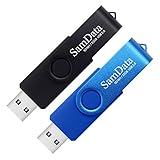
- [Package Offer]: 2 Pack USB 2.0 Flash Drive 32GB Available in 2 different colors - Black and Blue. The different colors can help you to store different content.
- [Plug and Play]: No need to install any software, Just plug in and use it. The metal clip rotates 360° round the ABS plastic body which. The capless design can avoid lossing of cap, and providing efficient protection to the USB port.
- [Compatibilty and Interface]: Supports Windows 7 / 8 / 10 / Vista / XP / 2000 / ME / NT Linux and Mac OS. Compatible with USB 2.0 and below. High speed USB 2.0, LED Indicator - Transfer status at a glance.
- [Suitable for All Uses and Data]: Suitable for storing digital data for school, business or daily usage. Apply to data storage of music, photos, movies, software, and other files.
- [Warranty Policy]: 12-month warranty, our products are of good quality and we promise that any problem about the product within one year since you buy, it will be guaranteed for free.
How do Android storage restrictions affect file managers?
Android storage restrictions determine which folders a file manager can read or modify, so the best Android file explorer cannot automatically bypass protected locations. Android’s official documentation says apps targeting Android 10/API level 29 or higher receive scoped access to external storage by default.
Android Developers state: Use scoped storage unless your app needs access to a file that’s stored outside of an app-specific directory and outside of a directory that the MediaStore APIs can access.
The statement appears in the official Android data and file storage documentation.
Android’s Storage Access Framework can let a user select a directory through the ACTION_OPEN_DOCUMENT_TREE flow. The user grants access to the selected directory and its files and subdirectories, as described in the official Android shared-storage and document-access documentation. The permission is not a universal pass to every protected location.
The Android Open Source Project explains that Android 11 and later use FUSE-related MediaProvider controls to examine file operations and gate access according to policy. Android 10 enforced scoped-storage rules through MediaProvider, while direct file-path access was not intercepted in exactly the same way. The platform explanation is available in the AOSP scoped-storage documentation.
Can a file manager access Android/data and other protected folders?
No file manager can promise unrestricted access to Android/data, Android/obb, or every other protected folder on every Android phone. Access can depend on the Android release, the app’s target behavior, the phone manufacturer, user-granted directory permissions, and whether the device is rooted.
Recommended Free Tools
A file manager may display a folder but still be unable to open, create, edit, or delete its contents. A file manager may also offer root exploration, but root support only helps on a device that is actually rooted and properly configured; root is not a normal permission available to every Android user.
When a protected-folder operation fails, first try the Android system permission picker if the app offers it, select only the directory that you understand and want to grant, and avoid granting broad access to an unfamiliar app. If the system does not offer the required directory, changing file-manager apps may not solve the restriction because the platform policy is the limiting factor.
Independent reader supportYour contribution helps us test, update, and keep practical guides available for everyone.How should you choose between the ten apps?
Use the following decision framework rather than choosing by download count alone:
| Your priority | Best starting point | Why | Alternative |
|---|---|---|---|
| Simple browsing and storage cleanup | Files by Google | Search, categories, cleanup recommendations, Quick Share, secure folder, and visibility into device, SD-card, and USB space | Cx File Explorer for more network and storage features |
| Balanced everyday and network use | Cx File Explorer | Clean interface plus cloud, NAS, FTP/SFTP/SMB/WebDAV, recycle bin, analysis, and PC FTP | Solid Explorer for a more polished power-user layout |
| Best dual-pane file manager | Solid Explorer | Dual panes, drag-and-drop, cloud and network connections, archives, encryption, and analysis | Total Commander for classic two-panel workflows |
| Maximum technical breadth | X-plore | Tree view, root options, USB OTG, protocols, SSH shell, archives, vault, app management, and browser sharing | Total Commander for plugins |
| Open-source orientation | Amaze File Manager | Open source, tabs, no-ads positioning, root, encryption, archives, and network features | Material Files for a lighter, Linux-aware design |
| NAS and cloud as primary locations | Owlfiles | Broad protocol and provider list, built-in servers, streaming, and cross-device transfers | Solid Explorer or X-plore |
| Desktop-like windows and browser access | FX File Explorer | Multiple windows, dual view, SMBv2, cloud connections, and FX+ Web Access | X-plore for broader technical tools |
| Conventional feature-rich interface | File Manager Plus | Local, SD, USB OTG, cloud, NAS, FTP, analysis, viewers, players, and archives | Cx File Explorer |
What should you check before installing an Android file browser?
Check the interface first. Casual users generally need visible entries for Downloads, Photos, Videos, Documents, and internal storage. Dual panes, tabs, tree views, and multiple windows are valuable for frequent transfers but can make a simple task less obvious.
PC Slower Than It Used to Be?
A free scan shows the junk files, broken settings and background clutter dragging Windows down - then fixes them in one click.Free scan · Windows 10 & 11Crashes, No Sound, or Screen Glitches?
Random freezes, missing sound and display glitches usually trace back to one bad driver. Find and replace yours safely.Free scan · under a minuteCheck the exact external-storage workflow. Look for explicit support for SD cards, USB OTG, or USB drives if removable media is central to your use case. Confirm that the phone, adapter, drive, and filesystem work together; an app listing cannot make unsupported phone hardware compatible.
Also popular on Amazon

- What You Get - 2 pack 64GB genuine USB 2.0 flash drives, 12-month warranty and lifetime friendly customer service
- Great for All Ages and Purposes – the thumb drives are suitable for storing digital data for school, business or daily usage. Apply to data storage of music, photos, movies and other files
- Easy to Use - Plug and play USB memory stick, no need to install any software. Support Windows 7 / 8 / 10 / Vista / XP / Unix / 2000 / ME / NT Linux and Mac OS, compatible with USB 2.0 and 1.1 ports
- Convenient Design - 360°metal swivel cap with matt surface and ring designed zip drive can protect USB connector, avoid to leave your fingerprint and easily attach to your key chain to avoid from losing and for easy carrying
- Brand Yourself - Brand the flash drive with your company's name and provide company's overview, policies, etc. to the newly joined employees or your customers
Check protocols rather than the vague word “network.” SMB is useful for many LAN and NAS shares, while FTP, SFTP, WebDAV, NFS, SSH, and browser-based access serve different setups. A file manager that supports SMB may not support NFS, and a file manager that supports FTP may not provide the security or workflow you expect from SFTP.
Check whether advanced features are paid, plugin-based, or donation-supported. Solid Explorer identifies paid features, X-plore identifies donation or paid capabilities, Amaze requires an additional plugin for cloud support, Owlfiles separates Pro features, and FX requires FX+ for some transfer functions.
Check maintenance and privacy. Update dates in the research snapshot range from June and July 2026 for several mainstream listings to June 29, 2024 for Material Files. Also review the current Google Play Data safety section, permissions, advertising disclosures, and the app’s own privacy documentation before granting access to personal files. A feature list does not establish independent security or reliability.
What do download counts and ratings prove?
Download counts and ratings show marketplace reach and user sentiment at a point in time, but they do not constitute a comparative performance, privacy, or reliability study. According to the Google Play listings in the 2026 research snapshot, Solid Explorer, X-plore, Total Commander, Cx File Explorer, and FX File Explorer each showed 10M+ downloads where that figure was displayed. Files by Google showed 5B+ downloads.
The research contains no independent benchmark comparing copy speed, battery use, crash rates, network throughput, privacy practices, or recovery performance across the ten apps. The ranking is therefore a practical feature-and-fit recommendation, not a laboratory result.
Final recommendations
Install Files by Google if you want the simplest file browser for an Android phone. Choose Cx File Explorer if you want an easy interface with cloud, NAS, storage-analysis, recycle-bin, and PC-transfer features. Choose Solid Explorer for a polished dual-pane workspace, and choose X-plore for the broadest technical toolkit.
Choose Total Commander for classic two-panel and plugin-based work, FX File Explorer for desktop-like windows and browser access, Amaze File Manager or Material Files for open-source-oriented use, Owlfiles for NAS and cloud-heavy workflows, and File Manager Plus for a conventional feature-rich alternative. Whichever app you select, treat Android’s scoped-storage rules as a platform limit rather than assuming that a file manager can access every directory.
Quick wins for a faster PC:
Fix the driver behind crashes, sound loss and screen glitchesFind Drivers →Clear out junk files and repair common Windows errorsFree Scan →Frequently Asked Questions
Can any Android file manager access Android/data?
No. An Android file manager cannot guarantee access to Android/data, Android/obb, or every protected folder on every phone. Access depends on Android version, manufacturer policy, app behavior, user-granted directory permissions, and root status.
Can I browse a USB drive with an Android file manager?
Yes, several apps in this comparison list USB OTG or USB-drive support, including Files by Google, Solid Explorer, X-plore, Cx File Explorer, and Owlfiles. The phone must also support OTG, and the drive, connector, filesystem, and Android permissions must be compatible.
What is the best open-source Android file manager with no ads?
Amaze File Manager is the clearest no-ads, open-source-oriented choice in the research because its listing describes it as free of ads. Material Files is another open-source option, while Total Commander’s Play listing is labeled as containing ads because it links to plugins even though the developer says the app itself does not contain advertising.
What is the best way to move files from Android to a PC?
Files by Google, Cx File Explorer, Solid Explorer, X-plore, FX File Explorer, Total Commander, and Owlfiles all offer some form of cloud, network, FTP, browser, or PC-transfer workflow, but the exact method differs. Cx File Explorer lists PC access through FTP, X-plore lists browser-based PC access, and FX+ adds browser-based Web Access.
PC Slower Than It Used to Be?
A free scan shows the junk files, broken settings and background clutter dragging Windows down - then fixes them in one click.Free scan · Windows 10 & 11Crashes, No Sound, or Screen Glitches?
Random freezes, missing sound and display glitches usually trace back to one bad driver. Find and replace yours safely.Free scan · under a minuteThe Bottom Line
Bottom line: Files by Google is the safest starting recommendation for ordinary users, Cx File Explorer is the best all-round upgrade, Solid Explorer is the strongest polished power-user choice, and X-plore is the most technically complete. Android’s scoped-storage rules still determine whether any app can access a protected folder.

