
iTechGuides is reader-supported. When you buy through links on our site, we may earn an affiliate commission. As an Amazon Associate I earn from qualifying purchases. Learn more
Windows Remote Desktop works on a local network when the host accepts RDP through Windows Defender Firewall; remote access from the internet additionally requires a VPN or router port forwarding. A VPN is the safer choice. Direct forwarding normally uses port 3389, but Microsoft warns that exposing the PC directly to the internet increases risk.
This installment separates the five places an RDP connection can fail: the Windows host, Windows Defender Firewall, the local network, the router and ISP path, and the remote client network. Test each layer in order, beginning with a local connection before changing router settings.
Key takeaways
- Windows Professional, Enterprise, Education, and Windows Server editions can accept incoming Remote Desktop connections; Windows Home can act as an RDP client but not an incoming RDP host.
- Local-network RDP normally needs the built-in Remote Desktop rules enabled in Windows Defender Firewall, but it normally does not need router port forwarding.
- Remote access is safer through a router VPN or private mesh VPN because the design keeps RDP on a private network instead of publishing the RDP service directly to the internet.
- The normal RDP port is TCP 3389, although the Windows host can be configured to use another port and every firewall and forwarding rule must then match the changed port.
- A successful port test proves limited TCP reachability only; it does not prove that the correct PC, RDP service, user account, or authentication process will work.
What are you configuring?
Windows Remote Desktop traffic must pass through several separate controls before a session opens. The Remote Desktop host is the Windows PC being controlled, while the Remote Desktop client is the device initiating the connection. Windows Defender Firewall filters traffic arriving at the host. The router’s firewall and NAT determine whether traffic can enter the home network and which private device receives it.
What’s actually slowing this PC down?
Pick the symptom - the matching free tool is one click away.
Port forwarding is the router rule that maps a public address and port to a private address and port. A VPN or private mesh network takes a different approach: the remote client first joins the private network, then connects to the host’s private or VPN-assigned address. Allowing RDP through Windows Defender Firewall is therefore not the same as making RDP reachable from the internet.
Popular on Amazon
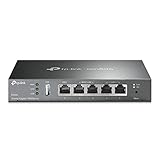
- 【Five Gigabit Ports】1 Gigabit WAN Port plus 2 Gigabit WAN/LAN Ports plus 2 Gigabit LAN Port. Up to 3 WAN ports optimize bandwidth usage through one device.
- 【One USB WAN Port】Mobile broadband via 4G/3G modem is supported for WAN backup by connecting to the USB port. For complete list of compatible 4G/3G modems, please visit TP-Link website.
- 【Abundant Security Features】Advanced firewall policies, DoS defense, IP/MAC/URL filtering, speed test and more security functions protect your network and data.
- 【Highly Secure VPN】Supports up to 20× LAN-to-LAN IPsec, 16× OpenVPN, 16× L2TP, and 16× PPTP VPN connections.
- Security - SPI Firewall, VPN Pass through, FTP/H.323/PPTP/SIP/IPsec ALG, DoS Defence, Ping of Death and Local Management. Standards and Protocols IEEE 802.3, 802.3u, 802.3ab, IEEE 802.3x, IEEE 802.1q
The complete path for direct internet access is:
remote client → internet → router WAN firewall/NAT → router LAN → Windows host firewall → RDP service
A failure anywhere in that path can produce a similar “cannot connect” message.
What should you check before changing the firewall?
Confirm the host prerequisites first. Firewall and router changes cannot make an unsupported, sleeping, powered-off, or unauthorized Windows host accept a session.
Outdated Drivers Are Slowing You Down
One free scan finds every outdated or missing driver and matches the right update for your exact hardware.Free scan · exact hardware matchWindows Errors? Fix Them Before They Spread
Repair common Windows errors and clear accumulated junk for a smoother, more stable PC - no reinstall needed.Free scan · no reinstall- Supported host edition: According to Microsoft’s Remote Desktop guidance, Windows Professional, Enterprise, Education, and Windows Server editions can act as incoming RDP hosts. Windows Home cannot act as an incoming RDP host, although Windows Home can be used as a client.
- Remote Desktop enabled: Open Settings → System → Remote Desktop, enable Remote Desktop, and add permitted users if necessary. Labels can vary slightly between Windows releases.
- Power and network: The host must be powered on, connected to the network, and configured so sleep does not prevent access. Network wake behavior depends on the PC, network adapter, and power settings.
- Authorized account: The connecting account must be permitted to use Remote Desktop. Use a strong, unique password and avoid granting administrative access when a standard account is sufficient.
- Known private address: Find the host’s private IPv4 address, such as
192.168.1.50, and know the host name if local name resolution is reliable. - Network profile: A trusted home or small-office LAN should normally use the Private profile. Do not casually classify an untrusted network as Private merely to make RDP work.
- Router access: You need administrator access to the router or firewall if you plan to configure a VPN or port forwarding.
- External test network: A phone hotspot or another genuinely separate network is useful for testing internet access. Testing a public hostname from inside the same Wi-Fi network may fail when the router lacks NAT loopback.
How do you allow Remote Desktop through Windows Defender Firewall?
Enable the built-in Remote Desktop firewall exception for the intended network profile instead of disabling Windows Firewall or creating a broad inbound allow rule.
Windows 11 and Windows 10 graphical steps
- Open Windows Security.
- Select Firewall & network protection.
- Review the active network profile and confirm that Microsoft Defender Firewall is enabled.
- Select Allow an app through firewall.
- Find Remote Desktop and allow it on the intended profile, normally Private for a trusted home LAN.
- Do not turn off Microsoft Defender Firewall globally as a troubleshooting shortcut.
Microsoft’s Windows Firewall guidance explains that Windows Firewall supports domain, private, and public profiles and warns that turning the firewall off increases exposure. The built-in Remote Desktop rule is narrower and easier to audit than an “allow all inbound traffic” rule.
If Remote Desktop is missing, disabled, or still blocked, open Windows Defender Firewall with Advanced Security. Inspect the inbound rules in the Remote Desktop display group and check their enabled state, profile, direction, and action. A third-party endpoint-security product may also have a separate firewall that overrides or supplements Windows Firewall.
How can PowerShell verify the RDP firewall rules?
Run these commands in PowerShell, preferably in an elevated window when changing rules.
Quick wins for a faster PC:
Fix the driver behind crashes, sound loss and screen glitchesFind Drivers →Clear out junk files and repair common Windows errorsFree Scan →Also popular on Amazon
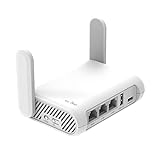
- 【AC1200 Dual-band Wireless Router】Simultaneous dual-band with wireless speed up to 300 Mbps (2.4GHz) + 867 Mbps (5GHz). 2.4GHz band can handles some simple tasks like emails or web browsing while bandwidth intensive tasks such as gaming or 4K video streaming can be handled by the 5GHz band.*Speed tests are conducted on a local network. Real-world speeds may differ depending on your network configuration.*
- 【Easy Setup】Please refer to the User Manual and the Unboxing & Setup video guide on Amazon for detailed setup instructions and methods for connecting to the Internet.
- 【Pocket-friendly】Lightweight design(145g) which designed for your next trip or adventure. Alongside its portable, compact design makes it easy to take with you on the go.
- 【Full Gigabit Ports】Gigabit Wireless Internet Router with 2 Gigabit LAN ports and 1 Gigabit WAN ports, ideal for lots of internet plan and allow you to connect your wired devices directly.
- 【Keep your Internet Safe】IPv6 supported. OpenVPN & WireGuard pre-installed, compatible with 30+ VPN service providers. Cloudflare encryption supported to protect the privacy.
Get-NetFirewallRule -DisplayGroup "Remote Desktop" |
    Select-Object DisplayName, Enabled, Profile, Direction, Action
The output shows whether the built-in rules are enabled, which profiles they apply to, and whether the rule action is Allow or Block.
To enable the built-in Remote Desktop group after confirming that the host is intended to accept RDP connections, run:
Enable-NetFirewallRule -DisplayGroup "Remote Desktop"Enabling a firewall rule does not replace enabling Remote Desktop itself, authorizing the user, or solving a router or ISP problem.
How do you test RDP on the local network?
Test from another device on the same LAN before configuring the router. A failed LAN connection means the problem is on the host or local network, so port forwarding cannot fix it.
Recommended Free Tools
- Confirm that the host is powered on and connected.
- From another LAN device, open Windows Remote Desktop Connection or the current Microsoft Windows App client.
- Connect to the host’s private IPv4 address, such as
192.168.1.50. Test the host name separately if local DNS or name resolution is expected to work. - Sign in with an authorized account.
- Record whether the failure is a network timeout, a refused connection, or an authentication error.
Windows Home can be the client device, but the host must use an edition that supports incoming RDP. Microsoft’s current client guidance distinguishes the client requirement from the host-edition requirement.
You can test TCP reachability from another Windows computer with:
Test-NetConnection -ComputerName 192.168.1.50 -Port 3389When TcpTestSucceeded is True, the specified computer accepted a TCP connection on the specified port. The result does not confirm that the RDP login will succeed.
Also popular on Amazon

- New-Gen WiFi Standard – WiFi 6(802.11ax) standard supporting MU-MIMO and OFDMA technology for better efficiency and throughput.Antenna : External antenna x 4. Processor : Dual-core (4 VPE). Power Supply : AC Input : 110V~240V(50~60Hz), DC Output : 12 V with max. 1.5A current.
- Ultra-fast WiFi Speed – RT-AX1800S supports 1024-QAM for dramatically faster wireless connections
- Increase Capacity and Efficiency – Supporting not only MU-MIMO but also OFDMA technique to efficiently allocate channels, communicate with multiple devices simultaneously
- 5 Gigabit ports – One Gigabit WAN port and four Gigabit LAN ports, 10X faster than 100–Base T Ethernet.
- Commercial-grade Security Anywhere – Protect your home network with AiProtection Classic, powered by Trend Micro. And when away from home, ASUS Instant Guard gives you a one-click secure VPN.
How do you confirm that the host is listening?
Run this command on the Windows host:
Get-NetTCPConnection -LocalPort 3389 -State ListenA listening socket shows that a service is listening locally. A listening socket does not prove that Windows Firewall, the router, the ISP, or the remote network will permit access. If no listener appears, verify that Remote Desktop is enabled, the relevant Windows services are operating, and the configured RDP port has not changed.
Do these 3 things before closing this tab:
1Scan for outdated or missing drivers - takes under a minute2Repair Windows errors before they cause bigger problems3Fix the driver behind crashes, sound loss and screen glitchesTo check the configured RDP port, run:
Get-ItemProperty `
  -Path "HKLM:SYSTEMCurrentControlSetControlTerminal ServerWinStationsRDP-Tcp" `
  -Name PortNumber
The normal default is port 3389, but the host may use another port. A changed port must be reflected in the Windows Firewall rule, router rule, and client connection. Using a non-default external port may reduce casual scanning noise, but it is not a replacement for strong authentication, patching, VPN access, or source restrictions.
How do you keep the host’s private IP address stable?
Port forwarding must always point to the correct internal PC, so prevent the router from assigning the host a different private address.
| Method | How it works | Advantages | Trade-off |
|---|---|---|---|
| DHCP reservation | The router repeatedly assigns the same address to the host’s network adapter. | Usually the simplest consumer-friendly option and managed centrally. | Depends on the router and remains tied to that router. |
| Static IPv4 address in Windows | Windows uses a manually configured address outside the router’s DHCP pool. | Works independently of DHCP assignment. | Requires correct gateway, DNS, subnet, and pool selection; an overlap can create an address conflict. |
A DHCP reservation is generally the better first choice. Microsoft also advises considering a static internal address so a forwarding rule continues pointing to the correct PC. Document the address and reservation so the rule can be removed later.
What is the safer way to access RDP from outside the home?
The preferred design is to connect the remote device to the home network through a VPN or private mesh network, then use the host’s private address in the RDP client. Microsoft recommends VPN access over exposing the PC directly to the internet because the VPN gateway, rather than the RDP host, becomes the public entry point.
- Configure a VPN server on the router, firewall appliance, or suitable always-on device, or install a private mesh VPN on the client and host.
- Connect the remote client to the VPN before opening the RDP client.
- Use the Windows host’s private LAN address or VPN-assigned address, not the home router’s public address.
- Allow RDP through Windows Firewall only on the relevant private or VPN address range where practical.
- Do not create a direct public RDP forwarding rule unless the VPN approach is genuinely unavailable and the additional risk is understood.
After a traditional VPN connection is established, the RDP client behaves as though it is on the same network as the host. A private mesh product such as Tailscale’s Windows RDP solution can often connect devices without manually forwarding RDP ports. Mesh connectivity may use direct peer-to-peer paths or relays depending on NAT and firewall conditions, so it is not identical to a router-hosted VPN.
| Approach | Publicly exposes RDP? | Main advantage | Main limitation |
|---|---|---|---|
| Router-hosted VPN | No, when configured correctly | Private access controlled by your router or firewall | Requires compatible equipment and VPN setup; the VPN itself may need an inbound rule |
| Private mesh VPN | Usually no manual RDP exposure | Convenient across many NAT environments | Adds a third-party coordination service and may use relays |
| Direct port forwarding | Yes | Works with standard RDP clients without a separate VPN connection | Creates a public attack surface and is affected by NAT, ISP, and address problems |
| Remote-support software | Usually avoids inbound RDP ports | Useful when you cannot configure the network | Uses vendor infrastructure and is not the same as native RDP administration |
How do you configure direct RDP port forwarding?
Direct port forwarding is a fallback, not the default recommendation. Microsoft describes forwarding the normal RDP port, 3389, as technically possible but warns that opening the PC directly to the internet is not recommended. Use a VPN when possible.
Also popular on Amazon

- 【DUAL BAND WIFI 7 TRAVEL ROUTER】Products with US, UK, EU, AU Plug; Dual band network with wireless speed 688Mbps (2.4G)+2882Mbps (5G); Dual 2.5G Ethernet Ports (1x WAN and 1x LAN Port); USB 3.0 port.
- 【NETWORK CONTROL WITH TOUCHSCREEN SIMPLICITY】Slate 7’s touchscreen interface lets you scan QR codes for quick Wi-Fi, monitor speed in real time, toggle VPN on/off, and switch providers directly on the display. Color-coded indicators provide instant network status updates for Ethernet, Tethering, Repeater, and Cellular modes, offering a seamless, user-friendly experience.
- 【OpenWrt 23.05 FIRMWARE】The Slate 7 (GL-BE3600) is a high-performance Wi-Fi 7 travel router, built with OpenWrt 23.05 (Kernel 5.4.213) for maximum customization and advanced networking capabilities. With 512MB storage, total customization with open-source freedom and flexible installation of OpenWrt plugins.
- 【VPN CLIENT & SERVER】OpenVPN and WireGuard are pre-installed, compatible with 30+ VPN service providers (active subscription required). Simply log in to your existing VPN account with our portable wifi device, and Slate 7 automatically encrypts all network traffic within the connected network. Max. VPN speed of 100 Mbps (OpenVPN); 540 Mbps (WireGuard). *Speed tests are conducted on a local network. Real-world speeds may differ depending on your network configuration.*
- 【PERFECT PORTABLE WIFI ROUTER FOR TRAVEL】The Slate 7 is an ideal portable internet device perfect for international travel. With its mini size and travel-friendly features, the pocket Wi-Fi router is the perfect companion for travelers in need of a secure internet connectivity on the go in which includes hotels or cruise ships.
- Sign in to the router’s administrator interface.
- Open Port Forwarding, NAT, Virtual Server, or a similarly named section. Do not confuse persistent port forwarding with port triggering.
- Create a rule for the Windows host’s reserved private IP address.
- Set the internal destination port to the host’s RDP port, normally 3389.
- Choose an external port. Port 3389 is simplest, while a deliberately chosen high external port can reduce casual scanning noise if the client workflow supports it. The security controls remain the same.
- Select the required protocol according to the router’s available options and the Windows Remote Desktop rules. If the router offers a TCP/UDP choice, follow the router and host configuration rather than assuming every model uses identical labels.
- Restrict the source IP address or source network if the router supports it and the connecting network has a stable address.
- Save and apply the rule.
- Test from a genuinely external network, such as a phone hotspot. Do not rely on an internal test of the public hostname.
Port forwarding maps the router’s public address and external port to the host’s private address and internal port. A single external port cannot normally forward to multiple hosts at the same time.
| Router field | Value or decision |
|---|---|
| Destination/private IP | The host’s stable private address, such as 192.168.1.50 |
| Internal port | The host’s configured RDP port, normally 3389 |
| External port | 3389 for simplicity, or a chosen high port mapped to the internal RDP port |
| Protocol | The protocol required by the router’s RDP rule configuration |
| Source | A known office, VPN, or home-office IP range when stable; avoid unrestricted “Any” access when possible |
For multiple Windows hosts, give each host a different external port mapped to that host’s internal RDP port, or use a VPN. A VPN is usually easier to audit and safer than maintaining several public RDP forwards.
The Tool Desk
Outbyte PC Repair FREERepair Windows errors before they cause bigger problemsFix Now →Outbyte Driver Updater FREEFix the driver behind crashes, sound loss and screen glitchesFind Drivers →Which router and ISP problems prevent forwarding?
Port forwarding cannot overcome an unreachable WAN path. Check these conditions when local RDP works but external RDP does not.
- Double NAT: If an ISP gateway sits in front of the home router, forwarding may need to be configured on both devices, or the ISP gateway may need bridge or IP-passthrough mode.
- Carrier-grade NAT: Some ISPs do not give customers a directly reachable public IPv4 address. Normal inbound forwarding will not work through CGNAT.
- Dynamic public IP: The ISP’s public address can change. Dynamic DNS can provide a stable hostname that updates with the address, but DDNS cannot solve CGNAT, ISP blocking, or double NAT.
- IPv6: IPv6 may avoid traditional NAT, but the router and Windows firewall still need correct inbound policy and a reachable address. IPv6 is not automatically safer.
- NAT loopback: Some routers cannot send an internal client back through the public hostname. A public hostname failing at home does not prove that external access fails; test from outside.
- ISP or router filtering: ISP gateways, managed Wi-Fi systems, cellular connections, and security features may block or rewrite inbound traffic.
- UPnP: UPnP and port triggering are not substitutes for a deliberate, documented port-forwarding rule. Do not rely on automatic mappings for security-sensitive access.
Microsoft’s outside-access documentation covers stable internal addressing, changing public IP addresses, Dynamic DNS, and source-IP restrictions. If the router has no forwarding controls because the ISP manages it, a VPN or private mesh overlay is usually the more practical alternative.
How should you restrict and harden direct access?
If direct forwarding is unavoidable, reduce the exposure rather than treating the port number as the security solution.
- Prefer VPN access: Do not expose RDP publicly when a suitable VPN is available.
- Use strong credentials: Give each user a unique, strong password and remove unused accounts.
- Limit users: Permit only the accounts that need RDP, and use least privilege where possible.
- Restrict source addresses: Limit the router rule and, where practical, the Windows Firewall rule to known source IPs or networks. This can break access when a cellular or consumer ISP address changes.
- Keep systems updated: Patch Windows, the router, VPN software, and endpoint-security software.
- Keep the firewall enabled: Use a targeted Remote Desktop exception rather than turning Windows Firewall off. Microsoft documents the risks of allowing apps or ports through the firewall in its firewall exposure guidance.
- Remove unused rules: Delete forwarding rules when remote access is no longer needed.
- Review logs: Monitor RDP and security events for repeated failed logins and unexpected source addresses.
- Protect the access layer: Where available, use MFA and account policies through the VPN or identity layer. Native RDP password authentication alone should not be treated as equivalent to MFA.
Changing an external port from 3389 may reduce automated scanning noise, but changing the port does not provide meaningful protection by itself. Authentication, patching, source restrictions, and a VPN are the substantive controls.
Free tools Windows power users keep installed
One-click scans. No signup required.
How do you separate local, WAN, and login failures?
Use the symptom as a pointer to the layer most likely to be failing, then test that layer without changing unrelated settings.
Also popular on Amazon
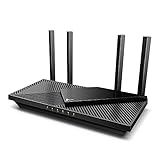
- Wi-Fi 6 Speeds: Up to 2402 Mbps on 5 GHz and 574 Mbps on 2.4 GHz bands ensure smoother streaming and faster downloads; support VPN server and VPN client¹. Actual speeds cannot exceed your internet plan and vary based on conditions, distance, & obstacles.
- A More Responsive Experience: Enjoy smooth gaming, video streaming, and live feeds simultaneously. OFDMA makes your Wi-Fi stronger by allowing multiple clients to share one band at the same time, cutting latency and jitter.²
- Expanded Wi-Fi Coverage: 4 high-gain external antennas and Beamforming technology combine to extend strong, reliable, Wi-Fi throughout your home.
- Improved Battery Life: Target Wake Time helps your devices to communicate efficiently while consuming less power.
- Improved Cooling Design: No heat ups, no throttles. A larger heat sink and redefined case design cools the WiFi 6 system and enables your network to stay at top speeds in more versatile environments.
| Symptom | Most likely area | Next check |
|---|---|---|
| Private-IP connection fails on the LAN | Host edition, RDP configuration, Windows Firewall, service, or account | Check the supported edition, listener, built-in rules, host power, and authorized user. |
| LAN connection works but external connection fails | Forwarding, double NAT, CGNAT, public IP, ISP filtering, or external client network | Compare the router WAN address with the public address, inspect upstream equipment, and test from a hotspot. |
| External port test reports closed | Wrong destination, wrong port, firewall, upstream NAT, or ISP block | Verify the reserved host IP, configured RDP port, forwarding rule, and WAN path. |
| Port test is open but RDP login fails | Credentials, user authorization, Network Level Authentication, or wrong host | Confirm the destination and account separately; a TCP test does not validate authentication. |
| Public hostname fails only while at home | Missing NAT loopback | Test from a genuinely external network or use the private address inside the LAN. |
| Connection works intermittently | Dynamic public IP, host sleep, unstable Wi-Fi, or a relay path | Check the host power state, DDNS record, network stability, and VPN connectivity. |
| VPN connects but RDP fails | VPN access control, Windows Firewall profile, or wrong VPN address | Test the host’s VPN address and allow only the relevant VPN range where appropriate. |
What are the alternatives when native RDP is not practical?
A private VPN is the best match when the goal is native Windows administration without public RDP exposure. A remote-support application can be more appropriate when the operator cannot change the router, needs to help another person, or wants a vendor-managed connection workflow.
TeamViewer’s documentation says its normal connection design does not require inbound ports to be opened, although outbound access to TeamViewer services must be permitted. TeamViewer is therefore useful for support scenarios, but it uses vendor infrastructure and is not the same as private LAN administration with native RDP.
AnyDesk is another remote-support alternative for cross-platform access when router configuration is unavailable. Readers specifically trying to learn Windows Firewall and router configuration should not substitute a support application for understanding the network path. Self-hosted remote-access software offers more control but also adds server maintenance, authentication, patching, and networking responsibilities.
For a private mesh option, Tailscale’s firewall documentation explains that connectivity can work through NAT traversal and relays, so manual port forwarding is often unnecessary. Tailscale’s pricing and plan terms can change; the current Tailscale pricing page should be checked before choosing a personal or business plan.
Which configuration should you choose?
| Situation | Recommended configuration | Why |
|---|---|---|
| Access only from the same home or office LAN | Enable the built-in Remote Desktop Windows Firewall rule and connect to the private IP or host name. | No router port forwarding is normally needed. |
| Remote access with a compatible router or firewall | Use the router-hosted VPN, then connect to the private host address. | RDP remains private and access is centralized. |
| Personal or homelab access across difficult NAT | Use a private mesh VPN, then connect to the host’s mesh address. | Often avoids manual forwarding and works across many NAT environments. |
| VPN unavailable but direct access is essential | Forward only the required RDP port to a stable host IP, restrict source IPs, harden accounts, and monitor access. | Technically workable, but higher risk and more dependent on the ISP and router path. |
| Helping someone whose router cannot be configured | Use a reputable remote-support application after checking its licensing and security controls. | Designed to avoid requiring inbound router ports. |
Final checklist
- The host edition supports incoming RDP.
- Remote Desktop is enabled under Settings → System → Remote Desktop.
- The host is powered on, connected, and not prevented from responding by sleep settings.
- The intended user is authorized and has a strong unique password.
- The built-in Remote Desktop Windows Firewall rules are enabled on the narrowest suitable profile.
- LAN RDP works by private IP before any router change.
- The host has a DHCP reservation or carefully configured static address.
- A VPN or private mesh design has been considered first.
- If forwarding is used, the router rule maps the correct external port to the correct internal host and RDP port.
- External testing is performed from a separate network, not only from inside the home Wi-Fi.
- Double NAT, CGNAT, IPv6 policy, Dynamic DNS, NAT loopback, and ISP filtering have been considered.
- Unused forwarding rules are removed and access logs are reviewed.
Frequently Asked Questions
Does local Windows Remote Desktop require port forwarding?
No. Local-network Windows Remote Desktop normally requires Remote Desktop to be enabled and allowed through Windows Defender Firewall, but the router normally does not need port forwarding. Connect to the host’s private IP address or local host name.
Can Windows Home host an incoming RDP connection?
No. Windows Home can act as a Remote Desktop client, but incoming RDP hosting requires Windows Professional, Enterprise, Education, or a supported Windows Server edition.
Is opening port 3389 to the internet safe?
Directly forwarding the normal RDP port, 3389, creates a public attack surface and is not Microsoft’s preferred design. Use a VPN or private mesh network when possible; if forwarding is unavoidable, restrict source IPs, use strong unique credentials, keep systems patched, and monitor access.
Why does RDP work on Wi-Fi but not from outside the home?
A working LAN connection proves that the host, local firewall, and account can work locally, but external access additionally depends on port forwarding, the correct stable private IP, the router WAN path, double NAT, CGNAT, the public IP, ISP filtering, and the remote network.
Does changing the RDP port make remote access secure?
No. Changing the external port can reduce casual scanning noise, but it does not replace a VPN, strong authentication, patching, source restrictions, or least-privilege access.
The Bottom Line
For LAN-only access, enable the built-in Remote Desktop rule in Windows Defender Firewall and connect to the host’s private address. For off-site access, use a router-hosted VPN or private mesh VPN whenever possible. Treat direct RDP port forwarding as a higher-risk fallback: point it at a stable host address, restrict its source, test from outside the LAN, and remove the rule when it is no longer needed.

