
iTechGuides is reader-supported. When you buy through links on our site, we may earn an affiliate commission. As an Amazon Associate I earn from qualifying purchases. Learn more
Why does my Blue Yeti sound bad? In most cases, the microphone is aimed at the wrong side, set to the wrong pickup pattern, too far from the speaker, or running with excessive gain. Room reflections, software processing, USB problems, and hardware failure are also possible. A clean 20–30-second baseline recording separates these causes quickly.
The fastest approach is to simplify the setup before changing plugins or buying another microphone: connect the Yeti directly to the computer, select cardioid, face the Blue logo toward the speaker, place the speaker about 4–8 inches away, lower the gain, and record in a basic recorder. Listen to the saved recording rather than relying only on headphone monitoring.
Key takeaways
- The classic Blue Yeti is a side-address USB condenser microphone, so one-person speech should normally face the grille and Blue logo rather than the top.
- Cardioid is the best starting pattern for one speaker, while bidirectional, omnidirectional, and stereo modes can capture more unwanted room sound or create unusual channel behavior.
- High gain does not automatically make speech better; excessive gain raises room noise and can cause clipping that cannot be repaired later.
- A direct USB connection, a known-good cable, another USB port, and a second-computer test are the fastest ways to separate computer problems from microphone failure.
- The classic Yeti is specified at 48 kHz, 16-bit, with three 14-mm condenser capsules and four pickup patterns, but changing sample rate will not fix echo, poor placement, or clipped audio.
What does “bad” Blue Yeti audio sound like?
Different symptoms point to different causes. Start with the symptom that most closely matches the saved recording, then perform the first test before changing several settings at once.
| Symptom | Most likely causes | First test |
|---|---|---|
| Very quiet | Low gain or input level, wrong input selected, excessive distance, or speaking toward the wrong side | Select the Yeti as the input, face the logo, move to 4–8 inches, and raise gain gradually |
| Distorted, crunchy, or harsh | Gain too high, software input boost, or a loud source too close | Lower the Yeti gain and application input level, then record again |
| Muffled or distant | Wrong side addressed, excessive distance, incorrect pattern, or an obstruction | Choose cardioid, face the front/logo toward the speaker, and move closer |
| Echoey or hollow | Bare walls, windows, hard desks, corners, or omnidirectional/stereo operation | Use cardioid, reduce the distance, and add soft furnishings or other room absorption |
| Keyboard, fan, or room noise | Condenser sensitivity, high gain, poor placement, or the wrong pattern | Lower gain, move noise sources, and use cardioid |
| One-sided or strangely stereo | Stereo or bidirectional mode, or an application configured for the wrong channel format | Use cardioid and select a mono input if the application provides that option |
| Robotic or underwater | USB dropouts, sample-rate or routing problems, software processing, or system load | Test in a basic recorder, reconnect directly, and temporarily disable processing |
| Crackling or intermittent | Damaged cable, USB hub, port, adapter, power management, or software conflict | Try another cable, USB port, and computer |
| No signal | Hardware mute, permissions, wrong application input, cable, port, or device-detection problem | Check the mute button, operating-system permissions, input selection, and direct USB connection |
How can you fix a Blue Yeti in 10 minutes?
The following baseline removes the most common variables. Record 20–30 seconds of normal speech after step 10, and listen to the saved file before making further changes.
Popular on Amazon

- Custom three-capsule array: This professional USB mic produces clear, powerful, broadcast-quality sound for YouTube videos, Twitch game streaming, podcasting, Zoom meetings, music recording and more
- Blue VO!CE software: Elevate your streamings and recordings with clear broadcast vocal sound and entertain your audience with enhanced effects, advanced modulation and HD audio samples
- Four pickup patterns: Flexible cardioid, omni, bidirectional, and stereo pickup patterns allow you to record in ways that would normally require multiple mics, for vocals, instruments and podcasts
- Onboard audio controls: Headphone volume, pattern selection, instant mute, and mic gain put you in charge of every level of the audio recording and streaming process
- Positionable design: Pivot the mic in relation to the sound source to optimize your sound quality thanks to the adjustable desktop stand and track your voice in real time with no-latency monitoring
- Disconnect the Yeti.
- Restart the computer.
- Reconnect the Yeti directly to a computer USB port, avoiding a dock, monitor hub, keyboard port, or unpowered hub.
- Select the Blue Yeti as the operating-system input device.
- Select the same Yeti explicitly inside the recording, streaming, meeting, or game application.
- Confirm that the physical mute button is not active.
- Set the pattern selector to Cardioid.
- Place the microphone upright with the Blue logo/front grille facing the speaker.
- Place the speaker approximately 4–8 inches away and slightly off-axis.
- Start with low-to-moderate gain. Increase gain only until normal speech is clearly captured, leaving headroom for louder words, laughter, and plosives.
- Record the test in a basic recorder with application effects disabled.
- Listen to the saved recording, not only the direct headphone-monitoring signal.
- If the recording is clean, re-enable application filters one at a time.
- If the recording is still bad, try another USB port and known-good compatible cable.
- If the problem continues, test the same Yeti on another computer.
Changing one variable at a time matters. If the microphone, distance, pattern, gain, software filters, and USB connection all change together, the result will not identify the cause.
Is the Blue Yeti facing the right direction?
The classic Blue Yeti is a side-address microphone. For ordinary speech, speak toward the side marked by the Blue logo and front grille, not into the top of the microphone. The official Yeti Pro quick-start material identifies the Blue logo as the front and shows the pattern and gain controls; the same side-address principle is essential when positioning a classic Yeti.
Use this orientation test:
- Set the microphone to cardioid.
- Keep the Yeti upright and place the Blue logo toward the speaker.
- Record the speaker at the same distance and gain.
- Rotate the microphone 180 degrees without changing the settings.
- Record again and compare clarity, volume, and room pickup.
The correct front position should normally produce clearer, stronger speech than the reversed position. Speaking into the top can make speech seem quiet, muffled, or distant, which often leads users to increase gain and accidentally amplify room noise.
Do these 3 things before closing this tab:
1Scan for outdated or missing drivers - takes under a minute2Repair Windows errors before they cause bigger problems3Fix the driver behind crashes, sound loss and screen glitchesWhich Blue Yeti polar pattern should you use?
Use cardioid as the default for one-person speech. The classic Yeti supports cardioid, bidirectional, omnidirectional, and stereo patterns, according to Logitech’s Yeti specifications.
| Pattern | Best use | Why it can sound bad in the wrong setup |
|---|---|---|
| Cardioid | One speaker, streaming, voice-over, calls, solo podcasting, and most untreated rooms | It reduces pickup from the rear but does not eliminate keyboard noise, fans, reflections, or other sounds |
| Bidirectional | Two speakers sitting opposite each other for a face-to-face interview | It can capture unwanted room and desk noise when used by one speaker |
| Omnidirectional | Sound that needs to be captured around the microphone | It usually captures more room ambience and reflections in a solo setup |
| Stereo | Stereo sources, music, or ambience where spatial pickup is intentional | Speech can sound spatially odd or become unbalanced when an application expects mono |
Cardioid does not reject all background noise. Cardioid reduces pickup from certain directions, so placement still matters: keep the loudest unwanted source behind the microphone where practical, lower gain, and move the microphone closer to the speaker.
How should Blue Yeti gain be set?
Set gain only high enough to capture normal speech clearly without clipping. The correct setting depends on the speaker’s loudness, distance, room noise, microphone angle, and software levels, so no universal percentage or clock position is reliable.
Blue Yeti gain is different from several other controls:
Recommended Free Tools
- Microphone gain: The Yeti’s analog capture sensitivity. Raising it captures the source more strongly but also raises room noise.
- Operating-system input level: The computer’s input control, which may change the digital level after capture.
- Application input level: A separate level in a recording, streaming, meeting, or game application.
- Headphone volume: The loudness of monitoring in the headphones. Changing headphone volume does not necessarily change the recorded level.
- Monitoring mix: The balance between direct microphone sound and computer playback. The monitoring mix can change what the speaker hears without changing the recording.
Begin with the physical gain low or around a moderate starting position, speak at the intended distance and volume, and increase gain gradually. Logitech’s Yeti Pro quick-start guide recommends reducing gain when a loud source causes digital distortion. That guidance is a starting principle, not a guaranteed knob position for every voice or room.
If speech sounds crunchy, harsh, or broken, lower the Yeti gain and application input level first. Clipping is overload; changing the sample rate or adding a filter afterward cannot restore the missing waveform detail. If speech is quiet but clean, increase the recording level conservatively or normalize the recording later instead of automatically turning the physical gain to maximum.
Also popular on Amazon

- Custom three-capsule array: This professional USB gaming mic produces clear, powerful, broadcast-quality sound for YouTube videos, Twitch game streaming, podcasting, Zoom meetings, music recording and more
- Four pickup patterns: Flexible cardioid, omni, bidirectional, and stereo pickup patterns allow you to record in ways that would normally require multiple mics, for vocals, instruments and podcasts
- Blue VO!CE software: Elevate your streamings and recordings with clear broadcast vocal sound and entertain your audience with enhanced effects, advanced modulation and HD audio samples
- Onboard audio controls: This USB microphone offers headphone volume, pattern selection, instant mute, and mic gain to put you in charge of every level of the audio recording and streaming process
- Positionable design: Pivot the mic in relation to the sound source to optimize your sound quality thanks to the adjustable desktop stand and track your voice in real time with no-latency monitoring
How far should you sit from a Blue Yeti?
Start approximately 4–8 inches from the front of the microphone, with the speaker slightly off-axis. This is a practical setup recommendation, not an official operating specification.
- Too far away produces quiet, distant, roomy audio and encourages excessive gain.
- Too close increases plosives, breath noise, proximity-effect bass, and sudden level changes.
- Slightly off-axis can reduce harsh consonants and blasts of air.
- A pop filter or foam windscreen can reduce “P” and “B” plosives, but it cannot fix wrong orientation, clipping, or room echo.
Keep the distance consistent. Moving several inches toward and away from the microphone during speech can create more noticeable level changes than a small adjustment to the input control.
Free tools Windows power users keep installed
One-click scans. No signup required.
Why does a Blue Yeti sound echoey or hollow?
A Blue Yeti does not generate room echo by itself; the microphone captures reflections from hard surfaces. Bare walls, windows, floors, desks, monitors, nearby corners, and large empty rooms can send reflected speech back into the capsules.
Try physical changes in this order:
- Move the speaker closer and reduce gain.
- Place the microphone away from walls and corners.
- Turn the rear of the microphone toward the loudest reflection or noise source where practical.
- Add curtains, blankets, bookshelves, furniture, or other soft or irregular surfaces to reduce strong reflections.
- Keep the microphone off a hard, vibration-prone part of the desk when possible.
- Use a shock mount or boom arm if typing, desk bumps, or stand movement are being transmitted mechanically.
A shock mount or boom arm can reduce mechanical vibration and help maintain a consistent close distance, but neither accessory makes a reflective room acoustically dry. Aggressive noise removal and reverb plugins should not be the primary solution to room reflections.
How do you fix a Blue Yeti on Windows?
Windows troubleshooting should check device selection, microphone permissions, input levels, and application settings separately.
Check the Windows input device
- Open Settings → System → Sound.
- Under Input, select the Blue Yeti.
- Speak and confirm that the Windows input meter responds.
- Open the recording or communication application and select the same Blue Yeti there.
- Check the application’s mute state, input volume, automatic gain control, noise suppression, and echo-cancellation settings.
Some applications keep using a previously selected webcam or headset microphone even after Windows changes its default. Check the device inside the application rather than assuming the operating-system choice has been inherited.
Windows Errors? Fix Them Before They Spread
Repair common Windows errors and clear accumulated junk for a smoother, more stable PC - no reinstall needed.Free scan · no reinstallCrashes, No Sound, or Screen Glitches?
Random freezes, missing sound and display glitches usually trace back to one bad driver. Find and replace yours safely.Free scan · under a minuteCheck Windows microphone permissions
- Open Settings → Privacy & security → Microphone.
- Enable microphone access.
- Enable permission for applications to access the microphone.
- Enable desktop-app access if the affected program is a desktop application.
- Fully quit and reopen the affected application.
Menu labels can differ between Windows 10 and Windows 11. Logitech’s Windows USB-microphone troubleshooting instructions also cover permissions, recording-device selection, competing devices, levels, and reconnecting the microphone.
Use the classic Sound Control Panel when needed
Right-click the speaker icon, open Sounds, select the Recording tab, choose the Blue microphone, and open Properties → Levels. This older route can expose level controls that are not obvious in the newer Settings interface.
Temporarily disconnect or disable webcam microphones, headset microphones, monitor microphones, Bluetooth headsets, audio interfaces, and virtual microphones. Reconnect the Yeti and reopen the application after changing the selected device.
Also popular on Amazon
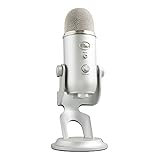
- Custom three-capsule array: This professional USB gaming mic produces clear, powerful, broadcast-quality sound for YouTube videos, Twitch game streaming, podcasting, Zoom meetings, music recording and more
- Four pickup patterns: Flexible cardioid, omni, bidirectional, and stereo pickup patterns allow you to record in ways that would normally require multiple mics, for vocals, instruments and podcasts
- Blue VO!CE software: Elevate your streamings and recordings with clear broadcast vocal sound and entertain your audience with enhanced effects, advanced modulation and HD audio samples
- Onboard audio controls: This USB microphone offers headphone volume, pattern selection, instant mute, and mic gain to put you in charge of every level of the audio recording and streaming process
- Positionable design: Pivot the mic in relation to the sound source to optimize your sound quality thanks to the adjustable desktop stand and track your voice in real time with no-latency monitoring
How do you fix a Blue Yeti on macOS?
On current macOS versions, choose the Yeti under System Settings → Sound → Input, confirm that the input meter moves, and select the Yeti again inside the target application.
- Open System Settings → Sound.
- Choose Input and select the Blue Yeti.
- Adjust the input level conservatively and confirm meter activity.
- Open System Settings → Privacy & Security → Microphone and permit the affected application.
- Quit and relaunch the application after changing permissions or reconnecting the Yeti.
- Test in Voice Memos, QuickTime, or another simple recorder.
- Test without a dock or hub, and try another USB port or compatible adapter if available.
Older Logitech instructions use the label System Preferences, while current macOS releases use System Settings. Logitech’s macOS microphone troubleshooting page covers input selection, input level, reconnecting the device, and selecting the Yeti for output when monitoring through the Yeti’s headphone jack.
The classic Yeti should first be tested as a standard USB audio device. Installing Logitech G HUB or Blue Sherpa is not universally required for the classic Yeti. Logitech also states that the old Yeti Firmware Update Tool is no longer supported or maintained on its Yeti specifications page.
What should you test when the Yeti crackles, drops out, or sounds robotic?
Crackling, intermittent audio, and robotic or underwater sound deserve a connection and routing test before acoustic tuning.
- Disconnect the Yeti.
- Restart the computer.
- Reconnect it directly to a computer USB port.
- Avoid an unpowered hub, monitor hub, docking station, and keyboard port.
- Try a known-good compatible USB cable.
- Try a second USB port.
- Close unnecessary applications and test in a basic recorder.
- Test the Yeti on another computer if possible.
USB problems may appear as no device detection, no input despite detection, intermittent crackling, dropouts after sleep or wake, or a generic “USB Audio Device” name. A generic device name does not automatically prove firmware failure; judge the microphone by whether it records reliably and cleanly.
For USB microphone setup, Logitech recommends beginning with a direct computer connection rather than a hub. USB-C-only computers may require an adapter, but the adapter and the Yeti should be tested separately where possible.
Can sample-rate settings fix bad Blue Yeti audio?
Sample-rate alignment can help with compatibility, routing, glitches, or unstable software, but changing from 44.1 kHz to 48 kHz will not repair muffled speech, room echo, poor placement, or clipping.
Logitech specifies the classic Yeti at 48 kHz and 16-bit, with three proprietary 14-mm condenser capsules, four pickup patterns, a 20 Hz–20 kHz frequency response, and a listed maximum SPL of 120 dB at 0.5% THD and 1 kHz. The complete values are in Logitech’s Yeti specifications.
For a stable video or streaming workflow:
- Use 48 kHz when the project or video workflow is based on 48 kHz.
- Use the same sample rate throughout the operating-system and application audio configuration where those controls are available.
- Restart the application after changing the format.
- Do not confuse sample-rate errors with clipping or room noise.
The Yeti Pro manual advises matching input and output sample rates. That advice is most directly relevant to Yeti Pro workflows and is not a guaranteed fix for every classic Yeti symptom.
Also popular on Amazon
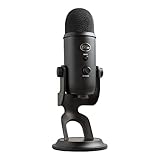
- Custom Three-capsule Array
- Four Pickup Patterns
- Onboard Audio Controls
- Positionable Design
- Plug 'n Play: for Mac or PC
Why does my Blue Yeti sound tinny, boomy, harsh, or overly compressed?
Tinny, boomy, harsh, and “radio” sound often comes from a combination of placement and processing rather than a damaged capsule.
| Sound | Likely causes | What to try first |
|---|---|---|
| Tinny or thin | Too much distance, aggressive noise suppression, an excessive high-pass filter, wrong side, or unbalanced room reflections | Move closer, bypass processing, verify the logo orientation, and record an untreated sample |
| Boomy or muddy | Too close, a corner or desk causing low-frequency buildup, or excessive bass EQ | Move back slightly, angle the microphone, and remove bass boosts |
| Harsh or sibilant | Excessive gain, direct on-axis speech, bright reflections, or too much treble/presence EQ | Lower gain, speak slightly off-axis, and bypass EQ |
| Radio-like or compressed | Automatic gain control, compression, noise gates, voice effects, or AI voice enhancement | Disable every filter, establish a clean recording, then add processing one filter at a time |
Streaming software can apply filters at the source, scene, application, driver, or operating-system level. Video-conferencing software may add echo cancellation, automatic gain control, voice isolation, or noise suppression. Disable those controls temporarily so the saved recording reveals the microphone’s untreated behavior.
How can you tell whether the problem is monitoring or the saved recording?
Direct headphone monitoring can sound clean even when the application is clipping, while application monitoring can add delay or software processing. Headphone volume changes listening loudness, not necessarily the recorded microphone level.
- Record 20–30 seconds of speech.
- Stop recording and play the saved file from the beginning.
- Compare the saved file with the direct headphone-monitoring sound.
- If only monitoring sounds bad, troubleshoot the headphone path, monitoring mix, or application delay.
- If the saved file sounds bad, troubleshoot orientation, pattern, distance, gain, room, USB, and input processing.
What physical Blue Yeti checks should you perform?
Before concluding that the microphone has failed, check the controls and connectors:
The Tool Desk
Outbyte PC Repair FREEClear out junk files and repair common Windows errorsFree Scan →Outbyte Driver Updater FREEScan for outdated or missing drivers - takes under a minuteDriver Scan →- Confirm that the front mute button is not active.
- Confirm that the gain knob has not been mistaken for the headphone-volume knob.
- Confirm that the pattern selector is fully clicked into the intended setting.
- Confirm that the USB connector is fully seated.
- Inspect the cable for damage or intermittent behavior when gently moved.
- Tighten loose stand adjustment screws.
- Remove an obstructed or damaged grille accessory.
- Listen for mechanical thumps caused by the desk or stand.
Do not open the microphone, flash unofficial firmware, or use random EEPROM tools as a normal repair step. Community fixes for generic USB or firmware problems may carry a risk of permanently disabling the device and should not precede basic cable, port, permission, and second-computer tests.
When is a Blue Yeti probably defective?
A Blue Yeti becomes much more likely to be defective when the same failure occurs in a basic recorder on multiple computers, with multiple known-good cables and USB ports, after the microphone has been correctly oriented and configured.
| Test result | Most likely conclusion | Next action |
|---|---|---|
| Works cleanly on another computer | The original computer, application, permissions, hub, adapter, or power management is the likely cause | Compare device settings, permissions, software processing, ports, and adapters on the original computer |
| Works only with another cable | The original cable is likely damaged or unreliable | Replace the cable with a known-good compatible cable |
| Fails through one port but works through another | The original port, hub, dock, or adapter is likely involved | Use the working direct port and investigate the failing connection separately |
| Fails identically on multiple computers and cables | Microphone hardware or its connector is increasingly likely to have failed | Compare repair cost with a replacement and check any applicable warranty or seller support |
| Only one application sounds bad | The application’s input selection or processing is likely responsible | Reset the application’s input, filters, channel mode, and permissions |
Permanent crackling or severe digital distortion in a basic recorder, failure to be detected after direct USB tests, or a connector that cuts out when moved are strong replacement warning signs. A repair is less attractive when the repair cost approaches a comparable replacement’s price.
Independent reader supportYour contribution helps us test, update, and keep practical guides available for everyone.Should you replace the Blue Yeti or switch to a dynamic USB microphone?
Replace the Yeti only after the direct-connection, cable, port, and second-computer tests. If the Yeti works cleanly but captures too much room sound, a different microphone type or better placement may solve the real problem more effectively than replacing a working unit.
What’s actually slowing this PC down?
Pick the symptom - the matching free tool is one click away.
| Option | Best fit | Trade-off |
|---|---|---|
| Keep and reconfigure the classic Yeti | Users who need its headphone monitoring, physical gain/mute controls, and four pickup patterns | The sensitive condenser design can capture room reflections, fans, keyboards, and desk noise |
| Use a Yeti-family compact condenser | Users who want a smaller setup for calls or streaming and do not need every classic pattern | Compact models can offer fewer pickup patterns and controls |
| Switch to a dynamic USB microphone | Noisy rooms, gaming setups, mechanical keyboards, and close-mic speech | A dynamic microphone generally needs closer placement and may sound less open or detailed at the same distance |
| Add a pop filter or windscreen | Clean recordings with isolated plosive bursts | It helps airflow and “P”/“B” sounds but does not fix clipping, echo, or USB faults |
| Add a boom arm or shock mount | Desk bumps, typing vibration, awkward positioning, or inconsistent speaking distance | It improves isolation and placement but does not acoustically treat the room |
For gamers and streamers who need a closer-working microphone with more focused pickup, the Logitech Yeti GX product page describes a dynamic capsule and supercardioid pattern. The GX is more specialized for close speech and gaming than the classic Yeti’s multi-pattern condenser design.
Also popular on Amazon

- [Natural Audio Clarity] Operated with frequency response of 50Hz-16KHz, the podcasting XLR mic delivers balanced audio range, likely to resonate with your audience. Directional cardioid dynamic microphone corded will not exaggerate your voice, while rejects unwanted off-axis noise for vocal originality and intelligibility during your PS5 gaming streaming video recording. (Tips: Keep the top of end-addressing XLR dynamic microphone AM8 facing audio source, and suggested recording range is 2 to 6 in.)
- [XLR Connection Upgrade-Ability] To use XLR connection, connect the podcast microphone to an audio interface (or mixer) using a separate XLR cable (NOT Included) . Well-connected and smooth operation improves audio flexibility to make you explore various types of music recording singing. The streaming mic isolates the pristine and accurate sound from ambient noise with greater no interference and fidelity. (RGB and function key on mic are INACTIVE when using XLR connection.)
- [USB Connection with Handy Mute] Skip the hassle of setting something up and plug the cable to play the dynamic USB microphone directly, which suits for beginner creators or daily podcast. You can quickly control the gamer mic with tap-to-mute that is independent of computer/Macbook programs to keep privacy when live streaming. LED mute reminder helps you get rid of forgetting to cancel the mute. (RGB and function key are only available for USB connection, but NOT for XLR connection)
- [Soothing Controllable RGB] RGB ring on the desktop gaming microphone for PC, with 3 modes and more than 10 light colors collection, matches your PC gears accessories for gaming synergy even in dim room. You can control the RGB key button of the dynamic microphone USB directly for game color scheme gaming or live streaming. Configured memory function, the streaming microphone RGB no need to repeated selections after turnning off and brings itself alive when power on. (Only available for USB connection)
- [More Function Keys] Computer microphone with headphones jack upgrades your rhythm game experience and gets feedback whether the real-time voice your audience hear as expected. Get the desired level via monitoring volume control when gaming recording. Smooth mic gain knob on the PC microphone gaming has some resistance to the point, easily for audio attenuation or boost presence to less post-production audio. (Only available for USB connection)
For a simpler single-pattern condenser, the Logitech Yeti Orb product page describes a cardioid USB microphone. The Orb is aimed at straightforward gaming use, but its single cardioid pattern does not provide the classic Yeti’s bidirectional, omnidirectional, or stereo options.
Logitech’s official microphone category also lists accessories such as the Compass boom arm and Radius III shock mount. Availability, compatibility, and prices change, so verify the current product information before purchasing from the official Logitech microphone store.
Final Blue Yeti checklist before buying a replacement
- Is the microphone upright and is the Blue logo facing the speaker?
- Is the pattern set to cardioid for one-person speech?
- Is the speaker approximately 4–8 inches away and slightly off-axis?
- Was gain lowered before the speaker tested loud speech?
- Was the saved recording checked instead of only direct monitoring?
- Was every noise-suppression, automatic-gain, echo-cancellation, EQ, compression, and voice-effect control bypassed?
- Was the Yeti selected both in the operating system and inside the application?
- Were Windows or macOS microphone permissions checked?
- Was the Yeti tested directly rather than through a hub or dock?
- Was another compatible cable and USB port tested?
- Was the Yeti tested on another computer?
If the Yeti becomes clean after these changes, the microphone was probably being limited by setup or software. If the identical failure follows the microphone across computers, cables, and ports, replacement is more sensible than endless software tuning.
Quick wins for a faster PC:
Repair Windows errors before they cause bigger problemsFix Now →Scan for outdated or missing drivers - takes under a minuteDriver Scan →Frequently Asked Questions
Why is my Blue Yeti so quiet even when the gain is high?
A quiet Blue Yeti recording is commonly caused by speaking toward the top or rear, sitting too far away, selecting the wrong input, or using a low operating-system or application input level. Set cardioid, face the Blue logo toward the speaker, move approximately 4–8 inches away, select the Yeti in both the operating system and application, and raise gain gradually.
Why does my Blue Yeti pick up so much background noise?
The Blue Yeti is a sensitive condenser microphone, so high gain, excessive distance, the wrong pickup pattern, fans, keyboards, desk vibration, and room reflections can all increase background sound. Move closer, lower gain, use cardioid, place noise sources behind the microphone where practical, and reduce mechanical vibration before adding software noise suppression.
Does changing the Blue Yeti to 48 kHz make it sound better?
The classic Blue Yeti is specified at 48 kHz and 16-bit, and matching the sample rate across the operating system and application can help prevent routing or compatibility problems. Changing sample rate does not fix muffled speech, room echo, poor microphone orientation, or clipping.
How do I know whether my Blue Yeti is broken?
A Blue Yeti is more likely to be defective when the same no-signal, crackling, intermittent, or severely distorted result occurs in a basic recorder on multiple computers with multiple known-good cables and USB ports. If the microphone works on another computer or only fails in one application, troubleshoot the original computer or software instead.
What’s actually slowing this PC down?
Pick the symptom - the matching free tool is one click away.
The Bottom Line
Most Blue Yeti sound problems are fixed by using the front/logo side, selecting cardioid, moving closer, lowering gain, reducing room reflections, and bypassing application processing. Test the saved recording through a direct USB connection before changing sample rates or buying accessories. Replace the microphone only when the same fault survives known-good cables, ports, and another computer.

