
Quick wins for a faster PC:
Scan for outdated or missing drivers - takes under a minuteDriver Scan →Clear out junk files and repair common Windows errorsFree Scan →iTechGuides is reader-supported. When you buy through links on our site, we may earn an affiliate commission. As an Amazon Associate I earn from qualifying purchases. Learn more
Fixing smartwatch charging issues usually starts with the charger, alignment, contacts, power source, temperature, or charging-protection settings—not a dead battery. Use the exact model charger, clean and dry the contacts, test a known-good outlet and adapter, wait 10–30 minutes for deep recovery, then restart or update the watch. Persistent faults, swelling, liquid damage, or extreme heat require service.
A magnetic connection is not proof that electrical charging is working. Different Apple Watch, Samsung Galaxy Watch, Google Pixel Watch, Fitbit, and Garmin models use different chargers, pin layouts, coils, orientations, and power requirements, so a charger that looks similar may still be incompatible.
| # | Preview | Product | Price | |
|---|---|---|---|---|
| 1 |
|
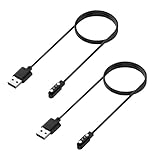
Cisike 2 Pack Smart Watch Magnetic Charging Cable for IDW28, IDW25, IDW19, IDW20, GTX20, DR03, DR06,... | $7.09 | Buy on Amazon |
Key takeaways
- Most smartwatch charging failures come from incorrect alignment, dirty or wet contacts, a faulty power path, temperature protection, deep discharge, or hardware damage.
- Use the charger designed for the exact watch model; magnetic, USB-C, or wireless-looking accessories are not automatically interchangeable.
- A completely depleted Apple Watch may need up to 30 minutes before its charging indicator appears, while other watches can also take several minutes to show recovery signs.
- A watch stopping at 80% or another limit may be using optimized charging or battery-protection software rather than reporting a failed battery.
- Stop home troubleshooting for swelling, burning smells, persistent extreme heat, corrosion, liquid damage, or charging that works only when pressure is applied.
What smartwatch charging symptom are you seeing?
The symptom narrows the likely cause, but the same safe checks should be performed before buying a replacement charger or concluding that the battery has failed.
What’s actually slowing this PC down?
Pick the symptom - the matching free tool is one click away.
| Symptom | Most likely areas to check first | When to escalate |
|---|---|---|
| No charging icon, vibration, or battery animation | Correct charger, outlet, adapter, alignment, clean contacts, and deep discharge | The watch remains blank after a sustained test with a known-good compatible charger |
| Charging symbol appears but percentage does not rise | Intermittent contact, heat, weak adapter, heavy activity, delayed battery reporting, or battery fault | The percentage does not increase after 15–30 minutes while idle on known-good equipment |
| Charges only at an angle or when pressed | Misalignment, worn pins, damaged dock, case obstruction, or damaged watch back | Immediately if pressure or cable bending is required |
| Repeatedly connects and disconnects | Dirty or wet contacts, loose cable, damaged pins, incompatible dock, or unstable power | After cleaning and testing another compatible charger and adapter |
| Stops at 80%, 85%, or another level | Optimized charging, a charge limit, Battery Defender, heat, or a configuration setting | If the stop point is random, the watch drains while connected, or it cannot reach its configured limit |
| Becomes unusually hot | High ambient temperature, covered charging area, poor contact, incompatible equipment, or battery damage | Remove it from power for persistent or extreme heat, swelling, odor, or discoloration |
| Moisture, thermometer, red lightning bolt, or charging error | Wet contacts, temperature protection, incorrect charger, or hardware failure | After the watch and charger are completely dry and the correct charger still reports an error |
How do you fix smartwatch charging issues safely?
Follow this universal sequence before attempting brand-specific resets or purchasing accessories.
Popular on Amazon
- Wide Compatibility: Cisike smart watch charger magnetic is perfectly compatible with smartwatch models including IDW13,IDW19,IDW20,IDW25,IDW28,ID205,ID205L,ID205U,ID208 plus,ID216,AR-01,GTX20,DR06,Fany,Bright,AR-02,DR05,F2,DR03,TGW01,BW02 delivering a hassle-free magnetic charging experience with one-step alignment.
- Multi-brand compatible smart watch charger magnetic works seamlessly with most smartwatches that support magnetic charging, eliminating the need to buy multiple chargers for different devices.
- Built with durable ABS & PVC materials, the Cisike smart watch charger magnetic 2 pin boasts a 40cm flexible cable that resists over 5000 bends, ideal for daily use, home, office and travel scenarios.
- This 2-pack watch charger features a high-purity copper core for fast and stable charging, fully juicing up your compatible smartwatch in around 2 hours while maintaining consistent power output. The watch charger has a wide range of compatibility. You can use the USB port of a PC, laptop or adapter to quickly and safely charge your smart watch.
- What You Get: 2Pack*3.3ft Smart Watch Charger Magnetic. Comes in a 2 - pack, providing you with an extra cable for backup or for use in different locations like home, office or during travel. Also backed by our friendly customer service.
- Remove the watch and unplug the charger. Do not keep wiggling a watch that is making intermittent contact.
- Inspect both sides. Look at the watch back, charging ring, metal contacts, spring-loaded pins, cable, dock, and adapter for dirt, stuck pins, corrosion, cracks, splitting, or exposed conductors.
- Clean and dry the contacts. Use a clean, soft, lint-free cloth. Reconnect only after the watch and charger are completely dry.
- Confirm the exact charger. Check the watch model and generation against the manufacturer’s compatibility instructions. Do not assume that a generic Qi pad, phone reverse-charging feature, or magnetic puck will work.
- Use a reliable power path. Connect the charger directly to a known-good wall outlet and suitable adapter. Avoid a questionable hub, monitor, keyboard, extension lead, or loose power strip during testing.
- Re-seat the watch. Place it in the orientation required by the charger. Remove a case, band, or accessory that prevents the watch from lying flat.
- Wait 10–30 minutes. A deeply discharged watch may show no screen activity immediately. Check for a charging icon and a percentage increase after the timed test; do not use “leave it overnight” as the first diagnostic step.
- Restart or force-restart the watch. Use the model-specific method below if the watch detects power but appears frozen.
- Update the watch and companion app. Once the watch has enough power to boot, install available firmware and app updates, then test charging again.
Is the charger correct for the exact smartwatch model?
The charger must match the exact watch model because charging interfaces, contact positions, wireless coils, alignment requirements, and supported power protocols vary between brands and generations.
| Platform | What to use | Important compatibility warning |
|---|---|---|
| Apple Watch | Apple Magnetic Charging Cable or USB-C Magnetic Fast Charging Cable intended for Apple Watch, or a supported compatible charger | Fast charging requires a supported watch, compatible charging cable, and an 18W-or-greater USB-C power adapter. See Apple’s Apple Watch charging troubleshooting and Apple’s charging guide. |
| Samsung Galaxy Watch | The dock designed for the exact Galaxy Watch model, with an approved cable and adapter | A dock from another Galaxy Watch generation may not charge correctly. Samsung specifically gives the example that Galaxy Watch Active may not charge correctly on the original Galaxy Watch dock. See Samsung’s Galaxy Watch charging guidance. |
| Google Pixel Watch | Pixel Watch 4 Quick Charge Dock; Pixel Watch 2 or 3 included USB-C fast-charging cable; original Pixel Watch USB-C magnetic wireless charger | Google says reverse wireless charging from Pixel phones is not supported. Generation-specific details are in Google’s Pixel Watch charging troubleshooting. |
| Fitbit | The model-specific Fitbit charging cable | Some families share cables—for example, Charge 5, Charge 6, and Luxe—but Fitbit cables are not universally interchangeable. Check Fitbit’s charging and cable compatibility guide. |
| Garmin | The charger made for the exact Garmin model | Garmin devices commonly use dedicated contact-pin chargers. Garmin emphasizes clean, dry contacts and an undamaged charger in its charging-pin troubleshooting guidance. |
Do not recommend a universal smartwatch charger merely because the accessory uses USB-C or attaches magnetically. A charger can physically attach while its pins, coil, orientation, or charging protocol are wrong.
How do you test the wall power path?
The watch may be healthy while the failed component is the outlet, adapter, cable, dock, or connection between them.
Recommended Free Tools
- Disconnect the watch from the charger.
- Plug the charger directly into a known-good wall outlet.
- Reseat both ends of any detachable USB cable.
- Try another suitable power adapter and another outlet.
- If available, test the watch with a second genuine or officially compatible charger.
| Test result | Likely conclusion |
|---|---|
| A different adapter fixes charging | The original adapter, outlet, or upstream connection is suspect. |
| A different charger fixes charging | The original cable or dock is suspect. |
| Neither charger works | Investigate contacts, temperature, software, deep discharge, battery health, or watch hardware. |
| The charger LED flashes red or shows an error | Treat the signal as a connection, compatibility, or hardware warning—not confirmation that charging is occurring. Samsung documents red LED and charging-error symptoms in its Galaxy Watch support guidance. |
A higher-wattage phone adapter does not automatically make every smartwatch charge faster. The watch, cable, adapter, and supported charging protocol must work together.
How should you clean and dry smartwatch charging contacts?
Sweat, lotion, sunscreen, dust, lint, oxidation, soap, salt, and pool chemicals can interrupt contact charging. Moisture can also create a safety risk.
- Unplug the charger and remove the watch.
- Inspect the watch contacts, charging ring, and charger pins under good light.
- Wipe both surfaces with a clean, soft, lint-free cloth.
- Confirm that spring-loaded pins move normally and are not recessed, stuck, bent, or broken.
- Remove protective film from a new charger.
- Allow every part to dry completely before reconnecting.
Do not scrape contacts with metal, force the watch onto a dock, or use abrasive materials, compressed air, bleach, hydrogen peroxide, or harsh cleaning products unless the manufacturer specifically permits them. Apple’s cleaning instructions warn against abrasive materials, compressed air, moisture entering openings, and external heat. Fitbit and Google likewise require dry contacts in Fitbit’s safety and charging guidance.
Do not place metal objects on exposed powered charging pins. Google gives this caution for Fitbit Ace LTE in its charger safety documentation.
How do you re-seat a smartwatch on its charger?
Magnetic attachment does not guarantee electrical contact; remove the watch completely and place it back in the orientation shown by the charger or manual.
- Remove the watch from its case or band obstruction if the accessory prevents a flat connection.
- Place the watch on the charger without wiggling or pressing it.
- Check for a lightning bolt, battery animation, percentage, vibration, or charging notification.
- If no indicator appears, remove and re-seat it once more in the prescribed orientation.
- Apple Watch: Correct alignment should produce a charging symbol. Some larger Apple Watch models or docks connect more reliably with the charger laid flat or the band removed; follow Apple’s positioning instructions.
- Pixel Watch: The charging points must align with the dock pins. Pixel Watch 2 and 3 fit in one orientation, with the crown facing the same direction as the charger cable.
- Fitbit Ace LTE: The cable orientation matters; the power cord should be on the same side as the watch buttons. Model-specific guidance is available from Fitbit Ace LTE support.
- Other Fitbit models: Pin alignment differs across Charge, Inspire, Sense, and Versa families. The screen should show a charge percentage or battery indicator when contact is correct.
How long should a completely dead smartwatch charge before you test it?
Leave a correctly seated smartwatch on its proper charger for 10–30 minutes before deciding that the watch has no power. A fully depleted battery can keep the screen blank while the watch slowly reaches its startup threshold.
According to Apple’s current Apple Watch support guidance accessed for this article in 2026, an Apple Watch with no power may need up to 30 minutes before the lightning bolt appears. Google says Pixel Watch charging and boot indicators can appear in stages and may take several minutes, while Samsung notes that a dead Galaxy Watch may vibrate even though its screen remains blank.
After the timed test, check whether the charging indicator appears and whether the percentage rises. A blank screen after a few seconds is not proof of battery failure, but continued unresponsiveness after a known-good charger and sustained recovery test is a reason to investigate further.
Should you restart or force-restart the watch?
Restarting can help when the watch recognizes the charger but the operating system is frozen or the battery display is not updating; restarting cannot repair dirty contacts, a wrong dock, damaged pins, or a failed battery circuit.
| Watch | Recovery action |
|---|---|
| Apple Watch | Hold the side button and Digital Crown for at least 10 seconds, until the Apple logo appears, according to Apple’s support instructions. |
| Samsung Galaxy Watch | Hold Home/Power and Back simultaneously until “Rebooting…” appears. Samsung says the hold time varies by model and can be up to 30 seconds. |
| Google Pixel Watch | Use the official force-restart instructions for the specific Pixel Watch generation rather than applying one universal button combination. Google’s charging guide prioritizes correct seating, waiting, and firmware updates. |
| Fitbit or Garmin | Use the model’s current manufacturer support instructions because button combinations and reset behavior vary. |
Do not factory-reset the watch first. A factory reset can erase data, require re-pairing, disconnect LTE service, and leave a physical charging fault unchanged.
Could software or charging protection be stopping the charge?
Yes. Once the watch has enough power to boot, update the watch firmware and companion phone app, restart both devices if the app reports stale battery information, and test charging again. Google includes firmware updating in Pixel Watch charging troubleshooting, and Samsung recommends updating through the Galaxy Wearable app.
A watch that stops at 80% or another level may be behaving normally. Apple Watch can use Optimized Battery Charging or Optimized Charge Limit, and Pixel Watch includes Battery Defender, which can pause charging after the watch has remained on the charger for four or more days. Check the charge-limit or battery-health settings for your model before treating a predictable limit as a defect.
| Behavior | What it may mean |
|---|---|
| Stops at a consistent configured limit | Optimized charging or a battery-protection feature may be active. |
| Stops after prolonged time on the charger | Pixel Watch Battery Defender or another protection feature may be pausing input. |
| Stops when hot and resumes after cooling | Thermal protection is limiting charging. |
| Stops at random percentages and drains while connected | Suspect contact, charger, software, battery, or charging-circuit problems. |
Why is the smartwatch charging but the percentage not increasing?
A charging icon can appear even when input is intermittent or too weak to overcome the watch’s power consumption. Heat, active apps, a poor adapter, delayed battery reporting, or a failing battery can all produce a flat percentage.
- Turn off the display and stop demanding apps or workouts temporarily.
- Place the watch undisturbed on its official or officially compatible charger.
- Wait 15–30 minutes.
- Check for an actual percentage increase, not just a charging icon.
- Repeat with another known-good adapter and, if possible, another compatible charger.
Using a Galaxy Watch while charging can make charging slower, according to Samsung’s charging guidance. If the percentage falls while the watch remains connected, suspect intermittent contact, weak power, excessive heat, a software fault, or a worn battery.
Independent reader supportYour contribution helps us test, update, and keep practical guides available for everyone.What should you do if the watch was exposed to water?
Do not charge a wet smartwatch, even if the model is water-resistant. Remove it from the charger, dry the watch and charger completely, inspect for residue or corrosion, and wait before reconnecting.
Do not use a heat gun, hair dryer, oven, rice, or other improvised drying method. Salt water, pool chemicals, soap, and sweat can leave conductive or corrosive residue after the outside appears dry. If the watch was submerged beyond its rating, now shows a moisture warning, or began charging intermittently after exposure, manufacturer service may be safer than repeated charging attempts.
Free tools Windows power users keep installed
One-click scans. No signup required.
Why is the smartwatch charging slowly?
Slow charging can result from an unsupported adapter or cable, an incorrect dock, poor contact, high temperature, using the watch while charging, battery-protection behavior, or a degraded battery.
- Verify the exact charger and adapter requirements.
- Clean and dry the contacts.
- Charge in a ventilated location with the watch idle.
- Remove bedding, clothing, or other material covering the watch or adapter.
- Test a second known-good adapter and compatible charger.
Do not assume that a higher-wattage adapter will increase charging speed. The complete watch-and-charger combination must support the relevant charging protocol.
When should you replace the charger?
Replace only the failed component after testing the watch, contacts, outlet, adapter, and a second compatible charger where possible.
- The cable disconnects when moved or has splitting, exposed conductors, or melted plastic.
- Charger pins are stuck, recessed, bent, or missing.
- A second charger works normally with the same watch.
- The charger indicator changes when the cable is moved.
- The dock belongs to another watch generation or cannot be confirmed as compatible.
- The watch charges only when the cable is bent, the dock is angled, or pressure is applied.
Choose an official or manufacturer-confirmed compatible replacement matched to the exact model and generation. Avoid a generic “universal smartwatch charger” unless compatibility is explicitly verified.
When does a smartwatch need professional service?
Stop home troubleshooting and contact the manufacturer, an authorized service provider, or an appropriate electronics-recycling provider when the watch has a swollen battery, screen or case lifting, burn marks, melted plastic, a strong chemical smell, abnormal heat, corrosion, a cracked charging surface, liquid damage, or persistent failure with known-good equipment.
A swollen lithium-ion battery is a safety issue. Do not puncture, press, open, freeze, or continue charging a swollen watch. Disconnect it if safe, keep it away from flammable materials, and arrange professional handling.
Service is also the appropriate next step when charging requires pressure, the watch repeatedly reports charging errors, the watch remains dead after the correct charger and a sustained recovery test, or the battery reaches full but drains unusually quickly. Warranty coverage, battery replacement availability, repair pricing, and service options vary by country, model, and warranty status; verify those details with the manufacturer at the time of service.
How do Apple Watch, Galaxy Watch, Pixel Watch, Fitbit, and Garmin charging problems differ?
The diagnostic principles are similar, but charger compatibility and restart instructions are brand- and generation-specific.
The Tool Desk
Outbyte PC Repair FREERepair Windows errors before they cause bigger problemsFix Now →Outbyte Driver Updater FREEScan for outdated or missing drivers - takes under a minuteDriver Scan →| Brand | Charger and contact issue | Recovery and software notes |
|---|---|---|
| Apple Watch | Use the Apple magnetic cable or supported charger; clean the back and charger, and try a flat position or alternate angle when appropriate. | May need up to 30 minutes to show the charging icon; force-restart with Side button plus Digital Crown for at least 10 seconds. |
| Samsung Galaxy Watch | Use the dock made for the exact model; incorrect docks, dirty contacts, or position can produce charging errors or a red LED. | Hold Home/Power plus Back until “Rebooting…” appears, then update through Galaxy Wearable. |
| Google Pixel Watch | Charging accessories differ by generation; align the pins and do not use Pixel-phone reverse wireless charging. | Indicators can appear in stages; update firmware after booting and check Battery Defender if charging pauses. |
| Fitbit | Use a model-specific cable and align the pins securely; keep contacts dry and clear of objects. | Follow the exact model’s reset and update instructions rather than assuming cable or button compatibility. |
| Garmin and similar watches | Use the dedicated model charger and inspect clean, dry contact pins. | Use the model’s current support page for reset, update, and battery-service instructions. |
How can you prevent smartwatch charging problems?
- Keep the watch contacts and charger pins clean and dry.
- Use the supplied charger or an accessory confirmed for the exact model and generation.
- Charge in a ventilated area rather than under bedding or clothing.
- Keep the watch and adapter away from extreme heat and cold.
- Inspect cables, docks, and pins periodically.
- Use optimized charging or charge limits where supported.
- Do not repeatedly drain a lithium-ion watch to zero to “calibrate” it; deliberate deep cycling is not a general fix for charging failure.
- Back up important data before any reset or service process.
Frequently Asked Questions
Why is my smartwatch not charging even though the magnetic charger sticks?
A magnetic connection does not guarantee electrical contact. Remove the watch, clean and dry the contacts, confirm the charger matches the exact model, re-seat it in the correct orientation, and check for a charging icon and percentage increase.
How long should I leave a dead smartwatch on the charger?
Leave a correctly seated smartwatch on its proper charger for 10–30 minutes before testing it again. A deeply discharged Apple Watch may need up to 30 minutes before the charging icon appears, while other models can also take several minutes to show recovery signs.
Is it normal for a smartwatch to stop charging at 80%?
Stopping at 80% can be normal when optimized charging, a charge limit, Battery Defender, or temperature protection is active. A random stop point, falling percentage while connected, or failure to reach the configured limit suggests a charger, contact, battery, or hardware problem.
Can I charge any smartwatch on a Qi pad or with phone reverse wireless charging?
No. Smartwatch charging compatibility varies by model and generation. Google says Pixel Watch does not support reverse wireless charging from Pixel phones, and Apple Watch, Galaxy Watch, Fitbit, and Garmin models may require proprietary or model-specific chargers.
How do I know whether my smartwatch needs service instead of a new charger?
Service is more appropriate when a known-good compatible charger fails, charging requires pressure, the watch overheats, the battery or case is swollen, contacts are corroded, liquid damage is present, or the watch remains dead after a sustained recovery test.
The Bottom Line
Start with the complete charging path: exact charger, clean and dry contacts, correct alignment, known-good wall power, and a timed 10–30-minute recovery test. Restart and update only after those physical checks. Replace a charger when testing identifies it as the failed component, but send the watch for service when charging remains unreliable or the watch shows heat, swelling, corrosion, liquid damage, or other physical danger signs.

