
iTechGuides is reader-supported. When you buy through links on our site, we may earn an affiliate commission. As an Amazon Associate I earn from qualifying purchases. Learn more
To transform your smartphone into an IP camera, choose a local HTTP/MJPEG or RTSP streaming app for browser, VLC, NVR, or Home Assistant use; choose AlfredCamera for simple cloud remote monitoring; or choose DroidCam, Camo, or iVCam when you need a computer webcam. These approaches are related but are not interchangeable.
A spare Android phone or iPhone can become a useful temporary baby monitor, pet camera, document camera, remote viewer, or webcam. The right setup depends on where the video must go: another device on your Wi-Fi network, an NVR, a cloud service, or a desktop application such as Zoom or OBS.
Start by testing the phone and viewer on the same Wi-Fi network. Local testing confirms that the camera app, permissions, network, and stream format work before you introduce remote access, recording, mounting, heat, or security complications.
What’s actually slowing this PC down?
Pick the symptom - the matching free tool is one click away.
Key takeaways
- A local IP-camera app can expose an HTTP/MJPEG or RTSP stream, but an app branded “IP camera” does not automatically support RTSP, ONVIF, authentication, or NVR compatibility.
- AlfredCamera is the simplest route for remote monitoring because it pairs a camera phone with a viewer device, but AlfredCamera is a cloud security-camera service rather than a general-purpose RTSP bridge.
- DroidCam, Camo, and iVCam are webcam solutions for computers; they normally require a phone app plus desktop software and should not be mistaken for conventional NVR camera feeds.
- A local stream can continue without internet for local viewing, while cloud viewing and most remote-access features depend on the vendor’s service and an internet connection.
- VPN access is safer than directly forwarding an unauthenticated camera port to the public internet.
- A repurposed phone is suitable for temporary or low-cost monitoring, but dedicated hardware is better for dependable outdoor, infrared, PoE, NVR, or unattended 24/7 surveillance.
What does “transform your smartphone into an IP camera” actually mean?
Transforming a smartphone into an IP camera can mean three different things: creating a local network stream, using a cloud security-camera app, or presenting the phone as a webcam to a computer. Each method uses a different protocol and has different compatibility, privacy, and reliability consequences.
Popular on Amazon
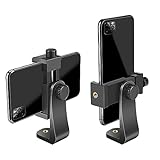
- FEATURE: the tripod phone mount is adjustable by screw mechanism, 360 degree rotating, vertical(portrait mode) and horizontal(landscape mode) or any angle as you need, not necessary to take your cell phone out of a standard tripod or small tripod.
- EASY TO USE: two options for using tripod phone holder: 1. screw it directly to the tripod or selfie stick with pivoting arm, being able to 360 degrees rotating, 2. remove the phone clamp from pivoting arm and then mount on a tripod or monopod.
- ADJUSTABLE WIDTH: 2.2inch-4.1inch(55mm-105mm), attachable to any regular-size smartphone, tripod, selfie stick, monopod or camera; two standard 1/4 x 20mm female thread interfaces meeting your various needs. Very functional and compact.
- MATERIAL: the black part made of sturdy plastic, the female threads inserted are brass, the male screw is steel and soft non-slipping silica gel pads, which protect your cellphone from scratch and hold the phone securely.
- ATTACHABLE TO: most mobile phones, tripods, unipods, selfie sticks, cameras, camcorders, pico projectors, including iPhone 11/11 Pro/11 Pro Max/X/XS/XR/XS Max/8/7/6/6s Plus/SE/5s/5/5c, Samsung Galaxy S10/10+/S9/S9+/S8/S8+/S7/S6/S6 edge, Note10/10+/9/8 and Android phones.
| Goal | Best category | What the viewer receives | Internet required? |
|---|---|---|---|
| Open the camera from another device on the same Wi-Fi | Local HTTP/MJPEG app | Browser page or MJPEG/HTTP stream | No, for local viewing |
| Use VLC, Frigate, Home Assistant, or an NVR | RTSP-capable camera app | App-specific RTSP URL | No, for local viewing |
| Watch an old phone remotely with minimal setup | Cloud security-camera app | Vendor app or browser feed | Usually yes |
| Use the phone in Zoom, Teams, Discord, or OBS | Virtual webcam app | Desktop camera and sometimes microphone source | No, if connected locally |
Local browser or MJPEG camera
A local camera-server app hosts a web page or MJPEG endpoint. You open an address similar to http://192.168.1.25:8080 from another device on the same network. This is usually the easiest local experiment, but the exact address, port, browser behavior, authentication, and stream path depend on the application.
MJPEG sends a sequence of JPEG images. MJPEG is simple and widely understood, but MJPEG can consume substantial bandwidth and may integrate less cleanly with modern NVR software than a documented RTSP stream.
RTSP camera
An RTSP-capable app produces a real-time stream such as rtsp://192.168.1.25:8554/<app-specific-path>. The port and path are not universal: copy the exact values shown by the chosen app rather than assuming that a path such as /video or /h264 will work.
RTSP is often a better fit for VLC, NVR software, Home Assistant integrations, and video tools. RTSP does not automatically mean that the stream is encrypted, authenticated, or safe to expose outside the home network. Confirm the app’s codec, authentication, and integration documentation before buying or configuring around it.
Cloud security-camera service
A cloud camera app pairs the camera phone with a viewer phone or browser account. The service handles much of the remote connection, notifications, and account pairing, so the user normally does not need to configure port forwarding or copy an RTSP URL.
Cloud monitoring is convenient, but the feed may depend on internet access, account availability, vendor infrastructure, subscription limits, and the provider’s privacy and retention policies.
Virtual webcam
A webcam app sends the phone’s video to a computer and makes the video available to desktop software. The phone may connect over Wi-Fi or USB, and a desktop client may be required. A virtual webcam is not automatically an IP camera that an NVR can discover.
Which smartphone-camera method should you choose?
The best method depends on the destination, not simply on whether the phone is an Android or iPhone.
| Need | Recommended approach | Main advantage | Main limitation |
|---|---|---|---|
| Simple remote pet or room monitoring | AlfredCamera | Easy phone-to-phone and browser viewing | Cloud account and service dependency |
| Browser viewing inside the home | HTTP/MJPEG camera app | Quick local access | Bandwidth and compatibility vary |
| VLC, NVR, Frigate, or Home Assistant | App that explicitly supports RTSP, and ONVIF if required | Better network-video compatibility | Exact URL, codec, and authentication are app-specific |
| Zoom, Teams, Discord, or OBS | DroidCam, Camo, or iVCam | Turns the phone into a desktop camera source | Usually needs desktop software and is not an NVR feed |
| Permanent security installation | Purpose-built IP camera | Better continuous operation and surveillance features | Requires buying dedicated hardware |
What do you need before turning a phone into a camera?
You need a working smartphone camera, reliable Wi-Fi, continuous power, a stable mount, suitable software, and a viewer or recording system. A rear camera generally provides the best image, while a tripod, clamp, or wall mount prevents framing changes and accidental falls.
- Phone: Use a device with a working rear camera, supported operating system, healthy battery, and enough free storage for any local recordings.
- Network: Put the phone and initial viewer on the same Wi-Fi network. A 5 GHz network can help with high-resolution streaming at short range; 2.4 GHz generally travels farther.
- Power: Use a reliable charger and cable. Do not use a phone with a swollen or damaged battery, and do not bury a charging phone under bedding or other material that prevents cooling.
- Mount: Leave the camera lens, microphone, charging port, and cooling surfaces unobstructed.
- Software: Install a streaming, cloud-camera, or webcam app that supports the exact output you need.
- Permissions: Expect to grant camera, microphone, local-network, notification, and background-operation permissions as required by the app.
How should you prepare the phone for continuous camera use?
Prepare the phone as a networked computer with a camera and microphone, not as a disposable appliance. Install available security updates, use a strong device passcode, remove unnecessary accounts and apps where appropriate, and review every permission granted to the camera application.
Keep the phone ventilated, out of direct sunlight, and away from heat-producing surfaces. Lowering screen brightness can reduce heat, but test whether the selected app continues streaming when the screen turns off. Some Android manufacturers aggressively stop background applications, and iOS background execution can make server-style continuous operation less predictable.
Connect the phone to a stable charger and test the complete setup for at least 30 to 60 minutes before mounting it. A phone that works for five minutes may still overheat, lose Wi-Fi, stop when backgrounded, or fail after its battery reaches an unsafe condition.
Consider placing the camera on a separate, restricted Wi-Fi network if your router supports network segmentation. A separate network can reduce the consequences of a compromised camera app, but segmentation can also block the viewer unless the router is configured to allow the required traffic.
How do you use AlfredCamera as a remote security camera?
AlfredCamera is the easiest option when the goal is to place an old phone in a room and view that phone from another phone or browser. AlfredCamera’s documented setup uses separate camera and viewer devices rather than exposing a conventional RTSP endpoint.
Also popular on Amazon

- Dual Cold Shoe Mounts: This phone tripod mount features 2 rotatable cold shoe mounts for attaching microphones, LED lights, and other accessories. Easily adjust accessory angles for photography, video recording, and vlogging.
- Universal 1/4"-20 Thread: The smartphone tripod adapter features a standard 1/4"-20 threaded mount for compatibility with tripods, selfie sticks, monopods, cameras, stabilizers, and other compatible photography accessories.
- 360° Rotation & 180° Tilt: Adjust your phone angle with 360° rotation and 180° tilt to switch easily between portrait and landscape orientations. The adjustable phone mount allows flexible positioning without an additional ball head.
- Wide Phone Compatibility: This universal cell phone tripod mount fits smartphones measuring 2.16"–3.7" wide (5.5–9.4 cm), including iPhone 18 Pro Max and Samsung Galaxy S26 Ultra. For the best fit, avoid clamping directly over side buttons. With thick cases or protruding buttons, adjust the clamp position slightly higher or lower.
- Secure, Non-Slip Grip: Thick, non-slip silicone pads help hold your smartphone securely and protect it from scratches. The adjustable phone clamp accommodates compatible devices with many types of phone cases for stable mounting during photos and videos.
- Prepare two devices: one device will be the Camera, and one will be the Viewer.
- Install AlfredCamera on both devices.
- Sign in with Google, Apple, or email.
- Assign one device the Camera role and the other device the Viewer role.
- Pair the devices through the app. Alfred documents QR-code pairing where offered.
- Open the live feed and test audio, notifications, motion features, and the connection before mounting the camera phone.
- Mount the camera phone securely and keep it connected to reliable power with ventilation.
See AlfredCamera’s two-device setup and pairing instructions and Alfred’s setup overview for current screens, role assignment, and account steps.
Do these 3 things before closing this tab:
1Clear out junk files and repair common Windows errors2Scan for outdated or missing drivers - takes under a minute3Repair Windows errors before they cause bigger problemsAlfred’s published minimum operating-system requirements vary between support pages and can change with app versions and store availability. One Alfred setup article lists Android 5.0 or later and iOS 12 or later for camera devices, while a newer support page lists iOS 13 or later for camera devices and Android 7.0 or later for viewer devices. Check Alfred’s current device and system support page before relying on an old phone.
Alfred recommends at least 400 MB of free internal storage for features such as activity detection and continuous recording on mobile camera devices, according to its published requirements.
AlfredCamera is a poor fit for a local-only NVR setup. Alfred explicitly says that the service does not support third-party IP cameras or security systems as camera sources, so AlfredCamera should not be treated as an RTSP or ONVIF bridge.
How do you create a local IP-camera stream?
Use an Android or iPhone app that explicitly documents HTTP/MJPEG or RTSP output. “IP camera” in an app name is not enough evidence that the app supports RTSP, ONVIF, authentication, background operation, or the codec required by your NVR.
PC Slower Than It Used to Be?
A free scan shows the junk files, broken settings and background clutter dragging Windows down - then fixes them in one click.Free scan · Windows 10 & 11Crashes, No Sound, or Screen Glitches?
Random freezes, missing sound and display glitches usually trace back to one bad driver. Find and replace yours safely.Free scan · under a minute- Connect the phone to the Wi-Fi network where the viewer or NVR will operate.
- Install a local camera-server application from a reputable source.
- Grant camera permission and microphone permission only if audio is required.
- Select the rear camera, then choose a moderate resolution and frame rate for the first test.
- Enable a strong stream password if the app supports authentication.
- Start the server and note the exact IP address, port, and stream path shown by the app.
- Open the displayed HTTP address from another device on the same network.
- Test the exact RTSP address in VLC if the app documents RTSP.
- Reserve the phone’s DHCP address in the router after the stream works.
- Disable battery optimization or enable the app’s background and screen-off options where the operating system permits it.
- Test the stream with the screen on, screen off, app foregrounded, app backgrounded, and Wi-Fi briefly interrupted.
How do you test an HTTP or RTSP stream in VLC?
For an HTTP or MJPEG stream, open the app-provided URL in a browser or compatible player. For RTSP, open VLC, choose Media, select Open Network Stream, enter the exact URL supplied by the app, and select Play.
The URL may resemble rtsp://192.168.1.25:8554/<path>, but the port and path differ between applications and versions. If VLC cannot open the stream, verify the address in the camera app before changing router settings.
How do you add the phone stream to an NVR or Home Assistant?
First confirm that the application provides a documented RTSP stream and test that stream in VLC. Then enter the exact RTSP URL in the NVR or integration’s camera-add screen, select the required codec and authentication options, and check whether the NVR accepts the stream’s resolution, frame rate, and audio configuration.
Do not assume that an HTTP webpage is equivalent to RTSP, or that an app supporting RTSP also supports ONVIF. ONVIF discovery and control require explicit support from the application, and many phone-camera apps offer neither ONVIF nor the reliable unattended operation expected from surveillance hardware.
How do you use a smartphone as a computer webcam?
Choose a webcam app when the destination is Zoom, Microsoft Teams, Discord, OBS, or another desktop program. Webcam apps normally use a phone application plus a computer client and can connect over Wi-Fi or USB.
DroidCam
DroidCam’s official information describes a phone app and desktop client, Wi-Fi and USB connections, Windows 10 and 11 support, a Linux client, and compatibility with applications such as Zoom, Discord, Microsoft Teams, and OBS Studio. The basic workflow is:
- Install DroidCam on the phone.
- Install the official desktop client.
- Connect the phone and computer over Wi-Fi or USB.
- Open the desktop client and select the phone camera and desired resolution.
- Choose DroidCam as the camera source in Zoom, Teams, OBS, or another desktop application.
Use USB when low latency and reliability matter more than wireless convenience. See the official DroidCam workflow and client information for current desktop support.
Camo
Camo sends video from an iPhone, iPad, or Android phone to Camo Studio on Windows or macOS. Camo’s current getting-started documentation says that Android devices can connect through Wi-Fi or USB, while Camo recommends USB for the first session because USB provides lower latency and greater stability. The same documentation states that Wi-Fi pairing on Apple devices requires macOS Monterey 12.3 and iOS 15.
Free tools Windows power users keep installed
One-click scans. No signup required.
Camo’s free version supports 720p and below, while Camo Pro unlocks higher resolutions up to 4K and additional image controls. Because prices can vary by region and platform, check the official Camo pricing page before purchase. Camo is primarily a controlled desktop webcam workflow, not a standalone RTSP or NVR camera.
Also popular on Amazon

- 🏆【Latest Metal Phone Tripod Mount】: 360° rotation smartphone holder with 2 side cold shoe and 1 back cold shoe & 1/4" Expand Hole Design, you can attach additional LED light, microphone or other film device. It helps you film steady vlogging video for Facebook, Youtube, and platforms as well as live streaming channels.
- 🏆【Back Cold Shoe & Two 1/4" Expand Hole Design】: There is a cold shoe on the back, which solves the problem that the wireless microphone cannot be fixed during mobile phone recording. Two 1/4" screw hole help you expand the devices you want.
- 🏆【Standard Arca Mount on Bottom】- ULANZI Iron Man IV with a standard Aka quick release plate port, quick installation. A 1/4 screw port is added at the bottom to connect tripods. It is all aluminum metal made. Solid, Durable and Safer.
- 🏆【Side Double Cold Shoe Design】: ULANZI ST-27 with 2 cold shoes on the side, you can mount your fill light & microphone at same time. It is be the best choice for your vlog.
- 🏆【Extra Wide Compatibility】: Ulanzi phone tripod mount compatible with iPhone17 16 15 14 13 12/12Pro/12Pro Max/11/11Pro/11Pro Max/X/Xs/XR/Xs Max,8/7/6/6s, iPhone 6/6s plus, iphone SE,Samsung Galaxy s10s10 plus S9/S9+,S8/S8+/S7/S6/S6 edge, Note 10 9 8 5 4 3 and many other brands and models
iVCam
iVCam provides iPhone/iPad and Android mobile apps plus a Windows client, with Wi-Fi or USB connections listed on its official download page. The page retrieved for this guide listed Basic Annual at $7.99 per year, Premium Annual at $12.99 per year, and a Permanent license at $24.99; prices, currency, platform availability, and promotions should be rechecked before publication or purchase.
The same official materials describe a free mode with a watermark and occasional ads. iVCam’s purchase documentation says the free mode may be limited to 640 × 480 after the trial period and that some features may be restricted. iVCam is therefore a Windows webcam option, not a general guarantee of RTSP, ONVIF, or NVR integration.
What about Apple Continuity Camera?
Apple Continuity Camera can be a convenient iPhone-to-Mac webcam option, but Continuity Camera is not a general-purpose IP-camera server. Treat Continuity Camera as a webcam alternative when the computer is a Mac, not as a solution for RTSP, browser streaming, or NVR ingestion.
The Tool Desk
Outbyte PC Repair FREEClear out junk files and repair common Windows errorsFree Scan →Outbyte Driver Updater FREEScan for outdated or missing drivers - takes under a minuteDriver Scan →How do you find the phone’s local IP address?
The camera-server app may display its address and port when the server starts. The router’s connected-device list can also show the phone. Common private addresses resemble 192.168.x.x or 10.x.x.x.
A local IP address is not a public internet address. The phone’s local address may change after a reboot or lease renewal, so create a DHCP reservation in the router once the setup works. A DHCP reservation keeps the phone’s local address consistent; it does not expose the phone to the internet.
Guest Wi-Fi, client isolation, access-point isolation, mesh segmentation, VPN routing, and firewall rules can prevent two devices from communicating even when both devices appear connected to the same household internet service.
How should you handle remote viewing?
Use the least exposed method that meets the requirement. A vendor cloud app is easiest for beginners, while a VPN or private overlay network is usually the safer technical approach for reaching a local stream remotely.
Quick wins for a faster PC:
Repair Windows errors before they cause bigger problemsFix Now →Fix the driver behind crashes, sound loss and screen glitchesFind Drivers →Clear out junk files and repair common Windows errorsFree Scan →- Vendor cloud application: Use a service such as AlfredCamera when convenience, notifications, and remote viewing matter more than local-only operation. Secure the account with a unique password and two-factor authentication where available.
- VPN into the home network: Connect the viewing device to the home network through a properly configured VPN, then use the phone’s private IP address as though you were at home.
- Private overlay network: A service such as Tailscale or a comparable private overlay may simplify access for technically comfortable users, provided the reader understands device enrollment and access controls.
- Direct port forwarding: Avoid forwarding an unauthenticated camera port to the public internet. Direct exposure can allow scanning, password attacks, unauthorized viewing, or interception when the camera endpoint lacks strong authentication and encryption.
Remote access may also fail because of carrier-grade NAT, double NAT, firewall rules, or an internet outage. Do not solve a remote-access problem by making an unprotected camera endpoint publicly reachable.
Where do recordings go?
Live streaming and recording are separate capabilities. Depending on the app and setup, recordings may be saved on the phone, a viewer computer, an NVR, a cloud account, or supported removable storage.
| Recording location | Advantages | Limitations |
|---|---|---|
| Camera phone | Can work locally and avoids sending video to a service | Consumes storage and may increase heat and battery load |
| Viewer computer | Easy to inspect and back up locally | Computer must remain powered and connected |
| NVR | Centralized recording and camera management | Requires compatible RTSP/ONVIF output and supported codecs |
| Cloud account | Convenient remote access and event history | Depends on internet, account access, vendor policy, and plan limits |
Confirm continuous-recording behavior rather than assuming that a live feed is being saved. Cloud plans may impose storage, event, quality, or retention limits, and a local stream may stop when the phone’s operating system suspends the app.
Why can’t the viewer connect to the phone camera?
When a viewer cannot connect, check the network and the camera app before changing advanced router settings.
Recommended Free Tools
- Confirm that both devices are on the same non-guest Wi-Fi network.
- Check that client or access-point isolation is disabled if local device-to-device communication is required.
- Confirm that the displayed IP address and port are current.
- Verify that the camera app is still running and that the phone has not switched from Wi-Fi to mobile data.
- Temporarily check whether a VPN, computer firewall, or security application is blocking the connection.
- Try the address from a second device on the same network.
Why does the stream stop when the screen turns off?
The operating system or phone manufacturer may suspend the camera app to save battery. Disable battery optimization for the camera app, enable its background or screen-off option if available, keep the phone powered, and test the result rather than assuming that the setting worked.
Android power-management menus differ by manufacturer and operating-system version. iPhone background execution can also constrain server-style continuous operation. If the app stops with the display off, try another application or use a dimmed display only after confirming that heat and screen-burn risks are acceptable.
How can you reduce stuttering, delay, and overheating?
Reduce the workload and improve the local wireless connection. Lower resolution, frame rate, and bitrate; move the phone closer to the access point; reduce the number of viewers; and use USB for webcam applications when reliability and latency matter.
Also popular on Amazon
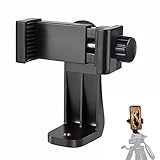
- 【Easy Tripod Phone Mount】The cell phone tripod mount features 3x 1/4" standard female screws, which is perfect to mount it on any tripod, monopod or selfie stick with a 1/4" standard male screw.
- 【Universal Design】The smartphone tripod mount securely holds ANY SIZE cell phone, even with a thick case. And tripod phone clamp’s width ranges from 2.2inch to 4.1inch, wide enough for any cellphone.
- 【360° Quick Swivel】Easily swivel your phone 360°, rotatable from portrait mode to landscape mode. The phone holder for tripod makes it more convenient to take photos, make videos, face-time chatting, live streaming and so on.
- 【Widely Used】The cellphone tripod mount adapter is widely used on tripod, monopod, selfie stick, ring light or slider. It suits any size phone, including iPhone 12/12 Pro/11/11 Pro Max/X/XS Max/8/7/6/6S Plus, Samsung S10/10+/9/9+/8, Note10/10+/9/8, Google Pixel 4 XL and more!!!
- 【100% Satisfaction】We always offer 100% satisfaction of the phone tripod attachment for each customer. If any problem, please feel free to contact us immediately, we will offer you a 100% satisfying solution.
Remove a thick case, improve airflow, keep the phone out of direct sunlight, and use a quality charger. A phone that becomes hot may throttle, drop frames, stop charging, reboot, or terminate the camera app. Do not operate a damaged or swollen battery. If the camera must run unattended for months, dedicated hardware is a safer engineering choice.
Quick wins for a faster PC:
Fix the driver behind crashes, sound loss and screen glitchesFind Drivers →Clear out junk files and repair common Windows errorsFree Scan →Scan for outdated or missing drivers - takes under a minuteDriver Scan →What should you do when the night image is poor?
A phone can produce a good daylight image while performing poorly in darkness. A phone flash is generally unsuitable for continuous room illumination, and an ordinary phone does not automatically provide infrared night vision.
For dependable night surveillance, a purpose-built camera with infrared illumination is usually a better fit. A phone remains useful for temporary daytime monitoring, document capture, or locations where ambient lighting is already adequate.
Why does an NVR reject the phone camera?
An NVR may reject the phone because the app provides only an HTTP webpage, uses an unsupported codec, requires a different stream path, lacks authentication, supports only one viewer, or does not implement ONVIF.
- Confirm that the app explicitly supports RTSP rather than only browser or MJPEG output.
- Copy the exact RTSP path and port from the app.
- Test the URL in VLC before testing the NVR.
- Check whether the NVR supports the stream’s codec, resolution, frame rate, and audio settings.
- Confirm the username and password if the app requires authentication.
- Check whether the app supports the number of simultaneous viewers required by the NVR.
Do not assume that an app supports ONVIF because the app description uses the words “IP camera.” ONVIF support must be explicitly documented and compatible with the NVR.
What privacy, security, and legal issues matter?
Secure the phone and camera service like any other connected device. Use a strong device passcode, a unique account password, two-factor authentication where available, current software, and the minimum permissions required for the intended features.
Review whether video and audio leave the home network, where cloud recordings are stored, how long recordings are retained, and whether the service requires an account. Alfred provides a vendor discussion of security and permissions in its AlfredCamera security information; that information should be considered alongside the user’s own account and network controls.
Obtain consent before recording people in private or shared spaces. Bedrooms, bathrooms, workplaces, rental properties, childcare settings, guests, tenants, and audio recording deserve particular care. Recording laws vary by jurisdiction, including state, local, workplace, tenancy, and consent rules, so check the rules that apply to the location instead of relying on a general internet tutorial. Never use a repurposed phone to secretly monitor another person.
When is a dedicated IP camera better?
A purpose-built security camera is better when the installation must operate reliably outdoors, overnight, or without supervision. Dedicated cameras can provide features that a phone and app may lack:
Do these 3 things before closing this tab:
1Fix the driver behind crashes, sound loss and screen glitches2Repair Windows errors before they cause bigger problems3Scan for outdated or missing drivers - takes under a minute- Weather resistance and outdoor mounting.
- Infrared night vision.
- PoE or other wired networking.
- Local storage designed for surveillance.
- Guaranteed ONVIF or NVR compatibility.
- Hardware watchdogs and automatic recovery.
- Reliable 24/7 recording after power or network interruptions.
A phone is a strong low-cost option for a temporary camera, pet monitor, webcam, or proof-of-concept local stream. A dedicated camera is the more dependable choice when missed footage, overheating, battery failure, poor night vision, or a lost Wi-Fi connection would matter.
Frequently Asked Questions
Can any smartphone become an IP camera?
Most reasonably modern smartphones can act as a camera source, but not every phone and app combination exposes RTSP, ONVIF, background streaming, or reliable 24/7 operation. Check the app’s protocol, operating-system, and screen-off requirements before choosing the setup.
Can a smartphone IP camera work without the internet?
A local HTTP/MJPEG or RTSP stream can generally work without internet when the phone and viewer remain on the same local network. Cloud camera services and remote viewing from outside the home normally require internet access.
What is the safest way to access a phone camera remotely?
Use a vendor cloud application or connect to the home network through a properly secured VPN or private overlay network. Avoid forwarding an unauthenticated camera port directly to the public internet.
The Tool Desk
Outbyte Driver Updater FREEScan for outdated or missing drivers - takes under a minuteDriver Scan →Outbyte PC Repair FREEClear out junk files and repair common Windows errorsFree Scan →Can AlfredCamera connect to an NVR or third-party IP camera system?
AlfredCamera is designed to pair smartphone camera and viewer devices through its service, and Alfred states that it does not support third-party IP cameras or security systems as camera sources. AlfredCamera should not be selected when RTSP or ONVIF integration is required.
Is a phone suitable for permanent 24/7 security monitoring?
A phone may stream continuously in favorable conditions, but heat, battery health, charger quality, Wi-Fi, operating-system power management, and app behavior affect reliability. Dedicated security hardware is better for permanent, outdoor, infrared, PoE, or NVR-based surveillance.
The Bottom Line
Choose AlfredCamera for the simplest remote phone-to-phone monitoring, an explicitly RTSP-capable local app for VLC, NVR, Frigate, or Home Assistant workflows, and DroidCam, Camo, or iVCam for computer webcam use. Test locally first, keep the phone cool and powered, reserve its local IP address, and use a VPN rather than casually exposing a camera port to the internet. For serious unattended surveillance, buy a purpose-built IP camera.

