
iTechGuides is reader-supported. When you buy through links on our site, we may earn an affiliate commission. As an Amazon Associate I earn from qualifying purchases. Learn more
The best free data recovery software for Windows 2024 depends on what happened: use Recuva Free for recently deleted files, Windows File Recovery for Microsoft’s command-line option, TestDisk or PhotoRec for formatted and damaged media, DMDE for lost partitions, and Wise Data Recovery for simple recoveries within its current 2 GB free allowance. Stop using the affected drive first.
“Free” does not always mean unlimited. The five choices below separate genuinely usable free tools from technically demanding utilities and products that impose recovery limits. No application can restore data that has been overwritten or can safely compensate for a physically failing drive.
Key takeaways
- Recuva Free is the easiest first choice for recently deleted files on a healthy Windows drive, USB stick, memory card, or external disk.
- TestDisk and PhotoRec 7.2, released on February 22, 2024, are free and open-source, but PhotoRec can lose original filenames and folder structure.
- Windows File Recovery is Microsoft’s free official utility, but the
winfrcommand requires different source and destination drives. - DMDE Free is aimed at advanced users handling lost partitions, RAW volumes, and damaged file-system structures rather than simple one-click undelete jobs.
- Wise Data Recovery is easy to use, but the vendor currently advertises up to 2 GB of free recovery, so it should not be described as unlimited freeware.
Which free data recovery software is best for Windows?
Recuva Free is the best starting point for most beginners who deleted files from a readable, healthy Windows drive. TestDisk and PhotoRec are the strongest genuinely free open-source choices for formatted or badly damaged media, while Windows File Recovery is the best official Microsoft option for users comfortable with Command Prompt.
Outdated Drivers Are Slowing You Down
One free scan finds every outdated or missing driver and matches the right update for your exact hardware.Free scan · exact hardware matchWindows Errors? Fix Them Before They Spread
Repair common Windows errors and clear accumulated junk for a smoother, more stable PC - no reinstall needed.Free scan · no reinstallThe correct choice changes when the failure changes. A recently deleted document, a missing partition, a formatted SD card, and a clicking hard drive are different recovery problems. The table provides a quick match before the detailed reviews.
Popular on Amazon
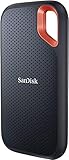
- Get NVMe solid state performance with up to 1050MB/s read and 1000MB/s write speeds in a portable, high-capacity drive(1) (Based on internal testing; performance may be lower depending on host device & other factors. 1MB=1,000,000 bytes.)
- Up to 3-meter drop protection and IP65 water and dust resistance mean this tough drive can take a beating(3) (Previously rated for 2-meter drop protection and IP55 rating. Now qualified for the higher, stated specs.)
- Use the handy carabiner loop to secure it to your belt loop or backpack for extra peace of mind.
- Help keep private content private with the included password protection featuring 256‐bit AES hardware encryption.(3)
- Easily manage files and automatically free up space with the SanDisk Memory Zone app.(5). Non-Operating Temperature -20°C to 85°C
| Tool | Best for | Interface | Free status | Filename and folder preservation | Formatted or damaged media | Skill level |
|---|---|---|---|---|---|---|
| Recuva Free | Recently deleted files and emptied Recycle Bin | Graphical wizard | Usable free edition; Pro features are separate | Usually better when file-system records remain | Limited compared with specialist tools; deep scan available | Beginner |
| TestDisk and PhotoRec 7.2 | Lost partitions, reformatted or severely damaged media | Technical text interface | Free and open source | TestDisk may preserve structure; PhotoRec often does not | Strongest fit among these for damaged or reformatted media | Intermediate to advanced |
| Windows File Recovery | Official Microsoft recovery from Command Prompt | Command line | Free Microsoft utility | Depends on mode and file-system metadata | Extensive mode supports formatted, corrupted, FAT, and exFAT cases | Intermediate |
| DMDE Free Edition | Lost partitions, RAW volumes, and manual file-system work | Advanced GUI and console builds | Free edition with practical restrictions | Potentially strong when structures remain; operation limits apply | Good fit for technical partition and volume analysis | Advanced |
| Wise Data Recovery Free | Simple GUI recovery within the free allowance | Graphical utility | Vendor currently advertises up to 2 GB free | Better for ordinary deleted-file recovery than carving | Not the first choice for severe corruption | Beginner |
What should you do immediately after deleting files?
Stop writing to the affected drive immediately. Downloading software, copying files, browsing large folders, running cleanup tools, or saving recovered data to the same drive can overwrite storage space that still contains the deleted files.
- Stop downloading, installing, copying, editing, or moving files on the affected drive.
- Do not run Disk Cleanup, defragmentation, formatting, or repair utilities before choosing a recovery plan.
- If the lost files are on the Windows system drive, prepare the recovery software on another computer, another partition, or a portable drive where possible.
- Connect a separate destination drive with enough free capacity for the recovered files.
- Scan the affected drive without making changes to its partition or file system.
- Save every recovered file to the separate destination drive, never to the source drive.
Microsoft’s Windows File Recovery guidance warns that continued computer use can overwrite free space. The same source requires separate source and destination drives for winfr, a rule that is also a sound safety practice with other recovery tools.
1. Recuva Free: best for recently deleted files
Recuva Free is the best beginner-friendly choice when files were recently deleted from a healthy, readable Windows drive, USB stick, memory card, external hard drive, or Recycle Bin.
The official Recuva product page lists recovery for pictures, music, documents, videos, emails, and other file types across Windows computers and removable media. A guided wizard, file filtering, previews, file-condition indicators, and a deeper scanning mode make Recuva easier to use than command-line or forensic-style tools.
When should you choose Recuva?
Choose Recuva when the file was normally deleted and the drive still appears in Windows with the correct capacity and a usable file system. Recuva is particularly sensible for a few lost documents, photos, or folders where preserving familiar names and directory structure matters.
What are Recuva Free’s limits?
Recuva Free is a usable free edition, but the vendor separates advanced features such as virtual hard-drive support, automatic updates, and priority support into Recuva Professional. The free page does not establish a universal recovery-success rate or guarantee that a deep scan will restore an intact file.
A deep scan can find file fragments after ordinary file-system references are gone, but deep scanning is not magic. Recovered items may have incomplete names, missing folders, incorrect sizes, or content that will not open if the storage clusters were reused.
Do these 3 things before closing this tab:
1Clear out junk files and repair common Windows errors2Fix the driver behind crashes, sound loss and screen glitches3Repair Windows errors before they cause bigger problemsVerdict: Start with Recuva for simple deletion on a healthy Windows or removable drive. Do not use Recuva as the first response to clicking, disconnecting, overheating, or mechanically failing hardware.
2. TestDisk and PhotoRec 7.2: best genuinely free open-source toolkit
TestDisk and PhotoRec are a paired, free, open-source toolkit for cases that exceed ordinary undelete recovery. The official documentation describes support for file systems including NTFS, FAT, exFAT, and several Linux file systems.
The official download listing identifies TestDisk and PhotoRec 7.2 as released on February 22, 2024. The tools are portable: according to the official download instructions, users can extract the archive and run the applications without a conventional installer.
Also popular on Amazon
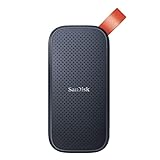
- Solid state performance with up to 800MB/s read speeds in a portable drive. (Based on internal testing; performance may be lower depending on host device, interface, usage conditions and other factors. 1MB=1,000,000 bytes.)
- Back up your content and memories on a storage solution that fits seamlessly into your mobile lifestyle.
- Take it with you on your adventures—up to two-meter drop protection means this durable drive can take a beating. (Based on internal testing.)
- Secure it to your belt loop or backpack for extra peace of mind thanks to the tough rubber hook.
- From Sandisk, a brand professional photographers trust to take on assignments.
What is the difference between TestDisk and PhotoRec?
TestDisk analyzes partitions and file-system structures, while PhotoRec ignores much of the file system and carves files by recognizing known file signatures. TestDisk is the better fit for a deleted or lost partition when the underlying structure is still readable; PhotoRec is the fallback when a volume was reformatted or the file system is severely damaged.
| Utility | Primary job | Best situation | Main trade-off |
|---|---|---|---|
| TestDisk | Partition recovery, boot-sector work, and file recovery from damaged or deleted file systems | Missing partition or damaged volume structure | Some operations can make consequential changes; proceed carefully and prefer read-only copying first |
| PhotoRec | Signature-based file carving | Reformatted or severely corrupted media | Often loses original filenames and folder hierarchy and may produce many generic files |
PhotoRec’s official page says the utility can recover files from hard drives, SSDs, CD-ROMs, memory cards, USB drives, and camera media, including situations where the file system is severely damaged or reformatted. Recovery is not guaranteed: file carving works best when file data is intact and, for many formats, not heavily fragmented.
PhotoRec is powerful but not beginner-friendly. A scan can produce thousands of generically named files that must be sorted manually. If original filenames and folders are more important than maximum coverage, try Recuva or a structure-aware tool first when the media remains readable.
Verdict: Use TestDisk for partition and file-system structure problems, and PhotoRec for deep signature-based recovery when those structures are gone. Recover to another drive and avoid treating partition-repair commands as harmless scanning.
3. Windows File Recovery: best official Microsoft option
Windows File Recovery is Microsoft’s free command-line recovery application, commonly run with the winfr command. The official Microsoft documentation covers its syntax, modes, filters, supported scenarios, and destination-drive requirement.
How do you use Windows File Recovery?
Open Windows File Recovery after installing it through the Microsoft Store, then use this general syntax:
winfr source-drive: destination-drive: [/mode] [/switches]The source and destination must be different drives or partitions. Windows File Recovery normally creates a destination folder named in the form Recovery_<date and time>.
For a recently deleted document in a user’s Documents folder, use Regular mode on a healthy NTFS drive:
winfr C: E: /regular /n Users<username>DocumentsTo search for PDF and Word documents:
winfr C: E: /regular /n *.pdf /n *.docxFor a broader search on older deletion or a formatted or corrupted volume:
winfr E: C: /extensive /n *invoice*To search for JPEG and PNG images in the Pictures folder:
Also popular on Amazon

- Easily store and access 2TB to content on the go with the Seagate Portable Drive, a USB external hard drive
- Designed to work with Windows or Mac computers, this external hard drive makes backup a snap just drag and drop
- To get set up, connect the portable hard drive to a computer for automatic recognition no software required
- This USB drive provides plug and play simplicity with the included 18 inch USB 3.0 cable
- The available storage capacity may vary.
winfr C: E: /extensive /n Users<username>Pictures*.JPEG /n Users<username>Pictures*.PNGReplace <username> and the drive letters with the actual Windows account and drives. Microsoft recommends /regular for recently deleted files on a healthy NTFS drive. Microsoft recommends /extensive for older NTFS deletion, formatted or corrupted NTFS drives, and FAT or exFAT media; non-NTFS recovery is supported only in Extensive mode.
| Situation | Microsoft-recommended mode |
|---|---|
| Recently deleted files on a healthy NTFS drive | /regular |
| Older deletion on NTFS | /extensive |
| Formatted NTFS disk | /extensive |
| Corrupted NTFS disk | /extensive |
| FAT or exFAT media | /extensive |
The main weakness is usability. Windows File Recovery has no conventional graphical wizard, and an incorrect drive letter, path, wildcard, or mode can produce disappointing results. Windows File Recovery is also a logical recovery utility, not a repair solution for a physically failing disk.
Verdict: Choose Windows File Recovery when you want Microsoft’s own free tool and can accurately specify the source, destination, mode, and search filters.
The Tool Desk
Outbyte Driver Updater FREEScan for outdated or missing drivers - takes under a minuteDriver Scan →Outbyte PC Repair FREEClear out junk files and repair common Windows errorsFree Scan →4. DMDE Free Edition: best for advanced partition and volume work
DMDE Free Edition is the advanced-user choice for lost partitions, RAW volumes, damaged file-system structures, manual volume selection, and technical disk inspection. The official download page provides Windows 64-bit and 32-bit graphical builds as well as console versions.
Is DMDE Free Edition unlimited?
DMDE Free Edition should be treated as a restricted technical tool, not unlimited consumer recovery software. File, folder, and operation restrictions can affect large directory-tree recoveries, so check the current edition documentation before relying on DMDE for a large job.
DMDE is more capable and more complicated than a wizard-style undelete application. The interface and terminology are closer to a disk editor or forensic recovery utility. That complexity can be valuable when Windows shows a volume as RAW or a partition has disappeared, but it also increases the chance of selecting the wrong volume or making an inappropriate change.
Use DMDE for inspection and copying when possible, and do not experiment with partition modifications on the original media if the data is irreplaceable. Create a disk image first when the hardware is stable enough to read, or ask a specialist when the disk is physically failing.
Recommended Free Tools
Verdict: Choose DMDE when partition or file-system analysis matters more than a simple wizard. Choose Recuva instead for ordinary deletion and Wise instead only when a small, capped GUI recovery is sufficient.
5. Wise Data Recovery Free: best lightweight capped GUI alternative
Wise Data Recovery is a small Windows graphical utility for deleted photos, documents, videos, emails, and other files on local drives, external drives, USB devices, SD cards, and other removable media. The vendor’s product page currently advertises up to 2 GB of recovery at no cost and says the free validity is unlimited.
Those Wise figures are current vendor-page observations, not historical facts established for the 2024 release of this article. The same page currently displays version 6.2.2 and Windows compatibility claims covering Windows 11, Windows 10, and older versions back to Windows XP. Product limits and compatibility can change, so verify the current page before starting a recovery.
Also popular on Amazon

- NEARLY 2X FASTER THAN OUR PREVIOUS GENERATION(8) – move 1,000 high-res photos in under 60 seconds(6) with up to 2000MB/s transfer speeds(2).
- IP65 RATING AND UP TO 3M DROP PROTECTION(3) – protects against spills and drops.
- POCKET-SIZED – fits easily in pockets and small bags.
- SPACE TO OWN YOUR AI CONTENT – speed and capacity to download your high-res clips and photo edits.
- 256-BIT AES ENCRYPTION(4) – helps keep private files secure with password protection.
Wise’s main advantage is simplicity and portability rather than deep partition recovery. The vendor recommends using its portable version from another computer or a flash drive to reduce the possibility of overwriting the affected disk. That recommendation is especially important when the deleted files are on the Windows system drive.
Free tools Windows power users keep installed
One-click scans. No signup required.
Verdict: Wise Data Recovery is reasonable for a small recovery that fits within the vendor’s current 2 GB free allowance. Recuva, Windows File Recovery, or TestDisk/PhotoRec are better choices when the recovery must exceed that limit without payment.
Which recovery tool should you choose for your situation?
| Reader situation | First choice | Backup choice | Reason |
|---|---|---|---|
| Deleted a few files minutes ago | Recuva Free | Windows File Recovery | Both suit a healthy Windows drive; Recuva is easier |
| Want Microsoft’s own solution | Windows File Recovery | Recuva | Microsoft’s utility is free but command-line based |
| Formatted an SD card or USB drive | PhotoRec | Recuva deep scan | Signature-based recovery can work when file-system records are gone |
| Lost a partition or volume | TestDisk or DMDE | PhotoRec | Partition and volume analysis matter more than ordinary undelete |
| Need original filenames and folders | Recuva or DMDE | Windows File Recovery | PhotoRec commonly returns generic names and flattened results |
| Need more than 2 GB without paying | Recuva, TestDisk/PhotoRec, or Windows File Recovery | DMDE, subject to its limits | Wise’s current free allowance is capped at 2 GB |
| Drive clicks, disconnects, or becomes unreadable | Stop software attempts | Professional recovery service | Repeated scans can worsen a hardware problem |
How do you recover deleted files safely?
- Check safer recovery sources first. Look in the Recycle Bin, OneDrive recycle bin and version history, File History, Windows Backup, Previous Versions, external backup drives, and application-specific recovery folders. A backup restore is usually safer and more complete than undelete software.
- Identify the source device. Confirm whether the loss occurred on an internal HDD, SSD, USB drive, SD card, external disk, or a missing partition. Do not format a drive merely because Windows asks to format an unreadable volume.
- Prepare software elsewhere. Avoid installing recovery software on the affected drive. Use another computer, a separate partition only when doing so cannot write to the damaged area, or a portable build.
- Prepare a different destination. The destination needs enough capacity for the recovered files and must not be the source device.
- Scan conservatively first. Use an ordinary scan for a recent deletion. Use deep, extensive, partition, or carving modes only when the failure type justifies them.
- Preview and select files. A scan result is not proof that a file is intact. Prioritize irreplaceable files and avoid writing changes to the source.
- Recover and verify. Save to the separate destination, open documents, play videos from beginning to end, inspect image previews and dimensions, and compare recovered file sizes with known originals.
- Keep the original media unchanged. Do not clean up the source until all recovered copies have been checked and backed up again.
Why can free software fail to recover a deleted file?
Deletion usually removes a file-system reference and marks the storage space as available; the file’s data may remain until another write reuses those sectors. Recovery fails when the data has been overwritten, when the file system no longer provides usable metadata, when fragmentation damages a carved file, or when the storage device cannot reliably read the sectors.
SSDs, TRIM, and garbage collection
SSD recovery is substantially less predictable than HDD recovery. TRIM and background garbage collection can make deleted data unavailable even when deletion was recent. Recovery software cannot restore data that the SSD no longer exposes as readable.
Formatted media
A quick format is not the same as secure erasure, but recovery depends on subsequent writes, the file system, fragmentation, SSD behavior, and whether the format changed the partition structure. PhotoRec may recover content from reformatted media, but recovered names and folders may be missing.
Quick wins for a faster PC:
Clear out junk files and repair common Windows errorsFree Scan →Fix the driver behind crashes, sound loss and screen glitchesFind Drivers →Encrypted drives
BitLocker and other encryption can complicate recovery. Recovery software may need an unlocked volume or recovery key and may be unable to interpret data from a locked or damaged encrypted volume.
Recovered files that open incorrectly
A successful scan does not guarantee an intact file. Test recovered documents, play videos from start to finish, inspect image previews and dimensions, and retain multiple verified copies until the recovery is complete.
When should you stop using recovery software?
Stop repeated software scans when a drive clicks, repeatedly spins up and down, disconnects, freezes Windows, reports the wrong capacity, shows SMART warnings, or becomes unusually hot. Disconnect the device and consult a professional recovery service rather than treating a hardware failure like ordinary logical deletion.
For a stable drive containing irreplaceable data, a sector-by-sector image can provide a safer working copy than repeated scans of the original. A specialist may use diagnostic evaluation, controlled hardware work, replacement parts, and drive imaging. Professional services cost substantially more than consumer software, but no free application can repair a failed read head, controller, or unreadable NAND.
What’s actually slowing this PC down?
Pick the symptom - the matching free tool is one click away.
If files disappeared after malware or ransomware, preserve the original media and investigate backups, shadow copies, and incident-response options. Recovery software should not be the only response to a possible infection.
Also popular on Amazon
- Easily store and access 5TB of content on the go with the Seagate portable drive, a USB external hard Drive
- Designed to work with Windows or Mac computers, this external hard drive makes backup a snap just drag and drop
- To get set up, connect the portable hard drive to a computer for automatic recognition software required
- This USB drive provides plug and play simplicity with the included 18 inch USB 3.0 cable
- The available storage capacity may vary.
When is a paid recovery tool worth considering?
A paid consumer tool is most defensible when a free tool has identified the files but cannot save enough data, when a user needs a more polished graphical workflow, or when a specific advanced feature is missing. Paying for an upgrade does not make overwritten data recoverable and does not make a failing drive safe to scan.
Recuva Professional adds features such as virtual hard-drive support, automatic updates, and priority support according to the official Recuva product information. DMDE Professional is aimed at users who need fewer free-edition restrictions and advanced partition or volume workflows. Wise Data Recovery Pro is the vendor’s paid path when the current 2 GB free allowance is too small.
Other commercial products, including Disk Drill, EaseUS Data Recovery Wizard, and Wondershare Recoverit, generally use a scan-or-trial model with restrictions and paid upgrades. Do not call a product “completely free” when the free version only previews results or imposes a small recovery cap. For valuable data, compare the paid tool’s exact limit and refund or service terms at the time of purchase rather than relying on an old price.
The Tool Desk
Outbyte PC Repair FREEClear out junk files and repair common Windows errorsFree Scan →Outbyte Driver Updater FREEFix the driver behind crashes, sound loss and screen glitchesFind Drivers →Frequently Asked Questions
Is Recuva really free?
Recuva has a usable Free edition for ordinary file recovery, while features such as virtual hard-drive support, automatic updates, and priority support belong to Recuva Professional. Recuva Free does not guarantee recovery, and installing it on the affected drive can overwrite lost data.
Does PhotoRec preserve filenames and folders?
PhotoRec often does not preserve original filenames or folder structure because PhotoRec recovers files by signature rather than relying on intact file-system metadata. PhotoRec can therefore produce many generically named files that require manual sorting.
Can Windows File Recovery recover files from an SD card?
Windows File Recovery can attempt recovery from FAT or exFAT media such as many SD cards, but Microsoft states that non-NTFS recovery is supported only in Extensive mode. The source and destination must be different drives.
Can data be recovered after formatting?
Data can sometimes be recovered after a quick format, especially when the storage sectors have not been reused, but recovery depends on subsequent writes, fragmentation, the file system, SSD behavior, and the changed partition structure. A format never guarantees successful recovery.
Why must recovered files go to another drive?
Recovered files must go to another drive because writing them to the source can overwrite other deleted data that recovery software has not yet copied. Microsoft also requires different source and destination drives for Windows File Recovery.
The Bottom Line
For a simple deletion, start with Recuva Free. Use Windows File Recovery if you prefer Microsoft’s command-line tool, TestDisk or PhotoRec for formatted and badly damaged media, and DMDE for advanced partition work. Wise Data Recovery is convenient only when the recovery fits within its vendor-advertised free allowance. If the drive is physically failing, stop scanning and seek specialist help.

