
iTechGuides is reader-supported. When you buy through links on our site, we may earn an affiliate commission. As an Amazon Associate I earn from qualifying purchases. Learn more
A developer time tracker is only useful if you keep using it. The tools that last are the ones that start and correct entries inside the work you already do, such as a GitHub issue, a Jira ticket, or a browser tab, and that export records in a form you can actually use for invoices, estimates, or a weekly review. Before you pick one, check what the integration really copies, how you review and fix entries, and whether the tool is built for individual tracking, client billing, or team planning.
What developer time tracking is for
Time tracking means recording work against a task, project, client, or issue so you can later reconstruct where effort went. For developers that usually serves one of three purposes:
- Personal awareness. You want to see how a week actually split between feature work, reviews, meetings, and support.
- Client billing. You need hours tied to a client and project so you can invoice accurately and explain the bill.
- Estimation and planning. You want to compare what a task was expected to take with what it did take, so future estimates improve.
Pick the purpose first. A freelancer who bills by the hour needs billable rates and client-level reports. A tech lead trying to spot overloaded engineers needs a shared view of workload. Using a tool built for one purpose to serve the other usually produces records that look complete but do not answer the question you care about.
Recommended Free Tools
Capture: how the timer reaches your work
The biggest reason tracking fails is interruption. Switching to a separate app to start a timer, then remembering to stop it, is easy to skip during a busy day. Integrations reduce that friction, but each one works differently. The three tools below document developer-tool integrations on their own pages. The details, and what gets synced, vary.
#1 Best Overall
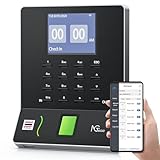
- Streamlined Scheduling & Auto Time Tracking: Effortlessly manage shifts (including overnight schedules) with auto-calculated work hours. Real-time punch detection ensures accurate attendance records, simplifying admin tasks without complex setup.
- Fast & Reliable Fingerprint Recognition: Advanced sensor authenticates wet/dry fingerprints in 0.5 seconds, delivering quick, secure clock-ins 24/7. Consistent performance reduces wait times for all shifts.
- Flexible Payroll Sync: Align tracked hours with any payroll cycle (monthly/bi-weekly/weekly). Export timesheets via email or USB for error-free, fast payroll processing.
- Easy Attendance Editing & Real-Time Sync: Edit punches in seconds via the mobile app, with instant sync across the system (requires the same local network). Ensures accurate hours and simplifies payroll adjustments.
- Built-In Data Protection: Integrated backup safeguards attendance records during power outages, keeping data secure and recoverable to minimize disruptions.
Toggl Track: GitHub and Jira
Toggl’s GitHub instructions describe installing a browser extension, enabling the GitHub integration, starting a timer from within GitHub, and then adding a description, project, and tags. Reports can be viewed or exported in the Toggl web app. Its Jira page describes Jira Sync, which updates Toggl from Jira, and browser-extension timing that starts from Jira issues. See Toggl’s GitHub integration page and Toggl’s Jira integration page for the current steps.
Clockify: Jira, Azure DevOps, GitHub, GitLab, and YouTrack
Clockify’s developer software page describes tracking inside Jira, Azure DevOps, GitHub, GitLab, and YouTrack, alongside manual entry, billable and labor rates, reports, and a comparison of estimated time with tracked time. Its Jira app is the most detailed integration page of the three, covered in the next section. See Clockify’s software development page.
Harvest: GitHub through a Chrome extension
Harvest’s member integration guide says its Chrome extension lets you track time against Harvest projects and tasks from inside GitHub. The entry notes include a link to the related issue or pull request, which helps when a client asks what a specific line item covered. The guide describes the GitHub workflow only; it does not set out pricing or partner terms. See Harvest’s member integrations guide.
What’s actually slowing this PC down?
Pick the symptom - the matching free tool is one click away.
Rank #2

- VERSATILE 2-IN-1 SOLUTION: Includes uPunch CR1000 Digital Time Clock and Date Stamp, 50 time cards, one ribbon & 2 keys - perfect for small business time and document management.
- ACCURATE DIGITAL TIMEKEEPING: Eliminate manual errors in employee time tracking with this precise digital clock in machine for employees, easily monitoring arrival, break, lunch, and departure times.
- ADVANCED DATE STAMPING: Simplify document organization with built-in date stamp functionality, featuring preset messages and 3-way printing for efficient proof of receipt and processing.
- USER-FRIENDLY DESIGN: Strategically placed window in the cover allows for easy loading of time cards and documents, enhancing efficiency in daily operations.
- RELIABLE SUPPORT: Enjoy peace of mind with uPunch's commitment to quality, including warranty protection and dedicated customer support for all your time clock needs.
What a Jira integration actually copies
Integration claims are only as good as the fields they carry. Clockify’s Jira help page is useful because it lists the mapping in concrete terms. According to that page, the Jira app can create a time entry from an issue, map the issue key and title, the project, the task, and default tags or labels, and synchronize changes made to work logs. Two limits matter in practice:
- Custom fields are not mapped. If your team records story points, client codes, or release labels in custom fields, those values will not appear in the time entry, and you will need to carry them in tags or labels instead.
- Setup depends on Jira administration. Jira admins manage app installation, and the person tracking time needs access to the corresponding projects and tasks in the tracker.
Before committing, test one real ticket end to end. Confirm that the issue key appears, that the project and tag you expect are attached, and that editing the work log in Jira updates the entry as described.
Compare tools on six axes
Use the same checklist for every candidate tool, so you are comparing documented behavior rather than marketing language.
Rank #3
![Pyramid Time Systems 2500 Auto-Aligning Time Clock Bundle [2500K1]](https://m.media-amazon.com/images/I/411v7QKnZiL._SL160_.jpg)
- AUTO-ALIGNING PUNCH CLOCK: Top-loading card feed automatically aligns each punch for clean, accurate time entries; no manual adjustments needed; reduces errors that slow down payroll
- RELIABLE TIME CARD MACHINE PERFORMANCE: Consistent printing keeps employee time records accurate pay period after pay period; automatic resets for Daylight Saving Time and short months mean less maintenance for busy managers
- VERSATILE TIMEKEEPING FOR ANY WORKPLACE: Records arrival, break, lunch, and departure times across 3 in/out punch cycles per day; double-sided time cards cover up to 31 days; choose 12-hour or 24-hour military time format
- COMPACT DESIGN, FLEXIBLE PLACEMENT: Small footprint fits on a desk or mounts on a wall to suit offices, retail, warehouses, and other workplaces; backlit LCDs show time, date, and day at a glance; tamper-proof security lock guards against time theft
- COMPLETE BUNDLE, READY TO USE: Includes 100 pyramid time cards, 2 ink ribbon cartridges, 2 security keys, and a 10-slot time card rack; everything a small business needs to start accurate employee time tracking without additional purchases
| Axis | What to check | Why it matters |
|---|---|---|
| Capture friction | Whether you can start from your IDE, browser, GitHub, Jira, or another task source, and whether manual corrections are simple | Fewer interruptions make the habit easier to keep |
| Integration mapping | Which issue fields, projects, tags, clients, and links carry over, and which direction changes sync | A timer button alone does not guarantee useful records |
| Individual versus team use | Personal reports versus permissions, approvals, workload views, and shared project views | A freelancer and an engineering manager need different outputs |
| Billing and estimates | Billable rates, estimates versus actuals, client reports, and export formats | Determines whether records support invoices and scope conversations |
| Administration and access | Required browser extensions, Jira admin rights, workspace permissions, and data access | Setup constraints often decide whether a tool is adopted |
| Privacy and control | What is captured automatically, who can see it, and whether people can review and correct entries | Transparent, user-reviewed records are easier to trust than passive monitoring |
What each vendor documents
The table below compares only what the vendor pages above state. Where a page is silent, the cell says so rather than guessing.
Quick wins for a faster PC:
Clear out junk files and repair common Windows errorsFree Scan →Scan for outdated or missing drivers - takes under a minuteDriver Scan →Repair Windows errors before they cause bigger problemsFix Now →| Tool | Developer-tool integrations documented | Entry methods documented | Billing and estimate features documented |
|---|---|---|---|
| Toggl Track | GitHub (browser extension); Jira (Jira Sync and browser-extension timing) | Manual, one-click, Pomodoro, web, and mobile | Costs, billable hours, utilization, and estimates versus actuals |
| Clockify | Jira, Azure DevOps, GitHub, GitLab, YouTrack | Timer and manual entry | Billable and labor rates, project estimates, reports, and export formats |
| Harvest | GitHub (Chrome extension), with links to the issue or pull request in entry notes | Not stated on the linked guide | Not stated on the linked guide |
These are vendor descriptions, not independent tests. Plan limits and integration availability can change, so confirm them on the vendor’s current pages before you rely on a feature.
Match the tool to the job
Individual tracking
If you only want to understand your own week, prioritize capture friction and a simple personal report. A browser or IDE-adjacent timer with a manual-entry fallback is usually enough. Avoid building a deep project hierarchy you will not review.
Rank #4

- Complete Solution - Includes HN3000 AutoAlign time clock, 100 time cards, rack, ribbon, and keys for instant tracking.
- Precise Punching - AutoAlign technology ensures accurate alignment for error-free payroll records.
- Robust Warranty - Two-year warranty with unlimited customer support (Monday–Friday) guarantees reliable performance.
- Simple Setup - Plug-and-play design with clear instructions enables tracking in minutes.
- Clear Printing - High-quality uPunch ribbons deliver legible, consistent punch punches.
Client billing
Billing needs billable flags, client or project grouping, and an export that matches your invoice format. Check whether the tool supports the rate structure you use, such as a single hourly rate, role-based rates, or a fixed-fee project with an hour cap. If an invoice must reference the work done, the Harvest approach of linking an issue or pull request in the entry notes is worth copying even if you use another tool.
One vendor-published customer testimonial is worth noting as an example of how billing data is used. Toggl’s software page quotes Angela Wells, Senior Project Manager at Impekable: “Toggl data helps us when it’s time to renegotiate contracts for clients. The reports help us understand hours usage and we can make the case for a higher rate.” This is a promotional statement from a customer selected by the vendor. It shows the kind of use the reports are designed for, but it does not establish that the outcome is typical or independently verified.
Free tools Windows power users keep installed
One-click scans. No signup required.
Team planning
For a team, the useful outputs are workload by person and project, and estimates compared with actuals across several projects. Estimate accuracy only becomes visible after enough completed work has accumulated, so treat early comparisons as rough.
Best Value
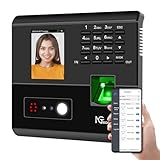
- 4-in-1 Time Clock: Features four verification modes—facial recognition, fingerprint, RFID card and PIN—to effectively prevent buddy punching and attendance disputes. This smart attendance clock auto-calculates work hours accurately, reduces manual errors, ensures fair payroll, and lowers daily admin costs.
- Remote Control & Auto Reports: Manage the time clock via the free NGTeco App for iOS and Android (same local network required). Easily check real-time attendance, adjust shifts, and export detailed attendance records with one click.
- Flexible Shift Management: Supports flexible scheduling and night shift settings. Easily adjust shift rules to simplify HR scheduling and boost overall work efficiency.
- Plug & Play: Simple setup requires no technical knowledge or IT support and is ready to use in minutes. The built-in offline recording feature keeps capturing clock-in data even with weak or intermittent network connections. All saved data syncs automatically once the internet is restored, ensuring zero data loss at all times.
- Paperless Time Clock: No more paper time cards, ink, or regular replacement supplies required. All attendance records are securely stored digitally in the system, making payroll processing faster and simpler for your team. It creates a cleaner, greener workplace for your business.
Check current prices and plan limits
Plan limits and prices change often. When the Clockify developer page was checked on 7 October 2026, it showed five total users free and an unlimited-user price of $3.99 per user. Treat that figure as a snapshot from that date, not a stable price, and recheck the page before you budget for it. Toggl and Harvest pricing should be checked on their own sites before a decision.
Set up a workflow that survives a busy week
- Write down the purpose. Choose one of personal awareness, client billing, or estimation. Do not add a second purpose until the first one works.
- Build a small taxonomy. Create a short list of projects that match how you report work, usually one per client or product area, plus a few categories such as review, support, and meetings. Each extra level adds administration on every context switch.
- Connect the source tool. In Toggl, install the GitHub or Jira browser extension and enable the integration from its settings. In Clockify, have a Jira admin install the app, then confirm your Jira projects are mapped to Clockify projects. Start timers from the issue, not from a separate window.
- Use manual entry at natural breaks. For work that happens outside a ticket, such as a phone call or a design conversation, add an entry at the end of the block instead of trying to time it live.
- Review every day or week. Look for missing time, timers left running, and entries under the wrong project. Correct them while the context is still fresh, because reconstructing an afternoon a week later is unreliable.
- Compare estimates with actuals over several projects. Use the comparison to adjust future estimates, and state the uncertainty when you share the numbers with a client or manager.
Keep the data honest: limits and privacy
Tracked time is a record of time assigned to work items. It is not a measure of output. Vendor pages describe reports and estimate comparisons, but they do not show that logged hours measure developer productivity or software quality, so do not use hours as a proxy for code quality or individual value.
If a team adopts tracking, communicate the rules before the first sprint:
The Tool Desk
Outbyte Driver Updater FREEFix the driver behind crashes, sound loss and screen glitchesFind Drivers →Outbyte PC Repair FREEClear out junk files and repair common Windows errorsFree Scan →- What is captured automatically, such as issue links, timers, and project names, and what is entered by hand.
- Who can see individual entries, and who sees only aggregated reports.
- How the data will be used, for example for billing or capacity planning, and what it will not be used for.
- How corrections are made, and whether a person can edit or remove their own entries before a report is shared.
Those rules matter as much as the tool choice. A well-configured tracker that people distrust will produce data that is incomplete and hard to use.
Choosing the right tool
If your main need is capture from GitHub or Jira with a shared team view, start by testing Toggl Track or Clockify on one real ticket and check the mapping and sync behavior before committing. If your work is mainly GitHub-linked client billing, Harvest’s documented GitHub workflow is a direct fit, though you should confirm its pricing and plan features on Harvest’s own site. In every case, the deciding factor is whether the records match the question you need to answer: what happened, what to bill, or how long the next similar task will take.
Community posts show that readers ask the same questions. One Jira user asked for “recommendations for a time tracking app that integrates with Jira” on r/jira, and another asked “How do you all track billable hours?” on r/webdev. Those threads reflect common needs, not measured adoption, but they are a useful reminder that the Jira mapping and billing questions above are the ones most teams hit first.
Quick Recap
Product prices and availability are accurate as of the date/time indicated and are subject to change. Any price and availability information displayed on Amazon at the time of purchase will apply.

