
Free tools Windows power users keep installed
One-click scans. No signup required.
iTechGuides is reader-supported. When you buy through links on our site, we may earn an affiliate commission. As an Amazon Associate I earn from qualifying purchases. Learn more
The Ars Technica semi-scientific guide to Wi-Fi Access Point placement reaches a simple verdict: place an access point centrally, high, and in the open; keep clients within roughly two rooms and two interior walls when possible; use Ethernet backhaul; and measure airtime, latency, and packet loss instead of trusting signal bars or headline speed.
The original Ars Technica feature was published on February 23, 2020. Its central advice remains sound, but Wi-Fi 6E, Wi-Fi 7, 6-GHz operation, faster Ethernet uplinks, and modern managed-AP systems add important qualifications. A newer standard cannot rescue an access point installed in the wrong room, and adding mesh nodes without planning can make a busy network worse.
Key takeaways
- Put the primary access point near the center of the area it must cover, preferably on the ceiling or a high open shelf.
- Use roughly two rooms and two interior walls as a starting placement limit, not as a guaranteed engineering specification.
- Ethernet backhaul is more predictable than wireless mesh backhaul because AP-to-AP traffic does not consume the same wireless airtime used by clients.
- According to the original Ars Technica guide, −67 dBm is a useful strong-performance target, but signal strength alone does not measure noise, retries, congestion, latency, or client behavior.
- Use narrower channels and lower transmit power in crowded apartments and multi-AP networks instead of automatically choosing maximum power and 80- or 160-MHz channels.
- Wi-Fi 6E and Wi-Fi 7 can improve efficiency and peak performance for compatible clients, but distance, walls, client transmit power, backhaul, and available airtime still determine real-world results.
What problem are you actually trying to solve?
Wi-Fi trouble is not one problem. A new router or additional mesh node helps only when the equipment addresses the specific failure.
Do these 3 things before closing this tab:
1Fix the driver behind crashes, sound loss and screen glitches2Clear out junk files and repair common Windows errors3Scan for outdated or missing drivers - takes under a minute| Problem | What the user experiences | What usually helps |
|---|---|---|
| Coverage | The client cannot maintain a usable connection in part of the building. | Move the AP, reduce walls and distance, or add a strategically placed AP. |
| Capacity | Wi-Fi works near the AP but slows when many people or devices are active. | Add capacity with better placement, multiple wired APs, sensible channel reuse, or a higher-capacity AP. |
| Interference | Performance varies by time of day or remains poor despite a strong signal. | Change channel width, reduce reuse conflicts, identify non-Wi-Fi interference, and test during busy periods. |
| Backhaul | A mesh satellite shows a good client-facing signal but has a weak connection to the main router. | Move the satellite closer to its upstream AP or replace wireless backhaul with Ethernet. |
A stronger transmitter does not automatically solve any of these failures. A router at one end of a house still has to cross the entire building to reach the far side, and a wireless mesh node placed in the dead zone inherits the poor path it was supposed to fix.
Popular on Amazon

- Free Omada Essentials Cloud Management: Free cloud management with no additional fees, everything is managed in the cloud without the need for hardware or software controllers. Simply launch the Omada app, scan the S/N code on the package, and you're ready to deliver
- Ultra-Fast True Wi-Fi 6 Speeds: Designed with the latest wireless Wi-Fi 6 technology featuring 1024-QAM, HE60 and Long OFDM Symbol, the EAP650 boosts dual-band Wi-Fi speeds up to 2976 Mbps
- Ultra-Slim Design: Compact design ensures simple installation while saving space. The elegant appearance makes EAP650 blend into any modern office, hotel, classroom, or cafe
- Integrated into Omada SDN: Omada Software Defined Networking (SDN) platform integrates network devices including access points, switches and gateways with multiple control options offered - Omada Hardware controller, Software Controller or Cloud-based controller. Standalone mode also supported
- Cloud Access Omada Compatibility: Remote Cloud access and Omada app enables centralized cloud management of the whole network from different sites, all controlled from a single interface anywhere, anytime
What is the difference between a router, an access point, and a mesh node?
A router normally handles routing, firewalling, NAT, and DHCP, while an access point provides the wireless connection to the local network. An all-in-one home router performs both jobs. A mesh satellite is effectively an access point with either a wireless or wired backhaul connection to another node.
The placement principles apply to all three designs: a single all-in-one router, several standalone APs connected by Ethernet, or a consumer mesh kit. The original Ars Technica guide explicitly applies its advice across those categories. Read the original Ars Technica placement guide for the historical framework.
How many Wi-Fi access points does a home need?
There is no reliable universal answer based only on square footage. Start with one centrally placed AP, measure the result, and add another AP only when the floor plan, construction, client load, or measured performance justifies it.
- Draw the floor plan and mark bedrooms, offices, desks, gaming and streaming areas, smart-home hubs, patios, garages, and other priority locations.
- Mark barriers by material: drywall, brick, concrete, tile, metal studs, fireplaces, plumbing, ductwork, foil-backed insulation, radiant barriers, and lath-and-plaster construction.
- Determine whether Ethernet can reach likely AP locations through an attic, basement, crawlspace, conduit, existing coax route, or utility space.
- Place one AP centrally and high, then test actual RSSI, noise, airtime utilization, latency, packet loss, upload speed, download speed, and roaming.
- Add an AP to solve a specific structural, capacity, or distance problem—not merely because a phone does not show maximum bars.
- Retest after every placement or configuration change.
Vendor coverage figures are not interchangeable guarantees. Current TP-Link Omada documentation lists different coverage figures by model, band, mounting type, and environment, including separate figures for indoor wall-plate and outdoor APs. The Omada solution catalog illustrates why a product’s published coverage number cannot replace a floor-plan test.
Why does central placement matter?
A central AP reduces the maximum distance to clients. In the original Ars Technica example, a 30-meter living area served from the middle requires approximately 15 meters of reach in either direction, while an AP at one end must reach across the full 30 meters to serve the far side. The original guide’s distance example demonstrates the geometric advantage.
Central placement also makes it easier to route around obstructions. An AP does not need to overpower a fireplace, concrete wall, appliance, or metal duct if another AP can serve the other side of that obstacle through a shorter path.
“Central” means central to the service area, not necessarily central to the building’s footprint. An AP intended mainly for a patio may belong near the exterior wall. An AP for a detached garage may need to be in the garage, connected by Ethernet or a dedicated wireless bridge.
Where should an access point be mounted?
For many ceiling-oriented indoor APs, the preferred order is ceiling center, high wall, high open bookshelf, open shelf, and only as a last resort a low cabinet or enclosed piece of furniture.
High placement helps the radio path avoid people, sofas, cabinets, bookcases, televisions, and appliances. The original Ars Technica guide notes that a human body can attenuate Wi-Fi roughly comparably to an interior wall in some circumstances, so an AP hidden behind furniture or located at floor level can perform worse when a crowded room is occupied. The source discussion of ceiling and high-shelf placement explains the practical reason.
Avoid utility closets, closed media consoles, metal shelving, locations beside microwaves, and exterior corners unless the coverage target is primarily outside. Keep the AP away from large metal objects and dense bundles of plumbing or electrical equipment where practical.
Ceiling mounting is not universally optimal. Wall-mounted units, enclosed mesh nodes, outdoor APs, directional antennas, and internal multi-element antenna arrays can produce nonuniform patterns. Earlier Ars Technica mesh testing found that some nodes produced stronger signal toward particular faces or directions. The Ars mesh-network testing report shows why the hardware’s mounting guidance matters.
Recommended Free Tools
External antennas are also not automatically better. Many conventional antennas produce a doughnut-like radiation pattern, which can mean weaker coverage along the antenna’s axis. Current APs frequently use internal beamforming arrays, so “always point every antenna vertically” is not a universal rule. Follow the manufacturer’s orientation instructions and validate the installed result.
Also popular on Amazon

- FREE Omada Essential Platform Centralized Remote Management: Unlock numerous advanced features by integrating with Omada Cloud Management Platform, such as network monitoring, remote network configuration, AI features, ZTP (Zero Touch Provisioning) etc. More possibilities you can find with your network management
- Dual-Band 4-Stream Wi-Fi 7: Up to 5.0 Gbps, 4324 Mbps on 5 GHz + 688 Mbps on 2.4 GHz. Powered by Wi-Fi 7 technology, enjoy faster speeds with Multi-Link Operation, increased reliability with Multi-RUs, and 120% more data capacity with 4K-QAM, delivering enhanced performance for all your devices
- Future Proof 2.5G Port: Equipped with a 2.5 Gigabit Ethernet port to support high-speed networking and future broadband upgrades-no hardware replacement required when switching to multi-gig internet plans
- Abundant Networking Features Available to Develop: Network monitoring, VLAN segmenting, Bandwidth management, Schedule Setup, Security features, PPSK all seated and right there waiting to be developed for you
- Premium WiFi Experience: Seamless roaming, Mesh, Airtime fairness and other business level wifi experience features are provided here
Does the two-rooms-and-two-walls rule still work?
The two-rooms-and-two-interior-walls rule remains a useful starting heuristic for ordinary residential construction, but it is not a specification. Keeping a client within roughly two rooms and two walls of an AP often gives a better design starting point than relying on a manufacturer’s maximum range.
The original guide models a roughly nine-meter path through two walls as potentially favorable at 2.4 GHz but substantially weaker at 5 GHz. The guide also uses approximately −3 dBm per additional wall or significant obstruction as a rough model. Those figures are not universal wall-loss values: concrete, brick, metal studs, radiant barriers, foil-backed insulation, fireplaces, historic lath-and-plaster, and dense tile can behave very differently.
Open-plan homes may exceed the heuristic because they have long clear paths. Concrete apartments may fail it with only one wall. Multi-story homes require three-dimensional planning because a central point on one floor may not serve the floors above and below as effectively as expected. Outdoor areas and detached buildings usually need their own placement strategy.
| Building condition | How to adapt the heuristic | Likely design |
|---|---|---|
| Open-plan drywall home | Test one central, high AP first. | One AP may be sufficient, especially with moderate client demand. |
| Long ranch house | Prioritize the center, then test both ends. | Two wired APs may outperform one high-power AP at an end. |
| Concrete or brick home | Use shorter paths and avoid crossing structural walls. | More APs, preferably wired, at lower power. |
| Historic lath-and-plaster home | Assume walls may be more disruptive than ordinary drywall. | Measure room by room; add APs only where tests show a need. |
| Detached garage or outbuilding | Do not depend on an indoor AP to cross the exterior wall reliably. | Outdoor-rated hardware, a wired run, or a dedicated wireless bridge. |
How do 2.4 GHz, 5 GHz, and 6 GHz affect placement?
Lower-frequency 2.4-GHz Wi-Fi generally travels farther through a building, while 5-GHz and 6-GHz Wi-Fi usually provide more practical capacity at shorter ranges and lose usable margin more quickly through walls. Fixed range multipliers are misleading because construction, antenna design, channel width, noise, and client transmit power change the outcome.
| Band | Strength | Placement and configuration trade-off |
|---|---|---|
| 2.4 GHz | Longer reach and better penetration. | Usually more congested and lower-capacity; 20-MHz channels are the normal starting point. |
| 5 GHz | More capacity and often better performance at short-to-medium range. | Attenuates more through walls; channel reuse and neighboring networks matter. |
| 6 GHz | Additional, relatively clean spectrum where legal and available. | Shorter effective range, newer-client requirement, and country- and device-dependent regulatory behavior. |
The original guide recommends avoiding 2.4 GHz when practical and warns that the number of nominal 5-GHz channels can overstate the number of genuinely useful residential choices. Wide channels consume more spectrum: 80- or 160-MHz operation can raise peak throughput for a nearby compatible client, but 20- or 40-MHz channels are often better in apartments, dense neighborhoods, or multi-AP installations.
DFS channels must detect and avoid protected radar systems. DFS availability and behavior vary by country, AP firmware, and client support, so a network can temporarily change channels or lose a channel choice when radar protection is triggered. A non-DFS channel may be more predictable even when a DFS channel appears less crowded.
Wi-Fi 6E adds 6-GHz operation, and Wi-Fi 7 adds features such as Multi-Link Operation, but neither removes distance, wall loss, client-radio limitations, Ethernet constraints, or airtime contention. Ubiquiti’s current U7 Pro, for example, is listed as a ceiling-mounted Wi-Fi 7 AP with 6-GHz support. The U7 Pro specifications are a product example, not proof that Wi-Fi 7 will improve coverage in every home.
What’s actually slowing this PC down?
Pick the symptom - the matching free tool is one click away.
Why can a strong signal still produce slow Wi-Fi?
Received signal strength is only one input to performance. Airtime utilization, noise, retries, channel width, modulation, client capability, AP load, backhaul quality, and Internet or server limits can all reduce speed while the signal indicator remains high.
dBm is logarithmic. According to the original Ars Technica guide, a 10-dBm decrease represents a tenfold decrease in milliwatt power, while doubling free-space distance produces approximately 6 dB of path loss. Real buildings add reflections and material losses, so those relationships are useful for understanding trends rather than predicting a particular room’s result. The guide’s explanation of dBm and path loss provides the underlying context.
The same source cites −67 dBm as a useful minimum or target for strong performance. Treat −67 dBm as a commonly used design target, not a universal cutoff: a low-latency application, wide channel, older client, crowded channel, or poor noise floor may require a different margin. Conversely, a stronger signal does not guarantee a faster connection.
Do not diagnose congestion by counting visible SSIDs alone. Airtime utilization is more meaningful than the number of network names or their apparent signal strength because a few active networks can consume more airtime than many mostly idle networks.
The Tool Desk
Outbyte Driver Updater FREEScan for outdated or missing drivers - takes under a minuteDriver Scan →Outbyte PC Repair FREEClear out junk files and repair common Windows errorsFree Scan →How does transmit power affect roaming?
Excessive AP transmit power can create an asymmetric link: a phone may hear the AP clearly, but the phone’s lower-power radio may not be able to transmit back with equivalent strength. The connection can appear strong while producing low throughput, retries, latency, or instability.
Also popular on Amazon
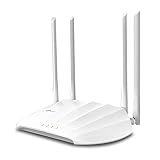
- Superior Speeds with MU-MIMO: Outfitted with the latest 802.11ac Wave 2 MU-MIMO technology, the TL-WA1201 easily delivers dual-band Wi-Fi speeds of up to 1200 Mbps to multiple devices at the same time
- Multi-Mode 4 in 1: Supports Client, Multi-SSID, Range Extender, and AP operation modes to enable various wireless applications to give users a more dynamic and comprehensive experience when using your AP
- PoE for Easy Installation: TL-WA1201 supports Passive PoE power supplies, can be powered by the provided PoE adapter, making deployment effortless and flexible
- Boosted Wi-Fi Coverage: Four external antennas equipped with Beamforming technology concentrate Wi-Fi signals towards your devices to extend reliable Wi-Fi to every corner of your home or office, even over long distances
- Gigabit Ethernet Port: Features a Gigabit Ethernet port that provides high-speed wired connectivity for devices requiring stable and fast network connections
The original Ars Technica guide describes excessive transmit power as a potential bug and warns that increasing only AP power does not strengthen the client’s return path. In a multi-AP network, start with automatic or moderate power, consider lower 2.4-GHz power than 5-GHz power, and make one small change at a time.
Validate power changes with roaming, latency, packet loss, and bidirectional throughput—not signal bars alone. A power setting that improves a single distant room can worsen channel contention or cause clients to cling to the wrong AP.
Why is wired backhaul usually better than wireless mesh?
Wired Ethernet backhaul is preferred whenever cable can reach the AP because AP-to-AP forwarding does not consume the same wireless airtime needed by clients, placement is less constrained by the main router’s radio signal, and performance is more predictable.
| Backhaul | Advantages | Limitations |
|---|---|---|
| Ethernet | Predictable performance, flexible AP placement, better channel reuse, and no wireless forwarding airtime cost. | Requires cable routes, suitable switch ports, uplink capacity, and possibly PoE or injectors. |
| Dual-band wireless mesh | Easy installation where cable is impractical. | Client and backhaul traffic may share radios and airtime; node placement is critical. |
| Tri-band wireless mesh | A dedicated radio can provide a less competitive backhaul path. | Still depends on distance, walls, interference, and the upstream AP; it is not equivalent to Ethernet. |
A wireless satellite should be placed where it still has a strong path to its upstream AP—not at the location where clients currently have no service. Dynamic band allocation can help, but it cannot eliminate the airtime and propagation limits of wireless backhaul.
For wired deployments, check the cable route, switch port speed, uplink capacity, VLAN and management compatibility, PoE standard, and total PoE budget. Current APs differ substantially: the Ubiquiti U6 Pro listing shows a 15-W PoE adapter accessory, while the Wi-Fi 7 U7 Pro listing shows a 30-W PoE+ adapter accessory. The U6 Pro product page and the U7 Pro product page should be checked immediately before purchase because specifications and accessories can change.
How should you place one AP, two wired APs, or a mesh system?
Use the fewest APs that cover the priority areas at acceptable performance, then add capacity or a second path only when measurements justify it.
Small apartment
Start with one AP near the center of the apartment, high and in the open. In a dense building, use 20 MHz on 2.4 GHz and avoid assuming that an 80- or 160-MHz channel is beneficial. Test during busy hours, and favor 5 GHz or 6 GHz for nearby compatible clients.
Quick wins for a faster PC:
Scan for outdated or missing drivers - takes under a minuteDriver Scan →Clear out junk files and repair common Windows errorsFree Scan →Typical two-story house
Test one high AP on each floor, preferably with Ethernet backhaul. Place APs near the center of their respective service areas rather than stacking both directly above one another by default. Floor construction and antenna orientation determine whether vertical overlap is useful or wasteful.
Long ranch house
Place one wired AP near the central living area and test the ends. If the ends remain weak or congested, add a second AP toward the underserved side rather than moving a high-power router to an exterior corner.
Concrete or historic home
Plan for shorter paths and more AP locations. Route around concrete, brick, fireplaces, metal, and foil-backed insulation. Wired APs at lower power are generally more predictable than trying to force one radio through several dense barriers.
Detached garage
Use Ethernet to an outdoor-rated or garage AP where possible. If cable cannot be installed, use a carefully aligned wireless bridge or a mesh node with a measured, unobstructed backhaul path; do not expect an indoor AP to provide uniform service through the exterior wall.
Crashes, No Sound, or Screen Glitches?
Random freezes, missing sound and display glitches usually trace back to one bad driver. Find and replace yours safely.Free scan · under a minuteWindows Errors? Fix Them Before They Spread
Repair common Windows errors and clear accumulated junk for a smoother, more stable PC - no reinstall needed.Free scan · no reinstallHigh-traffic home office
Place the AP close to the office but not inside a cabinet or behind a monitor stack. If several people perform video calls or large transfers, use a wired AP and consider a wired connection for stationary workstations. Capacity and backhaul matter as much as coverage.
Also popular on Amazon

- Free Omada Essentials Cloud Management: Free cloud management with no additional fees, everything is managed in the cloud without the need for hardware or software controllers. Simply launch the Omada app, scan the S/N code on the package, and you're ready to deliver
- Ultra-Fast True Wi-Fi 6 Speeds For Your Business: Designed with the latest wireless Wi-Fi 6 technology featuring 1024-QAM and Long OFDM Symbol, the EAP610 boosts dual-band Wi-Fi speeds up to 1800 Mbps. With 4 Spatial streams, multi-user throughput is incredibly increased to drive more applications
- Ultra-Slim Design: Compact design ensures simple installation while saving space. The elegant appearance makes EAP610 V2 blend seamlessly into any modern office, hotel, classroom, or cafe
- Integrated into Omada SDN: Omada Software Defined Networking (SDN) platform integrates network devices including access points, switches and gateways with multiple control options offered - Omada Hardware controller, Software Controller or Cloud-based controller. Standalone mode also applies
- Cloud Access Omada Compatibility: Remote Cloud access and the Omada app enable centralized management of your entire network across multiple sites. Control everything from a single interface, anywhere and anytime. Please verify device compatibility with SDN firmware in the product documentation or manufacturer's technical specifications
How do you improve roaming between access points?
Adding APs does not guarantee seamless roaming because the client usually decides when to leave one AP for another. Identical SSID and security settings help a client recognize the intended network, but they do not force a client to roam.
802.11k, 802.11v, and 802.11r can assist discovery and transition when the client and infrastructure support them. Minimum RSSI or disconnect thresholds can encourage a client to leave a distant AP, but an aggressive threshold can cause unnecessary disconnects. The Ars Technica enterprise-at-home follow-up discusses channel selection, channel width, transmit power, minimum RSSI, and walking through the building with a survey application. The enterprise Wi-Fi follow-up is useful background for advanced tuning.
Reduce oversized overlapping cells before increasing roaming aggressiveness. Excessive 2.4-GHz power is a common cause of sticky clients because a device can continue hearing a distant AP long after a nearer AP would provide a better path.
What is the repeatable way to measure Wi-Fi placement?
Measure before and after installation with the same client, locations, test method, and approximate time of day.
- Record RSSI in dBm, noise floor, channel, channel width, and negotiated link information at each priority location.
- Record channel utilization and neighboring airtime conditions; do not rely only on visible SSID counts.
- Run download and upload tests, because a strong AP-to-client path can hide a weak client-to-AP return path.
- Measure latency and packet loss while idle and while the network is busy.
- Test a real video call, game, stream, or file transfer in the problem room.
- Walk continuously between coverage areas and record whether the client roams, pauses, or remains attached to a distant AP.
- Repeat the test after changing one variable—placement, channel width, channel, power, or roaming threshold.
Wi-Fi survey applications can expose RSSI, channels, and parts of the RF environment. The original Ars guide specifically recommended inSSIDer for examining the RF environment and airtime utilization. More advanced spectrum analyzers can reveal non-Wi-Fi interference, but ordinary homes generally do not need one unless standard measurements fail to explain the problem.
Independent reader supportYour contribution helps us test, update, and keep practical guides available for everyone.What should change for apartments and dense neighborhoods?
Dense environments usually benefit from narrower channels, lower transmit power, deliberate channel reuse, and testing at busy times rather than maximum channel width.
- Use 20 MHz as the normal 2.4-GHz starting point.
- Use 40 or 80 MHz on 5 GHz according to congestion and the number of APs sharing the space.
- Avoid 160 MHz unless testing shows that a clean, stable wide channel is actually available.
- Use 6 GHz for compatible nearby clients where local regulations and hardware support it.
- Lower power when oversized cells cause contention or sticky clients.
- Do not assume a channel is empty merely because a scanner shows few SSIDs; airtime occupancy and non-Wi-Fi interference are more important.
What do Wi-Fi 6E and Wi-Fi 7 change?
Wi-Fi 6E extends Wi-Fi 6 into 6 GHz, while Wi-Fi 7 adds capabilities including Multi-Link Operation and can support higher peak rates with compatible clients and infrastructure. The changes can improve efficiency, latency, or local throughput, but they do not change the basic placement problem.
6-GHz clients generally need to be closer to the AP than 2.4-GHz clients, and 6-GHz availability, power rules, automated frequency coordination, and client support vary by country and device. Wi-Fi 7 is most compelling when clients support Wi-Fi 7, the network has sufficiently fast wired uplinks, 6-GHz operation is practical, and the AP’s PoE and switch requirements can be met.
Do not buy Wi-Fi 7 solely for coverage. A badly placed Wi-Fi 7 AP remains badly placed. A well-positioned Wi-Fi 6 AP with Ethernet backhaul can be a better value than a poorly positioned newer AP.
Compatibility can also affect system upgrades. Google states that Nest Wifi Pro cannot be combined in one mesh with previous-generation Google Wifi or Nest Wifi routers or points. Google’s Nest Wifi Pro specifications should be checked before assuming that an older Google mesh system can be expanded with newer hardware.
What are the most common placement failures?
Strong signal but slow speed
Check airtime utilization, noise, retries, channel width, AP load, backhaul, and the client’s negotiated rate. Move the AP only after determining whether the issue is RF contention or a network bottleneck.
Recommended Free Tools
One room remains unreliable
Inspect the wall materials and path, then move the AP closer or add a wired AP on the other side of the barrier. Increasing transmit power may strengthen only the AP-to-client direction.
Clients refuse to roam
Reduce excessive cell overlap and 2.4-GHz power, verify compatible roaming assistance, and use minimum RSSI cautiously. Some clients simply roam late or do not support modern assistance features.
Also popular on Amazon
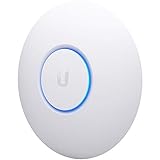
- Four stream 802.11AC Wave2 technology
- Supports 200+ concurrent users
- 802.3af PoE compatibility
- Optional covers (sold separately) allow the Unifi nanohd AP TO discreetyly blend into its setting
Mesh nodes report weak backhaul
Move the node toward the main AP, not deeper into the dead zone. Prefer Ethernet or a dedicated backhaul radio where possible.
2.4 GHz dominates
Check whether the client is too far from the AP, whether band steering is supported and working, and whether 5- or 6-GHz coverage is adequate. Do not solve a weak 5-GHz path by forcing every client onto a distant band.
DFS channels disappear
DFS protection may have detected or suspected radar activity, or the AP or client may have limited DFS support. Test a permitted non-DFS channel if predictable availability matters more than the additional channel choices.
A newer AP is faster but coverage is unchanged
That result is expected when the old AP was not the coverage bottleneck. Newer radios can improve peak throughput or efficiency near the AP, but walls, distance, client radios, and placement still control coverage.
Adding APs makes performance worse
Reduce channel width or transmit power, plan channel reuse, check wired uplinks, and remove unnecessary APs. More radios create more contention when their cells overlap excessively.
Should you choose mesh, wired Wi-Fi 6, or Wi-Fi 7?
Choose the system that can be placed correctly and connected reliably, not the system with the largest theoretical speed rating.
Do these 3 things before closing this tab:
1Scan for outdated or missing drivers - takes under a minute2Repair Windows errors before they cause bigger problems3Fix the driver behind crashes, sound loss and screen glitches| Choice | Best fit | When to avoid it | What to budget for |
|---|---|---|---|
| Simple consumer mesh | Ethernet is unavailable and convenience is the priority. | Demanding edge performance, detailed RF tuning, or a home that already has Ethernet. | Correct satellite placement and, ideally, a tri-band backhaul. |
| Wired Wi-Fi 6 APs | Homes with Ethernet that want strong value and predictable multi-AP performance. | Users unwilling to manage APs, PoE, or a controller ecosystem. | Ethernet runs, PoE injectors or switch capacity, mounting, and management. |
| Wi-Fi 7 APs | Compatible Wi-Fi 7 clients, 6-GHz use, high local throughput, MLO, and fast wired infrastructure. | Few compatible clients, slow uplinks, inadequate PoE, or a coverage-only problem. | Potentially faster Ethernet uplinks, PoE+, compatible switches, and client upgrades. |
Ubiquiti UniFi is a practical prosumer option for readers who want ceiling APs, centralized management, VLANs, and multiple wired APs. The current U6 Pro and U7 Pro product pages provide examples of the difference between Wi-Fi 6 and Wi-Fi 7 hardware, including their respective PoE accessory requirements: U6 Pro details and U7 Pro details. TP-Link Omada is another managed-AP ecosystem with ceiling, wall-plate, outdoor, and higher-capacity models; its current solution catalog shows why uplink speed, PoE, radio count, and mounting role should be compared together.
Product prices change by country, date, promotion, and included accessories. The commercial research associated with this article reported U.S. store results around August 2026 of $159 for the U6 Pro, $189 for the U7 Pro, and $149 for the older AC Pro, but those figures are not price guarantees and should be rechecked before publication or purchase. The total installation cost also includes cabling, PoE, mounting hardware, switch capacity, and possibly professional labor.
For difficult concrete homes, multi-story properties, detached buildings, or installations where cable routing is unsafe, a local structured-cabling or low-voltage contractor can be more valuable than another premium AP. A Wi-Fi site survey is also worthwhile when ordinary measurements cannot explain persistent interference or roaming failures.
Frequently Asked Questions
Is −67 dBm a universal minimum for Wi-Fi?
No. The original Ars Technica guide cites −67 dBm as a useful target for strong performance, but the appropriate threshold depends on the application, channel width, client capability, noise, retries, and latency requirements. Signal strength alone does not guarantee good Wi-Fi.
Free tools Windows power users keep installed
One-click scans. No signup required.
Should a mesh satellite be placed in the dead zone?
No. A wireless mesh satellite should be placed where it still has a strong backhaul path to its upstream AP, usually partway between the router and the problem area. Placing the satellite inside the dead zone gives the satellite the same poor wireless path it is meant to repair.
Is Wi-Fi 7 better for coverage than Wi-Fi 6?
Not automatically. Wi-Fi 7 can improve peak throughput and efficiency for compatible clients, but Wi-Fi 7 still loses signal through walls and depends on client power, backhaul, channel conditions, and placement. A well-placed wired Wi-Fi 6 AP can outperform a badly placed Wi-Fi 7 AP.
How many access points should a two-story house have?
A two-story house should start with floor-by-floor planning rather than a fixed AP count. Test a centrally placed AP on each floor when possible, preferably with Ethernet backhaul, and add or remove APs according to measured coverage, capacity, latency, and roaming.
The Bottom Line
The best Wi-Fi placement plan starts with geometry and measurement, not a router’s speed label. Put APs centrally, high, and in the open; keep paths short; prefer Ethernet backhaul; use channel width and transmit power conservatively; and add APs only for a measured coverage, capacity, or structural need. Wi-Fi 6E and Wi-Fi 7 can improve a well-designed network, but neither can repeal the limits of walls, distance, airtime, or client hardware.
The Tool Desk
Outbyte Driver Updater FREEFix the driver behind crashes, sound loss and screen glitchesFind Drivers →Outbyte PC Repair FREERepair Windows errors before they cause bigger problemsFix Now →
