
Recommended Free Tools
iTechGuides is reader-supported. When you buy through links on our site, we may earn an affiliate commission. As an Amazon Associate I earn from qualifying purchases. Learn more
Bluetooth won’t connect to your phone when the accessory is not in pairing mode, is connected to another device, has a stale saved pairing, lacks a required permission or audio profile, or has a software, compatibility, range, or hardware problem. The fastest fix is to charge, restart, forget, and re-pair both devices.
Bluetooth problems are easier to solve when you identify the exact failure first. A device that never appears needs different treatment from one that pairs but produces no sound or disconnects after a few seconds.
Key takeaways
- Put the accessory into discovery or pairing mode; switching on Bluetooth on the phone alone does not make an accessory discoverable.
- Forget the saved pairing on the phone and remove the phone from the accessory or car’s stored-device list when a stale connection is suspected.
- Android and iPhone menu labels vary, but charging, close-range testing, restarting both devices, and pairing again are the safest first steps.
- Android can show separate Media audio and Phone audio controls, so a device can be connected while music or calls remain unavailable.
- Reset Wi-Fi and Bluetooth or network settings only after basic troubleshooting because the reset can erase saved Wi-Fi networks, passwords, Bluetooth pairings, and other wireless settings.
- Testing the phone with another accessory and the accessory with another phone is the quickest practical way to identify which device is failing.
Why won’t Bluetooth connect to your phone?
Bluetooth usually fails for one of five reasons: the accessory is not actually ready to pair, another nearby device has claimed it, the phone has a damaged or outdated pairing record, a required app or profile is disabled, or software, interference, incompatibility, or hardware is preventing the connection.
“Bluetooth won’t connect” can describe several different problems:
Popular on Amazon
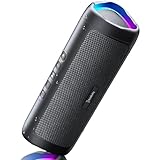
- [Immersive Sound & TWS Dual Pairing] Two full-range drivers deliver powerful, well-balanced sound with minimal distortion for music, movies and gaming. Pair two speakers together for true wireless stereo (TWS) - instant left and right channels that fill any room or backyard party.
- [IPX5 Waterproof & Built for Outdoors] Durable shell rated IPX5 against water splashes and spills - poolside, beach, shower steam and light rain are no problem (not for submersion). Rugged enough for camping, hiking and tailgates; just 13 oz to toss in any bag.
- [24-Hour Playtime & Bluetooth 5.3] Up to 24 hours per charge at 50% volume with lights off (expect less at full volume) plus a 100 ft wireless range on Bluetooth 5.3, stable through walls and outdoors. One press turns off the lights to stretch battery even further.
- [A Gift That Actually Gets Used] A dynamic LED light show pulses to the beat of the music and switches off with one button - party mode when you want it, invisible when you do not. A go-to white elephant gift, stocking stuffer, and Christmas or birthday gift for men, women, dads and moms.
- [Everything in the Box] 1 portable Bluetooth speaker, 1 Type-C charging cable, quick start guide and lifetime technical support. Built-in microphone for hands-free calls; 3.5mm AUX supported for non-Bluetooth devices (AUX cable not included).
- Bluetooth will not turn on: the switch is unavailable, grayed out, or immediately turns itself off.
- The accessory is not visible: the phone cannot find the accessory in the available-device list.
- Pairing fails: the accessory appears, but the PIN, confirmation, or pairing request does not complete.
- The device is paired but not connected: the two devices remember each other, but there is no active link at the moment.
- The connection drops: the devices connect and then disconnect, often because of range, battery, another host device, firmware, or hardware.
- The connection works but there is no sound: media audio is disabled or another output is selected.
- Calls do not work: phone-call audio is disabled or the car or accessory does not support the required calling profile.
- Only one app fails: the Bluetooth radio may work while an app lacks permission or requires its own setup process.
What should you try first?
Use this five-minute sequence before resetting anything:
- Charge both devices. A nearly empty phone, earbud case, headset, watch, or speaker may enter a restricted or sleep state.
- Move the devices close together. Pair them within a few feet and remove practical obstructions such as bags, walls, and metal objects. Samsung uses approximately 30 feet as a general Bluetooth range reference, but range varies with the devices, environment, obstructions, and interference; it is not a universal guarantee. Read Samsung’s Bluetooth troubleshooting guidance for its range and interference advice.
- Turn Bluetooth off and on again. This refreshes the phone’s Bluetooth radio without deleting saved pairings.
- Restart both devices. Power-cycle the phone and the accessory rather than restarting only the phone. Apple, Google, and Samsung all place restarting near the beginning of their troubleshooting guidance; see Apple’s accessory connection steps, Google’s Android Bluetooth guidance, and Samsung’s support instructions.
- Temporarily turn off Bluetooth on nearby devices. A laptop, tablet, old phone, smartwatch, or car may reconnect automatically and prevent the accessory from accepting your phone.
- Put the accessory into pairing mode. Powering an accessory on does not necessarily make it discoverable.
- Open the phone’s Bluetooth settings and pair again. Accept matching confirmation numbers or the requested PIN. Google identifies
0000and1234as common passcodes when a passcode is required, but the accessory manual takes priority.
Is the accessory really in pairing mode?
The accessory must normally be powered on, charged, close to the phone, and in discovery or pairing mode. The button combination differs by product: some headphones require holding the power button, some earbuds require opening the case or holding a case button, some cars start pairing from the vehicle display, and some keyboards have a dedicated pairing key.
Check the accessory’s manual or the manufacturer’s support page for the exact procedure. Apple specifically advises making a previously unpaired accessory discoverable according to the accessory’s instructions in its official Bluetooth accessory support guidance.
Also check these easily missed states:
- Earbuds may be asleep inside their charging case rather than discoverable.
- An accessory may still be in shipping or low-power mode.
- The accessory’s pairing memory may be full.
- A PIN prompt may be waiting behind another phone screen.
- A Bluetooth Low Energy accessory may need to be added through its official app instead of the ordinary Bluetooth menu.
- A hearing aid, fitness device, watch, or specialist accessory may require a vendor account or companion app before setup is complete.
Could another device be claiming the Bluetooth connection?
Yes. Many accessories automatically reconnect to the last phone, tablet, laptop, or car they recognize. Multipoint headphones can also switch between two active hosts. A car may retain an old phone, and the vehicle’s stored-device list may be full even after the phone has forgotten the car.
Turn off Bluetooth on nearby hosts temporarily, then clear obsolete records on both sides. For a car, remove unused phones from the phone’s Bluetooth list and from the vehicle’s stored-device menu. Google specifically recommends clearing old phones from both the Android phone and the car when car pairing fails; its Android Bluetooth and car troubleshooting page describes that process.
When the accessory has a full pairing list, use its documented factory-pairing or memory-clear procedure. Do not assume that forgetting the accessory on the phone also erases the accessory’s own memory.
How do you fix Bluetooth on an iPhone or iPad?
On an iPhone or iPad, use Settings > Bluetooth, forget the old device if necessary, restart both devices, and pair again while the accessory is nearby and discoverable.
Quick wins for a faster PC:
Fix the driver behind crashes, sound loss and screen glitchesFind Drivers →Repair Windows errors before they cause bigger problemsFix Now →Scan for outdated or missing drivers - takes under a minuteDriver Scan →- Open Settings > Bluetooth and make sure Bluetooth is on.
- Confirm that the accessory is charged, powered on, nearby, and in discovery mode.
- If the accessory uses a companion app, open Settings > Privacy & Security > Bluetooth and allow Bluetooth access for the app.
- If the accessory appears in the list, tap the Info button beside its name and select Forget This Device.
- Restart the iPhone or iPad and the accessory.
- Put the accessory back into pairing mode.
- Return to Settings > Bluetooth and select the accessory under available devices.
- Install available iOS or iPadOS updates and check the accessory manufacturer’s instructions for firmware updates.
Apple menu labels can differ across iOS releases and regional support pages. If the displayed path differs, search the Settings app for Bluetooth. If no Bluetooth accessory can connect, test a second known-good accessory; failure with several accessories points toward an iPhone or iPad software, radio, or hardware problem rather than one defective headset.
How do you fix Bluetooth on Android?
On standard Android, open Settings > Connected devices > Pair new device; on some phones the path is simply Settings > Bluetooth. Android menus vary by manufacturer and Android version, so use the Settings search field if the labels differ.
- Open Settings > Connected devices > Pair new device.
- If the accessory is missing, tap Refresh or Pair new device.
- Make sure the accessory is close, charged, powered on, and discoverable.
- Tap the accessory’s name and accept the pairing request.
- For a previously paired but disconnected device, open Saved devices, select the accessory, and tap Connect.
- To remove a damaged pairing record, open the accessory’s settings and choose Forget, then pair again.
- For a car, delete obsolete phones from the car’s Bluetooth memory as well as from Android.
- If the device connects without sound, open its settings and enable Media audio.
- If calls remain on the handset, open the device’s settings and enable Phone audio.
Google separates pairing, saved devices, media audio, phone audio, car connections, and Fast Pair in its current Android Bluetooth guidance. A successful pairing does not guarantee that every available feature works.
Why does Android Fast Pair not appear?
Google requires Bluetooth and Location for certain Fast Pair workflows, but Location is not a universal requirement for every ordinary manual Bluetooth connection. If Fast Pair does not appear, turn on Bluetooth and Location, keep the accessory nearby and discoverable, and then use Settings > Connected devices > Pair new device as the manual fallback. Google documents the Fast Pair requirement in its Fast Pair instructions.
What are the Samsung Galaxy Bluetooth steps?
On a Galaxy phone or tablet, open Settings > Connections > Bluetooth, forget the accessory, and pair it again. Samsung’s labels can vary by model and software version.
- Open Settings > Connections > Bluetooth.
- Tap the settings icon beside the accessory.
- Choose Forget device.
- Put the accessory into pairing mode and select it again.
- Install available phone and accessory updates.
- If the problem continues, open Settings > General management > Reset.
- Choose Reset Wi-Fi and Bluetooth settings, confirm the reset, and pair the accessory again.
Samsung’s Galaxy troubleshooting flow also covers range, charging, permissions, companion apps, Safe Mode, updates, and factory-reset escalation. The reset wording and location can differ by Galaxy model.
What does “paired” but not “connected” mean?
Paired means the phone and accessory have exchanged and stored identity information. Connected means they currently have an active Bluetooth link. A third state is profile connectivity: media audio, phone-call audio, keyboard input, or another supported function may be active or inactive separately.
Also popular on Amazon

- Outdoor-Proof Speaker: Portable design with IPX7 waterproof protection to safeguard against splashes, waves, and water vapor. Get incredible sounds at home, on camping trips, or for outdoor adventures.
- 24H Non-Stop Music: With Anker's world-renowned power management technology and a 5,200mAh Li-ion battery, the soundcore 2 speaker delivers a full day of great sound.
- Powerful Sound: The speaker features 12W power with enhanced bass from dual neodymium drivers. An advanced digital signal processor ensures pounding bass and zero distortion at any volume.
- Intense Bass: Our exclusive BassUp technology and a patented spiral bass port boost low-end frequencies to make the beats hit even harder. The soundcore 2 speaker delivers vibrant audio for home theater nights, beach parties, and sitting around a campfire.
- Grab, Go, Listen: A classic design refined with simple controls and effortless portability. Easy to use and take anywhere, and supports wireless stereo pairing.
For a paired-but-disconnected device, open the saved device entry and tap Connect. If connection fails, forget the device on the phone, clear the phone from the accessory’s memory when possible, restart both devices, and pair from the beginning.
Why is Bluetooth connected but there is no sound?
A Bluetooth connection can exist without active media audio. On Android, open the paired accessory’s settings and ensure Media audio is enabled; then select the Bluetooth accessory as the current media output. Also pause playback on other nearby devices that may have claimed the accessory.
Some accessories support phone calls but not music, or music but not calls. Google warns that not every car supports both Bluetooth music and Bluetooth calls in its Android car troubleshooting guidance. Check the car or accessory manual before treating a missing feature as a phone fault.
Why do Bluetooth calls fail when music works?
Calls fail when phone-call audio is disabled, the car or accessory does not support the required call profile, or the vehicle routes calls differently from media. On Android, open the accessory’s settings and enable Phone audio; on iPhone, check the call audio destination during a call and review the accessory’s supported functions.
If music works but calls do not, test another call-capable accessory and check the vehicle manual. A Bluetooth connection does not automatically mean that both media and call features are supported.
The Tool Desk
Outbyte Driver Updater FREEScan for outdated or missing drivers - takes under a minuteDriver Scan →Outbyte PC Repair FREERepair Windows errors before they cause bigger problemsFix Now →Why does Bluetooth connect and then disconnect?
A connection that drops immediately is more likely to involve range, interference, low battery, automatic reconnection to another host, multipoint behavior, outdated firmware, an accessory memory problem, or hardware than a simple Bluetooth toggle.
- Test with the phone and accessory within a few feet of each other.
- Charge both devices fully enough for testing.
- Turn off Bluetooth on other nearby phones, computers, tablets, and cars.
- Forget the pairing on the phone and delete the phone from the accessory or car.
- Restart both devices and install official firmware updates.
- Try the accessory with another phone.
If the accessory works only when it is very close to the phone, range, obstruction, interference, antenna performance, battery condition, or hardware becomes more likely. Samsung’s approximate 30-foot reference is an environmental guideline, not a promise that every accessory will work at that distance.
Does the accessory need a companion app or permission?
Some watches, earbuds, hearing aids, fitness trackers, and specialist accessories complete setup through an official companion app rather than the ordinary Bluetooth screen alone.
- Install the manufacturer’s official app.
- Sign in if the manufacturer requires an account.
- Grant Bluetooth, Nearby devices, or other requested permissions that match the phone’s operating system.
- Complete pairing inside the app when the manufacturer instructs you to do so.
- Update the app and accessory firmware through the official support process.
- Do not install unofficial “Bluetooth fixer,” driver, or repair apps.
Apple identifies Bluetooth permission for companion apps in its official accessory troubleshooting instructions, and Samsung notes that Galaxy watches and earbuds may require Galaxy Wearable or another support app in its Galaxy support guidance. A work-managed phone may also restrict Bluetooth or nearby-device permissions through company policy.
How do you troubleshoot a Bluetooth car connection?
Pairing a phone with a car often requires clearing records on both the phone and the vehicle, then starting pairing from the correct screen. Some vehicles require the pairing process to begin from the infotainment display rather than from the phone.
- Park safely before changing the vehicle’s settings.
- Delete unused phones from the car’s stored Bluetooth-device list.
- Forget the car from the phone’s Bluetooth settings.
- Restart the phone and the vehicle’s infotainment system if the manual permits it.
- Start a new pairing session from the vehicle screen when required.
- Check whether the car supports media audio, phone calls, or both.
- Install official infotainment or phone updates where available.
A full vehicle pairing list, old phone record, incompatible infotainment implementation, or unsupported Bluetooth profile can prevent a new connection even when the phone works correctly with earbuds.
What does Bluetooth compatibility actually depend on?
Bluetooth compatibility depends on supported profiles, operating-system version, accessory firmware, companion software, and the manufacturer’s implementation. The word “Bluetooth” alone does not guarantee that a phone, headset, hearing aid, keyboard, or car will support every feature together.
| Situation | What may differ | What to check |
|---|---|---|
| Music works, calls fail | Media and call profiles may not both be supported or enabled | Phone audio, car manual, and accessory call support |
| Manual pairing works, app setup fails | The app may require permissions, an account, or a supported OS | Official app requirements and Nearby devices or Bluetooth permission |
| Phone sees the accessory, but setup will not complete | The accessory may use Bluetooth Low Energy or proprietary setup | Manufacturer app and compatibility list |
| New phone cannot use an older accessory | Firmware, profiles, or operating-system support may differ | Both manufacturers’ compatibility documentation |
| Multipoint behaves unexpectedly | The accessory may switch between two active hosts | Supported multipoint limits and connected-device list |
Do not assume that a higher Bluetooth version number automatically guarantees backward compatibility or feature compatibility. Check the exact phone, accessory, operating-system, and vehicle documentation.
Free tools Windows power users keep installed
One-click scans. No signup required.
How can you tell whether the phone or accessory is broken?
The most useful practical isolation method is to cross-test both devices: try the suspect accessory with another phone and try the suspect phone with another known-good Bluetooth accessory. This is diagnostic reasoning, not a guarantee, but it separates phone-side and accessory-side faults faster than repeating the same reset.
Also popular on Amazon

- Wireless Bluetooth streaming
- 12 hours of playtime
- IPX7 waterproof
- Pair multiple speakers with party boost
- Premium JBL sound quality
| Test result | More likely explanation | Next action |
|---|---|---|
| Accessory fails with two different phones | Accessory battery, pairing memory, firmware, compatibility, or hardware fault | Reset the accessory according to its manual, update it, then contact the accessory maker |
| Phone fails with two different accessories | Phone software, settings, Bluetooth database, radio, or hardware fault | Update the phone, consider a network/Bluetooth reset, then contact the phone maker |
| Phone works with earbuds but not the car | Vehicle memory, infotainment software, compatibility, or car-side setting | Clear the vehicle’s stored phones and check the vehicle manual |
| Accessory works with another phone but not yours | Phone pairing record, permission, OS version, or compatibility issue | Forget and re-pair, check permissions and updates, then compare compatibility requirements |
| Music works but calls fail | Phone audio is disabled or the accessory or car lacks call support | Enable phone-call audio and verify supported profiles |
| Connection works only very close to the phone | Range, obstruction, interference, battery, antenna, or hardware problem | Test in a clear environment and compare with another accessory |
When should you reset network or Bluetooth settings?
Reset network or Bluetooth settings only after charging, restarting, forgetting and re-pairing, updating, and cross-testing. A wireless reset can clear stale or corrupted configuration, but it cannot repair a defective accessory or failed Bluetooth radio.
Before confirming a reset, record important Wi-Fi passwords and read the exact warning on the phone. Depending on the model and reset option, the process can remove:
- Saved Wi-Fi networks and passwords.
- Bluetooth pairings.
- Some mobile-network settings.
- Some VPN or other wireless configuration.
On supported Samsung Galaxy devices, the documented path is Settings > General management > Reset > Reset Wi-Fi and Bluetooth settings. Samsung explains the consequences and model-specific variations in its reset and Bluetooth troubleshooting documentation. On iPhone, use Apple’s current support instructions for the applicable network reset option rather than assuming that the reset is harmless; iOS labels can change between releases.
Do these 3 things before closing this tab:
1Fix the driver behind crashes, sound loss and screen glitches2Clear out junk files and repair common Windows errors3Scan for outdated or missing drivers - takes under a minuteIs a factory reset necessary?
A factory reset should be the final software step, not a standard Bluetooth fix. Consider it only after multiple known-good accessories fail, the phone is updated, pairings have been recreated, network or Bluetooth settings have been reset, official support has been checked, and important data has been backed up.
A factory data reset returns the phone to its original factory state and erases personal data and settings. Samsung places factory reset after less destructive troubleshooting and warns about the return-to-factory-state consequence in its official troubleshooting flow. If Bluetooth hardware is damaged, a factory reset will not make the radio work again.
When should you stop troubleshooting and contact support?
Contact the phone manufacturer, accessory manufacturer, vehicle maker, carrier, or an authorized repair provider when the appropriate device fails consistent cross-tests or when the problem involves safety-critical equipment.
- Bluetooth cannot be enabled or the switch immediately turns off.
- The phone fails with several known-good accessories.
- The accessory fails with several phones.
- The problem began immediately after a firmware update and remains after the official recovery steps.
- The phone or accessory has suffered liquid damage, impact, or possible antenna damage.
- A hearing aid or other safety-critical device will not maintain a reliable connection.
- A hands-free driving connection fails and cannot be verified safely.
Use the relevant official support channel rather than a generic repair app: Apple Support, Google Pixel Help, or Samsung Support. For an accessory or car, the accessory or vehicle manufacturer is usually the source for reset instructions, firmware, and compatibility details.
What’s actually slowing this PC down?
Pick the symptom - the matching free tool is one click away.
Bluetooth troubleshooting checklist
- Charge the phone and accessory.
- Move them within a few feet and reduce obstructions.
- Turn Bluetooth off and on.
- Turn off Bluetooth on nearby competing devices.
- Restart both devices.
- Put the accessory into its real pairing mode.
- Forget the old pairing on the phone.
- Delete the phone from the accessory or car’s stored-device list.
- Pair from the correct iPhone, Android, or Galaxy settings screen.
- Enable Media audio for music and Phone audio for calls where Android provides those controls.
- Check companion-app permissions and official firmware updates.
- Test the accessory with another phone and the phone with another accessory.
- Reset Wi-Fi and Bluetooth or network settings only after recording passwords and understanding what will be erased.
- Back up before considering a factory reset, and contact the appropriate manufacturer when cross-testing indicates hardware or compatibility trouble.
Frequently Asked Questions
Why is my Bluetooth device visible but unable to pair?
A visible Bluetooth device may still fail to pair because it has a stale saved record, is connected to another host, has a full pairing memory, or requires a different PIN or companion app. Forget the device on the phone, remove the phone from the accessory or car, restart both devices, and pair again in discovery mode.
Do I need Location turned on for Bluetooth to work on Android?
Location is required for certain Google Fast Pair workflows, but Location is not universally required for every ordinary manual Bluetooth connection. If Fast Pair fails, turn on Bluetooth and Location or pair manually through Settings > Connected devices > Pair new device.
Will resetting network settings fix Bluetooth?
A network or Bluetooth reset can clear stale wireless configuration, but it is not guaranteed to fix Bluetooth. The reset can erase saved Wi-Fi networks and passwords, Bluetooth pairings, and other wireless settings, so use it only after basic troubleshooting and record important passwords first.
Why does Bluetooth connect but not play music?
Bluetooth can be connected while media audio is disabled or another device is selected as the output. On Android, open the paired accessory’s settings and enable Media audio; also check whether the accessory or car supports music rather than only calls.
PC Slower Than It Used to Be?
A free scan shows the junk files, broken settings and background clutter dragging Windows down - then fixes them in one click.Free scan · Windows 10 & 11Outdated Drivers Are Slowing You Down
One free scan finds every outdated or missing driver and matches the right update for your exact hardware.Free scan · exact hardware matchHow do I know whether my phone or Bluetooth accessory is faulty?
Test the accessory with another phone and test the phone with another known-good accessory. If the accessory fails with several phones, suspect the accessory; if the phone fails with several accessories, suspect phone software, settings, the Bluetooth radio, or phone hardware.
The Bottom Line
Start with the least destructive fixes: charge both devices, pair at close range, disable nearby competing connections, restart the phone and accessory, and use the accessory’s actual pairing mode. Then forget the pairing on both sides, check app permissions and media or call profiles, and cross-test with another device. Reserve wireless resets and factory resets for later, and seek manufacturer support when multiple known-good devices fail or the hardware may be damaged.

