
iTechGuides is reader-supported. When you buy through links on our site, we may earn an affiliate commission. As an Amazon Associate I earn from qualifying purchases. Learn more
Streaming your CD collection through Bluetooth requires either a CD player with an explicitly documented Bluetooth transmitter or an external Bluetooth transmitter connected to the player’s audio output. A Bluetooth receiver alone will not send CD audio to headphones or a speaker; it only accepts audio from another device.
There are two practical ways to listen wirelessly: play each physical disc directly through a transmitter, or rip the collection to a computer or music server and use Bluetooth for the final wireless connection. The first route is quicker; the second gives you search, playlists, shuffle, backups, and easier access to a large library.
Key takeaways
- A Bluetooth transmitter sends audio from a CD player to headphones or a speaker, while a Bluetooth receiver accepts audio from a phone or computer and sends it to wired equipment.
- An existing CD player can usually be adapted with a transmitter connected through its 3.5-mm headphone, RCA line, or optical output.
- A CD player described only as a “Bluetooth CD player” may support Bluetooth input rather than Bluetooth output, so specifications must explicitly say transmitter, TX mode, or Bluetooth audio output.
- Ripping CDs to a computer creates a searchable library, but the resulting files require metadata management and at least one separate backup.
- Bluetooth codec support depends on both ends of the connection; Bluetooth 5.0, 5.3, or 5.4 alone does not guarantee better sound quality or lossless transmission.
What is the best way to stream your CD collection through Bluetooth?
The best setup depends on whether “streaming” means playing discs directly or creating a digital library. For occasional listening, keep the CD player and add a Bluetooth transmitter. For a large collection, rip the CDs to a computer or music server, then pair the computer with Bluetooth headphones or a speaker.
Do these 3 things before closing this tab:
1Scan for outdated or missing drivers - takes under a minute2Repair Windows errors before they cause bigger problems3Fix the driver behind crashes, sound loss and screen glitches| Situation | Recommended setup | Main advantage | Main limitation |
|---|---|---|---|
| Keep an existing CD player | CD player plus external Bluetooth transmitter | Smallest change and usually the lowest cost | The disc must stay in the player |
| Replace an old compact player | CD player with documented Bluetooth transmit mode | Fewer cables and separate boxes | Many “Bluetooth CD players” are receivers only |
| Manage hundreds of discs | Rip CDs to a computer or music server | Search, playlists, shuffle, and backups | Requires a one-time ripping and metadata project |
| Listen in several rooms | Network music server or multiroom platform | Better library distribution and synchronization | More equipment, setup, and cost than Bluetooth |
| Two listeners at once | Transmitter with documented dual-link support | Can send to two compatible receivers | Ordinary transmitters may support only one receiver |
What is the difference between a Bluetooth transmitter and receiver?
A Bluetooth transmitter, often marked TX, sends audio from a source such as a CD player, television, or computer to Bluetooth headphones or a speaker. A Bluetooth receiver, often marked RX, accepts audio from a phone, tablet, or computer and produces audio through wired headphones, an amplifier, or speakers.
Popular on Amazon
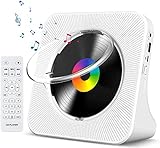
- Multi-functional CD Player: 1.Desktop CD Player, 2.Bluetooth 5.0 HiFi Speaker, 3. FM Radio, 4.TF card Music Player, 5.USB Flash Drive Player, 6. 3.5mm Audio Player. Support CD,CD-R,CD-RW,MP3,WMA.
- Dual Mode Bluetooth CD Player: It's a Bluetooth transmitter and receiver. Built-in dual Hi-Fi Bluetooth speakers, which can be connected with Bluetooth-enabled devices such as mobile phone or tablet. It will work as a wired speaker. As Bluetooth transmitter, it can be connect with your Bluetooth earphone or speaker.
- Desktop Design & Designed with a clear display screen: Desktop design with update also can as a Bluetooth transmitter, one plays all multiple functions of remote control. Easy to stand on the desk without Assembly or other support. Built-in LCD display shows track number, play time, and mode – always keep your music in view.
- Wired Speaker: Connect the CD player to other external wired devices such as mobile, tablet or laptop via 3.5mm male-to-male audio cable, it will work as a wired speaker. (Notice: Remote control does not included batteries)
- Great Gift: This Gueray CD Player is a perfect gifts for everyone. It supports remote control within 5 meters, A-B repeat, suitable for language learning, prenatal education / antenatal training, early education, FM radio broadcast.
A receiver-only adapter cannot make a non-Bluetooth CD player work with wireless headphones. For this project, look for product descriptions containing Bluetooth transmitter, TX mode, Bluetooth audio output, connect to headphones or speakers, or A2DP transmission support. A transceiver supports both TX and RX, but the adapter must be switched to TX mode before pairing.
Yamaha’s Bluetooth transmission guidance describes transmission as output to compatible Bluetooth speakers or headphones and identifies A2DP and SCMS-T compatibility requirements for supported MusicCast equipment. The exact profiles and codec support still vary by product.
Which CD player outputs can connect to a Bluetooth transmitter?
Inspect the front and back of the CD player before buying an adapter. The available output determines which cable or transmitter input you need.
What’s actually slowing this PC down?
Pick the symptom - the matching free tool is one click away.
| CD player output | What you need | Practical considerations |
|---|---|---|
| 3.5-mm headphone jack | Transmitter with a 3.5-mm input | Simple and inexpensive; volume may depend on the CD player, transmitter, or headphones. |
| Red-and-white RCA line output | RCA-to-3.5-mm cable or RCA-compatible transmitter | Use the connectors labeled output, not an RCA input. Line output is normally fixed-level. |
| Optical digital output | Transmitter with optical or TOSLINK input | Can avoid analog cable-level problems, but the transmitter needs compatible digital input and power. |
| Coaxial digital output | Transmitter that explicitly supports coaxial input | Do not assume an optical-only transmitter accepts coaxial audio. |
| USB port | Only a transmitter specifically designed for USB audio | A USB charging port is not necessarily an audio output. |
| Built-in Bluetooth TX | No external transmitter | Pair the player directly with headphones or a speaker. |
Optical is a convenient choice when both devices support it, RCA is a sensible choice on a component CD player, and a headphone jack is often the easiest option on a portable or compact player. Do not assume optical is automatically better: the wireless Bluetooth codec remains a separate stage after the cable connection.
How do you connect an existing CD player to Bluetooth?
Use an external Bluetooth transmitter when the CD player has no built-in Bluetooth transmit mode. The transmitter needs an audio connection to the CD player, power, and a compatible Bluetooth receiver such as headphones or a speaker.
Equipment checklist
- CD player with a usable headphone, RCA, optical, or supported coaxial output
- Bluetooth transmitter with a matching input
- Appropriate audio cable, such as 3.5-mm, RCA-to-3.5-mm, or optical
- USB power or the transmitter’s supplied power adapter
- Bluetooth headphones, earbuds, or speaker that can receive stereo audio
Step-by-step connection
- Pause or turn off the CD player.
- Connect the transmitter’s input to the correct CD-player output. Use a 3.5-mm transmitter on the headphone jack, an RCA-to-3.5-mm cable on red-and-white line outputs, or an optical cable on an optical output.
- Connect the transmitter to power. A USB connector may provide power only; it does not necessarily carry audio.
- Set the adapter to TX or transmitter mode if the adapter has separate TX and RX settings.
- Put the headphones, earbuds, or speaker into Bluetooth pairing mode.
- Hold the transmitter’s pairing button until its indicator begins flashing or the manual indicates pairing mode.
- Wait for the transmitter and receiver to connect. Pairing is often easiest with nearby phones and tablets temporarily disconnected or with Bluetooth disabled.
- Start the CD and confirm that sound comes from the wireless device.
- Adjust volume at the headphones or speaker. If the transmitter is connected to the CD player’s headphone jack, raise the CD player’s headphone volume if necessary.
Transmitter inputs, power requirements, buttons, and indicator lights are model-specific. Avantree’s transmitter documentation distinguishes TX and RX operation, while its cable and operating documentation shows that the supplied connection method depends on the source and model.
Connection diagram
CD player headphone/RCA/optical output
                 │
                 │ audio cable
                 ▼
       Bluetooth transmitter in TX mode
                 │
                 │ Bluetooth audio
                 ▼
       Bluetooth headphones or speaker
How do you use a CD player with built-in Bluetooth transmission?
A CD player with built-in Bluetooth transmit mode pairs directly with Bluetooth headphones or a speaker, but the player’s manual must confirm that the feature sends CD audio outward.
- Turn on the Bluetooth headphones or speaker and activate pairing mode.
- Insert a CD and begin playback if the player requires active CD playback before transmission is available.
- Activate Bluetooth transmit, BT TX, or the model’s equivalent setting.
- Select the headphones or speaker from the player’s device list when prompted.
- Wait for the connection indicator to become steady or for the player to report a successful connection.
- Play a track and set the listening volume.
Some model manuals make transmit mode available only during CD or USB playback, and some specify a first-connection delay of 10–30 seconds. Button combinations and reconnection behavior vary, so follow the manual for the exact model rather than applying a universal sequence. A documented example is the CD-player manual filed with the FCC.
Also popular on Amazon
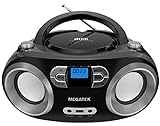
- Simple & Stylish – Large buttons, top dials, and backlit LCD for easy use. Portable, compact design fits any space—perfect for home, shop, or on-the-go music.
- Crisp Stereo Sound – Dual 3" front-firing speakers deliver clear, balanced stereo sound, with 5 EQ modes for customized audio effects.
- Top-Loading CD Player – Plays CDs, CD-R/RWs, CD-G, audiobooks, and MP3/WMA discs, with shuffle, repeat, and resume functions for flexible playback.
- FM Radio – Digital FM tuner with 30 station presets for news, talk, and music programming. Note: AM not supported.
- Bluetooth Wireless – Enjoy wireless playback from your smartphone, tablet, or laptop. Note: No transmitter function.
Product names are not enough. A device marketed as a “Bluetooth CD player” may use Bluetooth only as an input, allowing a phone to play through the CD player’s speakers. A product must explicitly mention Bluetooth transmission to headphones or speakers. GPX, for example, specifically describes streaming CDs to Bluetooth headphones or speakers on its Bluetooth CD/MP3 player page.
Should you rip your CDs instead of playing the discs directly?
Rip the collection when searchable albums, playlists, shuffle, backups, or access from several listening locations matter more than immediate setup. Direct playback is better when you listen to individual discs occasionally and want to avoid a large digitization project.
The digital route changes the signal chain:
Audio CD → computer or CD-ripping music server → music library
         → computer Bluetooth or USB Bluetooth transmitter
→ headphones or speaker| Direct disc playback | Ripped-library playback |
|---|---|
| Insert one disc and play it | Search by artist, album, track, or genre |
| Little preparation | Requires ripping, metadata review, storage, and backups |
| Disc remains in the player | Playlists, shuffle, and repeated access are easier |
| Bluetooth is the main added component | Bluetooth is only the final wireless hop unless the library is networked |
How do you rip CDs in Windows Media Player?
Windows Media Player can rip audio CDs to WMA, WAV, or MP3, and Windows saves the resulting files to the Music folder by default unless the location is changed. Microsoft documents the following workflow:
Quick wins for a faster PC:
Fix the driver behind crashes, sound loss and screen glitchesFind Drivers →Clear out junk files and repair common Windows errorsFree Scan →- Open Windows Media Player.
- Insert an audio CD into the computer’s disc drive.
- Select Rip CD.
- For future discs, open Rip settings and choose Format or Audio Quality.
- Clear any tracks you do not want to copy.
- Check the album, artist, and track information before starting or after the rip.
- Repeat the process for each disc.
- Back up the resulting Music-folder files to a separate drive or other suitable backup location.
Microsoft’s CD-ripping documentation notes that rip settings apply to new tracks; Windows Media Player does not change the format or quality of files that were already ripped.
WAV is uncompressed and widely supported but uses more storage and may be less convenient for metadata. MP3 is broadly compatible and smaller but uses lossy compression. FLAC or ALAC can preserve CD-quality audio in a lossless format with more efficient storage than WAV, although support varies between players and applications. A practical long-term approach is one archival or lossless copy, optional smaller copies for incompatible devices, consistent metadata, and at least one separate backup.
Ripping a lossless file does not make the Bluetooth hop lossless. The file format and Bluetooth transmission are separate stages, and the receiving device may use a lossy codec. Follow the copyright law that applies where you live; Microsoft warns that unauthorized copying or duplication of copyrighted material may violate U.S. or international law.
How do you play ripped CDs through Bluetooth on Windows?
Pair the Bluetooth headphones or speaker in Settings → Bluetooth & devices, select the device as the active Windows sound output, and start the ripped files in your music application. If the computer speakers continue playing, open the Windows sound-output selector and choose the Bluetooth device. Labels can vary by Windows edition and update, but the required function is always the same: pair the receiver and make it the active audio output.
The Tool Desk
Outbyte Driver Updater FREEFix the driver behind crashes, sound loss and screen glitchesFind Drivers →Outbyte PC Repair FREERepair Windows errors before they cause bigger problemsFix Now →How do you play ripped CDs through Bluetooth on a Mac?
On macOS, open System Settings → Bluetooth, put the headphones or speaker into pairing mode, select Connect, then open System Settings → Sound → Output and select the Bluetooth device. Open the music application and play the ripped files. Menu names can change between macOS releases, so use the Bluetooth and Sound output sections if the labels differ.
Also popular on Amazon

- 【Multifunctional portable CD player】ZYOKATA portable CD player features CD, Bluetooth 5.1, dual stereo speakers, USB disk playback, TF card playback, 3.5mm Aux & headphone jack, FM radio, timer, dust cover and remote control, etc. The CD function is widely compatible with CD, CD-R, CD -RW, MP3, WMA and other five CD formats.
- 【Bluetooth CD Player】Built-in dual stereo speakers with two-way Bluetooth 5.1 (transmit + receive) stable connection, long transmission range, low power consumption. Transmits audio to Bluetooth headphones/speakers, or works as a Bluetooth speaker to receive music from your phone/tablet.
- 【Desktop design】 ZYOKATA portable CD player has a 75-degree angle desktop design, no assembly required, placed on the desktop not only saves space but also can be used as a stand-up speaker to play music.
- 【Flexible Power】Powers via outlet or power bank (USB port) enjoy music anywhere, anytime. Comes with a remote control switch freely between all playback modes from your couch. Effortless control at your fingertips.
- 【Great present】 Portable CD player can be the best present for children, the elderly and friends, the use of a wide range of scenarios, not only in the function of your needs, there is a nostalgic memories of childhood.
What if the computer has no Bluetooth?
Use a USB Bluetooth transmitter designed for computer audio rather than a generic Bluetooth receiver. A product such as the Creative BT-W5 is marketed as a USB transmitter for Windows and Mac computers, with A2DP and AVRCP support, but a USB computer transmitter is not a general-purpose RCA or optical adapter for a standalone CD player. Avantree’s DG60P documentation is another example of a USB computer transmitter.
How do Bluetooth codecs affect CD sound?
Both the transmitter and the headphones or speaker must support a compatible Bluetooth audio profile, normally A2DP for stereo music. The devices negotiate a codec from their shared capabilities; support for aptX, aptX HD, aptX Adaptive, LDAC, AAC, or SBC at one end does not guarantee that codec will be used.
- Bluetooth 5.0, 5.3, or 5.4 is a wireless-version label, not a guarantee of higher sound quality.
- A newer Bluetooth version does not automatically give an older speaker support for a newer codec.
- A lossless CD rip can still be encoded into a lossy Bluetooth stream.
- Low-latency modes matter mainly for video, games, and live monitoring; ordinary music listening usually does not require them.
- Bluetooth can add a short delay when playback starts, pauses, or changes tracks.
Creative’s BT-W5 documentation illustrates negotiated codec modes with different indicator colors for aptX Adaptive high-quality and low-latency operation. A codec’s maximum sample-rate specification is not a guarantee of audible performance in every device combination.
Free tools Windows power users keep installed
One-click scans. No signup required.
How far can Bluetooth transmit from a CD player?
Bluetooth range depends on walls, floors, metal furniture, appliances, radio interference, antenna placement, body position, and battery-saving behavior. A speaker that remains connected to a phone can also appear unreliable even when the transmitter is nearby.
Manufacturer range figures are estimates under stated conditions, not guaranteed indoor distances. Avantree lists up to 100 feet/30 meters for some Class 1 transmitter products, while other products are rated around 10 meters; Avantree’s published range information should be treated as a product-specific best-case rating rather than a promise for every room.
How do you troubleshoot Bluetooth CD playback?
| Symptom | Likely cause | Recovery steps |
|---|---|---|
| CD player or transmitter will not pair | Receiver is still connected to a phone; adapter is in RX mode; another saved device is being selected | Disable nearby phone and tablet Bluetooth, forget old pairings, reset both devices, confirm TX mode, and pair at close range. |
| Speaker connects but there is no sound | CD is paused; cable is in an input; wrong transmitter input is selected | Start the disc, verify the cable runs from an output to the transmitter input, select the correct input, and check mute and volume. |
| Sound comes from the CD player’s speakers | Built-in Bluetooth is receiver-only, or transmission mode is not enabled | Search the manual for transmitter, Bluetooth output, TX, or pair headphones. Do not rely on the product title alone. |
| Audio is too quiet | Low headphone-jack level, fixed line output, independent headphone volume, or wrong RCA connection | Raise headphone output volume where available, adjust receiver volume, and use a line-level output with a compatible transmitter when appropriate. |
| Audio cuts out | Distance, walls, interference, low battery, or competing connection | Move the receiver closer, remove obstructions, charge both devices, and disconnect unused Bluetooth devices. |
| There is noticeable delay | Normal Bluetooth buffering or incompatible low-latency modes | Use a wired connection for the lowest latency, or use a low-latency codec supported by both transmitter and receiver. |
| Only one headphone works | Transmitter supports one receiver, or dual-link compatibility is missing | Check for explicit dual-link support; otherwise use a dedicated two-headphone system. |
Why does a speaker pair with a phone but not the CD player?
The CD player may be a Bluetooth receiver rather than a transmitter, the external adapter may still be in RX mode, or the speaker may remain connected to the phone. Temporarily disable Bluetooth on nearby phones and tablets, forget the old transmitter pairing on the speaker, reset the devices, confirm TX mode, and pair again at close range.
Why is there no sound after successful pairing?
Successful pairing does not prove that the CD audio signal reaches the transmitter. Confirm that the disc is playing, the cable is connected to an output, the transmitter has the correct input selected, the optical connection is receiving a supported digital signal, and the speaker or headphones are not muted.
Outdated Drivers Are Slowing You Down
One free scan finds every outdated or missing driver and matches the right update for your exact hardware.Free scan · exact hardware matchPC Slower Than It Used to Be?
A free scan shows the junk files, broken settings and background clutter dragging Windows down - then fixes them in one click.Free scan · Windows 10 & 11Can Bluetooth control the CD player?
Bluetooth control is not guaranteed. AVRCP may provide play, pause, or volume commands, but behavior varies among the transmitter, CD player, headphones, and speaker. Plan to control track selection from the CD player or its remote unless the manual explicitly confirms remote-control support.
Also popular on Amazon

- CD Playback – Supports CD, CD-R/RW, CD-G, MP3 CDs, and audiobook CDs, and plays MP3, WMA, and WAV audio files. Includes resume play, shuffle, repeat, program, and introductory playback modes.
- USB Playback – Play MP3, WMA, and WAV audio files directly from a USB flash drive (up to 128GB, FAT32) for flexible digital playback. (Note: The standard USB port is for music playback only, not for charging.)
- Bluetooth RX/TX – Stream music from your phone or tablet, or transmit CD/USB audio to Bluetooth headphones or speakers. Not compatible with Bluetooth car stereos.
- FM Transmitter – Broadcast music wirelessly to a nearby FM car stereo or home stereo system on a clear frequency. Note: This unit does not have FM radio reception.
- Extended Listening – Built-in 2000mAh rechargeable battery provides up to 15 hours of use on a single charge, with a battery level indicator for easy monitoring. USB-C charging cable included.
When is Bluetooth not the best choice?
Bluetooth is well suited to one nearby listener, but Bluetooth alone is not a lossless whole-home music-library system. A networked music server or Wi-Fi multiroom platform is usually better for synchronized rooms, searchable libraries available at several locations, and larger household setups.
| Priority | Better fit | Why |
|---|---|---|
| Private listening | Bluetooth transmitter plus headphones | Simple and avoids disturbing other people. |
| Room-filling sound | Bluetooth transmitter plus speaker | Easy nearby playback, subject to placement and codec limits. |
| Whole-home playback | Network music server or multiroom platform | More suitable for distribution and synchronized playback. |
| Two listeners | Explicit dual-link transmitter or dedicated two-headphone system | Ordinary transmitters may support only one receiver. |
| Lowest latency or a wired signal path | Wired DAC, amplifier, or headphones | A wired path avoids Bluetooth buffering and codec negotiation. |
Supported Yamaha MusicCast products can transmit Bluetooth audio to speakers or headphones, but Yamaha notes that Bluetooth input and Bluetooth transmission cannot be used simultaneously on supported devices. Check similar limitations before assuming a network or amplifier ecosystem can perform every Bluetooth function at once.
Which equipment category fits your collection?
| Equipment category | Best use | Check before buying |
|---|---|---|
| Basic 3.5-mm or RCA Bluetooth transmitter | Adding wireless headphones or a speaker to an existing CD player | TX mode, input type, power, one- or two-device support |
| Optical-capable transmitter | CD players with optical output | Optical input, supported signal format, volume behavior |
| CD player with built-in Bluetooth output | Replacing an old compact player | Explicit CD-to-headphone or speaker transmission |
| USB computer transmitter | Ripped files from Windows or macOS | USB audio support, operating-system compatibility, receiver codec support |
| CD-ripping network server | Large libraries without leaving a computer running | Storage, backup process, network platform, and Bluetooth or other output options |
Commercial examples illustrate the range of choices, but availability and specifications should be checked again before purchase. The Avantree Oasis Plus 2 is positioned as a more feature-rich optical/AUX transmitter; Audikast and HT418-series products cover simpler transmitters and bundles; the Creative BT-W5 targets computer USB audio; and the GPX PCB319B targets buyers replacing a compact CD player with a model that explicitly describes Bluetooth transmission.
For a higher-end integrated system, the SMSL PL200 MK2 combines CD playback, DAC and headphone functions with two-way Bluetooth. For a large library, the Bluesound VAULT 2i is a substantially more expensive CD-ripping and network-library category, while compatible Yamaha MusicCast or Marantz network products may suit readers already committed to those ecosystems. These products solve different problems, so a premium CD/network player is unnecessary when the only goal is sending one existing player to one nearby speaker.
What should you check before purchasing?
- Write down the exact CD-player output: 3.5-mm headphone, RCA, optical, coaxial, or none.
- Confirm that the proposed adapter is a transmitter and has the matching input.
- Check whether the adapter supports one receiver or dual-link operation.
- Compare codec support on both the transmitter and headphones or speaker; do not shop by Bluetooth version alone.
- Check power requirements and whether the transmitter can remain powered near the CD player.
- Verify volume behavior, especially with fixed RCA line output or optical output.
- For a replacement CD player, search the manual or specifications for “Bluetooth transmitter,” “Bluetooth output,” or “TX mode.”
- For a computer library, decide on file format, metadata standards, storage, and backup before ripping dozens of discs.
Frequently Asked Questions
Can I connect a CD player directly to Bluetooth headphones?
You can connect a CD player directly to Bluetooth headphones only when the CD player has a Bluetooth transmitter or Bluetooth output mode. Otherwise, connect an external Bluetooth transmitter to the CD player’s headphone, RCA, or optical output.
Will a Bluetooth receiver work with a non-Bluetooth CD player?
A Bluetooth receiver alone will not send a CD player’s audio to wireless headphones or a speaker. A receiver accepts audio from a Bluetooth source; a non-Bluetooth CD player needs a Bluetooth transmitter operating in TX mode.
Can I play a whole CD collection through Bluetooth without changing discs?
You must rip the CDs to a computer or music server to browse the collection without changing discs. Direct Bluetooth playback keeps the disc in the CD player and normally requires selecting tracks from the player or remote.
Does Bluetooth 5.3 guarantee better CD sound than Bluetooth 4.2?
Bluetooth 5.3 does not by itself guarantee better sound than Bluetooth 4.2. Sound quality depends on the transmitter, receiver, negotiated codec, implementation, signal conditions, and the capabilities shared by both devices.
Can one Bluetooth transmitter connect to two headphones?
One Bluetooth transmitter can connect to two headphones only when the transmitter explicitly supports dual-link or two-device transmission. Many ordinary transmitters support only one Bluetooth receiver.
The Bottom Line
For the simplest upgrade, connect a TX-mode Bluetooth transmitter to the output already available on your CD player and pair it with headphones or a speaker. If you own a large collection, rip the discs to a computer or music server instead. In either case, verify transmitter functionality—not merely Bluetooth branding—before buying, and remember that Bluetooth’s codec and range limits remain separate from the quality of the original CD or rip.

