
iTechGuides is reader-supported. When you buy through links on our site, we may earn an affiliate commission. As an Amazon Associate I earn from qualifying purchases. Learn more
To learn how to print your own stickers at home, you need a compatible printer, printable sticker paper or vinyl, design software, and scissors; a Cricut or similar cutter is optional. The cheapest reliable setup is an existing inkjet printer, compatible sheets, a plain-paper proof, and careful hand-cutting.
Home printing works especially well for planner stickers, labels, packaging, gifts, prototypes, classroom projects, and short production runs. A cutting machine improves speed and consistency for shaped stickers, but a machine does not print the artwork: the printer prints, and the cutter detects registration marks before cutting.
The decisive rule is compatibility. Always check the package before loading material: Cricut’s printable sticker paper, printable vinyl, and waterproof sticker sets are specified for inkjet printers, while other manufacturers may offer media designed for laser printers. Using inkjet-only media in a laser printer can expose the sheet to heat it was not designed to withstand. Cricut’s printable-sticker guidance is a useful example, but the packaging for your exact product takes priority.
Key takeaways
- A printer, compatible printable sticker media, design software, and scissors are enough to make stickers at home; a Cricut is optional.
- Sticker paper is usually the economical choice for indoor projects, while printable vinyl is better suited to frequently handled smooth surfaces.
- Untreated inkjet stickers should not be treated as reliably waterproof; laminate can improve resistance to water and abrasion but does not guarantee unlimited outdoor or dishwasher-safe performance.
- Print a plain-paper proof at 100% or Actual Size before using an adhesive sheet, and test the printer’s loading direction with marked paper.
- Print Then Cut machines require compatible hardware, unobstructed registration marks, correct material settings, and calibration when cuts drift.
What do you need to print stickers at home?
The minimum setup is an inkjet printer unless the chosen media explicitly supports laser printing, printable sticker paper or printable vinyl, a computer, tablet, or phone, design software, plain paper for testing, and scissors, a craft knife, or a paper trimmer. HP’s basic workflow likewise lists a computer, design software, printer, sticker paper, and a hand or machine cutting method. HP’s home-sticker guide also identifies laminate or sealant as optional protection.
Popular on Amazon

- 🌟40 PIECES OF STICKER PAPER🌟 You will receive 40 sheets of white printable sticker paper that we have carefully prepared, it measures 8.5 "x 11". Each sheet is a full sheet of label sticker paper, and the liner and the sticker paper are seamless design, made of 100gsm thickened writing paper, you can use an electronic cutter or other cutting tools to cut out your favorite size and shape. Each sticker backing is printed with text to help differentiate between the creative print area and the backing and comes with an extra little orange reminder label to help you quickly peel off the backing.
- 🌟LASER/INKJET PRINTING🌟 Our sticker paper is very printer friendly, compatible with most laser/inkjet printers, prints clear and crisp, and there will be no curled edges or paper jams. Vibrant color effects to better showcase your creations. You can print your design on sticker paper for inkjet printer with peace of mind, and customize your unique drawing pattern.
- 🌟MATTE AND FAST DRYING🌟 The matte surface of the sticker paper won't be harsh, it's friendly to your eyes and others can better appreciate your creation. Our sticker paper is compatible with a variety of commonly used pens, you use pens, pencils, ballpoint pens, markers, and other writing instruments to carry out your creations, the ink can be quickly dry, eliminating the creation of splattered ink halo trouble. Sticker printer paper makes writing, drawing, and designing a simple task.
- 🌟STRONG BACKING🌟 The backing is made of strong self-adhesive adhesive, anti-slip, tear, or peel. The added easy-peel backing design makes the label stickers faster to peel off the liner and apply to glass, cardboard, metal, envelopes, cards, plastics, and other object surfaces. Plus the labels are smudge-free and non-yellowing, our self-adhesive label stickers stand the test of time.
- 🌟MULTI-PURPOSE🌟 Versatility is the hallmark of our sticker paper for printer, you can cut it into small labels for organizing and sorting sticker labels. use our multi-purpose self-adhesive labels for printer in schools, companies, and at home. Also can be used for warning labels.
| Item | Required? | Purpose |
|---|---|---|
| Compatible printer | Yes | Prints the artwork onto the coated sheet. |
| Printable sticker paper or printable vinyl | Yes | Provides the printable face and adhesive backing. |
| Design software | Yes | Sizes, arranges, and exports the artwork. |
| Plain paper | Strongly recommended | Lets you test size, orientation, margins, and cropping cheaply. |
| Scissors, knife, or trimmer | Yes | Separates finished stickers from the sheet. |
| Cutting machine | No | Automates shaped cuts, kiss cuts, and die cuts. |
| Laminate | No | Protects the printed face from some water and abrasion. |
Which sticker material should you choose?
The right material depends on where the sticker will be used, how it will be cut, and how much moisture or handling it must tolerate. Paper, printable vinyl, laminated vinyl, and clear media are not interchangeable.
| Material | Best for | Main advantage | Main limitation |
|---|---|---|---|
| Matte sticker paper | Planners, indoor labels, writing, temporary crafts | Economical, easy to print and hand-cut, usually easy to write on | Limited resistance to moisture, abrasion, and sunlight |
| Glossy sticker paper | Decorative stickers and bright-looking artwork | Can give colors a vivid, polished appearance | May smear before drying, reflect light, or challenge optical sensors |
| Printable vinyl | Smooth bottles, laptops, bins, containers, and durable labels | Plastic-like face and generally better handling resistance than paper | Costs more and may need more careful cutting |
| Laminated printable vinyl | Objects exposed to water or rubbing | Separate laminate protects the printed face | Requires an extra application step and still is not a guarantee of permanent outdoor performance |
| Clear printable media | Labels intended to look transparent | No opaque white background | Typical home printers do not print white, so white and light colors may look weak or transparent |
| Metallic or holographic media | Special-effect decorative work | Reflective or patterned appearance | Changes perceived color and can interfere with Print Then Cut sensors |
Sticker paper versus printable vinyl
Choose paper for indoor projects, low-cost experiments, planners, packaging inserts, and stickers that will not encounter much moisture. Matte paper is often practical for writing and hand-cutting; glossy paper can look brighter but needs careful drying.
Choose printable vinyl when the sticker will be handled frequently or applied to a smooth bottle, laptop, storage bin, or container. Printable vinyl is a printable sheet made for a printer. Ordinary solid-color adhesive vinyl is different: ordinary adhesive vinyl is normally cut as a material and cannot simply be fed through a printer.
Do these 3 things before closing this tab:
1Fix the driver behind crashes, sound loss and screen glitches2Clear out junk files and repair common Windows errors3Scan for outdated or missing drivers - takes under a minuteCricut’s printable-vinyl instructions describe printable vinyl as part of an inkjet and Print Then Cut workflow. Do not assume that every vinyl product is printable or that every printer can feed it.
What does waterproof sticker material actually provide?
Untreated inkjet sticker paper is not reliably waterproof. Printable vinyl may tolerate light moisture, but a waterproof-oriented set generally combines a printable vinyl sheet with a clear protective laminate. Cricut’s waterproof sticker instructions describe the laminate as the top layer applied over the printed vinyl before cutting.
Laminate can protect the printed surface from water and abrasion, and Cricut positions its specific set for uses such as bottles, bumper stickers, and outdoor labels. That positioning is not a promise that every home-printed sticker will survive dishwashers, pools, prolonged sunlight, vehicle use, or harsh abrasion. Adhesive, edge coverage, ink, surface preparation, UV exposure, and the exact product all affect the result.
How should you design stickers for printing?
Build the document at the final sheet size and inspect each design at its intended sticker size. For U.S. Letter media, set the page to 8.5 by 11 inches; use the equivalent size printed on the package in other regions. Do not let the design application silently resize the page during export or printing.
Also popular on Amazon

- Label size: 8.5" x 11", Sheet size: 8.5" x 11", 1 label = 1 sheet, total 30 sheets = 30 labels. Pre-scored peel tabs at sheet edges for effortless separation. You can cut it into custom size and shape with an electronic cutter or other cutting machines. Online templates are available, you can download in PDF, Word and PNG formats. Great for classroom projects, student name tags, and teacher supplies
- Compatible with most laser printers, inkjet printers, and color copiers — ideal for schools, classrooms, and teacher use. Jam free printing performance ensures smooth, hassle-free printing
- Printable and permanent adhesive white matte sticker paper. Supports pens, pencils, ballpoint pens, markers and various writing instruments. Ink dries quickly to avoid smudging; the labels are smudge-free and non-yellowing for long-term neat appearance. Perfect for classroom organization and student projects
- Features heavy-duty permanent self-adhesive. Labels stick extremely firmly to cardboard, envelope paper, carton, glass, metal and more surfaces, not easy to lift or fall off. Ideal for teacher supplies, classroom decorating, and student crafts
- Multipurpose Label: Can be printed and handwritten, great use as shipping labels, address labels, product labels, food labels, barcode labels, name labels, bottle labels, christmas gift greeting labels, box labels, fba labels etc. Perfect for classroom organization and school supplies
- Use high-resolution artwork and avoid enlarging a tiny image at the last moment.
- Leave a safe margin around the sheet edges because many printers cannot print to the extreme edge.
- Leave space between stickers for scissors, a trimmer, or a cutting path.
- Use a white outer border when you want a classic die-cut appearance.
- Use PNG when transparent artwork is useful, or PDF for a print-ready page.
- Make small text, thin outlines, and intricate silhouettes larger or simpler if they become unreadable at final size.
To make a white border, duplicate or expand the artwork outline, create a thicker outer shape, place the artwork over that shape, and use the outer shape as the cut boundary. In Cricut Design Space, create or import the border so the software knows which outline to cut. HP recommends arranging multiple designs on one page, leaving room between them, and saving in a high-quality format such as PNG or PDF. HP’s design recommendations support that layout approach.
Which software can make a sticker sheet?
| Software type | Good fit | Important consideration |
|---|---|---|
| Microsoft Word | Simple text, images, repeated labels, and basic shapes | Check page size and print scaling carefully. |
| Canva or similar browser tools | Templates and drag-and-drop layouts | Verify export dimensions and print settings. |
| GIMP or Inkscape | Free editing and more control over images or vectors | Requires more setup than a template tool. |
| Adobe Illustrator or Photoshop | Advanced vector artwork, reusable templates, bleed, and color workflows | More powerful but more complex. |
| Cricut Design Space | Cricut Print Then Cut projects | Needed for the Cricut cutting workflow; uploading your own artwork does not automatically require a subscription. |
No application can guarantee a particular color result. Export settings, the printer driver, ink, media coating, and paper profile all influence the finished sticker.
How do you print stickers and cut them by hand?
Hand-cutting is a legitimate production method for rectangles, circles, simple labels, one-off projects, and small batches. Follow these steps to avoid wasting adhesive sheets.
- Check the media. Read the package for inkjet or laser compatibility, maximum thickness, printable side, sheet size, and recommended feed path. If the printer has a rear, manual, or bypass feed, use it when the material instructions recommend it.
- Set up the page. Match the document to the sheet dimensions. For U.S. Letter, use 8.5 by 11 inches. Leave outer margins and enough space between designs.
- Make a plain-paper proof. Print the layout on ordinary paper. Check size, orientation, margins, cropping, color balance, and feed direction. Avery’s printer-settings guidance recommends checking the product page size and using 100% or Actual Size rather than automatic scaling.
- Choose printer settings. Select the correct sheet size, a media type close to the product—such as labels, matte photo paper, or glossy photo paper—and high or best quality for the final attempt. Use borderless printing only when the media and design support it.
- Load one sheet. Remove other paper if necessary, use the bypass path when appropriate, and confirm which side faces up. A sheet marked with an arrow can reveal the printer’s direction before you use the real material. Cricut advises testing the loading direction and feeding individual sheets for its printable materials.
- Print and let the ink dry. Keep the sheet flat and handle it by the edges. Drying time varies with ink, coating, humidity, and media, so do not apply laminate, stack sheets, or rub the surface immediately.
- Cut the stickers. Use a paper trimmer for rectangles, scissors for simple shapes, and a craft knife with a cutting mat for detailed silhouettes. A corner-rounding punch can make repeated labels consistent.
- Apply the stickers. Clean and dry the destination surface. Press from the center outward to limit bubbles, and avoid dusty, oily, wet, highly textured, or difficult low-energy surfaces unless the adhesive documentation specifically supports them.
How does Cricut Print Then Cut work?
Cricut Print Then Cut uses a home printer for the color print and a compatible Cricut machine for the cut. Design Space adds registration marks, the machine reads those marks, and the machine follows the chosen cut paths. Cricut’s Print Then Cut documentation confirms that the printer and cutter perform separate parts of the process.
The Tool Desk
Outbyte Driver Updater FREEScan for outdated or missing drivers - takes under a minuteDriver Scan →Outbyte PC Repair FREERepair Windows errors before they cause bigger problemsFix Now →Which Cricut machines support Print Then Cut?
Cricut identifies Explore machines, Maker machines, Venture, Joy Xtra, and Joy 2 among the Print Then Cut-compatible families in the supplied documentation. The original Cricut Joy does not support Print Then Cut. Waterproof Sticker Sets have additional compatibility requirements; Cricut lists Maker machines, Explore 3 and later, Venture, Joy Xtra, and Joy 2 for that material. Check current machine and material documentation before purchasing.
| Machine choice | Sticker-reader fit | Trade-off |
|---|---|---|
| No cutting machine | Rectangles, circles, simple labels, one-off work | Lowest cost, but hand-cutting takes time. |
| Cricut Joy Xtra | Full-color stickers with Print Then Cut and U.S. Letter or A4 materials | More proportionate than a larger machine for sticker-focused beginners, but still unnecessary for occasional simple labels. |
| Explore family | Print Then Cut plus general craft projects | More capability than Joy Xtra for broader crafting. |
| Maker family | Print Then Cut plus a wider range of tools and materials | Poor economic fit for sticker-only beginners unless the extra capabilities will be used. |
What is the difference between a kiss cut and a die cut?
A kiss cut cuts through the sticker layer while leaving the backing sheet intact, making a neat sticker sheet. A die cut cuts through both the sticker and its backing, producing individual loose stickers. Use the desired cut boundary and perform a small test cut because pressure, blade, material, and laminate thickness can change the result.
What is the exact Cricut sticker workflow?
- Open or create the artwork in Design Space and select Make It.
- Follow the print prompt and select the printer, media type, and quality in the printer dialog.
- Print the sheet with its registration marks and let the ink dry.
- Place the sheet on a LightGrip mat in the orientation shown on screen.
- Load the mat into the machine.
- Select the material setting matching the actual product. Cricut distinguishes Printable Sticker Paper, White with a green liner from Printable Sticker Paper, White with a gray liner, in addition to other printable-vinyl settings.
- Start the cut, unload the mat, and remove the finished stickers.
Do not cover or crop the registration marks. Dark, glossy, holographic, or laminated surfaces can make optical registration harder to read. Cricut specifically warns that darker, glossy, or holographic non-Cricut materials may cause sensor-reading problems.
Also popular on Amazon
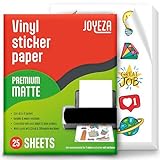
- WATER-RESISTANT PRINTABLE VINYL - This Super-Value Pack of Matte Printable Vinyl Sheets allows you to create Beautiful Water-Resistant Labels and Stickers for a variety of purposes both Indoors and Outdoors; Simply seal the sticker with a UV Resistant Sealer Spray to boost Waterproofness and Durability.
- HIGHLY DURABLE VINYL STICKER PAPER - Create Long-Lasting Color-True Product Labels, Vinyl Lettering, Wall Quotes, Photo Stickers, Custom Decals and File Folder Labels. Our Thick Matte Printable Vinyl is perfect for All of your Projects.
- SUPER EASY TO USE - Our Top-Quality Printable Vinyl for Inkjet Printer allows Ink to Dry Quickly. These sheets are Easy to Cut both by hand and with a Die Cutter Machine such as Cricut. Our unique Backing Layer makes Peeling a Breeze, and the High-Quality Glue makes application Simple and Smooth. Key Product Features
- COMPATIBLE WITH YOUR PRINTER - Our Inkjet Printable Vinyl is Guaranteed to Work Perfectly with your Inkjet and/or Laser Printer. Each self-adhesive Vinyl Sheet comes in the standard 8.5" x 11” measurement.
- LIFETIME FACTORY WARRANTY - All JOYEZA products come with a Lifetime Guarantee. If you have ANY problems with your Printable Vinyl Sticker Paper for the LIFETIME of the product.
How do you fix an off-center Cricut cut?
First confirm that the sheet orientation matches Design Space, the sheet is firmly attached to the mat, and the registration marks are unobstructed. If the cut remains consistently offset, recalibrate Print Then Cut. On desktop, Cricut places calibration under Menu > Settings > Machines > Machine Calibration; mobile navigation uses the Print Then Cut settings area. Cricut’s calibration instructions describe the calibration process. Matte white material is a useful diagnostic test when glossy or holographic media causes sensor errors.
Windows Errors? Fix Them Before They Spread
Repair common Windows errors and clear accumulated junk for a smoother, more stable PC - no reinstall needed.Free scan · no reinstallOutdated Drivers Are Slowing You Down
One free scan finds every outdated or missing driver and matches the right update for your exact hardware.Free scan · exact hardware matchDo not use transfer tape on printable sticker paper. Transfer tape is intended for transferring cut vinyl designs, not for lifting and applying ordinary printed stickers.
How can you make home-printed stickers more durable?
For greater water and abrasion resistance, print on compatible printable vinyl, allow the ink to dry, apply a matching clear laminate, and cut only after lamination. The laminate should cover the printed face evenly, but edge sealing, adhesive, surface preparation, sunlight, and rubbing still determine real-world life.
- Print on the printable vinyl or sticker sheet.
- Let the ink dry fully under the conditions of the actual material and printer.
- Align the laminate with one edge.
- Apply the laminate gradually with a brayer, soft scraper, or card.
- Work slowly to reduce bubbles and wrinkles.
- Trim the laminated sheet and cut the stickers.
Test the finished material instead of trusting a generic “waterproof” label. Place one sticker on the intended surface, expose another to water and rubbing, and check for bleeding, scratching, edge lifting, and laminate separation. For outdoor use, test a sample in sunlight for a meaningful period. A household water test cannot prove long-term UV durability.
Which printer ink is best?
Pigment-based ink is often favored for water and fade resistance, while dye-based ink can produce vivid color, but neither rule is universal. The media coating and laminate can matter as much as the ink formulation. Test the actual printer, ink, and sticker material together, and follow the printer manufacturer’s recommended media profile.
Why do sticker colors look dull?
Dull color can result from the monitor, application export settings, printer-driver settings, wrong media type, low ink, matte rather than glossy coating, or automatic color correction being applied twice. Try the correct media setting, a higher quality mode, fresh ink, and a small color-swatch sheet. Glossy media may look more vivid on one printer but not another, so test before committing a batch.
What should you do when sticker printing fails?
| Symptom | Likely causes | Recovery |
|---|---|---|
| Printer jams | Media too thick, curled sheet, multiple sheets, exposed adhesive, unsuitable feed path | Stop the job, follow the printer’s jam procedure, avoid pulling aggressively, then try one flat sheet through a manual or bypass feed after checking specifications. Discard damaged sheets with exposed adhesive. |
| Ink smears | Wrong media setting, insufficient drying, excessive ink, incompatible coating, laminate applied too soon | Allow more drying time, use the recommended media setting, lower quality if excessive ink is the problem, try compatible media, and handle by the edges. |
| Colors are dull | Wrong paper profile, low ink, color correction conflict, coating or artwork contrast | Print a swatch, test the correct media type, inspect ink levels, and avoid double color correction. |
| Sheet prints backward | Unknown printer feed direction | Mark ordinary paper with an arrow, print it, record the printed side and orientation, and load the sticker sheet the same way. |
| Cricut cut is offset | Calibration, wrong orientation, shifting mat, blocked marks, reflective media | Check orientation and mat adhesion, clear the marks, recalibrate, and test matte white material. |
| Machine cuts through backing | Wrong material setting, too much pressure, wrong blade, thicker laminate | Make a test cut, select the exact material, reduce pressure, and record any custom setting that works. |
| Sticker peels | Dust, oil, moisture, texture, unsuitable surface, weak adhesion, poor edge coverage | Clean and dry the surface, press from the center outward, and test the material on the target surface before making a batch. |
Is a cutting machine worth buying?
A cutter is a productivity and precision upgrade, not a prerequisite. Buy one when custom silhouettes, repeated batches, kiss-cut sheets, die-cut stickers, or consistent results justify the cost. Skip it when rectangles and circles meet the need, the project is a one-off, or scissors and a trimmer are already available.
Also popular on Amazon

- ANTI-CURL & JAM-FREE DESIGN: Our HTVRONT printable vinyl sticker paper has an anti-curling and anti-printer jam design with double sealing protection. The vinyl sticker paper comes in a sealed bag and built-in OPP bag to keep the sticker paper flat and prevent indentation during transportation. The Velcro on the printable sticker paper package enhances your shopping experience
- VIVID COLOR & WATER-RESISTANT: Our sticker printer paper produces exquisite and vivid decal sticker that are also water-resistant. You can boost its waterproofness and durability by laminating or adding a clear layer of UV resistant sealer spray. After drying for 24 hours, this waterproof sticker paper can withstand contact with water
- GREAT STICKINESS & EASY TO USE: Our glossy sticker paper has great stickiness and is suitable for both indoor and outdoor use. The printable vinyl for inkjet printer has a special combined printing process that integrates better with ink and has a longer life. It's also super easy to print and cut, compatible with all printers and craft cutters
- FAST DRYING & EASY PEELING: This glossy sticker paper for inkjet printer dries fast and has excellent ink absorbency, allowing printed images to stay vibrant and colorful on projects. Choose "Other photo inkjet paper" mode to get best print effect. The premium backing layer makes the vinyl sticker paper for inkjet printer much easier to peel off without curling
- VERSATILE & CREATIVE: Our htvront printable vinyl is a flexible and versatile that can be used to make creative signs, logos, and decals for business or customization. The printable sticker paper for inkjet printer can been sticked on any smooth and hard surfaces such as plastic, glass, wood, and metal. Perfect for craft projects, home decor, scrapbooking labels, wall murals, decals for cars, laptops, phones, and bumper stickers
The supplied commercial signals were observed for August 16, 2026 and are volatile rather than guaranteed prices. The official Cricut Joy Xtra page showed an observed machine-only price of $179 and bundles around $219–$229. The machine supports full-color stickers through a home inkjet printer and Print Then Cut and handles U.S. Letter and A4 materials. The original Joy is a poor sticker choice because it does not support Print Then Cut.
The official Cricut Maker page showed an observed Maker 4 sale price of $349 against a displayed $399 MSRP. Maker is difficult to justify for sticker-only beginners unless the reader also needs its broader material and tool capabilities. An Explore model may be more proportionate for Print Then Cut plus general craft work. A more expensive cutter does not automatically print better; printer, ink, artwork, and media determine print quality.
Free tools Windows power users keep installed
One-click scans. No signup required.
Material cost also varies by pack and promotion. The supplied official signals showed Cricut printable sticker paper at $4.19 sale for eight sheets, with a displayed $6.99 MSRP, and $14.39 sale for 50 sheets, with a displayed $29.99 MSRP. These figures are observed signals, not permanent prices. The larger pack makes more sense for batch testing; the smaller pack limits waste while you learn.
The supplied waterproof-material signals included $12.79 for one 20-count U.S. Letter listing and $6.99 for one six-count listing. Because pack sizes and promotions differ, calculate cost per usable sheet only after identifying the exact count. Add ink, laminate, failed sheets, and cutting time when estimating cost per sticker. Avery is another printable-label ecosystem with product-specific templates and printer-setting guidance, but the available source does not establish a single current Avery product price.
Cricut Access showed an observed signal of $9.99 per month with automatic renewal until canceled. Treat the subscription as an optional convenience for a built-in image and project library, not as a default requirement for uploading and cutting original artwork.
Can you sell stickers printed at home?
Home printing can work for prototypes, gifts, and small runs, but selling stickers adds requirements beyond the print process. Test production consistency, licensing for artwork, packaging, shipping, taxes, and the durability customers should reasonably expect. Describe the actual material and limitations honestly; do not market a laminated home-printed sticker as dishwasher-safe, permanent outdoor signage, or automotive-grade without product-specific evidence.
Quick wins for a faster PC:
Scan for outdated or missing drivers - takes under a minuteDriver Scan →Clear out junk files and repair common Windows errorsFree Scan →For a first product test, produce a small batch, inspect color and cut alignment, apply samples to the intended surfaces, and record failures. A cost calculation should include printable sheets, ink, laminate, discarded misprints, machine or tool depreciation, labor, packaging, and shipping—not just the sticker-sheet price.
Also popular on Amazon

- Laser/Inkjet Printing. Matte surface prevents ink smudges for hassle-free printing.
- Easy to write. Surface is similar to writing paper. Write on it with pens, pencils or markers.
- Self Adhesive. Just peel and paste! Sticks great on cardboard, plastic, paper and almost any flat surface.
- Dimensions: 8.5" x 11". Letter Size.
- Pack of 30 sheets, 30 labels.
Frequently Asked Questions
Can I print stickers with a laser printer?
You can print stickers with a laser printer only when the selected sticker media is explicitly labeled laser-compatible. Cricut’s printable sticker paper, printable vinyl, and waterproof materials in the cited instructions are intended for inkjet printers, so follow the package and printer specifications rather than assuming all sticker sheets work in both printer types.
Do I need a Cricut to make stickers?
You do not need a Cricut to make stickers at home. An existing compatible printer, printable sticker media, and scissors are enough; a Cricut becomes useful for repeated batches, custom silhouettes, kiss-cut sheets, and consistent die cuts.
Is printable sticker paper waterproof?
Ordinary printable sticker paper should not be treated as reliably waterproof. Printable vinyl with a properly applied laminate generally offers better protection from water and abrasion, but sunlight, edges, adhesive, surface preparation, and dishwasher or outdoor exposure can still cause failure.
Can I put home-printed stickers on water bottles?
You can test laminated printable-vinyl stickers on smooth, clean, dry water bottles, but do not assume that every home-printed sticker is dishwasher-safe or permanently waterproof. Test the exact finished sticker for water, rubbing, edge lifting, and laminate separation.
Why is my Cricut cutting off-center?
An off-center Cricut Print Then Cut result can come from calibration, incorrect sheet orientation, a shifting mat, blocked registration marks, or glossy and holographic media confusing the sensor. Check the orientation and marks, secure the sheet, test matte white material, and recalibrate through the machine-calibration settings.
The Bottom Line
The cheapest successful route is usually an existing compatible printer, the correct sticker sheets, a plain-paper proof, and scissors. Choose paper for economical indoor work, printable vinyl for tougher smooth-surface labels, and laminate when water or abrasion is a concern. Add a cutting machine only when shaped cuts, repeated batches, or consistent kiss and die cuts justify the extra cost.

