
Free tools Windows power users keep installed
One-click scans. No signup required.
iTechGuides is reader-supported. When you buy through links on our site, we may earn an affiliate commission. As an Amazon Associate I earn from qualifying purchases. Learn more
Play! is the strongest starting point for native PS2 emulation on an iPhone. Its project documentation supports iOS, explains how to enable JIT, and links to a game-by-game compatibility tracker. The catch is setup: iOS does not allow JIT by default, and installing Play! does not guarantee that a game will launch. Provenance is a convenient iOS frontend that uses Play! for its PS2 support, while ZETA’s App Store listing claims PS2 support but does not establish reliable compatibility. For any option, check the individual game and build before expecting it to run well.
At a glance
| Name | Best for | Key spec | Platforms | Checked |
|---|---|---|---|---|
| Play! | Native PS2 emulation on iPhone | iOS support; JIT required in practical use; built-in high-level emulation BIOS | iOS | Nov 2026 |
| Provenance | An App Store frontend with Play! PS2 support | PS2 support comes from Play! and requires JIT | iOS, tvOS | Nov 2026 |
| ZETA Emulator | Readers who want to investigate an App Store listing that claims PS2 support | Listing claims PS2 and controller support; broad compatibility is unverified | iOS | Nov 2026 |
| ARMSX2 | Following an emerging iOS project | Insufficient evidence to rank its release maturity or game compatibility | ARM64/iOS project | Nov 2026 |
What is the best PS2 emulator for iPhone?
Play! is the best-supported recommendation in the available evidence for native PS2 emulation on iPhone. The project explicitly lists iOS as a supported platform, documents iOS-specific JIT workflows, and maintains an official compatibility tracker. Those are stronger signals than a broad platform claim in an app listing, but they do not mean every game works or that setup is effortless.
There are two practical qualifications. First, Play! needs JIT for normal iOS use: its project documentation warns that launching a game without JIT enabled will cause a crash. Second, compatibility varies by game and build. Consult the tracker for the exact title rather than treating a working game as proof that the whole PS2 library is playable.
Recommended Free Tools
Provenance is the runner-up if you prefer a frontend and App Store distribution. It supplies an iOS/tvOS interface and uses Play! as its PS2 core, so it is not a separate PS2 emulator and does not bypass JIT. ZETA is worth knowing about because its current U.S. App Store listing claims PS2 support, but the listing and its user reports do not establish dependable performance across games. ARMSX2 remains a watchlist project, not a better-verified pick.
Popular on Amazon

- 【Strong Adsorption】The inspiration of the silicone phone suction case comes from the adhesive force of the octopus. Each suction cup phone mount is 3.15 inches long and 2.17 inches wide, with 24 independent suction cups providing a stronger and more stable suction force, so you don't have to worry about your phone falling during use.
- 【Back of Phone Suction Grip】Remove the adhesive film on the phone suction cup and stick it on the phone case. You can then fix the phone on any smooth surface, which is very convenient. (The phone suction cup cannot be removed and reused after being attached to the phone case. It is recommended to attach it to a regular phone case, not a valuable one.)
- 【Widely Used】Our non-slip silicone phone sticky grip mount attaches to almost any flat phone case and make it compatible with common mobile phones such as iPhone and Android.You can shoot, watch videos or video calls in the kitchen, gym, dance studio, bathroom and other places.
- 【Capture the Wonderful Picture】Whether you are a TikTok creator or just like to share videos and photos, this phone suction cup can help you hands-free capture wonderful videos and photos for sharing with friends.
- 【Note】You can fix the phone suction cup on a smooth surface such as a mirror or glass. If necessary, wipe the suction cup with a damp cloth to obtain stronger suction. Before releasing your hand, make sure the phone is firmly fixed. (Not applicable to rough walls, wooden surfaces, and other uneven surfaces)
Which iPhone PS2 emulator should you choose?
Choose based on the trade-off you can accept: Play! has the clearest direct evidence of native iOS support; Provenance adds a frontend but inherits Play!’s PS2 and JIT requirements; the other two options have weaker compatibility evidence.
1. Play! — best choice for native PS2 emulation
Play! is the primary recommendation because its own project documentation names iOS as a supported platform and provides an official title-by-title compatibility tracker. It also uses a built-in high-level emulation BIOS, so you do not need to supply an external PS2 BIOS file. The project says an external BIOS is neither necessary nor possible with this approach.
The main drawback is the technical setup. JIT is essential in practical Play! iOS use, and the documented routes include AltServer-based JIT activation and an Xcode debugger workflow. This is not the same as tapping an App Store install button and immediately launching a game. Availability and setup can depend on the installation route and the current iOS environment; check the project’s current iOS documentation for the supported workflow before proceeding.
Play! is the best pick if you are comfortable following that setup documentation and checking compatibility per game. It is not the right choice if you need a guaranteed one-tap experience, a universal speed claim, or assurance that a particular title will run without consulting the tracker.
2. Provenance — best frontend convenience, with the same PS2 core requirement
Provenance is an iOS/tvOS frontend available through the App Store, and its PS2 support is provided by the Play! core. That can make it appealing if you want a library-oriented interface and the frontend’s documented controller, save-state, and format features. But App Store distribution of Provenance does not make PS2 emulation immediately available: Provenance says, “PS2 games only run with JIT enabled.”
The frontend documents PS2 disc-image support for .iso, .bin/.cue, and .chd files. It also lists memory-card emulation, save states, shader and upscaling options, fast-forward, and controller support. These are frontend features; they are not evidence that every title is compatible or that every option works identically across builds.
Provenance recommends an iPhone 12 or newer for the best experience and warns that older devices may have reduced performance in graphically intensive games. Treat that as the developer’s guidance, not an independently verified minimum or a promise of smooth play on every game.
Also popular on Amazon

- SUPERIOR COMFORT — Unlike traditional circular ear buds, the design of EarPods is defined by the geometry of the ear. Which makes them more comfortable for more people than any other ear bud–style headphones.
- HIGH-QUALITY AUDIO — The speakers inside EarPods have been engineered to maximize sound output and minimize sound loss, which means you get high-quality audio.
- BUILT-IN REMOTE — EarPods with USB-C plug also include a built-in remote that lets you adjust the volume, control the playback of music and video, and answer or end calls with a pinch of the cord.
- COMPATIBILITY — Works with all devices that have a USB-C port.
- INTEGRATED MICROPHONE — A built-in microphone precisely captures your voice while you’re on the phone, taking a FaceTime call, or summoning Siri — so you’re always heard loud and clear.
3. ZETA Emulator — an App Store claim to verify, not a proven top pick
ZETA’s current U.S. App Store listing claims PS2 and controller support. However, the short description highlights DS, GBA, GameCube, and PS1, while PS2 appears in the longer list of claimed platforms. That inconsistency is a reason to verify current support rather than assume that the PS2 experience is mature.
The listing displays user reports describing severe slowdown and overheating in at least one PS2 game, including a report involving an iPhone 17 Pro Max. A user report is not a controlled test and cannot establish how the app behaves across other games or devices. It does show why the listing alone should not be treated as proof of broad compatibility or stable performance.
If you consider ZETA, check recent listing information and title-specific reports, and avoid relying on it for a game you need to work consistently. The available evidence is not strong enough to rank it above Play! or Provenance for PS2 use.
4. ARMSX2 — watchlist only
ARMSX2 may interest readers following emerging ARM64/iOS emulation projects, but the available evidence is secondary and does not establish release maturity, compatibility breadth, or reproducible performance. That is not enough to recommend it ahead of Play! for someone who wants to play a game now.
Windows Errors? Fix Them Before They Spread
Repair common Windows errors and clear accumulated junk for a smoother, more stable PC - no reinstall needed.Free scan · no reinstallCrashes, No Sound, or Screen Glitches?
Random freezes, missing sound and display glitches usually trace back to one bad driver. Find and replace yours safely.Free scan · under a minuteBefore treating any emerging project as a practical choice, look for a current release, clear iOS installation documentation, per-game compatibility information, and evidence tied to identifiable builds. A project mention or platform label by itself does not answer those questions.
How we picked
The ranking prioritizes explicit iOS support, documented setup requirements, title-level compatibility evidence, and clarity about whether a product is an emulator or a frontend. Play! ranks first because its project documentation covers iOS, JIT, and a compatibility tracker. Provenance ranks second because it offers an App Store frontend but relies on Play! for PS2 emulation. ZETA and ARMSX2 rank lower because the available evidence does not establish dependable, broad PS2 compatibility. No option receives a performance ranking based on a universal frame-rate claim.
Can you play PS2 games on an iPhone?
Yes, native PS2 emulation is possible through iOS-supported projects such as Play!, but “possible” is not the same as simple or guaranteed. The device must run a suitable emulator build, JIT must be enabled for Play!’s practical iOS use, and the particular game must be compatible with that build.
Also popular on Amazon

- Secure Hold: Our PopSockets adhesive phone grip gives your cell phone a secure, comfortable hold in hand to help prevent drops while texting, taking photos, or scrolling on the go. Designed to stick firmly to most phone cases and devices.
- Hands-Free Made Easy: Easily turn your PopSocket into a phone stand to prop up your phone anywhere, perfect for watching videos, video calls, or following recipes. A must-have phone holder that keeps your device secure and ready for anything.
- Compatibility: Works with all phones, tablets, and Kindles. Sticks best to smooth, hard plastic cases and may not adhere to silicone or textured cases. Easily swap your PopTop to change up your style.
- Black PopSockets: Simple, refined, and endlessly versatile. A timeless essential for any phone.
- Travel Must-Have for People On the Go: A must-have travel accessory for flights, flying, airports, air travel, airplanes, planes, international trips, cruises, and long travel days. Key gadget for your airport haul, travel accessories and must-haves.
It helps to separate native emulation from streaming. A native emulator runs the game on the iPhone itself. Streaming means a game runs elsewhere—such as on a computer—and its video and input are sent over a network. A streaming client is not a native iPhone PS2 emulator, and the evidence here does not establish a particular streaming service as an interactive PS2 solution.
Quick wins for a faster PC:
Fix the driver behind crashes, sound loss and screen glitchesFind Drivers →Repair Windows errors before they cause bigger problemsFix Now →Do you need JIT for PS2 emulation on iPhone?
For Play! on iOS, yes: the project says that a game launched without JIT will crash. Provenance confirms the same requirement for its PS2 games because it uses Play! as the PS2 core. Installing a frontend from the App Store does not remove a requirement imposed by the core.
JIT means just-in-time compilation, a technique that can translate code while a program runs. iOS does not permit it by default for ordinary apps, which is why Play!’s documented iOS setup includes JIT activation rather than only a standard app installation. The available documentation names AltServer-based activation and an Xcode debugger workflow; use the project’s current instructions for the exact process, since setup details may change.
How do you set up PS2 emulation on iPhone?
Start with the game, iPhone, and installation route you plan to use—not with a promise that the emulator will run every title. These steps keep the decision in the right order without assuming a particular current sideloading interface.
- Check the game first. Search for its exact title in Play!’s official compatibility tracker. Read the reported platform, build or commit, and status; do not rely on a result from a different game or an unidentified build.
- Choose the emulator or frontend. Use Play! for the most direct native-emulator route. Choose Provenance if you prefer its frontend and understand that PS2 support still comes from Play! and still requires JIT.
- Read the current iOS installation instructions. Play! documents an AltServer-based JIT method and an Xcode debugger workflow. Follow the project’s current directions for your device and setup rather than assuming a standard App Store install is sufficient.
- Confirm JIT is active before launching a game. This is a necessary check, not an optional performance tweak. Play! documents a crash when a game is launched without JIT.
- Import a compatible game image you are entitled to use. Provenance lists
.iso,.bin/.cue, and.chdfor PS2. It describes CHD as a space-saving option for large libraries. The technical documentation does not provide a jurisdiction-specific legal opinion, so use only game files and backups you are legally entitled to use. - Connect and map a controller, then test the game. Confirm that both analog sticks, shoulders, triggers, and any required buttons are recognized. If the title fails or performs poorly, check the tracker’s exact build and status before changing several settings at once.
How do you check whether a PS2 game is compatible?
Use Play!’s official compatibility tracker and read its status definitions carefully. A status describes a reported result for a title and build; it is not a guarantee for every iPhone or future release.
| Tracker status | What it means | What to expect |
|---|---|---|
playable |
Fully playable under the tracker’s definition | The strongest listed outcome, but still tied to the reported build and platform |
ingame |
Past title screens, but with major issues such as graphics bugs, crashes, or saving/loading problems | The game may start yet remain difficult or unreliable to finish |
intro |
Only an opening or introductory screen/video appears | Not evidence of a playable game |
loadable |
The game is read but cannot actually start or run | Recognized by the emulator, but not playable |
nothing |
The game cannot be read or crashes before showing much | No meaningful play is demonstrated |
The tracker asks reports to identify the tested platform and build commit. Those details matter: a status from another platform or an older build may not describe your iPhone setup. Compatibility can also change as the emulator evolves, so check the report’s date and build information rather than relying on a copied status or a blanket library percentage.
What affects PS2 emulator performance on iPhone?
There is no supported universal FPS figure or guaranteed minimum iPhone model in the available evidence. Results depend on the title, iPhone chip and thermal conditions, emulator build, JIT state, renderer, and internal-resolution multiplier. One game running well does not establish that another game—or even a different build of the same game—will do the same.
Also popular on Amazon

- [360 ° Flexible Rotation Design] Comes with a rotatable lanyard ring that supports 360 ° free rotation, effectively solving the problem of twisted and tangled lanyards
- [Wide compatibility] The ultra-thin 0.02-inch design does not block the charging port at all, and both wired and wireless charging can be used directly without removing the pad. Compatible with most smartphones such as iPhone, compatible with various wristbands, lanyards, crossbody straps, and keychains
- [Durable and Portable Material] Premium rust-resistant stainless steel material with good flexibility, which not only avoids scratching the phone case, but also has excellent anti rust and anti fading performance
- [Multi scenario Practical] Paired with a lanyard or wristband, hands-free use can be achieved. The phone is within reach and not easily dropped, ideal for daily commuting and outdoor activities. Suitable for full coverage phone cases, does not support half coverage phone cases
- [Quality Service] If you find any damage or other issues with the product upon receipt, please contact us immediately. We will handle it quickly
Resolution is a meaningful trade-off. Libretro’s documentation notes that resolution-multiplier settings can have a significant performance impact. Raising internal resolution can make an image sharper, but it can also increase the work the device must do. If a game is struggling, start with the emulator’s default or a lower multiplier before pursuing sharper output. Provenance offers shader and upscaling options, but their presence does not guarantee a performance improvement.
Heat matters as well. A demanding game can behave differently as the phone warms, and the ZETA listing’s user reports of slowdown and overheating are a reminder not to infer sustained performance from a device name alone. Those reports do not quantify performance or establish a general result. Provenance’s iPhone 12-or-newer guidance is a vendor recommendation for its best experience, not a promise that every game will run smoothly on that generation.
Do these 3 things before closing this tab:
1Clear out junk files and repair common Windows errors2Scan for outdated or missing drivers - takes under a minute3Repair Windows errors before they cause bigger problemsWhich controller works best with a PS2 emulator on iPhone?
A compatible physical controller is usually the most practical choice for PS2-style games because the original control layout uses two analog sticks, shoulder buttons, and triggers. Apple says a compatible controller can connect to an iPhone over Bluetooth or a wired connection. Provenance documents support for analog sticks and triggers with MFi, Xbox, and PlayStation controllers, as well as on-screen controls.
When choosing an iPhone-compatible gamepad, prioritize two clickable or usable analog sticks, shoulder buttons, triggers, and a layout you can map comfortably. Bluetooth avoids a cable, while a wired controller may require an adapter depending on the iPhone and controller. Compatibility and button mapping can vary by emulator build; the fact that iOS recognizes a controller does not by itself prove that every control is mapped correctly in a particular game.
Touch controls are a fallback, not necessarily a comfortable substitute for a full PS2 layout. Provenance documents on-screen controls, but the evidence does not establish that Play! has the same touch-control features or that touchscreen play is equally suitable for every title. No specific controller model was independently verified for every emulator build, so choose by supported connection, controls, and mapping options rather than assuming a named model works perfectly.
Do you need a PS2 BIOS file or a particular game format?
With Play!, an external PS2 BIOS file is not required: its project says it uses a built-in high-level emulation BIOS and that an external BIOS is neither necessary nor possible. That is specific to Play!’s approach; it should not be generalized to every emulator.
What’s actually slowing this PC down?
Pick the symptom - the matching free tool is one click away.
For Provenance’s Play!-based PS2 support, the documented disc-image formats are .iso, .bin/.cue, and .chd. Provenance describes CHD as a space-saving format for large PS2 libraries. A format listed as supported does not override title compatibility: a readable file can still correspond to a game that only reaches an intro or fails to run, as the tracker statuses make clear.
Also popular on Amazon
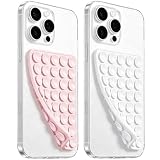
- 【PKYAA Double Sided Silicone Suction Phone Case Mount】PKYAA With Double Sided 40 Strong and Reliable individual suction cups, PKYAA provides a thicken and upgraded universal silicon suction mount for your phone.
- 【Friendly to Content Creators】If you are a content creator or an online influencer, you can create videos anywhere with this suction mount completely hands free with this silicone cell phone mount for cases.
- 【HANDS-FREE & Adhere to Mirrors】This Double Sided silicone suction phone case mount allows you to stick your phone to the mirror easily. No longer holding your phone in one hand to watch video tutorials while making up.
- 【Strong Grip on the Smooth Surface】You can easily hang your phone anywhere with a smooth surface. All you do is you clean off your phone and smooth surface. It is STURDY and it not only sticks to mirrors, it also sticks to windows, it sticks to refrigerators, tiles and other clean, flat surfaces.
- 【Press Down Firmly Every 30 Minutes】Use your palm or fingers to press the phone down firmly and check it's secure before letting go. Apply even pressure for a few seconds to allow the suction cup to adhere properly. To maintain the grip and prevent accidental falls, it's a good practice to periodically reapply pressure to the suction cup.
Use only game files and backups you are legally entitled to use. Laws differ by location, and the emulator documentation cited here is not a legal guide to copying, downloading, or converting game media.
Can you install AetherSX2 or NetherSX2 on iPhone?
The supplied evidence does not establish either as a native iPhone option. Do not mistake a project associated with another platform or a remote-play client for an iOS PS2 emulator; for iPhone-native play, the documented choices covered here are Play! and Provenance’s Play! core.
If a listing or guide claims that another app runs PS2 games on iPhone, check whether it documents an iOS build, explains its JIT requirements, and provides title-level compatibility evidence. A name, a platform claim, or the ability to stream a game from another device is not enough to establish native emulation.
Frequently Asked Questions
Can I play PS2 games on iPhone without an internet connection?
Native emulation is distinct from streaming, so the game itself does not inherently need to be streamed from another device. The cited documentation does not specify every offline requirement, however; verify the chosen app’s installation and game-import behavior before relying on it away from a connection.
Will a PS2 save file from a console work on an iPhone emulator?
The documented Provenance features include save states and memory-card emulation, but that does not establish direct compatibility with a physical PS2 memory card or every exported save format. Check the frontend’s current import and save-conversion documentation for the specific file you have.
Can I use a DualSense or Xbox controller with an iPhone PS2 emulator?
Provenance documents Xbox and PlayStation controller support, while Apple supports compatible controllers over Bluetooth or a wired connection. Exact pairing and button mapping can depend on the iPhone, controller, and app build, so confirm the controls are recognized in the emulator before starting a long game.
Is streaming PS2 games to an iPhone the same as emulating them on the phone?
No. In native emulation, the iPhone runs the game; in streaming, another device runs it and sends video and input across a network. Streaming therefore depends on the host device and network conditions, while it does not demonstrate that an iPhone emulator supports the game.
The Tool Desk
Outbyte PC Repair FREEClear out junk files and repair common Windows errorsFree Scan →Outbyte Driver Updater FREEFix the driver behind crashes, sound loss and screen glitchesFind Drivers →
