Showing 49–56 of 71 results
-

HP EliteDesk 800 G1
- Processor: 4-core Intel Core i5-4570S, 2.90 GHz, 6 MB Cache, or up to 4-core Intel Core i7-4790, 3.60 GHz, 8 MB Cache
- Memory: Desktop Mini / Ultra-slim Form Factor: Up to 16 GB DDR3 1600 MHz;, 2 SODIMM slots; All other Models: up to 32 GB 1600 MHz DDR3 SDRAM, 4 DIMM slots
- Storage: Up to 500 GB 7200 RPM SATA HDD, or 500 GB 7200 RPM SED HDD, or up to 1 TB SSHD, or up to 160 GB SSD, or up to 256 GB Opal SED SSD; Small / Tower Form Factor: up to 1 TB 10000 RPM SATA HDD, or up to 2 TB 7200 RPM SATA HDD
- Graphics: Intel HD Graphics 4600, or up to AMD Radeon HD 8490, or up to NVIDIA NVS 315, or NVIDIA GeForce GT 630
-

HP ENVY 750-175SE
- Processor: 4-core Intel Core i7-6700, 3.40 GHz, 8 MB Cache, or 4-core Intel Core i7-6700K, 4.0 GHz, 8 MB Cache
- Memory: Up to 64 GB DDR4, 4 DIMM slots
- Storage: Up to 3 TB 7200 RPM SATA HDD, or 256 GB SATA TLC SSD, or 512 GB SATA SSD
- Graphics: AMD Radeon R9 370, or up to NVIDIA GeForce GTX 970
-
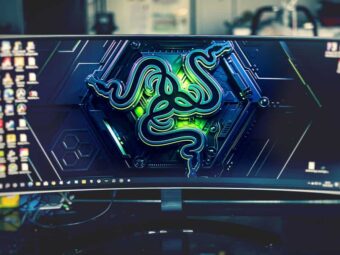
HP ENVY Curved All-in-One – 34-a010
- Processor: 4-core Intel Core i5-6400T, 2.20 GHz, 6 MB Cache, or 4-core Intel Core i7-6700T, 2.80 GHz, 8 MB Cache
- Memory: Up to 16 GB DDR4 2133 MHz, 2 SO-DIMM slots
- Storage: 1 TB 2.5″ 5400 RPM SATA HDD
- Graphics: NVIDIA GeForce GTX 960A, 2 GB GDDR5
-

HP Obelisk 875-0064na
- Processor: Up to 8-core Intel Core i7-9700F, 3.0 GHz, 12 MB Cache
- Memory: Up to 32 GB DDR4 2666 MHz SDRAM, 2 UDIMM slots
- Storage: Up to 2 TB 7200 RPM SATA HDD, or up to 512 GB M.2 PCIe NVMe SSD
- Graphics: Intel UHD Graphics 630, or NVIDIA GeForce RTX 2060 Super
-

HP OMEN 30L GT13-0014
- Processor: 6-core AMD Ryzen 5 3500, 3.40 GHz, 16 MB Cache, or up to 12-core AMD Ryzen 9 3900, 3.10 GHz, 64 MB Cache
- Memory: Up to 32 GB DDR4 3200 MHz SDRAM, 2 DIMM slots
- Storage: 1 TB 7200 RPM SATA HDD, or 256 GB M.2 PCIe NVMe SSD
- Graphics: NVIDIA GeForce GTX 1660 SUPER, 6 GB GDDR6
-

HP Omen 870-124na
- Processor: 4-core Intel Core i7-6700, 3.40 GHz, 8 MB Cache
- Memory: 16 GB DDR4-2133 MHz SDRAM, 2 UDIMM
- Storage: 3 TB 5400 RPM SATA HDD, or 512 GB TLC SSD
- Graphics: Intel HD Graphics 530, or AMD Radeon RX 580, 4 GB GDDR5
-
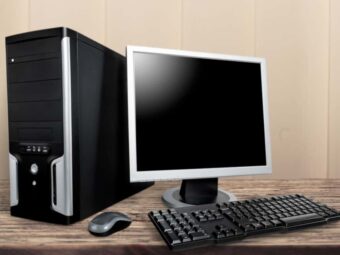
HP Pavilion 590-P0007C
- Processor: Up to 8-core Intel Core i7-9700, 3.0 GHz, 12 MB Cache
- Memory: Up to 32 GB DDR4 2666 MHz, 2 DIMM slots
- Storage: Up to 1 TB 7200 RPM SATA HDD, or 16 GB PCIe NVMe 3D Xpoint M.2 SSD
- Graphics: Intel HD Graphics 630, or AMD Radeon RX 550, 2 GB GDDR5
-

HP ProDesk 400 G4
- Processor: 2-core Intel Celeron G4900T, 2.90 GHz, 2 MB Cache, or up to 6-core Intel Core i7 8700, 3.20 GHz, 12 MB Cache
- Memory: All Models: Up to 32 GB DDR4 2666 MHz, 2 DIMM slots
- Storage: SFF / MT Models: Up to 2 TB 2.5″ / 3.5″ 7200 RPM SATA HDD; DM / A-in-O Models: 2 TB 2.5″ 5400 RPM SATA HDD, or 2 TB 2.5″ 5400 RPM SATA SSHD; All Models: Up to 1 TB 2.5″ 7200 RPM SATA HDD, or up to 500 GB 2.5″ 7200 RPM SE FIPS SATA HDD, or up to 1 TB 2.5″ 5400 RPM SATA SSHD, or up to 512 GB 2.5″ TLC SSD / SE FIPS SSD, or up to 512 GB M.2 2280 PCIe NVMe SSD
- Graphics: Up to Intel UHD Graphics 630, or up to AMD Radeon R7 450, or up to AMD Radeon 535, or NVIDIA GeForce GT730
very nice explanation with images. I followed your methods and it’s very helpful. Many people wants that use two numbers on same phone. But they don’t know about that. I will share your blog with my groups. Thanks and keep posting.
Glad the guide was helpful. Thank you so much!
Thanks for the solutions. 1st one worked well for me. (Private Window)
Glad you were able to fix the problem!
Victor
Thank you so much for your explanation
I think in Step#5 the fourth screenshot, the ip address of the DHCP server should be entered which in subnet 10.0.0.0/8
Hi,
Thanks for your comment. You are right. I thought my statement “Confirm that the IP address of DHCP server is in the Server address list” should suffice. I have amended the screenshot to reflect the suggested changes. The screenshot now has the IP address of the DHCP server – 10.0.0.2
Thanks again for pointing this out.
Victor
I installed a SSD and cloned my old HHD to it. I want to make my SSD the boot drive and my old HHD a storage drive. My SSD is installed on the mother board of my Dell XPS 8930 computer. Can anyone help me resolve this problem.
Hi Ralph,
When you said you “cloned” the old HHD to the SSD drive” do you mean you cloned the Operating System (OS) files from the old HDD to the SSD and and you’re trying to now boot from the cloned OS files in the SSD?
Another thing I like to clarify: you said “My SSD is installed on the mother board..”. How is the old HDD connected to your computer?
Also, when you boot to your computer’s BIOS, can you see the SSD drive?
Once I receive answers to these 3 questions, I will be able to tell you how to boot from your SSD.
Victor
This is an incredibly assumptive and anecdotal article at best. Assuming Microsoft’s system files are malware because they bloat the machine is a big assumption. You haven’t been able to explain at all why it happens even though you mention all this research you did, and didn’t give guidance to anything substantial either. It took me 5 minutes of research to find people that solved their problems with this file and you didn’t even suggest that either.
Hi Brock,
Thank you for taking the time to leave a comment. I take time to research my articles and ensure that I only share information I believe to be accurate. I can assure my readers that I am not just a tech writer, I worked in the tech industry (Specifically, Microsoft technologies) for over 18 years. So, my articles are hands-on and not just theoretical.
Having said that, I encourage feedback to allow my readers to share their view as well. The tech community is full of smart guys like yourself (indulgence not intended).
Will you be kind enough to clarify some of your statements. Once you provide additional clarifications I will verify them and If credible, I am happy to amend portions of the article.
Thanks again,
Victor