
iTechGuides is reader-supported. When you buy through links on our site, we may earn an affiliate commission. As an Amazon Associate I earn from qualifying purchases. Learn more
The practical answer to positive vs. negative pressure is that slightly positive pressure is best for most computers: filtered intake airflow should be just a little stronger than exhaust airflow. That arrangement usually reduces dust entering through unfiltered gaps, but the case’s airflow path, filters, fan curves, radiator placement, and component temperatures matter more than pressure alone.
Positive pressure is a useful default, not a universal law. A carefully tuned neutral or mildly negative setup can work better in a restrictive case or a GPU-heavy system, while excessive positive pressure can restrict total airflow if filters or exhaust paths are poorly designed.
Key takeaways
- Slightly positive pressure is the safest general-purpose setup because more replacement air enters through filtered intake locations instead of unfiltered gaps.
- Fan count does not determine pressure by itself; fan speed, airflow capacity, filters, radiators, grilles, and case restrictions determine the actual balance.
- Two front intake fans and one rear exhaust fan are a sensible three-fan baseline for a conventional tower case.
- Negative pressure can help extract heat in a restrictive case, but it usually increases the amount of dust drawn through unfiltered openings.
- Front- or side-mounted radiator intake generally favors CPU temperature, while top-mounted radiator exhaust generally favors GPU temperature.
Positive vs. negative pressure: what is the difference?
Positive pressure means the case receives more air through intake fans than exhaust fans remove. Negative pressure means exhaust airflow exceeds intake airflow. Neutral pressure means intake and exhaust airflow are approximately balanced.
Outdated Drivers Are Slowing You Down
One free scan finds every outdated or missing driver and matches the right update for your exact hardware.Free scan · exact hardware matchPC Slower Than It Used to Be?
A free scan shows the junk files, broken settings and background clutter dragging Windows down - then fixes them in one click.Free scan · Windows 10 & 11According to Noctua’s airflow guidance, pressure is determined by net airflow rather than by the simple number of fans installed. A case with three intake fans and two exhaust fans is only nominally positive if the intake fans actually move more air through their restrictions.
Popular on Amazon

- 【High Performance Cooling Fan】 Automatic speed control of the motherboard through the 4PIN PWM fan cable interface, which can determine the speed according to the temperature of the motherboard, with a maximum speed of 1550RPM. Configured with up to 55cm of cable for PWM series control of fans, ideal for cases and CPU coolers.
- 【Quality Bearings】The carefully developed quality S-FDB bearings solve the problem of pc cooling fan blade shaking in lifting mode, keeping fan noise to a minimum while providing maximum cooling performance when needed and extending the life of the fan.
- [Excellent LED light] The high-brightness LED atomizing argb fan blade can effectively reflect the light, making the ARGB lighting effect softer, and it matches the cooler and case more perfectly. Up to 17 modes of light effects with ARGB support, color can be managed and synchronized through the port on motherboard.
- 【Silent Fan Size】 Model: TL-C12C-S X5, Size: 120*120*25mm, Speed: 1550RPM±10%, Noise ≤ 25.6dBA Connector: 4pin pwm, Current: 0.20A, Air Pressure: 1.53mm H2O, Air Flow: 66.17CFM, Higher air flow for improved cooling performance.
- 【Perfect Match】The PC fan can be used not only as a case fan, but is also suitable for use with a cpu cooler to create a cooling effect together, which can take away the dry heat from the case and the high temperature generated by the CPU in operation, allowing for maximum cooling; Ideal for cases, radiators and CPU coolers.
| Pressure type | What happens | Main advantage | Main risk |
|---|---|---|---|
| Positive | Intake airflow exceeds exhaust airflow, so air tends to leave through gaps and vents. | More incoming air can pass through dust filters. | Excessive restriction can reduce total airflow and cause heat recirculation. |
| Neutral | Intake and exhaust airflow are approximately balanced. | Predictable airflow without strongly favoring dust control or extraction. | Exact neutrality is difficult to maintain in a perforated PC case. |
| Negative | Exhaust airflow exceeds intake airflow, so replacement air is pulled through openings. | Strong heat extraction in some restrictive or GPU-focused layouts. | Unfiltered gaps can become unintended intake paths for dust. |
Filters, radiators, front panels, mesh, grilles, and cable obstructions all change the result. A filtered front intake may move much less air than an unrestricted rear exhaust at the same nominal fan speed. A layout that looks positive on paper can therefore behave close to neutral or even negative under load.
Why does positive pressure help control dust?
Positive pressure tends to push air outward through seams, cracks, expansion-slot openings, and other gaps. Negative pressure tends to pull replacement air inward through those same openings, many of which are not filtered.
Positive pressure does not make a computer dust-free. Intake air still contains dust, and intake filters collect debris. The practical advantage is that a greater share of the air entering the case can pass through cleanable filters instead of bypassing the filters through gaps. Intel’s PC-cooling guidance also emphasizes cleanliness, hardware placement, cable management, and room temperature as important cooling variables.
Quick wins for a faster PC:
Repair Windows errors before they cause bigger problemsFix Now →Scan for outdated or missing drivers - takes under a minuteDriver Scan →Clear out junk files and repair common Windows errorsFree Scan →Dust control depends heavily on the environment and the condition of the case:
- Pets, carpets, smoking, candles, cooking, and open windows can add substantial airborne contamination.
- A missing, badly fitted, or clogged intake filter can defeat the benefit of positive pressure.
- Large unfiltered openings on the bottom, rear, or side can become dust paths.
- A PC placed directly on the floor usually encounters more dust than a PC positioned on a desk or raised platform.
- Dust on GPU heatsinks, CPU coolers, radiators, and power-supply filters can eventually restrict cooling.
- Room fans and frequent movement can disturb settled dust near the computer.
For that reason, positive pressure should mean “filtered intake airflow is slightly favored,” not “seal every opening.” Blocking vents to force a pressure bias can reduce useful airflow and raise temperatures.
Which pressure setup keeps a computer cooler?
Neither positive nor negative pressure is always cooler. Pressure determines where replacement air enters and where air leaves, while the airflow path determines whether cool room air reaches the CPU and GPU before the air becomes hot.
A positive-pressure layout can cool very well when filtered intake fans deliver fresh air directly to the graphics card and CPU cooler. A negative-pressure layout can produce lower temperatures in a restrictive case if strong exhaust fans pull air through vents close to a hot GPU. The same negative layout can perform poorly if exhaust fans draw air from easy-to-reach openings without creating a useful stream across the hardware.
Free tools Windows power users keep installed
One-click scans. No signup required.
Tom’s Hardware’s airflow comparison describes why case restrictions and GPU positioning can change the result. The statement “negative pressure is always cooler” is no more reliable than the statement “positive pressure always lowers temperatures.”
| Priority | Usually favored by | Important qualification |
|---|---|---|
| Dust control | Slight positive pressure | Intake filters must be fitted and maintained. |
| GPU-heavy gaming | Direct, unrestricted GPU intake | The best pressure label matters less than feeding the GPU cool air. |
| CPU-heavy rendering | Direct CPU cooler or radiator airflow | Radiator location can outweigh the pressure balance. |
| Restrictive front panel | Neutral or mild negative may sometimes test better | Exhaust airflow must still have a predictable replacement-air path. |
| Long-term maintenance | Slight positive pressure | Dust may still accumulate on filters and heatsinks. |
Compare CPU temperature, GPU temperature, GPU hotspot temperature when available, fan RPM, and noise during a repeatable workload. A single idle-temperature reading cannot establish which layout is better.
What is the best default fan layout for a desktop PC?
For a conventional tower case, start with front or side intake and rear or top-rear exhaust. The goal is a clear path that brings cool air toward the GPU and CPU cooler before exhausting heated air.
Three-fan layout
- Two front intake fans.
- One rear exhaust fan.
This layout is a practical baseline when the front panel is sufficiently ventilated and filtered. Noctua lists two front intakes plus one rear exhaust as a sensible three-fan configuration in its airflow layout guidance.
Five-fan layout
- Two or three front intake fans.
- One rear exhaust fan.
- One top-rear exhaust fan.
If the case has a fifth useful position, adding a front intake or a rearward top exhaust usually creates a better path than filling every available mount. Leave a top-front exhaust position empty when it would pull cool intake air out of the case before that air reaches the CPU cooler or graphics card. This effect is commonly called a short circuit.
Also popular on Amazon
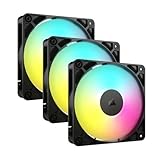
- 120mm ARGB PWM Fan Triple Pack: Upgrade your PC cooling with three 120mm PWM fans combining high-performance airflow, precise speed control, and customisable ARGB lighting.
- Up to 2,100 RPM & 72.8 CFM Airflow: Adjust fan speeds from 420 to 2,100 RPM to deliver up to 72.8 CFM of airflow for powerful PC cooling.
- High 4.15mm-H2O Static Pressure: High static pressure pushes air effectively through radiators, heatsinks, and other restrictive areas, making the RS120 ARGB suitable for both case and radiator cooling.
- Customizable +5V ARGB Lighting: Eight LEDs per fan provide customizable RGB lighting controlled through a compatible motherboard's +5V ARGB connection.
- Daisy-Chain PWM & ARGB Connections: Link multiple fans together and control them through just one 4-pin PWM connector and one +5V ARGB motherboard connector for simpler cable management.
Bottom-to-top cases
Cases designed around vertical airflow generally use bottom fans as intake and top fans as exhaust. Follow the case manufacturer’s intended airflow path rather than forcing a front-to-back layout into a chassis designed for bottom-to-top movement.
Side-intake cases
Side intake fans can perform the same role as front intake fans, especially in cases with a separate side-mounted intake chamber or a side mesh panel positioned near the GPU. The side intake should normally be filtered when dust control is a priority.
Layout examples
| Case design | Intake arrangement | Exhaust arrangement | Best starting point |
|---|---|---|---|
| Conventional airflow tower | Two front fans | One rear fan | Three-fan baseline |
| Large conventional tower | Two or three front fans | Rear plus top-rear fans | Five-fan layout |
| Vertical-airflow case | Bottom fans | Top fans | Bottom-to-top path |
| Side-intake case | Side fans near the GPU or motherboard | Rear and/or top fans | Follow the case’s designed chamber path |
| Small-form-factor case | Depends on the enclosure | Depends on the enclosure | Prioritize component spacing and recirculation control |
How should you check fan direction?
Most axial PC fans pull air through the more open side and expel air toward the side with the motor supports. The support-strut side often has the fan label, wiring, or a protective grille.
Recommended Free Tools
Check the small arrows molded into the fan frame when they are available. Fan designs vary, so verify each fan before installing a complete set. Intel explains fan-direction checks and basic PC airflow verification.
- Turn the computer on with the side panel installed if possible.
- Hold a thin strip of tissue near, but not inside, a vent or fan opening.
- Observe whether the tissue is drawn toward the opening or pushed away from it.
- Compare the observed direction with the intended intake or exhaust role.
Incense smoke can make airflow visible, but smoke, ash, and embers should be kept well away from electronic components. A tissue test is safer for most users.
How do you tune positive or negative pressure correctly?
Tune pressure with fan speeds and actual temperatures instead of relying on fan count. A useful starting point is to run filtered intake fans slightly faster than exhaust fans, then test the complete system under sustained load.
- Install intake fans on filtered openings wherever possible.
- Use the rear and top-rear positions for exhaust in a conventional front-to-back case.
- Set intake fan curves slightly higher than exhaust curves at comparable temperatures.
- Run a repeatable CPU workload, GPU workload, or game session long enough for temperatures to stabilize.
- Record CPU temperature, GPU temperature, GPU hotspot temperature when available, fan RPM, and noise.
- Inspect filters and nearby case gaps after several weeks of normal use.
- Adjust intake and exhaust curves in small increments rather than making large changes at once.
Noctua’s fan-speed and airflow-resistance guidance explains why filters and other restrictions affect the balance. A case can have more intake fans and still become negative under load if the exhaust fans run much faster, move more air, or face less resistance.
Do not seal every crack or cover ventilation openings to create positive pressure. Excessive restriction can reduce total airflow, increase fan noise, and cause hot air to circulate inside the case. The correct target is a small positive bias with a useful airflow path.
Which fan is better: high-airflow or static-pressure?
High-airflow fans are generally better for relatively open mesh panels and unobstructed case positions. Static-pressure fans are generally better for radiators, dense heatsinks, restrictive filters, and narrow ventilation paths.
| Fan type | Good match | What to watch for |
|---|---|---|
| High-airflow case fan | Open mesh intake or unobstructed exhaust | Advertised maximum airflow may not represent performance through a filter or grille. |
| Static-pressure fan | Radiator, dense heatsink, restrictive filter, or narrow vent | Noise and fan speed still need to match the system’s curve. |
| General-purpose fan | Lightly restricted case positions | Check the actual mounting restriction before assuming a specification applies. |
Intel distinguishes airflow-oriented and static-pressure fan applications. Maximum advertised airflow is not the same as airflow through a particular case. Fan curves, restriction, noise targets, and mounting location determine the useful result.
How does radiator placement change the pressure decision?
Radiator placement changes which component receives the coolest air and which component receives air warmed by the radiator.
The Tool Desk
Outbyte Driver Updater FREEFix the driver behind crashes, sound loss and screen glitchesFind Drivers →Outbyte PC Repair FREERepair Windows errors before they cause bigger problemsFix Now →- Front- or side-mounted radiator as intake: The radiator receives room air directly and generally favors lower CPU temperature, but the warmed air entering the case can increase GPU temperature.
- Top-mounted radiator as exhaust: CPU heat leaves the case directly and generally favors GPU temperature, but the radiator uses air that has already passed through the case and may produce a higher CPU temperature.
Noctua’s radiator-placement guidance supports treating radiator position as a system-level trade-off. Choose front or side intake when the CPU is the main thermal limit; choose top exhaust when the GPU is the main thermal limit and the case supports that arrangement.
Also popular on Amazon

- 【High Performance Cooling Fan】 Automatic speed control of the motherboard through the 4PIN PWM fan cable interface, which can determine the speed according to the temperature of the motherboard, with a maximum speed of 1550RPM. Configured with up to 55cm of cable for PWM series control of fans, ideal for cases and CPU coolers.
- 【Quality Bearings】The carefully developed quality S-FDB bearings solve the problem of pc cooling fan blade shaking in lifting mode, keeping fan noise to a minimum while providing maximum cooling performance when needed and extending the life of the fan.
- [Excellent LED light] The high-brightness LED atomizing argb fan blade can effectively reflect the light, making the ARGB lighting effect softer, and it matches the cooler and case more perfectly. Up to 17 modes of light effects with ARGB support, color can be managed and synchronized through the port on motherboard.
- 【Silent Fan Size】 Model: TL-C12C-S X3, Size: 120*120*25mm, Speed: 1550RPM±10%, Noise ≤ 25.6dBA Connector: 4pin pwm, Current: 0.20A, Air Pressure: 1.53mm H2O, Air Flow: 66.17CFM, Higher air flow for improved cooling performance.
- 【Silent Fan Size】 Model: TL-C12C-S X3, Size: 120*120*25mm, Speed: 1550RPM±10%, Noise ≤ 25.6dBA Connector: 4pin pwm, Current: 0.20A, Air Pressure: 1.53mm H2O, Air Flow: 66.17CFM, Higher air flow for improved cooling performance.
Radiator placement should preserve a coherent airflow path. A front radiator intake paired with weak or poorly positioned exhaust can warm the entire case. A top radiator exhaust paired with an obstructed front intake can starve the radiator and increase fan noise.
Which pressure setup fits your computer?
The best pressure choice depends on the hottest component, case restrictions, room conditions, and maintenance priorities.
| System or environment | Recommended starting point | Reason |
|---|---|---|
| Dusty room or difficult-to-clean PC | Slight positive pressure | More incoming air can be routed through maintained filters. |
| Standard mesh-front gaming tower | Slight positive pressure | Filtered front intake can feed the GPU while rear/top-rear exhaust removes heat. |
| CPU-heavy workstation | Direct CPU cooler or radiator airflow with slight positive bias | CPU cooling capacity and radiator position may matter more than pressure. |
| High-power GPU in a restrictive case | Near-neutral or mild negative may be worth testing | A nearby vent and strong exhaust path may lower sustained GPU temperature. |
| Small-form-factor system | Follow the enclosure’s designed intake and exhaust path | Component placement and hot-air recirculation dominate the pressure label. |
| Open-frame case | Prioritize direct component airflow | There may be no enclosed pressure boundary to maintain. |
| Passive or very-low-heat system | Use the case’s intended natural-convection path | Fan-pressure tuning may be less important than unobstructed vents. |
Thermaltake’s pressure guidance also notes that case construction and the surrounding environment can change how positive and negative pressure behave.
What are the most common airflow mistakes?
“Three intake fans means positive pressure”
Fan count is only a rough assumption. Exhaust fans may move more air, or the intake filter and front panel may be far more restrictive.
Fix: Compare fan speeds, fan types, and restrictions. Check airflow at vents and adjust the fan curves instead of trusting the fan count.
Too many exhaust fans
Excessive exhaust airflow can pull replacement air through unfiltered cracks, increasing dust and making the airflow path unpredictable.
Fix: Add or speed up filtered intake fans, or reduce exhaust speed while checking temperatures and noise.
Too much positive pressure
Highly restricted exhaust paths, clogged filters, or fans fighting one another can reduce total airflow and encourage recirculation.
Fix: Clean filters, open the intended exhaust path, remove unnecessary fan conflicts, and test component temperatures.
Top-front exhaust creates a short circuit
A top-front exhaust fan can remove cool intake air before the air reaches the CPU cooler or GPU.
Fix: Prefer top-rear exhaust in a conventional front-to-back build unless testing shows that the top-front position improves the complete system.
What’s actually slowing this PC down?
Pick the symptom - the matching free tool is one click away.
Front radiator intake raises GPU temperature
A front radiator can transfer CPU heat into the air entering the case, leaving the GPU with warmer intake air.
Also popular on Amazon
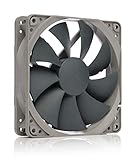
- High performance cooling fan, 120x120x25 mm, 12V, 4-pin PWM, max. 1700 RPM, max. 25.1 dB(A), >150,000 h MTTF
- Renowned NF-P12 high-end 120x25mm 12V fan, more than 100 awards and recommendations from international computer hardware websites and magazines, hundreds of thousands of satisfied users
- Pressure-optimised blade design with outstanding quietness of operation: high static pressure and strong CFM for air-based CPU coolers, water cooling radiators or low-noise chassis ventilation
- 1700rpm 4-pin PWM version with excellent balance of performance and quietness, supports automatic motherboard speed control (powerful airflow when required, virtually silent at idle)
- Streamlined redux edition: proven Noctua quality at an attractive price point, wide range of optional accessories (anti-vibration mounts, S-ATA adaptors, y-splitters, extension cables, etc.)
Fix: Compare top-exhaust radiator placement, improve direct GPU intake, or use a larger case or radiator if sustained temperatures justify the change.
Negative pressure is judged only by a short benchmark
The principal disadvantage of negative pressure is often long-term dust entering through unfiltered openings, which may not appear during an immediate temperature test.
Fix: Compare filter and heatsink dust accumulation after repeated normal use as well as comparing sustained temperatures.
Do these 3 things before closing this tab:
1Clear out junk files and repair common Windows errors2Scan for outdated or missing drivers - takes under a minute3Repair Windows errors before they cause bigger problemsFans are cleaned while spinning freely
Forcing a fan to spin excessively fast with compressed air can damage the motor.
Fix: Hold the fan blades stationary while cleaning and follow the case or fan manufacturer’s maintenance instructions.
How should you troubleshoot a hot or dusty PC?
- CPU is hot but the GPU is acceptable: Check CPU cooler mounting, cooler capacity, radiator placement, and whether front or side intake air reaches the CPU cooler. Pressure alone cannot compensate for an undersized cooler or poor contact.
- GPU is hot but the CPU is acceptable: Check whether the front or side intake is blocked, whether the GPU is close to a solid panel, and whether a top-front exhaust fan is stealing intake air. A better-ventilated case may help more than a new CPU cooler.
- Both components are hot: Check case ventilation, filter condition, fan direction, fan curves, room temperature, cable obstruction, and dust on heatsinks and radiators.
- Dust appears around the side-panel gaps: The case may be negative or close to neutral in practice. Increase filtered intake speed slightly, reduce exhaust speed, and check for missing or poorly fitted filters.
- Fans are loud despite acceptable temperatures: Clean filters, use a slower or more gradual PWM curve, and check whether a restrictive panel is forcing fans to run at high speed.
- A filter is visibly clogged: Clean or replace the filter before changing pressure. A clogged filter can turn a previously effective intake into a major restriction.
- Fans are blowing in the wrong direction: Use the frame arrows, support-strut side, or tissue test to confirm orientation, then reposition the affected fans.
- Top fans appear to remove intake air immediately: Move the top exhaust position toward the rear or remove the top-front exhaust fan and retest.
What should you buy to improve airflow?
Buy hardware to solve a measured airflow problem rather than buying fans solely because they have RGB lighting or a higher maximum CFM figure.
- Need better dust control: Use filtered intake fans and replace missing or damaged filters. Match the filter dimensions and mounting method to the case.
- Need lower GPU temperatures: Improve the case’s mesh intake path or direct airflow to the GPU before replacing a CPU cooler.
- Need lower CPU temperatures: Compare CPU cooler capacity and radiator placement. A new cooler does not fix a clogged filter or poorly ventilated case.
- Need less noise: Choose fans suitable for the actual restriction and tune a gradual PWM curve rather than simply increasing fan count.
- Need independent intake and exhaust control: Consider a PWM hub only when the motherboard lacks enough fan headers or separate control is otherwise unavailable. Confirm the motherboard header limits and hub power requirements.
Noctua’s fan catalog can help compare fan types for case, radiator, and restricted-airflow applications. Fractal Design’s case catalog is useful for comparing mesh, side-intake, bottom-intake, and other chassis layouts. These catalogs are product references, not proof that a particular model will outperform every alternative.
What’s actually slowing this PC down?
Pick the symptom - the matching free tool is one click away.
Current street prices and availability were not verified for this article, so product prices are intentionally omitted.
Frequently Asked Questions
Can positive pressure make a computer dust-free?
No. Slight positive pressure reduces dust entering through unfiltered gaps when the main intake paths use clean, well-fitted filters, but dust still enters through filtered air and accumulates on the filters themselves.
Is negative pressure always cooler than positive pressure?
No. Negative pressure can cool better in a restrictive case with a strong exhaust path, but positive pressure can cool better when filtered intakes deliver fresh air directly to the GPU and CPU cooler.
Do three intake fans automatically create positive pressure?
No. Actual pressure depends on fan speed, fan airflow, filters, radiators, grilles, and panel restrictions. Three restricted intake fans can move less air than two unrestricted exhaust fans.
Do these 3 things before closing this tab:
1Repair Windows errors before they cause bigger problems2Fix the driver behind crashes, sound loss and screen glitches3Clear out junk files and repair common Windows errorsShould a front-mounted AIO radiator be intake or exhaust?
A front-mounted radiator used as intake generally favors CPU temperature because it receives cooler room air, while a top-mounted radiator used as exhaust generally favors GPU temperature. The better choice depends on which component is the system’s thermal limit.
The Bottom Line
For most desktop PCs, install filtered front, side, or bottom intake fans and run them slightly faster than the exhaust fans. Use rear and top-rear exhaust to create a clear airflow path, keep filters clean, and validate the result with sustained CPU and GPU testing. Choose neutral or mild negative pressure only when the case layout or measured temperatures gives you a specific reason.

