
Samsung parental controls are not managed from one universal panel. On Galaxy phones and tablets, Google Family Link manages Google-account supervision, Samsung account family controls manage Samsung-specific features, and Samsung Kids provides a separate child environment on supported tablets. Samsung TVs, Smart Monitors and projectors have their own app and program-rating locks.
Choose the route that matches the device and the restriction you need. Menu names and eligibility vary by model, software version, carrier and region, so a path shown below may not appear on every Samsung device.

Choose the control that fits the device and task
| Control | Best fit | What it manages | Key qualification |
|---|---|---|---|
| Google Family Link | A Galaxy phone or tablet used with a supervised Google account | App limits, screen time and content restrictions; optional location sharing is also documented by Samsung | Samsung’s U.S. guide describes the on-device path for One UI 2.0 or later. Samsung’s Family Link guide |
| Samsung account family controls | Samsung child-account features | Web-content settings, Galaxy Store age ratings, and download or purchase management | Samsung UK says these child-account controls require Galaxy devices running One UI 6.1 or later; Samsung Family Group controls are available only in select regions. Samsung UK Galaxy for Families guide Samsung Australia Family Group guide |
| Samsung Kids | A younger child using a supported Galaxy tablet | A child-focused environment with profiles, allowed content, activity information and playtime or bedtime settings | Requires a Samsung Kids PIN to exit the environment or change its settings. Samsung Kids support |
| Samsung TV controls | A Samsung TV, Smart Monitor or projector | Program-rating locks and app locks on the display | Menus and rating features vary by model and region; streaming services may have separate profile or PIN controls. Samsung U.S. TV support Samsung UK TV guide |
Family Link and Samsung account controls are complementary rather than interchangeable. Family Link is for supervising a child’s Google account; Samsung account controls apply to Samsung account features such as Galaxy Store and Samsung Internet settings.
Set up controls on a Galaxy phone or tablet
Use Family Link for Google-account supervision
Samsung’s U.S. instructions give this setup path for devices running One UI 2.0 or later:
Recommended Free Tools
#1 Best Overall

- FAMILY-SIZE SCREEN, KID-FRIENDLY FUN: A bright 11” 1920 x 1200 display¹ with an up to 90Hz refresh rate delivers smooth motion and clear visuals, making it easier for kids to watch, learn and play comfortably
- A SMARTER WAY TO HELP KIDS EXPLORE SAFELY: With playful and educational content, kids can stay entertained while building creativity and digital skills in a guided environment. Samsung Kids² gives parents the confidence to stay in charge, letting them manage screen time, app access and content with ease. It’s designed to give kids the freedom to have fun while giving parents peace of mind through usage reports and content filtering
- PLAY-READY PROTECTION, RIGHT OUT OF THE BOX: This all-in-one package starts with an upgraded³ shock-absorbing kids cover that is now available in Red and Royal Blue⁴ and designed for both vertical and horizontal viewing. Combine that with an enhanced Crayo-Pen for added durability and precision,³ plus a pen tether, stickers and an easy setup guide for a Tab that’s ready for fun right out of the box
- BUILT TO KEEP UP AS THEY GROW: Powered by an upgraded processor and memory,³ Galaxy Tab A11+ Kids Edition handles everyday activities with ease and supports more advanced use as your child grows. With up to seven generations of OS and security upgrades,⁵ it’s built to keep up for years to come
- A POWERFUL BATTERY MEANS MORE PLAYTIME: The long-lasting, optimized battery delivers up to 15 hours⁶ of fun and entertainment, making it easy to get through long car rides, trips and busy days. And when you need to, get back to playtime quickly with a fast charge⁷
- Open Settings > Digital Wellbeing and parental controls > Parental controls.
- Tap Let’s do this.
- Sign in with the child’s Google account and complete the verification steps shown on screen.
After setup, use Family Link to manage supported device controls, app limits, content restrictions and screen-time settings. Samsung also documents location sharing as an optional setting. Available controls depend on the accounts and devices involved; consult Samsung’s Family Link instructions for the described setup.
Use a Samsung child account for Samsung-specific controls
Samsung’s account setup path is Settings > Samsung account > Family. From a child account, parents can manage allowed apps. Samsung UK’s Galaxy for Families guide describes additional web-content controls, app and game age ratings, and download or purchase management. It says child-account controls can be managed on and applied to Galaxy devices running One UI 6.1 or higher; that is the UK page’s stated requirement, not a universal minimum for every region.
Rank #2

- 8.7" 90Hz Display (220.5mm), 1340 x 800 (WXGA+), TFT, 16M colors, Android 15, One UI 7 with up to 5 major Android upgrades, Includes 20W UL Fast Charging Cube
- 64GB ROM, 4GB RAM, Mediatek Helio G99 (6nm), Octa-core, Mali-G57 MC2 GPU, MicroSD card slot for upto 2TB of expanded memory (SD Card sold seperate).
- Rear Camera: 8MP, AF, Front Camera: 5MP, 5100 mAh battery, Bluetooth 5.3, USB Type-C 2.0
- No SIM Card Slot / Network - Wi-Fi Only. USB Version C USB 2.0 Location Technology GPS, Glonass, Beidou, Galileo, QZSS Earjack 3.5mm Stereo Wi-Fi 802.11a/b/g/n/ac 2.4GHz+5GHz, VHT80 Wi-Fi Direct Yes Bluetooth Version 5.3
- International Latin American Model - No Warranty. WIFI Version: (Important: Country selection may not be available during setup. select any country, as Country will updated later after Connecting to WIFI in Settings. English Language is available.)
Samsung’s UK setup guide includes guardian verification using a payment-card security code. It describes that code as an identity-verification step for account setup, not as a requirement to make a purchase. See Samsung UK’s Galaxy for Families guide.
Configure Samsung Kids on a Galaxy tablet
Samsung Kids creates a separate child-focused space on supported tablets. It is not required to use Family Link, and a Galaxy Kids Edition tablet is not necessary if a compatible device already supports Samsung Kids.
Quick wins for a faster PC:
Clear out junk files and repair common Windows errorsFree Scan →Fix the driver behind crashes, sound loss and screen glitchesFind Drivers →Rank #3
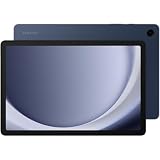
- BIG SCREEN. FAMILY-SIZED FUN: Bring fun home to everyone with a bright, engaging 11 screen ; A refresh rate of up to 90Hz makes every experience feel smooth — great for videos, games or fun time for the kids
- RICH SOUND ALL AROUND: Your music; Your shows; Your games; Hear them all loud and clear, thanks to quad speakers powered by Dolby Atmos; Galaxy Tab A9+ delivers a cinema-like audio experience your ears will love
- POWER FOR ALL YOU DO. STORAGE FOR ALL YOU LOVE: Watch videos, play games and do more with an upgraded chipset; Keep everything you love together with up to 128GB of storage and microSD support
- SEE & USE MULTIPLE APPS AT ONCE: Open multiple apps⁴ at once with Galaxy Tab A9+ and accomplish more seamlessly; Bounce between the things like a multitasking pro — browse the internet, check email and jot down notes all on one screen
- LOVED BY KIDS. TRUSTED BY PARENTS: Give your kids a safe place to learn and play with the Samsung Kids app; Kids will love a wide variety of playful, colorful content that keeps them entertained while stimulating their young minds
- Open Samsung Kids.
- Select More options > Parental controls.
- Enter the Samsung Kids PIN.
- Choose the profile, allowed content and schedule settings you want to manage.
Samsung says the feature supports up to six child profiles. Its settings include activity monitoring, daily playtime schedules and goals, bedtime, frequently contacted numbers and the apps or other content available in the child environment. The PIN is required both to leave Samsung Kids and to change its settings. Details are in Samsung’s Samsung Kids support page.
Set app and program locks on a Samsung TV
App locks
Samsung’s U.S. TV guide describes locking an app so a PIN is required to open it. That guide identifies 0000 as the default PIN for the described controls and advises changing it. Menu labels differ between product generations, so use the settings guide for the exact model if the path on your screen differs.
Rank #4
Samsung’s UK Smart TV PDF lists General and Privacy > Parental Settings > App Lock. The PDF describes its own menu and product context; do not assume the same labels appear on every TV. Samsung’s U.S. instructions are at Samsung TV parental controls; the regional PDF is Samsung UK Smart TV instructions.
Program-rating locks
Rating locks can block over-the-air programs at selected ratings and higher when the TV receives the rating information needed to apply the restriction. Samsung’s UK guide says Programme Rating Lock is set to Allow All by default in that guide and that the broadcaster or service provider assigns content ratings. Some regional broadcast systems, including Freeview and Freesat, offer their own channel-lock options.
Best Value

- POWER FOR ALL YOU DO: Galaxy Tab A11+ 5G gives your business the optimal performance they need for all their day-to-day activities. Power through tasks and improve productivity — the upgraded chipset³ keeps everything responsive. Exclusively compatible with the AT&T Network only.
- CHARGES UP FAST. LASTS FOR HOURS: Galaxy Tab A11+ 5G keeps your business going with a long-lasting battery that’s perfect to complete all business tasks. When you finally need a boost, fast charging gets you back to 100% quickly.⁵
- BLAZING-FAST 5G SPEED¹ WHILE ON THE GO: Stay connected with blazing fast 5G speed.¹ Galaxy Tab A11+ 5G helps you stay in touch with your colleagues and customers while on the go, all without missing a beat.
- A SCREEN EVERYONE CAN ENJOY: A bright, engaging 11" screen² with a refresh rate up to 90Hz delivers natural, fluid motion, enhancing video conferencing into a smooth and productive experience.
- RICH SOUND ALL AROUND: Whether working among a crowd or on a shop floor, immerse yourself in a cinema-like audio experience with quad speakers powered by Dolby Atmos.
TV parental settings should not be treated as a filter for every source connected to the television. Samsung’s Latin America guide says its TV controls cannot block programs from external sources such as Blu-ray/DVD players or USB files, and notes that functions may be incompatible depending on model or geography. Streaming apps can also have their own child profiles or PIN settings, separate from the TV’s controls. See Samsung Latin America’s TV parental-control guidance.
Independent reader supportYour contribution helps us test, update, and keep practical guides available for everyone.Check compatibility before relying on a setting
- Model and software matter. Samsung says Digital Wellbeing screens and settings can vary by wireless provider, software version and device model; the described features require Android 10 or later. Samsung Digital Wellbeing support
- Do not combine the One UI requirements. Samsung’s U.S. Family Link page describes a path for One UI 2.0 or later, while Samsung UK states One UI 6.1 or later for its child-account controls. These refer to different paths and pages, not one universal minimum.
- Region affects availability. Samsung Australia says Family Group parental controls are available only in select regions. A feature documented in one country may not be offered for the account or device in another.
- TV ratings depend on the rating source. A rating lock can only act on rating information supplied by the broadcaster or service provider, and menu options differ across models and markets.
If a menu is missing, first check whether you are using the matching account type and device, then consult Samsung support for the exact model and region. Do not assume that the same restriction is active on a second device or inside a streaming app unless it is configured there too.
Quick Recap
Product prices and availability are accurate as of the date/time indicated and are subject to change. Any price and availability information displayed on Amazon at the time of purchase will apply.

