
iTechGuides is reader-supported. When you buy through links on our site, we may earn an affiliate commission. As an Amazon Associate I earn from qualifying purchases. Learn more
You can use Android’s standard setup flow to copy data to the announced Motorola Signature 27, but Motorola has not yet published a confirmed Signature 27 setup guide. Start the transfer during initial setup if possible: Google warns that the copy option may not be available later. Exact menu labels, cable compatibility, and the phone’s bundled accessories are not confirmed for this model.
What to know before setting up the Motorola Signature 27
Motorola’s US product page says the motorola signature 27 was unveiled at the Qualcomm Tech Summit and that more information is coming in November. Its Signature support page lists guides for the Signature family, but does not establish that those materials apply to the Signature 27. Follow the prompts shown on your phone, and treat the steps below as general Android migration guidance rather than a model-specific walkthrough.
See Motorola’s motorola signature 27 product page and Signature support page for the latest official information.
Recommended Free Tools
How do I transfer everything from my old Android to my new phone?
No transfer makes a perfect clone. Google and Motorola describe copying many common items, but some downloads, account data, and app content require separate steps. Keep your old phone until you have checked the items that matter to you on the new one.
#1 Best Overall

- Unlocked: Compatible with all major U.S. carriers, including Verizon, AT&T, T-Mobile and other major carriers.
- Premium built-in stylus. Effortlessly jot notes, edit photos, sketch artwork, and navigate on the only phone in its class with a built-in stylus***.
- Striking design with advanced protection. Make a statement with an ultrathin design, modern colors, and a vegan leather finish plus outstanding water and drop protection*.
- 6.7" pOLED Super HD display + Dolby Atmos. Experience cinema-quality entertainment with over a billion shades of color and multidimensional sound.
- Networks + Bands - 5G: sub-6, 4G: LTE, 3G: WCDMA, 2G: GSM 2G: GSM band 2/3/5/8 3G: WCDMA band 1/2/4/5/8 4G: LTE band 1/2/3/4/5/7/8/12/13/14/17/18/19/20/25/26/28/29/30/38/39/40/41/42/48/66/71 5G: NR n1/2/3/5/7/12/14/20/25/26/28/29/30/38/40/41/48/66/70/71/77/78
- Prepare both phones. Charge them, keep the old phone available and unlocked, and connect the new phone to the internet. Google recommends active internet on both devices. Its general estimate for a transfer is from a few minutes to a few hours; this is not a Signature 27 speed guarantee.
- Start the new phone and follow setup. When the setup flow offers to copy apps and data, choose the copy option. Depending on what is available, select your old phone or a backup associated with your Google Account.
- Choose a transfer method. Follow the cable or wireless instructions displayed on the phones. Google recommends a cable, but documents both methods and says they support the same data. A cable must fit both devices and support data transfer; an adapter may be necessary. The Signature 27’s connector and included cable have not been confirmed.
- Review what will be copied. Select the available categories you want to transfer, then let the process finish. Do not assume every app or file will move just because it appears on the old phone.
- Check the new phone before retiring the old one. Confirm that important contacts, messages, photos, apps, downloads, and account-specific information are present before you erase, trade in, or otherwise stop using the old device.
Google’s Android transfer guide explains the general setup flow. Motorola’s Copy data from old phone guide is general Motorola guidance, not a confirmed Signature 27 walkthrough.
Should I use a cable, wireless transfer, or a Google Account backup?
| Method | What it involves | Important qualification |
|---|---|---|
| Cable | Connect the old and new phones and follow the setup prompts. | Google recommends this method. The cable must fit both phones and support data; an adapter may be needed. The Signature 27’s port and box contents are unconfirmed. |
| Wireless | Use the Google app on the old Android phone and follow the prompts on the new phone. | Google documents this option; keep both devices connected to the internet. |
| Google Account backup | Choose an existing device backup during setup and select the available data categories. | This requires a suitable backup in the Google Account. It can be useful if the old phone is unavailable. |
Google says, “You can use the cable or wireless option to transfer data.” That guidance is for Android devices generally, not a verified statement about the Signature 27’s hardware.
Rank #2

- Unlocked: Compatible with all major U.S. carriers, including Verizon, AT&T, T-Mobile and other major carriers.
- Super-bright, super-smooth 6.7" display. See your screen clearly even outdoors in sunlight, and enjoy seamless views with a fast-refreshing 120Hz display*.
- Superfast 5G performance**. Unleash your entertainment at 5G speeds** with the MediaTek Dimensity 6300 chipset and up to 12GB of RAM with RAM Boost***.
- AI-powered camera system. Take stunning photos in any light thanks to a 32MP Quad Pixel camera**** with 4x better low-light sensitivity and an ambient light sensor.
- Long-lasting battery + TurboPower charging*****. Power through day after day with a 5200mAh battery, then get hours of power in just minutes*****.
What transfers—and what may not
Google and Motorola list commonly transferable items such as apps and some app data, music, photos, videos, contacts stored on the phone or SIM, text and multimedia messages, most settings, wallpaper, and call history. Availability depends on the source phone, backup, app, and setup options shown.
Do these 3 things before closing this tab:
1Scan for outdated or missing drivers - takes under a minute2Clear out junk files and repair common Windows errors3Fix the driver behind crashes, sound loss and screen glitchesPlan to handle these items separately or verify them manually:
Rank #3

- Expansive Display: 6.7 inches P-OLED, 1B colors, 120Hz
- Powerful Performance: Qualcomm SM6450 Snapdragon 6 Gen 1 (4 nm) GPU: Adreno 710
- Camera: Dual 50 MP, f/1.9, (wide), dual pixel PDAF 13 MP, f/2.2, 120˚ (ultrawide) Selfie camera: 32MP
- Storage and RAM: 8GB of RAM Memory and 256GB Internal Storage
- Dual SIM Capability: This unlocked smartphone supports dual SIM cards, allowing you to conveniently manage personal and work lines.
- Downloads such as PDFs and other files that are not included in the transfer.
- Media in hidden folders.
- Apps installed outside Google Play.
- App data that the app or Android backup does not support.
- Data associated with non-Google accounts, including contacts or calendars synced through other services.
- Ringtones and some settings.
For WhatsApp, make sure its cloud backup is enabled on the old phone. Google says chats and data restore after you sign in and open WhatsApp on the new Android phone. See the WhatsApp instructions within Google’s Android transfer guidance.
Can I transfer data after I’ve set up my phone?
Maybe, but do not count on the full transfer option remaining available. Google cautions that the copy option may not be available after setup. Motorola’s general support guidance describes a possible “Finish setting up” or “Android Setup” notification path on some models; it does not confirm that this route exists on the Signature 27.
Rank #4
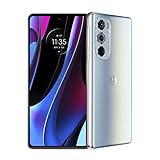
- Carrier compatibility: AT and T: 4G, VoLTE, Verizon: 5G Sub6 NSA, 5G mmWave NSA, VoLTE, WiFi Calling, Video Calling, T Mobile: 5G sub6 SA/NSA, VoLTE, WiFi Calling, Video Calling, Tracfone: GSM Does not support: Boost, U.S. Cellular, Google Fi, Republic Wireless, Tracfone (CDMA), Straight Talk Wireless (CDMA), Ting, Xfinity Wireless, Spectrum, Optimum Mobile. For all carrier compatibility details - please check the product images in detail.Form_factor : Smartphone.Display resolution maximum:2400x1080 pixels.Other camera description:Front,Rear. Aspect Ratio - 20:9 Max Vision.
- Industry-leading Snapdragon 8 performance. Experience the fastest, most powerful mobile platform.
- Instant all-pixel focus and HDR10 plus recording. Get 32x more focusing pixels for faster, more accurate low light performance, plus HDR10 plus recording for over a billion shades of color.
- High-res 50MP ultra-wide and 60MP selfie cameras. Capture amazing detail in both normal and low light using Quad Pixel technology.
- Ultra-smooth 144 Hz display plus Dolby Atmos audio. Enjoy a 6.7 OLED display with HDR10 plus for a billion shades of color and listen with stereo speakers.
- Check the new phone for a “Finish setting up” or “Android Setup” notification, if one appears.
- Follow the on-device prompts if they offer a transfer option.
- If no option appears, consult current Motorola or Google support guidance for your device before considering more disruptive steps.
Do not factory-reset the phone as a routine fix based only on generic instructions. The available guidance does not establish a Signature 27-specific recovery path.
How do I move data from iPhone to Motorola?
Motorola’s general migration guide describes using the Google Drive app on the iPhone to back up photos, contacts, and calendar to a Google Account, then signing in to that same account on the new Android phone. It also advises turning off iMessage and FaceTime to avoid missed messages or calls. This is general Motorola guidance, not confirmation of every Signature 27 setup prompt or of a complete iPhone migration.
Best Value

- Unlocked: Compatible with all major U.S. carriers, including Verizon, AT&T, T-Mobile and other major carriers.
- Premium built-in stylus. Effortlessly jot notes, edit photos, sketch artwork, and navigate on the only phone in its class with a built-in stylus***.
- Striking design with advanced protection. Make a statement with an ultrathin design, modern colors, and a vegan leather finish plus outstanding water and drop protection*.
- 6.7" pOLED Super HD display + Dolby Atmos. Experience cinema-quality entertainment with over a billion shades of color and multidimensional sound.
- Sony - LYTIA camera with OIS. Capture brighter, more vibrant photos at night with the 50MP camera featuring Optical Image Stabilization and moto ai.
- On the iPhone, use the Google Drive app and its backup flow for the supported categories you want to bring over.
- Turn off iMessage and FaceTime as Motorola advises.
- During Android setup, follow the prompts and sign in with the Google Account used for the backup.
- Check the iPhone and new phone for any data or services that need separate handling.
For current steps, see Motorola’s Copy data from old phone guide and follow the actual prompts on the new phone.
Quick Recap
Product prices and availability are accurate as of the date/time indicated and are subject to change. Any price and availability information displayed on Amazon at the time of purchase will apply.

