
Crashes, No Sound, or Screen Glitches?
Random freezes, missing sound and display glitches usually trace back to one bad driver. Find and replace yours safely.Free scan · under a minutePC Slower Than It Used to Be?
A free scan shows the junk files, broken settings and background clutter dragging Windows down - then fixes them in one click.Free scan · Windows 10 & 11iTechGuides is reader-supported. When you buy through links on our site, we may earn an affiliate commission. As an Amazon Associate I earn from qualifying purchases. Learn more
A professional Microsoft Teams camera setup depends more on front-facing light, eye-level placement, natural framing, and reliable permissions than on buying a 4K webcam. For most users, an existing laptop camera or dependable 1080p webcam is enough when the lens is clean, the face is well lit, the camera is selected in Teams, and a test call works.
Microsoft Teams has different controls for work or school accounts, Teams Free, desktop clients, browsers, mobile devices, and Teams Rooms. The exact menu labels and available effects can therefore vary by account, operating system, client version, and organizational policy.
Key takeaways
- Place the camera at or slightly above eye level, close to the primary display, with your eyes near the upper third of the frame.
- Front lighting usually improves a Teams image more than upgrading from 1080p to 4K.
- Teams work or school desktop users normally find camera controls at Settings and more → Settings → Devices; Teams Free desktop users use Profile picture → Settings → Devices.
- A 4K webcam can help with cropping, demonstrations, and recording, but a 4K camera does not guarantee that Teams will transmit or display 4K video to other participants.
- When Teams cannot see a camera, check the physical shutter, operating-system permissions, browser permissions, competing applications, camera selection, and drivers in that order.
What is the ideal Microsoft Teams camera setup?
The ideal Microsoft Teams camera setup is a physical camera positioned near eye level and beside the display used for the meeting, with soft light falling on your face from the front or from a 30–45-degree angle. Frame your head, shoulders, and upper torso naturally, keep the lens uncovered and clean, control the background, and select the physical camera directly in Teams.
For most individual meetings, the setup should be simple rather than elaborate:
Popular on Amazon

- With a 78° fixed field of view, the C920e webcam displays individual users in a well-balanced frame, while also providing sufficient room to visually share projects and other items of interest.
- The C920e webcam features two integrated omnidirectional microphones that capture your audio clearly from up to one meter away, so your voice always sounds natural and clear.
- Built-in HD autofocus ensures you’re seen clearly throughout your video calls. With automatic light correction, C920e delivers optics that help you look good in all your video meetings.
- The C920e webcam features an attachable privacy screen that flips up and down to cover or expose the lens. A simple glance at the cover confirms if the lens is able to see into your space or not.
- The C920e webcam is certified for Zoom, TAA compliant and works with all popular video calling applications such as Microsoft Teams to ensure compatibility and seamless integration in the workplace.
- Camera at eye level or slightly above.
- Lens approximately an arm’s length away.
- Eyes around one-third from the top of the image.
- Face illuminated from the front, not silhouetted against a window.
- Small amount of headroom and visible shoulders.
- Real, tidy background or restrained blur.
- Separate headset or microphone when the camera microphone creates echo or room noise.
- Physical camera selected in Teams instead of an unnecessary virtual-camera layer.
The practical priority is lighting, camera height, framing, background, camera quality, exposure and focus, audio, and repeatability—in that order. A premium webcam cannot correct a low angle, a dirty lens, a bright window behind your head, or an unreliable USB connection.
Is a built-in laptop camera good enough?
A built-in laptop camera is adequate when the room is reasonably bright, the laptop can be raised to eye level, you remain mostly stationary, and the image has acceptable focus, color, exposure, and noise. A built-in camera is often the best choice when portability and reliability matter more than framing flexibility.
Raise the laptop on a stand or stack of stable books rather than aiming the camera upward from desk level. Clean the lens, open the physical shutter, and check the image in Teams before buying anything.
What’s actually slowing this PC down?
Pick the symptom - the matching free tool is one click away.
An external webcam is worthwhile when the laptop must stay low, the built-in camera performs poorly in dim light, you need a different field of view, or you want autofocus, HDR, a privacy shutter, tripod mounting, or a consistent camera that moves between computers. An external webcam also makes sense for a desktop monitor without a usable built-in camera.
The trade-off is additional cable, USB bandwidth, mounting, permissions, firmware, and driver complexity. An external camera is an upgrade only if the extra control solves a real problem.
| Camera option | Best suited to | Advantages | Trade-offs |
|---|---|---|---|
| Built-in laptop camera | Mobile workers and ordinary calls | No extra cost, cable, or installation | Often low on the desk with limited controls |
| Basic 1080p webcam | Most home offices | Simple, affordable, and generally sufficient for meetings | May have limited exposure control or a weak microphone |
| Premium 1080p webcam | Frequent presenters, interview candidates, and executives | Better optics, framing, mounting, light correction, and privacy features | Costs more without guaranteeing better transmitted Teams resolution |
| 4K webcam | Cropping, demonstrations, recording, and content creation | More detail and flexibility outside ordinary calls | More expensive and not necessarily delivered as 4K in Teams |
| Mirrorless camera and capture device | Studio-style production | Excellent optics and depth control | High cost and added heat, power, capture, and software requirements |
| Virtual camera | Scenes, overlays, multiple sources, and branded layouts | Compositing and production control | More applications, permissions, CPU/GPU load, and failure points |
| Teams Rooms-certified system | Managed conference rooms | Supported room workflows and enterprise administration | Overkill for a single-user desk |
Where should you place the camera?
Place the camera directly above or immediately beside the primary screen, with the lens close to eye level. Eye-level placement produces a more natural perspective and avoids the exaggerated chin and nostril view caused by a camera placed low on the desk.
A camera pointed down from too high a position can make you look diminished and create an unnatural angle. Keep the lens close enough that you can look toward the meeting display and still appear to make near-direct eye contact.
Quick wins for a faster PC:
Scan for outdated or missing drivers - takes under a minuteDriver Scan →Repair Windows errors before they cause bigger problemsFix Now →With two monitors, place the camera beside the display used for the meeting rather than halfway between both monitors. Looking at the meeting window will then keep your gaze closer to the lens.
A monitor clip is convenient, but a tripod thread or desk stand provides more flexibility. A laptop stand is often the most valuable accessory for a built-in camera because it corrects height without adding another camera source.
How should you frame yourself in Teams?
Frame your face and shoulders clearly, place your eyes approximately one-third from the top of the frame, and leave only a small amount of space above your head. The camera should show enough upper torso to make gestures and posture look natural without displaying unnecessary room clutter.
A 65–78-degree diagonal field of view is a useful practical range for one seated participant. A narrower field of view suits a head-and-shoulders professional shot; a wider field of view helps with demonstrations, movement, or two people. Very wide settings can make the face look smaller and reveal distracting background detail.
Free tools Windows power users keep installed
One-click scans. No signup required.
Also popular on Amazon
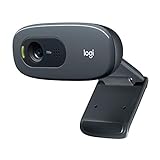
- Compatible with Nintendo Switch 2’s new GameChat mode
- Crisp HD 720p/30 fps video calls with diagonal 55° field of view and auto light correction. Compatible with popular platforms including Skype and Zoom.
- The built-in noise-reducing mic makes sure your voice comes across clearly up to 1.5 meters away, even if you’re in busy surroundings.
- C270’s RightLight 2 feature adjusts to lighting conditions, producing brighter, contrasted images to help you look good in all your conference calls.
- The adjustable universal clip lets you attach the camera securely to your screen or laptop, or fold the clip and set the webcam on a shelf. You’re always ready for your next video call.
Do not rely on extreme digital zoom. Digital cropping reduces effective detail and can make a good camera look blurry. Move the camera or adjust its optical or native field of view instead.
How should you light a Teams camera?
Light your face from the front or from one side at roughly 30–45 degrees. Avoid placing a bright window directly behind your head, because the camera may expose for the window and leave your face dark.
Minimum viable lighting
- Face a window or lamp.
- Reduce strong light sources behind you.
- Turn your chair or desk rather than asking the camera to compensate for backlighting.
Better lighting
- Use a soft light slightly above eye level and 30–45 degrees to one side.
- Use a weaker fill light or a reflective surface on the opposite side.
- Keep nearby light sources at similar color temperatures where possible.
Advanced lighting
Use a diffused key light, a weaker fill, and an optional background or hair light for separation. Diffusion is preferable to a small, bare, intense light, which can create hard shadows and shiny highlights.
Teams includes Adjust brightness in supported clients and configurations. Microsoft describes the control as a way to improve video quality in low-light situations in its Teams device-settings documentation. Software brightness adjustment can help, but physical light produces a more stable result and usually less image noise.
How do you configure camera settings in Microsoft Teams?
Use the camera preview and device settings before joining an important meeting. Microsoft’s current desktop path for Teams work or school is Settings and more → Settings → Devices. The Microsoft device-settings guide documents camera selection, preview, available camera controls, and the Make a test call option.
Teams work or school on desktop
- Open Teams.
- Select Settings and more, usually represented by the three-dot menu.
- Select Settings.
- Open Devices.
- Choose the intended camera from the camera dropdown.
- Check the preview for framing, exposure, and focus.
- Use available controls such as brightness, soft focus, or camera settings.
- Run Make a test call if the option is available.
Teams Free on desktop
Teams Free uses a different documented path: Profile picture → Settings → Devices. During a meeting, open More options → Video effects and settings for supported effects and controls. The Teams Free device-settings instructions describe these paths and explain the mirror-preview behavior.
Pre-join and in-meeting controls
The pre-join screen is the fastest place to confirm that the correct camera is active before entering a meeting. Open the camera dropdown if more than one source is listed, preview the image, and open Video effects and settings when background or appearance controls are needed.
Desktop, web, mobile, account type, operating system, and organizational policy can change the available controls. A setting described in Microsoft’s documentation may not appear in every Teams client.
Camera controls worth understanding
- Camera selection: Choose the physical built-in or USB camera you intend to use.
- Adjust brightness: Useful for low-light compensation, but not a replacement for front lighting.
- Soft focus: Smooths appearance but can reduce perceived detail; disable it when diagnosing blur.
- Mirror my video: Usually changes your own preview rather than guaranteeing that other participants see a mirrored image.
- Automatic or manual controls: Automatic exposure and white balance are convenient; manual controls can stabilize a difficult scene if the client and camera support them.
- Video effects: Backgrounds, blur, filters, and other effects may depend on the client, account, and policy.
Microsoft’s Teams video guidance provides additional information about using video during meetings.
What does “Mirror my video” do?
“Mirror my video” generally changes the way you see your own preview; it does not necessarily mean that other participants see a mirrored image. Check text, logos, whiteboards, and hand gestures with a second participant or test recording before relying on the preview.
Microsoft specifically documents the mirror option as changing the user’s own view in the Teams Free device-settings documentation. Do not assume that a logo or presentation slide is reversed for everyone else because your local preview is reversed.
Also popular on Amazon

- HD lighting adjustment and autofocus: The Logitech webcam automatically fine-tunes lighting for bright, sharp images even in low light. A reliable addition to office supplies, it’s a great webcam for streaming and an ideal webcam for laptop use
- Full HD 1080p video calling and recording at 30 fps. You'll make a strong impression with this webcam for PC that features crisp, clearly detailed, and vibrantly colored video
- Advanced capture software: Easily create and share video content with this Logitech camera that is suitable for use as a desktop computer camera or webcam for monitor
- Full HD Webcam: The Logitech C920 Web Camera is a 1080p webcam
- This Logitech camera for computer comes with a 3-month XSplit VCam license and no privacy shutter. XSplit VCam lets you remove, replace and blur your background without a green screen
Should you use blur, filters, or a virtual background?
Improve the real background first, use subtle blur when privacy is the main concern, and use a custom background only when the background looks natural and the edges around your hair and shoulders remain clean. Microsoft explains how to select backgrounds before joining or during a meeting in its background-effects guide.
Do these 3 things before closing this tab:
1Fix the driver behind crashes, sound loss and screen glitches2Clear out junk files and repair common Windows errors3Scan for outdated or missing drivers - takes under a minute- Arrange a tidy real background if possible.
- Use blur for a simple privacy solution.
- Use a restrained branded or custom image when appropriate.
- Use green screen only with suitable physical lighting and a reasonably even background.
- Avoid heavy face filters in professional meetings unless the context supports them.
Background segmentation can create halos around hair, glasses, or moving hands. If an effect produces artifacts, disable the effect and use a real background or improve the lighting. Microsoft also documents additional filters, some of which may require adding an app to the meeting and consenting to that app’s privacy terms in its video-filter guidance.
What should you look for when buying an external webcam?
Buy for the problem you need to solve rather than for the largest resolution printed on the box.
| Criterion | What matters | Best use |
|---|---|---|
| Resolution | 1080p is generally sufficient for one-person meetings; 4K adds cropping and recording flexibility | Choose 4K for production or cropping, not merely because Teams has a 4K-capable camera |
| Frame rate | 30 fps suits ordinary meetings; 60 fps makes movement smoother | Prioritize exposure and lighting before high frame rate |
| Field of view | Narrower frames the face; wider supports movement or two people | Select based on desk distance and whether demonstrations are needed |
| Autofocus | Helpful when moving or showing documents; fixed focus can be stable at a fixed desk | Choose autofocus for presenters and teachers |
| HDR and low-light processing | Can help with uneven lighting but may create halos or unnatural skin tones | Useful only when physical lighting cannot be controlled |
| Mounting | Monitor clip, desk stand, or tripod thread affects placement | Choose the mount that puts the lens at eye level |
| Privacy | Physical shutter or cover provides an immediate hardware control | Important for privacy-sensitive work |
| Compatibility | Standard USB Video Class support generally improves plug-and-play prospects | Important for multiple computers and managed environments |
For example, Logitech’s webcam portfolio lists different capabilities for BRIO 305, BRIO 505, and MX BRIO 705, including resolution, fields of view, microphones, and light correction. The Logitech BRIO datasheet lists 4K at 30 fps, 1080p at 60 fps, and 720p at 90 fps modes for that model, subject to application support. Those specifications describe camera capability, not a promise that a Teams meeting will transmit every mode.
Relative buying tiers
- No-purchase upgrade: Raise the built-in camera, improve the light, clean the lens, and use a headset.
- Entry-level external webcam: A practical upgrade for a desktop or low laptop camera.
- Premium 1080p webcam: Suitable for people who need better framing, mounting, privacy, or business features without moving to 4K.
- 4K webcam: Suitable for cropping, demonstrations, recording, and content creation, but potentially excessive for ordinary Teams calls.
- Mirrorless camera and capture device: Appropriate for studio production and high-end recording workflows, not a simple reliability upgrade.
- Teams Rooms hardware: Appropriate for conference rooms and managed spaces, not an individual laptop desk.
Current prices and availability were not established by the supplied research, so compare current pricing separately before publication or purchase.
The Tool Desk
Outbyte PC Repair FREEClear out junk files and repair common Windows errorsFree Scan →Outbyte Driver Updater FREEScan for outdated or missing drivers - takes under a minuteDriver Scan →When do manufacturer utilities help or hurt?
Manufacturer software can provide field-of-view selection, digital zoom, exposure, white balance, HDR, focus modes, presets, auto-framing, and firmware updates. Those controls can be useful when the webcam’s defaults are unstable or when a presenter needs repeatable framing.
Manufacturer utilities can also create a virtual camera or claim exclusive access to the physical camera. Prefer direct UVC camera selection in Teams unless a virtual-camera workflow is genuinely needed. If the image suddenly disappears after launching a webcam utility, close the utility, restart Teams, and select the physical camera again.
When is a virtual camera or mirrorless camera justified?
A virtual camera is justified when you need scenes, overlays, multiple camera sources, screen composition, branded layouts, or a production workflow. OBS Studio is free and open source and can provide those capabilities through its official project site. A virtual camera does not inherently improve the underlying webcam’s optics, lighting, or transmitted Teams quality.
Virtual-camera workflows add another application, another source-selection layer, possible CPU/GPU load, permissions, startup-order problems, and more ways to lose video. Use the physical camera as the fallback. If the virtual camera is missing, confirm that the host is running, that it was installed for the correct user, that macOS camera-extension permissions are granted where applicable, and that organizational policy does not block it. The OBS virtual-camera troubleshooting documentation covers Windows and macOS-specific issues.
Recommended Free Tools
A mirrorless or DSLR camera with a capture device is suitable for creators and executives who need better optics, depth control, or a combined recording workflow. The setup requires more attention to power, heat, capture hardware, focus, and cable reliability than a USB webcam.
What is different about Teams Rooms?
Teams Rooms are managed conference-room systems, not simply larger versions of a personal webcam setup. Camera selection, firmware, room peripherals, administration, content cameras, and multi-camera behavior follow separate requirements.
Also popular on Amazon

- FULL HD 1080P VIDEO: Delivers crisp, clear video at 1080P resolution, ensuring sharp and detailed visuals for video calls, streaming, and conferencing.
- NOISE CANCELLATION: Built-in noise-canceling microphone filters out background sounds, providing clear and focused audio during calls and recordings.
- PRIVACY COVER: Integrated privacy cover lets you easily block the lens when the webcam is not in use, giving you full control over your privacy.
- WIDE-ANGLE LENS & AUTO LIGHT CORRECTION: The wide-angle lens captures more of your surroundings, while auto light correction adjusts for optimal image quality in any lighting condition.
- PLUG & PLAY USB: No drivers or software needed — simply plug into any USB port for instant compatibility with laptops, desktops, PCs, and Macs.
Use Microsoft’s Teams Rooms certified systems and peripherals catalog when selecting room hardware. Microsoft also maintains separate documentation for content cameras, multiple-camera views, and an unhealthy camera status. A consumer webcam that works at a desk should not automatically be treated as suitable for a managed Teams Room.
Independent reader supportYour contribution helps us test, update, and keep practical guides available for everyone.How do you troubleshoot a Microsoft Teams camera that does not work?
Follow the permission hierarchy from the physical lens outward. Testing every layer in order is faster than randomly reinstalling Teams.
1. Check the physical camera
- Open the built-in shutter or webcam privacy slider.
- Press the laptop camera function key if the device has one.
- Disable manufacturer privacy mode.
- Check the USB cable, connector, and camera power indicator.
- Remove a physical lens cover temporarily.
Microsoft lists shutters, keyboard keys, and manufacturer privacy modes as possible causes in its Teams camera troubleshooting guidance.
2. Test the camera outside Teams
Open the Windows Camera application or another trusted camera application. If the camera fails everywhere, investigate hardware, cable, privacy settings, the operating system, or the driver. If the camera works elsewhere but not in Teams, investigate Teams selection, permissions, client state, and application conflicts.
Microsoft recommends testing the camera in another application, and its Windows camera troubleshooting guide covers the operating-system side.
3. Verify Windows camera permissions
In Windows, open Start → Settings → Privacy & security → Camera. Enable:
- Camera access.
- Let apps access your camera.
- Let desktop apps access your camera.
Desktop applications such as Teams require the desktop-app permission. A camera can therefore work in one environment while remaining unavailable to the Teams desktop client.
4. Check browser permissions
For Teams on the web, open the browser’s site-permission control beside the address bar, set Camera to Allow, refresh Teams, and rejoin the meeting. Approve the camera prompt if the browser asks again.
5. Close competing applications
Quit Zoom, Google Meet tabs, FaceTime, the Windows Camera app, OBS, webcam utilities, recording software, streaming tools, and virtual-camera hosts. Another application may be using the physical camera or presenting a different source.
6. Select the physical camera in Teams
- Open Teams video settings or the pre-join screen.
- Open the camera dropdown.
- Select the built-in or connected physical camera.
- Avoid a virtual camera unless that source is intentional.
- Turn video off and on again.
- Restart Teams if the source remains unavailable.
A virtual camera can show another application’s feed, show no feed, or show an unexpected image. Microsoft describes those failure modes in its camera troubleshooting documentation.
Windows Errors? Fix Them Before They Spread
Repair common Windows errors and clear accumulated junk for a smoother, more stable PC - no reinstall needed.Free scan · no reinstallOutdated Drivers Are Slowing You Down
One free scan finds every outdated or missing driver and matches the right update for your exact hardware.Free scan · exact hardware match7. Update or simplify the driver path
Install pending operating-system updates, check the camera manufacturer for driver or firmware updates, and restart after making changes. If the camera is intermittently detected, use the standard or basic camera-driver option where the device and operating system provide one. Microsoft notes that basic-driver mode can improve reliability but may disable advanced manufacturer features.
Also popular on Amazon

- 【Full HD 1080P Webcam】Powered by a 1080p FHD two-MP CMOS, the NexiGo N60 Webcam produces exceptionally sharp and clear videos at resolutions up to 1920 x 1080 with 30fps. The 3.6mm glass lens provides a crisp image at fixed distances and is optimized between 19.6 inches to 13 feet, making it ideal for almost any indoor use.
- 【Wide Compatibility】Works with USB 2.0/3.0, no additional drivers required. Ready to use in approximately one minute or less on any compatible device. Compatible with Mac OS X 10.7 and higher / Windows 7, 8, 10 & 11 / Android 4.0 or higher / Linux 2.6.24 / Chrome OS 29.0.1547 / Ubuntu Version 10.04 or above. Not compatible with XBOX/PS4/PS5.
- 【Built-in Noise-Cancelling Microphone】The built-in noise-canceling microphone reduces ambient noise to enhance the sound quality of your video. Great for Zoom / Facetime / Video Calling / OBS / Twitch / Facebook / YouTube / Conferencing / Gaming / Streaming / Recording / Online School.
- 【USB Webcam with Privacy Protection Cover】The privacy cover blocks the lens when the webcam is not in use. It's perfect to help provide security and peace of mind to anyone, from individuals to large companies. 【Note:】Please contact our support for firmware update if you have noticed any audio delays.
- 【Wide Compatibility】Works with USB 2.0/3.0, no additional drivers required. Ready to use in approximately one minute or less on any compatible device. Compatible with Mac OS X 10.7 and higher / Windows 7, 10 & 11, Pro / Android 4.0 or higher / Linux 2.6.24 / Chrome OS 29.0.1547 / Ubuntu Version 10.04 or above. Not compatible with XBOX/PS4/PS5.
8. Escalate managed-environment problems
If a camera works in a test application but fails only in a corporate meeting, investigate organizational camera policy, endpoint security, virtual desktop infrastructure, unsupported room configuration, and USB or network resource limits. IT administrators may need to resolve those restrictions.
How do you fix common Teams camera symptoms?
| Symptom | Likely causes | First recovery action |
|---|---|---|
| Teams shows only your background | Shutter closed, privacy mode, unavailable feed, or background effect masking the issue | Disable background effects, inspect the lens, and test in the Windows Camera app |
| Camera works in Windows but not Teams | Wrong Teams source, competing application, permission problem, virtual camera, or client state | Close competing apps, select the physical camera, verify permissions, and restart Teams |
| Black or gray image | Shutter, privacy key, exposure, virtual-camera output, or exclusive access | Check physical privacy controls and disable virtual-camera software |
| Blurry image | Dirty lens, poor light, focus hunting, digital zoom, soft focus, or background processing | Clean the lens, improve light, disable soft focus and background effects, and retest |
| Framing keeps changing | Auto-framing, face tracking, manufacturer crop, or virtual-camera crop | Disable automatic framing and lock the field of view |
| Virtual camera is missing | Host not running, extension permission, installation issue, policy restriction, or claimed source | Start the host, verify permissions, restart Teams, and return to the physical camera if needed |
How can you separate preview quality from transmitted quality?
A sharp local preview does not prove that other participants receive the same resolution or detail. Teams can alter effective video quality according to the application, device, network, meeting conditions, and available bandwidth. A 4K webcam may capture a 4K-capable source while Teams processes or transmits a different stream, and another participant’s display may show another result.
Judge the complete workflow: local preview, actual meeting image, audio quality, stability, and what a recording or screen capture contains. Do not buy a 4K webcam solely on the assumption that every Teams participant will see 4K.
What audio setup should accompany the camera?
Good video with echo, keyboard noise, or room reverberation still sounds unprofessional. Use a headset, USB microphone, or directional microphone when the camera’s built-in microphone picks up speakers, hard surfaces, or room noise.
Run a test call, speak at a normal volume, listen for echo, and confirm that the microphone does not clip. A separate microphone can improve audio, but it also adds another device to select and test. Reliability remains more important than adding equipment that you cannot set up consistently.
What should you do two minutes before a meeting?
- Clean the lens and confirm that the physical shutter is open.
- Open the pre-join preview or Teams device settings.
- Select the intended physical camera.
- Check that your face is lit from the front.
- Confirm eye-level placement, headroom, shoulders, and background.
- Disable an unwanted virtual background, filter, crop, or auto-framing effect.
- Confirm the microphone and listen for echo.
- Check that the correct headset or speaker is selected.
- Close other camera applications and virtual-camera hosts unless intentionally needed.
- Keep a built-in camera or other tested source as a backup.
Which setup should most readers choose?
Most office workers should first raise the built-in camera, improve front lighting, clean the lens, and use a headset. If the laptop camera remains too low, dark, narrow, or inconsistent, choose a dependable 1080p external webcam with a physical shutter and a mounting option that reaches eye level.
Choose a premium 1080p model when better framing, autofocus, privacy, or repeatability matters. Choose 4K for cropping, demonstrations, recording, or content creation rather than as a guaranteed Teams call-quality upgrade. Use OBS or another virtual camera only for genuine production needs, and use Teams Rooms-certified hardware for managed conference rooms rather than personal desks.
Free tools Windows power users keep installed
One-click scans. No signup required.
Frequently Asked Questions
Does Microsoft Teams support a 4K webcam?
Microsoft Teams can use a 4K-capable webcam as a camera source when the client, device, and application support it, but a 4K webcam does not guarantee 4K transmission or playback for other meeting participants. Teams may alter effective video quality according to the device, network, meeting conditions, and available bandwidth.
Why does my camera work in Windows but not in Microsoft Teams?
The usual causes are an incorrect camera selected in Teams, another application using the camera, a Teams or browser permission problem, a virtual camera selected instead of the physical camera, or a client that needs restarting. Close competing applications, verify camera permissions, select the physical camera, and restart Teams.
Does “Mirror my video” mirror the image for everyone in Teams?
“Mirror my video” generally changes your own preview, not necessarily the image seen by other participants. Check text, logos, whiteboards, and gestures with another participant or a test recording before assuming that everyone sees a mirrored image.
Is a 1080p webcam enough for Microsoft Teams meetings?
A dependable 1080p webcam is generally enough for a single-person Microsoft Teams meeting when the camera is positioned correctly and the face is well lit. A 4K webcam is more useful for cropping, demonstrations, recording, or content creation than for guaranteeing a sharper Teams stream.
The Bottom Line
The best Microsoft Teams camera setup is usually a well-lit, eye-level, physically connected camera with natural framing and a tested microphone—not the most expensive camera available. Fix placement and lighting first, use Teams’ native controls and permissions correctly, and add 4K, virtual-camera, or Teams Rooms hardware only when a specific workflow requires it.

