
Do these 3 things before closing this tab:
1Fix the driver behind crashes, sound loss and screen glitches2Clear out junk files and repair common Windows errors3Scan for outdated or missing drivers - takes under a minuteiTechGuides is reader-supported. When you buy through links on our site, we may earn an affiliate commission. As an Amazon Associate I earn from qualifying purchases. Learn more
To use an iPhone as a webcam on a Windows PC, install a bridge app such as Camo or DroidCam on both the iPhone and computer, connect by USB or Wi-Fi, then select the resulting virtual camera in Zoom, Teams, Meet, Discord, or OBS. Apple’s Continuity Camera is documented for Mac, not Windows.
Best overall method: use Camo over USB for the most reliable picture and lowest practical latency. DroidCam is a useful budget alternative, while EpocCam is now a legacy option that is no longer available for new purchase or development.
Key takeaways
- Windows does not receive an iPhone camera through Apple’s native Continuity Camera workflow; Windows users need bridge software such as Camo or DroidCam.
- Camo supports Windows 10 or later and provides Wi-Fi and USB connections, with higher resolutions such as 1080p and 4K reserved for Camo Pro according to its current product information.
- USB is generally the better connection for meetings, streaming, and recording because Wi-Fi can introduce discovery problems, latency, and dropped frames.
- DroidCam provides a free 640×480 standard-definition mode, while HD webcam output and some advanced features require its Pro upgrade.
- EpocCam is no longer available for new purchase or development, so new users should choose Camo or DroidCam instead.
What do you need to use an iPhone as a webcam on a Windows PC?
You need an iPhone, a Windows 10 or Windows 11 computer, webcam bridge software installed on both devices, and either a local Wi-Fi network or a suitable USB data cable.
PC Slower Than It Used to Be?
A free scan shows the junk files, broken settings and background clutter dragging Windows down - then fixes them in one click.Free scan · Windows 10 & 11Outdated Drivers Are Slowing You Down
One free scan finds every outdated or missing driver and matches the right update for your exact hardware.Free scan · exact hardware match- iPhone: Install the current Camo Camera or DroidCam iPhone app and check the App Store listing for the current iOS requirement before setup.
- Windows PC: Install Camo Studio or the DroidCam Windows client.
- Connection: Use Wi-Fi for convenience or USB for stability and lower latency.
- Mount: A phone stand, tripod, or monitor mount is strongly recommended. Position the phone at eye level in landscape orientation.
- Audio: A headset, USB microphone, or separate PC microphone is usually preferable to relying on the iPhone microphone.
Camo’s official overview lists Windows 10 or later for Camo Studio. Camo’s published iOS compatibility information is not completely consistent across its overview and pricing pages, so checking the current app-store requirement is safer than assuming every older iPhone is supported. See the Camo compatibility overview and Camo pricing and plan information.
Popular on Amazon

- For Apple Continuity Camera on Monitor Setups: Designed for Apple Continuity Camera, this magnetic monitor phone mount places your phone in landscape above a stable desktop monitor and uses the rear camera as a webcam with a compatible Mac. During use, the rear camera faces you, the phone screen faces away, and the view appears on the connected screen.
- Designed for Desktop Monitors, Not Notebook Screens: This foldable phone webcam holder is designed for stable desktop monitors with flat top edges, including iMac, Studio Display, and other desktop monitor setups. It rests on the monitor top edge and is not a spring-loaded clamp. Thick, curved, uneven, very narrow edges, narrow bezels, or side mounting may affect fit. 【Important Note: Not designed for direct mounting on notebook screens or side edges.】
- Open-Cut Aluminum Body with Silicone Pads: The open-cut aluminum alloy body keeps a clean metal look with steady support. Silicone contact surfaces help reduce marks on your phone and monitor, while firm adjustable joints help hold the selected camera position during monitor-mounted webcam use.
- MagSafe Magnetic Hold with Accessory Kit: Magnetic attachment for MagSafe-compatible phones and cases. For other phones or cases, apply the metal ring only to a clean, smooth, flat, hard surface. 【Important Note: Uneven, soft, textured, leather, fabric, wallet, ring holder, or pop-out stand cases may reduce grip or adhesion.】 To remove, support the holder and peel from one edge. Includes 1 mount, 2 metal rings, 2 cleaning cloths, 2 positioning guides, and 1 manual.
- Foldable Design with 1/4-Inch Tripod Thread: The compact foldable design is easy to store, carry, or pack for office, home, and travel. The built-in 1/4-inch thread connects to compatible tripods and camera stands with a standard 1/4-inch screw. Tripod use is landscape only. Direct desk use supports landscape or portrait for recording, streaming, video calls, or demos. Physical holder only, not a charger.
Does Apple Continuity Camera work with Windows?
Apple’s official Continuity Camera requirements describe using an iPhone as a webcam with a Mac running macOS Ventura 13 or later. The documented workflow is not a direct Windows feature; Windows users should install a third-party bridge application instead. Apple’s requirements are listed in its Continuity Camera support document.
The distinction matters:
- Native webcam support: The operating system recognizes a camera directly as hardware.
- Virtual-camera support: Camo or DroidCam receives the iPhone’s video and exposes a selectable camera source to Windows applications.
After the bridge app is running, a meeting or recording application normally sees a camera named Camo Camera or DroidCam Video. Screen mirroring, QuickTime capture, or displaying the iPhone screen does not automatically create a webcam source that Zoom, Teams, or OBS can select.
What is the easiest way to use an iPhone as a webcam on Windows?
Camo is the strongest default choice for most Windows users because it has a Windows desktop application, an iPhone companion app, USB and Wi-Fi workflows, image controls, and support for common meeting and streaming applications.
What’s actually slowing this PC down?
Pick the symptom - the matching free tool is one click away.
How do you install Camo?
- Download and install Camo Studio and Camo Camera from Camo’s official product page.
- Install Camo Camera on the iPhone from the Apple App Store.
- Open Camo Studio on Windows.
- Open Camo Camera on the iPhone.
- Allow camera access on the iPhone and allow local-network access if prompted for wireless pairing.
- In Camo Studio, choose the connected iPhone from the device selector.
Camo’s compatibility information lists support for applications including Zoom, Google Meet, Twitch, and OBS. Camo also notes that some applications must be restarted after installation before the virtual camera appears. Its FAQ lists Zoom 5.0.5 or later as a compatibility requirement; check the Camo FAQ and supported-app information if a particular application does not detect the camera.
How do you connect Camo by USB?
- Use a Lightning or USB-C cable that supports data, not only charging.
- Connect the iPhone directly to the Windows PC rather than through a USB hub.
- Unlock the iPhone and approve Trust This Computer if the prompt appears.
- Open Camo Camera and Camo Studio.
- Wait for the iPhone to appear in Camo Studio, then select it.
USB is the recommended connection for long meetings, live streaming, teaching, and recording. USB avoids many Wi-Fi discovery problems and usually provides a steadier, lower-latency feed. USB charging is possible in many setups, but charging depends on the cable, port, hub, adapter, and power available from the computer.
How do you connect Camo over Wi-Fi?
- Connect the iPhone and Windows PC to the same local network.
- Open Camo Camera on the iPhone and Camo Studio on Windows.
- Allow local-network access on the iPhone when requested.
- Select the iPhone in Camo Studio’s device selector.
- If the phone is not found, check whether the network is a guest or isolated network and whether a VPN or firewall is blocking local discovery.
Wi-Fi is convenient when the phone needs to be positioned away from the computer or when a cable would be awkward. Wi-Fi is more sensitive to network congestion, weak signal, guest-network isolation, and blocked device discovery, so USB is a better choice when the call or stream is important.
How do you select Camo in Zoom, Teams, Google Meet, or OBS?
Installing Camo is only half the setup; the target application must use the virtual camera.
- Open the video application after Camo Studio is running.
- Open Settings or Preferences.
- Open Video, Camera, or Video Capture Device.
- Select Camo Camera.
- Check the preview before joining the meeting or starting the recording.
In Google Meet, change the camera from the meeting’s video settings or from the browser’s camera and site-permission controls. In OBS, add or select the Camo virtual camera as the video source. If Camo Camera is missing, close and reopen the target application after installing or updating Camo.
Also popular on Amazon

- 360° Rotation for Camera Framing: The 360° rotating head helps adjust phone angle and camera framing on a stable desktop monitor without moving the monitor. For monitor use, the phone remains in landscape orientation. For Apple Continuity Camera, the rear camera remains the webcam source and the phone screen faces away. The magnetic surface is fixed on one side only.
- Designed for Desktop Monitors, Not Notebook Screens: This 360° rotating phone webcam holder is designed for stable desktop monitors with flat top edges, including iMac, Studio Display, and other desktop monitor setups. It rests on the monitor top edge and is not a spring-loaded clamp. Thick, curved, uneven, very narrow edges, narrow bezels, or side mounting may affect fit. 【Important Note: Not designed for direct mounting on notebook screens or side edges.】
- Open-Cut Aluminum Body with Silicone Pads: The open-cut aluminum alloy body keeps a clean metal look with steady support. Silicone contact surfaces help reduce marks on your phone and monitor, while firm adjustable joints help hold the selected camera angle during monitor-mounted webcam use. For larger phones, center the phone over the mount for better balance.
- Magnetic Hold with Accessory Kit: Magnetic attachment for MagSafe-compatible phones and cases. For other phones or cases, apply the metal ring only to a clean, smooth, flat, hard surface. 【Important Note: Uneven, soft, rubberized, textured, leather, fabric, wallet, ring holder, or pop-out stand cases may reduce grip or adhesion.】 To remove, support the holder and peel from one edge. Includes 1 rotating mount, 2 metal rings, 2 cleaning cloths, 2 positioning guides, and 1 user manual.
- Foldable Design with 1/4-Inch Tripod Thread: The compact foldable design is easy to store, carry, or pack for office, home, and travel. The built-in 1/4-inch thread connects to compatible tripods and camera stands with a standard 1/4-inch screw. Tripod-mounted use is landscape only. When placed directly on a flat desk, the holder supports landscape or portrait use for calls, streaming, recording, or demos. Physical holder only, not a charger.
How should you configure Camo for the best picture?
- Select the rear-facing iPhone camera when image quality matters more than seeing the phone screen.
- Mount the iPhone at eye level instead of pointing it upward from the desk.
- Use landscape orientation for a normal webcam-shaped frame.
- Start at 1080p for meetings or streams if the active Camo plan and application support it.
- Use 720p when the computer, network, or USB connection struggles.
- Adjust framing, focus, exposure, and lens selection in Camo Studio.
- Use 4K mainly for local recording when the phone, plan, computer, and recording workflow support it.
A 4K-capable iPhone does not make every video meeting a 4K call. Camo’s troubleshooting guidance says many conferencing applications do not support resolutions above 1080p and identifies 4K as more appropriate for local recordings. Camo also identifies iPhone 12 and newer in its 4K compatibility guidance, so do not assume that every iPhone can produce a 4K Camo feed.
Can you use DroidCam as a free iPhone webcam?
DroidCam is a lower-cost alternative that supports Wi-Fi and USB connections and can expose the iPhone as DroidCam Video in Windows applications.
How do you set up DroidCam on Windows?
- Install DroidCam Webcam & OBS Camera on the iPhone.
- Install the current DroidCam Windows client from the official DroidCam Windows page.
- Open DroidCam on the iPhone.
- Open the Windows client.
- Refresh or add the iPhone in the Windows client.
- For Wi-Fi, keep the iPhone and PC on the same network.
- For USB, follow DroidCam’s USB instructions and use a data-capable cable.
- Reopen Zoom, Teams, Discord, OBS, or the relevant application.
- Select DroidCam Video as the camera source.
The DroidCam Windows page identifies its current client as version 7.2 and lists Windows 10 and Windows 11 support for x64 and ARM64 systems. DroidCam’s iPhone listing advertises free 640×480 standard-definition webcam use, while HD webcam output requires Pro; the listing also describes an OBS workflow capable of higher resolutions. DroidCam Pro pricing can vary by region, so check the current App Store listing rather than relying on a universal price.
Quick wins for a faster PC:
Scan for outdated or missing drivers - takes under a minuteDriver Scan →Repair Windows errors before they cause bigger problemsFix Now →Camo versus DroidCam: which iPhone webcam app is better?
Camo is the better default for polished controls and a guided setup; DroidCam is more attractive when free standard-definition video or a budget OBS workflow is the priority.
| Decision factor | Camo | DroidCam |
|---|---|---|
| Best for | Meetings, teaching, streaming, and users who want image controls | Budget webcam use and flexible OBS workflows |
| Windows support | Windows 10 or later | Windows 10 and 11; x64 and ARM64 client support is listed |
| Connection methods | Wi-Fi or USB | Wi-Fi or USB |
| Free video mode | Core functionality is available; higher resolutions depend on the plan | 640×480 standard definition |
| Paid quality features | Camo Pro unlocks 1080p and higher resolutions, including 4K | Pro unlocks HD webcam output and other paid features |
| Image controls | Framing, lens, exposure, effects, and portrait/background features | Controls vary according to edition and workflow |
| OBS | Supported | Dedicated OBS workflow and integration are advertised |
| Main trade-off | Higher-quality features require Pro | Free output is limited and setup can be more variable |
For official feature and plan details, compare the Camo overview, Camo pricing page, DroidCam Windows documentation, and the DroidCam iPhone listing.
Is EpocCam still available for Windows?
EpocCam is not a normal current recommendation. Elgato says EpocCam is no longer available for new purchase and will receive no further updates or development.
Existing purchasers may still be able to redownload EpocCam from Apple purchase history. Elgato’s legacy Windows setup requires Windows 10 or 11 64-bit, Camera Hub 1.7 or later, and iOS or iPadOS 13 or later. Existing users can use Wi-Fi or USB; the documented wired workflow requires Apple Devices from the Microsoft Store, a PC restart, a Lightning or USB-C cable, and Camera Hub. See Elgato’s EpocCam Windows setup guide.
New users should install Camo or DroidCam instead of searching for an EpocCam download.
Also popular on Amazon
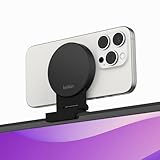
- CONTINUITY SUPPORT WITH TVOS: This iPhone mount turns your phone into a webcam, pairing the advanced iPhone camera system with the Continuity Camera features of the latest tvOS.
- MAGSAFE COMPATIBLE + DYNAMIC DESIGN: Place your iPhone against the MagSafe compatible mount for hands-free streaming or chatting. Plus, its dynamic build lets you mount directly to your TV or stand alone on a shelf if there's not enough space.
- EASY ADJUSTMENT & ROTATION: Wide range of tilt capability allows you to tilt the mount -20 degrees to +30 degrees, adjusting seamlessly to whatever environment you live or work in. Plus, rotating your phone to either landscape or portrait mode is simple!
- PREMIUM, TRAVEL-FRIENDLY DESIGN: Install and detach this mount easily, making it the perfect travel companion whether for work trips or vacations. And its durable metal construction and premium finish helps ensure an item that stands the test of time.
- SUSTAINABLY MADE + 2-YEAR WARRANTY: This Belkin iPhone Mount comes in 100% plastic free packaging. You can also purchase with peace of mind, as it includes a 2-year warranty and Connected Equipment Warranty up to $2,500.
Can the iPhone microphone be used with the webcam?
Usually, a bridge app and Windows application can use the iPhone to provide audio as well as video, but a separate headset or microphone is usually the more dependable choice.
A headset keeps the microphone close to the speaker and reduces echo. If the iPhone is mounted several feet away, the iPhone microphone may pick up room noise or speakers. Wireless audio can also introduce delay, and poor network conditions can make audio and video synchronization less consistent.
For the most reliable setup, select Camo Camera or DroidCam Video for video, then select a headset, USB microphone, or PC microphone separately under the application’s Microphone or Audio settings. DroidCam’s documentation and iPhone listing confirm audio support but warn that audio quality and latency can vary, making video-only use preferable when possible.
How do you fix common iPhone webcam problems?
Use the symptom that matches the problem and apply the fixes in order.
| Problem | Likely causes | What to try |
|---|---|---|
| Camera is not listed | Target app opened before the virtual camera was installed or bridge app is closed | Start Camo Studio or DroidCam, close and reopen the meeting app, then select Camo Camera or DroidCam Video. |
| Wi-Fi cannot find the iPhone | Different networks, guest isolation, blocked local discovery, VPN, or missing permission | Put both devices on the same private network, allow local-network access, disable or test without VPN, and check firewall permissions. |
| Video lags or drops frames | Weak or congested Wi-Fi, high resolution, heavy computer workload, bad cable, or USB hub | Switch to USB, lower 1080p to 720p, close demanding programs, connect directly to the PC, and try another cable or port. |
| Green output | Client or virtual-camera state has failed | Exit and relaunch DroidCam or the selected bridge app, then restart Windows if necessary. |
| Black or frozen screen | Camera permission, disconnected cable, wrong lens, or another application using the camera | Reopen the iPhone camera app, check permissions, reconnect USB, change lens, close other camera applications, and restart the bridge app. |
| Phone disconnects | Unreliable cable, USB hub, loose connector, or overloaded connection | Use a short data cable, connect directly to the PC, avoid hubs, try another USB port, and update the desktop and iPhone apps. |
| Image is sideways or portrait-shaped | Orientation lock or phone mounted incorrectly | Disable orientation lock, rotate the phone to landscape, and reconnect if necessary. |
| No audio | The meeting app is using the wrong microphone or the bridge app lacks permission | Select the intended microphone separately in the meeting app and grant microphone access if using iPhone audio. |
What should you do when the camera does not appear?
- Confirm that Camo Studio or the DroidCam Windows client is open.
- Confirm that the iPhone companion app is open and has camera permission.
- Close and reopen Zoom, Teams, Meet, Discord, or OBS.
- Check the application’s camera selector for Camo Camera or DroidCam Video.
- Disconnect and reconnect USB, avoiding a hub.
- Try another cable or USB port.
- Update both applications and restart Windows.
- Check whether another application is already using the virtual camera.
Camo’s official troubleshooting guide specifically recommends restarting the target video application, updating software, checking compatibility, and removing problematic USB hubs.
What should you do when Wi-Fi pairing fails?
Confirm that the iPhone and PC are connected to the same private network and that the iPhone has granted local-network access. Guest networks and corporate networks may block device discovery or multicast traffic. Windows Firewall, VPN software, and security tools can also interfere. DroidCam’s USB and troubleshooting documentation covers network permissions, multicast support, and discovery failures.
How do you reduce lag and overheating?
Switch to USB, reduce the output to 720p or 1080p, close CPU- and GPU-intensive applications, turn off unnecessary background effects, and keep the iPhone charged. Remove a thick case and keep the phone out of direct sunlight if it becomes hot. These steps are practical precautions rather than a guarantee that every iPhone will behave identically.
What is the best iPhone webcam setup for meetings and streaming?
For an important meeting, class, stream, or recording, use Camo over USB with the rear-facing iPhone camera, a 1080p output, an eye-level mount, and a separate headset or USB microphone.
Also popular on Amazon

- 【Longer, More Flexible Magic Arm】This 56cm/22" arm is much longer than typical gear magic arms, load capacity 600g/21oz. Each joint features double-ball clamps for independent angle adjustments, ideal accessory for overhead shooting, live streaming, vlog, stop motion video, and video conferencing.
- 【Anti-Deflection Design for Enhanced Stability】The magic arm securely connects to the super clamp via an anti-deflection 1/4”-20 interface, enhancing stability and security. It stays secure even if accidentally bumped. Perfect for content creators, vloggers, streamers, photographers, remote workers, and anyone needing a versatile mounting solution for professional or personal use.
- 【12 Anti-slip and Anti-scratch Designs】Silicone pads and rubber rings inside the clamp, on six balls, and at both ends of the magic arm. These enhancements increase friction for a tighter grip on equipment while protecting it from scratches
- 【Versatile Clamp】The crab clamp can open up to 63.5mm and features rotatable friction pads, opening 50 mm, suitable for clamping onto regular desktops as well as round tubes like tripods, stabilizer handles, and more.
- 【Compatible with Multiple Devices】Include 2 standard 1/4"-20 screws, a 1/4”-20 to 3/8”-16 adapter, a phone clamp compatible with phones ranging from 5.5-8.5cm in width, compatible with some microphones, suitable for vlog camera, webcams, lights, action cameras, monitor, and more.
- Use USB instead of Wi-Fi when reliability and latency matter.
- Use the rear camera for better image quality and the front camera when framing yourself without a separate preview is more important.
- Use landscape orientation and leave enough cable slack so the phone connector is not pulled.
- Use 720p if the PC or connection struggles; use 4K only for a workflow that genuinely supports local 4K recording.
- Keep the phone powered for long sessions, but monitor heat and remove a thick case if necessary.
- Use a small light and position the light in front of the face rather than behind the subject.
- Use a headset or dedicated microphone to control echo and maintain consistent audio.
A phone stand or monitor mount, a compatible data cable, a USB headset or microphone, and a small continuous light are optional accessories that can make the setup more stable and professional. The software and cable must still be configured correctly; accessories cannot replace a bridge application on Windows.
Frequently Asked Questions
Can I use an iPhone as a webcam on Windows without Wi-Fi?
Yes. Camo and DroidCam support wired USB workflows, so the iPhone can provide video to a Windows PC without Wi-Fi. Use a data-capable cable and connect the iPhone directly to the PC when possible.
Does using an iPhone as a webcam work on Windows 10 and Windows 11?
Yes. Camo Studio supports Windows 10 or later, and the current DroidCam Windows client lists Windows 10 and Windows 11 support for x64 and ARM64 systems. The iPhone app must also meet the current iOS requirement shown in its App Store listing.
Free tools Windows power users keep installed
One-click scans. No signup required.
Can I use the iPhone camera in OBS?
Yes. Camo supports OBS, and DroidCam provides an OBS workflow. Install the bridge app, open its iPhone and Windows components, then add Camo Camera or DroidCam Video as the camera source in OBS.
Does the iPhone need to stay unlocked while it is being used as a webcam?
The iPhone companion app must remain available to maintain the camera feed, and behavior can vary by bridge app, connection type, and iOS version. Keep the app open and the phone powered during important sessions; test whether locking the screen is supported before relying on it.
Is EpocCam still supported?
No. Elgato says EpocCam is no longer available for new purchase and will receive no further development. Existing purchasers may be able to redownload it, but new Windows users should use Camo or DroidCam.
The Bottom Line
Use Camo over USB if you want the quickest dependable iPhone webcam setup on Windows. Select Camo Camera inside the meeting or recording app, use the rear camera at eye level and 1080p for most calls, and choose a separate headset or microphone for audio. Choose DroidCam when free 640×480 video or a budget OBS setup is more important than polished controls.

