
AirDrop sends photos, videos, documents, and other items between nearby iPhone, iPad, and Mac devices. Turn on Wi-Fi and Bluetooth on both devices, keep them within 10 metres, and make sure the recipient is set to accept AirDrop from you. The recipient can accept or decline a transfer; if both devices use the same Apple Account, Apple says it is accepted automatically.
What you need to use AirDrop
AirDrop is designed for sharing between nearby Apple devices; it is not a general way to transfer files between an iPhone and an Android device. Both devices need Wi-Fi and Bluetooth turned on and should be within 10 metres of each other. They do not need to be connected to the same Wi-Fi network. Apple describes the technology as using Bluetooth Low Energy to discover nearby devices and peer-to-peer Wi-Fi for the transfer; that direct Wi-Fi connection is encrypted with TLS. See Apple’s AirDrop security overview.
A VPN configuration that blocks local networking can interfere with some Continuity features, including AirDrop. If you use Personal Hotspot on an iPhone or iPad, Apple says to disconnect it before sharing. Interface wording can vary by device and software version.
Set the recipient’s AirDrop visibility
The receiving device’s setting determines who can discover it and send an AirDrop request. Set this on the recipient’s device before sending.
#1 Best Overall

- Universal Compatibility: Turning USB ports into USB C ports to connect USB C peripherals to devices with USB A ports built in. This enables you to connect phones, tablets, flash drives, mouse, hubs and other USB C peripherals to your laptops and chargers with normal USB. Compatible with iPhone 16/15/14/13 Pro Max, Apple Watch iWatch Series SE 7 8 Ultra, iPad pro iPad Air iPad mini 6, Samsung Galaxy Note 10 Note 20, Google Pixel 7 7a 6 5 4 4a 3 3A 2 XL and more other Type-C supported devices
- Easy to Use: No installation required. Simply plug and work. Super small to stick to USB A ports all the time. This adapter can not transmit any video signals. For example, you can't use it to connect usb c to hdmi adapter
- Fast and Stable: Offer USB 2.0 data transfer speed up to 480 Mbps and supports up enough power output for charging. Please be noted: we do not recommend you buy this adapter for Magsafe charger unless your power adapter provides a full 15W power or higher
- Portable and Compact Design Easy to carry it around and stick on the devices
- Durable and Reliable: High quality aluminum case of the adapter has also undergone a fatigue test of bending and has been proven to be suitable for your usage
On iPhone or iPad
- Open Control Center. On an iPhone with Face ID or an iPad, swipe down from the top-right corner; on an iPhone with a Home button, swipe up from the bottom.
- Touch and hold the connectivity controls—the group that includes Wi-Fi and Bluetooth.
- Tap AirDrop, then choose a receiving option.
On Mac
Open Control Center from the menu bar, select AirDrop, and choose who can discover the Mac. You can also open Finder and select AirDrop in the sidebar to view nearby recipients.
Choose who can send to the device
- Receiving Off: The device is not available for incoming AirDrop transfers.
- Contacts Only: The device is discoverable to people in the recipient’s contacts. For this to work, the sender’s Apple Account email address or phone number must be listed on the recipient’s contact card.
- Everyone for 10 Minutes: People nearby can find the device during the temporary window. On iPhone and iPad, Apple says the setting reverts after ten minutes to Contacts Only if the user is signed in to an Apple Account, or to Receiving Off if signed out.
Apple’s iPhone and iPad instructions for these settings are in Use AirDrop on your iPhone or iPad. Contacts Only is supported on devices with iOS 10, iPadOS 13.1, and macOS 10.12 or later, according to Apple’s personal-safety guidance.
Rank #2

- The USB-C to USB Adapter lets you connect iOS devices and many of your standard USB accessories to a USB-C or Thunderbolt 3 (USB-C) enabled Mac, iPad, or iPhone.
- Plug the USB-C end of the adapter into a USB-C or Thunderbolt 3 (USB-C) port on your Mac, iPad, or iPhone, and then connect your flash drive, camera, or other standard USB device.
- You can also connect a Lightning to USB cable to sync and charge your iPhone, iPad, or iPod.
Send an item with AirDrop
- Open the photo, document, link, or other item you want to share.
- Tap or click Share, then choose AirDrop. On a Mac, you can also drag a file from Finder’s AirDrop view onto the intended recipient.
- Select the nearby person or device. If it does not appear, check the recipient’s visibility setting and the troubleshooting steps below.
- The recipient accepts or declines the transfer, unless both devices are signed in to the same Apple Account; in that case, Apple says the transfer is accepted automatically.
Received items usually open in the app they came from. On iPhone or iPad, some files go to the Files app; on Mac, files may appear in Downloads or prompt you to choose where to save them. Apple’s step-by-step instructions are in Use AirDrop to send items to nearby Apple devices.
Optional: bring compatible iPhones together
On supported models running iOS 17 or later, bringing two iPhones close together can initiate an AirDrop transfer. This is an optional way to start sharing, not a replacement for choosing AirDrop from the Share menu.
Recommended Free Tools
Rank #3

- Keep Your Existing USB-A Charger: Designed to pair seamlessly with MagSafe wireless chargers and any USB-C device, this USB-C female to USB-A male adapter lets you keep using the USB-A power bricks and car chargers you already own no need to buy a new USB-C wall plug. Also works with wired CarPlay (Siri must be enabled on your iPhone).
- Keep Your USB-A Chargers Alive: This USB to USB C adapter (USB-C female to USB-A male) turns any standard USB-A wall plug, power bank, or car charger into a USB-C charging port in seconds, no need to toss working chargers or buy a separate USB-C brick every time a new cable shows up in the box. A simple, waste-free fix for iPhone 16, Galaxy S25, Pixel 9, iPad, and any USB-C device. Note: not designed for laptop charging.
- 5Gbps Speed & 3A Fast Charging in One Adapter: Transfer a full-length 4K movie, thousands of photos, or your entire music library in seconds, this USB A to USB C adapter delivers up to 5Gbps data transfer, ten times faster than USB 2.0. Charges at up to 3A, so your phone tops up just as fast as it would on a native USB-C brick. Pro tip: if your speed drops below 5Gbps, flip the USB-C connector and try again
- Built to Last, Designed for Safety: gold-plated contacts, a seamless ultrasonically welded shell, and 30,000+ plug-and-unplug cycles tested. this USB to USB-C adapter (USB male to USB-C female) doesn't just hold up, it protects. A built-in overcurrent protection circuit keeps your iPhone, iPad, Samsung Galaxy, and every connected device safe from power surges and short circuits, even when plugged in around the clock.
- What You Will Get: 2 x usba to usbc adapter, keep one on your desk, slip the other in your travel bag or car console. Backed by a 12-month worry-free warranty and US-based customer support, if anything goes wrong, message us from your Amazon order page.
AirDrop to someone who is not in your contacts
The recipient can temporarily choose Everyone for 10 Minutes to allow nearby people to find the device. They should change the setting back when they are finished if they do not want to remain discoverable to everyone nearby.
On iOS 26.2, iPadOS 26.2, or macOS 26.2 and later, Apple says a person who is not in the recipient’s contacts may need an AirDrop code. The recipient chooses to continue and shares the displayed code; the sender enters it to proceed. After authorization, the devices can share for 30 days without another code. The recipient can end that relationship sooner by using Contacts to forget the person. These requirements and steps are described in Apple’s iPhone and iPad AirDrop instructions and current AirDrop guide.
Rank #4

- 【Creative Design】This USB-C to USB adapter consists of 4 different connectors, suitable for most of your charging ports, and the lanyard design prevents the adapter from being lost.
- 【Multiple Adapters】: Including a variety of adapters of different designs, the usb c/micro usb to mini usb connector provides 4 different specifications, each specification includes adapters specifically designed for USB C, Micro USB and Mini USB ports, Easily charges and data transfers with various devices.
- 【Multi-Functional Compatibility】: This adapter is compatible with a variety of devices with USB C, Micro USB or Mini USB ports, making it versatile and suitable for various gadgets such as smartphones, tablets, cameras, games Machine etc.
- 【Plug and Play】: The adapter can be plugged and unplugged up to 10,000 times, ensuring long-lasting functionality. No need to install any drivers, easy and worry-free use.
- 【Fast Charging & Data Transfer】The adapter supports fast charging up to 2A and supports data transfer speeds of 480Mbps (40-60MB/S). ❌Does not support OTG, video, headsets, microphones, keyboards, mice, USB flash drives, hubs, card readers, etc.
AirDrop privacy and safety
Visibility settings control who can discover a device and send it an AirDrop request; they do not change whether a recipient has to approve an ordinary incoming transfer. Apple says AirDrop transfers are encrypted and that recipients can accept or decline each one. In Contacts Only mode, the receiving device compares a short AirDrop identity hash from the sender with hashes of contacts. Organizations may restrict AirDrop on managed devices or within apps. See Apple’s security documentation.
Choose the receiving option that fits the situation. Contacts Only limits discovery to people whose contact details match; Everyone for 10 Minutes is useful when sharing with someone outside your contacts, but makes the device discoverable to nearby people during that window.
Quick wins for a faster PC:
Repair Windows errors before they cause bigger problemsFix Now →Fix the driver behind crashes, sound loss and screen glitchesFind Drivers →Clear out junk files and repair common Windows errorsFree Scan →Best Value
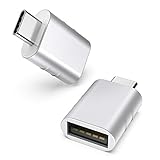
- Design: The adapter is gathered with zinc alloy metallic minimalist design and delicate embossment for not slipping; Please note they cannot fit side by side on macbook or mac mini
- Compatibility: This USB C to USB adapter is compatible with iPhone 17/17e/17 Air/17 Pro/17 Pro Max and MacBook Pro after 2016 and MacBook Air after 2018 and most of the laptops, tablets and smartphones with a USB Type C port
- User Friendly and USB3 Speed: Plug and work; Plug the USB C end of the adapter into a USBC port, and then connect your flash drive or other standard USB A devices; Also, you can sync or charge your phone with this USB C to USB adapter
- Connectors: Engineered for enhanced durability, the male USB C and female USB3 connectors are designed to be plugged and unplugged up to 10000 times
- Compact and Easy to Use: Plug and play, no driver required; Simple structure, lightweight and portability
Fix common AirDrop problems
If the recipient does not appear or a transfer will not start, check these in order:
- Confirm both devices are supported types. AirDrop sharing here is between iPhone, iPad, and Mac—not Android devices.
- Turn on Wi-Fi and Bluetooth on both devices.
- Move the devices closer. Apple recommends a distance of 10 metres or less.
- Check the receiving setting. The recipient must allow receiving from the sender, either through a matching contact card or a temporary Everyone setting.
- Disconnect Personal Hotspot on iPhone or iPad if it is active.
- Check VPN settings. A VPN that blocks local networking may interfere.
- Restart the devices if the basic checks do not resolve the problem.
Apple also says a transfer can continue over the internet after it has started if the devices leave Bluetooth or Wi-Fi range. Cellular data charges may apply. On iPhone or iPad, you can turn off Use Cellular Data under Settings > General > AirDrop. Apple documents the setting in its AirDrop guide.
When to use another transfer method
AirDrop is best suited to a small selection of files shared between nearby Apple devices. For many files, Apple points to alternatives such as transferring to a storage device or server, or using cloud syncing. Which option is appropriate depends on whether the devices are nearby, the number and size of files, internet access, and who should be able to access them; Apple’s guidance does not establish comparative costs, speeds, or privacy rankings for those alternatives.
Quick Recap
Product prices and availability are accurate as of the date/time indicated and are subject to change. Any price and availability information displayed on Amazon at the time of purchase will apply.
The Tool Desk
Outbyte Driver Updater FREEFix the driver behind crashes, sound loss and screen glitchesFind Drivers →Outbyte PC Repair FREEClear out junk files and repair common Windows errorsFree Scan →
