
For an Android-to-OnePlus move, the simplest OnePlus-specific option is Clone Phone on your new phone; Android’s setup transfer is another choice, by cable or Wi-Fi. For an iPhone, OnePlus documents an iCloud-based Clone Phone route, and Google offers a transfer during Android setup with some content exclusions. Back up first, keep both phones charged and nearby, and check your important apps and files before wiping the old phone. Steps and available options vary by OnePlus model and software version.
Choose the transfer method that fits your situation
| Method | Best for | What you need |
|---|---|---|
| OnePlus Clone Phone | Moving from Android using OnePlus’s branded transfer app, or following the iPhone route available on your model | Both phones available; pairing and transfer options depend on the device |
| Android setup transfer | Copying data while setting up the new OnePlus from Android; Google recommends doing this during setup | Both phones, or a compatible data cable and possibly an adapter; Wi-Fi is also supported |
| Restore an Android backup | Setting up the OnePlus when the old Android phone is unavailable | A backup previously saved to the Google Account used on the new phone |
Google warns that its Android-to-Android setup transfer may not be available after setup. Its estimated transfer time ranges from a few minutes to over an hour, depending on how much data is being copied. See Google’s Android-to-Android transfer instructions. OnePlus also describes its Clone Phone app as a way to switch to a new OnePlus phone; see OnePlus Support.
Before you start
- Charge both phones, unlock them, and connect to Wi-Fi. Keep the old phone’s screen-lock PIN, pattern, or password available.
- Check that the new OnePlus has enough free storage for the items you want to move.
- Make sure important data is backed up or synced, especially content in individual apps or other cloud services.
- Do not erase or trade in the old phone until you have checked the new one.
Google’s transfer guidance recommends internet access and having the old phone’s screen-lock credentials ready. The exact transfer screens can differ by OnePlus model and OxygenOS or Android version.
Transfer from an Android phone with OnePlus Clone Phone
- On the new OnePlus, open Clone Phone. If it is not visible, check the phone’s app list or follow the device’s setup prompts.
- Choose the option indicating that this is the new phone, then select Android as the old phone’s type if prompted.
- On the old Android phone, open or install Clone Phone as directed. Choose the old-phone role.
- Use the old phone to scan the QR code displayed on the OnePlus and follow the pairing prompts.
- Select the data types you want to transfer, start copying, and leave both phones connected until the process finishes.
These steps follow OnePlus’s documented Clone Phone flow; its detailed instructions cited here are from a Nord N300 5G manual, so labels and screens on other models may differ. Follow the prompts on your own phone. OnePlus’s manual is available at the Nord N300 5G user manual.
#1 Best Overall
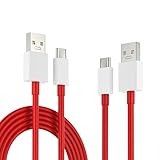
- EXCLUSIVE ONE PLUS CABLE:This for oneplus charging cable has 5 connection pins on USB-A interface, the extra special pin can trigger oneplus fast charging protocol. This for oneplus cable supports ultra fast charging and can delivers 30/65/80 watt according to the oneplus charger's output.
- 6-CORE BIG POWER DESIGN:This for oneplus cable type c has a 6-core copper wires design which makes it possible to reach 7.3A current max and keep charging stable without heating.
- SMART PROCESSING CHIPS:This for oneplus charger cable has built-in smart chips which can identify fast charging protocol and deliver proper current. The built-in 56K ohm pull-up resistor provides stable and safe charging for your devices.
- PERFECT FOR MOST OCCASIONS&PHONES:This cable fits for oneplus wall charger and car charger perfectly indoor and in car. Please note that this one plus charger cable will only deliver 2A~3A current for other cell phones.
- What You Get: 1x3.3ft+1x6.6ft USB-A to USB-C fast charging cords. 7*24 hours worry-free service.
Transfer from Android during OnePlus setup
Android’s built-in copy process is an alternative to Clone Phone. Start it when the new OnePlus asks whether you want to copy apps and data from an old device. Google recommends a cable when a compatible one is available; wireless transfer is also supported. If the connectors do not match, you may need a compatible adapter. Check that the cable supports data transfer, not just charging.
- Begin setup on the new OnePlus and choose the option to copy apps and data when it appears.
- Connect the phones with a compatible data cable, using an adapter if required, or choose the wireless option.
- Unlock the old phone and approve the connection and any security prompts.
- Choose the data types to copy, then leave the phones connected until setup reports completion.
Google says the setup transfer can be performed only once and recommends doing it during setup because the option may not be available later. For a cable-free alternative, follow the wireless instructions displayed during setup.
Rank #2

- 10Gbps Data Transfer: SUNGUY USB 3.1 Gen 2 cable supports super speed data transmission up to 10Gbps, transfer HD movies, songs, file or photos in seconds. Backwards compatible to USB 3.0 and 2.0; DOES NOT support video output.
- Works with Android Auto: This android auto cable can quick-charge your USB-C devices at up to 3A safe charging power. 56KΩ pull-up resistor provides a safer charging current, and protects your devices from damage. Works great with your car's Android Auto.
- Works with CarPlay: The nylon braided usb c to usb a cable compatible with iPhone 15/15Pro/15 Pro Max/15 Plus CarPlay cable. Supports connecting the iPhone 15 series to iTunes on your computer.
- Great Compatibility: This usb c data cable is compatible with iPhone 15/15 Pro Max, Galaxy S23/S23 Ultra/S22/S22 Ultra/S21/S21+/Note 10 Plus/Note 20 S10/S10e/S10+, Pixel 5 6 7 Pro, iPad Pro 2020, MacBook, MacBook Pro, MacBook Air, LG G6 G7 V40 V35, ThinQ V30S V30, Chromebook, Dell XPS 13, Samsung T7 Shield, Extreme Portable SSD and more.
- What You Get: You will receive 1pcs 1.5ft USB 3.1 Gen2 10Gbps Cable, with our 12-month product replacement warranty and lifetime 24/7 friendly technical support.
Transfer from iPhone to OnePlus
OnePlus Clone Phone with iCloud
A OnePlus Nord N300 5G manual documents an iPhone migration through iCloud. First sync the iPhone data you want to iCloud. On the new OnePlus, open Clone Phone, select the new-phone role and iPhone, then sign in to iCloud and import the available data over Wi-Fi. Keep Clone Phone onscreen as instructed. The manual cautions that format compatibility affects what can move; follow the prompts on your particular OnePlus, since the cited steps are model-specific.
Google’s Android setup transfer
You can also choose iPhone or iPad when the OnePlus setup process asks where to copy data, then follow the on-screen directions. Depending on the device and route, pairing may use a QR code or cable. Google lists paid apps and in-app purchases, Safari bookmarks, health data, and photos or videos stored in iCloud among the items excluded from the described transfer. If text messages do not arrive after switching, Google advises turning off iMessage on the iPhone. Read Google’s iPhone-to-Android transfer guide for the route and exclusions it describes.
Rank #3

- USB-A to USB-C Cable for OnePlus Charging: Fit for oneplus wall charger and car charger. (Check your device original power adapter is USB port before order. )
- 10A Max Current Output: Deliver 30/65/80/100W for Oneplus phones, ultra fast charge for OnePlus 15R/15/13/13R/ Nord 4/ 12/ 12R/ 11T/ 11...; Support for Super-vooc, for Warp-Charing, for Dash-Charging;
- Safe and Fast Charge: The cable built in E-maker chip which is anti over-current, over-voltage and short-circuit, ensures charging safely and fastly
- 6.6ft Length is the freer length to lay on sofa or far away from charging socket
What transfers—and what may need attention
Google’s Android-to-Android setup flow can copy apps and some app data, music, photos and videos, contacts stored on the phone or SIM, text messages, most phone settings, media in messages, wallpaper, and call history. The exact result depends on the devices and Android versions.
Some items may not transfer through that process. Google lists downloads such as PDFs, media in hidden folders, apps installed outside Google Play, data from apps that do not use Android backup, non-Google accounts and their data, contacts or calendars synced with other services, ringtones, and some settings. App developers determine whether their app data is backed up or can migrate, so plan to sign into important apps and inspect their private content rather than assuming they were cloned.
Rank #4

- A to C Fast Charging Cable: Supports a maximum current of 10A and is compatible with the SUPERVOOC flash charging protocol, delivering high-efficiency fast charging for OnePlus smartphones.
- Built-in E-Marker Chip for Safe & Reliable Charging: Equipped with a smart E-Marker chip to prevent device overload. Reinforced copper cores stabilize current transmission to achieve faster and safer charging.
- Wide Compatibility with Various Devices: Works with all smartphones, tablets and laptops equipped with USB‑C ports. It is fully compatible with OnePlus 15/15R/Nord5/CE5 and other models.
- 1.5m Extended Cable for Unrestricted Use: The 1.5-meter extra-long cable enables longer charging distances. It easily fits charging scenarios by the bedside, sofa, desk and more, ideal for home, office and travel use.
- Iconic Red Cable for Long-Lasting Durability: Adopts OnePlus classic red outer casing that stays vibrant and resists fading after long-term use. The optimized bend-resistant structure withstands repeated coiling and pulling to effectively extend service life.
- WhatsApp on Android: Google says cloud restoration happens after signing in on the new device and opening WhatsApp; backups must have been enabled on the old device.
- WhatsApp from iPhone: Google describes an additional prompt to copy WhatsApp chat history after setup. Follow the prompts for the transfer route you chose.
- Other accounts and synced content: Check services beyond Google—such as other email, calendar, or contact accounts—and sign in or sync them separately if needed.
If the old phone is unavailable or setup transfer was skipped
Restore a saved Android backup
If the old Android phone is gone, restore a backup during setup by signing in to the Google Account associated with it and choosing the available backup. Google backup must have been turned on beforehand, and setup may ask for the old phone’s PIN, pattern, or password. Google says saving a Google One backup can take up to 24 hours, so check that the data types you need show as backed up before relying on it. See Google’s Android backup and restore guidance.
Look for a later copy option
Some Android devices show a Finish setting up prompt for a period after initial setup. Google also documents a later copy-data setting on Android 17 and select earlier devices. If you cannot find a transfer option, check the OnePlus settings and support information for your model before considering a factory reset; resetting erases data already on the new phone.
Recommended Free Tools
Best Value

- What You Get: 1x3.3ft+1x6.6ft USB-A to USB-C fast charging cords
- Thickened Copper Core Design: This type c cable for oneplus adopts a thickened copper core design which makes it possible to reach 7.3A current max and keep charging stable without heating
- Smart Chip Protection: Smart full-end 5-level protection, automatic upgrade and matching with the system, no pop-up window, smart temperature control, safe and fast charging without damaging the device
- High-quality Materials, Strong and Fold-Resistant: Highly elastic and environmentally friendly TPE, the thread will not break even if pulled. Safety is improved by more than a little, and no safety hazards are encountered
- Compatible with: This USB A to USB C Cable is special design for OnePlus Smartphone (requires use with original OnePlus charger) Use original charger to reach 5V 6A Warp Charge for OnePlus 7 Pro/7T/7T Pro/8/8 Pro; With original charger to reach Dash Charging for OnePlus 7/6/6T/5/5T/3/3T, Bullets Wireless; 33W/80W/50W SUPERVOOC Charging for Oneplus 13/13R/12/12R/Open/11/10 Pro/Nord 2T/Nord N300/N30; SuperDart Charge for realme (Normal Charging for other type c phones or devices Not Fast Charging)
Troubleshoot common transfer problems
- The phones will not pair wirelessly: Keep them close, check Wi-Fi and internet access, and accept prompts to join the transfer network. A VPN or automatic network-joining behavior may interfere with the connection.
- The transfer appears stuck: Restart both phones and try again with fewer data types selected. If the setup transfer cannot be restarted another way, a factory reset may be necessary; back up anything already on the new phone before resetting.
- There is not enough storage: Select fewer data types or sync photos separately, then confirm the files are present on the OnePlus.
- iPhone photos or videos are missing: They may be stored in iCloud rather than locally, or their format may not be supported by the selected route. Google points to a separate iCloud-to-Google Photos process in its iPhone transfer guidance.
- Texts do not arrive after leaving iPhone: Turn off iMessage on the old phone and check that SIM or eSIM service is active on the OnePlus.
- The cable does not fit: Use a compatible adapter or switch to wireless transfer. Confirm both connector types and the cable’s data-transfer capability before buying anything.
Verify the new phone before wiping the old one
On the OnePlus, open the apps you rely on and confirm you can sign in and see the data you expect. Check contacts, messages, photos, downloads, and content in other cloud or sync services. Restore or copy anything missing while the old phone is still available; erase it only after you are satisfied that the essential data is accessible on the new device.
Quick Recap
Product prices and availability are accurate as of the date/time indicated and are subject to change. Any price and availability information displayed on Amazon at the time of purchase will apply.

