
To share a saved contact, open it in Contacts, tap Share Contact, choose which details to include, then send it through Messages, Mail, or another available option. For a new in-person exchange between nearby compatible Apple devices, use NameDrop. For a nearby Apple device that should receive a contact card as an item, use AirDrop.
Choose the right way to share
| Method | Best for | Recipient and proximity |
|---|---|---|
| Contacts with Messages, Mail, or another share option | Sending a saved contact card | Use the delivery option that suits the recipient; they do not need to be standing beside you. |
| NameDrop | Exchanging new contact details face to face | Nearby compatible iPhone or Apple Watch; both devices need iOS 17.1 or later for NameDrop. |
| AirDrop | Sending an item to a nearby Apple device | Nearby Apple device with AirDrop receiving conditions met. |
Messages and Mail are delivery choices in the Contacts sharing flow, not separate ways to select contact details. Choose the contact in Contacts first, then choose the channel.
1. Share a saved contact from Contacts
- Open Contacts and tap the person’s contact card.
- Tap Share Contact.
- Select the fields you want to send.
- Tap Done, then choose a sharing option, such as Messages or Mail.
Review the selected fields before sending, especially if the card includes details the recipient does not need. Apple describes this flow in its iPhone contact information guide.
2. Send the contact through Messages
To text someone a saved contact, use the same Contacts steps: open the card, tap Share Contact, select the fields, tap Done, and choose Messages. Messages carries the selected contact card; it does not change which details you selected.
#1 Best Overall

- No app or device requirement: Share your dot.Profile with anyone, as others don't need an app or a dot.device to receive your information.
- Hassle-free sharing: Easily share your dot.Profile with unlimited free shares of your digital business card.
- Simple sharing process: Tap your dot.device to a compatible phone or scan the dot.Profile QR code to share your profile. Compatible with a wide range of phones.
- Update information on the go: Keep your dot.Profile up to date by easily modifying and updating your information as it changes, ensuring you always have the most accurate details.
- Privacy and security: Protect your information with dot, as no passwords are ever needed to link your social accounts. Dot uses only usernames and links to create your digital business card.
3. Send the contact through Mail
To email a contact card, open it in Contacts, tap Share Contact, choose the fields, tap Done, then select Mail. This is useful when email is the recipient’s preferred channel. Mail is one of the share options Apple lists for the Contacts flow.
4. Use NameDrop for a nearby exchange
- Hold the top of your iPhone a few centimeters from the other person’s iPhone or supported Apple Watch.
- Keep the devices close until NameDrop appears.
- Choose whether to share your contact card and receive theirs, or to receive only their contact information.
- If you share your card, review the fields and save the selection.
NameDrop is intended for sharing new contact information; it does not update an existing contact. Apple’s NameDrop instructions explain the exchange and the setting for turning it off: Settings > General > AirDrop, then disable Bring Devices Together.
Rank #2

- No app or device requirement: Share your dot.Profile with anyone, as others don't need an app or a dot.device to receive your information.
- Hassle-free sharing: Easily share your dot.Profile with unlimited free shares of your digital business card.
- Simple sharing process: Tap your dot.device to a compatible phone or scan the dot.Profile QR code to share your profile. Compatible with a wide range of phones.
- Update information on the go: Keep your dot.Profile up to date by easily modifying and updating your information as it changes, ensuring you always have the most accurate details.
- Privacy and security: Protect your information with dot, as no passwords are ever needed to link your social accounts. Dot uses only usernames and links to create your digital business card.
What NameDrop shares—and what it does not
Apple says NameDrop shares the selected name and phone number or email address, along with Contact Poster information associated with the Contact Card. It does not share other contact-card fields such as a home address or birthday. Pronouns are not shared by default through Contacts or NameDrop. See Apple’s NameDrop safety guide and guide to editing contact information.
NameDrop requires iOS 17.1 or later on both devices. Apple lists Apple Watch SE (2nd generation), Apple Watch Series 7 and later, and Apple Watch Ultra among the supported watch families. If you want to avoid sharing outdated information, check your own card under My Card in Contacts before using NameDrop.
The Tool Desk
Outbyte Driver Updater FREEFix the driver behind crashes, sound loss and screen glitchesFind Drivers →Outbyte PC Repair FREEClear out junk files and repair common Windows errorsFree Scan →Rank #3
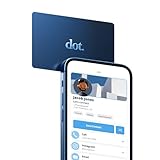
- No app or device requirement: Share your dot.Profile with anyone, as others don't need an app or a dot.device to receive your information.
- Hassle-free sharing: Easily share your dot.Profile with unlimited free shares of your digital business card.
- Simple sharing process: Tap your dot.device to a compatible phone or scan the dot.Profile QR code to share your profile. Compatible with a wide range of phones.
- Update information on the go: Keep your dot.Profile up to date by easily modifying and updating your information as it changes, ensuring you always have the most accurate details.
- Privacy and security: Protect your information with dot, as no passwords are ever needed to link your social accounts. Dot uses only usernames and links to create your digital business card.
When AirDrop is the better nearby option
AirDrop sends items to nearby Apple devices. For a quick face-to-face exchange of contact information, Apple points users to NameDrop; use AirDrop when you specifically want to send a contact card as an item. Both people need Wi-Fi and Bluetooth turned on, and the recipient’s device must have a receiving setting that allows the transfer. Apple’s AirDrop guide covers recipient visibility and receiving settings.
Quick Recap
Best Value

- CONTACTLESS TAP OR SCAN SHARING Share your digital contact profile instantly by tapping the card to a compatible phone or using the printed QR code. Opens your saved contact details, links, and profile without typing or searching.
- APP-FREE SETUP WITH EDITABLE DETAILS No app required for sharing. Set up once and update your information anytime without replacing the card. One card supports ongoing changes to your contact details.
- WORKS WITH IPHONE AND ANDROID Built-in NFC works with modern smartphones, while the printed QR code provides compatibility for older devices or camera-only use. Designed for reliable sharing across devices.
- MINI SIZE WITH 3M ADHESIVE MOUNT Compact, pocket-size format designed for everyday carry. Includes a strong 3M adhesive backing to mount on phones, laptops, badges, or cases for quick access.
- UPDATED ACTIVATION September 2026 — NO APP REQUIRED: 1. Scan the QR code on your Digital Business Card. 2. Watch the activation video FIRST and follow the steps shown in the video. 3. Select Sign Up → enter your email → create a 6-digit password. 4. Complete the basic profile setup. 5. Press Next through all 4/4 introductory screens. 6. Continue following the video to activate and set up your Card. 7. Add your contact info, business details, photo/logo and social links. 8. Test your card by tapping or scanning it. Activate directly online, site provided in the video — no app download required, Any qustions you may have in activation reachout to our TAPro Card support site.
Rank #4

- No app or device requirement: Share your dot.Profile with anyone, as others don't need an app or a dot.device to receive your information.
- Hassle-free sharing: Easily share your dot.Profile with unlimited free shares of your digital business card.
- Simple sharing process: Tap your dot.device to a compatible phone or scan the dot.Profile QR code to share your profile. Compatible with a wide range of phones.
- Update information on the go: Keep your dot.Profile up to date by easily modifying and updating your information as it changes, ensuring you always have the most accurate details.
- Privacy and security: Protect your information with dot, as no passwords are ever needed to link your social accounts. Dot uses only usernames and links to create your digital business card.
If sharing does not work
- NameDrop does not appear: Confirm both devices meet the iOS 17.1-or-later requirement, bring their tops close together, and keep them there until the prompt appears.
- You do not want NameDrop: On iPhone, go to Settings > General > AirDrop and turn off Bring Devices Together.
- AirDrop cannot find or send to the recipient: Check that Wi-Fi and Bluetooth are on, the recipient’s visibility and receiving setting allow the transfer, and the devices are nearby.
- The shared card is missing details: For Contacts sharing, check the fields selected before sending. For NameDrop, remember that it shares a narrower set of details than a full contact card.
Product prices and availability are accurate as of the date/time indicated and are subject to change. Any price and availability information displayed on Amazon at the time of purchase will apply.

