
iTechGuides is reader-supported. When you buy through links on our site, we may earn an affiliate commission. As an Amazon Associate I earn from qualifying purchases. Learn more
To set up your iPad for maximum productivity, update to iPadOS 26, secure and back up the device, simplify the Home Screen, create Focus modes, choose one system each for files, notes, tasks, and communication, then add only the keyboard, Pencil, monitor, or subscriptions your work actually needs.
As of August 18, 2026, iPadOS 26 is the relevant software foundation. iPadOS 26 adds a more desktop-like workflow with windowed apps, improved window management, expanded Files and Preview capabilities, external-display workflows, a menu-bar-style interface, and broader Apple Intelligence and Shortcuts integration. The best setup is not the one with the most apps or the most expensive accessories. The best setup reduces friction in the work you already do.
Key takeaways
- iPadOS 26 uses Windowed Apps as the standard way to arrange multiple app windows; enable it at Settings → Multitasking & Gestures → Windowed Apps.
- A dependable iPad productivity system needs one primary tool each for capture, tasks, files, calendar, and communication.
- A keyboard is usually the first accessory to buy for long-form typing, while Apple Pencil is more valuable for handwriting, PDF annotation, forms, and visual work.
- Cloud synchronization is not automatically an independent backup, so irreplaceable files need version history or another separate recovery method.
- Stage Manager and an external display are optional: they help with frequent window switching, but a focused single-window layout can be better for touch-first users.
How should you set up an iPad before installing apps?
Start with the device foundation rather than downloading a long list of productivity apps. A clean, secure setup prevents account, synchronization, and accessory problems from being mistaken for app problems.
Free tools Windows power users keep installed
One-click scans. No signup required.
- Update iPadOS. Install the latest version available for the iPad. This article uses iPadOS 26 labels and features, but software menus can change after publication.
- Transfer or restore your data. Use Quick Start with an existing iPhone or iPad, or configure the iPad as new. Apple provides setup and buying support through its iPad setup and buying resources.
- Sign in to the correct Apple Account. Confirm the account before enabling synchronization. A work or school iPad may require a separate managed account or device-management profile.
- Secure the device. Set a strong passcode, then configure Face ID or Touch ID, two-factor authentication, Find My iPad, and automatic software updates.
- Enable iCloud selectively. Turn on the services you actually need, such as contacts, calendars, passwords, photos, device backup, or iCloud Drive. Do not assume every local app file will transfer: app data may depend on iCloud, the app’s own account, local storage, or a third-party backup.
- Verify before relying on the device. Check important files, photos, contacts, calendars, and passwords. Test Wi-Fi, Bluetooth, charging, the keyboard, Apple Pencil, and any external display.
- Install only essential apps first. Use the built-in apps for about a week before adding replacements. This reveals the actual limitations in the workflow instead of creating app sprawl immediately.
What security and privacy settings should be enabled?
A productive iPad should also be a trustworthy work device. Review permissions instead of accepting every prompt during setup.
Popular on Amazon
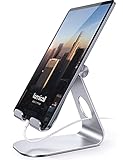
- 【 COMPATIBILITY 】 This tablet stand applies to 4 - 13 inch tablet and phone, such as iPhone Duo, new 2025 / 2024 / 2022 / 2021 iPad Pro 11 / 12.9 / 13 inch, iPad 10.9, iPad Air 5 / 6, iPad mini 6, iPad Pro 9.7 / 10.5, Kindle, Surface Pro, Galaxy Tab, iPhone Air 18 17 Pro Max, iPhone 16 , iPhone 15 Pro Max, iPhone 14 Pro Max, iPhone 13, iPhone 12. If you use a tablet larger than 12”and found it's not stable to use, you can set it horizontally, which helps maintain more stability.
- 【 Multi-Angle 】Adjustable tablet holder easily adjusts, supporting both vertical and horizontal viewing. The hook width of the stand is 18mm, please make sure the thickness of your tablet or tablet with case on is no more than 18mm (0.71 in).
- 【 STURDY CONSTRUCTION& RUBBER PADS】 Rubber pads and feet of tablet dock can protect your device from daily scratches and sliding. Great office desk accessories.
- 【 SMART LIFESTYLE】 Perfect for playing game, watching videos, viewing photos, reading, typing, video recording, and Lamicall provide you good service. Great ipad accessories.
- 【 Why Special 】Stand for Tablet was made of spaceflight Al-Ti alloy and super high strengthened alloy steel material, higher strength, lighter weight.
- Use Face ID or Touch ID with a strong passcode.
- Enable two-factor authentication and Find My iPad.
- Review app access to location, Bluetooth, microphone, camera, photos, contacts, and tracking.
- Hide sensitive notification previews from the Lock Screen if other people can see the device.
- Use a password manager and passkeys where available.
- Review installed accounts, certificates, and profiles periodically.
- Use a VPN or other security controls when an employer or school requires them.
Employer-owned iPads require additional care. Do not remove a management profile without authorization, place confidential company files in an unapproved cloud service, or assume a personal iCloud account is permitted on a managed device.
How should the Home Screen and Dock be organized?
Organize the iPad around frequent actions, not around every app you own. The Dock and first Home Screen should make the next useful action obvious.
| Location | Recommended contents | Reason |
|---|---|---|
| Dock | Safari, Notes or your document app, Files, Calendar, Mail or messaging, task manager, and the most-used work app | Provides fast access from any Home Screen or open app |
| First Home Screen | Calendar widget, Reminders or task widget, Battery widget, and a small number of frequent apps | Shows appointments, tasks, and device status without opening several apps |
| Work page | Office, communication, cloud-storage, and project apps | Separates work tools from recreational apps |
| Study or creative page | Reading, PDF, Pencil, drawing, reference, or research apps | Creates a task-specific visual workspace |
| App Library | Rarely used or occasional apps | Prevents low-frequency apps from crowding the working layout |
Use widgets only when a widget prevents an app opening. Useful examples include upcoming appointments, today’s tasks, timers, battery status, and active projects. Apple documents Home Screen, Lock Screen, widget, and productivity-related iPadOS features in its iPadOS 26 App Store overview.
Folders are best for low-frequency tools, not as permanent storage for forgotten software. Remove duplicate apps, hide distracting apps from the main pages, and use search or the App Library for everything else.
How should notifications and Focus modes be configured?
The most useful Focus mode changes both interruptions and the visible workspace. Create at least three profiles and connect each profile to an appropriate Home Screen page.
Deep Work
Allow Calendar alerts, critical work contacts, authentication and security alerts, and time-sensitive reminders. Silence social media, news, shopping, games, and nonessential messaging.
Meetings
Allow Calendar, Mail, selected contacts, and collaboration apps. Keep recreational apps and unrelated project channels silent while a meeting is in progress.
PC Slower Than It Used to Be?
A free scan shows the junk files, broken settings and background clutter dragging Windows down - then fixes them in one click.Free scan · Windows 10 & 11Outdated Drivers Are Slowing You Down
One free scan finds every outdated or missing driver and matches the right update for your exact hardware.Free scan · exact hardware matchPersonal
Allow personal contacts, health, travel, and household alerts. Silence work email, work messaging, and project-management notifications outside working hours.
Apple’s iPadOS 26 user guide covers Focus, notifications, multitasking, Files, Safari, keyboards, and external displays. If interruptions continue, check time-sensitive notifications, repeated calls, Emergency Bypass, app-specific permissions, and whether the intended Focus is actually active.
How does iPadOS 26 window management work?
iPadOS 26’s Windowed Apps mode lets you arrange app windows more like a desktop. Enable it through Settings → Multitasking & Gestures → Windowed Apps, using Apple’s documented iPadOS 26 multitasking instructions.
Also popular on Amazon

- 3-Level-Angle Adjustment For Stability: The special angle adjustment lock can be adjust 3 level angle, when adjusted to 83°, the tablet stand legs can be spread out almost horizontally to achieve larger stand base so as to provide strong stability, and also can reach a minimum height for low-angle using.
- 72in Height Adjustment: Tablet stand floor tripod extends from 33.07in to 72in in seconds by adjusting flip locks, which makes you get the best viewing angle whether standing, lying in a bed or sitting on a sofa; and help free your hands to make focus on live streaming, watching movies, practicing a musical instrument and so on.
- Flexible 360°Rotation Ball Head: The 360°ball head allows to adjust any angle, also possible to take vertical, horizontal and diagonal shots, making it convenient for shooting from up, down, left, and right angles. For example, through adjusting tablet stand floor to the optimal angle easily, you can look at the sheet music while concentrating on playing.
- Reverse Folding Storage & Lightweight: The tablet floor stand holder has a reverse folding design that allows to be folded compact after use. Folded Length 16.93in, Only 639g weight, with storage bag, very convenient for storage and travel.
- Compatible With Tablet & Phone & Sheet Music: The clip is compatible with devices between 4.7 and 13 inches (up to 5 kg) and works with iPad, iPhone, Kindle, and sheet music; it is also suitable for multiple scenes, including use as a music stand, and its compact size makes it easy to carry and convenient for various performances.
Use one large main window and smaller supporting windows rather than displaying every possible app. Where an app supports it, touch and hold its icon and choose New Window. Open apps from the Dock, Home Screen, or App Library. Swipe up from the bottom and pause to view open windows. With a compatible external keyboard, an Exposé key or Globe plus Up Arrow can show recent apps, depending on the keyboard and configuration.
What’s actually slowing this PC down?
Pick the symptom - the matching free tool is one click away.
| Mode | Best for | Potential drawback |
|---|---|---|
| Windowed Apps | Users who need flexible windows and several related apps | Overlapping windows can become visually confusing |
| Stage Manager | Keyboard-and-pointer users who switch among grouped project workspaces or use an external display | Persistent groups and sidebars may distract single-app or touch-first users |
| Simple two-app arrangement | Reading beside notes, referencing a document while writing, or taking meeting notes | Less flexible when more than two windows are needed |
| External display | Writing beside references, spreadsheets beside email, or meetings beside notes | Requires a compatible iPad, cable or hub, display, and usually keyboard and pointer |
Use these practical workspace combinations:
- Research: Safari, Notes, and Files or Preview.
- Writing: drafting app, Safari or a reference document, and a task list.
- Meetings: video-conferencing app, Calendar, Notes, and the agenda in Files or Preview.
- Administration: spreadsheet, Mail, browser, and Files.
Stage Manager is not automatically better than Windowed Apps. Touch-only users often benefit from fewer, larger windows; keyboard-and-trackpad users can take better advantage of overlapping windows and grouped workspaces. Apple’s desktop-class iPad documentation describes the platform’s desktop-style document, multitasking, pointer, keyboard, and external-display capabilities without making one layout correct for every user.
How should Files and cloud storage be organized?
Choose one primary cloud-storage provider and make Files the predictable front door for documents. The provider should normally match the ecosystem used by an employer, school, or collaborators.
| Storage choice | Best fit | Watch for |
|---|---|---|
| iCloud Drive | People invested in Apple devices and Apple-native apps | Do not mistake synchronization for an independent backup |
| OneDrive | Microsoft 365 users and organizations centered on Word, Excel, PowerPoint, Outlook, Teams, or Windows | Keep the Microsoft account and organization permissions current |
| Google Drive | Schools and organizations standardized on Google Workspace | Use the approved organizational account for shared work |
Create a simple structure in the chosen provider:
Work/
  Active Projects/
  Reference/
  Templates/
  Archive/

Personal/
  Finance/
  Health/
  Travel/

Inbox/
  To Sort/
Use Inbox/To Sort as a temporary landing place. Name files consistently, for example 2026-08-18_Project-Budget_v03.xlsx. Keep one canonical copy of each important document, make critical files available offline before travel, and use PDFs for finalized documents while retaining editable formats for work in progress.
iPadOS 26 expands document and image workflows through Preview, including PDF handling, markup, Apple Pencil annotation, and form AutoFill. Apple describes the workflow in its iPadOS 26 Preview and document guide. Check whether important files are in iCloud Drive, On My iPad, a third-party provider, a shared folder, or Recently Deleted when a document appears to be missing.
Do these 3 things before closing this tab:
1Clear out junk files and repair common Windows errors2Scan for outdated or missing drivers - takes under a minute3Repair Windows errors before they cause bigger problemsSynchronization mirrors changes between locations; synchronization alone is not a complete disaster-recovery plan. Important files need independent backup, version history, or another recovery method because deletion or corruption can synchronize too.
Which apps should you install?
Choose functions first and apps second. The built-in apps cover a large part of a general productivity setup:
- Safari: research and web applications.
- Notes: quick capture and lightweight documentation.
- Reminders: simple tasks and recurring reminders.
- Calendar: time commitments.
- Files and Preview: documents, PDFs, forms, and markup.
- Mail: email.
- Shortcuts: repeatable actions.
- Freeform: visual planning and brainstorming.
| Function | Start with | Add a third-party tool when |
|---|---|---|
| Notes | Apple Notes | You need complex knowledge management, databases, or cross-platform collaboration |
| Tasks | Reminders | You need recurring workflows, team projects, or advanced prioritization |
| Calendar | Apple Calendar | You manage multiple accounts or need a specialized work calendar |
| Documents | Files and Preview | You need advanced PDF editing, office collaboration, or specialized publishing |
| Writing | Notes or a document editor | You need long-form writing, citations, or version-control features |
| Whiteboarding | Freeform | Your team needs a cross-platform or specialized diagramming system |
Microsoft 365 is a sensible choice when compatibility with Word, Excel, PowerPoint, Outlook, OneNote, Teams, and OneDrive matters. The Microsoft U.S. Store listed Microsoft 365 Personal at $9.99 per month or $99.99 per year, including 1 TB of OneDrive storage, when observed in August 2026; Microsoft’s current pricing page should be checked before purchase because prices and promotions change.
Do not subscribe to both Apple and Microsoft storage without a reason. Use the ecosystem already required by your work or school unless a specific feature justifies duplication.
How should Safari be configured for research?
Safari works best as a research staging area rather than a permanent archive of hundreds of open tabs.
Also popular on Amazon

- FITS YOUR IPAD WITH CASE ON — NO STRIPPING, NO RESEATING | 0.8"/20mm widened hook swallows OtterBox Defender, folio cases & Magic Keyboard-style setups whole. While other stands make you undress your iPad every time, LISEN takes it thick — case on, drop in, done. One-handed docking in 1 second, even with greasy kitchen fingers
- CHARGE WHILE YOU WATCH — CABLE NEVER BLOCKED | fits any cables, so your iPad powers up mid-Netflix, mid-Zoom, mid-recipe. Port stays accessible in portrait or landscape — no more balancing acts on the sofa arm.
- STAYS TIGHT — OTHERS DON'T: Most tablet stands loosen after a few months and end up in a drawer. LISEN has a reinforced hinge plus an included bridge screw, so you can re-tighten in 10 seconds and keep using it for years. Product weight 15.2 ounces /0.95pound
- FOLDS FLAT, BUILT HEAVY: Folds down to pocket-thin for bags and drawers. The weighted metal base and silicone padding are why it doesn't slide or scratch — a little extra heft is what keeps your tablet planted on the desk.
- 0–135° = ONE STAND FOR YOUR WHOLE DAY: Video calls at eye level, movies at mid-tilt, recipes at low angle, reading in bed at the flattest setting, and near-vertical for typing. Adjust once and it holds where you put it
- Create a small number of tab groups by project.
- Use Reading List for short-term reading and bookmarks for durable references.
- Pin only sites visited genuinely often.
- Enable desktop websites when an online application requires them.
- Review Downloads and saved files regularly.
- Use profiles when work and personal browsing need separation.
- Save important information into Notes or a project document instead of relying on open tabs.
Some enterprise systems require a particular browser or authentication method, and desktop mode does not guarantee that every site will behave like a Mac or Windows application. Safari tab groups also depend on the relevant Apple Account and iCloud settings.
How should an external keyboard, pointer, and dictation be configured?
For writing-heavy work, an external keyboard is usually the most consequential productivity accessory. Configure the keyboard layout and language, Dictation, text replacements, Auto-Correction, modifier keys, shortcut behavior, and Full Keyboard Access if keyboard navigation is important.
Configure pointer tracking speed and natural scrolling to match the way you work. Hold the Command key inside an app to reveal that app’s available shortcuts. Useful cross-app categories include Command-C, Command-V, Command-X, Command-Z, Command-Shift-Z, Command-Space for search, Command-Tab for app switching, Escape for dismissing controls, and Globe-key navigation where the keyboard provides a Globe key.
The Tool Desk
Outbyte PC Repair FREERepair Windows errors before they cause bigger problemsFix Now →Outbyte Driver Updater FREEScan for outdated or missing drivers - takes under a minuteDriver Scan →Shortcuts vary by app and some third-party keyboards do not include a Globe key. A keyboard case is convenient but adds weight and may have a smaller trackpad than a laptop. Apple’s guidance for external keyboards and Full Keyboard Access covers supported keyboard navigation options.
Should you buy an Apple Pencil?
Buy an Apple Pencil when handwriting, PDF annotation, drawing, form filling, document review, or visual planning is central to the workflow. Keyboard-first users who mostly write email, spreadsheets, and long documents may gain more from a keyboard and stand.
| Accessory | Best first choice for | Limit |
|---|---|---|
| Apple Pencil | Students, PDF reviewers, designers, annotators, and visual thinkers | Compatibility is specific to the iPad model |
| Keyboard case | Frequent typing, email, spreadsheets, travel, and laptop-style work | Adds weight and can make tablet use less comfortable |
| Separate keyboard and stand | Desk users who want a comfortable keyboard but still use the iPad as a tablet | Requires carrying and charging more than one piece |
Apple’s U.S. store listed Apple Pencil Pro at $129 and Apple Pencil USB-C at $79 when observed in August 2026. Check the current Apple Pencil accessories page for model compatibility and current pricing. Premium does not mean suitable: the iPad must support Apple Pencil Pro, and a typing-first user may rarely use Pencil features.
When does an external display improve iPad productivity?
An external display is worthwhile when a second physical workspace removes a real bottleneck, such as writing beside references, keeping meeting notes visible, or viewing a spreadsheet beside email.
Recommended Free Tools
Before buying a monitor or hub, verify the iPad model, USB-C or Thunderbolt cable or adapter, display input, hub power delivery, keyboard, and pointer. Some iPads have more limited external-display capabilities than others. A display may mirror rather than extend the workspace, a low-quality hub may disconnect intermittently, and a hub may charge the iPad too slowly.
Apple’s Universal Control and external-device guide also explains sharing a keyboard and pointer between a Mac and iPad. An external monitor is less attractive for a portable, touch-first setup because it adds cables, power requirements, and a less mobile workflow.
What useful Shortcuts should you create first?
Start with small automations whose purpose is visible and easy to test. Good starter Shortcuts include:
Also popular on Amazon

- YOUR NECK PAIN ENDS TODAY: Premium Tablet Holder Stand with 7-10" telescoping range brings screens to eye level for comfortable all-day work; this Kindle Stand can hold any device up to 4.4lb
- ROCK-SOLID STABLE: Tablet Stand For Desk features triple stability design: weighted metal base preventing tipping even on soft surfaces, EVA non-slip padding gripping any surface, and this i pad Stand has a 40% wider holding plate
- UNIVERSAL TABLET STAND HOLDER: The iPad Holder Stand For Tablet is compatible with iPad Pro 12.9, Oasis Kindle Holder, Samsung Galaxy Tab, and 15.6-17 inch Portable Monitors. Holds up to 4.4lb
- VERSATILE DESKTOP TABLET STAND: Ideal portable monitor stand, versatile iPad holder for desk Zoom calls, practical iPad stand for kitchen, kids apps, tablet holder for desk, and couch entertainment; adjustable 270° tilt for multiple angles
- THE PERFECT STAND FOR IPAD: Adjustable iPad stand holder with exclusive cooling vents, triple silicone padded holding plate, and friction-based aluminum rod on steel base tested 10,000+ times; built for years of daily use
- Open a project workspace and activate its Focus.
- Create a dated meeting note and append dictated text.
- Open a writing app, reference folder, and timer.
- Scan a document and save a named PDF to the correct folder.
- Save a web page or copied text to a research note.
- Start a travel or field-work checklist.
Apple says iPadOS 26 expands Shortcuts and Apple Intelligence integration, including intelligent actions. Apple Intelligence availability depends on supported hardware, language, region, and account settings, as explained in Apple’s iPadOS 26 feature documentation.
Quick wins for a faster PC:
Scan for outdated or missing drivers - takes under a minuteDriver Scan →Repair Windows errors before they cause bigger problemsFix Now →Test a Shortcut one action at a time. Apps may not expose the required action, network-dependent steps can fail offline, permissions can change, and complicated automations can fail silently. Keep a simple manual recovery path for every automation that matters.
Which iPad setup fits your type of work?
| Work pattern | Recommended setup | What to prioritize |
|---|---|---|
| Student | Safari, Notes, Files or Preview, Calendar, Reminders, and Pencil if annotating readings | PDF markup, focused study pages, offline course files, and reliable backup |
| Office worker | Keyboard, Files, Calendar, Mail, Focus, and the employer’s Microsoft or Google ecosystem | Compatibility, keyboard shortcuts, shared files, and meeting workflows |
| Writer | Keyboard, drafting app, Safari research window, Notes, Files, and a writing Focus | Text entry, reference management, versioned documents, and distraction control |
| Creative professional | Pencil, suitable creative apps, Preview, Files, and optional external display | Display quality, performance, storage, annotation, and project-file handling |
| Frequent traveler | Light keyboard or stand, offline files, Wi-Fi or cellular as needed, and battery planning | Portability, connectivity, offline access, and recovery if accessories fail |
| Field worker | Cellular connectivity where dependable Wi-Fi is unavailable, Pencil for forms, and a durable filing workflow | Reliable connection, offline documents, battery, and approved organizational security |
Which iPad model and connectivity should you choose?
The iPad Air is likely sufficient for most writing, office, study, and general productivity workflows. The iPad Pro is easier to justify for demanding creative work, a premium display, higher-end performance, or a workflow that specifically benefits from its capabilities. The iPad mini favors portability, reading, travel, and quick capture but is less suitable as a primary laptop-style workstation because of its smaller display.
Apple’s U.S. store listed starting prices of $449 for iPad, $599 for iPad mini, $749 for iPad Air, and $1,199 for iPad Pro when observed in August 2026. These are U.S. base prices and can change with storage, connectivity, tax, promotions, and new products; consult the current Apple iPad buying page.
Choose cellular only when you work away from dependable Wi-Fi, travel frequently, need field connectivity, or want a dedicated data connection instead of tethering. Wi-Fi is sufficient for most home, school, and office users, while cellular adds an ongoing service plan and another account to manage.
What accessibility features can improve productivity?
Accessibility tools can improve comfort and speed for almost anyone. Consider larger text, Display Zoom, Reduce Motion, Voice Control, Dictation, Spoken Content, Full Keyboard Access, pointer controls, AssistiveTouch, custom text size, captions, and Live Captions where supported. Apple’s iPadOS user guide includes accessibility and keyboard-control information.
How do you troubleshoot a productivity setup that is not working?
The iPad feels slow after setup
Large restores, app downloads, indexing, low storage, background synchronization, outdated apps, poor network conditions, or demanding workflows can all contribute. Leave the iPad on power and Wi-Fi, check storage, update apps, restart the device, and test the workflow without external accessories. Identify whether the bottleneck is the app, network, storage, or hardware.
Files appear to be missing
Check the Apple Account or third-party account, Recently Deleted, On My iPad, iCloud Drive, offline status, provider sign-in, file-provider permissions, shared-folder access, and version history.
An external monitor is blank
Check the cable, input selection, hub power, iPad compatibility, supported resolution, charging through the hub, and whether the intended app supports the external-display behavior. A monitor that mirrors instead of extending may be behaving according to the iPad model or app’s limitations.
Keyboard shortcuts do not work
Check the keyboard layout, whether the app supports the shortcut, Globe-key availability, modifier-key mapping, text-field focus, and whether Full Keyboard Access changes navigation.
Also popular on Amazon

- Wide Compatibility: Our holder compatible with all phones and tablets between 4.7-11 inches and weighing less than 1.5 lb. (Please refer to the above Compatible Devices section and we recommend adding some weight to the base for stability if you are using heavy tablets or tablets with a case.)
- Free Your Hands: When you are lying sitting stand on a sofa or in a bed, our flexible tablet floor stand will free your hands and help you find the perfect view to watch movies, live streaming, Tik Tok, vlogging, play games, or read music scores when practicing guitar or piano
- Easy to Install & Good Customer Service: No tools needed, follow the steps in the installation manual, you can easily install or disassemble the stand, convenient to carry and save space. **Any defects including unbalance issues, broken or missing parts, or even you don't like it, please contact the seller ELEKPARTS directly. We promise to solve the problem in the fastest and most effective way
- Sturdy Premium material: the carbon steel and reinforced base guarantee the longer service life (Please keep the arm and base in the same direction, otherwise press the base with a heavy object)
- Flexible Floor Stand: The height can be adjusted in a range of 27.5-55 inches, the bracket is 360-degree rotatable to change any visual angle. You can also swap the positions of one upper spring and one lower spring to make heavy tablets more stable if necessary
Notifications remain distracting
Confirm that the intended Focus is active, then review time-sensitive notifications, repeated calls, Lock Screen settings, app-specific controls, shared Apple devices, and work apps with their own notification systems.
The iPad has become a distraction device
Use a minimal Home Screen, a dedicated Deep Work Focus, scheduled notifications, removal of distracting apps, appropriate website restrictions, and fewer windows. A full-screen single-app workflow can be more effective than a desktop-style layout for focused work.
What can an iPad replace, and what still favors a Mac or Windows PC?
An iPad can be an excellent work, study, planning, reading, communication, and creative device, but an iPad is not a universal laptop replacement. A Mac or Windows PC remains the safer choice for full desktop software, complex development environments, high-end multi-monitor work, specialized enterprise applications, large-scale file operations, and certain professional video, audio, and 3D workflows.
Do these 3 things before closing this tab:
1Repair Windows errors before they cause bigger problems2Fix the driver behind crashes, sound loss and screen glitches3Clear out junk files and repair common Windows errorsThe correct verdict depends on the reader’s software, file, monitor, and input requirements. Test the most demanding task first. If the iPad handles the work reliably and the touch, keyboard, and window model feel comfortable, the iPad may be a laptop supplement or replacement for that particular workflow. If one essential application or file operation is unavailable, the iPad is better treated as a companion device.
Final iPad productivity checklist
- iPadOS is updated and the data transfer is complete.
- The correct Apple Account and required work or school accounts are signed in.
- Passcode, biometrics, two-factor authentication, Find My iPad, and update settings are configured.
- Important files, contacts, calendars, photos, and passwords have been verified.
- The Dock and first Home Screen contain only frequent actions.
- Deep Work, Meetings, and Personal Focus modes are scheduled and linked to useful pages.
- Windowed Apps is enabled if overlapping windows genuinely help.
- One primary system exists for notes, tasks, calendar, communication, and files.
- Files use clear names, a temporary inbox, offline access where needed, and independent recovery for critical data.
- Keyboard, pointer, dictation, text replacements, and useful shortcuts work.
- Apple Pencil, keyboard, monitor, hub, or cloud subscription was added only to solve a demonstrated need.
- At least one important Shortcut has been tested with a manual fallback.
Frequently Asked Questions
Is an iPad a laptop replacement for productivity?
An iPad can replace a laptop for many writing, office, study, planning, communication, and creative workflows, but it is not a universal laptop replacement. Full desktop software, complex development environments, specialized enterprise tools, large-scale file operations, and some professional video, audio, and 3D workflows still favor macOS or Windows.
Should I use Stage Manager or Windowed Apps on iPadOS 26?
Use Windowed Apps for flexible individual windows and Stage Manager when grouped workspaces and frequent window switching help. Touch-first users may prefer fewer large windows, while keyboard-and-pointer users are more likely to benefit from overlapping windows and Stage Manager.
Do I need an Apple Pencil for iPad productivity?
You need an Apple Pencil only if handwriting, PDF annotation, drawing, form filling, document review, or visual planning is central to your work. Keyboard-first users generally benefit more from a keyboard and stand.
Is iCloud Drive a complete backup for an iPad?
No. iCloud Drive synchronizes files between locations but is not automatically an independent backup. Important files need version history, another backup, or a separate recovery strategy because deletions and changes can synchronize too.
Should I buy an iPad Pro for productivity?
Not by default. The iPad Air is likely sufficient for most writing, office, study, and general productivity workflows; iPad Pro is easier to justify for demanding creative work, premium display needs, higher-end performance, or a workflow that specifically benefits from its capabilities.
The Bottom Line
The most productive iPad is built around a small, dependable system: secure the device, control interruptions, organize files, assign one source of truth to each kind of information, and use iPadOS 26 windows only when they clarify the work. Add a keyboard, Pencil, monitor, or subscription after identifying a real bottleneck—not before.

