
Crashes, No Sound, or Screen Glitches?
Random freezes, missing sound and display glitches usually trace back to one bad driver. Find and replace yours safely.Free scan · under a minutePC Slower Than It Used to Be?
A free scan shows the junk files, broken settings and background clutter dragging Windows down - then fixes them in one click.Free scan · Windows 10 & 11Fraimic Canvas connects to your home’s 2.4 GHz Wi-Fi during setup, then you manage it from Fraimic’s browser dashboard: upload images, organize albums, schedule changes, check battery status, and revisit earlier artwork. You do not need to install an app. This guide covers the initial connection and the everyday options Fraimic documents for its Smart E Ink Canvas.
How do I set up Fraimic?
Fraimic’s manual describes a first-time setup using the canvas’s temporary Wi-Fi network, followed by a QR code and account verification. The device requires a standard 2.4 GHz home Wi-Fi network; Fraimic describes it as following standard IoT device protocol in its user manual.
| # | Preview | Product | Price | |
|---|---|---|---|---|
| 1 |
|
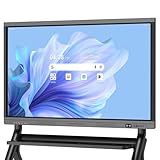
Dornium 55” Smart Board, 4K Interactive Whiteboard, All-in-One Smartboard | $1,099.00 | Buy on Amazon |
- Charge the canvas. Connect the included USB-C cable. Fraimic’s manual says a blinking green LED indicates charging and a solid green LED indicates a full charge.
- Wake the canvas. Tap the mat.
- Connect to the temporary network. On your phone or computer, join the Wi-Fi network named in the form
Fraimic_XXXXX. - Enter your home Wi-Fi details. The authentication portal should open. Choose your 2.4 GHz home network and enter its password.
- Scan the canvas’s QR code. When the code appears on the canvas, scan it with your phone. The manual points to
fraimic.local. - Create and verify your account. Follow the page to create a Fraimic account and verify the email address. If the verification email does not arrive promptly, Fraimic advises checking the spam folder and confirming the address you entered.
- Add your first image. Upload an image or create one through the available creation workflow.
The manual identifies a blinking red LED as an error or failure indicator, including an inability to connect to the internet. It does not document a complete router troubleshooting procedure, so avoid changing router settings based on assumptions; consult Fraimic support if the documented setup path fails.
How do I manage and update the displayed content?
Open app.fraimic.com in a browser and sign in; Fraimic says its web workflow does not require installing an app. The manual lists image uploads, albums, scheduled image updates, account settings, battery status, Fraimic Styles, and access to previously uploaded or generated images.
Recommended Free Tools
#1 Best Overall
- EDLA certification and security protection: Google EDLA-certified smart whiteboards offer stable access to the Google Play Store and Google Drive, as well as regular over-the-air (OTA) updates. With USB data transfer protection and NFC-based multi-user management, they offer enterprise-grade privacy protection, even in public spaces
- Powerful performance and massive storage: Powered by an Android 14 OS and quad-core A73 and A53 processors, complemented by 8 GB of RAM and 128 GB of ROM storage, the Dornium touchscreen interactive monitor can handle a variety of applications and files with ease. Whether you're delivering a teaching presentation, working remotely or enjoying home entertainment, it ensures all operations run smoothly
- Cross-Device Presentation and shared instantly: The electronic white board supports wireless screen sharing and an HDMI connection with Mac, Windows, iOS and Android devices. Effortlessly present whiteboards, PDFs, images and videos — it is perfectly suited to classroom teaching, office scenarios and hybrid meetings. Notes and documents on the current page can be shared instantly via QR code for quick and convenient access
- Anti-glare 4K touchscreen: The 4K UHD touchscreen digital board features 3.5 mm anti-glare tempered glass and an ultra-wide 178° viewing angle to ensure clear readability from any position. With support for up to 20-point multi-touch and ±1mm touch accuracy, it provides a smooth writing experience
- Rich Interface Options: Equipped with HDMI, DP, Type-C, VGA, USB2.0, USB3.0, LAN, and more, this electronic smartboard supports seamless connectivity for video, audio, touch, and network needs, ensuring versatility for any setting
Upload an image from a phone or computer
Fraimic’s documented upload flow starts with signing in, selecting the upload control, and choosing an image stored on your device. Its FAQ says the web workflow can automatically calibrate, crop, and orient images, including for portrait or landscape display. Those are manufacturer-described capabilities; the exact controls may change as the service is updated.
Organize images and schedule changes
Use albums to group images, then use scheduled updates or slideshows where those options are available in your account. Fraimic describes album management and scheduled changes in its manual and product information. This can suit artwork that changes on a routine without requiring a new manual upload each time.
Revisit previous work and check the canvas
The dashboard lists past uploads and generated images, and provides a battery-status view. Fraimic also says users can browse a curated gallery and that multiple users can use its web workflow.
Transfer images locally when appropriate
Fraimic describes a local-sharing mode that transfers images directly over the home Wi-Fi network without internet access or third-party servers. This is distinct from the standard cloud workflow and may be useful when you want a direct local transfer. The company’s product page describes the mode, but the available material does not establish every setup step or network requirement; consult its current instructions for the specific device and software version.
Does Fraimic need Wi-Fi to work?
Initial setup requires Wi-Fi, and Fraimic’s standard web dashboard uses an internet-connected service. The company separately describes local image sharing that can work over the home Wi-Fi network without internet or third-party servers. That does not mean the canvas has no network requirement: local transfer still uses the local network. Fraimic’s FAQ and product pages describe these operating paths, but do not establish that every dashboard feature works offline.
How long does the battery last, and how do I charge it?
Fraimic identifies the display as E Ink Spectra 6. The company says a static image draws no display power and that power is used when the image changes. Its FAQ estimates up to about three years for the 14 × 18-inch model when the image changes roughly once per day; this is Fraimic’s estimate, not an independent test or a guaranteed lifespan, and the company says refresh frequency affects actual battery duration. See the Fraimic FAQ for the company’s qualification.
The canvas charges over USB-C. Fraimic lists a USB-C cable in the box, recommends a standard USB-C charger, and says the canvas can be used or refreshed while charging. Battery status is available in the dashboard.
What can I create with Voice-to-Vision?
Voice-to-Vision is optional. Fraimic describes a workflow in which you record a spoken prompt, convert it to text, and use third-party AI services to generate an image. Its image-creation page identifies OpenAI services for image creation. You can also upload your own photographs or artwork instead of generating an image.
Free tools Windows power users keep installed
One-click scans. No signup required.
Is the Fraimic site free to use?
Fraimic says basic site functions—including image uploading, Voice-to-Vision, and frame management—are free. Its FAQ lists 100 free image-generation credits per customer per year; additional credits may be available through account settings or an annual membership. Credit allowances and paid options can change, so check the current FAQ and the options shown in your account before relying on a particular allowance.
Independent reader supportYour contribution helps us test, update, and keep practical guides available for everyone.What happens to uploaded images, and what support is available?
Fraimic says images uploaded through its standard cloud service are stored on AWS with encryption and are not used to train models. The company describes local-only sharing as a direct transfer over the home Wi-Fi network without third-party servers. These are Fraimic’s statements, not independent security findings. If you plan to upload sensitive images, review the company’s current privacy terms and choose the transfer route that fits your needs.
Fraimic says it provides a one-year warranty for manufacturing defects and over-the-air updates. Its FAQ lists Discord and support email as support routes and gives a typical response time of within one business day. Check current warranty terms for coverage and exclusions; the stated response time is not a guaranteed service level.
Can Fraimic work with Home Assistant or other automations?
Fraimic’s FAQ says an official Home Assistant integration is available and developer API access supports custom integrations; product pages also list a REST API and over-the-air firmware updates. The official information cited here does not specify supported Home Assistant versions or particular automation recipes. Check Fraimic’s current integration documentation before building an automation around a specific trigger or action.
What frames will Fraimic fit in?
Fraimic says the canvas can be removed from its included frame and placed into many other frames, but it does not provide a complete validated compatibility list. Confirm the dimensions and mounting arrangement before buying a replacement frame.
| Model | Display | Frame dimensions | Published display resolution |
|---|---|---|---|
| Standard Canvas | 13.3 inches | 14 × 18 × 1 inches | 1,200 × 1,600; 150 DPI |
| Large Canvas | 31.5 inches | 24 × 36 × 2 inches | Not stated in the cited product information |
Specifications are from Fraimic’s product information and its Standard Canvas page. They are useful for checking physical fit, but do not by themselves confirm that a third-party frame’s mounts will align.
Check current availability and shipping before ordering
Fraimic’s product listings have displayed prices and stock or shipping messages that can change. Check the live store listing for the current price and availability rather than relying on older price figures. Fraimic says shipping is available to most countries, but advises contacting support to confirm availability; duties or VAT may apply depending on destination. A shipping offer shown for one destination should not be assumed to apply everywhere.
Quick Recap
Product prices and availability are accurate as of the date/time indicated and are subject to change. Any price and availability information displayed on Amazon at the time of purchase will apply.

