
Quick wins for a faster PC:
Scan for outdated or missing drivers - takes under a minuteDriver Scan →Repair Windows errors before they cause bigger problemsFix Now →Fix the driver behind crashes, sound loss and screen glitchesFind Drivers →To securely erase a drive, identify whether it is a magnetic HDD or an SSD, back up anything you need, then use a sanitization method supported for that exact drive model. Secure erase permanently removes data, so confirm the target before starting. A quick format or deleting partitions is not proof that the data has been sanitized.
Identify the drive and the level of assurance you need
“Hard drive” is often used to mean any internal storage, but an HDD, SATA SSD, and NVMe SSD can require different procedures. Check the drive’s model, manufacturer, and interface, then consult the manufacturer’s current instructions for that specific model. NIST’s current guidance likewise treats sanitization as dependent on the storage device and the required outcome.
Consider what will happen to the drive and how sensitive its contents are. If the data is subject to workplace, legal, or regulatory requirements, follow your organization’s approved sanitization standard and evidence-retention rules instead of choosing a method based only on convenience.
NIST defines media sanitization as a process that makes access to target data infeasible for a given level of effort. Its current publication, SP 800-88 Rev. 2, published in September 2025, supersedes Rev. 1. It emphasizes confidence in vendor implementations and validation; it does not provide one consumer command that can safely be generalized to every drive. The older Rev. 1 explanatory material described Clear, Purge, and Destroy, but Rev. 1 was withdrawn on September 26, 2025, so its device-specific examples should not be treated as current universal instructions.
Free tools Windows power users keep installed
One-click scans. No signup required.
#1 Best Overall

- DUPLICATE & ERASE USB DRIVES: Standalone 1 to 2 USB drive duplicator / cloner / sanitizer; Ideal for technicians and IT Pros to manage multiple USB boot drives, wipe USB drives, or quickly share data between teams; No Computer required
- DRIVE COMPATIBILITY: Supports cloning/duplication and erasing of USB 3.0/2.0 flash media thumb drives and USB External Storage (External USB device(s) may require its own power source connecting to outlets); Firmware is upgradeable
- DUPLICATION AND ERASE MODES: 1.5 GB/min System & File Copy (FAT16/32, NTFS, Linux ext2, ext3, ext4 formats), whole-drive Sector-by-Sector Copy (all file formats), Quick Erase, Single-Pass & 3-Pass Overwrite (DoD/NIST SP 800-88 Rev 1 Clear); TAA Compliant
- LCD MENU DISPLAY: Use push button interface to monitor drive info, read & write performance, and scan drive for errors and bad sectors; Select Copy & Compare to verify your cloned drives with source when complete; Green/Red LEDs for activity/errors
- ASYNCHRONOUS COPY MODE: Quickly copy to multiple USB thumb drives using Asynchronous Copy mode w/ 64 MB internal memory; Source content must be under 64 MB; Remove your finished drive and insert a new drive to start copying without interruptions
Prepare before you erase
- Confirm the target. Match the drive’s model, interface, and capacity to the device shown in the vendor utility or operating system. If more than one drive is connected, take care not to select the active system drive or another drive containing needed data.
- Back up and check what matters. Copy needed files elsewhere and verify that the backup can be read. Erasure is destructive; Intel and Samsung both warn that their described secure erase procedures remove data.
- Read the exact model’s current instructions. Confirm supported software, firmware requirements, and whether the procedure requires the drive to be connected as a secondary device.
- Check the connection path. A compatible SATA-to-USB adapter may help connect a SATA drive as a secondary device, but it does not erase the drive. An adapter or enclosure may also fail to pass through commands required by a vendor utility.
- Plan validation and records. Follow the vendor’s or organization’s instructions for checking the result and retaining any required evidence. Do not assume a completed-looking command proves sanitization.
Use a method supported for your drive
Magnetic HDD
Use the drive manufacturer’s current sanitization guidance for the exact HDD model and intended use. Do not assume that a generic “wipe once” command is appropriate for every drive or assurance requirement. If the drive is faulty or the required result cannot be validated, consult the applicable organizational standard or a qualified disposal provider rather than treating an unverified software attempt as successful.
SATA or NVMe SSD
Use the manufacturer’s supported procedure for the specific SSD. SSD models and vendor utilities differ, so do not substitute a method intended for another model or assume an operating-system format is equivalent to secure erase.
Rank #2
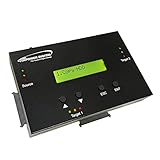
- [Complete Standalone Operation] No PC required to operate the duplicator.
- [Smart copy and Raw Mode] Smart Copy will quickly copy ALL ACCESSIBLE DATA contained on the HDD/SSD device, while Raw mode will copy ALL DATA with bit by bit duplication. [Read Error Skip] Allows user to copy content on HDD/SSD even when there are many bad sectors, by skipping the errors and continuing to copy the uncorrupted contend. This allows the user to save as much data as possible that can be recovered when copying HDD/SDD’s that could be failing.
- [Secure Erase] Able to fully erase all data ever stored by performing a process like the DoD 5220.22-M standards. This will erase all content on the HDD/SSD without leaving any trace of data, making it completely impossible to recover any previously erased data.
- [Compact and Lightweight] Small sturdy construction allows the user to easily carry the HDDMINI wherever they go to easily use in the field or anywhere they have electricity.
- [Support HDD sizes 3TB+] Accurately copy very high capacity HDD/SSD. including 3TB and larger, for long term archival storage or larger capacity data files.
For example, Intel’s documented Intel Memory and Storage Tool workflow requires secondary access to the target drive. Intel says, “You cannot Secure Erase a current working drive,” referring to the workflow in that support article. Its stated Windows 8/8.1 and Windows 10 limitation applies to that described workflow, not every possible erase method on those operating systems.
Samsung’s SSD FAQ advises updating SSD firmware before Secure Erase. Samsung Magician’s SSD-specific Secure Erase feature is not supported for non-Samsung SSDs, and supported features vary by drive. Check the exact model’s current documentation before proceeding.
The Tool Desk
Outbyte Driver Updater FREEFix the driver behind crashes, sound loss and screen glitchesFind Drivers →Outbyte PC Repair FREERepair Windows errors before they cause bigger problemsFix Now →Rank #3
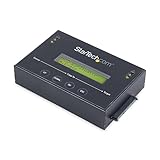
- DUPLICATE AND ERASE SATA DRIVES: This standalone 1:1 SATA drive duplicator / cloner and eraser / sanitizer supports 2.5/3.5" hard drives; Ideal for disk backup, recovery & restore or system setup and deployments
- DUPLICATION AND ERASE MODES: 3 Duplication Modes: Up to 14 GB/min Sector-by-Sector (Whole Disk), System & File, and All Partitions Copy; 4 Erase Modes: Quick Erase, Secure Erase, Single and 3-Pass Overwrite (DoD / NIST SP 800-88 Rev 1 Clear)
- DRIVE COMPATIBILITY: Supports 2.5/3.5" SATA HDDs/SSDs of any capacity; Includes HDD rubber pads SATA cables; Supported Interfaces with Adapter: eSATA, mSATA, IDE (SAT2IDEADP), M.2 SATA (SAT32M225) sold separately
- LCD MENU DISPLAY: Use push button navigation to select duplication/cloning & erase modes and display drive info/errors; Use Copy & Compare to verify your cloned drive with the source drive when complete
- THE IT PRO'S CHOICE: Designed and built for IT Professionals, this harddrive wiper and copier is backed for 2 years including free lifetime 24/5 multilingual technical assistance
Why formatting is not enough
A quick format or deleting partitions can make a drive appear empty without establishing that its previous data is inaccessible. NIST’s definition focuses on whether access to target data is infeasible, not on whether a volume looks blank. Treat formatting as ordinary setup, not as evidence of sanitization.
Independent reader supportYour contribution helps us test, update, and keep practical guides available for everyone.Validate the outcome and handle failures carefully
After the procedure, use the validation steps specified by the manufacturer or your organization. For sensitive information, keep the records required by the applicable standard. If the process reports an error, the drive is damaged, the tool does not recognize the target, or you cannot establish that the selected method met the required assurance, stop and seek model-specific support or an approved disposal process. Do not report the drive as securely erased solely because a command finished or partitions disappeared.
Quick Recap
Best Value

- 1. Never give away or sell a PC without erasing the hard drive completely as the deleted files could be easily recovered by data recovery software.
- 2. Wipe data permanently: This bootable USB drive is used to securely erase the entire contents of disks and keep your files and folders that were stored on your disks from falling into the wrong hands. It can wipe a single drive or multiple disks simultaneously. It also works on flash drive or memory card.
- 3. Military-Grade: Meets DoD 5220.22-M Hard Drive Erase Standards, It is guaranteed that no device, program, or software can recover what you have erased!
- 4. Easy to use: Works with any PC and Server which supports USB boot except for Apple Computer and Chromebook. It supports Legacy BIOS/UEFI booting mode and any 32/64bits PC. A print user guide is included but the box pictured is not included. Support is available and feel free to ask support when you have questions.
- 5. Bonuses: Two free software as bonuses: a. file eraser b.data recovery. Packing: Includes a 32GB bootable USB drive in a PET/CPP packing bag and a printed user guide. (Note: retail box shown in photos is for illustration only and not included.)
Rank #4

- PERMANENT DATA DESTRUCTION: Factory resetting is a flawed process that isn’t enough to keep deleted data from being recovered. When you reformat your computer's hard drive, the drive is formatted to make the old data rewritable. For the average user this may be enough, but in order to destroy all secure data a deep reformatting of the local and external drive needs to be completed. Destruct is the true master reset you need to completely and permanently erase documents and files.
- FRESH START: Whether you are selling your computer, disposing of it, or want to return it to its factory settings, Destruct will give your computer the clean start it needs. Destruct is a military-grade data eraser that allows you to completely get rid of confidential files and data stored on your computer. They will never be able to be recovered by other users. Enjoy peace of mind when you release your computer, knowing your private information is out of reach forever!
- REVOLUTIONARY USB DEVICE: This compact USB device packs a big punch when it comes to its destructive abilities! Conventional computer reformatting simply isn’t enough when you want to completely erase your computer’s data. Destruct is the revolutionary master key that gets the job done without leaving a trace of old data to be recovered. Wipe it, clear it, erase it, delete it, how you say it doesn’t make a difference; Destruct will DESTROY it!
- EASY-TO-USE: Erasing your hard disk is simple with Destruct. Simply plug it into a USB port, boot up your computer, select the hard disc you want to wipe clean, then let Destruct work it’s magic! Only one use of this device is needed to thoroughly overwrite your disk. Note: once the data on your hard disk has been erased, it is completely non-recoverable.
- DESTRUCTION GUARANTEED: Factory resets and similar hard drive erasing products leave your important files, documents, and data vulnerable to recovery. Devices such as SISCO can be used to retrieve the information you thought was gone forever, allowing it to be accessed by other users. Destruct guarantees that no device, program, or software can recover what you have instructed Destruct to erase!
Product prices and availability are accurate as of the date/time indicated and are subject to change. Any price and availability information displayed on Amazon at the time of purchase will apply.

