
Most Amazon Fire tablets do not have a system-wide QR scanner in the standard Camera app. If you point the camera at a QR code and nothing happens, the tablet is probably working normally—not missing a hidden setting.
The dependable solution is to install a compatible QR-scanning app from the Amazon Appstore, or use the scanner built into the app or website that supplied the code.
Method 1: Install a QR scanner from the Amazon Appstore
This is the best general-purpose method for scanning printed QR codes, signs, product packaging, and codes shown on another screen.
- Open Appstore on your Fire tablet.
- Tap the search field.
- Search for QR code reader, QR scanner, or barcode scanner.
- Choose an app marked as compatible with your Fire tablet.
- Tap Get, or use the app’s purchase or installation button.
- Open the scanner after installation.
- When Fire OS asks for camera access, tap Allow.
- Point the tablet’s rear camera at the QR code.
- Hold the tablet still until the app displays the decoded text or link.
- Check the destination before tapping the app’s link or action button.
App availability varies by tablet model and Fire OS version. An app listed for one Fire tablet may not appear in Appstore search on another. Search directly from the tablet rather than assuming that an Android phone app will also be available for Fire OS.
PC Slower Than It Used to Be?
A free scan shows the junk files, broken settings and background clutter dragging Windows down - then fixes them in one click.Free scan · Windows 10 & 11Crashes, No Sound, or Screen Glitches?
Random freezes, missing sound and display glitches usually trace back to one bad driver. Find and replace yours safely.Free scan · under a minute#1 Best Overall

- 【Omnidirectional Automatic Barcode scanner】NetumScan Barcode Scanner can easily capture bar codes 1D, 2D/QR on labels, paper, and mobile phone or computer displays,Sensitive and accurately and you can easily scan damaged barcode, distortion barcode, colorful barcode and reflective barcode, etc special barcode. Perfect for retail and other high-volume scanning applications.
- 【Automatic Smart Sensing Scanning】Specially equipped induction trigger, the desktop barcode scanner support auto-sensing scanning, barcode recognition more intelligent. When you not use the barcode scanner for a while, it will be into a sleeping mode. When handsfree barcode scanner in sleeping mode, it will automatically be activated once the item moving, and read the barcode under the window to upload to your device.
- 【Non-slip Base and Anti-shock Design】Our Handsfree Omnidirectional Barcode Scanner can be directly placed on the desk, the anti-slip base makes it more stable, Built-in anti-vibration system can avoid damage while falling from the height of 4.92 feet. IP54 technology protects the wireless barcode scanner from dust.
- 【Improve Your Efficiency】Compared with handheld barcode scanner, our handsfree barcode scanner is more free of your hands, no need to pick up the scanner when scanning, whether it is cashier scanning goods, or customer scanning digital barcode from smart phone. It can improve work efficiency and save time. Also it is so easy to use, no need extra training necessary for new staff.
- 【Plug and Play, Easy to Use】No need to install any software or app, Our desktop barcode scanner is Plug and play. Easily connected with your laptop, PC, POS by USB Cable. Ideal work for Windows XP/7/8/10, Mac OS, Linux.(Note:NOT compatible with Square/Clover/Shopify.)
The Amazon Appstore remains available on Fire tablets. Amazon’s 2025 Appstore change affected non-Fire Android devices, not the normal Appstore experience on Fire tablets.
Allow camera access if the scanner cannot see the camera
If the scanner opens but reports that it cannot use the camera, check its permission:
- Open Settings.
- Open Apps & Notifications, or the equivalent app-management section on your Fire OS version.
- Select the QR-scanner app.
- Tap Permissions.
- Enable Camera.
- Close and reopen the scanner.
On Fire OS 8, the permission dialog may offer One-time permissions. That grants temporary camera access. If the app stops working after you leave it or restart it, open the app again and grant camera access when prompted. If available, choose the regular “while using the app” option instead.
Method 2: Use the scanner inside another app
Some services include their own QR reader. For example, an app may show a control labelled Scan, Scan QR Code, Pair, or Link device.
Free tools Windows power users keep installed
One-click scans. No signup required.
- Open the app that requires the scan.
- Navigate to its pairing, login, setup, or linking feature.
- Tap its scan button.
- Approve the camera permission request.
- Point the rear camera at the QR code.
This is different from opening the Fire tablet’s Camera app. The service’s app must contain QR-decoding software and request access to the camera.
Rank #2

- Scan QR codes and common barcodes with a Fire Tablet camera
- Save scan history and favorites locally on your device
- Generate offline QR codes for websites, text, WiFi, email, phone, and SMS
- Create WiFi QR codes without uploading your network information
- Large-button, high-contrast screens designed for tablet use
Can Silk scan a QR code?
Sometimes. A website opened in Amazon Silk can use the camera if the website has a browser-based QR scanner that is compatible with Silk, your Fire OS version, and the current camera-permission system.
- Open the page in Silk.
- Tap the site’s Scan QR Code or similar button.
- Tap Allow if Silk or Fire OS requests camera access.
- Aim the rear camera at the code.
Amazon documents camera capture in Fire-tablet web apps through standard HTML media-capture controls, but this does not make every website QR-compatible. A QR prompt on a website does not mean that the Fire tablet’s Camera app supports QR recognition; the website itself must provide the scanner.
How to scan a QR code displayed on the same Fire tablet
The tablet cannot use its own camera to photograph a QR code displayed on its screen. Use one of these alternatives:
- Scan the screen with a phone.
- Display the QR code on a computer, phone, or another tablet.
- Take a screenshot, then import it into a QR-scanner app that supports image or gallery scanning.
- Open the destination manually if the service displays a web address below the QR code.
Image importing is an app feature, not a guaranteed Fire OS function. Check whether your installed scanner has an option such as Scan from image, Import from gallery, or Choose image.
Scanning in an Amazon Kids profile
QR scanning can fail in an Amazon Kids profile even when it works in the adult profile. The scanner may not be available to the child profile, or the profile may not have granted it camera access.
Rank #3
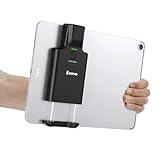
- Widely Compatible Clip Design – Fits Phones & Tablets The Eyoyo scanner features an upgraded vertical retractable clip with a flexible range of 5.7"–7.1", designed to fit iPad, iPad Air, iPad Pro 9.7"/10.5"/11", Surface Go 3, tablets, and large-screen smartphones such as Samsung S22/S23 Ultra. The reinforced back-clip design provides a secure grip to keep your device steady while scanning. Please make sure your device size is within the supported clip range before use.
- Advanced 1D & 2D Scanning – Paper, Screen, Damaged & Curved Barcodes Equipped with advanced 2D CMOS imaging technology, this wireless barcode scanner delivers fast and accurate reading of most 1D and 2D barcodes, including ISBN, UPC/EAN with supplementals, Code 39, Interleaved 2 of 5, Code 93, Code 128, Codabar, QR, Data Matrix, PDF417, and more. It can scan paper labels, digital screen codes, mobile coupons, e-wallets, loyalty cards, and many poorly printed, damaged, low-contrast, or curved-surface barcodes when positioned at a proper angle and distance.
- Bluetooth & USB Wired Connection – Wireless Freedom or Stable Wired Use This scanner supports Bluetooth wireless and USB wired connection for flexible daily use. Use Bluetooth pairing to work freely with inventory apps on your phone, iPad, tablet, or computer without cable limitations, or switch to USB wired mode when you need a stable direct connection. Please note: this model does not support 2.4G wireless connection.
- 3000mAh Long-Lasting Battery with Power Indicators Built with a 3000mAh rechargeable battery, the Eyoyo Bluetooth barcode scanner delivers up to 30 hours of continuous scanning on a full charge. For lighter use, such as around 5,000 scans per day, it can last up to 30 days without recharging. Smart LED indicators clearly show remaining battery levels at 25% / 50% / 75% / 100%, as well as charging and discharging status, so you always know when it is time to recharge.
- Ergonomic Design & Flexible Scanning Modes Designed with three scan buttons, the Eyoyo Bluetooth scanner supports different holding positions and user habits for comfortable left- or right-handed operation. A dedicated power switch helps conserve battery life when not in use. It supports instant upload and storage modes, sound on/off, custom prefix/suffix digits, hidden characters, programmable keyboard keys, and multiple scanning modes including key trigger, auto-sensing, and continuous scanning, giving you flexible control for retail, warehouse, inventory, and mobile work scenarios.
Amazon’s support instructions for managing camera access in a Kids profile use this path:
- Switch to the Kids profile.
- Swipe down twice from the top of the screen.
- Tap the Settings gear.
- Tap Manage Storage.
- Tap Internal Storage.
- Tap Games & Apps.
- Select the relevant scanner app.
- Enable any available camera permission.
The exact labels can vary with Fire OS and the profile configuration. If the scanner cannot be added to the child profile, or the Kids environment does not expose camera access, switch to the adult profile or scan with another device.
Do these 3 things before closing this tab:
1Fix the driver behind crashes, sound loss and screen glitches2Clear out junk files and repair common Windows errors3Scan for outdated or missing drivers - takes under a minuteWhy the Camera app does not scan QR codes
Amazon’s Camera app is intended for taking photos and videos. Amazon Devices Customer Support has confirmed that the Fire HD 10 (2023 release) does not include a built-in QR-code reader. Amazon’s current Fire-tablet specifications describe camera hardware but do not list native QR scanning as a standard feature.
That means advice such as “open Camera and wait for a link prompt” is not dependable for Fire tablets. Some models, apps, or Fire OS versions may behave differently, but a dedicated scanner or an app-specific scan feature is the reliable approach.
Tips when the QR scanner cannot read the code
| Problem | What to try |
|---|---|
| The Camera app does nothing | Install a QR-scanner app or use the scanner inside the relevant service. |
| The code is blurry | Move the tablet farther away instead of closer, keep the full code in view, and hold the tablet steady. |
| There is glare | Change the angle, reduce reflections, and use bright, even lighting. |
| The code is on a screen | Increase that screen’s brightness and avoid photographing it at an angle. |
| The scanner says there is no camera | Open Settings, find the scanner under app management, and enable its Camera permission. |
| The app is not in Appstore search | Try another QR scanner. The missing app may not support your Fire OS version, processor, or model. |
| The scanner opens a Google Play link | The QR code may point to an app unavailable on Fire OS. Open the web destination manually or look for an Amazon Appstore version. |
Limited camera focus can matter
Some Fire tablets have cameras with limited close-focus capability. For example, Amazon lists Camera AutoFocus: n/a for the Fire HD 10 (2023). If a QR code is too close to the lens, it may never become sharp enough to decode.
Rank #4

- Convenient Clip-on & Pocket Design: At the office or on the go: The Eyoyo mini portable barcode scanner with a clip so you can use it anywhere. Pocket size design allows you to easily put it in your pocket. If you don’t have a pocket or the pocket is full of things, it doesn’t matter, This Eyoyo scanner is equipped with a clip on the back, you can clip it to any place that can be clipped, such as shirts, jeans, or your belt
- 2000mAh Huge Battery with Battery Indicators: Eyoyo is the one to design huge battery capacity with battery indicator level on the portable mini barcode scanner.Built-in 2000 mAh rechargeable battery, which can scan continuously for 20 hours after being fully charged. if you only scan 5000 barcodes per day, it can be used for 20 days. Used Smart LED Indicators tracking remaining power left (25%-50%-75%-100%). Input and output status, you need not guessing whether need to charge it or not
- Bluetooth & 2.4G Wireless & Wired Connection: This Eyoyo Bluetooth barcode scanner features 3-in-1 connection with Bluetooth, 2.4G wireless and USB wired. Its breakthrough design allows for easy transition between corded and cordless operation. Easily adapts to different needs and supports connection with your laptop, PC, MAC, iPhone, Android, and tablet
- Superior 1D & 2D Scanning Performance: This qr bar code scanner gun wireless adopts advanced 2D CMOS image technology, it scans virtually all 1D and 2D barcodes even poor quality, damaged, or low contrast codes. Capable of reading bar codes off smartphone screens: mobile coupons, digital wallets, and digital loyalty cards.Scanning ISBN/UPC/EAN, UPC/EAN With Supplementals, Code39, Interleaved 2 of 5, Code93, Code 128, Codabar, QR, Data Matrix, PDF417, etc barcode with ease
- Custom Configuration: The Eyoyo wireless scanner with a separate 𝗽𝗵𝘆𝘀𝗶𝗰𝗮𝗹 𝘀𝘄𝗶𝘁𝗰𝗵 𝗯𝘂𝘁𝘁𝗼𝗻, which reduces the loss of power. It supports 𝗶𝗻𝘀𝘁𝗮𝗻𝘁 𝘂𝗽𝗹𝗼𝗮𝗱 & 𝘀𝘁𝗼𝗿𝗮𝗴𝗲 mode, turning on/off the sound&vibration, adding custom prefix/suffix digits, hiding characters, adding keyboard keys (TAB, CR&LF, etc.), Support Key trigger, Auto-sensing, Continous scanning mode
- Move the tablet back several inches.
- Keep the entire QR code inside the viewfinder.
- Clean the rear camera lens.
- Avoid shadows and reflections.
- Hold the tablet still for a few seconds.
Check your Fire tablet model and Fire OS version
If a scanner is unavailable or permission instructions do not match your screen, identify the tablet first:
- Open Settings.
- Tap Device Options.
- Look for Device Model or About Fire Tablet.
Amazon’s generation numbers generally correspond to release years, though the generation can vary by model. For example, the Fire HD 10 (2023) is 13th generation, the Fire HD 8 (2022) is 12th generation, and the Fire HD 8 (2024) is also 12th generation.
Recent examples—the Fire HD 8 (2024, 12th generation), Fire HD 10 (2023, 13th generation), and Fire Max 11 (2023, 13th generation)—use Fire OS 8, although hardware and app compatibility still differ.
Independent reader supportYour contribution helps us test, update, and keep practical guides available for everyone.Check the link before opening it
A QR code can contain a website address, text, contact information, Wi-Fi details, or an app-download link. Do not automatically open every result. Look at the domain shown by the scanner first, especially if the code came from an email, poster, package, or unfamiliar website.
A QR code that opens a Google Play Store page may be valid but still unsuitable for a Fire tablet. Fire OS does not include Google Mobile Services by default, so the linked Android app may not install. That does not mean Google Play is required for QR scanning; it only means the linked app may not have a Fire OS version.
Best Value

- Mini 2D Barcode Scanner: Ultra Mini Size: 3.5*1.18*0.78 inch, Ultra Lightweight: 1.5 oz. Portable and pocket size makes the wireless barcode scanner perfect for on-the-go and long-term scanning. Suitable for inventory, warehouse, supermarket, library, bookstores, library, sales stores and more
- 3 Wireless Connection Ways & High Compatibility: You can switch 2.4Ghz Wireless, Bluetooth Wireless, and USB Wired connections according to your needs, which is more convenient. Eyoyo wireless barcode reader delivers up to 80-100m/260-330ft transmission distance barrier-free under the wireless mode. Easily connected with your laptop, PC, POS, mobile phone, tablet, phone
- Advanced 2D Scan Technology: The image 2D Barcode Scanner is equipped with an advanced CMOS sensor, and higher decoding accuracy, which can easily capture 1D/2D (QR/ PDF417/ MicroPDF417/ DataMatrix/ Aztec/ Maxicode, etc) barcodes from paper and electronic screen, effectively compensate for the problem that 1D laser scanner can not identify 2D and screen code. Also with super decoding ability supports scanning damaged, distorted, colorful, reflective, reverse barcode, etc special barcodes
- Long-Lasting Rechargeable Battery & Energy Saving Design: Our upgraded wireless Bluetooth barcode scanner is equipped with a rechargeable battery, it can work continuously for 8 hours, a 180-day super long standby time. To save power, the scanner will automatically shut down after 5 minutes of no operation by default, users can set or cancel the shutdown time
- Two modes of data transfer: Instant transfer mode/storage mode. in offline storage mode. The barcode scanner can automatically store the barcode data in the device. Upload data to your device in bulk when required. The barcode data can be stored up to 150.000 barcodes
FAQ
Does an Amazon Fire tablet have a built-in QR scanner?
Not generally. The standard Camera app on current Fire tablets is not a dependable system-wide QR scanner. Install a compatible QR-reader app from the Amazon Appstore or use the scanner built into the app or website you are using.
Why does my Fire tablet camera not scan a QR code?
Many Fire tablets can take photos but do not automatically recognize QR codes. Use a dedicated scanner, grant it Camera permission, and try holding the tablet farther away if the code is out of focus.
Can I scan a QR code shown on my Fire tablet screen?
Not with the tablet’s own camera. Scan the screen with another device, display the code elsewhere, or import a screenshot into a QR app that supports gallery images.
Do I need Google Play to scan QR codes on a Fire tablet?
No. A compatible QR scanner from the Amazon Appstore is sufficient. Google Play may only be relevant if the QR code leads to an Android app that is not available through Amazon’s store.
What’s actually slowing this PC down?
Pick the symptom - the matching free tool is one click away.
How do I give a QR app camera access on Fire OS?
Open Settings, go to Apps & Notifications or the equivalent app-management area, select the QR app, open Permissions, and enable Camera. Then reopen the app.
Why cannot I find a QR scanner in the Amazon Appstore?
Appstore results are filtered by device and Fire OS compatibility. Try searches such as “QR code reader” or “barcode scanner,” and check the tablet’s model under Settings > Device Options.
The Bottom Line
For a reliable scan, open Appstore, search for QR code reader or QR scanner, install a compatible app, allow camera access, and use the rear camera. Do not treat the standard Camera app as a guaranteed QR reader on Amazon Fire tablets.
Quick Recap
Product prices and availability are accurate as of the date/time indicated and are subject to change. Any price and availability information displayed on Amazon at the time of purchase will apply.

