
The Tool Desk
Outbyte Driver Updater FREEScan for outdated or missing drivers - takes under a minuteDriver Scan →Outbyte PC Repair FREEClear out junk files and repair common Windows errorsFree Scan →For a flexible recording that shows your screen and your face together, use OBS Studio: add a screen-capture source and a webcam source to the same scene, arrange them in the preview, then check audio and make a short test recording. If you want a simpler guided workflow and have access to Clipchamp’s screen-and-camera feature, that is another option.
Record your screen and webcam together with OBS Studio
OBS combines sources in a scene, so the screen and webcam appear in one composed recording. You can resize and position the webcam feed over the screen, for example in a corner. See the OBS Project’s Sources Guide for how sources are added and arranged.
- Open OBS and set up recording. If you are unsure about initial settings, use the Auto-Configuration Wizard. In the OBS Quick Start Guide, the project recommends checking output settings before recording.
- Create or select a scene. In the Sources area, add a screen-capture source appropriate to your operating system (details below).
- Add your webcam. Add a Video Capture Device source and choose your camera.
- Arrange the picture. Resize and move the webcam image in the preview so it does not cover important screen content.
- Check audio and recording output. Select the microphone you want and, if needed, desktop audio. Speak or play a sample and watch the Audio Mixer meters to confirm the intended devices are active.
- Make and review a short test recording. Play it back to check the screen, camera framing, microphone, and any desktop audio before recording something important.
OBS says its default configuration captures the system default desktop audio device and microphone, but recommends checking the Audio Mixer and selecting devices manually if the meters do not move or the wrong device appears active. Its Quick Start Guide also recommends a test recording: “We strongly encourage running a test for a few minutes to make sure that there are no issues, rather than just jumping in to your first stream or recording.”
Choose the right screen source
The available source depends on your operating system and, on macOS, its version. OBS’s Sources Guide documents Display Capture for Windows, Linux, and macOS 12.6 and earlier; on macOS 13 and later, use macOS Screen Capture. Window Capture is listed for Windows, Linux, and macOS 12.6 and earlier.
#1 Best Overall

- 【4K UHD Webcam】This webcam for pc supports resolutions from 4K@30FPS to 1080P@60FPS, with frame rates that capture every detail for a clear and smooth video conferencing experience. This web cam is perfect for conference calls, online classes or live streaming.
- 【Three Colours Infinitely Dimmable】The built-in ring fill light has 3 color temperature settings (white /natural /warm ), and the color temperature can be adjusted by touching the sensor area on the back of the camera with your fingertips. Adapt to different environments, always present the best skin color. The streaming camera's innovative outer ring rotary adjustment brightness light intensity control, even in low light conditions can also get the best fill light effect.
- 【TOF autofocus dual noise-canceling microphones】The TOF fast autofocus function instantly locks onto faces or moving objects, ensuring ultra-clear image quality performance in dynamic scenes stays in perfect focus. Equipped with dual noise-canceling microphones, this computer camera effectively reduces background noises such as keyboard tapping and air-conditioning operation, ensuring that your voice is always clearly conveyed.
- 【Built-in Privacy Cover】The 4K webcam has a built-in sliding privacy cover that physically blocks the lens with a gentle push, completely eliminating the risk of hackers peeking in or privacy leaks, allowing you to control your privacy and security at all times.
- 【Widely Compatible】The web camera runs easily on multiple platforms such as Windows (Win7, 10, 11), Mac OS 10.6 and higher and Linux. Ideal for use with Zoom, Teams and other popular communication software such as Skype, Facetime, Microsoft Teams and more.
On macOS 13 and later, OBS’s macOS Screen Capture documentation says the source can capture a display, window, or application and that desktop audio is available. On macOS 12.3–12.6, the source is available without audio. These details are specific to the cited OBS documentation; check the current source guidance if your setup differs.
Use Clipchamp for a simpler screen-and-camera workflow
Microsoft documents a dedicated screen and camera mode in Clipchamp. The support page says, “Selecting screen and camera will record your screen and also turn on your webcam.” Microphone audio is on by default, with an option to turn it off, and Microsoft documents exporting the finished recording as an MP4.
Rank #2

- 【Unmatched 4K Streaming Quality】The NexiGo N680E Pro has a Sony 1/2.5" 4K sensor for ultra-sharp, true-to-life video beyond standard webcams. Stream smoothly at 1080p 60 fps. Its premium coated lens boosts light transmission and reduces reflections for clearer, more vibrant images. Perfect for content creators and live streamers seeking top-tier performance. Note: Output resolution depends on your camera software (e.g., OBS, PotPlayer).
- 【PDAF Autofocus & Enhanced Audio Clarity】Keep your audience engaged with advanced PDAF autofocus, delivering faster focusing speed, higher precision, and greater stability than traditional AF systems, no matter how you move. Dual noise-reducing microphones capture your voice clearly by filtering out background noise, ensuring clean, distraction-free conversations and streaming.
- 【Tri-Tone Adjustable Ring Light】The built-in ring light offers three color temperature modes with a simple touch and stepless brightness control by rotating the outer dial. Brighter than typical webcam lights, the N680E Pro provides soft, glare-free illumination so you can easily achieve the perfect lighting for any space.
- 【Built-in Privacy Shutter】With a simple USB-A plug-and-play connection, this streaming camera works instantly—no drivers, apps, WiFi, or Bluetooth required. The built-in privacy shutter blocks the lens completely to prevent potential hacking or unwanted access, giving you full control over your privacy at all times.
- 【Widely Compatible】The NexiGo webcam works with Switch 2 (Please use with your own USB-C to USB-A adapter), Windows 7–11, Mac OS 10.6+, and Chrome OS 29+, supporting all major video conferencing and streaming platforms like Zoom, Teams, Skype, and more. Its flexible clip and 80° FOV allow smooth rotation and wide-angle tilting while staying secure, making it easy to find your ideal angle. A standard 1/4" tripod mount ensures stable setup. Ideal for conferencing, gaming, streaming, recording, and online learning.
Microsoft’s instructions distinguish between the Clipchamp Windows app and work or school accounts, so availability and steps are not necessarily identical across accounts or platforms. Follow the instructions for the version you use in Microsoft’s screen-recording guide.
| Option | Best fit | Composition and audio | Platform or account notes |
|---|---|---|---|
| OBS Studio | When you want to choose sources and control the layout. | Add screen and webcam sources to a scene and arrange them; check audio devices in the mixer. | Source choice varies by operating system and macOS version. |
| Microsoft Clipchamp | When you want a dedicated screen-and-camera recording mode. | Enables screen and webcam together; microphone is on by default and can be turned off. MP4 export is documented. | Microsoft gives separate instructions for its Windows app and work or school accounts; broad parity across editions and platforms is not established. |
Troubleshoot missing video or audio
The screen is black or the wrong window appears
Confirm that you selected a screen-capture source supported by your operating system and macOS version. If you are recording a game on Windows, OBS provides a separate Game Capture source. It is not available on macOS or Linux, where OBS points users to other capture sources. See the Game Capture Source guide.
Rank #3

- 【Angetube Webcam with Mutil-Funtion Ring Light for Better Portrait】 The streamcam built in 3 different colors LED and stepless adjustable brightness to delivery brighter and softer tone light without glare. Single press the touch button to change the color temperatures.A rotating bezel allows for quick, brightness level changes and turn on/off the light without the need to go into software settings.
- 【Designed for Streaming】 Make a great first impression with fans and impress your friends with Angetube 862Pro’s crisp HD webcam 1080p 60 FPS camera with true-to-life colors.Auto low-light correction kicks in to ensure you stand out, even in poor lighting conditions.Real time auto focus make you never have to worry about adjusting the focal length.Plug and play on Xbox one.Widely compatible with livestream software such as OBS.
- 【Zoomable Webcam with RF 360° Omnidirectional Remote Control】 Control your video calls with a remote, so even away from the desk you are still in charge. 5X digital zoom below 1080p, Disable video, mute, adjust the FOV, white balance, and more. Adjust the webcamera brightness in Mac OS / Windows without software. This is a great convenience for Mac users.(Zoom function works at 720p and lower resolutions. It is not available in 1080p mode.)
- 【Built-in Microphone&Privacy Shutter】 Built-in dual omnidirectional mics with noise cancellation ensure that you get clear audio from every angle.The built-in privacy cover and the remote disable video allows you to enjoy safe digital web life when not in use and prevent hackers from spying on you. It is perfect to provide privacy, security, and peace of mind to individuals, groups, organizations, companies, business, and governments.
- 【USB A & C Web cam and Wide Compatibility】 The 1080p webcam works with USB A or USB C with included Adapter. Plug and play,No additional driver required.The facecam is compatible with Windows XP/7/8/10/11, Mac OS, Linux,Chrome OS, Ubuntu etc.Perfect for Zoom, Skype, Facetime, Facebook, YouTube, Microsoft Teams, and any other popular video calling software.
On laptops, graphics hardware selection can affect capture. OBS’s Laptop Troubleshooting guide discusses capture issues and settings that may help; the right fix depends on the laptop and configuration.
The microphone or desktop audio is missing
Watch the Audio Mixer while speaking or playing audio. If a meter does not move, or a different device appears active, choose the intended input or output device in OBS and make another short test recording. On macOS, also account for the OS-specific desktop-audio support described in OBS’s macOS Screen Capture documentation.
Rank #4
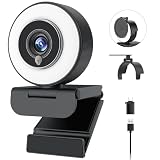
- 【Webcam 4K UHD】This Angetube 967 Ultra 4K webcam for pc supports resolutions from 4K@30FPS to 1080P@60FPS, with frame rates that capture every detail for a clear and smooth video conferencing experience. PDAF autofocus ensures you stay sharply in focus, delivering true-to-life video for all your needs. This web cam 4k is perfect for conference calls, video calls, online classes or live streaming.
- 【Three-Level Adjustable Ring Fill Light】 The streaming 4k webcam for laptop built-in ring light with 3 brightness settings lets you instantly achieve the perfect level of illumination with a simple touch. Its soft, uniform glow flatters your features and eliminates harsh shadows, The web cam 4k with ring light ensuring you always look your best—even in low light conditions.
- 【Complete Privacy & Peace of Mind with a Privacy Shutter】Simply close the 4k webcam for mac with privacy shutter to physically block the lens when not in use. The webcam with light for streaming with guaranteed protection stops unauthorized access, allowing you to control your privacy and security at all times.
- 【Webcam with Dual Microphones】 The 4k web camera for desktop computer built-in dual mics. This usb external webcam ensures your voice comes through with exceptional clarity for seamless conversations, even in busy environments.
- 【True Plug and Play】The Angetube 4k pc camera webcam with light let you enjoy true plug-and-play convenience with no drivers needed - simply plug the cable into your laptop/desktop and the usb camera is automatically activated in seconds.. This pc webcam connects via USB-A and includes an adapter for USB-C ports.
What if you use a Mac’s built-in screen recorder?
Apple’s instructions explain how to choose a microphone for voice or other audio when recording a Mac screen, but the cited guide does not document adding a webcam feed to that same recording. Apple also notes that some apps, including Apple TV, may not allow their windows to be recorded. For a documented Mac workflow that combines camera and screen, OBS is the better-supported choice in the guides cited here. See Apple’s screen-recording instructions.
Do you need extra equipment?
Not necessarily. Start with the webcam and microphone already available to you, then use a test recording to identify what is actually missing. Consider a separate webcam or microphone only if your current setup does not meet your needs; a capture card is for more specialized external-video setups, not a routine requirement for recording your computer screen and webcam.
Quick Recap
Product prices and availability are accurate as of the date/time indicated and are subject to change. Any price and availability information displayed on Amazon at the time of purchase will apply.

