
Free tools Windows power users keep installed
One-click scans. No signup required.
To lower ping while gaming, start by choosing a nearby game server, connecting your PC or console to the router with Ethernet, and pausing downloads or uploads that compete for bandwidth. If ping rises only when your household is using the internet, investigate congestion; if it stays high on a wired connection, the game server, internet route, or ISP may be the limiting factor. Ping measures round-trip latency in milliseconds, so a fast download-speed result alone does not guarantee a responsive game.
1. Choose the closest suitable game server
Use the game’s region selector or server browser and compare the latency shown for available servers. A nearby server is often a good starting point, but geography labels do not guarantee the shortest or best route: internet routing also matters. Steam Support recommends checking server latency and content-server region. Steam Support: Network/Connectivity Troubleshooting
If only one game or region has high latency while other games work normally, focus first on that game’s server choice or route rather than replacing your home networking equipment.
2. Connect with Ethernet
When practical, connect your PC or console directly to the router with an Ethernet cable. This removes Wi-Fi interference and signal variation from the local connection and is a useful first test when wireless play is inconsistent. Intel, Activision, and Epic recommend wired connections in their troubleshooting guidance. Activision’s concise advice is: “Play on a wired connection.” Intel: How to Fix Lag · Activision Support: Connection and Performance Issues in Call of Duty: Modern Warfare II · Epic Games Support: How to Fix Latency and Packet Loss in Fortnite
The Tool Desk
Outbyte Driver Updater FREEFix the driver behind crashes, sound loss and screen glitchesFind Drivers →Outbyte PC Repair FREERepair Windows errors before they cause bigger problemsFix Now →#1 Best Overall

- Instant Gaming Acceleration Without Replacing Your Router. Connect the AX3000 gaming router to your existing network to reduce lag, stabilize connections, and improve gaming performance. No complicated setup — plug and play for console and PC gamers. (Not compatible with Starlink.)
- Lower Ping & Packet Loss with GearUP VIP Acceleration. Optimized gaming routes help reduce ping by up to 50% and minimize packet loss. Ideal for competitive online games on PS5, PC, and other consoles where latency matters.
- Gaming Router + 90-Day GearUP VIP Core Plan. Includes the HYPEREV AX3000 WiFi 6 gaming router and a 3-month GearUP VIP Core subscription. Designed for first-time users who want immediate performance improvement.
- WiFi 6 AX3000 Speed with App Control. Delivers up to 2402Mbps on dual-band 5GHz and 2.4GHz WiFi 6. Manage acceleration settings easily using the GearUP Router app for Console & PC via Ethernet or wireless connection.
- Works with PS5, Switch, Steam Deck & 1000+ Games. Compatible with major consoles and PCs. Supports over 1000 popular online games with game-specific optimization for smoother gameplay across multiple devices.In collaboration with Discord ecosystem, exclusive 1 Month of Nitro on us.
A Cat 6 cable is one reasonable cable option, but the cable does not upgrade your internet service or guarantee lower ping when the cause is a distant server or ISP routing. Compare your results on Ethernet and Wi-Fi under similar conditions.
3. Pause downloads, uploads, and streams
Large transfers can compete with game traffic on a shared home connection. Pause game downloads, cloud backups, file uploads, and high-resolution streams while playing, then see whether the spikes stop. Epic specifically advises avoiding large concurrent downloads, uploads, and streams. Epic Games Support: How to Fix Latency and Packet Loss in Fortnite
Rank #2

- Powered by DumaOS 3.0. Reduce ping rates up to 93% and enjoy faster, lag-free online gaming and smoother streaming with this Router OS built especially for gamers
- Fast AX5400 dual-band WiFi 6 performance with up to 4x more device capacity than AC routers
- NETGEAR routers have security features enabled out of the box with automatic firmware updates, and industry-leading safety features to help protect you and your family
- Works with any wired Ethernet or wireless gaming device including PCs, Xbox, PlayStation & Nintendo Switch consoles
- Plug in computers, game consoles, streaming players and more with 4 x 1 G Ethernet ports
If stopping other traffic improves play, the issue is likely congestion under load—not necessarily weak gaming hardware or a low maximum download speed.
4. Improve Wi-Fi if Ethernet is not practical
- Move closer to the router or access point and reduce walls or other obstructions between it and your device.
- Test a supported Wi-Fi band with less interference. The 2.4 GHz band reaches farther but can be crowded; results depend on your home layout and nearby networks.
- Retest in the same game and location after each change so you can tell whether it helped.
Epic’s latency guidance discusses Wi-Fi band and connection troubleshooting. Epic Games Support: How to Fix Latency and Packet Loss in Fortnite
Quick wins for a faster PC:
Repair Windows errors before they cause bigger problemsFix Now →Scan for outdated or missing drivers - takes under a minuteDriver Scan →Clear out junk files and repair common Windows errorsFree Scan →Rank #3

- Tri-band 2.4GHz + 5GHz + 6GHz; latest WiFi 6E supports 8-streams on tri-band simultaneously, up to 6.6Gbps speed
- AI QoS; satisfies all users' needs by automatically prioritizing data packets
- Powerful processor; 1.8 GHz quad core processor delivers ultra fast and reliable connections
- Mystic light; sync RGB light effects with mystic light compatible products
- Game accelerator; provides an uninterrupted WiFi connection for immersive gaming experiences
5. Try QoS or SQM only if latency rises under load
Some routers offer Quality of Service (QoS) settings that prioritize a device or type of traffic; routers with Smart Queue Management (SQM) can manage traffic queues. These features are most relevant when latency rises as household downloads or uploads saturate the connection. Check your router’s current documentation for supported features and configuration, then test in-game with the setting enabled and disabled.
Do not assume a gaming-branded router will lower a stable baseline ping. RTINGS’ router analysis, updated June 5, 2025, says routers generally have little control over total latency except when the home network is overburdening the ISP bandwidth. RTINGS: Router Latency Activision also describes QoS prioritization in its connection troubleshooting guidance. Activision Support: Connection and Performance Issues in Call of Duty: Modern Warfare II
Rank #4
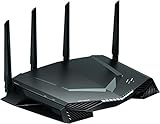
- Minimize ping and maximize performance with four 1 Gigabit Ethernet ports for lag free, wired connectivity and 1.7 GHz dual core processor network efficiency.Beamforming : Implicit & Explicit Beamforming. LEDs : On/off LED lights option.
- Amp up your WiFi with AC2600 dual band router that delivers blazing fast speeds up to 2.6 Gbps
- Put your gaming traffic in a designated express lane with advanced quality of service, bypassing network congestion and reducing lag spikes, jumps and jitters
- Make every millisecond count by using geo filtering to connect to the closest servers and players so you can respond and dominate
- Monitor your network and game ping in real time so you can see who’s hogging the bandwidth by device and application
6. Check packet loss and jitter, not just average ping
Turn on the game’s network statistics if available and note ping, packet loss, and spikes before and after a change. Average ping describes typical round-trip latency; jitter is variation in latency, while packet loss means some data fails to arrive. Either can cause stutter or rubberbanding even when your download bandwidth is high.
Epic Games Support says consistently more than about 1% packet loss can cause in-game problems. Treat that as a troubleshooting indicator from Epic, not a universal threshold for every game. Epic Games Support: How to Fix Latency and Packet Loss in Fortnite
Best Value

- 𝐀𝐗𝐄𝟓𝟒𝟎𝟎 𝗧𝗿𝗶-𝗕𝗮𝗻𝗱 𝗪𝗶-𝗙𝗶: Enjoy up to 5.4 Gbps Tri-Band Wi-Fi, keeping your PS5, Xbox, PC, and mobile gaming devices ready for the fiercest battles. The new 6 GHz band provides optimal bandwidth and congestion-free channels exclusive to Wi-Fi 6E devices.⌂◇
- 𝟮.𝟱𝗚 𝗠𝘂𝗹𝘁𝗶-𝗚𝗶𝗴𝗮𝗯𝗶𝘁 𝗣𝗼𝗿𝘁: Upgrade your gaming network with Archer GXE75’s 2.5G WAN port, delivering ultra-fast speeds from your multi-gig modem. Combined with four 1G LAN ports, it ensures reliable, high-speed connectivity for seamless multiplayer gaming.
- 𝗘𝘅𝗰𝗹𝘂𝘀𝗶𝘃𝗲 𝗔𝗰𝗰𝗲𝗹𝗲𝗿𝗮𝘁𝗶𝗼𝗻 𝗳𝗼𝗿 𝗚𝗮𝗺𝗲𝘀: Supports game application, gear, and server acceleration. Optimize connections for your gaming headset, gaming mouse, and controller while minimizing jitter, lag, and ping for games on Steam, Origin, and other platforms.
- 𝗗𝗲𝗱𝗶𝗰𝗮𝘁𝗲𝗱 𝗚𝗮𝗺𝗲 𝗣𝗮𝗻𝗲𝗹 & 𝐆𝐚𝐦𝐞 𝐃𝐞𝐬𝐢𝐠𝐧: The intuitive game panel provides real-time insights into your battle environment, network status, router performance, RGB settings, and accelerated games and gear, empowering players to strategize effectively.
- 𝗘𝘅𝗽𝗮𝗻𝗱 𝗪𝗶𝗙𝗶 𝗖𝗼𝘃𝗲𝗿𝗮𝗴𝗲 𝘄𝗶𝘁𝗵 𝗘𝗮𝘀𝘆𝗠𝗲𝘀𝗵: Extend network range even more by adding EasyMesh-compatible routers, extenders, or wireless powerline adapters for a seamless, whole-home connection. Eliminate dead zones, drops, and lag as you move across your home.
7. Restart or update network equipment when trouble is recent
If connection problems appeared recently or affect several devices, power-cycle the router and check whether a firmware update is available. Intel includes power cycling and firmware updates among packet-loss troubleshooting steps. Change one thing at a time and retest; changing several settings at once makes it harder to identify the cause. Intel: How to Fix Lag
8. Escalate persistent problems on a wired connection
If high latency or packet loss persists over Ethernet across multiple games, record when it happens, which games or regions are affected, and whether other devices are using the connection. Contact your ISP for a persistent connection problem, or the game’s support team if the issue appears limited to one game or server. Steam notes that a distant server can have higher latency. Steam Support: Network/Connectivity Troubleshooting Epic includes connection troubleshooting for Fortnite. Epic Games Support: How to Fix Latency and Packet Loss in Fortnite
Port forwarding is not a universal ping fix; Steam discusses it in the context of a specific Steam server-access situation. Follow the relevant game’s or service’s instructions rather than changing router settings without a clear reason. Activision’s guidance also directs players to consult their ISP when router credentials are unavailable. Activision Support: Connection and Performance Issues in Call of Duty: Modern Warfare II
How to tell which fix to try first
| What you observe | What to test first |
|---|---|
| Ping rises when someone downloads, uploads, or streams | Pause competing traffic; if the pattern persists, investigate congestion and whether QoS/SQM is available. |
| Wi-Fi is inconsistent, but wired play is steadier | Use Ethernet where practical, or improve the Wi-Fi signal and test supported bands. |
| Only one game or region has high ping | Compare in-game server options and consider game-side routing or server conditions. |
| Several games and devices have trouble, including on Ethernet | Record timing and symptoms, then contact the ISP or relevant game support. |
| Ping looks acceptable, but play still stutters or rubberbands | Check packet loss and jitter as well as average latency. |
These tests help distinguish local Wi-Fi conditions and household congestion from server distance, ISP routing, and game-specific problems. No home setting can guarantee a lower minimum ping when those factors set the limit.
What’s actually slowing this PC down?
Pick the symptom - the matching free tool is one click away.
Quick Recap
Product prices and availability are accurate as of the date/time indicated and are subject to change. Any price and availability information displayed on Amazon at the time of purchase will apply.

