
Pinterest’s current instructions cover Chrome, Firefox, Safari, and Microsoft Edge—not Internet Explorer. Use the steps below for your browser, or create a Pin from a website URL if you would rather not install an extension.
Which browsers can install Pinterest’s Save Button?
Pinterest’s Help Center publishes installation steps for Chrome, Firefox, Microsoft Edge, and Safari. Its current installation article does not list Internet Explorer, so there is no documented IE installation path in that guidance. That omission does not establish whether a legacy version once worked or might still work. Browser availability and instructions below reflect Pinterest’s published guidance as accessed October 8, 2026.
| Browser | Pinterest’s documented route |
|---|---|
| Chrome | Chrome Web Store |
| Firefox | Firefox Browser Add-ons |
| Safari | Safari Extensions |
| Microsoft Edge | Microsoft Store |
| Internet Explorer | No installation route listed in Pinterest’s current installation instructions |
Install the Pinterest Save Button
Chrome
- Open Pinterest’s installation instructions and follow the link to the Chrome Web Store.
- Choose “Pinterest Save Button,” select “Add to Chrome,” and follow the browser prompts.
Firefox
- Open Pinterest’s installation instructions and follow the link to Firefox Browser Add-ons.
- Select “Pinterest Save Button” and follow the on-screen prompts.
Safari
- In Safari, choose Safari > Safari Extensions.
- Search for “Save to Pinterest,” select it, then choose Get and Install.
- Follow any remaining on-screen prompts.
Microsoft Edge
- Open Pinterest’s installation instructions and follow the link to the Microsoft Store listing.
- Select “Pinterest Save Button,” choose Get, and complete the download through the Microsoft Store app.
Internet Explorer
Pinterest’s current installation guidance does not provide IE steps. It documents Chrome, Firefox, Edge, and Safari instead. Because that page does not address historical or legacy compatibility, it cannot confirm whether an older IE button existed or still functions.
Save an image with the extension
After installing the extension, log in to Pinterest and open a webpage containing an image you want to save. Click the Pinterest icon in the browser toolbar, choose one or more available images, and select a board. Pinterest describes the extension as a way to save ideas from around the web; see its extension instructions.
#1 Best Overall

- This is a Standard HID Keyboard with Programmable Key,You can set the keyboard buttons. It can as usb pushbutton swith for Game/DIY,Supports Mac/Windows.No Need to Download Software
- 1.Support any key keyboard eg."enter", "ESC" "A" and so on;2.Support key combination eg. A key to copy/paste,short press to copy, long press to paste/"Ctrl + Shift + s";3.Support multimedia control eg. Cut the song and volume adjustment;4.Supports mouse movement and clicking, , and automatic Enter,after pressing the button;5.Support a key to enter the password,Auto Click A string of characters,like"ijnr00Ed"
- The keyboard with Adjustable RGB light,cherry mx Red switch, Mechanical Keyboard
- Package include:1*single key,1*1.5m USB Cable Everyone have different needs,Some special combinations key that we have not listed may not work, Thank you for your understanding.
Create a Pin from a website URL instead
You can save from a webpage without installing the browser extension. While logged in, start creating a Pin, choose the website or URL option, enter the address, select an image, add a title and description, and choose a board. Pinterest says you can select multiple images when they are available. See Pinterest’s instructions for creating a Pin from an image or video.
Troubleshoot a Pinterest Save Extension that is not working
Pinterest recommends Chrome, Firefox, or Microsoft Edge for troubleshooting its Save Extension. Try these steps in a regular browser window:
Rank #2

- [120-Pcs DIY Keyboard Switch Kit for 3D Print Projects] Upgrade your creations with 120 blue clicky keyboard switches, a switch puller, brush, and cloth. Designed as a clicker for 3d prints, keyboard clicker for 3d prints, and custom builds, this kit adds interactive clicking feedback for DIY projects
- [Built for 30 Million Clicks] Designed for repeated operation, these keyboard switches for 3d prints are rated for up to 30 million actuations. The dust-resistant housing helps reduce debris buildup while supporting smooth, consistent switch performance
- [Designed for DIY Projects] Clickers for 3d printed fidgets use a standard 3-pin mechanical switch layout for custom STL builds, maker projects, prototypes, and printed mechanisms. The blue housing also works well with LED backlighting
- [Easy Installation with Universal 3-Pin Design] Featuring a standard 3-pin MX-style layout, these clicky keyboard switches fit many compatible mechanical keyboard setups. The included puller and cleaning tools simplify installation, replacement, and maintenance for beginners and experienced builders
- [Creative Accessory Set for Makers and Keyboard Enthusiasts] Whether building custom keyboards or exploring 3D printing ideas, this kit provides useful components for creative projects. The included metal keychains add versatility for personalized accessories, DIY creations, and maker collections
- Leave private browsing or Incognito mode and open a standard browser window.
- Remove the extension, then reinstall it from the browser’s official store.
- Clear the browser cache and cookies.
- Make sure JavaScript is enabled.
- Update the browser.
- Disable other extensions one at a time to check for a conflict. Pinterest notes that ad-blocking, anti-tracking, and virus-scanning extensions can interfere with page elements.
These troubleshooting steps are from Pinterest’s Save Extension troubleshooting guide.
Quick Recap
Best Value

- USB SWITCH APPLICATION: The keys are defined as a standard computer keyboard on any key or key combination ,which can be widely used in mobile phone, game, factory test, instrument control, multimedia teaching, medical and epidemic prevention station, etc.
- TOUCH COMFORTABLY: Membrane keyboard touches comfortably, lifetime 1,000,000 times. Perfect size to be holded in your hand. Lightweight and no more burden
- SIMULATE KEYBOARD SHORTCUTS:It can replace any key and key combination on the keyboard, this device is a programmable keyboard that you work with simple handle switch. Can trigger any keyboard action, including key combinations, strings, and multimedia or browser controls
- MULTI-FUNCTION:Program allows you set the key/function that it works for similar to a mouse or keyboard setting, can trigger any keyboard actions.
- Wide Compatibility: Our mini keypad fit for USB interface standard HID keyboard devices, can run on Windows, Linux, MAC and so on. But needed to be set up under windows system first.
Rank #4

- This product uses a sturdy 1.2mm thick PCB board to ensure the durability and reliability of the keyboard switch module.
- Adopting 4 independent key keyboard modules, suitable for students' class design graduation projects. Suitable for electronic experiments.
- The 4 key keyboard module is of GND K1 K2 K3 K4" 4 PIN OUT 2.54mm
- With 4pcs screws positioning holes, so the module is easy to install and disassemble
- Compatible with Mega2560, raspberry pi, banana pi etc, or others MCU PLD CPU ( AVR STM32 ARM PIC C51 NRF24LE1 CC2530 MSP430 STM8 FPGA CPLD etc.)
Rank #3
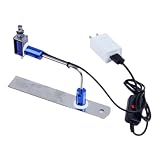
- ✅ True Random Click System: The auto keyboard clicker with no fixed frequency, automatic random click between 1-30 seconds, effectively bypass anti-AFK detection, no false advertising.
- ✅ Sufficient Stable Pressing Force: Upgraded pressing structure, can fully trigger the keyboard key every time, will not appear the problem of insufficient strength.
- ✅ Universal Fit for All Keyboards: Freely movable click head + stepless height adjustment, compatible with keyboards of any thickness and any brand.
- ✅ 100% Silent Click: Soft rubber click head, no noise during use, will not scratch the keyboard keycap.
- ✅ Stable & Firm Installation: Screw fixed design, will not shift or shake during long-term use, easy to install without tools.
Product prices and availability are accurate as of the date/time indicated and are subject to change. Any price and availability information displayed on Amazon at the time of purchase will apply.
Do these 3 things before closing this tab:
1Clear out junk files and repair common Windows errors2Fix the driver behind crashes, sound loss and screen glitches3Repair Windows errors before they cause bigger problems
