
Outdated Drivers Are Slowing You Down
One free scan finds every outdated or missing driver and matches the right update for your exact hardware.Free scan · exact hardware matchWindows Errors? Fix Them Before They Spread
Repair common Windows errors and clear accumulated junk for a smoother, more stable PC - no reinstall needed.Free scan · no reinstallTo install an M.2 SSD in a handheld gaming PC, first confirm the exact model’s supported SSD length and interface, then prepare a data-recovery plan and follow that model’s service instructions. “M.2” describes a drive format, not a guarantee of fit: for example, the 2023 ASUS ROG Ally uses an M.2 2230 slot that does not support SATA SSDs, while Lenovo’s Legion Go Gen 2 supports M.2 2242 or 2280 PCIe Gen 4 drives. Those specifications do not automatically apply to other generations or handhelds.
Before buying an SSD, check your exact handheld model
Find the model name and generation on the device label or in system information, then consult its official service or support documentation. Check the drive’s length, supported interface, physical clearance, and any service limitations. Do not rely on a generic “handheld SSD” label or copy another model’s screw sequence.
| Handheld documented in the cited manufacturer guide | SSD slot specification | Important qualification |
|---|---|---|
| ASUS ROG Ally (2023) | M.2 2230; M.2 SATA SSDs are not supported. | ASUS’s first-edition service manual, June 2023. Do not apply this specification to Ally X or later models. ASUS ROG Ally (2023) Service Manual. |
| Lenovo Legion Go (8.8-inch, Gen 2) | One M.2 slot supporting 2242 or 2280 drives over PCIe Gen 4. | Lenovo’s guide was available on its support site as accessed October 7, 2026. This does not establish compatibility for the original Legion Go, Go S, or other generations. Lenovo Legion Go Gen 2 User Guide. |
| Steam Deck and other handheld models | Not stated in the model-specific sources cited here. | Check the official documentation for the exact model; do not infer a size or procedure from the examples above. |
When comparing compatible drives, check length and clearance first, then the interface, capacity and local price, and single- or double-sided construction if the manufacturer documents a clearance requirement. No comparative brand benchmark is established here, and a higher-rated drive should not be assumed to improve game performance without device-specific evidence.
Choose how you will preserve or restore your data
Decide before opening the case whether you will clone the old drive or install the operating system again. Back up important files either way. Cloning requires a readable original drive, a compatible replacement, and a setup that can connect both drives as needed; an external USB NVMe enclosure is optional, but verify that it supports NVMe and the drive’s physical length.
Recommended Free Tools
#1 Best Overall

- PCIe 4.0 Performance: Delivers up to 7,100 MB/s read and 6,000 MB/s write speeds for quicker game load times, bootups, and smooth multitasking
- Spacious 2TB SSD: Provides space for AAA games, apps, and media with standard Gen4 NVMe performance for casual gamers and home users
- Broad Compatibility: Works seamlessly with laptops, desktops, and select gaming consoles including ROG Ally X, Lenovo Legion Go, and AYANEO Kun. Also backward compatible with PCIe Gen3 systems for flexible upgrades
- Better Productivity: Up to 2x faster than previous Gen3 generation. Improve performance for real world tasks like booting Windows, starting applications like Adobe Photoshop and Illustrator, and working in applications like Microsoft Excel and PowerPoint
- Trusted Micron Quality: Built with advanced G8 NAND and thermal control for reliable Gen4 performance trusted by gamers and home users
If you plan to reinstall or recover the operating system, make sure the official recovery media or instructions, another computer if needed, and a suitable USB drive are available. Steam’s SteamOS Installation and Repair page is an official recovery reference for SteamOS devices. It does not replace the model-specific physical replacement guide, and recovery steps can differ between Windows and SteamOS handhelds.
Prepare the device and work area
- Fully shut down the handheld, unplug its charger and peripherals, and remove external cards if the manufacturer instructs you to.
- Use a clean, well-lit work area and the correct driver for the cover and SSD fastener. Tool and bit sizes vary by model, so check the service guide rather than assuming a generic kit is suitable.
- Keep the manufacturer’s instructions open and stop if the cover, battery connector, or internal layout is unfamiliar or resists handling.
Power and battery precautions are model-specific. ASUS’s ROG Ally (2023) service manual says to disconnect connected peripherals, communications lines, and power connectors—including the battery pack—before removing the bottom cover. ASUS also recommends professional supervision for the SSD-module procedure and points users to an authorized service center for help. Consult the manual for the cited Ally model; do not treat its steps as universal instructions.
Rank #2
- PCIe 4.0 Performance: Delivers up to 7,100 MB/s read and 6,000 MB/s write speeds for quicker game load times, bootups, and smooth multitasking
- Spacious 1TB SSD: Provides space for AAA games, apps, and media with standard Gen4 NVMe performance for casual gamers and home users
- Broad Compatibility: Works seamlessly with laptops, desktops, and select gaming consoles including ROG Ally X, Lenovo Legion Go, and AYANEO Kun. Also backward compatible with PCIe Gen3 systems for flexible upgrades
- Better Productivity: Up to 2x faster than previous Gen3 generation. Improve performance for real world tasks like booting Windows, starting applications like Adobe Photoshop and Illustrator, and working in applications like Microsoft Excel and PowerPoint
- Trusted Micron Quality: Built with advanced G8 NAND and thermal control for reliable Gen4 performance trusted by gamers and home users
Replace the drive using the exact model’s service instructions
- Open the case as directed. Follow the manufacturer’s cover-removal instructions and battery precautions. Work slowly; avoid levering against the screen, cables, or battery cells.
- Remove the original drive carefully. Locate the SSD fastener, remove it using the correct driver, and slide the module from its socket at the angle specified by the guide.
- Preserve the original protective material. Keep any foil sleeve, thermal material, bracket, or other device-specific hardware, and note where it belongs. The sources do not establish one shield or thermal procedure for all handhelds.
- Install the compatible replacement. Insert the SSD without forcing it, secure it as the guide directs, and restore any protective material in its specified position.
- Reassemble the device. Reconnect the battery and close the case in the manufacturer’s stated order before proceeding to cloning or recovery.
This is a general outline, not a substitute for model-specific instructions. If the internal layout or a connector is unclear, stop rather than improvising; professional service is an option, and ASUS specifically recommends supervision for the cited ROG Ally procedure.
Restore the system and verify the upgrade
Use the cloning process you prepared or follow the current official operating-system recovery instructions for the device. Do not assume every handheld uses the same boot menu, installer, or recovery sequence. After restoration, check that the system starts, recognizes the drive and reports its expected capacity, then install applicable updates.
Do these 3 things before closing this tab:
1Repair Windows errors before they cause bigger problems2Fix the driver behind crashes, sound loss and screen glitches3Clear out junk files and repair common Windows errorsRank #3

- Ideal for high speed, low power storage
- Gen 4x4 NVMe PCle performance
- Up to 6,000MB/s read, 4,000MB/s write
- Includes Acronis cloning software
- 5-year limited warranty
If it does not boot or recognize the replacement, avoid repeated power cycling. Stop and consult the manufacturer’s recovery guidance for the exact model, checking the drive fit and installation against its service instructions before trying again.
Independent reader supportYour contribution helps us test, update, and keep practical guides available for everyone.Check service and warranty terms for your unit
Service and warranty terms vary by model and jurisdiction. Check the manufacturer’s terms for your exact device before opening it; there is no universal rule here that opening a handheld either does or does not affect coverage.
Quick Recap
Best Value
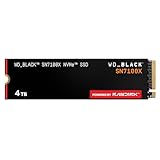
- This product has been replaced by our latest generation. Please search for the SANDISK Optimus GX 7100X SSD for ROG XBOX Ally (X) and PC.
- OFFICIALLY XBOX LICENSED. Your drive is officially licensed for Xbox gaming, so you can upgrade your internal storage to store and play more on your ROG Xbox Ally, ROG Xbox Ally X and PC.
- HIGH-OCTANE GAMING. Experience speeds up to 7,250MB/s(2) read and 6,900MB/s(2) write (2TB(1) model), with up to 35% faster performance than previous generation.(4)
- ADD FAVORITES AND NEW TITLES. Available in multiple capacities up to 4TB,(1) so you have tons of storage for your favorite games and the ones you’re looking forward to. CLEAR THAT CHECKPOINT. Built with laptops and handheld gaming devices in mind, with up to 90% more power efficiency over the previous generation.(4)
- 1 MONTH XBOX GAME PASS ULTIMATE. Play new games on day one. Enjoy hundreds of high-quality games on console, PC, and cloud. Get EA Play. Dive into legendary franchises. Play together with friends.(3)
Rank #4
- PCIe 4.0 Performance: Delivers up to 6,600 MB/s read and 5,000 MB/s write speeds for quicker game load times, bootups, and smooth multitasking
- Spacious 500GB SSD: Provides space for AAA games, apps, and media with standard Gen4 NVMe performance for casual gamers and home users
- Broad Compatibility: Works seamlessly with laptops, desktops, and select gaming consoles including ROG Ally X, Lenovo Legion Go, and AYANEO Kun. Also backward compatible with PCIe Gen3 systems for flexible upgrades
- Better Productivity: Up to 2x faster than previous Gen3 generation. Improve performance for real world tasks like booting Windows, starting applications like Adobe Photoshop and Illustrator, and working in applications like Microsoft Excel and PowerPoint
- Trusted Micron Quality: Built with advanced G8 NAND and thermal control for reliable Gen4 performance trusted by gamers and home users
Product prices and availability are accurate as of the date/time indicated and are subject to change. Any price and availability information displayed on Amazon at the time of purchase will apply.

