
Quick wins for a faster PC:
Repair Windows errors before they cause bigger problemsFix Now →Scan for outdated or missing drivers - takes under a minuteDriver Scan →iTechGuides is reader-supported. When you buy through links on our site, we may earn an affiliate commission. As an Amazon Associate I earn from qualifying purchases. Learn more
Facebook notifications can fail at several different points: Facebook may not be generating the alert, the alert may be disabled for a specific delivery method, or your phone may be blocking Facebook at the operating-system level. Start by identifying the missing type:
- Push notification: a lock-screen, banner, or status-bar alert when Facebook is not open.
- In-app notification: a notification dot or number shown while Facebook is open.
- Email, SMS, or browser notification: an alternative delivery method controlled separately from push alerts.
Work through the checks below in order. The menu names can vary slightly after a Facebook app or operating-system update.
1. Check whether Facebook notifications are enabled
Facebook does not have one universal “turn on everything” switch. Notification categories and delivery methods are controlled separately, so a setting may be enabled for email but disabled for push, for example.
Recommended Free Tools
On Facebook in a web browser
- Select your Profile picture in the top-right corner.
- Go to Settings & privacy → Settings.
- Select Notifications.
- Review the relevant category under What notifications you receive.
- Check the delivery methods available for that category, such as Push, Email, SMS, or Browser.
Turn on the method you actually want to use. Categories differ by account and platform, so you may not see exactly the same options as another Facebook user.
Popular on Amazon

- Practical and smart: The HUB and 3 call buttons use 433MHz technology for a 230ft range, penetrating walls and doors, suitable for most homes; the HUB connects easily to home Wi-Fi for smart global access. Note: Only supports 2.4G Wi-Fi, not 5G
- Never Miss an Help Alarm: Press the panic button to trigger a loud alarm with flashing lights and instantly receive an app notification on your phone. Share notifications with family via the app; Note: SMS, phone, email require subscription
- APP Remote Monitoring and Settings: Through app, you can view alarm history and customize the HUB's alarm settings, such as ringtone, duration, volume, you can also check the status and battery level of each alarm button for elderly in real-time
- Selectable Ringtones and Adjustable Volumes: Eighteen ringtones and four volume levels are available; You can set different ringtones and names for each emergency button in the app, which helps you quickly know who is asking for help
- Pre-paired, Easy to Use: The emergency alert systems for seniors no monthly fee come ready to use. Just connect the HUB to Wi-Fi. Wear it, wall-mount, or place on a table. Perfect for homes, nursing, hospitals, clinics. If there's an issue, pair the panic buttons with receiver first
In the Facebook mobile app
- Open Facebook and tap Menu.
- Tap Settings & privacy → Settings.
- Under Preferences, tap Notifications.
- Select the notification category that is missing.
- Enable the appropriate delivery method, especially Push if you want phone alerts.
If you are trying to restore a particular alert—such as comments, friend requests, groups, or Page activity—check that category instead of assuming the setting applies to every Facebook alert.
2. Allow Facebook in your phone’s notification settings
Facebook’s internal Push setting cannot override a device-level block. If the operating system has denied Facebook notification permission, changing Facebook’s settings alone will not produce a lock-screen or banner alert.
iPhone and iPad
- Open the device Settings app.
- Tap Notifications.
- Select Facebook.
- Turn on Allow Notifications.
- Enable the alert locations you want, such as the Lock Screen, Notification Center, and Banners.
- If you want audible alerts, check that Sounds is enabled.
If Facebook does not appear in the list, open the Facebook app and use it briefly, then check the list again. Installing the latest app version may also be necessary.
Android
Facebook’s documented route for Android 6.0 and later is:
- Open device Settings.
- Go to Apps & notifications → Facebook → Notifications.
- Turn on Facebook notifications.
On newer Android versions and manufacturer interfaces, the first menu may instead be called Notifications, Apps, or Notifications & status bar. Search the Settings app for Facebook notifications if you cannot find Apps & notifications.
Also inspect Facebook’s individual Android notification channels. A main Facebook permission can be enabled while a particular channel—such as comments, groups, or friend requests—is disabled. Make sure the channel is allowed and not set to silent if you expect sound or pop-up alerts.
3. Turn Facebook Push notifications back on
Push and in-app notifications are not the same. Push notifications arrive when you are not actively using Facebook. In-app notifications are the dots or numbers shown inside Facebook while it is open. Seeing a notification dot in Facebook does not prove that phone push alerts are enabled.
- In Facebook, open your Profile picture or Menu.
- Go to Settings & privacy → Settings → Notifications.
- Open the category that is not alerting you.
- Enable Push for that category.
- Return to the phone’s notification settings and confirm Facebook is still permitted there.
Test with a notification that should arrive quickly, such as a reply to a comment, rather than waiting for an infrequent account event.
4. Fix Facebook notification sounds
A notification can be arriving silently even though it appears that notifications are missing. First confirm that device permission is enabled; Facebook requires push notifications to be allowed on the device before its sound controls can work.
Also popular on Amazon

- SavvyBloom Cell Phone Ringer: The main function is to remind and answer calls. You can use this cell phone speaker amplifier to answer or hang up the call, so that people with hearing impaired will not miss calls. Maximum call volume up to 116 decibels. Provide users with 3 modes to choose from (CALL/MESSAGE/ALL mode). If your smartphone has a lot of notification messages, highly recommend use CALL mode to only notify calls.
- Bluetooth Connect External Ringer for Cell Phone: Connect the cell phone ringer via Bluetooth on your phone. Depending on the wall material, it can work up to 98 feet through the wall, and up to 295 feet outdoors. Place the cell phone ringer amplifier in a central location to better cover the entire range of the house. The pairing and connection process of iPhone and Android phones is slightly different, please refer to the instruction manual.
- Answer/Hang Up The Phone-CALL Mode: Will notify incoming calls, the cell phone ringer amplifier will continue to ring when a call comes in, and the working indicator light will flash blue and red alternately. Click green button on the phone ringer amplifier to talk to the caller and red button to hang up.
- MESSAGE Mode: This mode only notifies the mobile phone of text messages. After receiving the text message, the phone speaker amplifier will flash red and blue lights alternately but will not ring. The flashing only stops after users have finished checking the text message on the phone. In message mode, the phone amplifier does not notify the phone of incoming calls and app messages.
- ALL Mode: Includes CALL mode and MESSAGE mode, will receive notifications from mobile apps. When receiving app notifications, the phone speaker amplifier will only ring once and flash alternately red and blue lights, but there will be no notification when the phone is silent or vibrating. It can be used to play music, but the sound quality is average.
Change or enable sounds in the Android Facebook app
- Tap Menu → Settings & privacy → Settings.
- Under Preferences, tap Notifications.
- Tap Push.
- Toggle Sounds on or off.
Change the Facebook notification tone on Android
- Go to Menu → Settings & privacy → Settings.
- Open Notifications under Preferences.
- Tap Push → Tone.
- Select a sound and tap OK.
On iPhone and iPad, the available sound and alert controls are primarily handled through the device’s Settings → Notifications → Facebook page.
5. Check Do Not Disturb, Focus, and battery restrictions
If Facebook is enabled in both places but alerts still do not appear, check phone features that suppress or delay notifications:
- Turn off Do Not Disturb, Focus, or a similar notification filter temporarily.
- On Android, check whether Battery Saver, Adaptive Battery, or an app-battery restriction is preventing Facebook from running in the background.
- On iPhone, check whether a Focus mode is silencing Facebook or whether Scheduled Summary is delaying delivery.
- Check that the phone has an internet connection and that Facebook is not restricted from using mobile data.
- Open Facebook once after changing these settings, then lock the phone and test again.
These are device-level checks rather than Facebook settings. The exact labels depend on the phone manufacturer and operating-system version.
6. Repair browser notifications
Facebook’s current help documentation describes browser push notifications as available through Google Chrome for Android. Do not assume that Facebook browser alerts work in every desktop browser just because you can use Facebook there.
In Chrome on Android:
- Log in to Facebook in Chrome.
- Tap your Profile picture.
- Open Settings & privacy → Settings → Notifications.
- Open Browser.
- Under Push Notifications, select On.
If browser alerts still fail, clear Chrome’s browsing data and cookies, close Chrome completely, reopen it, and install the latest Chrome version. You may need to sign in again and grant the site permission to send notifications.
7. Restore email notifications
Email notifications use a separate Facebook setting:
- On Facebook’s website, select your Profile picture.
- Go to Settings & privacy → Settings → Notifications.
- Select Email.
- Choose the email frequency and the subjects Facebook may email you about.
If several email addresses are linked to your account, Facebook normally sends notifications to the selected primary email. Facebook may use a secondary address if the primary address stops receiving mail. Without a usable secondary address—or if email notifications are disabled—Facebook email alerts stop.
Also search the mailbox’s Spam, Junk, Promotions, and social folders for Facebook messages. If you find them there, mark them as not spam and add the sending address to your contacts or safe-sender list.
Also popular on Amazon

- Loud 120dB Adjustable Ringer: Hear your calls clearly even from another room. Choose from multiple tone options with adjustable volume to suit your space.
- Bright 4-LED Flashing Alert: Visual indicators grab your attention instantly — perfect for quiet or noisy environments alike.
- Automatic Sound Detection: Detects your phone’s ringtone sound and activates both light and ringer alerts — no apps, pairing, or wireless connection required.
- Plug-In Power, Always Ready: Runs continuously from any standard wall outlet — no charging or batteries to replace.
- Simple Setup for Daily Use: Works with any smartphone, landline, or desk phone placed nearby. Just plug it in, and it’s ready to go.
8. Restore SMS notifications
To enable SMS for a notification category on Facebook’s website:
- Open Profile picture → Settings & privacy → Settings → Notifications.
- Expand the relevant category under What notifications you receive.
- Turn on SMS.
Facebook also documents separate SMS controls under Mobile. These can restrict alerts during certain hours or limit the number of Facebook texts sent, so check those settings if SMS is enabled but messages remain absent.
Do these 3 things before closing this tab:
1Repair Windows errors before they cause bigger problems2Scan for outdated or missing drivers - takes under a minute3Clear out junk files and repair common Windows errors9. Check whether the issue is limited to a Page
Page notifications can be confusing when several people manage the same Facebook Page. Changing email notification settings for one Page manager does not change the settings of the other managers. Each person has separate notification choices.
If only Page activity is missing, check that you are using the correct Facebook profile, then review the Page-related notification category and delivery method under your own account settings.
10. Refresh the app and account connection
Use these low-risk cleanup steps after checking the settings:
- Force-close Facebook and reopen it.
- Sign out and sign back in.
- Update Facebook from the App Store or Google Play.
- Restart the phone.
- On Android, clear Facebook’s cache from the phone’s app settings. Avoid clearing storage unless you are prepared to sign in again.
- As a last app-level test, reinstall Facebook, then grant notification permission when prompted.
Do not disable notification permission while testing. If you do, Facebook may not prompt for it again immediately, and the test result will be misleading.
Free tools Windows power users keep installed
One-click scans. No signup required.
What to do if notifications appear inside Facebook but not on the phone
This pattern usually points to Push being disabled in Facebook, Facebook being blocked in the operating system, or a Focus/battery setting suppressing delivery. Check the following in this order:
| What you observe | Most likely place to check |
|---|---|
| Notification dot appears in Facebook, but no lock-screen alert | Phone notification permission and Facebook Push settings |
| Phone alerts appear, but there is no sound | Device volume, Focus/Do Not Disturb, Facebook Sounds, and Android notification channel settings |
| Email is missing, but push works | Facebook’s Email category, primary email address, and spam filtering |
| SMS is missing, but other methods work | SMS category, Mobile restrictions, phone number, and carrier filtering |
| Only browser alerts are missing | Chrome on Android, Facebook Browser settings, and Chrome site permission |
| Only one Page manager is affected | That manager’s individual Facebook notification settings |
Important limitation: Facebook has no complete notification-history switch
Facebook does not provide one master switch that turns every notification on or off. You select notification types and delivery methods separately. Also, the notification list should not be treated as a guaranteed record of every alert Facebook has ever generated. Facebook says that recent notifications about shared content and content you selected to follow can be viewed through the Feeds tab by selecting Notifications.
Also popular on Amazon
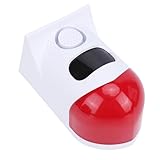
- 4 Working Modes: The solar sound light alarm offers 4 working modes: all day flashing and alarm, night time flashing and alarm, night time flashing only, and alarm off. The control distance is 50 to 100 meters, and you can conveniently switch modes with a remote control.
- Smartphone Connectivity: This solar motion sensor alarm can be connected to your smartphone via WiFi. As soon as someone passes through the detection area, the motion detection alarm will flash and sound. Additionally, you will receive a notification on your phone.
- Wide Detection Range: The solar powered motion detector has a sensing angle of 110°, capable of detecting any movement within a range of 9 to 12 meters (dependent on environmental conditions). The alarm produces a 120db sound to protect areas requiring security alerts from intrusions.
- Efficient Power Supply: Equipped with a built in high capacity battery and an efficient solar panel, it charges for more than 10 hours (charging efficiency varies by season). During rainy or cloudy days, the alarm can be charged via USB and continue to operate.
- Water Proof Design: Featuring a robust ABS housing and IP67 water proof rating, the solar motion sensor siren is designed to perform well outdoors year round and withstand almost all weather conditions.
FAQ
Why do I see Facebook notifications in the app but not on my phone?
In-app notifications and push notifications are separate. Enable Push for the relevant category in Facebook, then enable Facebook under your phone’s notification settings. Also check Focus, Do Not Disturb, battery restrictions, and notification-channel settings.
Is there a button to turn on all Facebook notifications?
No. Facebook does not provide one universal switch for every notification. Categories and delivery methods such as Push, Email, SMS, and Browser are adjusted separately.
What’s actually slowing this PC down?
Pick the symptom - the matching free tool is one click away.
Why are Facebook notifications silent?
The phone may be muted or using Focus/Do Not Disturb, or the Facebook notification channel may be set to silent. On Android, check Facebook → Notifications → Push → Sounds in the app and the device’s Facebook notification channels.
Why are Facebook emails going to the wrong address?
Facebook normally sends notifications to the account’s selected primary email. If that address stops receiving mail, Facebook may use a linked secondary address. Check Facebook’s Email notification settings and the contact information on the account.
Can Facebook browser notifications work in any browser?
Facebook’s current help documentation specifically identifies Google Chrome for Android for browser push notifications. Its documented route is Facebook Settings → Notifications → Browser → Push Notifications.
Why do Facebook Page notifications still not work after I changed the Page settings?
Page-manager notification choices are individual. Changing settings for one manager does not change the settings of other people who manage the same Page.
PC Slower Than It Used to Be?
A free scan shows the junk files, broken settings and background clutter dragging Windows down - then fixes them in one click.Free scan · Windows 10 & 11Outdated Drivers Are Slowing You Down
One free scan finds every outdated or missing driver and matches the right update for your exact hardware.Free scan · exact hardware matchThe Bottom Line
The most important fix is to check both layers: Facebook’s Settings & privacy → Settings → Notifications preferences and the phone’s operating-system notification permission. Facebook Push cannot work when the device blocks Facebook. If only one delivery method is failing, troubleshoot that method separately—Push, Email, SMS, or Browser—rather than changing every notification category.

