
Free tools Windows power users keep installed
One-click scans. No signup required.
Before asking a customer to try again, check whether the first attempt charged or authorized a payment. Open the WooCommerce order, review its notes and status, then look for the matching transaction in your payment provider’s dashboard. Once you know the transaction state, use the gateway’s logs and a safe test environment to find the cause.
1. Check the order and payment state before retrying
In WooCommerce, open the affected order and read its notes and current status. WooCommerce describes Failed as an unsuccessful or declined payment, and Pending as an order received but not yet paid. A pending order can also mean WooCommerce did not receive a payment notification.
Compare the order with the transaction record in the provider’s dashboard. If the provider shows a successful charge or authorization while the order is still pending, do not ask the customer to pay again. Follow the provider’s callback or webhook instructions and reconcile the order before fulfillment. WooCommerce explains the order statuses and troubleshooting steps in its Troubleshooting Orders guide.
2. Find the exact error in the gateway logs
- Go to WooCommerce > Settings > Payments, open the affected gateway’s settings, and enable its logging option. The option’s label and location can vary by extension.
- Reproduce the problem once in test mode or on staging, if necessary. Logs capture new activity after logging is enabled, not earlier attempts.
- Go to WooCommerce > Status > Logs and open the new log for the gateway. Look for the request, provider response code, and any missing completion or callback.
- Turn logging off when troubleshooting is done. Logs can grow and may contain sensitive operational details.
Use the exact response or error text to consult the documentation for your installed gateway. WooCommerce’s Troubleshoot payment errors guide also covers payments that time out or remain pending.
Do these 3 things before closing this tab:
1Clear out junk files and repair common Windows errors2Fix the driver behind crashes, sound loss and screen glitches3Repair Windows errors before they cause bigger problems#1 Best Overall
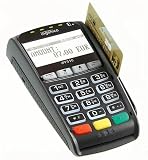
- Secure Multi-Payment Acceptance: Supports EMV chip & PIN, magnetic stripe, and contactless/NFC payments including Apple Pay, Google Pay, and other mobile wallets for fast, secure transactions
- Customer-Friendly Design: Features a large 15-key tactile keypad with raised markings, clear contactless zone, and a bright 2.8 inch color QVGA display (320x240) that improves usability and speeds up checkout
- Easy Integration: Simple USB connectivity with single-cable setup; compact and ergonomic design suitable for countertop, retail POS, and integration with Ingenico countertop terminals
- High Security & Compliance: PCI PTS 5 approved with robust encryption; protects sensitive card data and meets the highest industry security standards for peace of mind
- Reliable Performance: Powered by Cortex A5 processor with 128 MB Flash and 128 MB RAM; durable construction with 500K card insertion lifespan for high-volume retail environments
3. Reproduce the error safely
Use the provider’s test or sandbox mode, or a staging copy of the store. Do not use a live customer payment as a test: it can create confusing records, and refunding a test charge may not return gateway fees. WooCommerce recommends using a separate test environment when investigating payment failures.
4. Check gateway settings and interpret the error
Confirm that the gateway is using the right credentials for the selected test or live environment. Check that the credentials belong to the intended provider account and that the account is active. Then compare the log’s response with the gateway’s own documentation; a provider decline, expired card, insufficient funds, authentication failure, or account hold may require action with the provider rather than a code change in WooCommerce.
Rank #2

- 【Universal Compatibility】 - The MDB Payment Device to PC Converter is designed to connect a variety of MDB devices such as acceptors, bill receivers, and card readers effortlessly. It offers seamless integration with any vending equipment compliant with MDB specifications, ensuring versatility in your payment solutions.
- 【User-Friendly Interface】 - This USB adapter features a straightforward setup process. Simply connect it to your computer, and the adapter transforms MDB protocols into RS-232 serial protocols. This allows for easy communication between your vending machine and your PC, simplifying operations while providing reliable performance.
- 【Enhanced Control】 - With capabilities to control up to eight MDB-compatible devices simultaneously, this converter enhances your management efficiency. Whether you’re handling dispensers or bill acceptors, experience effective monitoring and command over your vending machine operations like never before.
- 【Robust Functionality】 - The MDB-PC USB converter supports a variety of interfaces, including cash interfaces (10H and 60H) and USD interfaces (40H). This broad support mechanism ensures compatibility across multiple configurations, making it an ideal solution for complex setups.
- 【Comprehensive Package】 - Each converter comes complete with required cables, a user guide, and a user agreement, providing everything you need for successful installation. Designed for easy implementation, enjoy a plug-and-play experience with reliable support for all essential MDB functions.
WooCommerce’s general troubleshooting guide offers these patterns as clues, not universal diagnoses:
- 400 error: WooCommerce says this is commonly associated with an incorrect contact URL. Verify the gateway’s endpoint or callback configuration.
- 200 error: WooCommerce says this often results from incorrect credentials. Check the account keys and test/live environment.
- Blank checkout page: This can indicate a PHP issue. Enable appropriate debugging and inspect the relevant fatal or server logs.
- Pending order: Compare the provider transaction state with the order, then check notification configuration and possible plugin conflicts.
- Failed order: Read the order notes and provider response. A decline or abandoned payment can be a normal transaction outcome, not a broken integration.
These patterns do not establish the cause by themselves. The active gateway’s response and provider documentation are the authority for its specific error codes.
Rank #3
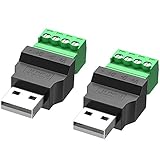
- WIDELY APPLICATIONS: Suitable for U disk, keyboard, mouse, camera, printer, mobile phone and other devices with USB interface. Terminal blocks make it easy to test electronics equipment or power up.
- DURABLE: Nickel-plated interface, anti-friction, strong oxidation resistance, effectively reduce resistance. The signal is more stable and has a longer service life.
- EASY to USE: No soldering required. Just use a small screwdriver to open up the terminal blocks, slide in your stranded or solid-core wire, and re-tighten. Save you from solder trouble, no need to purchase expensive tool. Great time and money saver.
- FLEXBILITY: The terminal block itself is removable from the body. It's more durable than soldering wires onto a connector. Can extend the length of the USB cable,ideal for you electronic DIY projects and test the equipment that with USB interface ports.
- All the pins are clearly labeled, which is really nice because we keep forgetting the order.
5. Check payment notifications and webhooks
WooCommerce needs the gateway to report payment-state changes. Check the provider’s instructions to see whether notifications are configured automatically or require a webhook or callback URL. Integrations differ: do not copy Stripe, PayPal, or Authorize.Net setup steps to a different gateway. For WooCommerce webhook delivery records, go to WooCommerce > Status > Logs and inspect the relevant log for delivery results and receiving-server responses. See WooCommerce’s webhooks documentation and the gateway’s own setup instructions.
6. Verify HTTPS, server requirements, and checkout setup
- HTTPS and SSL: WooCommerce says most gateways require SSL and recommends serving the entire store over HTTPS. If HTTPS displays an error page, ask your host to check the certificate setup. See SSL and HTTPS.
- System requirements: Review WooCommerce > Status for the site’s WordPress, WooCommerce, and PHP versions and any gateway-specific requirement, such as SOAP where applicable. Consult the gateway’s current compatibility requirements rather than assuming every gateway needs the same components. WooCommerce explains the System Status Report.
- Checkout setup: Confirm the checkout pages are configured and that the gateway supports the checkout setup in use. Requirements can differ for checkout blocks, subscriptions, and particular software versions.
7. Isolate a plugin or theme conflict
If the issue started after an update or site change, test on staging when possible. Update WordPress, WooCommerce, the gateway extension, and the theme before reproducing the error.
Rank #4
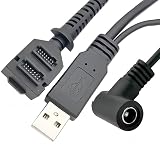
- Dual-Function Cable: Combines USB 2.0 data sync and 5.5x2.1mm DC power delivery in one cable, simultaneously charges your terminal while transferring transaction data.
- Precision Connectors: Features industrial-grade dual 14-pin 1.27mm pitch IDC header + USB Type-A Male + DC 5.5x2.1mm female jack, ensures secure connections for POS systems.
- Adapter Cable: Main 2-meter (6.5 ft) USB cable + 18cm (7-inch) power adapter provides flexible setup for countertop, kiosk, or wall-mounted VX805/VX820 terminals. For CBL 282-045-01-A replacement.
- POS-Specific Design: Engineered exclusively for Verifone VX805 and VX820 payment terminals - resolves "no power/no data" errors caused by worn cables during checkout operations.
- Technical Support and 1 year warranty. Made by Washinglee.
- On staging, temporarily deactivate plugins other than WooCommerce and the affected gateway.
- Switch to a default theme and run a test-mode payment.
- If the error is gone, reactivate plugins one at a time, testing after each, to identify the conflict. Restore the normal theme and configuration once the cause is known.
Avoid disabling production checkout components as a diagnostic shortcut; customers could be unable to pay or orders could be affected.
8. Escalate with useful evidence
Contact the provider or gateway extension’s support team if the dashboard and WooCommerce logs disagree, or the log shows a request without a completed response. Include the order ID, timestamp, exact error or response code, a relevant sanitized log excerpt, the gateway extension and version, and what happened in test mode. Remove card data, secret keys, and unredacted credentials before sharing anything.
If the evidence points to custom code or a complex extension conflict, WooCommerce suggests using a Woo Agency Partner or a WooCommerce developer for customization work. The right support contact depends on the evidence: the provider handles account and transaction issues, the extension vendor handles its integration, and the host can investigate server or certificate problems.
Why there is no single fix for every gateway
WooCommerce payment gateways use different credentials, API endpoints, notification arrangements, payment methods, and compatibility requirements. The steps above narrow down whether the issue is the transaction, gateway configuration, notification path, server environment, or a site conflict; the exact fix depends on the gateway and its specific error. A precise diagnosis requires the gateway name and sanitized error text or code.
Quick Recap
Product prices and availability are accurate as of the date/time indicated and are subject to change. Any price and availability information displayed on Amazon at the time of purchase will apply.

