
Free tools Windows power users keep installed
One-click scans. No signup required.
First check the exact Rematch model and whether it connects by USB or wirelessly: “Rematch” covers several controllers, and their pairing steps and console compatibility differ. For the documented wireless Nintendo Switch model, use Controllers > Change Grip/Order, then hold the controller’s sync button for three seconds. If a previously paired controller will not reconnect, press L and R on it from that same screen.
Identify your Rematch model before troubleshooting
Look at the product name or packaging and identify both the platform and connection type. A Switch wireless pairing procedure will not fix a wired Xbox/PC controller, and wired Switch models have different compatibility limits.
| Model | Connection and documented compatibility | Important distinction |
|---|---|---|
| Rematch wireless for Nintendo Switch | Wireless; listed for Switch, Switch Lite, Switch OLED, and Switch 2. Turtle Beach product listing | The listing says the C Button is unavailable on Switch 2. Use the wireless pairing steps below. Turtle Beach product listing |
| Rematch wired for original Switch | Wired; the support FAQ says it works with Switch and Switch OLED when used with the dock. Turtle Beach support FAQ | It cannot be used with Switch Lite, which has no dock, and is not compatible with Turtle Beach–PDP Control Hub. Turtle Beach support FAQ |
| Rematch wired for Switch 2 | Wired; the current listing names Switch 2, Switch, and Switch OLED. Its cable is listed as 10 feet (3 meters). Turtle Beach product listing | It does not need charging. Check the exact product name rather than applying compatibility details from the older wired-controller FAQ. Turtle Beach product listing |
| Rematch Core wired for Xbox/PC | Wired USB-C; listed for Xbox Series X|S, Xbox One, and Windows 10/11 PC. Its cable is listed as 8 feet. Turtle Beach product listing | This is a separate model; the Switch wireless pairing instructions do not apply. Turtle Beach product listing |
Pair or reconnect the wireless Switch Rematch
These steps apply to the Rematch wireless controller for Nintendo Switch, not to the wired models.
- Turn on the Nintendo Switch. Press any button on the Rematch to try automatic connection.
- If it does not connect, use the Joy-Con controllers to open Controllers > Change Grip/Order.
- Hold the Rematch sync button on the top edge, near the charging port, for three seconds. Wait for it to pair and for the player indicator to become solid.
- To reconnect a controller that has already been paired, leave the console on the Change Grip/Order screen and press L and R on the Rematch.
The quick-start guide also says you can hold Home to wake the controller and Switch. Turtle Beach Rematch Wireless Controller Quick Start Guide
PC Slower Than It Used to Be?
A free scan shows the junk files, broken settings and background clutter dragging Windows down - then fixes them in one click.Free scan · Windows 10 & 11Crashes, No Sound, or Screen Glitches?
Random freezes, missing sound and display glitches usually trace back to one bad driver. Find and replace yours safely.Free scan · under a minute#1 Best Overall

- The Design Shifts to Reveal a Second Visual as you Move your Controller
- 2-Stop True Hall Effect Hair Triggers for Faster Reaction Times
- Two Mappable Quick-Action Back Buttons for Customizable Gameplay
- Dual Rumble Motors and Impulse Triggers for Immersive Gameplay
- Controls For Game/Chat Mix, Master Volume, Plus a Mic Mute Function Button
Check the wireless controller’s battery and charging status
A low battery can look like a connection problem. On the wireless Switch model, the function-button LED blinks red every 30 seconds when the battery is low.
- Connect the controller to a USB port on a Nintendo Switch dock using the included USB-C cable.
- While charging, the LED pulses red; it turns white when the controller is fully charged.
- If the controller will be stored, the guide recommends charging it every three months to help prevent the battery from completely draining.
These indicator meanings and storage guidance are in the Turtle Beach quick-start guide. The wireless product listing says a charging cable is included, so an extra cable is not a required fix unless the included one is missing or damaged. Turtle Beach product listing
Rank #2
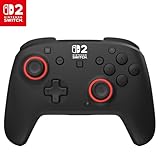
- TMR thumbsticks deliver smooth, accurate gameplay
- Up to 30-foot low latency wireless connection
- Rechargeable battery for up to 40-hours of play time per charge
- Dual mappable quick-action back buttons
- Textured thumbsticks and grips
If the controller keeps disconnecting
The published Rematch wireless guide documents pairing, reconnecting, waking, and charging. It does not provide a universal diagnostic procedure for repeated disconnections after those steps. Avoid trying an undocumented reset sequence or assuming a particular wireless cause.
- Confirm the controller’s exact model is compatible with the console and that you are using the correct connection method.
- For the wireless Switch model, charge it and check whether its LED behavior matches the guide.
- Try the documented reconnect procedure from Controllers > Change Grip/Order.
- If it still disconnects, contact Turtle Beach support. Provide the model name, console, wired or wireless connection type, and what the indicator lights do. The wired Switch FAQ and wireless quick-start guide are available at Turtle Beach support and the wireless guide.
Will a Rematch controller work with Switch 2?
Compatibility depends on which Rematch you have. Turtle Beach’s product listing names the wireless Nintendo Switch Rematch as compatible with Switch 2, with the C Button unavailable on that console. A separate wired Rematch listing also names Switch 2, Switch, and Switch OLED. Those listings describe different models; they do not make every controller called Rematch compatible. Check the complete product name and connection type before pairing or considering a replacement. Wireless model listing; Switch 2 wired model listing
Quick Recap
Best Value

- This controller also works with Nintendo Switch 2 - C Button not available
- Enjoy the playful and ghostly charm of the Boo-Hoo design
- Glows in the dark
- Two programmable quick-action back buttons for customizable gameplay
- Built-in motion controls for immersive gameplay
Rank #4

- This controller also works with Nintendo Switch 2.
- Harness the power of the Super Mario Star with this one-of-a-kind design
- Glows in the dark
- Two programmable quick-action back buttons for customizable gameplay
- Built-in motion controls for immersive gameplay
Rank #3

- Drift-free Hall-Effect thumbsticks
- Controls for Game/Chat Mix, Master Volume, Plus a Mic Mute Function Button
- Control Hub Companion App for Controller Configuration & Diagnosis
- Ergonomic Design for Extended Comfort
- Dual Rumble Motors and Impulse Triggers for Immersive Gameplay
Product prices and availability are accurate as of the date/time indicated and are subject to change. Any price and availability information displayed on Amazon at the time of purchase will apply.

