
If your Sonos Beam (Gen 2) has no TV sound, first check its setup and HDMI ARC/eARC connection; if it disappears from the Sonos app or all Sonos audio drops, check power and the network as well. Work through the reversible checks below before replacing a cable or contacting support.
First identify what is failing
Check whether the Beam is powered on and visible in the Sonos app, then try playing music or other non-TV audio through it. This separates a TV-audio problem from a broader connection problem.
- Only TV audio is missing or intermittent: Start with Beam setup, the TV’s ARC/eARC port, the HDMI cable, TV audio settings, and the audio source.
- All audio stops, or the Beam disappears from the app: Check power and network connectivity. If other Sonos products are also affected, suspect a system-wide connection issue rather than the TV signal path.
- The TV’s own speakers also cut out: Investigate the TV or source device independently; the Beam may not be the cause.
Sonos notes that a product can disappear from the app after losing power or its network connection. Its missing-product guidance recommends checking power, rebooting the product, and addressing possible wireless interference.
Restore sound from the TV
Confirm setup and the correct TV connection
The Beam must be set up in the Sonos app before it can play TV audio. Beam (Gen 2) is not compatible with the S1 Controller app. Connect the Beam’s HDMI cable to the TV port labeled ARC or eARC, not a standard HDMI input. The ARC/eARC connection carries audio from the TV to the soundbar.
The Tool Desk
Outbyte Driver Updater FREEScan for outdated or missing drivers - takes under a minuteDriver Scan →Outbyte PC Repair FREEClear out junk files and repair common Windows errorsFree Scan →#1 Best Overall

- Enrich your entertainment experience with vibrant bass, crystal clear dialogue, and a panoramic soundstage.
- Experience a 3D surround sound effect with Dolby Atmos.
- Stream music, radio, podcasts, and audiobooks from all your favorite services when the TV is off.
- Control with the Sonos app, your TV remote, Apple AirPlay 2, and your voice.
- Effortless setup with only two cables and smart Trueplay tuning.
Sonos’s Beam setup instructions cover the app-led setup and included cables. If your TV has no HDMI ARC port, Sonos says to use the included optical audio adapter with the TV’s digital optical output. Optical can carry TV audio, but it does not support CEC or TV voice control for Beam (Gen 2).
Restart and reseat the connection
- Unplug the TV and connected audio sources from power. Wait 10 seconds, reconnect them, and test TV audio again.
- Check the HDMI cable for kinks or visible damage. Make sure both ends are fully inserted into the Beam and the TV’s ARC/eARC port.
- If another HDMI cable is available, try it as a diagnostic. The Beam setup includes an HDMI cable, so consider buying a replacement only if the supplied one is damaged or a cable swap fixes the problem.
- Install any available TV software update using the television manufacturer’s instructions. TV menu names and update steps vary by model.
These steps follow Sonos’s troubleshooting for TV audio that stops or skips.
Rank #2

- Enrich your entertainment experience with vibrant bass, crystal clear dialogue, and a panoramic soundstage.
- Experience a 3D surround sound effect with Dolby Atmos.
- Stream music, radio, podcasts, and audiobooks from all your favorite services when the TV is off.
- Control with the Sonos app, your TV remote, Apple AirPlay 2, and your voice.
- Effortless setup with only two cables and smart Trueplay tuning.
Test the TV’s audio format
If sound cuts out or stops abruptly, change the TV’s digital audio output to Stereo or PCM temporarily, then test again. Sonos recommends this as a diagnostic check; it is not a universal preferred setting. If PCM works but another format does not, review the audio-format settings on the TV and source device, and consult the TV manufacturer’s manual.
Beam (Gen 2) supports Dolby Atmos through Dolby Digital Plus or Dolby TrueHD, but Atmos requires HDMI ARC/eARC. Sonos lists eARC as necessary for some higher-bandwidth formats, including Dolby TrueHD and multichannel PCM. The format the system actually outputs depends on the TV and source device; see Sonos’s supported home-theater audio formats.
What’s actually slowing this PC down?
Pick the symptom - the matching free tool is one click away.
Rank #3
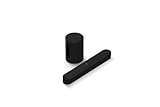
- Take your TV, music, and gaming to the next level with this compact smart soundbar and subwoofer.
- This set is ideal for smaller or medium-sized rooms and low to moderate volume levels.
- Use the Sonos app to easily set up your home theater system and sync with your existing TV remote.
- Sub Mini balances out the lowest frequencies so Beam sounds even better.
- When the TV is off, stream music and more over WiFi from hundreds of services using the Sonos app, your voice, and Apple AirPlay 2.
Find out whether the TV or Beam is responsible
Disconnect the Beam and test the TV’s built-in speakers with the same program or source. If those speakers also cut out, troubleshoot the TV or source device without the Beam connected. If the TV speakers remain stable, continue checking the Beam’s HDMI connection, audio format, and CEC behavior.
Fix HDMI/CEC errors and device conflicts
If the Sonos app displays an HDMI or CEC error, another device connected to the TV may be interfering with the connection. CEC lets HDMI-connected devices communicate for control functions, but a connected device can trigger an error.
Rank #4

- 【𝐈𝐦𝐩𝐚𝐜𝐭𝐟𝐮𝐥 𝐕𝐨𝐥𝐮𝐦𝐞 𝐁𝐨𝐨𝐬𝐭】: Elevate faint sounds to vibrant with automatic loudness boost. Experience immersive sound through 4 versatile placements—horizontal for distortion-free audio, vertical for room-filling sound, tabletop for vibrant clarity, or wall mount for 360° cinematic magic. Transforms your room into a personal theater.
- 【𝐄𝐩𝐢𝐜 𝐂𝐢𝐧𝐞𝐦𝐚 𝐀𝐮𝐝𝐢𝐨】: Powered by 4 high-performance drivers, 80W powerful sound output, it provide richer details, like soft whisper or subtle croon, whether deep thunder or sonorous roar, turn flat audioto vivid, adding weight to music, making the virtual game experience immersive.
- 【𝐓𝐚𝐢𝐥𝐨𝐫𝐞𝐝 𝐒𝐨𝐮𝐧𝐝】: Fine-tune your listening experience with 3 dynamic equalizer modes—movie, music, and news. Enjoy rich, cinematic audio, luxurious melodies, and crystal-clear dialogue, tailored to enhance every scene and soundtrack. Spreading the audio evenly throughout a room, ensures that everyone, regardless of seating position, experiences the full range of sound.
- 【𝐄𝐟𝐟𝐨𝐫𝐭𝐥𝐞𝐬𝐬 𝐔𝐬𝐞】: Enjoy seamless setup with cutting-edge Bluetooth 5.0 or reliable ARC, OPT, and AUX connections. In ARC mode, control your soundbar with ease using your TV remote, guided by our easy-to-follow instructions and video tutorials.
- 【𝐄𝐱𝐜𝐞𝐩𝐭𝐢𝐨𝐧𝐚𝐥 𝐒𝐮𝐩𝐩𝐨𝐫𝐭】: Your satisfaction is our top priority. Enjoy peace of mind with our 18-month warranty and 24/7 online tech support. Our 60-day hassle-free replacement policy, with top-tier assistance whenever you need it.
- Check that CEC is enabled on the TV. TV makers may use different names for this setting; consult the TV manual.
- Disconnect the other HDMI devices from the TV, leaving the Beam connected to ARC/eARC.
- Reconnect the devices one at a time and check whether the error returns.
- If a particular device triggers the error, disable CEC on that device if its settings allow it.
Sonos describes this isolation process in its HDMI ARC or CEC error guidance.
Independent reader supportYour contribution helps us test, update, and keep practical guides available for everyone.Stop the Beam from dropping off Wi-Fi or the app
Check power and network symptoms
If the Beam vanishes from the app, verify that its power cable is secure and restart the product. Then check whether the Sonos app shows network or signal information for the Beam. If several Sonos products disappear or lose audio together, prioritize the router and Wi-Fi path instead of repeatedly changing TV settings.
Quick wins for a faster PC:
Scan for outdated or missing drivers - takes under a minuteDriver Scan →Clear out junk files and repair common Windows errorsFree Scan →Fix the driver behind crashes, sound loss and screen glitchesFind Drivers →Best Value

- HEAR YOUR TV BETTER: Designed with simplicity in mind, the Bose TV Speaker is an all-in-one soundbar that clarifies speech and is a simple fix for better TV sound
- WIDE, NATURAL SOUND: 2 angled full-range drivers deliver a more realistic, spatial audio experience for overall better TV sound from a small soundbar
- ENHANCED DIALOGUE: This sound bar for smart tv is designed to specifically focus on clarifying and elevating vocals and pronunciation
- BLUETOOTH TV SPEAKER: Pair your device to this Bluetooth soundbar to wirelessly stream your favorite music and podcasts. Connect up to 3 devices through the inputs (HDMI, Optical in, and AUX in); the first powered on device will automatically connect
- SIMPLE SETUP: A single connection from this compact soundbar to the TV via an optical audio cable (included) or an HDMI cable (sold separately) has you up and running in minutes
Improve Wi-Fi placement and reduce interference
Move the Beam or router to improve coverage. Sonos recommends placing the router centrally and in the open, and reducing nearby sources of wireless interference. Routers, extenders, wireless cameras, cordless phones, hubs, and microwaves are among the electronics Sonos identifies as possible sources. When interference is suspected, Sonos recommends keeping Sonos products at least 18 inches (0.5 m) from other electronic devices; this is placement guidance, not a guaranteed fix.
Walls and surfaces can also affect wireless signal. Sonos rates metal as having very high interference potential and concrete or plaster as high. Its wireless interference guidance and Wi-Fi connection advice explain these factors and placement options.
Consider Ethernet only as a deliberate setup change
A wired connection may suit a room where Wi-Fi coverage is unreliable, provided the Beam can be connected to the router by Ethernet. Follow Sonos’s instructions for changing the system between wireless and wired setups rather than treating an Ethernet cable as a general fix for missing TV audio.
Do not turn off Wi-Fi casually: Sonos says Wi-Fi can be disabled only while the product is connected by Ethernet. If you then disconnect Ethernet, the product may disappear from the app. Review Sonos’s wired and wireless setup instructions and its Wi-Fi enable/disable guidance before changing the configuration.
When to contact Sonos
If the Beam still has no TV audio after setup, cable, TV-format, and CEC checks—or continues disappearing from the app after power and network troubleshooting—contact Sonos support through the Beam support page. Sonos says its technicians are available by phone or live chat. Have the exact symptom and any HDMI/CEC error message ready so support can direct you to the relevant troubleshooting path.
Quick Recap
Product prices and availability are accurate as of the date/time indicated and are subject to change. Any price and availability information displayed on Amazon at the time of purchase will apply.

