
Quick wins for a faster PC:
Scan for outdated or missing drivers - takes under a minuteDriver Scan →Clear out junk files and repair common Windows errorsFree Scan →Fix the driver behind crashes, sound loss and screen glitchesFind Drivers →“Computer ID” can mean several different things in Windows 11. For the everyday computer name, open Settings > System > About and read Device name; for a Windows product ID or a hardware ID, use the separate methods below.
Before sharing an identifier with a support agent or entering it in a form, check which field they mean: a device name, Windows product ID, computer hardware ID, and an individual device’s hardware ID are not interchangeable.
Find the computer or device name in Settings
- Right-click Start and select Settings.
- Choose System > About.
- Under Device specifications, read the value beside Device name. The device model appears just below it.
The device name is the readable name used to identify the computer on a network. It is often what people mean when they ask for a computer ID.
Find the Windows product ID
The Windows product ID is an operating-system identifier, not the computer’s device name. Open Command Prompt or PowerShell and run systeminfo. Review the output for Product ID.
#1 Best Overall
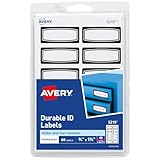
- Ideal for labeling tool boxes, garage and storage bins, sports equipment and similar items exposed to tough conditions
- Enjoy long-lasting organization with durable labels resist moisture, scuffing, tearing and smudging
- Made from water resistant and tear resistant material that stands up to frequent use
- Permanent adhesive sticks to a variety of surfaces, including paper, glass, plastic and metal
- Personalize labels by hand with permanent markers or print easily with laser or inkjet printers,create and design custom labels with Avery Design & Print Online
Find a hardware ID for a device
A device hardware ID identifies a particular hardware device, such as a network adapter, for Windows driver matching. To view one:
- Search for and open Device Manager.
- Locate the device and open its Properties.
- Choose the Details tab.
- In the Property list, select Hardware Ids or Compatible Ids.
What is a computer hardware ID (CHID)?
A computer hardware ID, or CHID, is a GUID that Windows generates from SMBIOS field data. It can be used for tasks such as driver targeting and deployment. It is not the same as the computer’s displayed device name or the Windows product ID, and most people looking up their computer name do not need a CHID.
Rank #2

- Only Avery Labels feature proprietary Sure Feed technology to deliver a more reliable feed through your printer, preventing misalignments and jams
- Labels are acid free and archival safe to prevent yellowing and deterioration over time
- Permanent adhesive labels are guaranteed to stick and stay
- Create customized labels with templates and designs on the Avery site and print with laser and inkjet printers
- Multiuse labels make versatile identification labels for containers, property, equipment, labels for classrooms, personal belongings and scrapbooks, personalize gifts and party favors with gift sticker labels, create pricing labels and packaging stickers
Find the Machine ID in a wireless network report
If the request specifically refers to the Machine ID in Microsoft’s wireless network report, generate the report from an elevated Command Prompt:
- Search for Command Prompt.
- Right-click it and select Run as administrator.
- Run
netsh wlan show wlanreport. - Open the generated report and review its general system information for Machine ID.
The report also includes other system details. Its Machine ID should not be treated as interchangeable with a device name or Windows product ID.
Outdated Drivers Are Slowing You Down
One free scan finds every outdated or missing driver and matches the right update for your exact hardware.Free scan · exact hardware matchWindows Errors? Fix Them Before They Spread
Repair common Windows errors and clear accumulated junk for a smoother, more stable PC - no reinstall needed.Free scan · no reinstallRank #3

- ✅【Get Organized】- Sick of unplugging the wrong cord? So were we. Avoid the frustration with the cable cord labels. Label computer cords, power strips, charging cables, and anything, without tape or twist ties.
- ✅【Easy To Write On】- What makes these cable labels different from other brands is that they don't bleed ink- you can write on the surface of cable tags with a marker, pen, or ink pen, clearly without any blur vision.
- ✅【No Sticky Residue】- Instead of using tape or other one-time solutions that leave a gunky lint magnet, these labels for cords and wires feature reusable hook and loop closure, which means clean and tidy wires.
- ✅【Reusable】- Our hook and loop type waterproof cable labels are uncluttered, reusable, waterproof, and easy to open and close. Forget your sticky cable tags that leave sticky, dirty residues.
- ✅【Multiple Uses】- These cable identifiers can be used to identify cables, wires, and more. They can also be used to store cables, organize cables, organize electrical systems, manage home theater cables, and more.
Which Windows identifier do you need?
| Identifier | Where to find it | What it identifies |
|---|---|---|
| Device name | Settings > System > About > Device specifications | The readable computer name used to identify the PC on a network. |
| Windows product ID | Run systeminfo in Command Prompt or PowerShell |
A Windows operating-system identifier. |
| Computer hardware ID (CHID) | Generated from SMBIOS field data | A computer identifier used in technical work such as driver targeting and deployment. |
| Device hardware ID | Device Manager > device Properties > Details | A specific hardware device identifier used for driver matching. |
| Machine ID in wireless report | Generate a report with netsh wlan show wlanreport |
A field in the wireless network report’s system information. |
FAQ
Where do I find my Windows 11 computer name?
Open Settings > System > About and look under Device specifications for Device name.
Is my computer ID the same as my Windows product ID?
Not necessarily. People often use “computer ID” to mean the device name, while the Windows product ID is a separate operating-system identifier shown by systeminfo.
Rank #4

- Specifically designed for pin feed printers and dot matrix printers
- Each label is 15/16" x 3-1/2" with 12 labels on each perforated continuous-form label sheet
- Ideal for large volume uses, print thousands of professional-looking rectangle labels without reloading or reprinting
- The permanent label adhesive is designed to keep the labels securely attached without lifting or curling
- Easily create barcode labels, office labels, mailing labels, and more with Avery Design & Print
How do I find a hardware ID in Windows?
Open Device Manager, open the relevant device’s Properties, select Details, then choose Hardware Ids or Compatible Ids from the Property list.
What is a computer hardware ID?
A CHID is a GUID generated by Windows from SMBIOS field data. It is mainly relevant to technical workflows such as driver targeting and deployment, rather than ordinary requests for a computer’s displayed name.
Recommended Free Tools
Best Value

- ✅【Get Organized】- Sick of unplugging the wrong cord? So were we. Avoid the frustration with the cable cord labels. Label computer cords, power strips, charging cables, and anything, without tape or twist ties.
- ✅【Easy To Write On】- What makes these cable labels different from other brands is that they don't bleed ink- you can write on the surface of cable tags with a marker, pen, or ink pen, clearly without any blur vision.
- ✅【No Sticky Residue】- Instead of using tape or other one-time solutions that leave a gunky lint magnet, these labels for cords and wires feature reusable hook and loop closure, which means clean and tidy wires.
- ✅【Reusable】- Our hook and loop type waterproof cable labels are uncluttered, reusable, waterproof, and easy to open and close. Forget your sticky cable tags that leave sticky, dirty residues.
- ✅【Multiple Uses】- These cable identifiers can be used to identify cables, wires, and more. They can also be used to store cables, organize cables, organize electrical systems, manage home theater cables, and more.
What should I do if someone asks for my “computer ID”?
Ask which field or workflow they mean before sharing a value. They may be asking for the device name, Windows product ID, a CHID, an individual device’s hardware ID, or a Machine ID from a diagnostic report.
Quick Recap
Product prices and availability are accurate as of the date/time indicated and are subject to change. Any price and availability information displayed on Amazon at the time of purchase will apply.

