
Crashes, No Sound, or Screen Glitches?
Random freezes, missing sound and display glitches usually trace back to one bad driver. Find and replace yours safely.Free scan · under a minuteWindows Errors? Fix Them Before They Spread
Repair common Windows errors and clear accumulated junk for a smoother, more stable PC - no reinstall needed.Free scan · no reinstallYou can create a folder while saving a Word document: open File > Save As, choose New Folder, name it, and save the document there. On Windows, you can also create the folder in File Explorer first, then select it in Word.
Create a folder from Word’s Save As screen
This is the quickest route when your document is already open and you know where you want its folder. Microsoft’s instructions cover Word on Windows; the exact controls can vary with your Word version and save location. Microsoft’s folder instructions
- In Word, select File > Save As.
- In the Save As pane or dialog, browse to the location where the folder should be created.
- Select New Folder.
- Enter a folder name and select OK.
- Choose the new folder, enter the document’s filename if prompted, and select Save.
If Save As is unavailable, Microsoft says turning the AutoSave switch off may make it available. The Save As interface can differ depending on your Word version, storage location, and account configuration.
Choose a folder name Word accepts
Microsoft’s folder guidance says you can’t use slashes, colons, semicolons, dashes, or periods in the folder name. If the name is rejected, remove those characters and try again. Microsoft Support
#1 Best Overall

- 3 ream case (1,500 sheets) of 8.5 x 11 white copier and printer paper for home or office use
- Multipurpose letter size copy paper works with laser/inkjet printers, copiers and fax machines
- Smooth 20lb weight paper for consistent ink and toner distribution; dries quickly and resists paper jams
- Bright white paper (92 GE; 104 Euro) offers great contrast for crisp printing and vivid color
- Virgin copy paper providing professional quality results; acid-free to prevent yellowing
Create the folder in File Explorer first
Use this route if you want to organize the destination before returning to Word, or if it is easier to locate the folder in Windows first. These steps apply to Windows 10 and Windows 11. Microsoft’s File Explorer guidance
- Open File Explorer. Press the Windows logo key + E to open it.
- Browse to the location where you want the folder.
- Select New > Folder.
- Type a name and press Enter.
- Return to Word and select File > Save As.
- Browse to the folder you created, enter a filename if needed, and select Save.
Save into a OneDrive folder
OneDrive is an optional cloud destination, not a requirement for creating a folder. Microsoft’s Word instructions list Word for Microsoft 365 and Word 2024, 2021, 2019, and 2016 for saving to OneDrive. Availability can depend on your account and, for work or school accounts, your organization’s settings. Microsoft’s Word OneDrive instructions
Rank #2

- HP Papers is sourced from renewable forest resources and has achieved production with 0% deforestation in North America. Each ream is wrapped in a polyurethane coated paper wrapper to protect the cut sheets from moisture damage
- Sheet size – 8.5 x 11; Thickness – 20 pounds; Brightness – 92 bright white
- HP Copy&Print20 20 pounds printer paper is Forest Stewardship Council (FSC) certified and contributes toward satisfying credit MR1 under LEED (Leadership in Energy and Environmental Design)
- All HP Papers provide premium performance on HP equipment, as well as on all other printer and copier equipment; 100% satisfaction guaranteed; ColorLok technology provides more vivid colors, bolder blacks and faster drying
- Superior quality, reliability, and dependability for high-volume printing at home, at school and in the office; HP Copy&Print20 print and copy paper prevents yellowing over time to ensure a long-lasting appearance for added archival quality
- In Word, select File > Save As or Save a Copy.
- Choose OneDrive and select or browse to the destination folder.
- Enter a descriptive filename and select Save.
You can also make the folder on the OneDrive home page: select Add new > Folder, enter a name, and select Create. To organize existing files, select them and drag them into the folder. Microsoft’s OneDrive folder instructions
Saving to OneDrive or SharePoint can support access across devices and features such as AutoSave and Version History, subject to account and organization setup. These cloud features are separate from creating a local folder. Microsoft’s OneDrive and SharePoint guidance
Rank #3
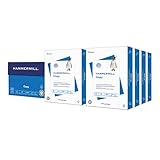
- HAMMERMILL’S BEST SELLING PRINTER PAPER: You will receive one carton of copy paper, which includes 8 individual reams of paper inside. Each ream of paper has 500 sheets of 20 pounds, 92 bright, 8.5" x 11" white copy paper
- 99.99% JAM-FREE PRINTER PAPER: Everyone hates paper jams. You can trust Hammermill paper quality to keep your printer running smoothly. Scroll down to view the product description for details
- COLORLOK TECHNOLOGY INCLUDED: Colors on Hammermill copy paper are 30% brighter; Blacks are up to 60% bolder and inks dry 3 times faster for less smearing. Acid-free Hammermill paper ensures long-lasting archival quality
- MADE IN USA: Hammermill copying and printing papers are 100% made in the USA, helping to support 2.4 million sustainable forestry jobs in America, including family tree farmers. Hammermill is more than just paper
Which method should you use?
| Method | Best when | Where you create the folder |
|---|---|---|
| Word’s Save As screen | Your document is open and you want to create its destination as you save. | In Word, using New Folder. |
| File Explorer first | You want to set up the folder before saving or prefer organizing in Windows. | In File Explorer, then browse to it from Word. |
| OneDrive | You want a cloud destination and your account provides access to it. | In Word’s save flow or on the OneDrive home page. |
The folder-creation steps above are for Windows. The cited instructions do not establish the same exact clicks for Word on Mac, the web, or mobile, where the interface may differ.
Quick Recap
Best Value

- 5 ream case (2,500 sheets) of 8.5 x 11 white copier and printer paper for home or office use
- Multipurpose letter size copy paper works with laser/inkjet printers, copiers and fax machines
- Smooth 20lb weight paper for consistent ink and toner distribution; dries quickly and resists paper jams
- Bright white paper (92 GE; 104 Euro) offers great contrast for crisp printing and vivid color
- Virgin copy paper providing professional quality results; acid-free to prevent yellowing
Rank #4

- Made in USA: HP Papers is sourced from renewable forest resources and has achieved production with 0% deforestation in North America.
- Optimized for HP technology: All HP Papers provide premium performance on HP equipment, as well as on all other printer and copier equipment.
- Perfect everyday office paper: Superior quality, reliability, and dependability for high-volume printing at home, at school and in the office. Perfect for everyday black and white printing.
- Certified sustainable: HP Office20 20lb printer paper is Forest Stewardship Council (FSC) certified and contributes toward satisfying credit MR1 under LEED (Leadership in Energy and Environmental Design).
- ColorLok technology printing paper: ColorLok technology provides more vivid colors, bolder blacks and faster drying.
Product prices and availability are accurate as of the date/time indicated and are subject to change. Any price and availability information displayed on Amazon at the time of purchase will apply.

