
Recommended Free Tools
iTechGuides is reader-supported. When you buy through links on our site, we may earn an affiliate commission. As an Amazon Associate I earn from qualifying purchases. Learn more
To clear System Data on iPhone, you cannot use a supported one-tap delete button. iOS manages much of this category automatically, so the safe approach is to remove large app data, downloads, attachments, and Safari website data, restart, and wait for storage to recalculate. A verified backup, erase, and restore is the last resort.
System Data is not a single cache folder that can be emptied. The category can contain necessary and temporary resources, including caches, logs, indexes, Siri voices, fonts, dictionaries, Keychain data, and CloudKit databases. The goal is to reclaim removable storage—not reduce System Data to zero.
Key takeaways
- There is no supported iPhone control that directly deletes the entire System Data or Other category.
- Apple recommends keeping at least 1 GB of free space to help avoid storage-related slowdowns.
- Offloading an app removes the app itself but keeps its documents and data, while deleting an app removes the app and related data.
- Clearing Safari website data affects Safari only and may sign you out of websites.
- Erase and restore can address persistent abnormal storage behavior, but the process is destructive and requires a verified backup.
How do you check System Data on an iPhone?
Open Settings > General > iPhone Storage, then wait for the storage bar, recommendations, and app list to finish loading. Apple’s iPhone storage guidance explains that this screen shows available space, recommendations, and approximate storage used by apps and other content.
Quick wins for a faster PC:
Scan for outdated or missing drivers - takes under a minuteDriver Scan →Repair Windows errors before they cause bigger problemsFix Now →Before deleting anything, note or screenshot the displayed System Data amount. The label and breakdown can vary by iOS version, iPhone model, and whether storage is being viewed on the iPhone or through a computer. Storage figures can also lag after a restore, update, synchronization, indexing, or a large deletion.
Popular on Amazon
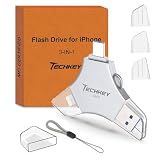
- MFi Certified Multi-function Flash Drive: This flash drive is MFi certified, high quality and excellent performance, allowing you to store your data more securely without worrying about data loss. Made of high quality metal material and advanced chip technology, it has excellent dustproof, drop-proof and anti-magnetic performance. The flash drive has a 256GB capacity, easily free up space on your device
- 256GB 3-in-1 Lightweight and Compact Memory Stick: The flash drive has USB/Lightning/Type C interfaces for USB/Usb C pcie port card compatible with iOS devices with iOS12.1 and above / OTG Android phones / PC with Win7 and above / MAC devices with MAC10.6 and above, convenient for data transfer between different devices. It is also lightweight and compact, easy to carry around and keep your data at your fingertips. Accompanied by a uniquely designed keychain, the product is more convenient for you to carry
- One Click Backup and One Click Sharing: You can easily backup photos, videos, and phonebook to your phone with just one click via the APP, freeing up space on your mobile device without using a data cable or iCloud. You can also share photos/videos/files from the flash drive directly to social media (Facebook, etc.) for easy sharing with family and friends. (Tips: iOS devices need to download the "U-Disk" APP when using flash drive; Android and PC devices do not need to download APP)
- Automatic Storage and On-the-Go Playback: All photos and videos captured by the in-app camera are automatically saved to U-Disk albums in real time and stored in a folder for easy editing and searching. Store your favorite movies and music on the flash drive, you can enjoy the stored movies or music anytime and anywhere when you are traveling or on a business trip
- High Speed Transfer and Data Encryption: This flash drive has high read/write speed, so you can enjoy the convenience of fast backup and save time. The flash drive uses stable APP software, you can choose to turn on Touch ID/Passcode to encrypt the whole flash drive, or you can choose to encrypt specific files to protect your data, so you can enjoy a more convenient and secure file storage experience
What is the difference between System and System Data?
System is the operating system itself. System Data, sometimes called Other on Apple’s documentation or older interfaces, is supporting information used by iOS and apps.
According to Apple’s storage-category explanation, System Data or Other can include logs, caches, the Spotlight index, Siri voices, fonts, dictionaries, Keychain data, and the CloudKit database. Some of those items are required for normal operation, while other temporary data can be removed or regenerated automatically.
Computer storage tools can show different categories from the iPhone itself. Apple notes that cached music, video, and photo files may be classified differently by Finder, Apple Devices, or iTunes than they are on the iPhone’s Storage screen.
What can you safely remove first?
Start with Apple’s recommendations on the iPhone Storage screen. Recommendations vary by device and iOS release, but they may identify unused apps, large files, downloads, or other content that can be removed without touching essential system files.
Look for the largest ordinary categories as well as System Data. Photos, Messages, Mail attachments, Files, downloaded media, and one unusually large app may be consuming the space that prompted the warning. Deleting those items can free total iPhone storage even if the named System Data category does not shrink by the same amount.
Apple says iOS can also remove items that can be downloaded again or are no longer needed during tasks such as installing an update. According to Apple, maintaining at least 1 GB of free space is recommended to help avoid slowdowns; see Apple’s free-space and storage recommendations.
How do you offload or delete a large app?
Go to Settings > General > iPhone Storage, tap an app, and choose Offload App or Delete App when the controls are available.
| Option | What it removes | What it keeps | When to use it |
|---|---|---|---|
| Offload App | The installed app | The app’s documents and data | When you want to recover the app’s installation space while preserving its stored data |
| Delete App | The app and related data | Only data stored elsewhere, such as a service account or synchronized backup | When the app is unusually large and its local data is confirmed safe to remove |
| In-app cleanup | Selected downloads, media, or cached content | The app and other content you do not select | When the app provides its own storage-management controls |
Offloading may produce only a modest gain if the app’s documents and data are the main source of its storage use. Deleting and reinstalling the app can remove locally stored cache, but deletion may also remove unsynchronized drafts, recordings, offline files, exported documents, two-factor authentication data, game saves, or other local information.
Before deleting an app, check its account, backup, export, and offline-download options. Confirm that important data is synchronized or copied elsewhere. An app account does not automatically guarantee that every local draft or downloaded file is recoverable.
Also popular on Amazon

- USB-C 2-in-1 storage OTG: The Lexar JumpDrive Dual Drive D40E features USB Type-A and Type-C connectors in a slim, portable form factor for easy device compatibility
- Transfer speeds up to 100MB/s: Based on internal testing, performance may vary depending upon the host device, interface, and usage conditions. 1MB=1,000,000 bytes
- Plug and Play: Widely compatible with USB Type-C smartphones, tablets, laptops, Macs, and traditional Type-A devices, no software installation required. The 360° swivel design allows for easy switching between connectors without the hassle of losing a cap
- Durable & Compact: The Lexar D40E USB memory stick features a metal enclosure, withstands temperatures from 0° to 50° C (32°F to 122°F), and is lightweight at 26g with dimensions of 70.4 x 16.9 x 11.7mm
- Security & Warranty: Securely protects files using an advanced security software solution with 256-bit AES encryption. Backed by a Lexar 3-year limited warranty
Should you turn on Offload Unused Apps?
To let iOS automatically remove unused apps while retaining their documents and data, open Settings > Apps > App Store and turn on Offload Unused Apps. The app icon remains available for redownloading.
Automatic offloading is useful when several rarely used apps occupy installation space. Automatic offloading will not necessarily solve a storage problem caused by documents, downloads, or other data retained by those apps. Apple documents this control in the iPhone User Guide’s storage instructions.
Free tools Windows power users keep installed
One-click scans. No signup required.
How do you reduce app caches and downloads?
iOS does not provide a universal “clear cache” button for every third-party app. Use the app’s own storage controls first, especially for apps that download video, music, podcasts, maps, documents, or social-media content.
- Open the app and look for settings named Storage, Downloads, Offline content, or similar.
- Remove downloaded media or documents that can be downloaded again.
- Return to Settings > General > iPhone Storage and check whether the app’s size has changed.
- If the app remains unusually large, confirm that its important local data is synchronized or exported.
- Only then consider deleting and reinstalling the app.
Reinstalling is not a guaranteed fix. Some apps keep important information locally, while others restore account data from their own servers or iCloud. The storage screen may also show app storage without exposing every cache component separately; Apple explains that cached and temporary data is not always counted in exactly the same way as user documents and data.
How do you clear Safari cache and website data?
For a broad Safari cleanup, open Settings > Apps > Safari > Clear History and Website Data, select the desired timeframe, and tap Clear History to confirm. Apple’s Safari clearing instructions state that this removes Safari history, cookies, and website data for the selected scope but does not remove AutoFill information.
Clearing Safari data can sign you out of websites and remove site preferences. Safari cleanup affects Safari only; it does not clear caches held by social, video, music, shopping, messaging, or other third-party apps.
What’s actually slowing this PC down?
Pick the symptom - the matching free tool is one click away.
Can you remove Safari website data without deleting browsing history?
Yes. Open Settings > Apps > Safari > Advanced > Website Data > Remove All Website Data, then tap Remove Now. This removes website data while preserving Safari history, but it can still remove cookies, site preferences, and active sign-in sessions.
If Clear History and Website Data is gray, Apple identifies two likely explanations: there may be no Safari data to clear, or Screen Time web-content restrictions may be preventing the action. Check Settings > Screen Time if the control remains unavailable.
Where else should you look for removable storage?
Inspect the largest categories and remove content from the app or service that created it. The following locations commonly contain recoverable downloads and attachments:
Also popular on Amazon

- Made For iPhone Certified. Compatible with iPhone 15 or newer (USB-C) and iPhone 14 or older models (Lightning)(2). When connected via USB-C, works with SANDISK Memory Zone app or Apple iOS Files app—automatic backup requires SANDISK app(3). Lightning connection requires the SANDISK app for copy and backup functions(3).
- SANDISK Memory Zone App Required. Download the app(3) from the App Store and update firmware if prompted to optimize your file management experience or jump to the iOS Files app from the home screen.
- Free Up Space. Seamlessly transfer files to your SanDisk Phone Drive, then easily delete them from your phone to reclaim valuable storage(3).
- Smarter Backups. Choose manual or automatic backup within the SANDISK Memory Zone app with real-time progress tracking, background multitasking, and partial backup support when storage is limited(3).
- Reliable Transfers. Move content between your USB-C or Lightning iPhone, iPad Pro, Mac, and other compatible devices(2).
| Location | What to inspect | Important caution |
|---|---|---|
| Files | On My iPhone, downloaded iCloud Drive files, and large documents | Removing a local download may leave the file in iCloud, while deleting a synchronized file may affect other devices |
| Safari | Downloaded files and website data | Website-data cleanup can remove logins and preferences |
| TV, Music, Podcasts, video, and map apps | Offline films, songs, episodes, videos, and maps | Offline content must be downloaded again later |
| Messages and Mail | Large photo, video, and document attachments | Confirm that an attachment is no longer needed before deleting it |
| Photos | Unwanted videos, duplicates, and recently deleted items | Photos generally appear under Photos rather than System Data |
Apple identifies Files content, Safari downloads, downloaded iCloud Drive content, app documents, Mail attachments, and Messages attachments as storage-consuming content in its storage category documentation.
Windows Errors? Fix Them Before They Spread
Repair common Windows errors and clear accumulated junk for a smoother, more stable PC - no reinstall needed.Free scan · no reinstallOutdated Drivers Are Slowing You Down
One free scan finds every outdated or missing driver and matches the right update for your exact hardware.Free scan · exact hardware matchAfter deleting content, check the app’s Recently Deleted, Trash, or similar folder. A file may continue using storage until that folder is emptied or synchronization completes. If an app offers both Remove Download and Delete Everywhere, choose carefully: Remove Download normally targets the local copy, while deleting synchronized content may affect other devices.
Does deleting photos reduce System Data?
Deleting photos and videos usually reduces the Photos category and total device usage, not necessarily the System Data category by the same amount. The distinction matters because freeing overall storage and shrinking the named System Data section are different outcomes.
If Photos, Messages, downloaded media, or an app is the largest category, address that category directly rather than repeatedly trying to reduce System Data. iOS may also regenerate temporary files, indexes, and caches after content is removed.
Should you restart the iPhone after cleanup?
Restarting may prompt iOS to release some temporary resources or recalculate the storage display, but restarting is not a guaranteed or permanent System Data purge.
Do these 3 things before closing this tab:
1Repair Windows errors before they cause bigger problems2Fix the driver behind crashes, sound loss and screen glitches3Clear out junk files and repair common Windows errors- Free some ordinary storage first if the iPhone is nearly full.
- Restart the iPhone normally.
- Open Settings > General > iPhone Storage again.
- Wait for the storage calculation to stabilize before judging the result.
Do not repeatedly force-close every app as a storage strategy. Force-closing apps does not provide a supported way to empty iPhone System Data, and repeatedly doing so adds effort without addressing large downloads, attachments, app documents, or indexing.
Storage may also change over several hours while the iPhone indexes content, synchronizes iCloud, rebuilds databases, or remains connected to power and Wi-Fi. A temporary increase after an update, migration, restore, streaming session, or synchronization does not automatically indicate a fault.
Independent reader supportYour contribution helps us test, update, and keep practical guides available for everyone.Does updating iOS clear System Data?
An iOS update may remove obsolete temporary files or change how storage is categorized, but an update is not a guaranteed System Data cleanup method. An update can also require free space and temporarily create installation files.
Install available iOS updates for security and compatibility, but do not update solely because a website promises a specific reduction in System Data. No responsible fixed number of gigabytes can be promised because storage use varies with the device, iOS version, apps, indexing state, and synchronization activity.
Also popular on Amazon

- Dual USB-A and USB-C connectors for wide compatibility with USB devices. Cable-free to provide everything you need within a compact design
- Up to 400MB/s read transfer, 360MB/s write speeds. Provide file transfers 4X faster than USB 3.0. The comparison is based on internal testing at a speed of 100 MB/s; actual performance may vary
- The free Lexar App Photo Backup function is available for both iOS and Android to give an easy way to back up and manage media. iCloud content backup is not supported yet
- A durable metal housing offers exceptional durability and protects the USB-A and USB-C connectors
- Available in capacities up to 1TB to carry your entire content library in your pocket
What should you avoid when clearing System Data?
- Do not look for a hidden system folder. iOS does not expose one universal, supported folder or command for manually purging the entire category.
- Do not trust generic cleaner claims. Third-party cleaner apps cannot be assumed to have access to protected iOS System Data without unusually strong, current, independently verifiable evidence.
- Do not jailbreak the iPhone for routine storage cleanup. Unsupported file-system tools introduce risks that are disproportionate to this problem.
- Do not delete apps blindly. Check drafts, recordings, offline content, authentication data, game saves, and unsynchronized files first.
- Do not erase the iPhone before verifying a backup. An incomplete, outdated, inaccessible, or password-protected backup with a forgotten password may not restore what you need.
- Do not expect System Data to reach zero. iOS needs system resources, and iOS and apps regenerate indexes, logs, caches, and databases.
When should you erase and restore the iPhone?
Consider erase and restore only when the iPhone remains nearly full, behaves incorrectly, or continues to report implausibly large System Data after normal cleanup, a restart, and time for recalculation.
Backup checklist before erasing
- Make a current iCloud backup or encrypted computer backup.
- Confirm that important photos, messages, files, passwords, and app data are included in the backup or synchronized elsewhere.
- Check locally stored recordings, drafts, documents, game saves, offline downloads, and two-factor authentication information separately.
- Make sure you can access the Apple Account and any app accounts needed after setup.
- Do not proceed if the backup is incomplete, outdated, inaccessible, or protected by a forgotten password.
How do you erase and restore an iPhone?
- Open Settings > General > Transfer or Reset iPhone.
- Tap Erase All Content and Settings.
- Follow the onscreen prompts and wait for the iPhone to return to the setup screen.
- Set up the iPhone as new or restore the verified backup through the available setup option.
Apple’s erase and restore documentation states that erasing removes all device data and returns the iPhone to the setup screen. Apple also documents restoring a backup through Finder, Apple Devices, or iTunes.
Erase and restore can resolve persistent abnormal storage reporting or accumulation, but it does not guarantee permanently small System Data. After restoration, iOS and apps rebuild indexes, caches, logs, downloads, and databases, so the category can grow again as the iPhone returns to normal use.
Frequently Asked Questions
Why is System Data so large on my iPhone?
System Data can be large because it includes caches, logs, search indexes, Siri and language resources, databases, app-related temporary files, and other supporting data. Recent streaming, browsing, an iOS update, a migration, a restore, or iCloud synchronization can temporarily increase the displayed amount, and the storage screen may not have finished recalculating.
Can I manually delete all System Data on an iPhone?
No. iPhone does not provide a supported one-tap control that directly empties the entire System Data category. You can reclaim some underlying storage by removing app data, downloads, attachments, and Safari website data, while iOS manages necessary and temporary system resources automatically.
Does restarting clear System Data?
Restarting may release some temporary resources or prompt iOS to recalculate storage, but it does not guarantee a complete or permanent System Data cleanup. Recheck Settings > General > iPhone Storage after the calculation has stabilized.
Does clearing Safari cache clear every iPhone cache?
No. Clearing Safari history or website data affects Safari only. Third-party apps such as social, video, music, shopping, and messaging apps manage their own downloads and cached data through in-app controls, offloading, or deletion and reinstallation.
Is erasing and restoring the iPhone guaranteed to keep System Data small?
No. Erasing and restoring can help with persistent abnormal storage behavior, but iOS and apps rebuild indexes, caches, logs, downloads, and databases after restoration. Erase the iPhone only after making and verifying a usable backup.
The Bottom Line
Bottom line: You cannot directly empty iPhone System Data with one supported button. Check Settings > General > iPhone Storage, remove the largest removable apps, downloads, attachments, and Safari website data, restart, and allow the storage display to settle. If the problem remains severe, verify a backup before using Erase All Content and Settings and restoring.

