
Free tools Windows power users keep installed
One-click scans. No signup required.
iTechGuides is reader-supported. When you buy through links on our site, we may earn an affiliate commission. As an Amazon Associate I earn from qualifying purchases. Learn more
To change NAT type on PS5, you cannot select a new type in the console’s settings; the PS5 reports the result created by your router, firewall, modem, or ISP. For most home networks, the practical target is NAT Type 2. Restart the network, remove double NAT, enable UPnP, or configure targeted port forwarding.
NAT Type 3 can cause failed matchmaking, restricted multiplayer, party-chat problems, and Remote Play failures, but NAT is only one part of your connection. Changing NAT will not automatically improve download speed, ping, Wi-Fi strength, DNS performance, or packet loss.
Key takeaways
- The PS5 has no NAT-type selector; the router, modem, firewall, and ISP determine whether the console reports Type 1, Type 2, or Type 3.
- NAT Type 2 is normally the preferred result for a PS5 behind a home router because it permits the connectivity most games and PlayStation services need without directly exposing the console.
- Restarting the modem and router, checking PSN status, using Ethernet, updating router firmware, and eliminating double NAT should come before manual port forwarding.
- Sony lists TCP ports 80, 443, and 3478–3480, plus UDP ports 3478–3479 and 49152–65535, for general PlayStation connectivity; individual games may need additional publisher-specified ports.
- Remote Play has an additional documented requirement for UDP port 8572, so Remote Play can fail even when ordinary multiplayer works.
- CGNAT, mobile broadband, hotel or apartment Wi-Fi, and ISP port filtering can prevent local router changes from producing Type 2.
Can you change NAT type directly on PS5?
No. You cannot directly change NAT type on PS5. The PS5 can test and report the NAT condition, but the console does not provide a Type 1, Type 2, or Type 3 switch. NAT is created by the network path between the PS5 and the internet, especially the router’s translation and firewall rules.
The Tool Desk
Outbyte PC Repair FREERepair Windows errors before they cause bigger problemsFix Now →Outbyte Driver Updater FREEFix the driver behind crashes, sound loss and screen glitchesFind Drivers →The safe objective for most home users is not to force Type 1. The practical objective is to make the home router handle the required connections so the PS5 reports Type 2. Sony’s connectivity guidance covers restarting the network, using a static IP when appropriate, updating router firmware, and asking the ISP about port filtering or port opening in cases where local changes are insufficient.
Popular on Amazon
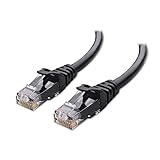
- High-Performance Connectivity: This Cat 6 ethernet cable is designed for superior performance, with a 24 AWG copper wire core. It provides universal connectivity as an ethernet cord for LAN network components such as PCs, servers, printers, routers, and more, ensuring reliable and fast network connections
- Advanced Cat6 Technology: Experience Cat6 performance with higher bandwidth at a Cat5e price. This network cable is future-proof, ready for 10-Gigabit Ethernet and backwards compatible with any existing Cat 5 cable network. It meets or exceeds Category 6 performance according to the TIA/EIA 568-C.2 standard
- Reliable Wired Network Solution: Known variously as a Cat6 network cable, ethernet cable Cat 6, or Cat 6 data/LAN cable, this RJ45 cable offers a more secure and reliable connection than wireless networks. It's ideal for internet connections that demand consistency and security
- Durable and Secure Design: The connectors of this ethernet cable feature gold-plated contacts and strain-relief boots for enhanced durability. Bare copper conductors not only improve cable performance but also comply with communication cable specifications
- High-Speed Data Transfer: With up to 550 MHz bandwidth, this ethernet cord is ideal for server applications, cloud computing, video surveillance, and streaming high-definition video. It also supports Power over Ethernet (PoE, PoE+, PoE++) for powering devices like IP cameras, VoIP phones, and wireless access points, ensuring fast and reliable network performance.
Use the following order: check the current result, perform the low-risk fixes, make sure only one device is routing, try UPnP, reserve the PS5’s local address, and then use specific port forwarding if necessary.
How do you check NAT Type on PS5?
You can check NAT Type on PS5 from the console’s connection test:
- Open Settings from the PS5 home screen.
- Select Network.
- Open Connection Status.
- Select Test Internet Connection.
- Wait for the test to finish and read the NAT Type result.
The same test reports whether the PS5 obtained an IP address, reached the internet, and connected to PlayStation services. The menu path and the conventional meaning of the three results are also described in PlayStation 5 connection troubleshooting documentation.
What is the difference between NAT Type 1, Type 2, and Type 3?
NAT types describe how directly the PS5 connects to the internet and how restrictive the network is when other systems try to establish connections.
| NAT type | Typical network arrangement | What it usually means | Practical recommendation | Security consideration |
|---|---|---|---|---|
| Type 1 | The PS5 is effectively connected directly to the internet, without the normal home-router NAT layer. | Inbound connectivity is generally the least restricted. | Not required for most home PS5 users. | It bypasses the normal protective role of a router and is not automatically safer or better. |
| Type 2 | The PS5 is behind one home router using NAT. | The console can generally communicate successfully with PlayStation services and other players. | Preferred practical target for most home networks. | Retains the router’s normal firewall and NAT role while allowing required traffic. |
| Type 3 | The PS5 is behind a restrictive router, multiple NAT devices, ISP-level NAT, or a filtered public network. | Some matchmaking, multiplayer, party-chat, or Remote Play connections may fail or behave inconsistently. | Investigate the router and ISP path. | More restrictive, but the restriction may be outside your control. |
Type 3 does not mean that every online game will fail, and Type 2 does not guarantee that every game or service will work. Individual games can impose their own networking requirements. NAT also does not measure download speed, upload speed, latency, Wi-Fi signal strength, DNS performance, packet loss, or PlayStation Network availability. Activision’s explanation of NAT and port forwarding provides useful platform-level context for that distinction.
What should you try before changing router settings?
Start with reversible checks. A temporary network fault or wireless problem can look like a NAT failure, and port forwarding will not fix a PlayStation Network outage.
1. Check PlayStation Network status
Check the official PlayStation Network status page before changing router settings. If a service is unavailable or under maintenance, wait for the service to recover; port forwarding cannot repair an outage.
Outdated Drivers Are Slowing You Down
One free scan finds every outdated or missing driver and matches the right update for your exact hardware.Free scan · exact hardware matchWindows Errors? Fix Them Before They Spread
Repair common Windows errors and clear accumulated junk for a smoother, more stable PC - no reinstall needed.Free scan · no reinstall2. Restart the complete network
- Turn off the PS5.
- Unplug the modem and router.
- Wait approximately five minutes.
- Reconnect the modem and router.
- Wait until the internet connection is restored.
- Turn on the PS5 and repeat Settings > Network > Connection Status > Test Internet Connection.
Sony specifically recommends restarting the modem and router and waiting before reconnecting. The Sony PS5 network-error guidance also covers wired connections, firmware, static-IP configuration, and ISP port filtering.
3. Test with Ethernet
Connect the PS5 directly to the router with an Ethernet cable and rerun the test. Ethernet does not inherently change NAT policy, but it removes wireless interference, weak signal, and some Wi-Fi configuration problems from the diagnosis. Sony recommends a wired connection where possible in its PlayStation internet-connection guidance.
Also popular on Amazon

- Cat 6 performance at a Cat5e price but with higher bandwidth
- High Performance Cat6, 30 AWG, RJ45 Ethernet Patch Cable provides universal connectivity for LAN network components such as PCs,computer servers,printers,routers,switch boxes,network media players,NAS,VoIP phones
- Jadaol cat6 standard cable support Cat8 and Cat7 network and provides performance of up to 250 MHz 10Gbps and is suitable for 10BASE-T, 100BASE-TX (Fast Ethernet), 1000BASE-T/1000BASE-TX (Gigabit Ethernet) and 10GBASE-T (10-Gigabit Ethernet)
- UTP(Unshielded Twisted Pair) patch cable with RJ45 gold-plated Connectors and are made of 100% bare copper wire, ensure minimal noise and interference
- The unique flat cable shape allows for a cleaner and safer installation. You can easily and seamlessly make the cable run along walls, follow edges & corners or even make it completely invisible by sliding it under a carpet.
4. Update the router firmware
Install the latest firmware available for the router or ISP gateway. Firmware menus vary by manufacturer, so use the instructions for the exact model rather than applying a generic menu path. An update can resolve router compatibility and connection-handling problems, but it does not guarantee a new NAT result.
How do you enable UPnP for PS5?
UPnP, or Universal Plug and Play, lets compatible applications and consoles request temporary port mappings from the router. Enabling UPnP is usually the simplest router-level fix to try before manually entering rules.
What’s actually slowing this PC down?
Pick the symptom - the matching free tool is one click away.
- Find the router’s administration address, which may be printed on the router or shown in its management app.
- Sign in to the router’s administrator interface.
- Look under Advanced, Network, NAT, Firewall, or a similar section.
- Find UPnP and enable it.
- Save or apply the setting.
- Restart the router and PS5 if the router requires it.
- Run the PS5 internet test again.
Menu names differ, and some ISP-managed gateways hide or restrict UPnP. UPnP is convenient, but it is not an unconditional security recommendation: devices on the local network can request port mappings. Users who want stricter control may prefer manual forwarding or may leave UPnP disabled. Bungie’s UPnP, port-forwarding, and NAT troubleshooting guide explains the trade-off and the relationship between these methods.
Use UPnP or manual forwarding as a deliberate approach rather than repeatedly changing both while troubleshooting. If UPnP does not help, inspect its mapping table if the router provides one, then move to a reserved IP and specific forwarding rules.
How do you give the PS5 a stable local IP?
A stable local IP does not change NAT by itself. A stable address ensures that port-forwarding rules continue pointing to the PS5 instead of becoming invalid after DHCP assigns the console a different address.
Preferred method: create a DHCP reservation on the router.
- Open the router’s connected-device or client list.
- Identify the PS5 and record its current local IPv4 address and MAC address.
- Create a DHCP reservation for that PS5.
- Save the reservation.
- Restart the PS5 or reconnect its network.
- Confirm that the PS5 still has the reserved address.
A DHCP reservation is generally easier to recover than manually guessing an address, gateway, or DNS value. If the router cannot reserve an address, the PS5 also provides manual network options at Settings > Network > Settings > Set Up Internet Connection > select the connection > Advanced Settings. Sony identifies IP address, DHCP host name, DNS, MTU, and proxy as advanced options in its PS5 internet setup instructions.
Change only the IP configuration needed for a stable forwarding target. Do not alter DNS, MTU, DHCP host name, and proxy settings indiscriminately.
Which ports should you forward for PlayStation connectivity?
Sony lists the following general ports for PS5 connectivity. These ports should be forwarded from the router to the PS5’s reserved local IPv4 address when manual forwarding is necessary.
Also popular on Amazon

- 40 Gbps 2000 Mhz High Speed: The Cat 8 ethernet cable support max. 40 Gbps data transfer and 2000 MHz Brandwith, ideal for gaming and streaming, greatly improving upload and download speed, sound, image and resolution quality
- Excellent Anti-interference: The ethernet cable comes with 4 shielded foiled twisted pairs (F/FTP), pure copper core and gold-plated RJ45 connector, reducing interference, noise and crosstalk, making network speed faster and more stable
- Marvelous Durability: Internet cable wrapped with quality cotton braided cord, which makes the LAN cable stronger and more durable. The test proves that this internet cable can be bent at least 10000 times without broken, very suitable for long-term use
- PoE Supported: All lengths of ethernet cord can support the PoE power supply function except 65ft. You don't need additional power supply when installing a PoE camera, which is very convenient and safe
- Wide Compatibility: With the RJ45 Connector, network cable can be perfectly compatible with computers, laptops, modems, routers, PS5, X-Box and other networking devices. It can also be fully backward compatible with Cat7, Cat6e, Cat6, Cat5e, Cat5
| Protocol | Ports | Use in a manual forwarding rule |
|---|---|---|
| TCP | 80 | Forward TCP port 80 to the PS5. |
| TCP | 443 | Forward TCP port 443 to the PS5. |
| TCP | 3478–3480 | Forward the TCP range 3478 through 3480 to the PS5. |
| UDP | 3478–3479 | Forward the UDP range 3478 through 3479 to the PS5. |
| UDP | 49152–65535 | Forward the UDP range 49152 through 65535 to the PS5. |
These are Sony’s general PlayStation connectivity ports, not a universal list for every game. Sony publishes the port information in its PS5 connection-error guidance and a related PS5 network troubleshooting article. A specific game may require additional ports from its own publisher, so do not copy an unverified list from a generic gaming page.
Do these 3 things before closing this tab:
1Fix the driver behind crashes, sound loss and screen glitches2Repair Windows errors before they cause bigger problems3Scan for outdated or missing drivers - takes under a minuteHow do you configure PS5 port forwarding?
Port forwarding creates router rules that send selected inbound traffic to the PS5. Port forwarding can improve a Type 3 result or resolve a particular connection problem, but port forwarding does not guarantee Type 1 or even guarantee Type 2 if the ISP uses CGNAT or filtering.
- Reserve a local IPv4 address for the PS5.
- Sign in to the router that actually performs NAT for the internet connection.
- Open Port Forwarding, Virtual Server, NAT Rules, or a similarly named section.
- Create rules for the Sony-listed ports and point each rule to the PS5’s reserved IPv4 address.
- Select TCP, UDP, or both exactly as required by each rule.
- Save or apply the configuration.
- Restart the router and PS5 if required.
- Run Settings > Network > Connection Status > Test Internet Connection.
- Test the multiplayer mode, party-chat feature, or Remote Play function that originally failed.
Router interfaces differ substantially. If the port-forwarding page is missing, the ISP gateway may be locked down, the router may be in access-point mode, or another upstream device may be performing NAT. Sony advises contacting the ISP for help with router settings and port opening when necessary.
Change one group of settings at a time and keep a record of the original values. If a rule has no effect, remove incorrect rules rather than adding a large collection of unverified ports.
Why does double NAT cause Type 3?
Double NAT occurs when two devices in sequence both act as routers. Common examples include an ISP modem/router connected to a separate Wi-Fi router, a mesh system behind an ISP gateway that still routes, or a travel router connected behind another router.
| Network layout | Likely problem | Preferred correction |
|---|---|---|
| ISP gateway in router mode → separate Wi-Fi router in router mode | Two NAT layers can block or misdirect mappings. | Put the ISP gateway in bridge/modem mode if supported, or use the second router as an access point. |
| ISP gateway → mesh system in router mode | The mesh and gateway both manage routing. | Use bridge mode on the gateway or access-point mode on the mesh, according to the equipment’s documentation. |
| Router → travel router or hotspot router | The downstream device may be unable to receive inbound traffic from the upstream network. | Remove the extra router or use a different connection. |
| PS5 on a guest network or isolated VLAN | Client isolation or firewall policies can block peer and local-network traffic. | Use the normal trusted network or ask the network administrator to review the policy. |
Use only one device as the router whenever possible. Forwarding ports on the downstream router will not solve a restriction imposed by the upstream router. Sony’s guidance for a related PS5 network error specifically identifies removing multiple NAT routers as a troubleshooting step; see the Sony double-NAT troubleshooting page.
Could your ISP be causing NAT Type 3?
Yes. A home router cannot create an inbound mapping through an ISP network that does not give the connection usable public IPv4 access or that filters the required traffic.
CGNAT
Carrier-grade NAT, or CGNAT, places multiple customers behind shared public IPv4 addressing. With CGNAT, the customer’s router does not control the upstream public address, so ordinary port forwarding may have no effect.
Ask the ISP:
- Does this connection use CGNAT?
- Can the ISP provide a public IPv4 address?
- Is a static or non-CGNAT IPv4 option available?
- Does the ISP filter or block inbound ports?
- Can the ISP enable the required port opening?
Possible alternatives include using IPv6 when the relevant game and service support it, changing the connection type, or choosing an ISP that permits the required inbound connectivity. Do not assume every Type 3 result is CGNAT; local firewall rules, double NAT, mobile-carrier restrictions, and port filtering can produce similar symptoms.
Recommended Free Tools
Also popular on Amazon
- High-Performance Connectivity: This Cat 6 ethernet cable is designed for superior performance, with a 24 AWG copper wire core. It provides universal connectivity as an ethernet cord for LAN network components such as PCs, servers, printers, routers, and more, ensuring reliable and fast network connections
- Advanced Cat6 Technology: Experience Cat6 performance with higher bandwidth at a Cat5e price. This network cable is future-proof, ready for 10-Gigabit Ethernet and backwards compatible with any existing Cat 5 cable network. It meets or exceeds Category 6 performance according to the TIA/EIA 568-C.2 standard
- Reliable Wired Network Solution: Known variously as a Cat6 network cable, ethernet cable Cat 6, or Cat 6 data/LAN cable, this RJ45 cable offers a more secure and reliable connection than wireless networks. It's ideal for internet connections that demand consistency and security
- Durable and Secure Design: The connectors of this ethernet cable feature gold-plated contacts and strain-relief boots for enhanced durability. Bare copper conductors not only improve cable performance but also comply with communication cable specifications
- High-Speed Data Transfer: With up to 550 MHz bandwidth, this ethernet cord is ideal for server applications, cloud computing, video surveillance, and streaming high-definition video. It also supports Power over Ethernet (PoE, PoE+, PoE++) for powering devices like IP cameras, VoIP phones, and wireless access points, ensuring fast and reliable network performance.
Mobile, hotel, dormitory, and apartment networks
Mobile hotspots, some 5G home-internet services, hotels, dormitories, and apartment-managed Wi-Fi may use CGNAT, captive portals, client isolation, or blocked inbound traffic. The reader may not control the upstream router in these environments.
Ask the provider or network administrator whether inbound connections are supported, try a different connection, and do not attempt to expose the PS5 through an inaccessible upstream network. A VPN is not a guaranteed solution: a VPN can add latency, introduce another restrictive NAT layer, and may not support inbound mappings.
Does PS5 support IPv6-only networking?
PS5 consoles support IPv6 connections but do not support an IPv6-only router configuration. If the router is configured as IPv6-only, change it to use IPv4 or contact the router manufacturer or ISP. Enabling IPv6 does not automatically make IPv4 port forwarding irrelevant; actual behavior depends on the ISP, router, PlayStation services, and individual game.
See Sony’s internet connection requirements and setup guidance before changing the router’s IP mode.
Should you put the PS5 in the router’s DMZ?
DMZ-host mode should not be the default NAT fix. A router DMZ-host setting sends unsolicited inbound traffic to the selected device. That approach is broader than forwarding only the documented ports and can increase exposure if misconfigured.
Use this escalation order instead:
- Try UPnP if you accept its local-network trade-off.
- Create a DHCP reservation for the PS5.
- Forward only the relevant Sony or game-publisher ports.
- Investigate double NAT, CGNAT, and ISP port filtering.
- Use the router’s DMZ-host feature only as a carefully qualified diagnostic or last resort, preferably with router-vendor or ISP guidance.
Never place the PS5 in a DMZ while its local IP address can change, and do not confuse a consumer router’s DMZ-host feature with a properly isolated enterprise firewall DMZ.
Do DNS, MTU, or proxy settings change NAT?
No. DNS, MTU, and proxy settings are separate network variables and are not direct NAT controls.
| Setting | What it affects | Use when troubleshooting NAT |
|---|---|---|
| DNS | Name resolution. | Change it only for a documented name-resolution problem; DNS does not normally open inbound game traffic. |
| MTU | Packet-size and fragmentation behavior. | Adjust it only for a specific fragmentation or connection issue; MTU does not normally convert Type 3 to Type 2. |
| Proxy | Whether traffic uses a proxy server. | Leave it off unless the network specifically requires a proxy. |
Sony mentions DNS as a temporary troubleshooting measure in some connection-error articles, but DNS should not be presented as the primary NAT solution. Changing random DNS servers, MTU values, and proxy settings can create new problems while leaving the router’s NAT policy unchanged.
What should you do when NAT Type 3 remains?
Use the symptom that best matches your network and reverse any setting that was applied incorrectly.
Also popular on Amazon

- High Performance Cat6 Cable - The Cat6 ethernet cables 100ft supports frequencies of up to 500 MHz and high-speed 10GB internet connection for LAN network applications such as PCs,computer servers,printers,routers,switch boxes,network media players,NAS,VoIP phones and more, while remaining fully backward compatible with your existing network.
- Outdoor&Indoor Ethernet Cable - The cat 6 ethernet patch cable features 8 solid copper conductors 24 AWG. Each of the 4 unshielded twisted pairs (UTP) are separated by a PE cross insulation to isolates pairs and prevent crosstalk and covered by a 5.8mm PVC jacket with RJ45 connectors and gold-plated contacts. The molded strain relief boots help avoid snags that will damage your cables. They are molded for flexibility and resist common wear and tear.
- Lan Cable with RJ45 - UTP(Unshielded Twisted Pair) patch cable with RJ45 gold-plated Connectors, this cat6 cable support Cat8 and Cat7 network and provides performance of up to 500 MHz 10Gbps and is suitable for 10BASE-T, 100BASE-TX (Fast Ethernet), 1000BASE-T/1000BASE-TX (Gigabit Ethernet) and 10GBASE-T (10-Gigabit Ethernet)
- High Quality Control - are designed with extremely well-matched components for outstanding uniform impedance and very low return loss, providing lower crosstalk, and a higher signal-to-noise ratio. Each Cat 6 internet cable 6 ft goes through rigorous testing to ensure a secure wired internet connection with exceptional speed and reliability.
- Support – Cat6 Ethernet cable with CM grade PVC jacket complies with TIA/EIA 568-C.2, is ETL verified and RoHS compliant. If an item is defective or breaks within a year, we will issue a replacement. For questions or concerns please contact our friendly, USA-based customer Support team.
| Symptom | Most likely checks | Next action |
|---|---|---|
| Type 3 remains after a restart | Router firmware, UPnP status, double NAT, ISP filtering, and CGNAT. | Inspect the router path and contact the ISP if the upstream connection is restricted. |
| Two routers are present | ISP gateway and personal router may both be routing. | Use bridge/modem mode, access-point mode, or remove the unnecessary router. |
| Port forwarding changes nothing | Wrong local IP, wrong forwarding device, incorrect TCP/UDP choice, guest-network isolation, or CGNAT. | Confirm the PS5 reservation and identify which device has the public WAN address. |
| Only one game fails | The game may require publisher-specific ports or may have its own service outage. | Check the individual game publisher’s support documentation and service status. |
| Remote Play alone fails | UDP 8572, Remote Play settings, Rest Mode availability, the remote network, and home-ISP CGNAT. | Check the Remote Play-specific requirements rather than adding unrelated DNS or MTU changes. |
| Several PS5 consoles share the network | Multiple consoles may need the same external ports. | Use router-specific guidance; do not assume one fixed port-forwarding rule will work cleanly for every console. |
When troubleshooting, change one variable at a time and rerun the PS5 connection test. If a change does not help, restore the previous setting before trying the next method. This makes it easier to identify the actual cause and avoids leaving unnecessary firewall or forwarding rules in place.
What port does Remote Play use on PS5?
Remote Play uses UDP port 8572, and NAT Type 3 may prevent Remote Play from connecting. If the NAT type cannot be obtained, the network environment may not support Remote Play.
Remote Play therefore deserves a separate check even when ordinary online gaming works. Verify that Remote Play is enabled on the PS5, the console’s Rest Mode settings allow Remote Play connections, the home router can handle UDP 8572, and the remote device’s network is not restrictive. Sony documents the Remote Play requirement in its Remote Play connection troubleshooting and additional Remote Play port-forwarding guidance.
Quick wins for a faster PC:
Repair Windows errors before they cause bigger problemsFix Now →Fix the driver behind crashes, sound loss and screen glitchesFind Drivers →Clear out junk files and repair common Windows errorsFree Scan →UDP 8572 is separate from Sony’s general PlayStation ports. Forwarding the general ports does not necessarily address a Remote Play-specific failure.
What is the safest typical PS5 NAT configuration?
For most home users, the sensible final configuration is one updated router performing NAT, Ethernet where practical, a stable PS5 local IP, and either UPnP or carefully selected port forwarding. The desired test result is Type 2, not an exposed Type 1 connection.
- Use one routing device whenever possible.
- Keep router firmware current.
- Use Ethernet while diagnosing wireless issues.
- Reserve the PS5’s local IPv4 address before creating forwarding rules.
- Try UPnP if its local-device mapping behavior is acceptable.
- If UPnP does not resolve the issue, use Sony’s documented ports and any verified game-specific ports.
- Do not use DMZ-host mode as the first fix.
- Do not expect DNS or MTU changes to control NAT.
- Ask the ISP about CGNAT and port filtering when local router changes have no effect.
- Retest the specific game, chat function, or Remote Play feature that failed—not just the NAT label.
Frequently Asked Questions
Is NAT Type 2 better than NAT Type 1 on PS5?
NAT Type 2 is normally the preferred practical result for a PS5 on a home network because the console remains behind a router while generally communicating successfully with PlayStation services and other players. NAT Type 1 may be less restrictive, but it effectively bypasses the router’s normal protective role and is not required for most users.
Will changing DNS change NAT Type 3 to Type 2 on PS5?
Changing DNS normally will not change NAT Type 3 to Type 2 because DNS controls name resolution, not the router’s NAT mappings or inbound firewall rules. Investigate UPnP, port forwarding, double NAT, CGNAT, and ISP filtering instead.
Recommended Free Tools
Can port forwarding guarantee NAT Type 2 on PS5?
Port forwarding can improve connectivity or produce Type 2, but it cannot guarantee Type 2 when the rule targets the wrong router or IP address, the network has double NAT, or the ISP uses CGNAT or port filtering. Port forwarding also does not guarantee NAT Type 1.
Why does Remote Play fail when PS5 multiplayer works?
Remote Play can fail separately because Remote Play uses UDP port 8572 and has additional console, Rest Mode, home-network, and remote-network requirements. Check UDP 8572, Remote Play settings, and possible CGNAT even if ordinary multiplayer works.
The Bottom Line
You cannot select a NAT type on the PS5 itself. Work toward Type 2 by checking PSN status, restarting the network, using one router, enabling UPnP or configuring targeted forwarding to a reserved PS5 IP, and then investigating CGNAT or ISP filtering if Type 3 remains. Avoid forcing Type 1 or placing the console in a DMZ unless you understand the security and networking consequences.

