
Quick wins for a faster PC:
Fix the driver behind crashes, sound loss and screen glitchesFind Drivers →Repair Windows errors before they cause bigger problemsFix Now →Scan for outdated or missing drivers - takes under a minuteDriver Scan →To let Facebook Messenger use your camera or microphone, allow each permission in your device settings. If you use Messenger in a browser, also allow the Messenger website in the browser’s site settings; operating-system permission alone is not enough.
The steps vary by device, and camera and microphone permissions are separate. Enable both for video calls; microphone access alone supports audio but does not enable video.
Before changing permissions
Try the feature that is failing first. For example, start a call, tap the camera icon, or hold the button to record a voice message. The operating system may then display a permission request.
Choose Allow when prompted. If you previously selected Block or Don’t allow, use the instructions for your device below.
What’s actually slowing this PC down?
Pick the symptom - the matching free tool is one click away.
#1 Best Overall

- Digital Stereo Sound: Fine-tuned drivers provide enhanced digital audio for music, calls, meetings and more
- Rotating Noise Canceling Mic: Minimizes unwanted background noise for clear conversations; the rotating boom arm can be tucked out of the way when you’re not using it
- Handy In-line Controls: Simple in-line controls on the headset cable let you adjust the volume or mute calls without disruption
- Plug-and-Play USB Computer Headset: Simply plug the USB-A connector into your computer and you’re ready to talk or listen without the need to install software
- Padded Comfort: Comfortable headphones with adjustable headband features swivel-mounted, leatherette ear cushions for hours of comfort and is easy to clean
| Where you use Messenger | Camera setting | Microphone setting |
|---|---|---|
| iPhone or iPad | Settings > Privacy & Security > Camera | Settings > Privacy & Security > Microphone |
| Android | Settings > Apps > Messenger > Permissions | Settings > Apps > Messenger > Permissions |
| Windows 11 | Settings > Privacy & security > Camera | Settings > Privacy & security > Microphone |
| macOS | System Settings > Privacy & Security > Camera | System Settings > Privacy & Security > Microphone |
| Messenger in a browser | Browser site permissions | Browser site permissions |
Allow Messenger to use the camera and microphone on iPhone or iPad
Turn on camera access
- Open Settings.
- Tap Privacy & Security.
- Tap Camera.
- Turn on the switch next to Messenger.
Turn on microphone access
- Open Settings.
- Go to Privacy & Security > Microphone.
- Turn on the switch next to Messenger.
Camera and microphone permissions are independent. Turn on both if you want to make video calls. Microphone permission alone is enough for voice messages and audio calls, but it cannot provide video.
Messenger is not listed in Settings
Apple lists apps under Camera or Microphone after they have requested the relevant permission. If Messenger is missing:
- Open Messenger.
- Attempt to take a photo, record a voice message, or start a video call.
- Allow the permission request that appears.
- Return to Settings > Privacy & Security and check the Camera or Microphone list again.
iPhone shows a green indicator when an app is using the camera. An orange indicator means an app is using the microphone without the camera.
Allow Messenger permissions on Android
- Open Settings.
- Tap Apps.
- Tap Messenger. If it is not shown, tap See all apps first.
- Tap Permissions.
- Tap Camera, choose Allow or an available allowed option such as Allow only while using the app, and return to the permissions list.
- Tap Microphone and choose Allow or an available allowed option.
Depending on the phone and Android version, choices can include Allow only while using the app, Ask every time, and Don’t allow. Menu names and available choices vary by device. All the time is a location permission, not a normal camera or microphone choice.
Check Android’s system-wide camera and microphone switches
Android can disable camera or microphone access for every app. Messenger’s individual permission may say Allow while the system-wide switch remains off.
- Open Settings.
- Tap Security & privacy or Security & Privacy.
- Tap Privacy.
- Tap Privacy controls.
- Turn on Camera access and Microphone access.
On Android 12 and later, you can also swipe down twice to open Quick Settings and check the Camera and Microphone tiles. If either tile is disabled, tap Edit or Add and place the tile in Quick Settings if necessary, then turn it on.
Android 12 and later display a green indicator in the top-right corner when an app is using the camera or microphone. Tap it to identify the app or service and manage permissions.
Rank #2

- Digital Stereo Sound: Fine-tuned drivers provide enhanced digital audio for calls, meetings, music, and more
- Rotating Noise-Canceling Mic: Minimizes unwanted background noise for clear conversations; the rotating boom arm can be tucked out of the way when not in use
- Handy Inline Controls: Simple inline controls on the headset cable let you adjust the volume or mute calls without disruption
- USB-C Plug-and-Play: Simply plug the USB-C cable into your computer, including MacBook Neo laptops, and you're ready to talk or listen without installing software.
- Padded Comfort: Comfortable USB C headphones with adjustable headband feature swivel-mounted, leatherette ear cushions for hours of comfort
Allow Messenger to use the camera and microphone in Windows 11
Enable camera access
- Open Start > Settings.
- Select Privacy & security.
- Under App permissions, select Camera.
- Turn on Camera access.
- Turn on Let apps access your camera.
- If Messenger appears in the Microsoft Store app list, turn on its individual switch too.
Enable microphone access
- Open Start > Settings > Privacy & security.
- Select Microphone.
- Turn on Microphone access.
- Turn on Let apps access your microphone.
- If Messenger appears in the Microsoft Store app list, turn on its individual switch.
If Messenger does not appear in the Windows app list
Windows may be treating your Messenger installation as a desktop app. Desktop apps cannot be individually enabled in the Microsoft Store app list. Instead, enable:
Free tools Windows power users keep installed
One-click scans. No signup required.
- Let desktop apps access your camera
- Let desktop apps access your microphone
This also applies when you use Messenger through a browser. Windows classifies browsers such as Microsoft Edge as desktop apps for these privacy controls. Windows displays a camera notification or activates the camera light when the camera is in use. A microphone icon appears in the taskbar notification area when an app is using the microphone.
Allow Messenger to use the camera and microphone on a Mac
Enable camera access
- Open the Apple menu and choose System Settings.
- Select Privacy & Security.
- Choose Camera.
- Turn on access for Messenger or for the browser you use to open Messenger.
Enable microphone access
- Open Apple menu > System Settings > Privacy & Security.
- Select Microphone.
- Turn on access for Messenger or your browser.
Quit and reopen Messenger or the browser after changing the permission. macOS may not apply the change to an already-running app until it is restarted.
Choose the correct microphone
If Messenger has permission but other people cannot hear you, check which input device macOS is using:
- Open Apple menu > System Settings.
- Click Sound.
- Under Input, select the intended microphone.
- Raise the input volume if the input meter does not respond when you speak.
Check Screen Time restrictions
Screen Time can block camera use even when Messenger is enabled in Privacy & Security.
Windows Errors? Fix Them Before They Spread
Repair common Windows errors and clear accumulated junk for a smoother, more stable PC - no reinstall needed.Free scan · no reinstallOutdated Drivers Are Slowing You Down
One free scan finds every outdated or missing driver and matches the right update for your exact hardware.Free scan · exact hardware match- Open Apple menu > System Settings.
- Go to Screen Time > Content & Privacy.
- Open App Restrictions or Apps, depending on the macOS version.
- Make sure Camera is selected and Messenger is not blocked by an App Limit.
macOS shows a recording indicator in Control Center when the microphone is being used or was used recently.
Allow camera and microphone access for Messenger in a browser
There are two permission layers when you use Messenger on the web:
Rank #3

- Wireframe headset fits securely for active speakers and vocal performers
- Permanently charged electret condenser cartridge delivers detailed, crisp vocals
- Unidirectional cardioid polar pattern rejects unwanted noise for improved sound quality and higher gain-before-feedback
- Flexible gooseneck design and discrete adjustment capabilities optimize microphone positioning for further source isolation
- TA4F (TQG) connector seamlessly integrates with Shure wireless body packs
- The operating system must allow the browser to use the camera and microphone.
- The browser must allow the Messenger website to use them.
Allowing the browser in Windows or macOS does not automatically authorize the Messenger site.
Google Chrome
When Chrome asks for access, choose an Allow option such as Allow while visiting the site or Allow this time. Do not choose Never allow if you want to make calls.
To change a saved setting:
- Open Chrome’s More menu, shown as ⋮.
- Go to Settings > Privacy and security > Site settings.
- Open Camera and select the Messenger site, or repeat the process under Microphone.
- If Messenger is under Not allowed to use your camera or microphone, change it to Allow.
To make Chrome ask again, remove the saved denial from the same site-permission list by selecting Delete beside the Messenger site.
Chrome can also use a camera or microphone different from the operating system’s default. Select the intended device from the dropdown under the Camera or Microphone site settings.
If Chrome is managed by an employer or school, an administrator may prevent you from changing these permissions.
Microsoft Edge
In Edge, allow the Messenger site to use the camera and microphone. When Edge first requests access, choose Allow. To change a saved setting:
Recommended Free Tools
- Open Settings and more (…) and select Settings.
- Go to Privacy, search, and services > Site Permissions > All sites.
- Select the Messenger site.
- Set Camera and Microphone to Allow.
Also make sure Windows allows desktop apps, including browsers, to access the camera and microphone.
Rank #4
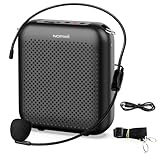
- Effective for Teaching - With a 10-watt output power,the portable voice amplifier with wired headset microphone make your voice louder and travel further, helping students listen more clearly and attentively. Its lightweight and portable design makes it a favorite among teachers, fitness instructors, tour guides, promotion events
- Loud and Clear Sound - 3-inch speakers plus a booster circuit makes the voice amplifier crystal clear sound with good sound quality, effectively saving the teacher's throat. Designed for educators, trusted by professionals. Teacher must haves
- Teach Without Ear-Piercing Feedback - The Voice Amplifier utilizes advanced frequency shifting technology to supress feedback effectively. To ensure optimal performance, maintain a distance of 20 cm between the microphone and the amplifier to avoid any feedback issues
- Week-Long Battery- 2000 mAh battery supports 12-15 hours continuous teaching, 4000 mAh battery supports 25-30 hours continuous teaching. Full-day outdoor events without recharge anxiety. USB-C rechargeable
- Simple and Practical, Teacher-Centric Design - Only 2 steps: 1.Turn on the amplifier; 2.Plug the microphone into the MIC port of the amplifier. Now, it's ready. Unlike buttons, the analog dial offers finer volume increments. Ultra-lightweight with clip-on belt strap – teach hands-free
Mozilla Firefox
When Firefox asks for permission, select Allow. Tick Remember this decision if you do not want Firefox to ask on every visit.
To allow the Messenger website manually:
- Open Firefox’s menu and select Settings.
- Select Privacy & Security.
- Under Permissions, click Settings… beside Camera.
- Select the Messenger site, set its permission to Allow, and click Save Changes.
- Repeat the process beside Microphone.
If Firefox does not show a prompt, click the permissions icon on the left side of the address bar and click the X beside the existing permission status. Visit Messenger again and Firefox should ask for access.
As an alternative, press Ctrl + I on Windows or Linux, or Command + I on macOS. Open Permissions, clear Use Default for Use the camera or Use the microphone, select Allow, and close the dialog.
Do these 3 things before closing this tab:
1Fix the driver behind crashes, sound loss and screen glitches2Repair Windows errors before they cause bigger problems3Scan for outdated or missing drivers - takes under a minuteWhat to check when permission is allowed but Messenger still cannot use the camera
- Enable both permissions. Video calls require camera and microphone access; enabling only one is not enough.
- Check the system-wide switch. Android’s Camera access and Microphone access controls can override Messenger’s individual setting.
- Check the browser site setting. The browser may still have Messenger listed as Block or Never allow.
- Choose the correct device. A USB webcam, headset microphone, built-in microphone, or virtual device may be selected instead of the device you expect.
- Close competing apps. Another call, recording, or camera application may be using the device.
- Restart the app. Quit and reopen Messenger or the browser after changing permissions. On macOS, restarting is particularly important after a privacy change.
- Check restrictions. Screen Time, a managed browser, or an employer/school policy can prevent access even when the normal switch appears enabled.
Messenger does not provide one universal in-app switch that overrides these controls. The operating system controls app access, and a browser also applies its own permission for the Messenger website.
Note: These Windows instructions use Windows 11. Microsoft ended support for Windows 10 on October 14, 2025, so Windows 10 no longer receives free Windows Update software updates, technical assistance, or security fixes.
Independent reader supportYour contribution helps us test, update, and keep practical guides available for everyone.FAQ
Why does Messenger need microphone permission?
Messenger uses microphone access for voice messages, video recording with sound, and voice or video calls.
Why does Messenger need camera permission?
Messenger uses camera access to take photos and videos inside Messenger and to provide video during calls. Camera permission is separate from microphone permission.
Best Value

- 2.4G Wireless MIC Headset System Set: Only for Mic Jack, not Aux Jack, otherwise it doesn't work.Built-in high sensitivity 360° omnidirectional professionalmicrophone, empty area transmission to 160 Feet (50m) Plug and Play / Stable Frequency / High Sensitivity / Stable Signal / Low Delay / Low Radiation / Anti-howling /No Interference.It is a portable Karaoke equipment.Excludes Amp&Not applicable for Phone PC and Laptop. No Bluetooth capability.
- Cordless Microphone Plug and Play: Please turn on the power switch of the transmitter and receiver, and the red light will flash for about 2 seconds. After successful matching, the red light stops and stays on, indicating that it is connected. It can be used directly after plugging into the device.
- Widely compatible with multiple scenarios: Receiver plug 3.5mm 1/8'' & 6.35mm 1/4'' microphone, which is very suitable for tour guides/fitness coaches/yoga teachers/classroom teachers/singing/conferences/speech/online podcasts/outdoor live broadcasts/yoga coaches/dance coaches/promotions/games/loudspeakers/voice amplifiers/PA systems/etc.
- Dual-head USB rechargeable microphone: The transmitter and receiver have built-in 400 mAh rechargeable lithium-ion batteries. The dual-head USB charging function can charge the transmitter and receiver at the same time. It only takes 1-2 hours to fully charge. It uses the latest low-power chip. The microphone can be used for about 8-10 hours after it is fully charged.
- Head MIC and Handheld Mic: The headset microphone is detachable and portable, and easy to install. Take off the headset and it becomes a handheld microphone, which gives you another way to use the microphone.Wireless Head MIC and Handheld Mic 2 in 1.
Why is Messenger missing from the iPhone Camera or Microphone settings?
Apple lists apps after they have requested the relevant permission. Open Messenger and attempt to take a photo, record audio, or start a video call, then check Settings > Privacy & Security again.
Why is Messenger allowed to use the microphone but video still does not work?
Microphone permission does not enable the camera. Turn on Camera permission separately in your device settings and, on Android, make sure the system-wide Camera access switch is enabled.
Why does Android show that Messenger has permission, but the microphone still does not work?
Check Settings > Security & privacy > Privacy > Privacy controls and turn on Microphone access. Also check the Microphone tile in Android 12 or later Quick Settings.
Why does Messenger not appear in the Windows app permission list?
Windows may classify Messenger or the browser as a desktop app. Enable Let desktop apps access your camera and Let desktop apps access your microphone instead of looking for an individual app switch.
Why did allowing the browser not fix Messenger calls?
Browser access and website access are separate. Enable camera and microphone access for the browser in Windows or macOS, then allow the Messenger site in Chrome, Firefox, or Edge.
How do I make Chrome ask for Messenger’s camera permission again?
Open Chrome > More > Settings > Privacy and security > Site settings, open Camera or Microphone, find the Messenger site under the blocked list, and select Delete. Visit Messenger again and respond to the new prompt.
The Bottom Line
Enable Camera and Microphone separately at the operating-system level. If you use Messenger in a browser, also allow the Messenger website itself. When the switches are already enabled, check Android’s global privacy tiles, Windows desktop-app access, macOS Screen Time, browser site permissions, and the selected camera or microphone device.
Quick Recap
Product prices and availability are accurate as of the date/time indicated and are subject to change. Any price and availability information displayed on Amazon at the time of purchase will apply.

