
The Tool Desk
Outbyte Driver Updater FREEFix the driver behind crashes, sound loss and screen glitchesFind Drivers →Outbyte PC Repair FREERepair Windows errors before they cause bigger problemsFix Now →Change what your Chromebook trackpad does in Settings > Device > Touchpad or Touchpad and mouse. There you can set tap-to-click, tap-and-drag, pointer speed, touchpad acceleration, and scroll direction. The exact labels and available controls can vary by Chromebook and ChromeOS version.
Open the Chromebook trackpad settings
- Select the time in the bottom-right corner of the screen.
- Select Settings.
- Under Device, select Touchpad or Touchpad and mouse.
- Choose the setting you want to change.
These controls are built into ChromeOS; you do not need to install another app. Google’s Chromebook touchpad instructions describe the settings and gestures.
Choose how clicks and dragging work
Turn tap-to-click on or off
Use Tap to click to choose whether a light tap should register as a click. With it off, press the lower half of the trackpad to click.
Enable tap-and-drag
Turn on Tap and drag if you want to move items by tapping and then dragging on the trackpad.
#1 Best Overall

- Brand New Laptop Touchpad Trackpad Mousepad with Cable Replacement for HP Chromebook 14 14A G5 TPN-Q204 L14356-001
- Only Fits for HP Chromebook 14 14A G5 , NOT Fit for Other Models
- Attention: It is Only a Replacement Part, NOT a Complete Laptop
- Please Install it under Professional Guide, if Not, Please Do Not Try. Better Ask Some Laptop Repairing Tech to Do It for You if You Have No Idea of How to Repair
- 180 Days Warranty, Tested One by One,100% Working before Packing and Shipping
Adjust pointer movement and scrolling
Change pointer speed or acceleration
Move the Touchpad speed slider to make the pointer move faster or slower. The touchpad acceleration control lets you turn acceleration on or off.
Choose the scrolling direction
Change the reverse-scrolling option to set how a two-finger swipe moves the page. With Reverse off, swiping up moves the page up; with Reverse on, swiping up moves the page down.
Rank #2
- Brand New Laptop Touchpad Trackpad Mouse Pad with Cable Replacement Part for HP Chromebook 14 G6 TPN-Q231 L90435-001
- Only Fits for Chromebook 14 G6 14 G6 Touch , NOT Fit for Chromebook 14 G5 or Other Models
- Attention: It is Only a Replacement Part, NOT a Complete Laptop
- Please Install it under Professional Guide, if Not, Please Do Not Try
- 180 Days Warranty,No Man-Made Scratch or Damage when Returning or Exchanging
Set scroll acceleration
For the Controlled scrolling option, open Settings > Device > Mouse and look under Mouse scrolling. Turn it on or off there; Google notes that scroll speed can be controlled when this option is on.
Quick Recap
Best Value
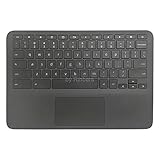
- New Original Laptop Black Palmrest Upper Case with US Keyboard and Touchpad Assembly Replacement for HP Chromebook 11 G8 EE L90339-001 L90338-001
- Each One Will Be 100% Tested and Working before Packing and Shipping
- Please Double Check Our Listing Title in Case of Wrong Item Being Ordered
- Please Install it Very Professionally, if Not, Please Do Not Try
- 180 Days Warranty,No Man-Made Scratch or Damage when Returning or Exchanging
Rank #4

- Note:In order to purchase the correct product,Please carefully check your laptop model or product part number before purchasing.
- If you have disassembled pictures, please send them to us for verification.
Rank #3

- New Laptop Touchpad Trackpad Mousepad with Flex Cable Replacement for Lenovo 100e Chromebook Gen 4 MTK 82W0 82W1 300e Yoga Chromebook Gen 4 82W2 82W3 (NOT for 100e Gen 4 Intel Version 83G8 83G9)
- Only Fits for Lenovo Chromebook 100e Gen 4 MTK Version and 300e Yoga Chromebook Gen 4, NOT Fits for Chromebook 100e Gen 4 Intel Version or Other Models
- Attention: It is Only a Replacement Part, NOT a Complete Laptop
- Please Install it under Professional Guide, if Not, Please Do Not Try
- 180 Days Warranty,No Man-Made Scratch or Damage When Returning or Exchanging
Use the built-in trackpad gestures
- Press or tap the lower half of the trackpad to click.
- Use two fingers to right-click or scroll.
- Swipe left or right with two fingers to move between browser pages.
- Swipe up with three fingers to see open windows.
- Swipe with four fingers to switch virtual desks.
Product prices and availability are accurate as of the date/time indicated and are subject to change. Any price and availability information displayed on Amazon at the time of purchase will apply.
Recommended Free Tools

